
Quick Answer: To fix Shift At Midnight low FPS and high GPU usage, first ensure your frame rate is capped to match your monitor's refresh rate. Reduce demanding graphics settings like shadows and anti-aliasing, update your GPU drivers, and close all unnecessary background applications and overlays. For persistent issues, consider using a game optimization tool like LagoFast Game Booster to stabilize your connection and improve overall performance.

- ✅ Reduce Lag and High Ping.
✅ Boost FPS at the Same Time.
✅ Support 8000+ Popular Online Games.
✅ Change Server without Latency.
✅ Boost Game Loading Speed.
Part 1: Why Does Shift At Midnight Use So Much GPU?
Part 2: How to Fix Shift At Midnight High GPU Usage
Part 3: How to Fix Shift At Midnight Low FPS and Stuttering
Part 4: Best PC Settings for Shift At Midnight
Part 5: Shift At Midnight System Requirements
Part 6: What to Do If Shift At Midnight Still Has Low FPS
Part 7: How to Enhance Your Game Experience with LagoFast Game Booster
Part 8: Frequently Asked Questions
Part 1: Why Does Shift At Midnight Use So Much GPU?
Many players diving into Shift At Midnight are encountering a perplexing performance paradox: their GPU is running at near 100% utilization, yet their frame rates are either surprisingly low (30-70 FPS) or excessively high (200+ FPS), leading to unnecessary heat and power consumption. Understanding the root cause is crucial, as high GPU usage doesn't always signal the same problem. It's vital to first identify whether you're dealing with a scenario where your GPU is working hard but underperforming (low FPS), or if it's simply running uncapped, pushing frames far beyond what your monitor can display.
Shift At Midnight May Be Running at an Uncapped Frame Rate
One of the most common reasons for high GPU usage, especially when paired with very high FPS (e.g., 200+ FPS on a 144Hz monitor), is an uncapped frame rate. When the game isn't limited to your monitor's refresh rate, your GPU will render as many frames as possible, leading to maximum utilization, increased heat, and higher power draw, often without any visual benefit.
High Resolution Can Significantly Increase GPU Load
Playing Shift At Midnight at resolutions like 1440p or 4K, especially on a lower-end or mid-range GPU, will naturally push your graphics card to its limits. Higher resolutions demand more processing power to render each frame, directly impacting GPU usage and potentially lowering FPS if the card can't keep up.
Maximum Graphics Settings May Be Too Demanding
Even if your GPU meets the recommended specifications, running Shift At Midnight with all graphics settings cranked to maximum can be incredibly demanding. Features like complex shadows, high-fidelity textures, advanced anti-aliasing, and detailed reflections can significantly increase the GPU workload, leading to high utilization and a drop in frame rates.
VSync or the In-Game FPS Limit May Not Be Working
Sometimes, even if you've enabled VSync or set an in-game FPS limit, the game or your graphics driver might not be correctly applying these settings. This can result in the GPU rendering frames without restriction, causing the issues described above.
Graphics Drivers, Overlays, or Background Programs May Cause Conflicts
Outdated or corrupted graphics drivers can lead to inefficient GPU utilization. Similarly, overlays from applications like Steam, Discord, or GeForce Experience, as well as other GPU-intensive background programs, can consume valuable GPU resources, contributing to high usage and reduced in-game performance.
The Demo and Full Version May Perform Differently
It's important to note that performance characteristics can change between a game's demo and its full release. Optimization passes, new features, or engine updates in the full version of Shift At Midnight might introduce different performance behaviors compared to what players experienced in the demo.
Part 2: How to Fix Shift At Midnight High GPU Usage
Addressing high GPU usage primarily involves managing your frame rate and graphics settings. Here's a systematic approach:
Fix 1 – Set an FPS Limit
This is often the most effective solution for unnecessarily high GPU usage. Capping your FPS prevents your GPU from rendering frames beyond what your monitor can display, reducing its workload and heat. Aim to cap your FPS slightly below or at your monitor's refresh rate (e.g., 141 FPS for a 144Hz monitor).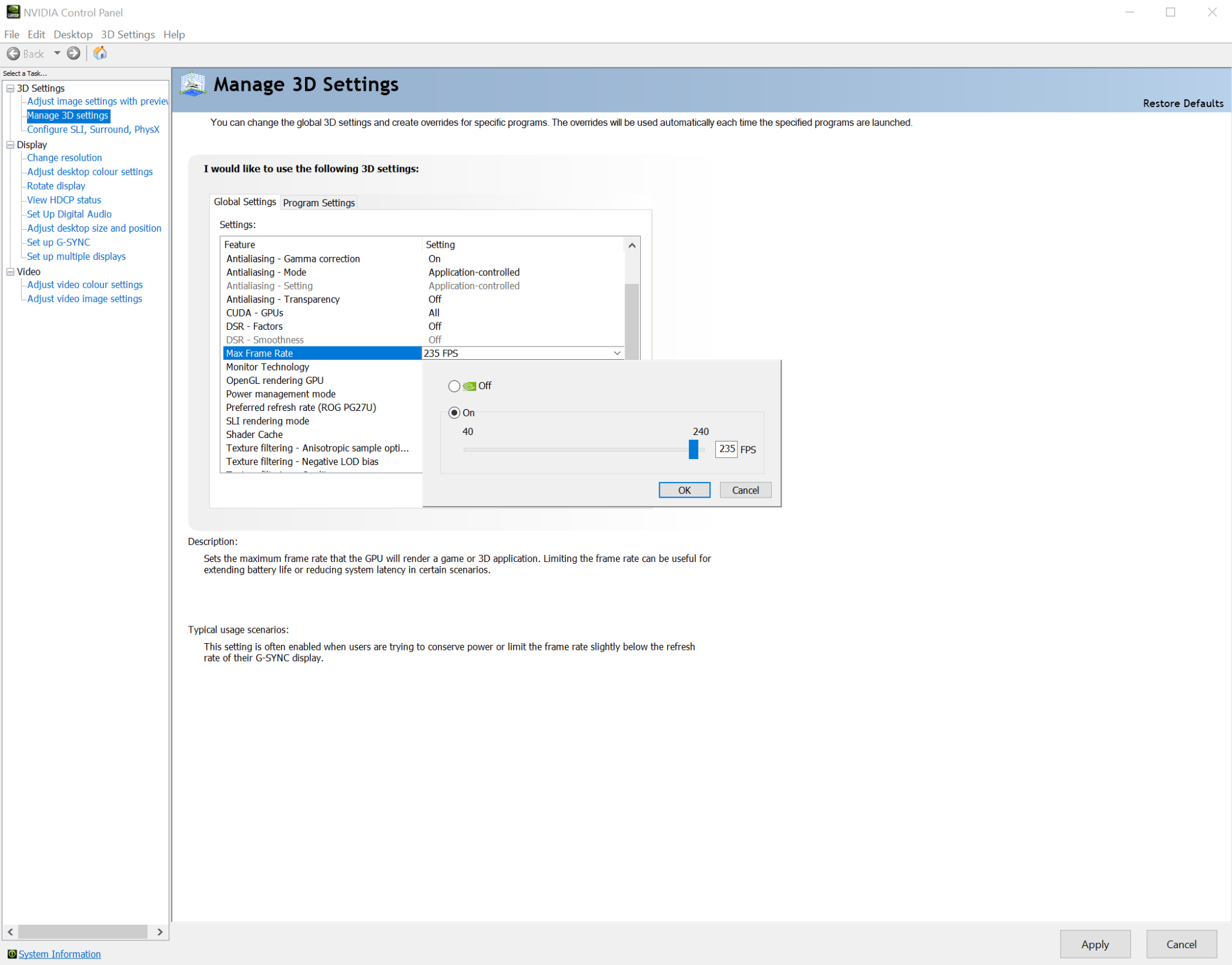
How to Cap Shift At Midnight FPS With NVIDIA Control Panel
- Right-click on your desktop and select NVIDIA Control Panel.
- Navigate to Manage 3D settings > Program Settings.
- Find Shift At Midnight in the program list. If it's not there, click Add and browse for the game's executable.
- Scroll down to Max Frame Rate and set your desired FPS limit.
- Click Apply.
How to Cap Shift At Midnight FPS With AMD Software
- Right-click on your desktop and select AMD Software: Adrenalin Edition.
- Go to the Gaming tab and select Shift At Midnight.
- Under Graphics, enable Radeon Chill and set your desired minimum and maximum FPS. Alternatively, use Radeon Anti-Lag for input latency reduction.
- Ensure Radeon Boost is disabled if you're aiming for stable FPS.
Fix 2 – Enable VSync
Vertical Sync (VSync) synchronizes the game's frame rate with your monitor's refresh rate, preventing screen tearing and implicitly capping your FPS. While it can introduce input lag for some players, it's a simple way to manage GPU usage if you're not sensitive to latency.
Fix 3 – Lower the Game Resolution
If you're playing at 1440p or 4K and experiencing high GPU usage with low FPS, try lowering the game's resolution to 1080p. This significantly reduces the pixel count your GPU needs to render, easing its load.
Fix 4 – Change Graphics Settings From Maximum to High or Medium
Review Shift At Midnight's in-game graphics settings. Experiment with reducing demanding options such as:
- Shadow Quality: Often one of the most GPU-intensive settings.
- Anti-Aliasing: Can be very demanding at higher levels.
- Texture Quality: While less GPU-intensive than shadows, very high textures can consume significant VRAM.
- Global Illumination/Reflections: These advanced lighting effects can heavily tax your GPU.
Start by lowering settings from 'Ultra' or 'Maximum' to 'High' or 'Medium' and observe the impact on both GPU usage and FPS.
Fix 5 – Update or Roll Back the GPU Driver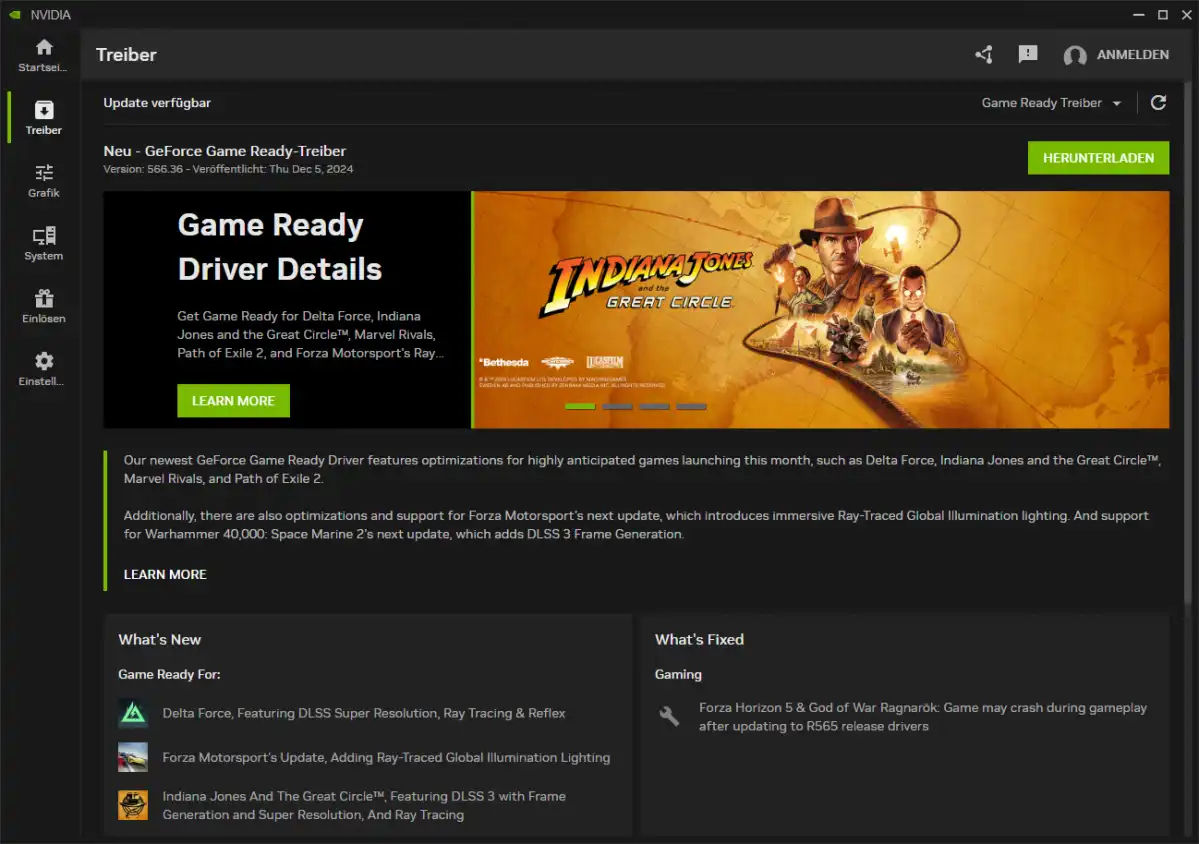
Ensure your graphics drivers are up to date. NVIDIA, AMD, and Intel frequently release game-ready drivers that include optimizations for new titles. If you recently updated and noticed performance degradation, consider rolling back to a previous stable driver version.
Fix 6 – Disable Steam, Discord, and GPU Overlays
Overlays from various applications can consume GPU resources and sometimes interfere with game performance. Disable overlays for:
- Steam In-Game Overlay
- Discord Overlay
- NVIDIA GeForce Experience Overlay
- AMD Radeon Overlay
Fix 7 – Close GPU-Intensive Background Programs
Before launching Shift At Midnight, close any applications running in the background that might be using your GPU. This includes web browsers with many tabs, video editing software, streaming applications, or other games.
Fix 8 – Switch Between Fullscreen and Borderless Mode
Some games perform better in exclusive fullscreen mode, while others are more stable in borderless windowed mode. Experiment with both options in Shift At Midnight's display settings to see which yields better performance for your system.
Fix 9 – Check Laptop Power and Cooling Settings
For laptop users, ensure your device is plugged in and set to a
high-performance power plan. Additionally, verify that your laptop's cooling system is functioning correctly, as thermal throttling can severely impact GPU performance.
Part 3: How to Fix Shift At Midnight Low FPS and Stuttering
If your primary issue is low FPS and stuttering, even with moderate GPU usage, focus on these optimizations:
Fix 1 – Lower GPU-Heavy Graphics Settings
As mentioned earlier, settings like shadow quality, anti-aliasing, and complex lighting effects are major contributors to low FPS. Prioritize lowering these settings first.
Fix 2 – Reduce Resolution or Resolution Scale
If lowering individual settings isn't enough, reducing the overall resolution or using a resolution scale option (if available) can provide a significant FPS boost.
Fix 3 – Verify Shift At Midnight Game Files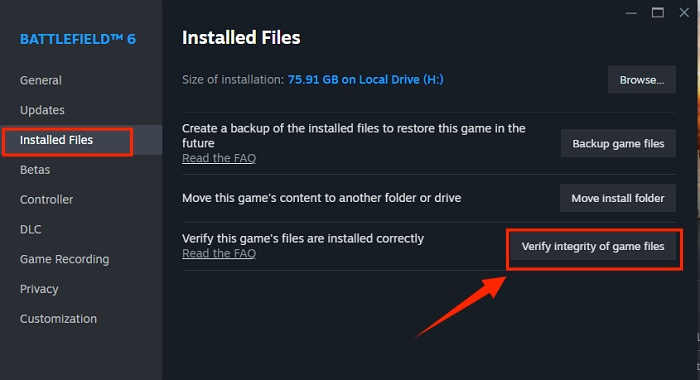
Corrupted or missing game files can cause performance issues and stuttering. Use the game launcher (e.g., Steam) to verify the integrity of the game files. This process will check for and replace any problematic files.
Fix 4 – Disable Background Recording
Features like Windows Game Bar's background recording or NVIDIA ShadowPlay's instant replay can consume system resources and cause stuttering. Disable these features if you're not actively using them.
Fix 5 – Set Shift At Midnight to High Performance in Windows
Ensure Windows is prioritizing Shift At Midnight for performance:
- Open Windows Settings > System > Display > Graphics settings.
- Click Browse and locate the Shift At Midnight executable.
- Select the game, click Options, and choose High performance.
Fix 6 – Clear the DirectX Shader Cache
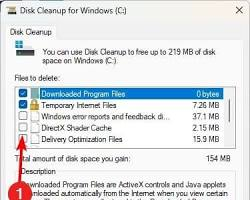
A corrupted shader cache can lead to stuttering as the game struggles to compile shaders on the fly. Use the Windows Disk Cleanup tool to clear the DirectX Shader Cache.
Fix 7 – Install the Game on an SSD
Installing Shift At Midnight on a Solid State Drive (SSD) rather than a traditional Hard Disk Drive (HDD) can significantly reduce loading times and minimize stuttering caused by asset streaming.
Fix 8 – Disable Hardware-Accelerated GPU Scheduling
While Hardware-Accelerated GPU Scheduling (HAGS) can improve performance in some games, it can cause issues in others. Try disabling it in Windows Settings (System > Display > Graphics settings) to see if it resolves stuttering in Shift At Midnight.
Fix 9 – Disable Fullscreen Optimizations
Windows fullscreen optimizations can sometimes interfere with game performance. Right-click the Shift At Midnight executable, go to Properties > Compatibility, and check Disable fullscreen optimizations.
Fix 10 – Use LagoFast to Improve FPS Stability
For persistent stuttering and FPS drops, especially those related to network instability in multiplayer sessions, a game booster can be highly effective.
Part 4: Best PC Settings for Shift At Midnight
While optimal settings vary based on your hardware, here's a balanced starting point for a mix of performance and visual quality:
- Display Mode: Fullscreen
- Resolution: Native monitor resolution (or 1080p for performance)
- VSync: Off (unless experiencing severe screen tearing)
- FPS Limit: Capped to monitor refresh rate
- Texture Quality: High (if you have 4GB+ VRAM)
- Shadow Quality: Medium
- Anti-Aliasing: Low or Medium
- Effects Quality: Medium
- Post-Processing: Medium
Part 5: Shift At Midnight System Requirements
Before troubleshooting extensively, ensure your PC meets the game's requirements.
Minimum Requirements:
- Requires a 64-bit processor and operating system
- OS: Windows 10 (64-bit)
- Processor: Intel Core i3-2100 / AMD FX-4300 or similar (dual-core or better)
- Memory: 4 GB RAM
- Graphics: NVIDIA GeForce GTX 750 Ti / AMD Radeon R7 260X (2 GB VRAM)
- Network: Broadband Internet connection
- Storage: 822 MB available space
Recommended Requirements:
- Requires a 64-bit processor and operating system
- OS: Windows 10 (64-bit)
- Processor: Intel Core i5-6500 / AMD Ryzen 3 1200 or similar
- Memory: 8 GB RAM
- Graphics: NVIDIA GeForce GTX 1050 Ti / AMD Radeon RX 560 (4 GB VRAM)
- Network: Broadband Internet connection
Part 6: What to Do If Shift At Midnight Still Has Low FPS
If you've exhausted the fixes above and are still experiencing low FPS, try these advanced steps:
- Restart the game and PC.
- Reset the graphics settings to default.
- Temporarily remove GPU or CPU overclocking to ensure stability.
- Check CPU and GPU temperatures to rule out thermal throttling.
- Install Windows updates.
- Reinstall the graphics driver using DDU (Display Driver Uninstaller) for a clean installation.
- Reinstall the game completely.
- Check the latest Shift At Midnight patch notes for known issues.
- Report the issue to the developer with:
- GPU model
- CPU model
- RAM
- Resolution
- Graphics settings
- Average FPS
- GPU usage
- GPU temperature
Part 7: How to Enhance Your Game Experience with LagoFast Game Booster
If you're struggling with performance inconsistencies, especially in the co-op multiplayer aspects of Shift At Midnight, LagoFast(LagoFast Game Booster - Get No Lag and Lower Ping) Game Booster is an excellent tool to stabilize your experience. It optimizes your network connection, reducing latency and packet loss, which can indirectly improve perceived smoothness and responsiveness.
Detailed Steps to Use LagoFast Game Booster:
Click the Free Trial button to download and install LagoFast Free Trial.
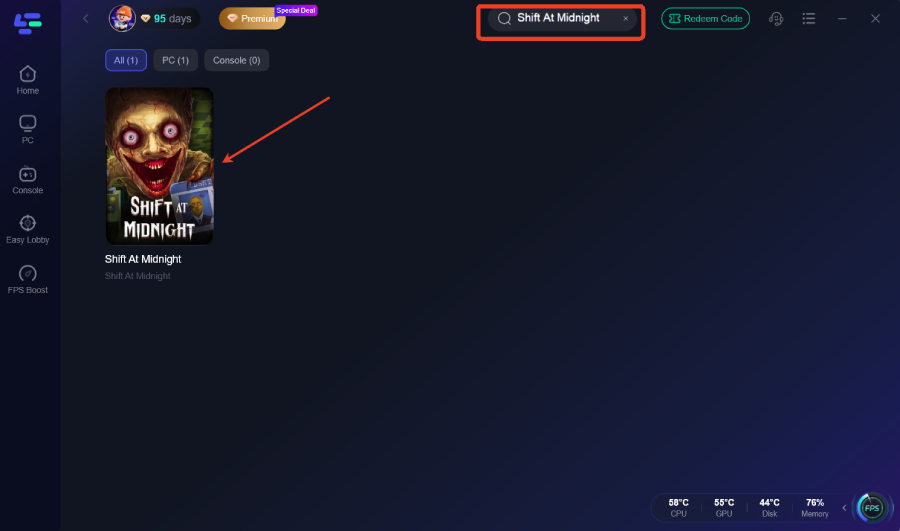
Search for the Game: Open LagoFast and use the search bar to find Shift At Midnight.
Select the Best Node: Choose the server region you intend to play on. LagoFast will automatically analyze and recommend the optimal node with the lowest latency.
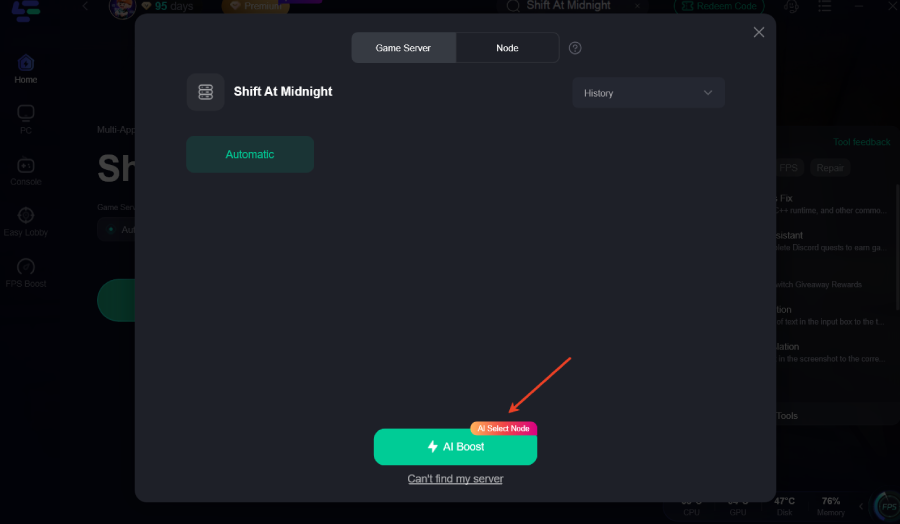
Activate the Boost: Click the "Boost" button. LagoFast will optimize your network routing in real-time.
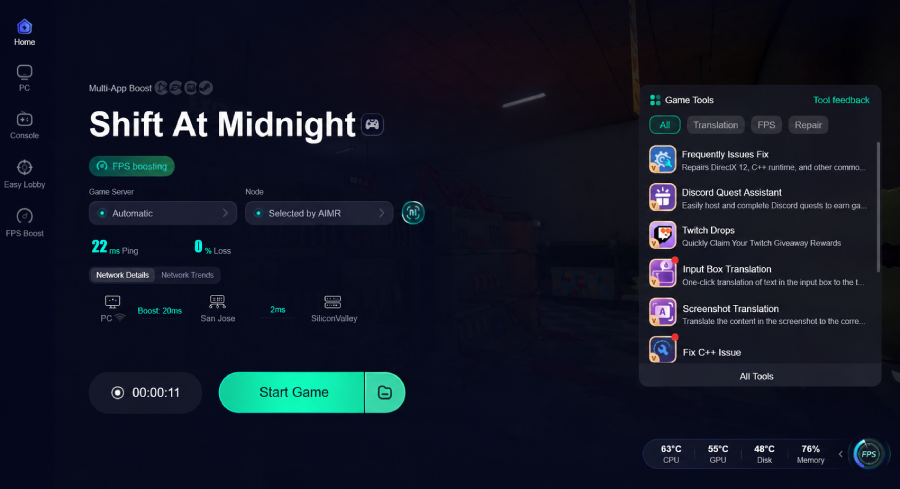
Launch the Game: Start Shift At Midnight and enjoy a more stable, responsive co-op experience.
Part 8: Frequently Asked Questions
Q1: Why is my GPU usage at 99% but my FPS is low?
A: This usually means your GPU is the bottleneck in your system for this specific game. It's working as hard as it can, but it lacks the processing power to render frames quickly at your current settings and resolution. Lowering graphics settings is the primary fix.
Q2: Is high GPU usage bad for my computer?
A: High GPU usage itself is not inherently bad; it means you're utilizing the hardware you paid for. However, if it's accompanied by excessively high temperatures (consistently above 85°C), it can lead to thermal throttling and potentially reduce the lifespan of the component.
Q3: Should I always use VSync?
A: VSync is useful for eliminating screen tearing, but it can introduce input lag. If you play competitive games where reaction time is critical, it's often better to leave VSync off and cap your frame rate using other methods.
Q4: Does RAM speed affect FPS?
A: Yes, especially in CPU-bound scenarios. Faster RAM allows the CPU to access data more quickly, which can improve minimum frame rates and reduce stuttering, leading to a smoother overall experience.
Q5: How do I know if my CPU is bottlenecking my GPU?
A: If your GPU usage is consistently low (e.g., below 70%) while your CPU usage is very high (near 100%), and you're experiencing low FPS, your CPU is likely bottlenecking your GPU.
Part 9: Conclusion
Resolving performance issues in Shift At Midnight requires a systematic approach. Here is the recommended order of fixes:
- Check whether FPS is uncapped.
- Set an appropriate FPS limit.
- Lower resolution and GPU-heavy settings.
- Update the GPU driver.
- Disable overlays and background recording.
- Optimize Windows performance settings.
Remind players that high GPU usage can be normal when temperatures and FPS remain stable. Encourage players to check new patches because performance may change after launch.
Key Takeaway
The most effective way to fix Shift At Midnight low FPS and high GPU usage is to properly manage your frame rate and graphics settings. By capping your FPS, lowering demanding visual options, and utilizing optimization tools like LagoFast Game Booster, you can achieve a stable and enjoyable gaming experience.
Boost Your Game with LagoFast for Epic Speed
Play harder, faster. LagoFast game booster eliminates stutter and lags on PC, mobile, or Mac—win every match!
Quickly Reduce Game Lag and Ping!
Boost FPS for Smoother Gameplay!