
Rocket League, with its fast-paced gameplay and competitive nature, demands a smooth and stable connection.
However, many players face latency issues, high ping, and unexplained lag, which can hamper their gaming experience.
This article will explore the causes of lag and high ping in Rocket League and offer solutions to fix these issues.

Part 1: What is Latency Variation?
Part 2: Why is My Ping So High in Rocket League?
Part 3: How to Fix Rocket League Lag?
Part 4: How to Ensure Smooth Rocket League Gaming
Part 1: What is Latency Variation?
Latency variation, often referred to as jitter, is the fluctuation in the time it takes for data packets to travel from your device to the game server and back. In simpler terms, it's the inconsistency in your ping, leading to unpredictable gameplay. High latency variation can cause your car to teleport, making it difficult to control and predict the ball's movement, thus affecting your overall performance.
Causes of Latency Variation:
- Network Congestion: Multiple devices using the same network can cause congestion, leading to inconsistent data transmission times.
- Wi-Fi Interference: Wireless connections are more prone to interference from other electronic devices, walls, and even other Wi-Fi networks.
- Server Issues: Sometimes, the problem lies with the game servers themselves, which can be experiencing high traffic or technical difficulties.
- Routing Problems: The path your data takes to reach the game server can affect latency. Poor routing can lead to higher latency variation.
Part 2: Why is My Ping So High in Rocket League?
High ping in Rocket League can be a frustrating experience, leading to laggy gameplay and delayed responses. Here are some common reasons why your ping might be high:
- Distance from Server: The farther you are from the game server, the higher your ping will be due to the increased travel time for data packets.
- Internet Speed: Slow internet speeds can significantly affect your ping. Ensure you have a stable and fast internet connection.
- Background Applications: Other applications and devices using your network can consume bandwidth, leading to higher ping.
- ISP Issues: Your Internet Service Provider (ISP) might be facing issues or might not be routing your data efficiently.
- Server Location: Sometimes, the game's servers might be located in a region far from you, contributing to higher ping.
Part 3: How to Fix Rocket League Lag?
Lag in Rocket League can be caused by various factors. Here are some steps to fix Rocket League lag and ensure a smoother gaming experience:
Optimize Your Internet Connection:
Step 1. Connect your device directly to the router using an Ethernet cable to reduce latency and avoid Wi-Fi interference.
Step 2. Ensure you have a high-speed internet plan that meets the requirements for online gaming.
Step 3. Shut down any unnecessary applications or devices that might be using up your bandwidth.
Update Network Drivers
Step 1. Press Win + X to open the quick menu and select Device Manager.
Step 2. Expand the Network adapters section, right-click on your Realtek, Intel, or Killer adapter, and choose Update driver.
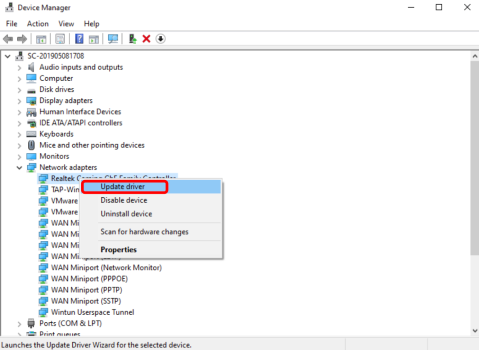
Step 3. Select Search automatically for drivers and follow the on-screen instructions to update your network driver automatically.
Adjust In-Game Settings:
Step 1. Reducing the game's graphical settings can improve performance, especially if you're playing on an older or less powerful device.
Step 2. Use the performance mode in the game settings to prioritize frame rate over visual quality.
Flush DNS
Step 1. Press Win + S to open the search bar and type cmd to find Command Prompt.
Step 2. Right-click on Command Prompt and select Run as administrator.
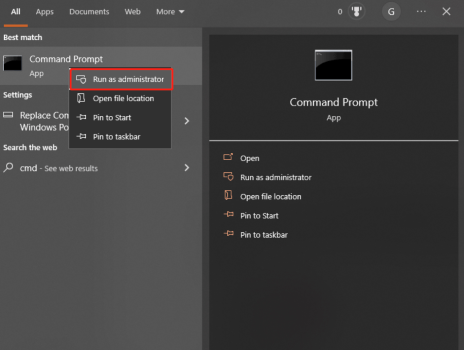
Step 3. In the command window, enter the following commands one at a time, pressing Enter after each:
- ipconfig /flushdns
- ipconfig /registerdns
- ipconfig /release
- ipconfig /renew
- netsh Winsock reset
Reboot or Reset Your Router
Step 1. Unplug both your modem and router.
Step 2. Wait approximately 30 seconds, then plug the modem back in.
Step 3. After another 60 seconds, plug in the router and allow it to fully reboot.
Step 4. Check if there is any improvement in your connection.
Close Bandwidth-Hogging Programs
Step 1. Press Win + R to open the Run dialog box.
Step 2. Type resmon and press Enter to open Resource Monitor.
Step 3. Go to the Network tab and check the Total volume to identify which programs are consuming your network resources.
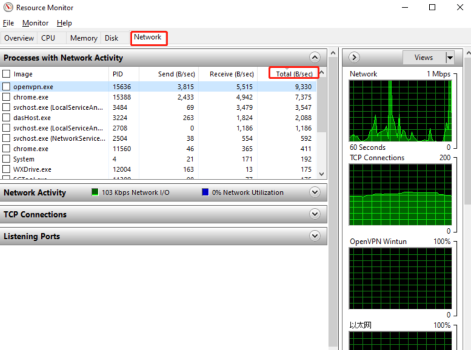
Step 4. Right-click on each bandwidth-hogging program and select End Process to close them.
Part 4: How to Ensure Smooth Rocket League Gaming
For those looking for a comprehensive solution to Rocket League latency issues, LagoFast offers an excellent service to reduce lag and high ping. LagoFast is a dedicated game booster that optimizes your network connection specifically for gaming. It helps in maintaining a stable and fast connection by routing your data through its optimized servers, ensuring minimal latency variation and reduced ping.
Benefits of Using LagoFast:
- Optimized Routing: LagoFast uses advanced routing techniques to find the best and fastest path for your data to travel to the game server, significantly reducing ping and latency.
- Stability and Consistency: By providing a more stable connection, LagoFast ensures that you experience minimal lag and latency variation, leading to smoother gameplay.
- User-Friendly Interface: LagoFast offers an easy-to-use interface that allows you to optimize your connection with just a few clicks, making it accessible even for non-tech-savvy users.
- Cross-Platform Support: Whether you're playing on PC, Xbox, or PlayStation, LagoFast supports multiple platforms, ensuring a seamless gaming experience across all your devices.
Tutorial to use LagoFast to ensure smooth Rocket League gaming:
Step 1: Click the Free Trial button to download and install LagoFast.
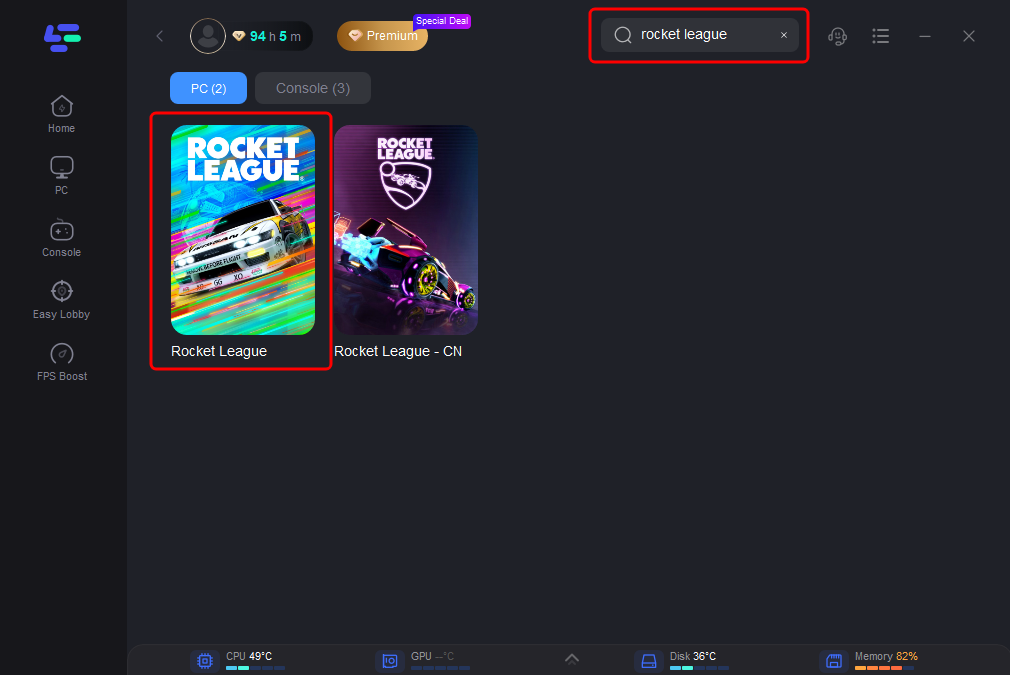
Step 2: Search Rocket League in the search bar, click it after appearing.
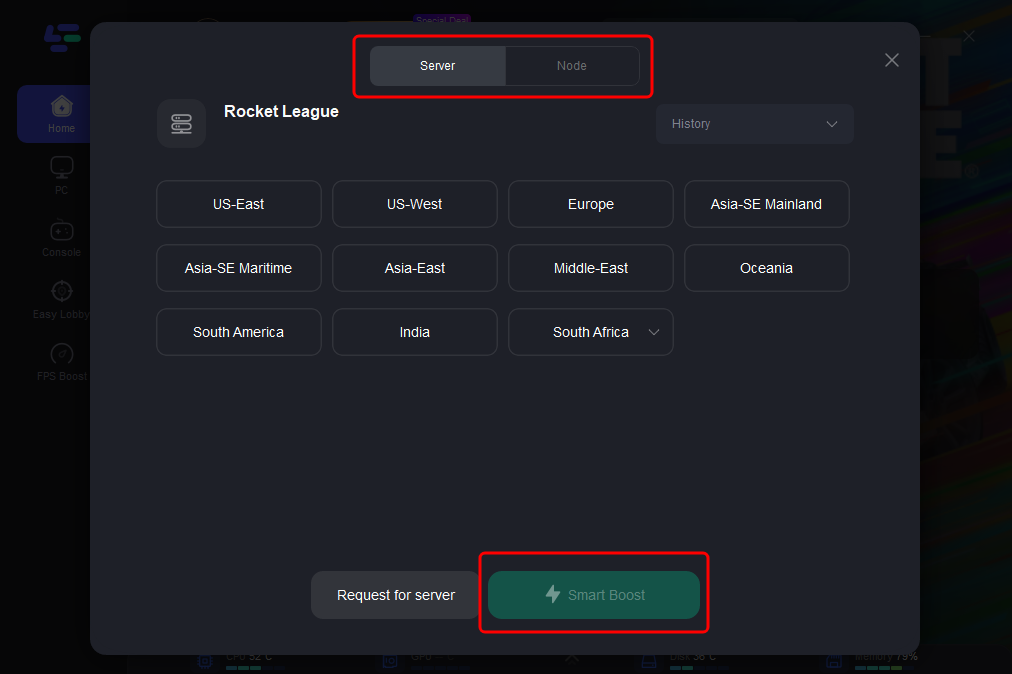
Step 3: Click on 'Select Server' to choose a stable server. Then, select the 'Node' on the right to pick the best Node for your location.
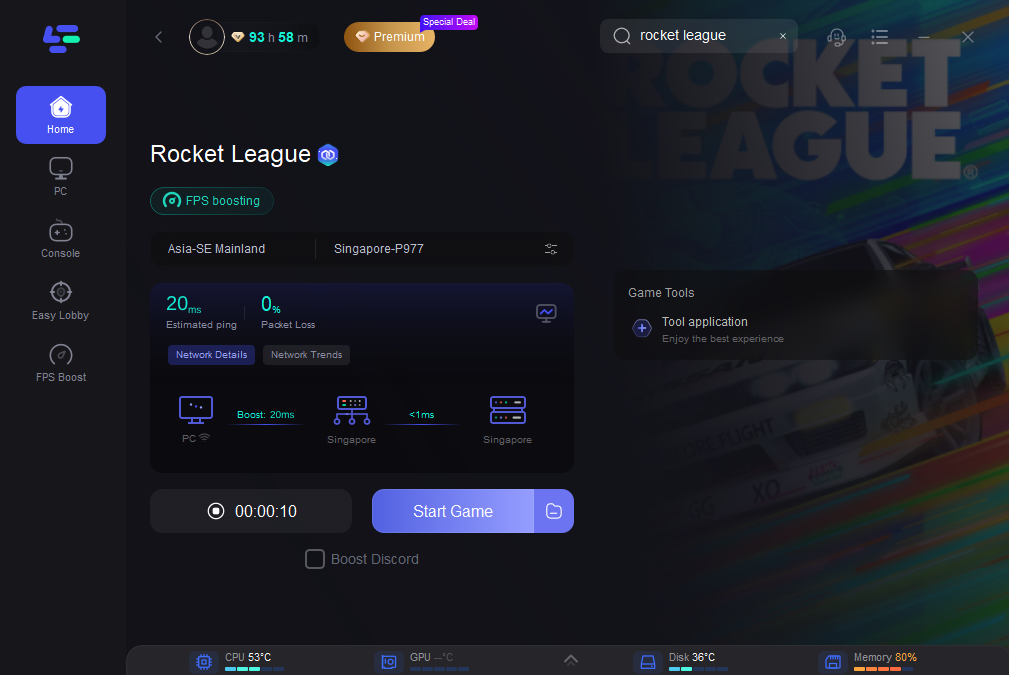
Step 4: Activate the 'Smart Boost' button. This feature allows you to monitor your game's ping, packet loss, and network type in real-time.
Conclusion
Latency issues, high ping, and lag in Rocket League can be incredibly frustrating, but with the right approach, they can be mitigated. By understanding latency variation, optimizing your internet connection, adjusting in-game settings, and following specific tips, you can ensure a smooth and enjoyable gaming experience. Moreover, using game boosterlike LagoFast can provide an additional layer of optimization, helping you maintain a stable and fast connection. Follow these tips, and you’ll be back to scoring goals and making epic saves in no time!

- ✅ Reduce Lag and High Ping.
✅ Boost FPS at the Same Time.
✅ Change Server Without Latency. - ✅End Error Codes, Stuck and Crashing Issues
- ✅ Multiplatform: PC, Console, Mobile

Boost Your Game with LagoFast for Epic Speed
Play harder, faster. LagoFast game booster eliminates stutter and lags on PC, mobile, or Mac—win every match!
Quickly Reduce Game Lag and Ping!
Boost FPS for Smoother Gameplay!