“Just bought PRAGMATA, super hyped, but it keeps crashing with a ‘Fatal D3D Error’ right after the Capcom logo.” This is a widespread issue reported across Steam forums, and it reflects a serious technical problem rather than a minor glitch.
The PRAGMATA Fatal Error is a game-breaking crash that prevents players from even reaching the main menu. Built on Capcom’s powerful RE Engine, the game delivers high-end visuals—but also demands a stable DirectX and GPU environment. When something goes wrong at that level, D3D errors can instantly terminate the game.
This guide is designed to help PC players fully understand, troubleshoot, and fix the PRAGMATA Fatal D3D Error. From root causes to advanced solutions and performance optimization, everything is covered to ensure a smooth gameplay experience.
Part 1. Understanding the PRAGMATA Fatal Error: What is the D3D Error on Steam?
Part 2. Common Causes of the Pragmata Steam Fatal D3D Error
Part 3. How to Fix D3D Fatal Error PRAGMATA: Step-by-Step Solutions
Part 4. What is the Fatal D3D Crash in PRAGMATA: Advanced Troubleshooting
Part 5. How to get 0 delay on PRAGMATA: Optimizing Input and Network
Part 6. How to Enhance Your Game Experience with LagoFast Game Booster
Part 7. FAQs
Part 1: What Is the PRAGMATA Fatal D3D Error on Steam?
Understanding the D3D Error in PRAGMATA
The Fatal D3D Error in PRAGMATA typically appears with messages like DXGI_ERROR_DEVICE_REMOVED or DXGI_ERROR_DEVICE_HUNG. These errors indicate a breakdown in communication between your graphics card and DirectX.
DirectX is a Microsoft-developed API suite responsible for multimedia processing, while Direct3D (D3D) specifically handles 3D rendering. When a Pragmata D3D error occurs, it means the RE Engine either lost connection with the GPU or the GPU failed while executing rendering commands.
In simple terms: the game asked your GPU to render something, and it crashed or didn’t respond in time.
Why This Happens in RE Engine Games
PRAGMATA, like other RE Engine titles such as Resident Evil and Monster Hunter, pushes hardware limits. This makes it more sensitive to:
- Driver instability
- GPU overheating
- DirectX conflicts
- System-level interruptions
Understanding this mechanism is essential before attempting any fix.
Part 2: Common Causes of PRAGMATA Steam Fatal D3D Error
Primary Reasons Behind Pragmata D3D Crash
The PRAGMATA Fatal D3D Error rarely comes from a single issue. Instead, it’s usually caused by multiple overlapping factors:
- Outdated or corrupted GPU drivers: Missing optimizations or broken files can trigger crashes.
- GPU overheating: High temperatures can force shutdowns to prevent hardware damage.
- Insufficient power supply (PSU): Unstable power delivery can cause GPU failure under load.
- DirectX installation issues: Missing or corrupted components disrupt rendering.
- Background application conflicts: Overlays and antivirus tools can interfere with the game.
- Corrupted game files: Incomplete installations lead to runtime errors.
- Unstable overclocking: Overclocked GPUs/CPUs may crash under heavy load.
Identifying which of these applies to your system is key to fixing the issue efficiently.
Part 3: How to Fix PRAGMATA Fatal D3D Error (Step-by-Step Solutions)
1. Clean Install Graphics Drivers (Most Important Fix)
- Download: Display Driver Uninstaller (DDU)
- Remove old drivers: Boot into Safe Mode and run DDU
- Install latest drivers: Get the newest version from NVIDIA or AMD
- Reboot system: Ensure changes take effect
A clean install eliminates hidden conflicts causing the Pragmata D3D crash.
2. Update DirectX and Windows System
- DirectX update: Install missing components using Microsoft’s runtime installer
- Windows update: Ensure your OS is fully up to date
Outdated system files can directly cause Fatal D3D errors.
3. Verify PRAGMATA Game Files on Steam
- Open Steam Library → PRAGMATA → Properties
- Go to Installed Files → Verify integrity
This step repairs corrupted or missing files responsible for crashes.
4. Lower In-Game Graphics Settings
- Texture Quality: Reduce to Medium or Low
- Ray Tracing: Disable if enabled
- Shadows & Volumetrics: Lower to reduce GPU load
High VRAM usage is a common trigger for D3D errors in PRAGMATA.
5. Disable Overlays and Background Apps
- Turn off overlays: Steam, Discord, GeForce Experience
- Close unnecessary apps: Browsers, recording software
- Add antivirus exclusions: Prevent false interference
These programs often conflict with DirectX processes.
6. Check Power Settings and Hardware Stability
- Power plan: Set to High Performance
- Monitor temperatures: Keep GPU under 85°C
- Disable overclocking: Return to stock settings
Hardware instability is a major cause of repeated D3D crashes.
Part 4: Advanced Fixes for PRAGMATA Fatal D3D Crash
1. Reinstall PRAGMATA Completely
- Uninstall via Steam
- Delete leftover files manually
- Reinstall fresh copy
This ensures no corrupted data remains.
2. Run Game as Administrator
- Steam: Run as admin
- Game executable: Enable admin privileges in properties
Fixes permission-related conflicts.
3. Disable Fullscreen Optimization
- Navigate to the game .exe → Compatibility
- Enable Disable fullscreen optimizations
This reduces Windows interference.
4. Increase TDR Delay (Advanced Registry Fix)
- Open Registry Editor
- Navigate to GraphicsDrivers
- Create TdrDelay = 8–10
This gives your GPU more time to respond, preventing false crash detection.
Part 5: How to Reduce Input Lag in PRAGMATA (0 Delay Optimization)
While "0 delay" is an ideal, achieving minimal input lag and a stable network connection is crucial for a responsive gaming experience in PRAGMATA. Beyond fixing crashes, optimizing these aspects can significantly enhance your gameplay.
1. Input Optimization
- Fullscreen Mode: Always play in exclusive Fullscreen mode. This gives the game direct control over your display, bypassing Windows' Desktop Window Manager (DWM) and reducing input latency.
- V-Sync and G-Sync/FreeSync: If you have a G-Sync or FreeSync monitor, enable it in your GPU control panel. Then, cap your in-game FPS to 3 frames below your monitor's refresh rate (e.g., for a 144Hz monitor, cap at 141 FPS) and disable V-Sync in-game. This combination offers the lowest input lag with tear-free visuals.
- Polling Rate: Use a mouse and keyboard with a high polling rate (1000Hz) for faster input registration.
2. Network Optimization (for online features/updates)
Even in a single-player game like PRAGMATA, a stable internet connection is vital for downloading updates, cloud saves, and any potential online features. Network instability can lead to corrupted downloads or issues with game authentication.
Part 6: Boost PRAGMATA Performance with LagoFast Game Booster
Even with all local optimizations, external factors like ISP throttling, congested network routes, or distant game servers can introduce latency and instability. This is where a specialized tool like LagoFast Game Booster becomes invaluable. While PRAGMATA is a single-player game, LagoFast can still significantly enhance your experience by ensuring stable connections for game updates, cloud saves, and any future online components. More importantly, for other RE Engine games or any online PC title, LagoFast excels at providing a smooth, low-latency connection.
55LagoFast works by creating an optimized data transmission path between your PC and the game servers. It bypasses congested internet routes, reduces packet loss, and stabilizes ping, ensuring that your game data travels efficiently. This is particularly beneficial for games that rely on constant server communication, preventing the dreaded "rubberbanding" or delayed hit registration that can ruin an online match. For PRAGMATA, it ensures that any background processes related to game services or updates run without interfering with your local gameplay, preventing unexpected stutters or crashes caused by network hiccups.
How to Use LagoFast Game Booster to Enhance PRAGMATA Connection
Step 1: Click the Free Trial button to download and install LagoFast.
Free Trial
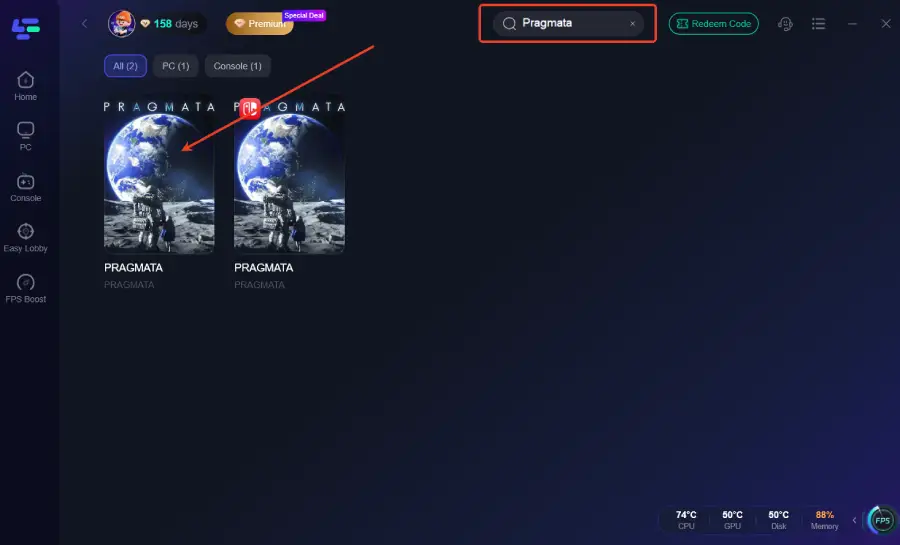
Step 2: After installation, search "Pragmata" in the search bar and select the game.
Step 3: Choose your preferred server node and click "Smart Boost" to start optimizing.
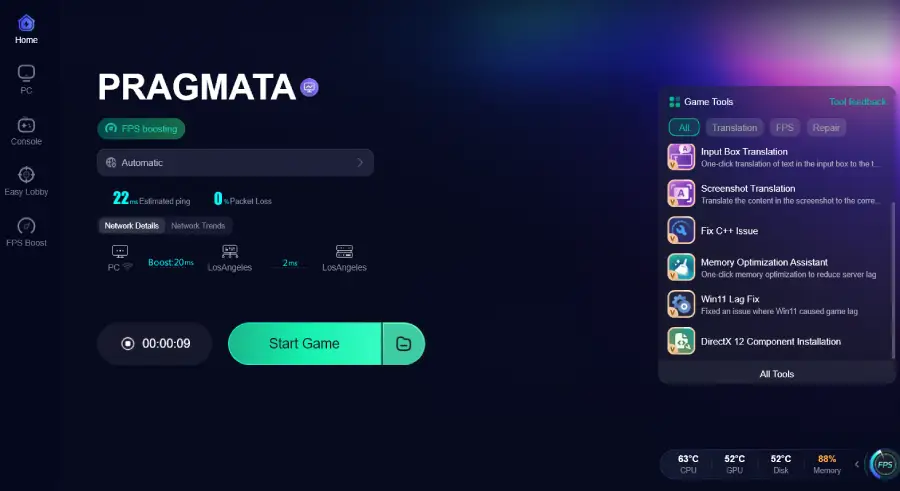
Step 4: Launch your game and enjoy smooth, optimized gameplay with lower ping and packet loss.
Part 7: FAQs About PRAGMATA D3D Errors
Is DirectX the same as Direct3D?
No. DirectX is a full API suite, while Direct3D handles 3D rendering specifically.
Why does PRAGMATA crash with Ray Tracing enabled?
Ray Tracing is extremely demanding. Disable it if your GPU struggles.
Can PSU issues cause D3D errors?
Yes. Insufficient power leads to GPU instability and crashes.
How to fix shader compile errors?
Update drivers, verify files, and clear shader cache.
Does DRM like Denuvo cause D3D crashes?
Not directly. Most D3D errors are hardware or driver-related.
Conclusion: Fix PRAGMATA Fatal D3D Error and Enjoy Stable Gameplay
The PRAGMATA Fatal D3D Error can be frustrating, but it is entirely fixable with the right approach. By addressing drivers, DirectX, system stability, and game settings, most players can eliminate crashes completely.
Understanding how Direct3D interacts with your GPU gives you the tools to diagnose and resolve issues effectively. For the best experience, combine system optimization with tools like LagoFast to ensure both local and network stability.
With these fixes applied, you can finally enjoy PRAGMATA without interruptions and experience its full visual potential.