
Capcom's latest action RPG brings intense katana combat, complex particle effects, and demanding ray-traced visuals. Getting fluid framerates while maintaining cinematic clarity requires modern scaling tech. Utilizing Onimusha: Way of the Sword DLSS 5 gives players a massive performance leap, delivering crisp textures and smooth motion. Whether you want to know how to enable DLSS 5 in Onimusha Way of the Sword or need quick optimization using tools like LagoFast, this complete guide covers everything.
Before diving into setup procedures, players should understand what neural rendering technology brings to this specific title.

- ✅ Reduce Lag and High Ping.
- ✅ Boost FPS at the Same Time.
- ✅ Support 8000+ Popular Online Games.
- ✅ Stable Server Connection
Part 1: What DLSS 5 Brings to Onimusha: Way of the Sword
Part 2: Onimusha: Way of the Sword DLSS 5 GPU Compatibility & Requirements
Part 3: How to Enable DLSS 5 in Onimusha: Way of the Sword
Part 4: Streamline Your Experience with LagoFast One-Click DLSS 5
Part 5: Onimusha DLSS 5 Best Settings for Maximum Performance
Part 6: Fixing Onimusha DLSS 5 Crash and Stability Issues
Part 7: FAQs About Onimusha: Way of the Sword DLSS 5
Part 1: What DLSS 5 Brings to Onimusha: Way of the Sword
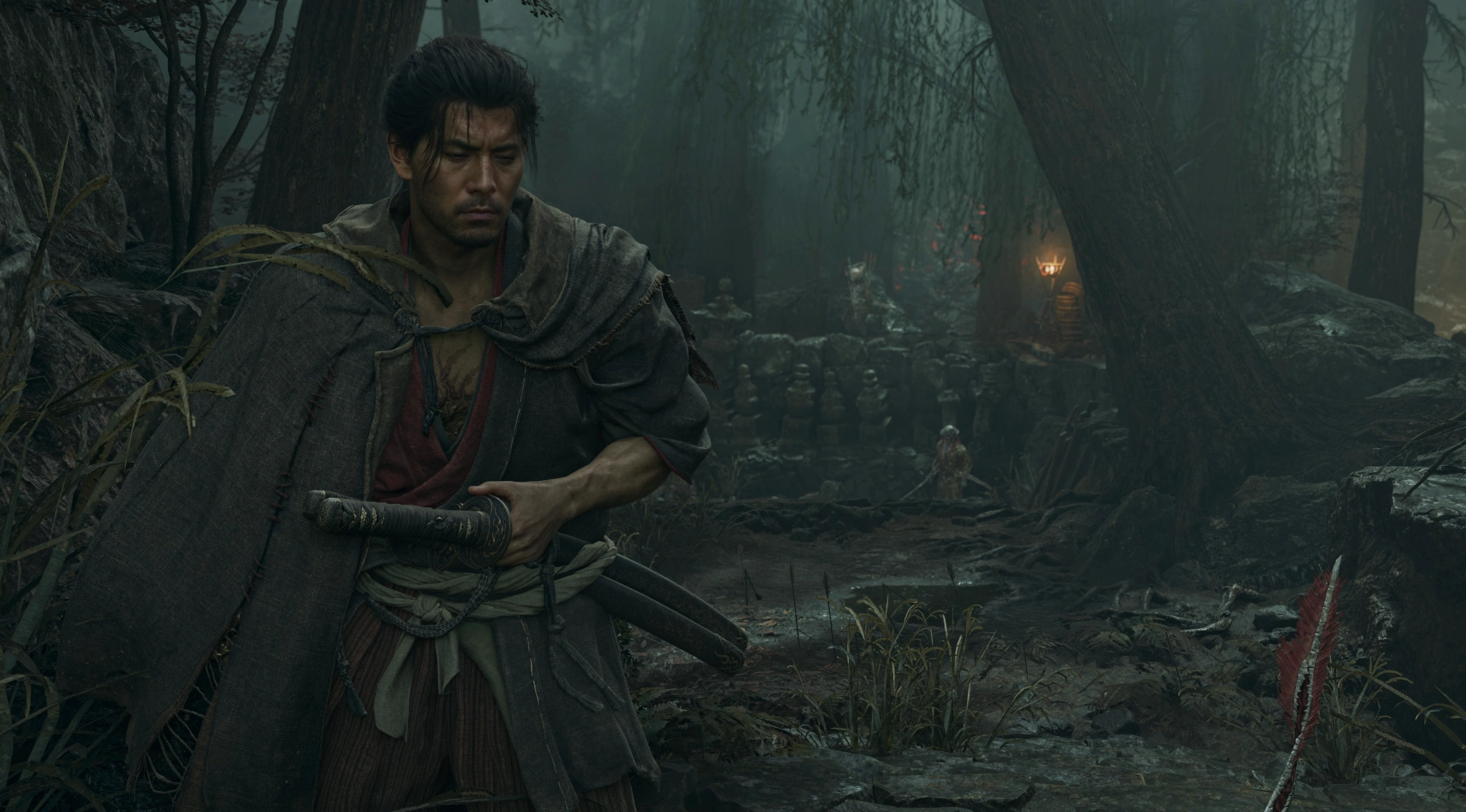
DLSS 5 introduces advanced neural rendering features that drastically enhance scene detail, lighting realism, and character models. In fast-paced sword battles, traditional upscaling can cause ghostly artifacts around spinning blades or flowing robes. DLSS 5 resolves these visual glitches while maintaining high frame rates across demanding combat zones.
|
Feature |
DLSS 5 Enhancement |
Gameplay Impact |
|
Neural Reconstruction |
Reconstructs lighting, skin, and reflections |
Sharper character models and realistic environment lighting |
|
Frame Generation |
Inserts AI-generated frames between rendered ones |
Doubles motion smoothness during fast combat |
|
Dynamic Sharpening |
Reduces temporal blur in motion |
Clearer enemy animations and parry indicators |
|
Artifact Reduction |
Eliminates trail artifacts on fast weapon swings |
Cleaner image during rapid camera movements |
Unlocking these visual enhancements requires checking your graphics hardware capabilities and driver status.
Part 2: Onimusha: Way of the Sword DLSS 5 GPU Compatibility & Requirements
Hardware compatibility varies depending on your graphics card generation and driver support levels.
While official native NVIDIA DLSS 5 Neural Rendering specifically targets newer hardware like the RTX 50 Series, upscaling features and mods extend across multiple GPU generations. Hardware Compatibility Breakdown:
|
GPU Family |
Supported DLSS 5 Features |
Performance Tier |
|
NVIDIA RTX 20 Series |
Basic Upscaling, Reconstruction |
Balanced 1080p |
|
NVIDIA RTX 30 Series |
High-Quality Upscaling, Reconstruction |
High 1440p |
|
NVIDIA RTX 40 Series |
Upscaling, Frame Gen, Reconstruction |
Ultra 1440p / 4K |
|
NVIDIA RTX 50 Series |
Native DLSS 5 Neural Rendering Suite |
Max Settings 4K |
|
AMD / Intel GPUs |
Not Supported |
Incompatible |
- Onimusha DLSS 5 RTX 40 Performance: Card owners in the 40-series family enjoy exceptional performance gains when combining Frame Generation with neural reconstruction.
- Onimusha DLSS 5 RTX 4070 Experience: The RTX 4070 serves as the ideal sweet spot card, delivering locked 60+ FPS at 4K resolution with Ray Tracing set to High.
Once hardware compatibility is confirmed, you can proceed with the actual installation and setup process.
Part 3: How to Enable DLSS 5 in Onimusha: Way of the Sword
Setting up advanced neural upscaling can be accomplished through manual modding or automated software management.
Manual Onimusha DLSS 5 Mod Installation Steps
For players who prefer manual file installation, applying the Onimusha Way of the Sword DLSS 5 mod requires precise placement inside the root game directory.
Step 1: Download the verified Onimusha Way of the Sword DLSS 5 mod package from a trusted repository.
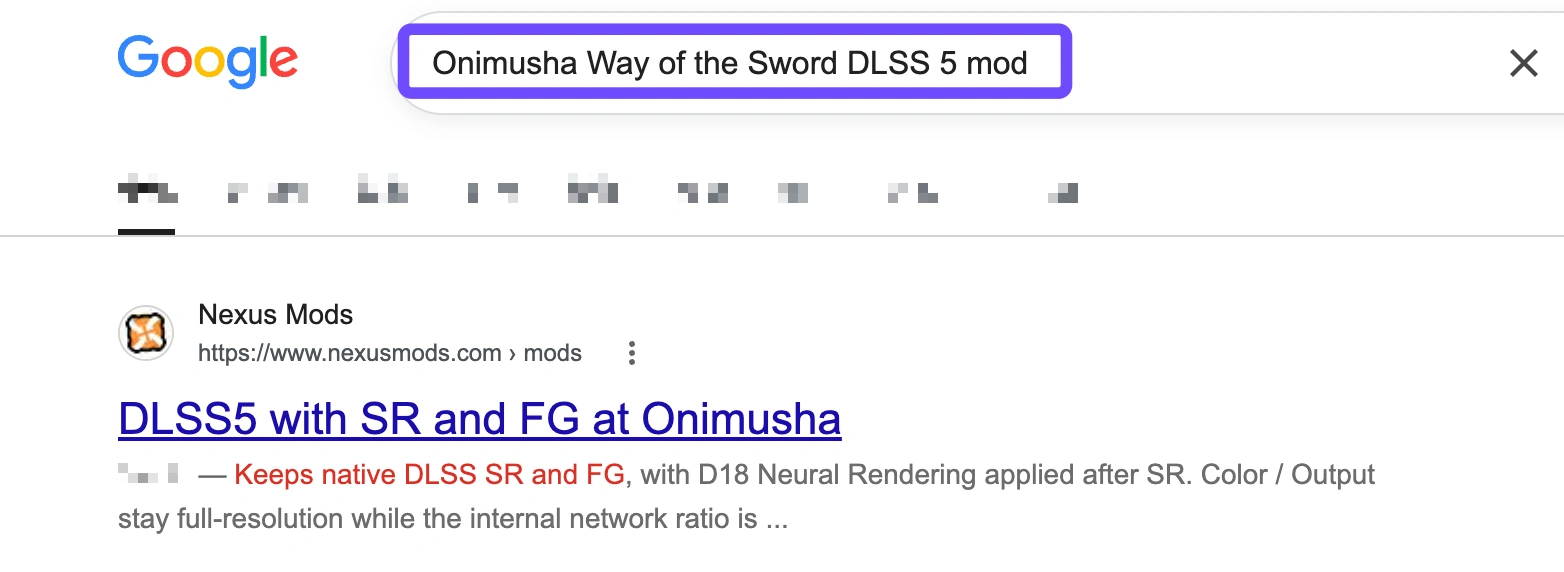
Step 2: Extract the archive contents to reveal the custom nvngx_dlss.dll and loader files.
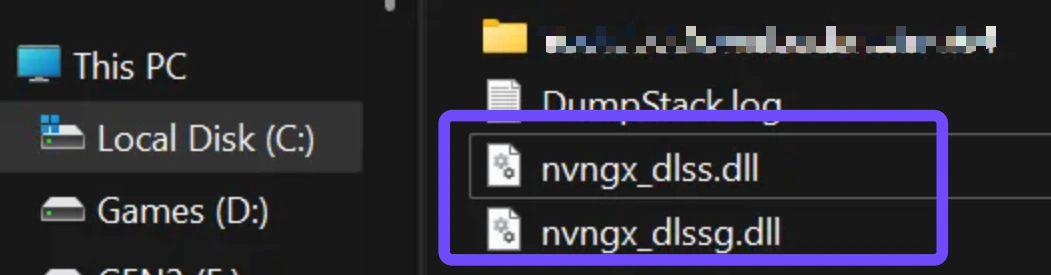
Step 3: Navigate to your Steam game installation folder (e.g., Steam/steamapps/common/OnimushaWayOfTheSword).
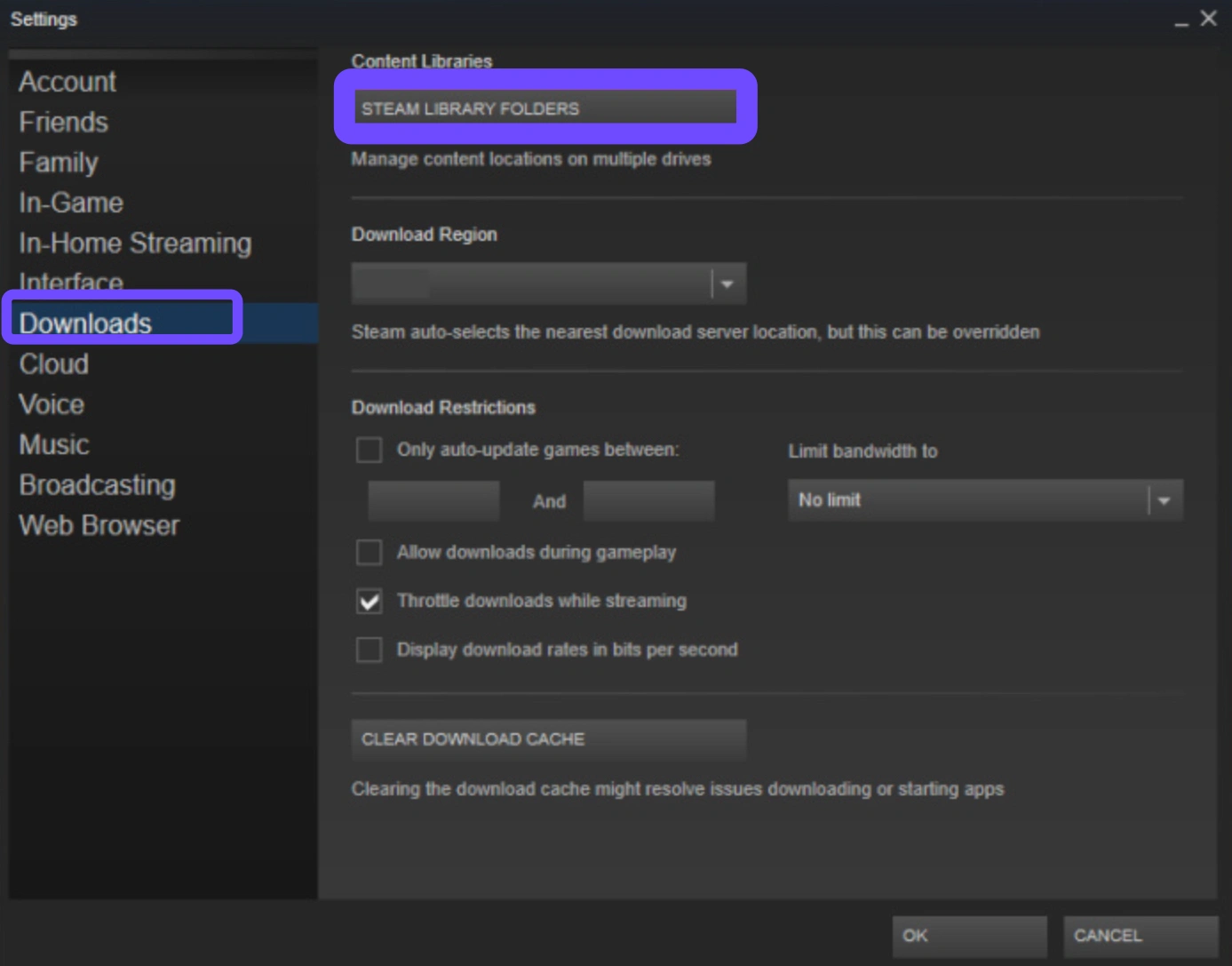
Step 4: Paste the extracted DLL files directly into the directory containing the main executable.
Step 5: Launch the game, open the Graphics menu, and toggle DLSS to On.
Comparing Installation Methods
|
Feature |
Manual Mod Installation |
Automated Configuration |
|
Setup Complexity |
High (Requires manual folder search) |
Low (Single-click process) |
|
Risk of File Errors |
Medium (Possible missing dependencies) |
Low (Automatic file verification) |
|
Rollback Process |
Manual file deletion |
One-click instant restore |
|
Driver Verification |
Manual check required |
Automated compatibility scan |
If manual file modification feels too tedious or risky, dedicated gaming utilities offer a far simpler alternative.
Part 4: Streamline Your Experience with LagoFast One-Click DLSS 5
Managing game directories, third-party loaders, and custom DLL files manually often leads to launch errors or corrupted installations.
LagoFast is an all-in-one game booster designed to stabilize latency and maximize FPS. Its built-in LagoFast One-Click DLSS 5 tool eliminates technical hassles through an automated integration pipeline.
LagoFast One-Click DLSS 5 Key Features
- Easier Setup: Eliminates the need to manually handle complex configurations like DLL replacement, game directory editing, Loader tools, or ReShade and OptiScaler setups.
- Full Automated Workflow: Handles the entire process seamlessly, including game detection, compatibility verification, file download, configuration, enabling DLSS 5, launching the game, and offering a one-click restore option.
- Broader RTX GPU Support: Supports RTX 20 to 50 Series GPUs (RTX 40+ recommended), bridging the gap while NVIDIA native DLSS 5 Neural Rendering remains exclusive to RTX 50 Series cards.
- Visuals and Performance Combined: Focuses on boosting visual fidelity across lighting, skin, hair, vegetation, and shadows, while pairing seamlessly with FPS Boost and Frame Generation when extra frame rate headroom is needed.
After enabling the technology, tuning your in-game options ensures you balance visual fidelity with stable frame rates.
How to Use LagoFast One-Click DLSS 5
Using LagoFast removes the hassle of editing game directories or manually replacing DLL files. Follow these simple steps to automate your DLSS 5 setup:
Step 1: Download and install the LagoFast client on your PC.
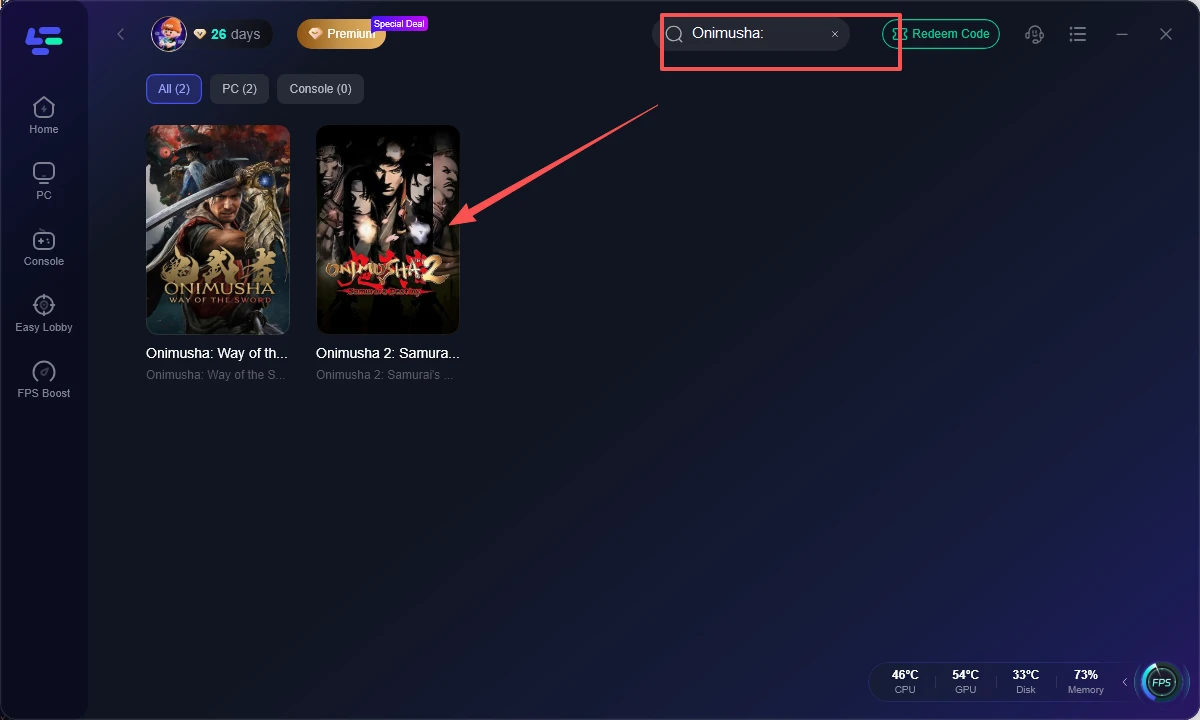
Step 2: Open LagoFast and search for Onimusha: Way of the Sword in the search bar.
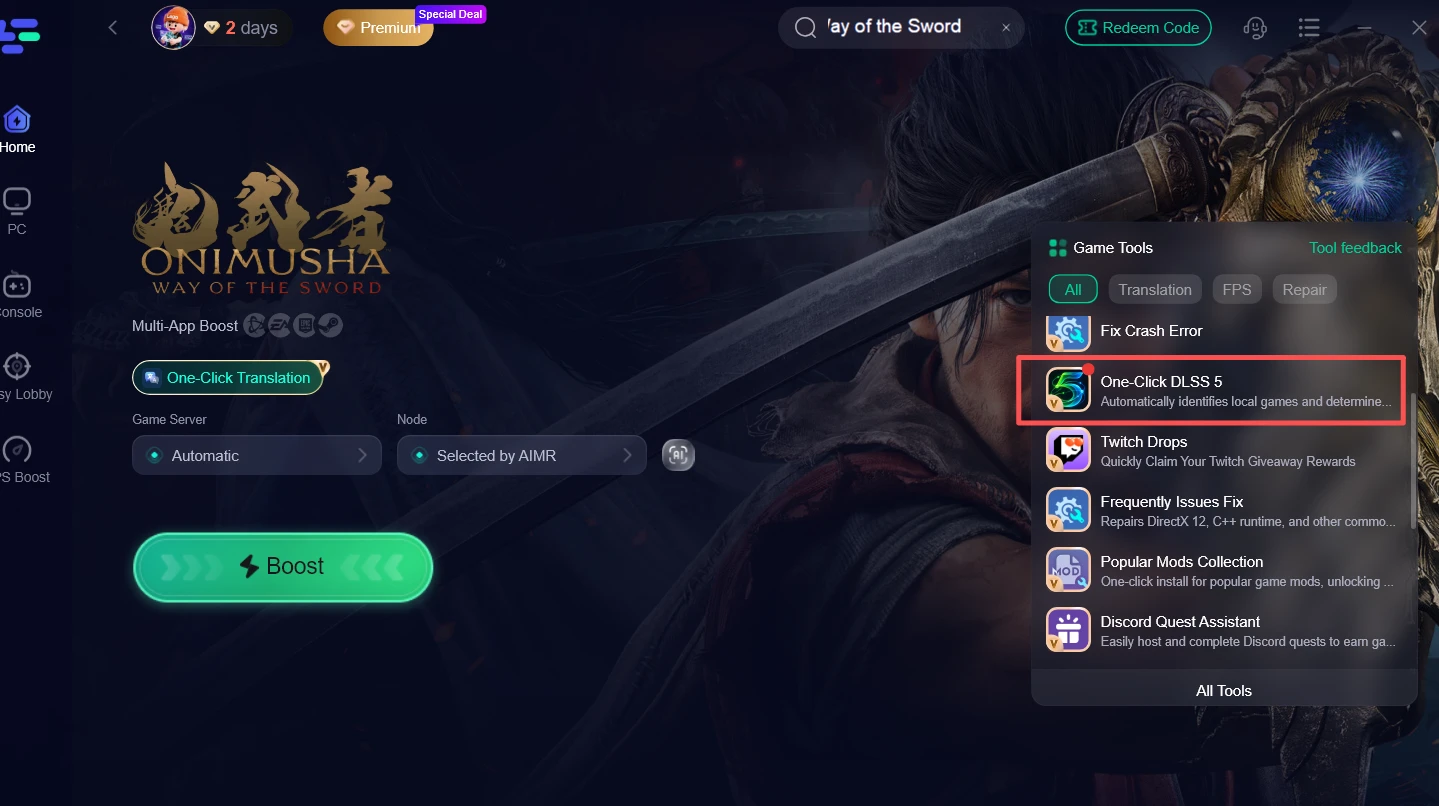
Step 3: Locate and click the One-Click DLSS 5 tool on the game page.
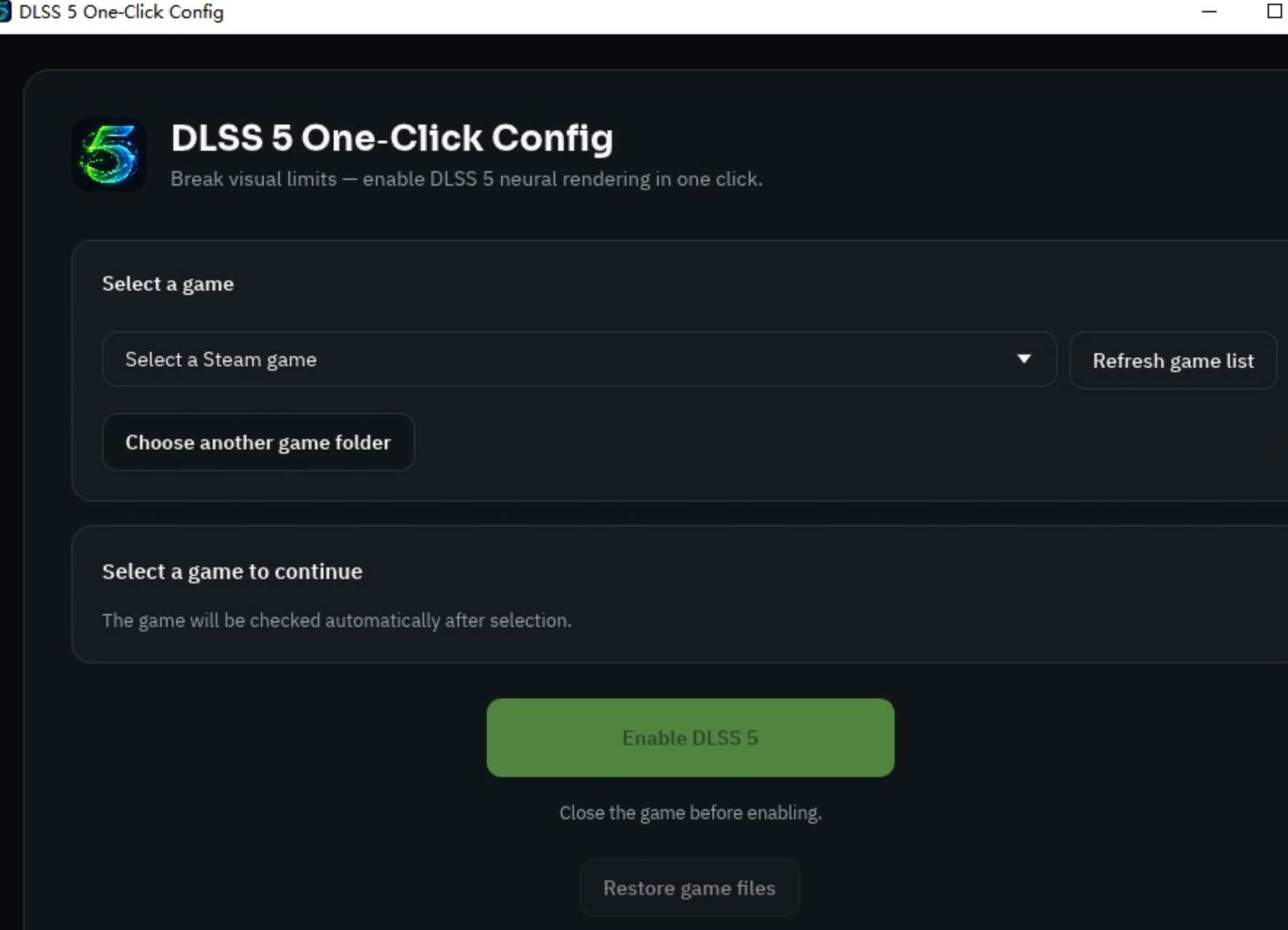
Step 4: Click Select a Steam Game, choose Onimusha: Way of the Sword, and click Enable DLSS 5. LagoFast will automatically verify GPU compatibility, download the required files, and configure your settings.
Step 5: Launch Onimusha: Way of the Sword directly through LagoFast to enjoy boosted FPS and enhanced visual fidelity.
Part 5: Onimusha DLSS 5 Best Settings for Maximum Performance
Finding the optimal balance between high frame rates and ultra-sharp image resolution requires adjusting several key graphics toggles.
Applying these target settings helps maintain consistent performance during busy boss encounters and heavy weather effects. Recommended In-Game Graphics Configuration:
|
Setting Name |
Recommended Option |
Target Result |
|
Display Resolution |
2560x1440 or 3840x2160 |
Native display resolution |
|
DLSS Mode |
Quality |
Maximum image sharpness |
|
DLSS Frame Generation |
On (RTX 40 Series and above) |
Smooth motion output |
|
Ray Tracing Quality |
Medium or High |
Realistic ambient reflections |
|
Dynamic Resolution |
Off |
Prevents sudden blurriness |
|
Motion Blur |
Low or Off |
Enhances clarity in combat |
|
Sharpness Slider |
0.4 to 0.6 |
Clean edge details without noise |
Even with optimal settings, unexpected crashes or crashes on launch can occasionally interrupt your gaming session.
Part 6: Fixing Onimusha DLSS 5 Crash and Stability Issues
Experiencing an Onimusha DLSS 5 crash can stem from incompatible DLL files, outdated graphics drivers, or conflicting overlay software.
Follow these sequential solutions to eliminate stability issues and restore smooth game operation.
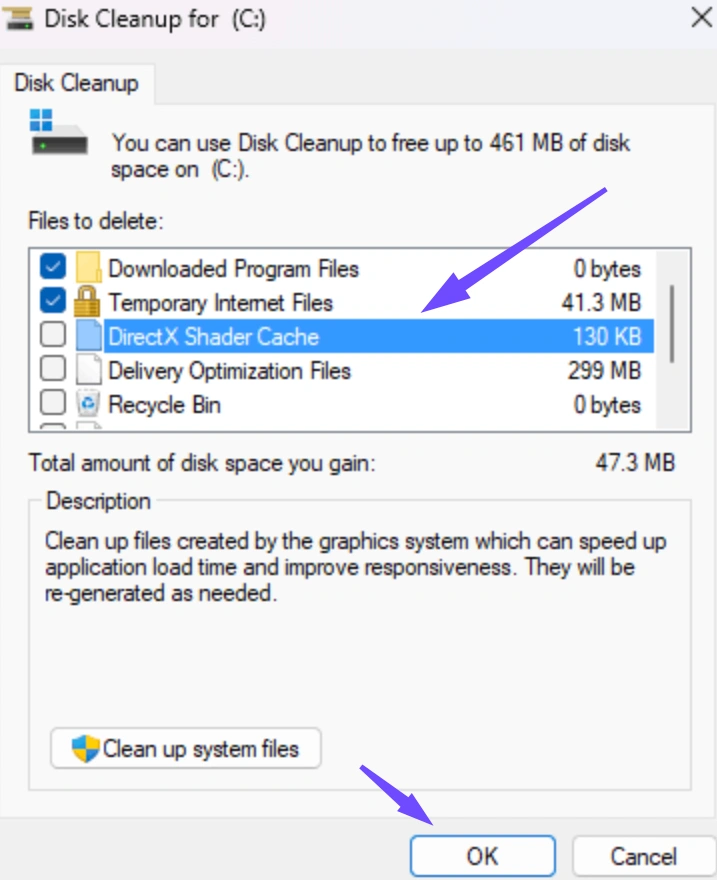
Step 1: Clear the DirectX Shader Cache through Windows Disk Cleanup to remove corrupted cached files.
Step 2: Verify game file integrity inside your Steam library to replace any modified or damaged core files.
Step 3: Remove conflicting third-party overlays, custom ReShade presets, or outdated OptiScaler loaders from your game directory.
Step 4: Perform a clean installation of the latest NVIDIA Display Driver using Display Driver Uninstaller (DDU).
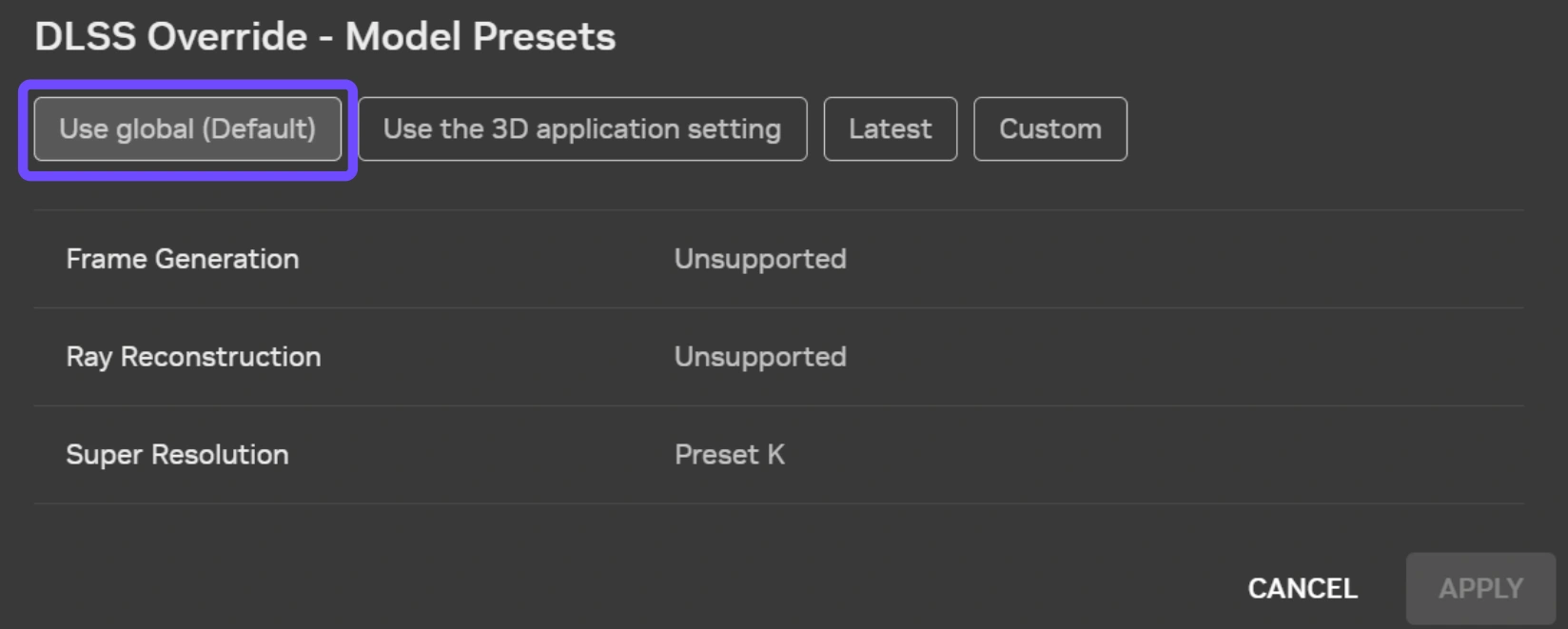
Step 5: Reset your DLSS configuration files back to default settings using your configuration tool or manual backup.
To address remaining questions regarding installation, performance, and hardware safety, review the following quick reference guide.
Part 7: FAQs About Onimusha: Way of the Sword DLSS 5
Answers to common player questions regarding DLSS 5 installation, GPU support, and stability troubleshooting.
Can I run DLSS 5 on an RTX 30 series graphics card?
Yes, using custom integration tools or mods allows RTX 30 Series cards to utilize DLSS 5 upscaling and neural reconstruction features, though native hardware frame generation requires newer GPU architectures.
What should I do if Onimusha DLSS 5 crashes on startup?
If the game crashes immediately upon launch, remove any manually added DLL files from the game folder, update your NVIDIA display drivers to the latest build, and verify the game file integrity through Steam.
Is using an Onimusha Way of the Sword DLSS 5 mod safe from game bans?
Because Onimusha: Way of the Sword is primarily a single-player action experience, modifying local graphics files for performance improvements does not trigger anti-cheat bans or account penalties.
How does Onimusha DLSS 5 RTX 4070 performance compare at 4K resolution?
On an RTX 4070, enabling DLSS 5 in Quality Mode with Frame Generation active delivers a stable 60 to 80 FPS at 4K resolution with high graphical presets enabled.
Do I need to manually update DLL files every time the game patches?
Official game patches often overwrite modified system files. When an official game update drops, manual mod users must reinstall updated DLL files, whereas automated tools manage updates automatically.
Can LagoFast help improve FPS alongside DLSS 5?
Yes, LagoFast combines graphics tool integration with system optimization features like background process cleaning and network route acceleration, providing a comprehensive boost to overall stability and frame rates.
Here is a final summary of how to achieve the smoothest gameplay experience while exploring Capcom's latest epic.
Conclusion
Unlocking peak performance in Capcom's latest title is straightforward once you set up the right upscaling tools. Applying DLSS 5 provides sharp visual detail, smooth combat animations, and high frame rates across modern NVIDIA GPUs. Whether you choose manual mod installations or use the automated LagoFast DLSS 5 tool, optimized graphics settings will elevate your journey. Dial in your preferences today and experience samurai action at its absolute best.

Boost Your Game with LagoFast for Epic Speed
Play harder, faster. LagoFast game booster eliminates stutter and lags on PC, mobile, or Mac—win every match!
Quickly Reduce Game Lag and Ping!
Boost FPS for Smoother Gameplay!