
Quick Answer
The Blood of Dawnwalker supports NVIDIA DLSS alongside AMD FSR and Intel XeSS on PC. Start with DLSS Quality at 1440p, use Balanced if the frame rate remains low, and enable Frame Generation only after the base frame rate feels stable. Lower volumetric, shadow, foliage, and detail settings before dropping to Performance mode because those options can improve smoothness with less image degradation.
LagoFast’s DLSS 5 one-click configuration tool can simplify DLSS-related setup and provide a quick way to test supported configuration options. It should be treated as a convenience and tuning tool, not as proof that the game officially supports every newer DLSS feature. The exact result depends on your GPU, driver, game build, and the tool’s current compatibility.

- ✅ Reduce Lag and High Ping.
- ✅ Boost FPS at the Same Time.
- ✅ Support 8000+ Popular Online Games.
- ✅ Stable Connection
Part 1: What Does DLSS Do in The Blood of Dawnwalker?
Part 2: Best DLSS Settings for The Blood of Dawnwalker
Part 3: How to Use LagoFast’s DLSS 5 One-Click Configuration Tool
Part 4: How to Fix DLSS Stutter, Artifacts, and Low FPS
Part 5: Does The Blood of Dawnwalker Support DLSS and Frame Generation?
Part 6: How to Combine DLSS With Better PC Performance
Part 7: FAQs About The Blood of Dawnwalker DLSS Tools
Part 1: What Does DLSS Do in The Blood of Dawnwalker?
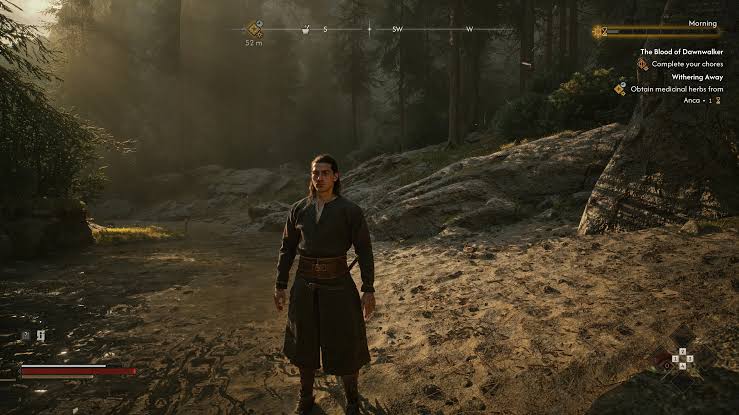
DLSS renders the game at a lower internal resolution and reconstructs the image at your target resolution, reducing GPU load and helping improve FPS on compatible NVIDIA RTX GPUs. This is especially useful in demanding areas of The Blood of Dawnwalker, where foliage, lighting, and detailed environments can put heavy pressure on the GPU.
DLSS Upscaling Is Not the Same as Frame Generation
DLSS Super Resolution improves performance by reducing rendering workload, while Frame Generation inserts additional frames to make gameplay appear smoother.
|
Feature |
What it changes |
Best use |
|
DLSS Super Resolution |
Internal rendering resolution and reconstruction |
Raise GPU-limited FPS while preserving detail |
|
DLAA |
Native-resolution anti-aliasing using DLSS technology |
Prioritize image quality when performance is already high |
|
Frame Generation |
Adds generated frames between rendered frames |
Improve displayed smoothness after base FPS is stable |
|
NVIDIA Reflex, when available |
Helps reduce latency in supported pipelines |
Pair with Frame Generation when the game exposes it |
Frame Generation does not replace a weak base frame rate. If the game is rendering at an unstable 25–35 FPS, generated frames may make the counter look higher while controls still feel delayed or uneven. Aim for a stable base before enabling it.
Part 2: Best DLSS Settings for The Blood of Dawnwalker
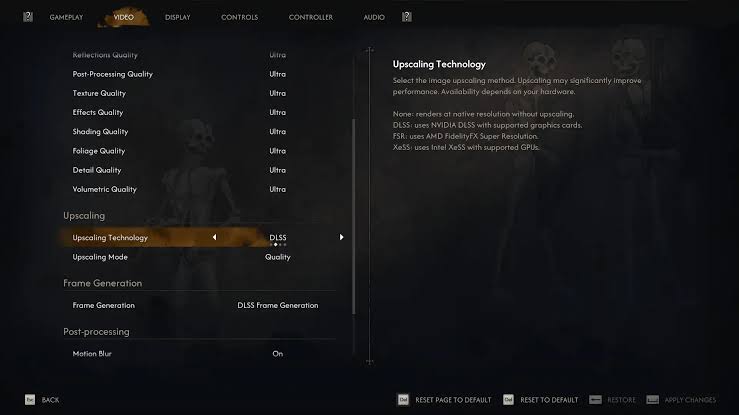
A Balanced 1440p Preset
For a modern mid-range or high-end PC at 1440p, begin with:
- High or Ultra overall preset.
- DLSS Quality.
- Frame Generation off for the first baseline test.
- Shadow Quality: High.
- Light Quality: High.
- Reflections Quality: Medium or High.
- Texture Quality: High or Ultra when VRAM allows it.
- Effects Quality: High.
- Shading Quality: High.
- Foliage Quality: Medium or High.
- Detail Quality: Medium or High.
- Volumetric Quality: Medium.
- Motion Blur: Personal preference; off makes motion easier to inspect.
This preset protects visual quality while reducing the options that commonly affect GPU or CPU workload. The settings guide from IGN specifically identifies volumetrics, shadows, foliage, reflections, shading, and detail as useful tuning points.
A 4K Quality Preset
At 4K, DLSS Quality is a reasonable first choice on a strong RTX card. If the GPU is close to full utilization and frame time remains too high, test Balanced. Lower volumetric quality and reflections before using Performance mode if image clarity is important.
Texture Quality is different from most performance options. It primarily affects VRAM use rather than raw GPU compute. If you have sufficient VRAM, lowering textures may provide little benefit and can make surfaces look noticeably worse. If VRAM is full and stutter appears during movement, reduce textures one step and test again.
A Lower-Specification Preset
For a PC near the minimum or lower recommended target, begin with:
- Medium or High overall preset.
- DLSS Balanced at 1440p, or Quality at 1080p.
- Frame Generation off until the base frame rate is stable.
- Shadow Quality: Medium.
- Reflections Quality: Medium.
- Texture Quality: Medium or High according to VRAM.
- Effects Quality: Medium.
- Foliage Quality: Medium.
- Detail Quality: Medium.
- Volumetric Quality: Low or Medium.
- Bloom and Chromatic Aberration: Off if you prefer a cleaner image.
Do not lower every setting at once. Change the most expensive options first, then compare the same location. A lower preset can reduce the atmosphere that makes the game appealing without solving a CPU-limited scene.
Part 3: How to Use LagoFast’s DLSS 5 One-Click Configuration Tool
LagoFast’s DLSS 5 one-click configuration tool is designed to simplify DLSS-related setup. Its value is convenience: instead of searching through files or manually applying several configuration steps, the player can use a game-focused tool workflow. LagoFast also positions its broader Game Booster around lower latency, connection stability, and FPS support.
The tool should not be described as native developer support. Use it as an optional configuration path, keep a backup, and confirm that the current version of The Blood of Dawnwalker and your GPU are compatible.
Step-by-Step Tutorial for Using the Blood of Dawnwalker DLSS Tool in LagoFast
Step 1. Download and install LagoFast. Click Free Trial to download LagoFast and complete the installation.
Step 2. Search for The Blood of Dawnwalker. Open LagoFast and search for The Blood of Dawnwalker to enter the game page.
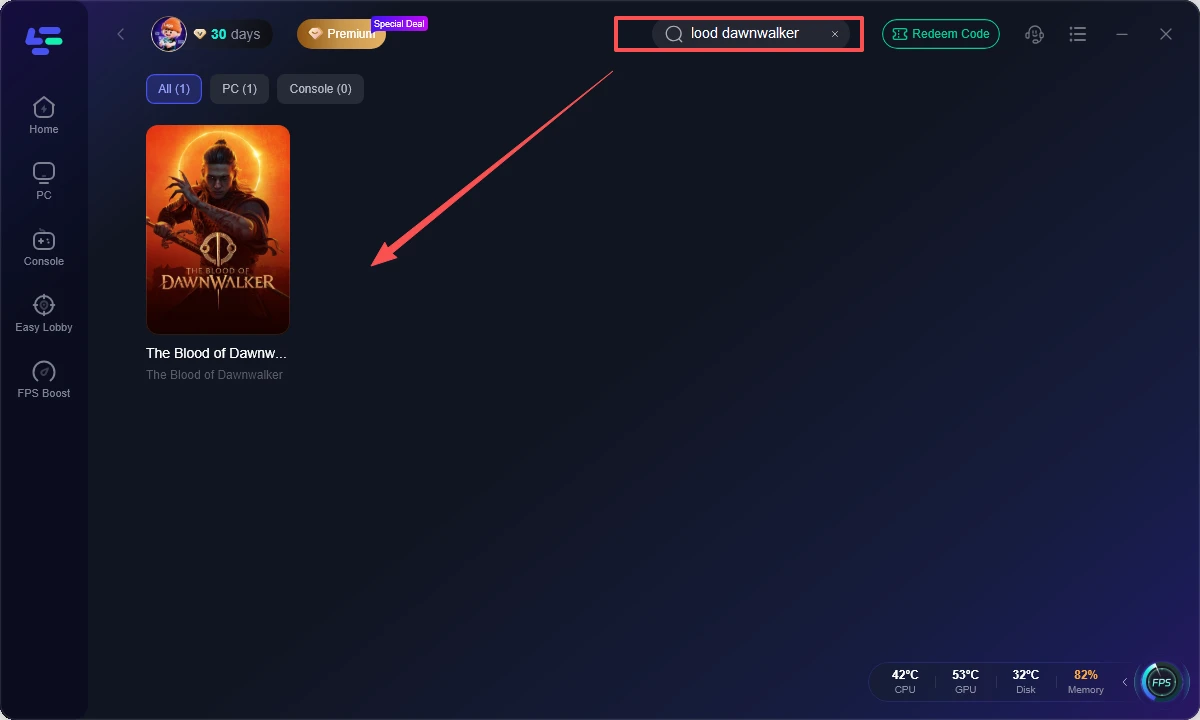
Step 3. Select One-Click DLSS 5. Under Game Tools, click One-Click DLSS 5. LagoFast will automatically detect the game and complete the required DLSS 5 configuration with one click.
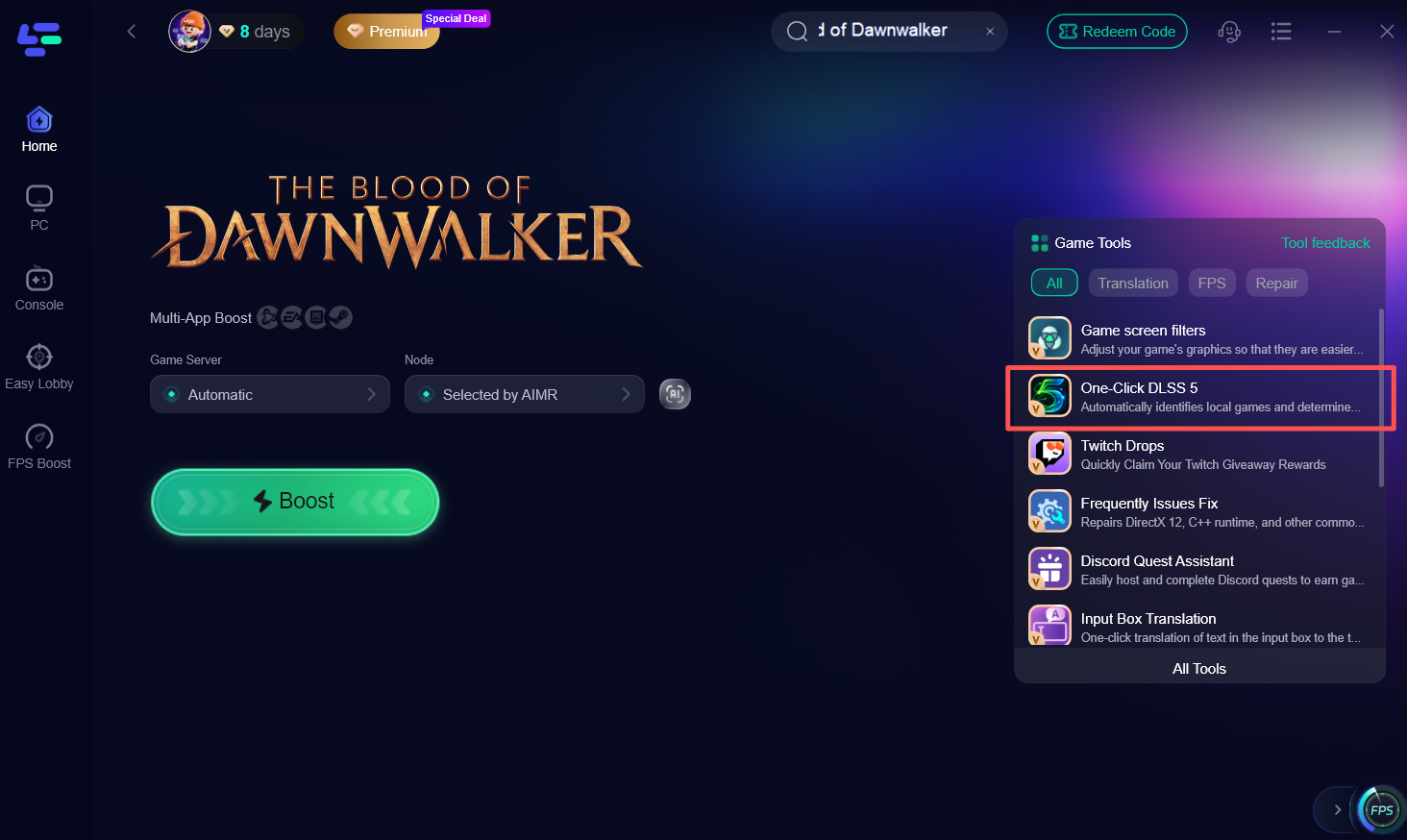
Step 4. Click Boost. Once the DLSS 5 configuration is complete, return to the game page and click Boost to optimize and launch The Blood of Dawnwalker.
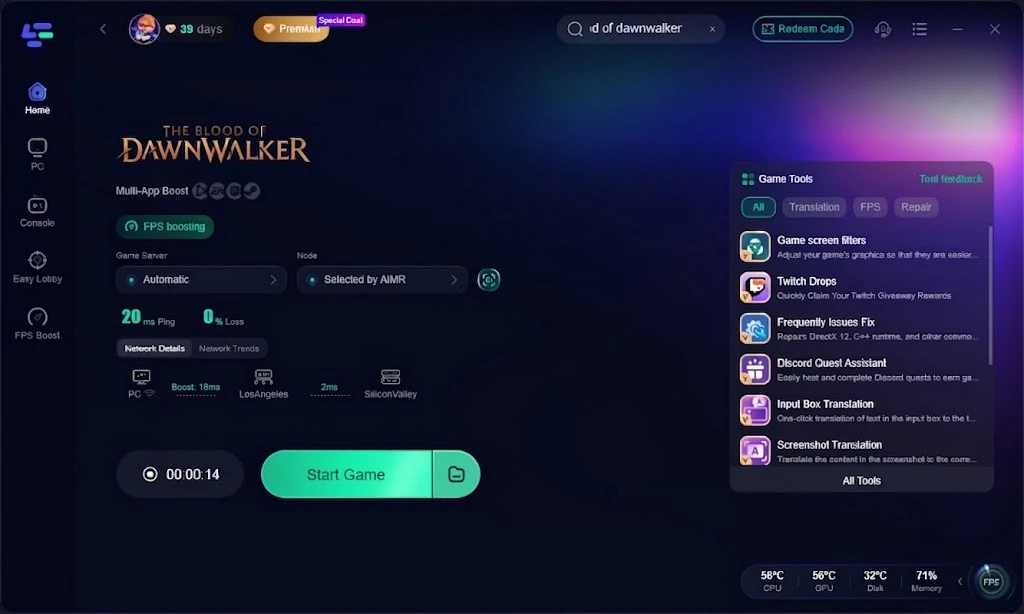
Step 5. Launch the game and check the result. Enter the game and compare FPS, frame stability, responsiveness, and image quality. You can then adjust the in-game graphics settings based on the performance you prefer.
Bonus: Translate The Blood of Dawnwalker with LagoFast
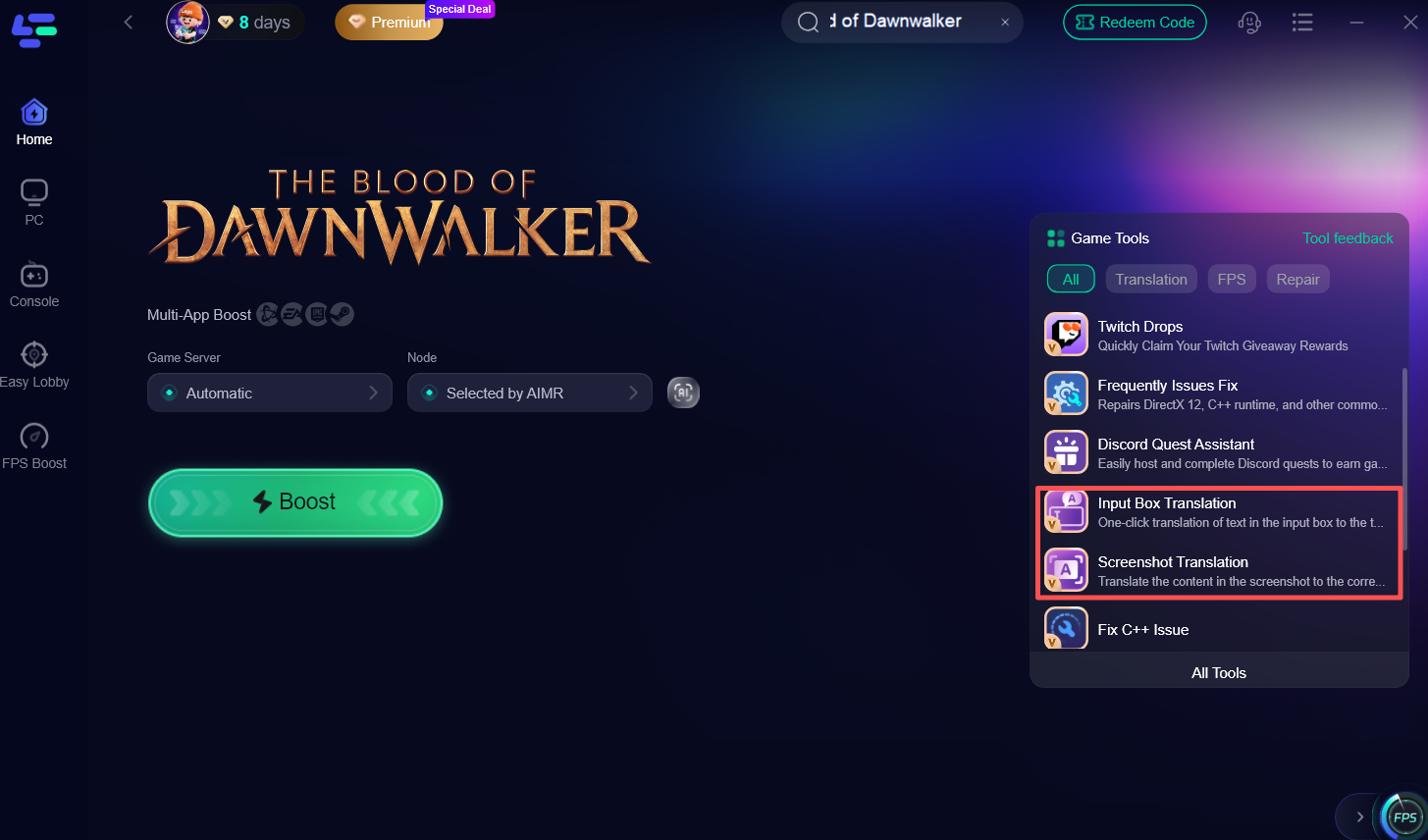
LagoFast also provides a built-in Game Translation tool for The Blood of Dawnwalker. This is especially useful for a story-heavy RPG, helping you understand story dialogue, quests, player choices, UI text, and subtitles while playing.
You can access the translation feature from Game Tools, choose your preferred language, and use it alongside LagoFast's other game tools.
Part 4: How to Fix DLSS Stutter, Artifacts, and Low FPS
If The Blood of Dawnwalker is still suffering from low FPS, stuttering, frame drops, or DLSS/Frame Generation issues after adjusting the graphics settings, try the fixes below.
Update the GPU Driver Cleanly
Install a current stable NVIDIA driver that supports your GPU and the game. If the problem began immediately after a driver update, compare with the previous known-good version when practical. Restart Windows after installation and remove unnecessary overlays from the first test.
A driver update does not guarantee higher FPS, but it can address shader compilation, profile behavior, and game-specific bugs. Avoid installing several performance utilities at the same time because they complicate diagnosis.
Clear or Rebuild the Shader Cache Carefully
Shader compilation can cause temporary stutter the first time a location or effect appears. Allow the game to finish any initial shader preparation and avoid force-closing it during that process. If the cache appears corrupted after a driver or game update, use the driver or Windows storage controls to clear it, then expect the first run to rebuild shaders.
Do not judge the new cache during the first few minutes alone. Traversal stutter may improve after commonly used effects have been compiled, but persistent stutter in every scene points to another cause.
Verify Game Files and Configuration
Use Steam or the relevant PC launcher to verify the installation. This can repair missing or damaged files without deleting the entire game. Back up custom configuration files before resetting them.
If DLSS disappears, crashes, or produces a black screen after external changes, remove the added files or restore the original configuration. A clean native launch is the correct baseline before trying another tool.
Check Resolution Scaling and Sharpening
Too much sharpening can make DLSS look noisy or emphasize ghosting around foliage and moving characters. Too little sharpening can make the scene appear blurry. Use the game’s native slider if available, and compare changes in motion rather than only in screenshots.
At 1080p, Performance mode often produces a softer image than it does at 4K. At 1440p, Quality or Balanced usually offers a better compromise for text and environmental detail.
Separate GPU Limits From CPU and Streaming Limits
If GPU utilization is low while one or more CPU cores are saturated, DLSS may provide little improvement because reducing render resolution does not remove the CPU bottleneck. Lowering effects, detail, or foliage may help more than switching from Quality to Performance.
If stutter occurs while entering new areas, check SSD health, background storage activity, and shader compilation. The official requirements include an SSD in the storage recommendation, so a mechanical drive may create worse streaming behavior even when the game technically starts.
Check Frame Generation Latency
Frame Generation can raise the displayed FPS but add latency. It is best used when the base frame rate is already consistent and the game is not CPU-limited. If movement feels delayed, turn it off and compare the control response.
A smooth counter is not the same as smooth input. Evaluate camera movement, attack timing, menu response, and frame-time consistency together.
Part 5: Does The Blood of Dawnwalker Support DLSS and Frame Generation?
Official Upscaling Support on PC
Current PC settings coverage identifies DLSS, FSR, and XeSS as the major vendor upscalers available for the game. NVIDIA GPU owners should begin with DLSS, AMD owners with FSR, and Intel owners with XeSS. The final menu labels and supported modes can change through updates, so confirm the options in the live build.
The game’s official PC information does not mean that every RTX card can run every mode at every resolution. An RTX 20-series or newer card may support DLSS Super Resolution, while newer frame-generation features have additional hardware and software requirements. Check the GPU generation, driver version, and in-game menu before assuming that a missing option indicates a broken installation.
Recommended Starting Points by Resolution
|
Target resolution |
Starting DLSS mode |
Suggested frame-generation approach |
|
1080p |
Quality or native rendering |
Test without it first; lower modes can look soft |
|
1440p |
Quality |
Enable only after base frame time is stable |
|
4K |
Quality or Balanced |
Consider it if base performance is consistent |
|
4K on mid-range hardware |
Balanced or Performance |
Check image stability around foliage and fine detail |
At 1080p, DLSS Performance may reconstruct from an internal resolution that is too low for fine text, hair, foliage, and distant geometry. Quality is usually the better first test. At 4K, Balanced can provide a larger performance gain while retaining a reasonable image.
Is DLSS 5 Officially Built Into the Game?
Do not confuse the game’s in-game DLSS support with LagoFast’s DLSS 5 one-click configuration tool. The official game listing and PC settings information should be treated as the authority for native support. A third-party tool may provide a simpler configuration workflow or expose a supported enhancement path, but compatibility can vary by game version and hardware.
Before applying any external configuration, back up the game’s configuration files, note your current DLSS mode, and make sure the tool is obtained from its official page. If the game updates, repeat the compatibility check rather than assuming the previous setup still applies.
How to Choose Quality, Balanced, or Performance
Use this decision table:
|
Observation |
Recommended change |
|
GPU usage is 95–99% and image is clear |
Move from Quality to Balanced |
|
GPU usage is low but FPS is poor outdoors |
Lower foliage, detail, effects, or check CPU limits |
|
Fine detail shimmers or looks soft |
Return to Quality or native rendering |
|
Base FPS is unstable |
Keep Frame Generation off and fix the base frame rate |
|
VRAM is full during traversal |
Lower textures and close GPU-heavy applications |
|
Frame time is stable but displayed FPS is low |
Test Frame Generation after checking latency |
Part 6: How to Combine DLSS With Better PC Performance
DLSS is one part of the performance chain. The best result comes from combining it with a clean baseline, suitable graphics settings, stable drivers, and controlled background activity.
Use a Repeatable Benchmark Route
Choose a repeatable sequence in the same area:
- Load the same save.
- Walk or fight through the same short route.
- Record average FPS and one-percent lows.
- Watch frame time rather than only the FPS counter.
- Note GPU utilization, VRAM use, and CPU load.
- Change one setting.
- Repeat the route twice before deciding.
This process prevents a quiet interior from making a setting appear better than it is in a demanding outdoor scene.
Reduce Background Load
Close browser tabs with video, cloud synchronization, game launchers downloading updates, recording utilities, and unnecessary overlays. Make sure Windows is not installing a large update during testing. Background GPU usage can reduce VRAM headroom, while background CPU activity can worsen traversal stutter.
Keep Storage and Cooling Healthy
Install the game on an SSD with adequate free space. Check that the GPU and CPU temperatures remain within normal limits and that fans are not restricted by dust or an aggressive silent profile. Thermal throttling can look like a graphics-setting problem because performance deteriorates after several minutes.
Use LagoFast for the Connection Side When Relevant
The Blood of Dawnwalker is primarily a single-player RPG, so network optimization is not a replacement for graphics tuning. It may still help with launcher authentication, patch downloads, or any connected feature if the route is unstable. To test it, select the game in LagoFast, choose a suitable route, start Smart Boost, and compare login or download consistency. Turn it off if it adds latency or changes nothing.
Choose a Practical Target
A stable 60 FPS is usually preferable to a fluctuating 100 FPS with inconsistent frame time. On a high-refresh monitor, target a frame rate your system can hold in the heaviest scene rather than the menu or a quiet room. Use Frame Generation only after that target is stable.
Part 7: FAQs About The Blood of Dawnwalker DLSS Tools
Does The Blood of Dawnwalker support DLSS?
Yes. The PC version supports NVIDIA DLSS, alongside AMD FSR and Intel XeSS upscaling options.
What is the best DLSS setting for The Blood of Dawnwalker?
Start with DLSS Quality or Balanced. Balanced is a good choice at 1440p when you need more FPS, while aggressive Performance modes can noticeably reduce image quality, especially around foliage.
Does The Blood of Dawnwalker support DLSS Frame Generation?
Yes. The game includes an experimental 2x Frame Generation option. It can make gameplay noticeably smoother, although it works best when your base frame rate is already reasonably stable.
Does DLSS fix stuttering in The Blood of Dawnwalker?
Not always. DLSS reduces GPU rendering load, but stuttering can also come from frame pacing, CPU limits, VRAM pressure, drivers, or other system bottlenecks.
Why does DLSS look blurry or noisy in The Blood of Dawnwalker?
Lower DLSS modes use a lower internal rendering resolution. If foliage, hair, or moving objects look noisy or soft, switch from Performance to Balanced or Quality before lowering other settings..
Key Takeaway
Start with DLSS Quality or Balanced and test performance in a demanding area. If FPS is still low, reduce shadows, foliage, reflections, and volumetric quality before switching to more aggressive DLSS modes. Enable Frame Generation only after you have a reasonably stable base frame rate, as it improves perceived smoothness but may add latency or visual artifacts.
For an easier setup, LagoFast’s One-Click DLSS 5 can automatically configure a supported DLSS setup for The Blood of Dawnwalker. Apply the configuration, click Boost, and launch the game to test the result.
Boost Your Game with LagoFast for Epic Speed
Play harder, faster. LagoFast game booster eliminates stutter and lags on PC, mobile, or Mac—win every match!
Quickly Reduce Game Lag and Ping!
Boost FPS for Smoother Gameplay!