If you are encountering the “No User Logon” or “No Steam Logon” error in CS2, it means the game cannot verify your account through Steam’s authentication system. These errors commonly appear when players attempt to join a match, enter matchmaking, or connect to a server in Counter-Strike 2.
Because CS2 relies heavily on Steam services to confirm player identity before allowing server access, any disruption between the game client and Steam’s backend can trigger these errors. Fortunately, in most cases, the issue can be resolved quickly once the root cause is identified.

Best CS:GO Game Booster — LagoFast
- ✅ Reduce Lag and High Ping.
- ✅ Boost FPS at the Same Time.
- ✅ Add CSGO to Steam Library.
- ✅ Change Server Without Latency.
- ✅ End All Connection crash Issues.
- ✅ Multiplatform: PC, Mobile, Console.
Free Trial
Part 1: What the “No User Logon” & “No Steam Logon” Errors Mean in CS2
Part 2: Why “No User Logon” & “No Steam Logon” Errors Occur in CS2
Part 3: Restart Steam and CS2 to Fix No User Logon Error
Part 4: Check Steam Server Status Before Troubleshooting Further
Part 5: Verify CS2 Game Files to Fix No Steam Logon Error
Part 6: Fix Network Issues Causing No User Logon Error in CS2
Part 7: Disable VPN or Proxy to Fix No Steam Logon CS2 Error
Part 8: Check Firewall and Antivirus Settings
Part 9: Log Out and Back Into Steam to Refresh Session
Part 10: Advanced Fix for CS2 No User Logon Error Using LagoFast
Part 1: What the “No User Logon” & “No Steam Logon” Errors Mean in CS2
Understanding Steam Authentication Failure
The “No User Logon” and “No Steam Logon” messages indicate that your Steam login session could not be verified by the game. This prevents CS2 from establishing a secure connection to its servers.
When These Errors Typically Appear
You are most likely to encounter these errors in the following situations:
- Joining a multiplayer server
- Entering matchmaking
- Launching the game after a connection interruption
Since CS2 depends entirely on Steam authentication, losing that connection immediately blocks gameplay access.
Part 2: Why “No User Logon” & “No Steam Logon” Errors Occur in CS2
Common Technical Causes
Several issues can trigger these errors. The most frequent causes include:
- Steam server outages: Temporary backend failures
- Unstable internet connection: Packet loss or disconnects
- Expired Steam session: Authentication token timeout
- VPN or proxy interference: Misrouted traffic
- Firewall or antivirus blocking: Restricted Steam services
- Corrupted CS2 files: Broken communication with Steam
- Authentication timeouts: Delayed server responses
How These Issues Affect Gameplay
All these factors interrupt the authentication handshake between your Steam client and CS2 servers, resulting in the “No User Logon error” or “No Steam Logon CS2 error.”
Part 3: Restart Steam and CS2 to Fix No User Logon Error
Quick Restart Steps
One of the simplest and most effective fixes is restarting both the game and Steam:
- Exit Counter-Strike 2 completely
- Close Steam from the system tray
- Restart your computer
- Relaunch Steam and log in again
Why This Works
This process refreshes your Steam authentication session, which often resolves temporary login validation issues.
Part 4: Check Steam Server Status Before Troubleshooting Further
When the Problem Isn’t on Your Side
Sometimes the issue is caused by Steam servers themselves. This commonly happens during:
- Platform maintenance
- Major CS2 updates
- High traffic periods
What You Should Do
If servers are down, there is no local fix. You will need to wait until Steam services stabilize before reconnecting.
Part 5: Verify CS2 Game Files to Fix No Steam Logon Error
Step-by-Step File Verification
Corrupted files can break communication between CS2 and Steam. To fix this:
- Open your Steam Library
- Right-click Counter-Strike 2
- Select Properties
- Go to Installed Files
- Click Verify integrity of game files
Result of Verification
Steam will automatically repair missing or damaged files, which can resolve the CS2 No User Logon error.
Part 6: Fix Network Issues Causing No User Logon Error in CS2
Restart Your Internet Connection
Network instability is a major cause of authentication failure. Try this:
- Turn off your modem and router
- Wait at least three minutes
- Turn them back on
Why This Helps
This resets your connection and improves routing, helping prevent Steam authentication timeouts.
Part 7: Disable VPN or Proxy to Fix No Steam Logon CS2 Error
How VPNs Cause the Problem
VPN services reroute your traffic through remote servers, which can interfere with Steam authentication.
Recommended Fix
- Disable your VPN or proxy
- Restart Steam
- Launch CS2 again
Many users report that disabling VPN instantly resolves the No Steam Logon error in CS2.
Part 8: Check Firewall and Antivirus Settings
Applications That Must Be Allowed
Ensure your firewall allows the following:
- Steam client
- Steam Client Service
- Counter-Strike 2 executable
Testing Security Software Conflicts
Temporarily disable your antivirus to check if it is blocking Steam. If the issue is resolved, add exceptions for Steam and CS2.
Part 9: Log Out and Back Into Steam to Refresh Session
Steps to Reauthenticate
If your session has expired:
- Open Steam
- Click your profile name
- Select Log Out of Account
- Log back in
Why This Fix Works
This forces Steam to generate a new authentication token, resolving login-related errors.
Part 10: Advanced Fix for CS2 No User Logon Error Using LagoFast
Sometimes the issue is caused by high latency, packet loss, or unstable routing between your ISP and Steam servers. These factors can trigger the “No User Logon” or “No Steam Logon” errors.
LagoFast improves connection stability by optimizing network routes and reducing interruptions during authentication.
Key Benefits of Using LagoFast
- Reduces latency spikes during Steam authentication
- Minimizes packet loss that causes logon errors
- Optimizes routing between your network and servers
- Provides real-time diagnostics
- Offers one-click optimization
Quick Steps to Use LagoFast
Click the "Free Trial" button below to download and install LagoFast for free.
Free Trial
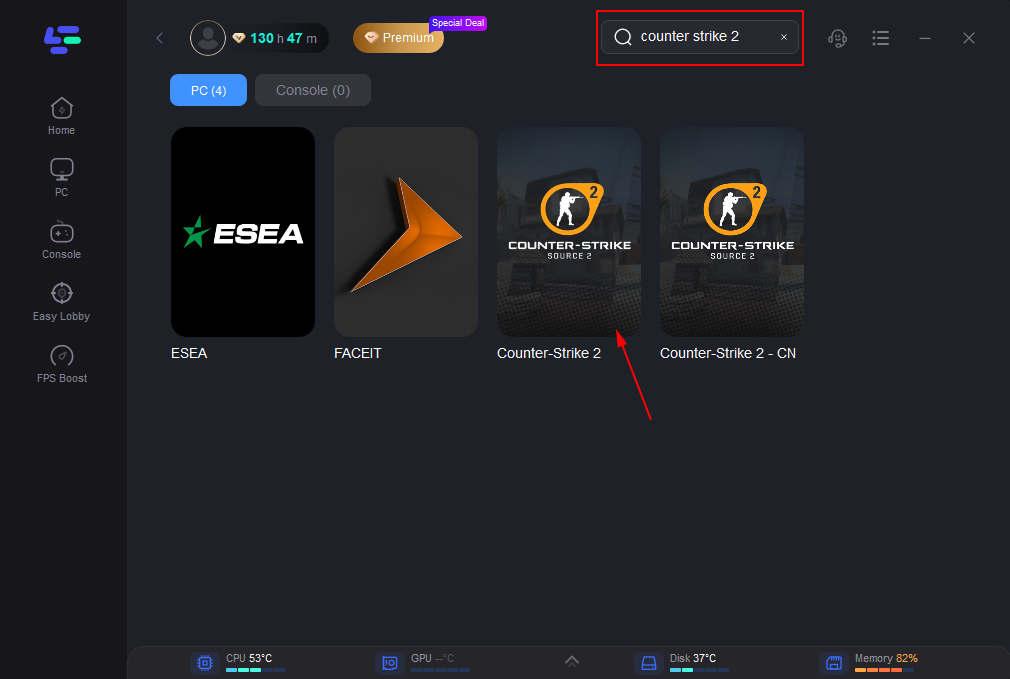
Use the search bar in LagoFast to find Counter-Strike 2.
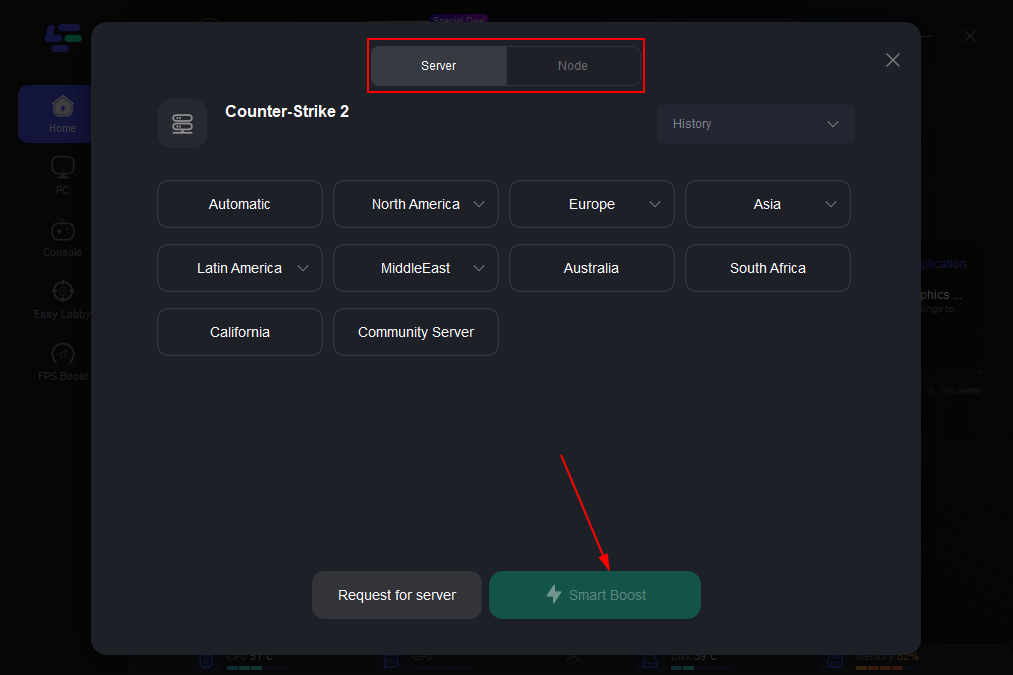
Click on “Server” to change to a better server that ensures smooth gameplay, then click on “Smart Boost”.
Check the specific game ping, packet loss, and multiple path connection on the right side. Finally, click the “Start Game” to play the game.
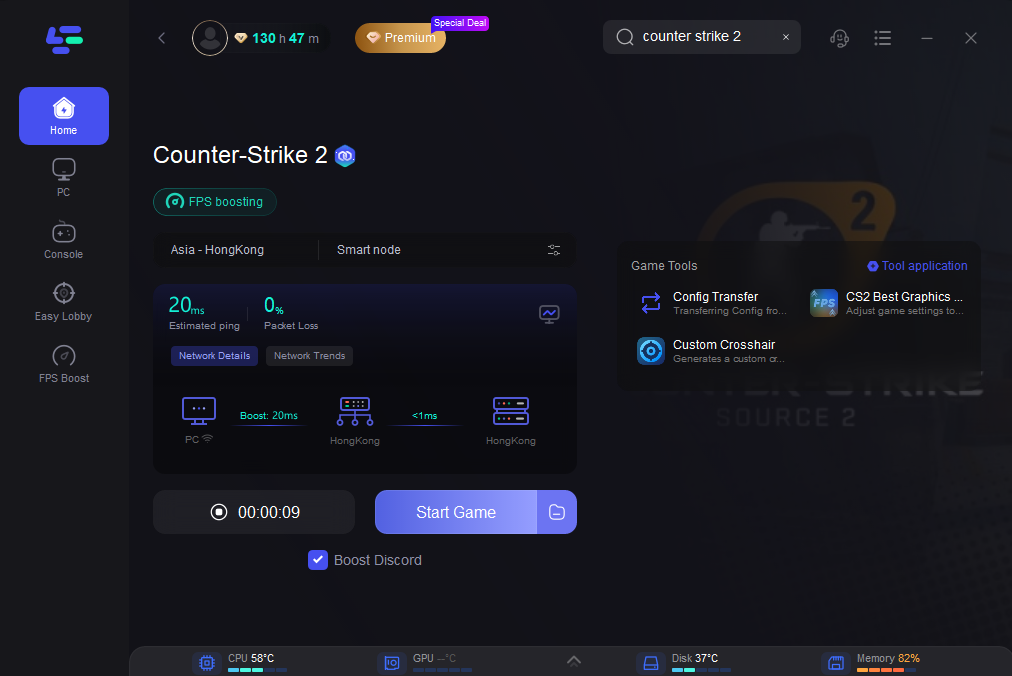
While it cannot fix Steam outages, it significantly improves local network reliability.
Conclusion
The “No User Logon” and “No Steam Logon” errors in CS2 occur when the game fails to verify your Steam authentication session. In most situations, solutions such as restarting Steam, checking server status, verifying game files, disabling VPNs, and fixing network issues will resolve the problem quickly.
Since Counter-Strike 2 depends heavily on Steam’s backend services, maintaining a stable internet connection and properly configured system settings is essential for uninterrupted gameplay. By following the steps outlined above, you can effectively solve the No User Logon error in CS2 and return to smooth online matches.