
Quick Answer
CS2 launching issues are usually not caused by a single factor, but by a combination of multiple issues.
The correct troubleshooting process is: verify game files → clear launch options → update drivers → update your system → apply targeted fixes based on specific errors.
Introduction: The Frustration is Real
If you’ve been browsing Reddit or the Steam Community, you’ve likely seen posts like: “I click Play, it says ‘Running’ for a few seconds… then nothing happens.” Since the move to Source 2, Counter-Strike 2 has become more sensitive to system conflicts, often resulting in black screens, crashes, or no response at launch. These issues are rarely caused by a single bug, but by a mix of file, driver, and system-related problems.
That’s why following a clear, step-by-step troubleshooting process is the most effective way to get the game running again.

- ✅ Reduce Lag and High Ping.
✅ Boost FPS at the Same Time.
✅ Support 8000+ Online Games
✅ Change Server Without Latency.
✅ Multiplatform: PC, Console, Mobile.
✅End Connection & Crashing Issue
✅ Support Easy Lobby in all Cod Series
Part 1: Most Effective Fixes for CS2 Not Launching
Part 2: Common CS2 Launch Errors: A Deep Dive
Part 3: Professional Troubleshooting Flow
Part 4: Identifying Your Specific Startup Issue
Part 5: Beyond the Launch: Optimize Your Experience with LagoFast
Part 1: Most Effective Fixes for CS2 Not Launching
Before you resort to a full 30GB re-installation, try these community-vetted solutions in order.
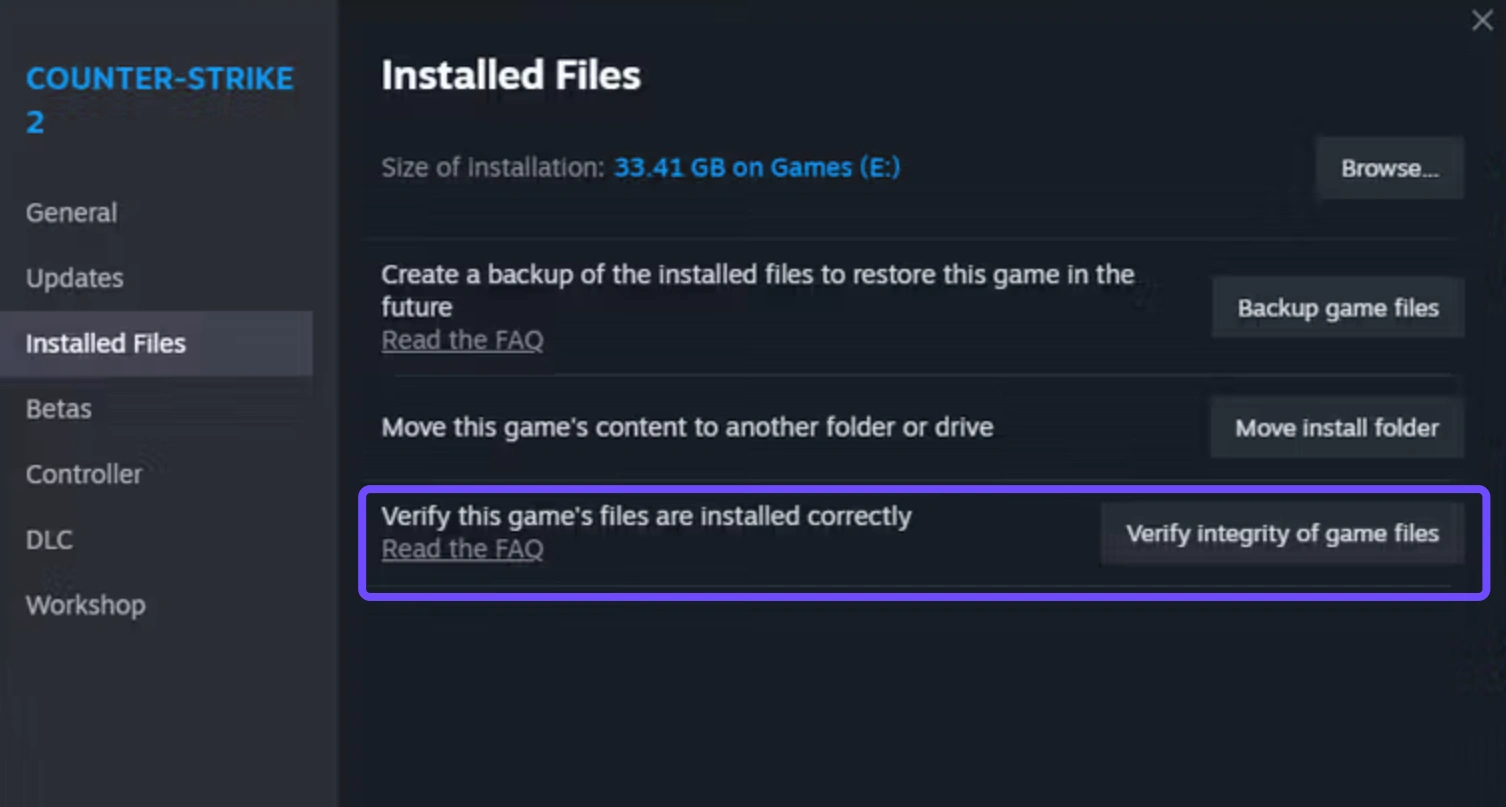
A. Verify Integrity of Game Files
This is the "Old Reliable." Sometimes a patch download gets interrupted, leaving a single corrupted .vpk file that prevents the engine from initializing.
Step 1. Right-click CS2 in Steam.
Step 2. Select Properties and click Installed Files.
Step 3. Click Verify integrity of game files.
B. Update Graphics Drivers (The Clean Way)
CS2 relies heavily on the latest Vulkan and DX11 optimizations. If your drivers are even a month old, you might experience a CS2 crash on launch.
- NVIDIA/AMD: Don't just rely on Windows Update. Download the latest version directly from the manufacturer’s site.
- Pro Tip: Use DDU (Display Driver Uninstaller) if you recently switched GPUs, as old driver remnants often cause the "Missing Executable" error.
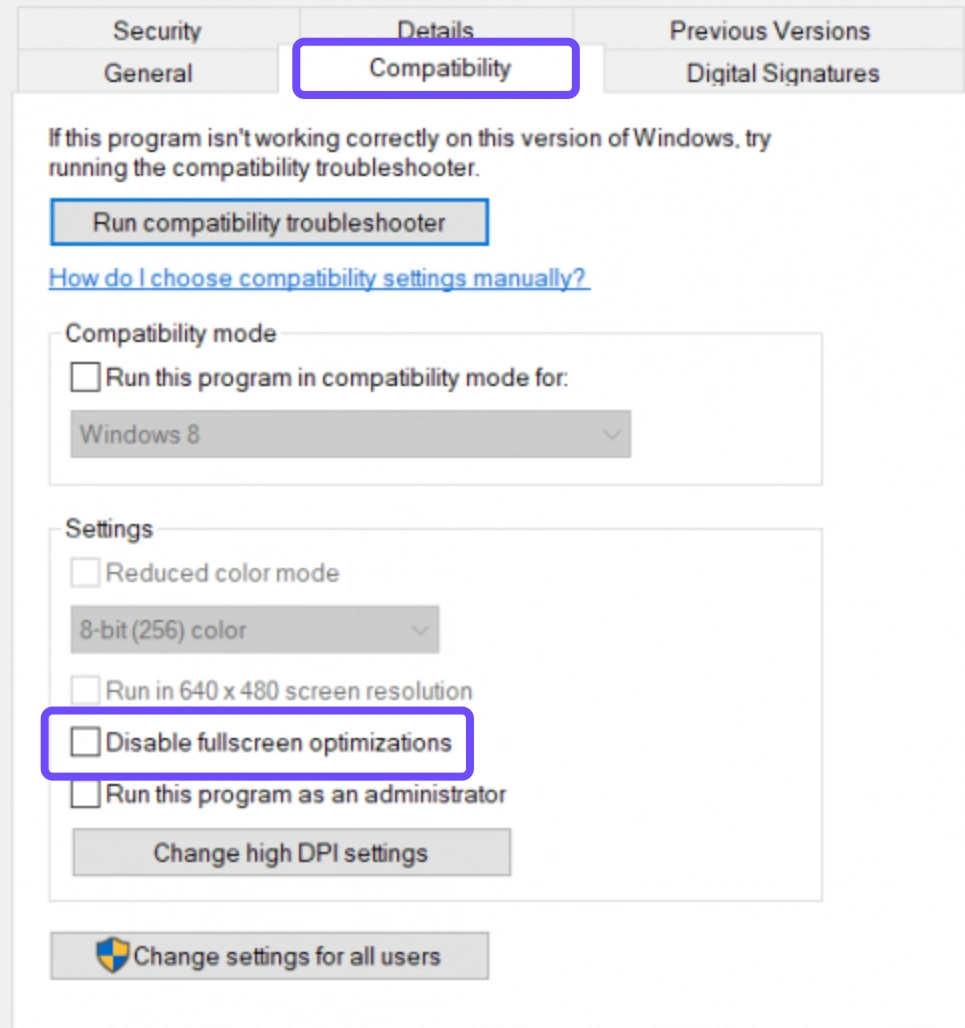
C. Run as Administrator & Disable Fullscreen Optimizations
Windows sometimes blocks CS2 from accessing specific memory blocks.
Step 1. Go to: \Steam\steamapps\common\Counter-Strike Global Offensive\game\bin\win64.
Step 2. Right-click cs2.exe, select Properties, and click Compatibility.
Step 3. Check Run this program as an administrator and disable full-screen optimizations.
D. Use Selective Launch Options
While we usually recommend clearing launch options, some "safe mode" commands can bypass a black screen.
-autoconfig: Resets all video and performance settings to default (perfect if you set an unsupported resolution).
-novid: Skips the Valve intro movie, which often causes hangs on older hardware.
-vulkan: Forces the game to use the Vulkan API instead of DirectX 11.
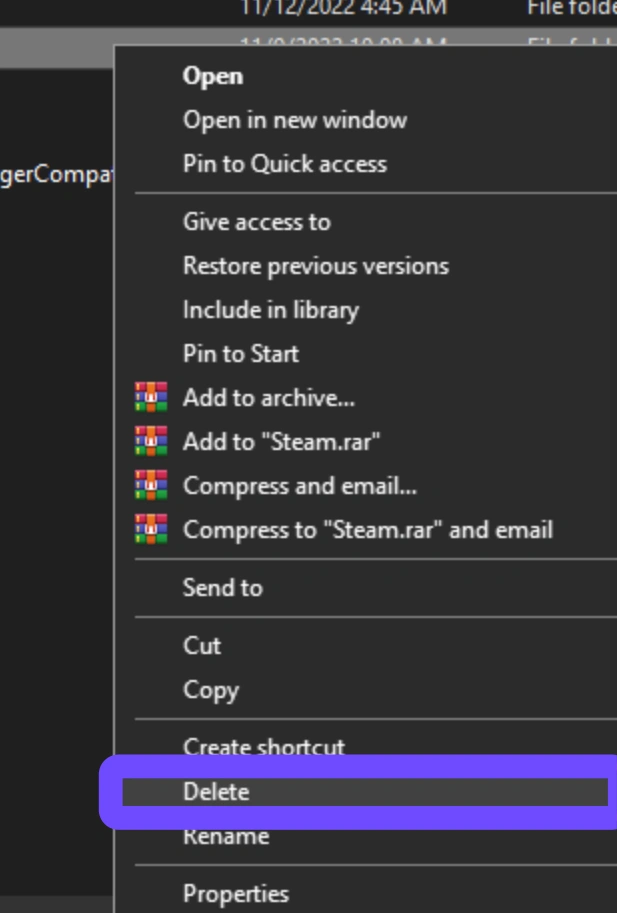
E. The "730" Reset (Deleting User Cache)
Your local configuration might be the culprit.
Step 1. Navigate to \Steam\userdata\[YourID]\730.
Step 2. Delete the local folder. (Note: This will reset your in-game settings, so back up your autoexec.cfg first!).
Part 2: Common CS2 Launch Errors: A Deep Dive
Sometimes the game gives you a specific hint. Here is how to decode those cryptic error messages.
|
Error Message |
Core Cause |
The Fix |
|
Error 126 |
Missing DLLs or C++ Redistributables. |
Reinstall Visual C++ Redistributable Packages from Microsoft. |
|
Fatal Error |
Engine initialization failure. |
Check for conflicting software like Faceit AC or old versions of MSI Afterburner. |
|
Missing Executable |
Antivirus quarantined cs2.exe. |
Add the CS2 folder as an "Exclusion" in Windows Defender. |
|
DX11 / DirectX Error |
Unsupported GPU or corrupted DX files. |
Use the -vulkan launch option or update DirectX. |
|
Stuck on Black Screen |
Resolution mismatch or Refresh Rate conflict. |
Use -windowed in launch options to force the game open. |
Part 3: Professional Troubleshooting Flow
Typically, CS2 not launching issues can be resolved by going through the following checklist step by step:
1. Verify Game Files
Check and repair corrupted or missing files via Steam.
2. Clear Launch Options
Remove all custom launch parameters and test with default settings.
3. Update GPU Driver
Install the latest graphics driver to avoid compatibility issues.
4. Update Windows
Ensure your system is fully up to date.
5. Fix Runtime (VC++)
Reinstall Visual C++ Redistributables to restore missing dependencies.
6. Match Error-Specific Fix
Apply targeted solutions based on any specific error messages.
7. Reinstall CS2
Perform a clean reinstall to eliminate hidden conflicts.
If the issue still persists after completing all steps, it’s recommended to contact official support.
Part 4: How to Identify My Specific Startup Issue
Understanding why your CS2 is failing can save you hours of work. Use this table to diagnose your specific symptom.
|
Error Message / Symptom |
Primary Suspect |
Recommended Solution |
|
Error 126 |
Missing C++ Files |
Reinstall Visual C++ Redistributables |
|
DX11 / DirectX Error |
GPU Compatibility |
Update Drivers / Try -vulkan |
|
Black Screen on Launch |
Resolution Conflict |
Add -windowed to Launch Options |
|
Fatal Error |
File Corruption |
Verify Game Integrity |
|
Stuck on Loading Screen |
Network / Cache |
Clear userdata folder / Reset Router |
Part 5: Beyond the Launch: Optimize Your Experience with LagoFast
Sometimes, the reason CS2 won't launch or gets stuck on the loading screen isn't your PC. It's your connection to the Steam servers. A "handshake" failure can prevent the game from authenticating, leading to a "Not Responding" status. In this case, a game booster like LagoFast is your best fix.
LagoFast is designed to solve these deep-level connectivity issues:
- Multipath Connection: If your local ISP is throttling Steam traffic, LagoFast reroutes your data through optimized gaming nodes, ensuring your client "talks" to the game server without interruption.
- Game Repair Tools: LagoFast includes built-in tools to help detect and fix common runtime errors and network settings that cause CS2 to crash on startup.
- One-Click FPS Boost: LagoFast features a dedicated FPS Boost tool that optimizes your Windows system settings at a deep level.
- Ping & Lag Reduction: Once you're in the game, LagoFast stabilizes your connection, preventing the dreaded "Connection Problem" auto-disconnect that often follows a shaky startup.
If you’ve tried every technical fix and the game still feels "heavy" or fails to sync with the Steam Cloud, using a specialized game booster can bridge the gap between your hardware and the game's servers.
Tutorial to Use LagoFast to Optimize Your CS2 Experience:
Step 1: Click the Free Trial button to download and install LagoFast Free Trial.
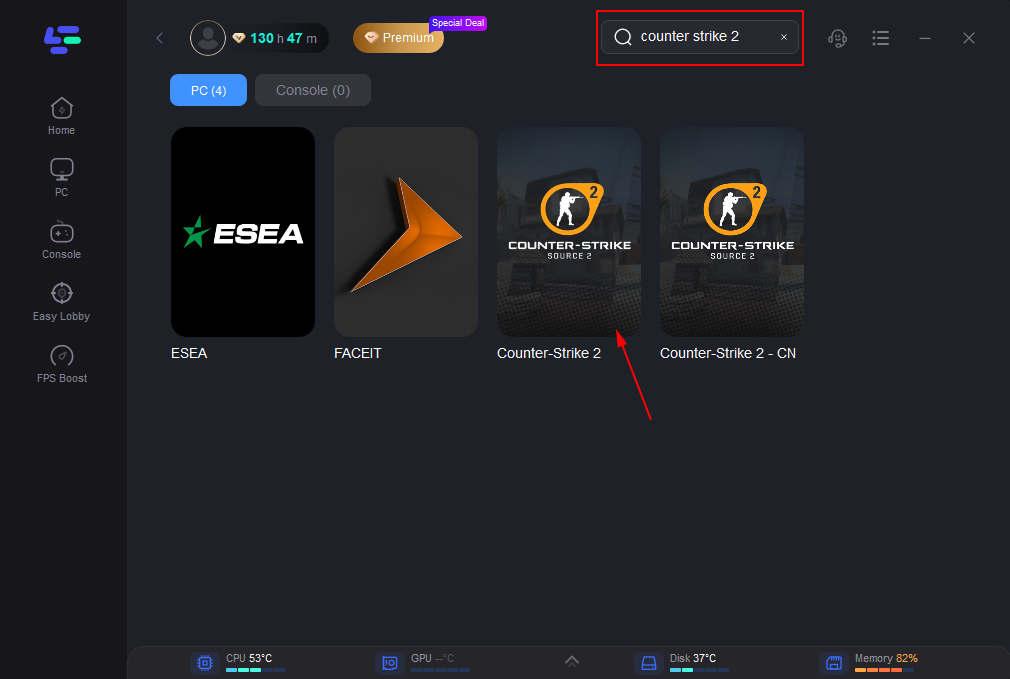
Step 2: Search for CSGO in the top search bar then click the result.
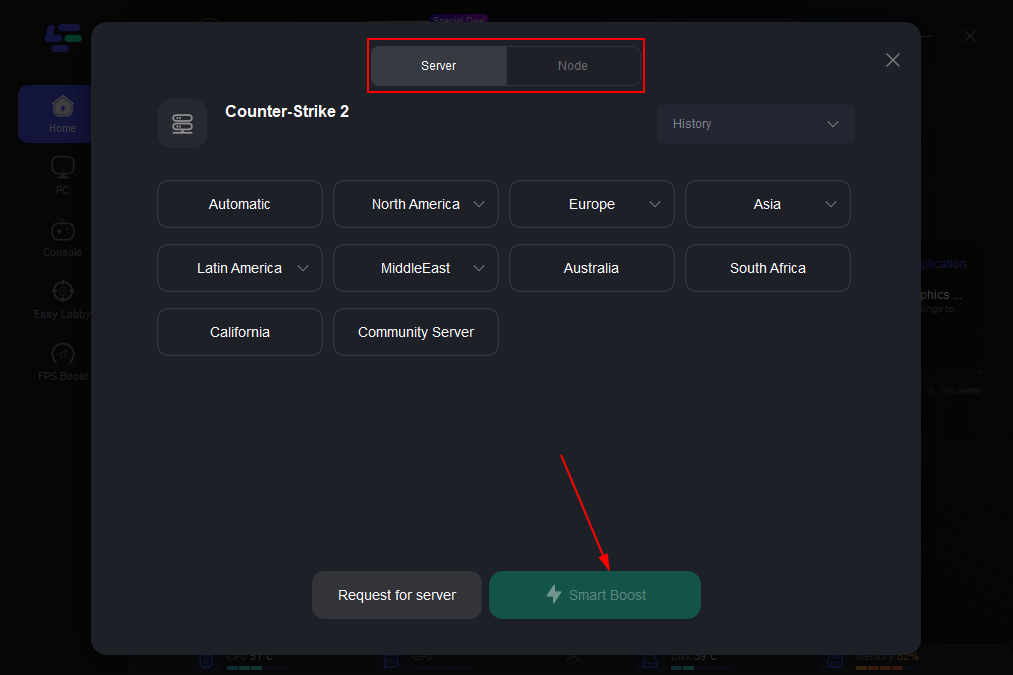
Step 3: Click on “Server” to change to a better server that ensures smooth gameplay, then click on “Smart Boost”.
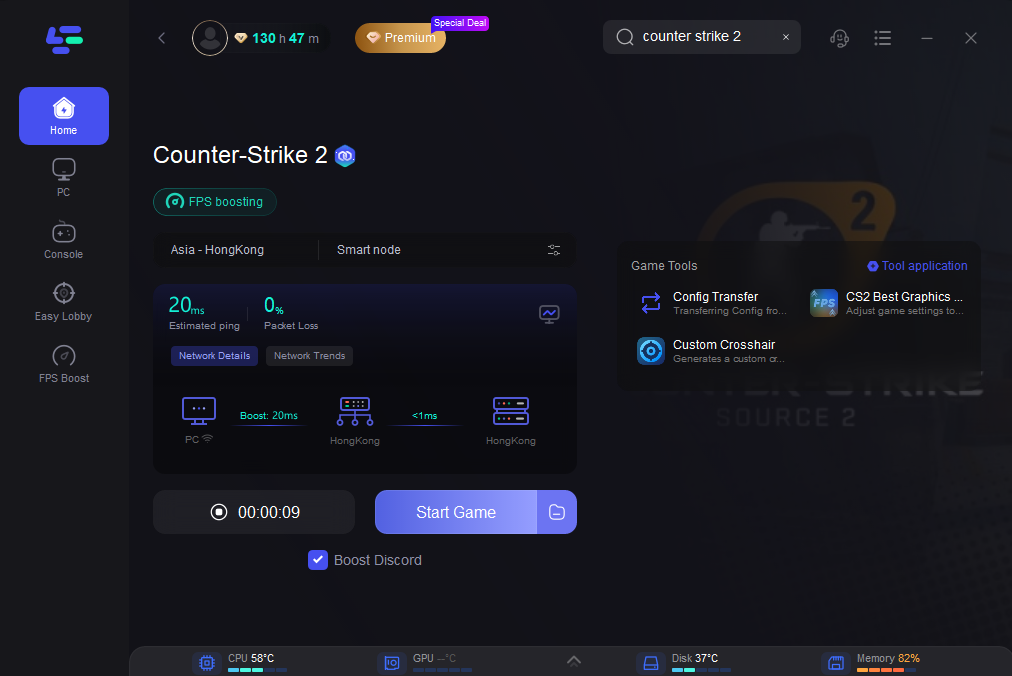
Step 4: Check the specific game ping, packet loss, and multiple path connection on the right side. Finally, click the “Start Game” to play the game.
Conclusion
Fixing CS2 launch issues is a matter of systematic troubleshooting. By verifying your files and ensuring your drivers are current, you solve the majority of problems. If your game still feels "heavy" or fails to open due to network sync issues, a tool like LagoFast can provide the necessary stability and FPS boost to get you back in the game.
Boost Your Game with LagoFast for Epic Speed
Play harder, faster. LagoFast game booster eliminates stutter and lags on PC, mobile, or Mac—win every match!
Quickly Reduce Game Lag and Ping!
Boost FPS for Smoother Gameplay!