
Quick Answer
Most Mistfall Hunter launch issues, including anti-cheat failures, crashes, and login errors, can be resolved by verifying game files, updating drivers, adjusting firewall/antivirus settings, and ensuring the game runs with administrative privileges. For persistent network-related problems, a game booster like LagoFast can significantly improve connection stability.
This guide explains common startup issues in Mistfall Hunter, including launch failures, crashes, anti-cheat errors, and login problems such as returning to the login screen.
Most problems are caused by a mix of corrupted files, driver conflicts, security software blocking the game, or unstable network connections rather than a single fault. The Bellring Anti-Cheat system can also trigger launch failures when it conflicts with overlays or system permissions.
Below, you’ll find structured fixes covering each scenario step by step, including network optimization tools like LagoFast Game Booster for players dealing with persistent connection instability.

- ✅Less ping and crashes.
- ✅ Higher FPS and better performance.
- ✅ Support for 8000+ games.
- ✅ Stable connection and region switching.
- ✅ Mistfall Hunter Translation Tool
Part 1: Why Mistfall Hunter Is Not Launching
Part 2: Mistfall Hunter Not Working: Unable to Log In
Part 3: How to Fix Bellring Anti-Cheat Issues
Part 4: Malicious App Prevented from Running Error
Part 5: Disconnected Returning to Login Screen Fix
Part 6: Verify Files / Reinstall / Admin Permission Fix
Part 7: Firewall and Antivirus Settings
Part 8: How to Enhance Your Game Experience with LagoFast Game Booster
Part 1: Why Mistfall Hunter Is Not Launching
Before applying fixes, it’s important to understand what typically prevents the game from starting. Most crash or launch failure cases come from system-level conflicts rather than a single bug.
Anti-Cheat System Conflicts and Deep System Hooks
The game uses the Bellring Anti-Cheat system, which monitors system processes at a low level. Because of this deep access, it may conflict with overlays, recording tools, or monitoring software, resulting in launch failure or immediate crashes.
Corrupted or Missing Game Files
Incomplete updates, disk errors, or forced shutdowns can damage game files. When key components are missing, the game cannot initialize properly.
Driver and System Incompatibility
Outdated GPU drivers, missing system libraries, or Windows errors may prevent proper execution of the game engine.
Network and Server Communication Issues
Although more common for login errors, unstable connections may also cause failed initialization or repeated login loops.
Permission Restrictions
If the game or anti-cheat lacks administrator privileges, Windows may block access to required system resources.
Third-Party Software Interference
Overlays, recording software, and performance tools can conflict with anti-cheat systems and prevent startup.
Related Article: Mistfall Hunter Best Classes Tier List: Solo, PvP, and Beginners
Part 2: Mistfall Hunter Not Working — Unable to Log In
Login failures usually occur after the game launches and are related to network or authentication problems.
Server Maintenance or Overload
Game servers may be temporarily unavailable due to updates or heavy traffic.
Network Instability and Packet Loss
Even with normal internet browsing, unstable routing can break authentication requests.
Firewall or Antivirus Blocking
Security software may block game traffic and prevent login.
Corrupted Login Cache
Old or broken authentication data can cause repeated login failures.
Account-Level Issues
Temporary bans, password resets, or region restrictions may prevent access.
Related Article: Mistfall Hunter FPS Drops & Stuttering Fix: Best PC Settings
Part 3: How to Fix Bellring Anti-Cheat Issues
Anti-cheat problems are one of the most common causes of startup failure.
Verify Game File Integrity
Repair installation files using the game launcher to restore missing or corrupted components.
Run as Administrator
Grant elevated permissions to both the game and anti-cheat executables.
Reinstall Anti-Cheat Components
Repair or reinstall the Bellring Anti-Cheat system from the game directory if available.
Disable Overlays and Background Applications
Turn off Discord overlay, recording tools, and monitoring software temporarily.
Update Drivers and Windows
Ensure GPU drivers and system updates are fully up to date.
Add Antivirus and Firewall Exceptions
Whitelist game and anti-cheat files to prevent false detection.
Part 4: Malicious App Prevented from Running Error
This error is usually caused by antivirus false positives.
Whitelist Game Files
Add the game folder and executables to antivirus exclusions.
Restore Quarantined Files
Check security software quarantine and restore removed files.
Update Antivirus Definitions
Outdated threat databases may incorrectly flag game files.
Temporarily Disable Security Software
Use this only for testing to confirm if antivirus is causing the issue.
Verify Game Files Again
Ensure all missing files are restored properly.
Part 5: Disconnected Returning to Login Screen Fix
This issue is typically caused by unstable network communication.
Check Server Status
Confirm whether game servers are online before troubleshooting locally.
Restart Network Devices
Power cycle modem and router to refresh connection.
Use Wired Connection
Ethernet is more stable than Wi-Fi for online gaming.
Reset Network Settings
Use system commands to reset IP, DNS, and network stack, then restart PC.
Disable VPN or Proxy
VPN routing may introduce instability or higher latency.
Contact ISP
If issues persist across multiple services, the problem may be with your provider.
Part 6: Verify Files, Reinstall, and Admin Permission Fix
These are core troubleshooting steps for most launch issues.
Verify Game Files
Use the launcher’s built-in repair tool to fix corrupted or missing data.
Reinstall the Game
Perform a clean reinstall if verification does not solve the issue.
Run as Administrator
Ensure both launcher and game executable have full permissions.
Part 7: Firewall and Antivirus Settings Optimization
Security software often interferes with game execution.
Add Game Folder to Exclusions
Whitelist the entire installation directory.
Allow Through Windows Firewall
Enable both private and public network access.
Check Quarantine History
Restore any mistakenly removed files.
Enable Game Mode
Reduce antivirus interference during gameplay.
Part 8: How to Enhance Your Game Experience with LagoFast Game Booster
Even after resolving launch issues, network performance can still be a bottleneck for a smooth and enjoyable Mistfall Hunter experience. High ping, packet loss, and unstable connections can lead to frustrating lag, rubberbanding, and disconnections, especially in a fast-paced PvPvE extraction ARPG. This is where a dedicated game booster like LagoFast comes into play, optimizing your network route to the game servers and providing a competitive edge.
LagoFast is designed to reduce latency, stabilize connections, and prevent packet loss by intelligently routing your game traffic through its optimized global network. It's like having a dedicated fast lane for your game data, bypassing congested internet routes.
Here’s how to use LagoFast Game Booster to enhance your Mistfall Hunter experience:
Step 1: Click the "Free Trial" button to download LagoFast on your device.
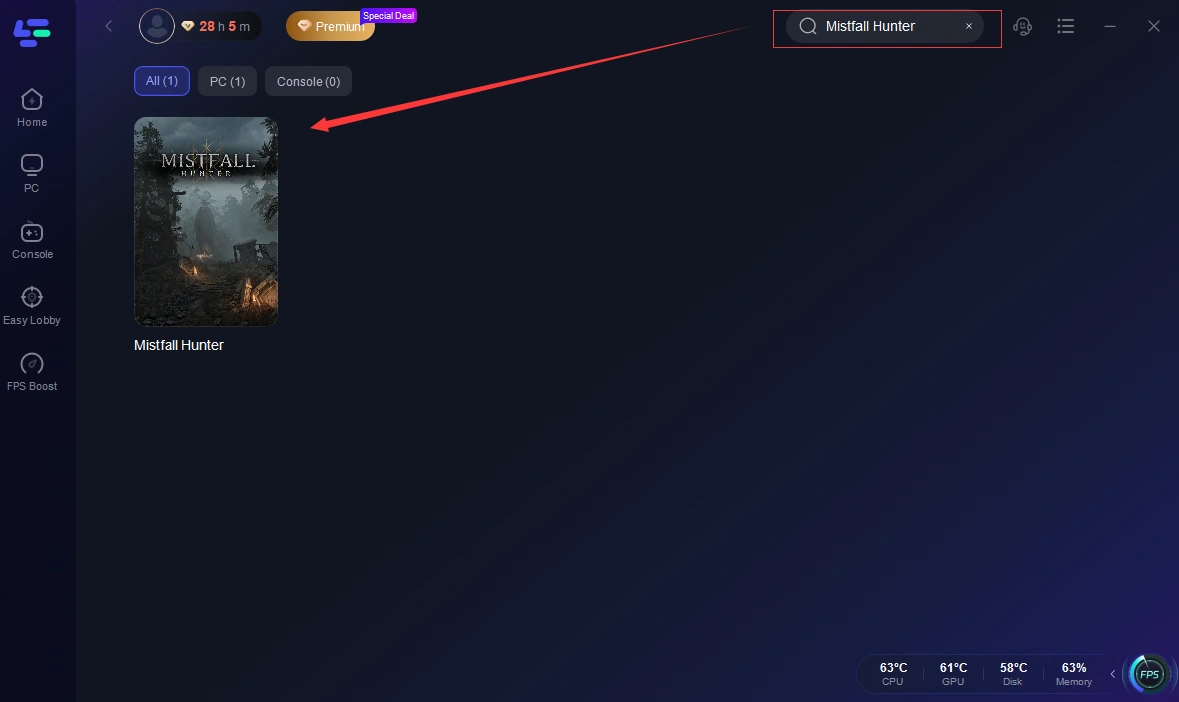
Step 2: Open LagoFast, click the PC button on the left, and search for Mistfall Hunter in the search bar. Select the game when it appears.
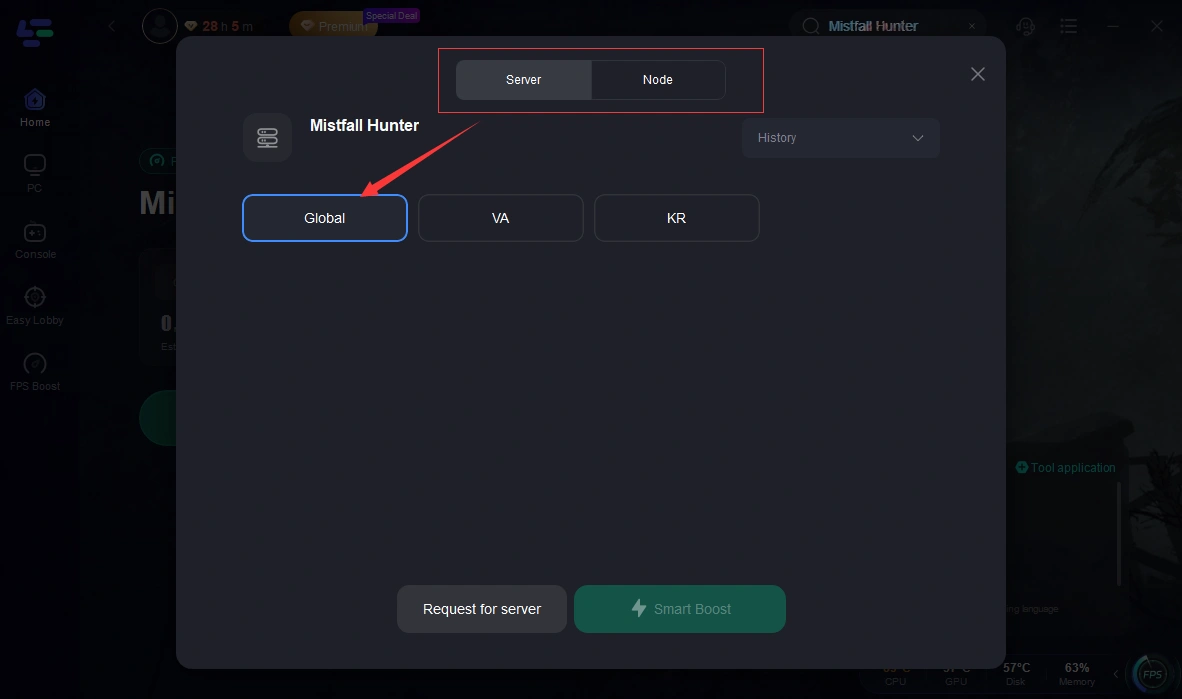
Step 3: Click on “Server” to change to a better server that ensures the gaming experience, then click on “Smart Boost”.
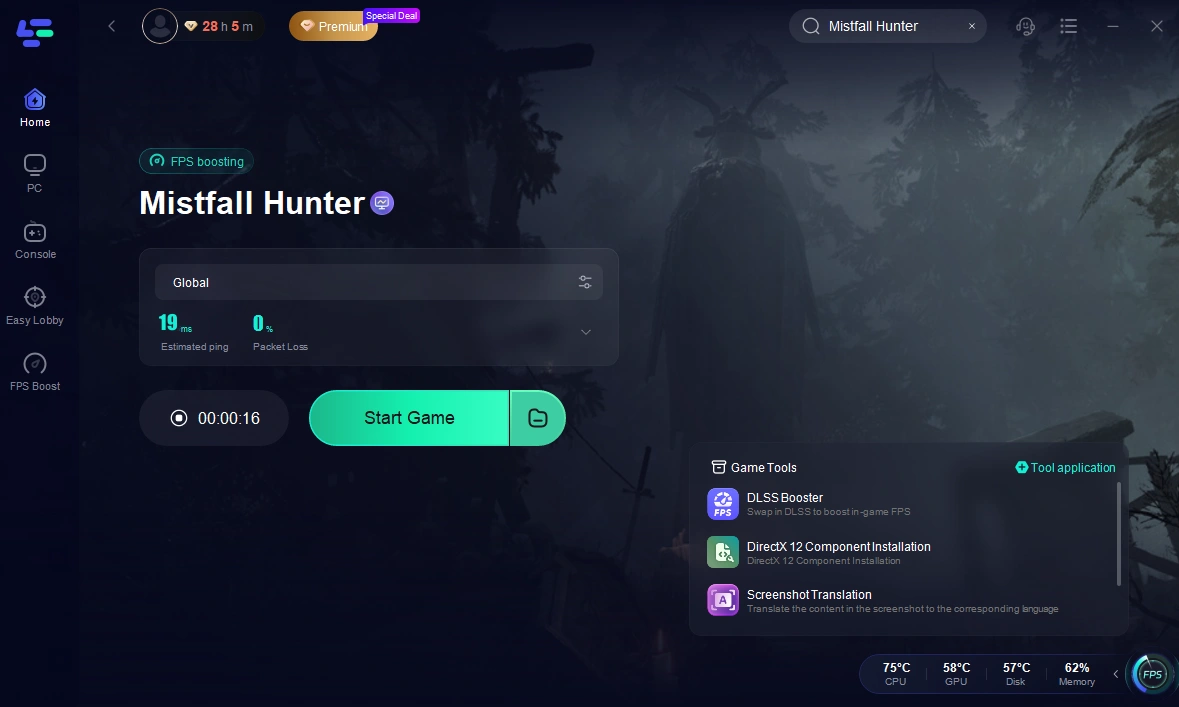
Step 4: Check the specific game ping, packet loss, and multiple path connection on the right side. Finally, click the “Start Game” to play the game.
Part 9: FAQ
Why does the game crash without error?
Usually caused by driver issues, overheating, or background software conflicts.
Why does the game run poorly on a strong PC?
Often due to incorrect settings, background usage, or power plan configuration.
How do I update graphics drivers?
Download directly from GPU manufacturers and perform a clean installation.
What are the minimum requirements?
Typically mid-range CPU, 8GB RAM, and GTX 1060/RX 580-class GPU.
Can the game be played offline?
No, it requires a stable online connection.
Conclusion
Most issues in Mistfall Hunter come from anti-cheat conflicts, corrupted files, security software interference, or unstable network connections.
A structured approach—verifying files, adjusting permissions, configuring security tools, and stabilizing network routes—can resolve most launch and login problems effectively.
For persistent network instability, tools like LagoFast Game Booster can further improve connection quality and reduce disconnections, leading to a smoother overall experience.

Boost Your Game with LagoFast for Epic Speed
Play harder, faster. LagoFast game booster eliminates stutter and lags on PC, mobile, or Mac—win every match!
Quickly Reduce Game Lag and Ping!
Boost FPS for Smoother Gameplay!