
Quick Answer: How to Instantly Fix Performance Drops in Mistfall Hunter
The fastest way to eliminate stuttering and frame drops in Mistfall Hunter is to download and optimize your connection with LagoFast. This specialized gaming software simultaneously stabilizes your connection to the servers, bypasses unstable network routes, and features a built-in PC hardware booster that lowers CPU/GPU resource overhead, providing a massive, immediate boost to your frame rate.
Introduction
Mistfall Hunter, the highly anticipated dark fantasy extraction RPG, delivers high-stakes PvPvE combat within the treacherous, fog-choked landscapes of the Gyldenmist. However, complex combat mechanics, environmental density, and dynamic interactions often lead to sudden frame drops, performance degradation, and micro-stuttering. This comprehensive optimization guide breaks down exactly how to stabilize your performance, ensure fluid parries, and secure your hard-earned loot during extraction.

- ✅Less ping and crashes.
- ✅ Higher FPS and better performance.
- ✅ Support for 8000+ games.
- ✅ Stable connection and region switching.
- ✅ Mistfall Hunter Translation Tool
Part 1: Why Mistfall Hunter Stutters or Drops FPS
Part 2: Best Graphics Settings for Stable FPS
Part 3: DLSS / FSR Settings Performance Comparison
Part 4: How to Reduce Stutter When Entering Rooms or Fighting Players
Part 5: GPU Driver and Shader Cache Fixes
Part 6: Network Lag vs. FPS Drops: How to Tell the Difference
Part 1: Why Mistfall Hunter Stutters or Drops FPS
Unreal Engine games running high-fidelity assets frequently experience processing bottlenecks. In Mistfall Hunter, massive framerate instabilities are typically driven by five primary issues:
- Shader Compilation Stutter: The engine builds visual assets on the fly as you discover new items, rooms, or enemy abilities, causing brief but catastrophic hardware lockups.
- VRAM Over-Allocation: High-resolution textures overwhelm your graphics card's available physical video memory, forcing the system to slow down and fetch data from your system RAM.
- CPU Bottlenecks in Hubs or Dynamic Fights: When multiple player squads cast abilities or fight groups of monsters concurrently, your processor struggles to track the physical geometry and projectile tracks.
- Suboptimal Windows Power and Graphic Configurations: Windows power-saving parameters often restrict your hardware, preventing your CPU and GPU from maintaining their necessary maximum clock speeds.
- Unstable Network Packet Routing: Server communication delays masquerade as physical hardware micro-stutters, causing severe visual hitches during intense combat.
Related Article: Mistfall Hunter Best Classes Tier List: Solo, PvP, and Beginners
Part 2: Best Graphics Settings for Stable FPS
To achieve smooth performance without transforming the dark fantasy atmosphere into an unrecognizable, blurry mess, tweak your in-game visual options to achieve the perfect balance between engine visual quality and physical frame delivery:
- Display Mode: Set exclusively to Fullscreen. Avoid Windowed or Borderless modes, as they force Windows to manage desktop composition overhead, inducing noticeable input latency and frame pacing anomalies.
- Resolution: Match your monitor's native screen standard (e.g., 1920x1080 or 2560x1440). Scaling down below your monitor's baseline resolution will cause severe visual blur.
- View Distance: Set to Medium. Setting this parameter to High or Epic places unnecessary strain on your CPU by rendering background elements far beyond your operational visibility in the thick fog.
- Shadow Quality: Set to Low or Medium. Shadows represent one of the single largest processing draws in the game engine. Dropping this down instantly yields a double-digit percentage boost to your baseline FPS.
- Anti-Aliasing: Set to Medium. This choice keeps visual edges sufficiently clean without over-taxing your graphics processor's render pipelines.
- Texture Quality: Match this parameter directly to your hardware's available VRAM. If your card has 6GB or less, choose Low/Medium; if it has 8GB or more, you can safely select High.
- Post-Processing: Set to Low. Disabling resource-intensive visual features like depth of field and motion blur clears up the scene and reclaims valuable graphics processing cycles.
- Effects Quality: Set to Medium. This prevents severe framerate drops when multiple magical skills and area-of-effect abilities explode on screen simultaneously.
Part 3: DLSS / FSR Settings Performance Comparison
Using AI-powered temporal upscaling solutions is highly recommended for maintaining reliable performance during high-action sequences. Choose the specific mode that matches your targeting priorities:
|
Upscaling Technology |
Recommended Mode |
Expected FPS Gain |
Primary Impact on Quality |
Target Hardware |
|
NVIDIA DLSS |
Quality / Balanced |
30% to 50% |
Pristine edge clarity with imperceptible soft textures. |
RTX 20-Series or newer cards |
|
AMD FSR |
Quality |
25% to 40% |
Slight shimmering on thin geometric lines or fine environmental meshes. |
Non-RTX and AMD Radeon cards |
|
DLSS Frame Generation |
Enabled (If supported) |
50% to 80% |
Unlocked, high-refresh motion flow; introduces nominal input delay. |
RTX 40-Series or newer cards |
Part 4: How to Reduce Stutter When Entering Rooms or Fighting Players?
Solution 1: Optimize with LagoFast Game Booster (Recommended Method)
LagoFast is a premium gaming booster designed to eliminate game lag, lower high ping, and stop frame drops. It optimizes network routes using a global node network while featuring an integrated, one-click hardware booster to maximize system resource allocation for smooth gameplay.
Key Features of LagoFast:
- Smart Routing Engine: Automatically detects and switches to the fastest, lowest-ping network paths to prevent packet loss.
- One-Click FPS Booster: Dynamically closes resource-heavy background tasks to free up CPU, GPU, and RAM overhead.
- Cross-Region Stabilization: Simplifies connecting to international match servers while preventing rubberbanding and connection drops.
- Multipath Connection Technology: Simultaneously aggregates multiple data paths to ensure your connection remains solid during chaotic team fights.
Tutorial to Use LagoFast to Fix Low FPS and Stuttering in Mistfall Hunter:
Step 1: Click the "Free Trial" button to download LagoFast on your device.
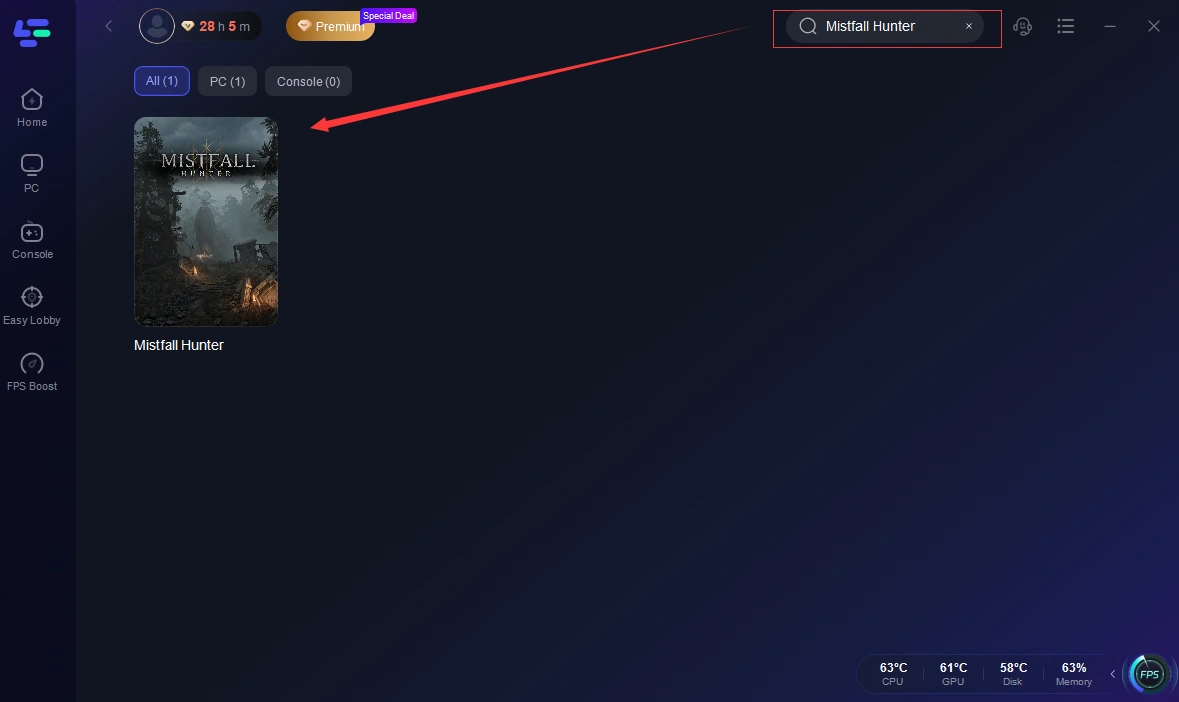
Step 2: Open LagoFast, click the PC button on the left, and search for Mistfall Hunter in the search bar. Select the game when it appears.
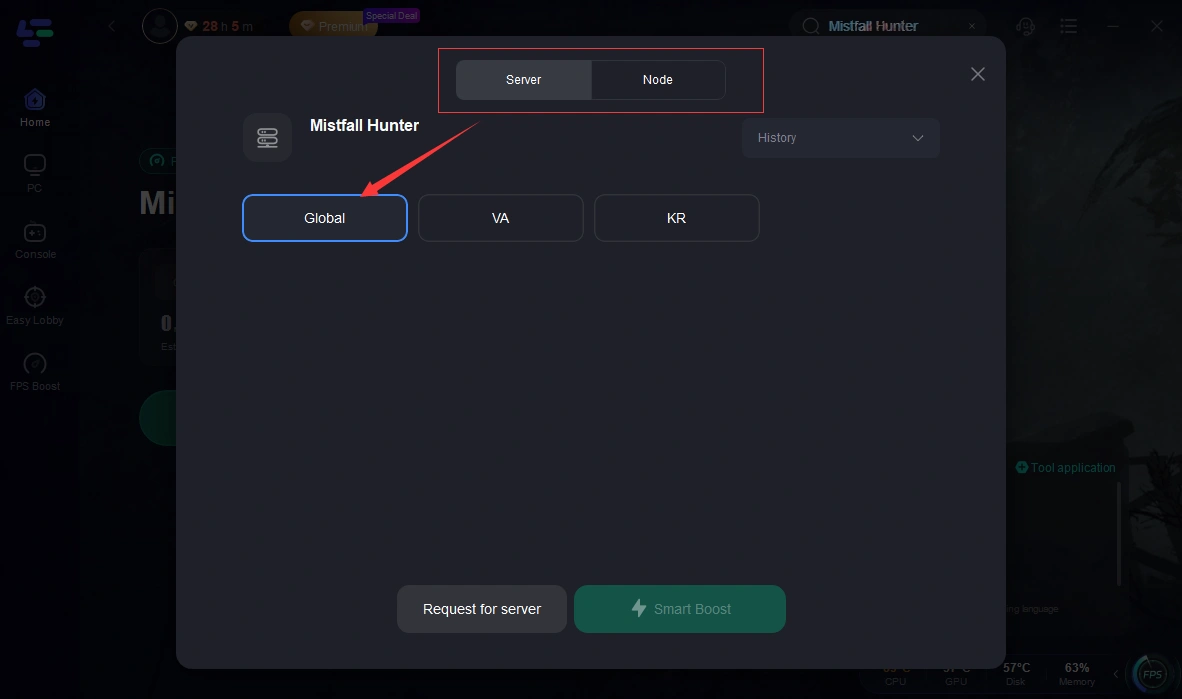
Step 3: Click on “Server” to change to a better server that ensures the gaming experience, then click on “Smart Boost”.
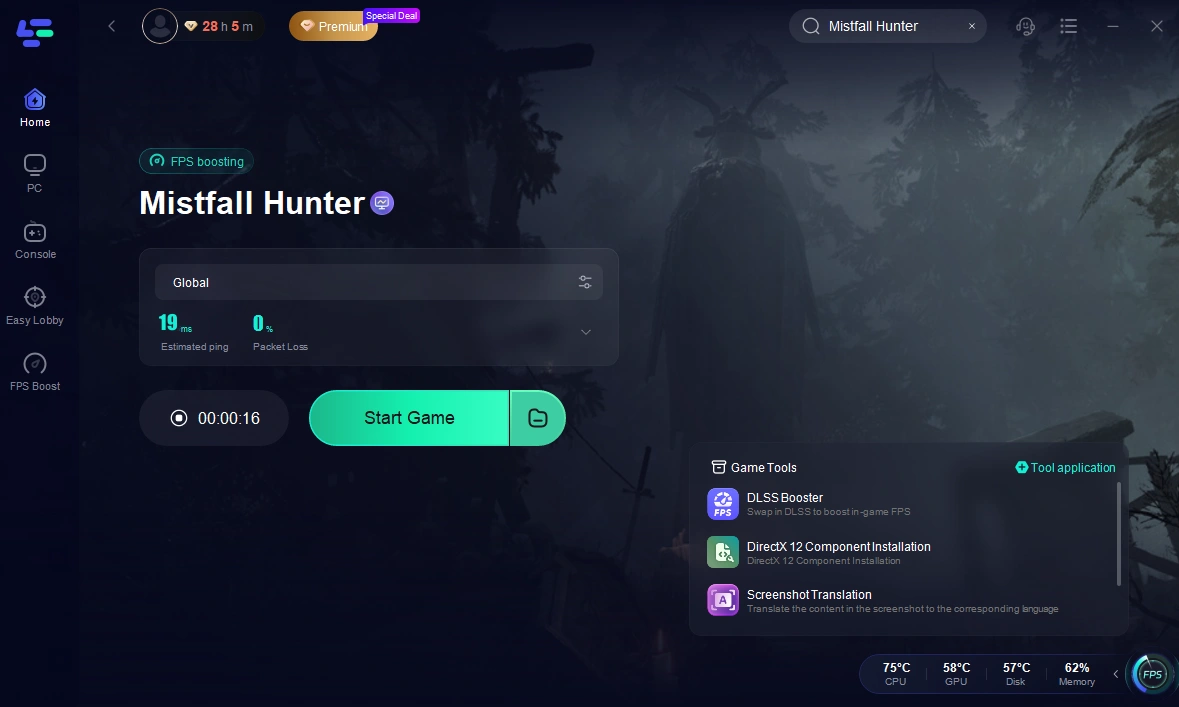
Step 4: Check the specific game ping, packet loss, and multiple path connection on the right side. Finally, click the “Start Game” to play the game.
Solution 2: Optimize Windows Virtual Memory (Pagefile Configuration)
If your operating system runs low on fast physical memory during intense encounters, it writes temporary files to slow disk drives. Manually setting your virtual memory size prevents these storage lag spikes:
Step 1. Press the Windows Key, type Advanced System Settings, and press Enter.
Step 2. Under the Advanced tab, look for the Performance header and click the Settings button.
Step 3. Move over to the new Advanced tab and click the Change option under the Virtual Memory area.
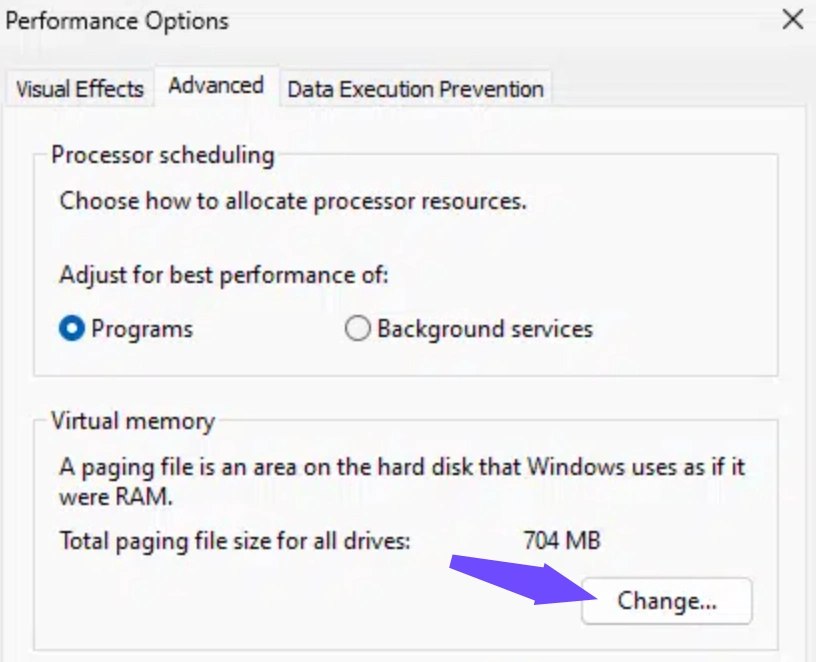
Step 4. Uncheck the automatic management box, highlight your fastest solid-state system drive, and select Custom Size.
Step 5. Set the Initial Size value to exactly 1.5 times your total physical RAM volume in megabytes, set the Maximum Size to exactly 3 times that total, click Set, and restart your computer.
Solution 3: Enforce Prefer Maximum Performance in Graphics Control Panels
Ensuring that your graphics card does not aggressively cycle down into power-saving states mid-game will resolve sudden frame rate drops:
Step 1. Right-click an empty spot on your desktop interface and launch the NVIDIA Control Panel (or AMD Software counterpart).
Step 2. Look along the left-hand navigation list and select Manage 3D Settings.
Step 3. Scroll down through the global parameters until you find the Power Management Mode toggle.
Step 4. Switch the value from Optimal Power or Normal to Prefer Maximum Performance.
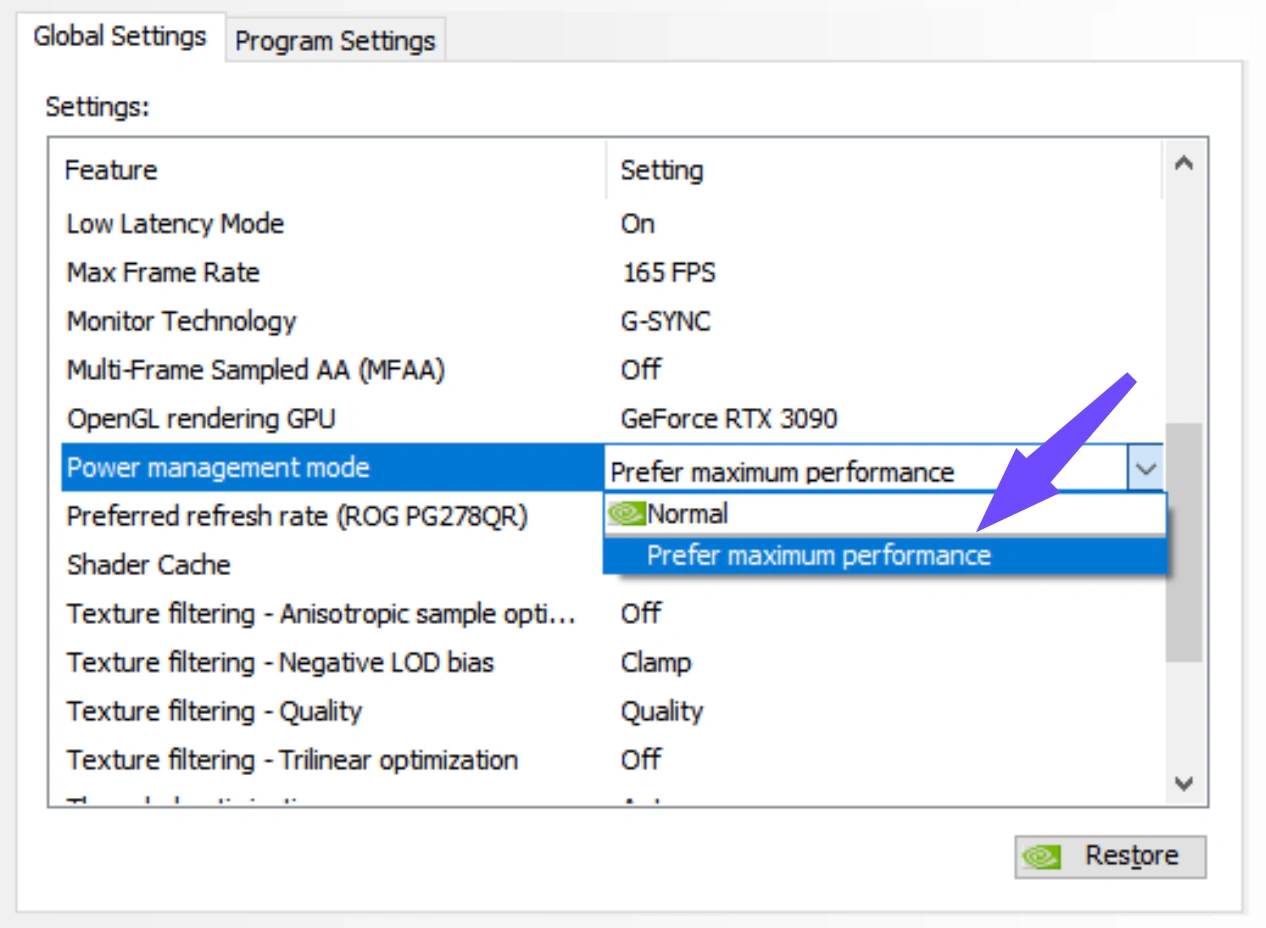
Step 5. Click Apply at the bottom of the window to confirm the hardware changes.
Solution 4: Reconfigure Windows Game Mode and Hardware Accelerated GPU Scheduling
Tuning core Windows features allows the operating system to prioritize the game's execution over low-priority background applications:
Step 1. Click the Windows Start menu icon, select the Settings gear, and open the Gaming category.
Step 2. Choose Game Mode from the side menu and toggle the slider switch to the On position.
Step 3. Look under the Related Settings section on the right side and click Graphics.
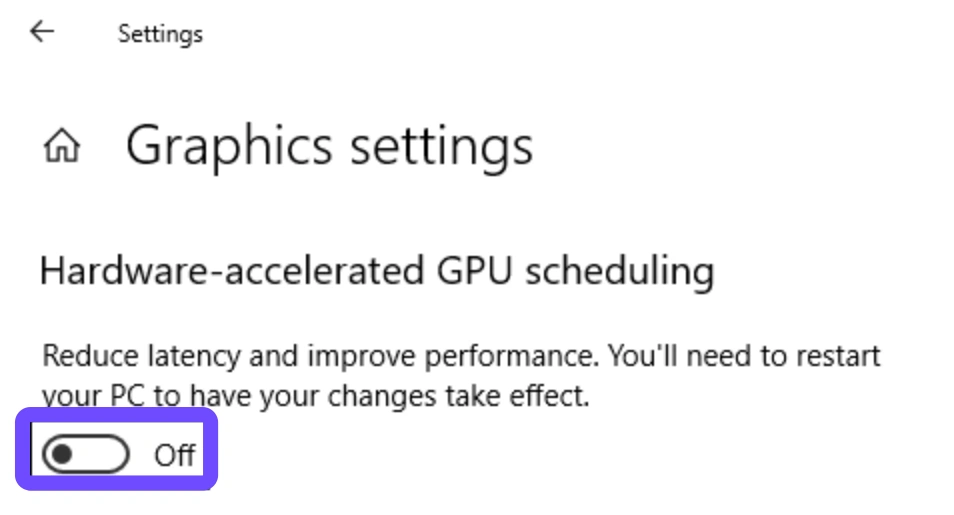
Step 4. Click the link labeled Change default graphics settings located near the top of the menu page.
Step 5. Turn on the switch for Hardware-Accelerated GPU Scheduling (HAGS) and restart your desktop to apply the changes.
Part 5: GPU Driver and Shader Cache Fixes
Corrupted or outdated graphics software components are a primary trigger for constant, repeating micro-stutters. Clean up your graphics pipeline with the following steps:
Perform a Clean Driver Installation
Do not simply click the update button inside your graphics software container. Download the latest driver package directly from NVIDIA or AMD. Use a community tool like Display Driver Uninstaller (DDU) in Windows Safe Mode to completely wipe away remnants of old registry entries and visual files before installing the clean, fresh driver set.
Expand Your Global Shader Cache Size
If your shader cache is limited to a small storage limit, your computer will continuously delete old compiled shaders to make room for new ones, forcing your system to recalculate them the next time you load an asset.
Step 1. Right-click your desktop and open the NVIDIA Control Panel.
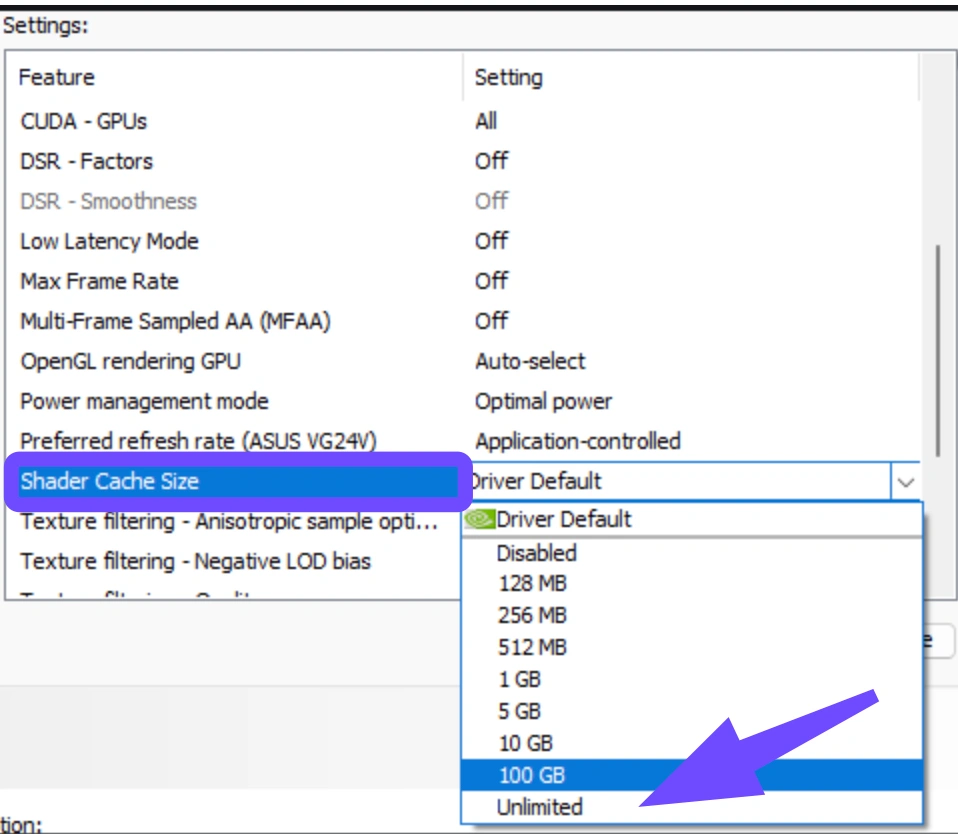
Step 2. Go to Manage 3D Settings and select Global Settings.
Step 3. Scroll down to find Shader Cache Size and change it from the default to 10GB or Unlimited.
Part 6: Network Lag vs. FPS Drops: How to Tell the Difference
When a game environment hitches, it can be difficult to tell whether your graphics card is choking or your internet connection is dropping data packets. Correctly diagnosing the issue prevents you from wasting time adjusting visual options when the problem lies entirely within your routing path.
|
Symptom |
Network Lag (Ping / Jitter) |
Hardware Lag (FPS Drops / Stutters) |
|
Character Movement |
Rubberbanding (snapping back to a position you occupied two seconds ago). |
Frozen frame screen; input inputs fail to register until the screen updates. |
|
Combat Feedback |
Your attacks land visually, but health bars do not decrease until a sudden delay passes. |
The game visibly chugs, lowering your overall frames per second counter. |
|
Audio Behavior |
Game audio, chat systems, and background music continue playing flawlessly. |
The sound clips, loops, or crackles concurrently with the visual freeze. |
|
Primary Root Cause |
Inefficient data routing paths, Wi-Fi interference, or congested nodes. |
Saturating system VRAM, thermal throttling, or heavy engine asset loads. |
Part 7: FAQs
Does Mistfall Hunter support DirectX 11, or should I stick to DirectX 12?
The game runs natively on DirectX 12 to properly leverage modern engine features. Forcing the game into an older DX11 backend can cause severe visual bugs and unstable processing pipelines. Stick to DX12 and ensure your Windows installation is fully updated.
Why does my game run worse after playing continuously for several hours?
This behavior points toward a classic software memory leak. Over an extended play session, the game client may fail to properly release unneeded assets from your system memory or VRAM. Simply closing the game completely and relaunching it every few matches will clear your system memory cache and restore baseline performance.
Will upgrading my system RAM from 12GB to 16GB stop the stuttering?
Yes, significantly. The game lists 12GB as an absolute minimum requirement, which means your operating system will constantly struggle to manage resources. Moving to 16GB or 32GB of dual-channel RAM gives the engine the breathing room it needs to cache dynamic assets safely.
Can a high-ping connection cause my actual PC frames to drop?
While they are technically separate systems, severe network packet loss can cause the game client to hang while waiting for data updates from the main server. This creates a perceived performance hitch that feels identical to a hardware framework drop.
Why does my graphics card run hot while playing Mistfall Hunter?
Modern gaming engines push graphic processors to their absolute maximum limit to render advanced volumetric mist and ambient lightning effects. Ensure your PC tower has adequate airflow, clear out any accumulated dust from the fans, and use a frame limiter to prevent your GPU from working harder than your monitor can display.
Is a wired connection mandatory to fix stutters during extraction fights?
Wi-Fi networks are vulnerable to sudden bursts of localized radio interference from household appliances or nearby routers. This creates minor connectivity spikes that translate directly to mid-combat stuttering. Utilizing an Ethernet cable establishes a rock-solid, uninterrupted path for your data.
Conclusion
Resolving frame drops and micro-stutters in Mistfall Hunter requires a mix of in-game optimization, driver maintenance, and solid network management. By configuring your graphics parameters correctly and deploying LagoFast to streamline your data routing and system processes, you can enjoy stable, fluid framerates. Keep your setup optimized, secure your extractions, and dominate the dangerous world of the Gyldenmist!
Boost Your Game with LagoFast for Epic Speed
Play harder, faster. LagoFast game booster eliminates stutter and lags on PC, mobile, or Mac—win every match!
Quickly Reduce Game Lag and Ping!
Boost FPS for Smoother Gameplay!