
It is incredibly frustrating when Mistfall Hunter launches to a black screen, whether it appears at startup or after the Unreal Engine logo. Many players face this issue. It is usually caused by hardware conflicts, damaged game files, or network timeouts that stop proper session authentication. Because online multiplayer games depend on stable server connections to load correctly, an unstable network is often the hidden reason. Fixing the problem requires a clear step-by-step approach. Using LagoFast, a reliable game booster, can help improve connection stability. Below is a guide to help you identify the cause and apply effective solutions.

- ✅ Reduce Lag and High Ping.
- ✅ Boost FPS at the Same Time.
- ✅ Support 8000+ Popular Online Games.
- ✅ Support Easy Lobby in all Cod Games without Lag
Part 1: What Does the Mistfall Hunter Black Screen Problem Look Like?
Part 2: Why Does Mistfall Hunter Launch to a Black Screen?
Part 3: Fix Mistfall Hunter Black Screen by Restarting Steam Authentication
Part 4: Optimize the Connection Before Launching Mistfall Hunter
Part 5: Verify Mistfall Hunter Game Files on Steam
Part 6: Update or Reinstall the Graphics Driver
Part 7: Clear the DirectX Shader Cache
Part 8: Launch Mistfall Hunter With DirectX 11
Part 9: Disable Fullscreen Optimizations
Part 10: Reset Mistfall Hunter Graphics Settings
Part 11: Disable Steam, Discord, and NVIDIA Overlays
Part 12: Allow Mistfall Hunter Through Windows Security
Part 13: Repair Microsoft Visual C++ Redistributables
Part 14: Fix Mistfall Hunter Black Screen on Steam Deck or Linux
Part 15: Mistfall Hunter Startup Black Screen vs In-Game Black Screen
Part 16: Frequently Asked Questions About Mistfall Hunter Black Screen
Part 1: What Does the Mistfall Hunter Black Screen Problem Look Like?
Display issues are rarely identical across different PC builds. Identifying the exact nature of the freeze can quickly point you toward the correct solution, saving you hours of frustrating trial and error.
Black Screen After the Unreal Engine Logo
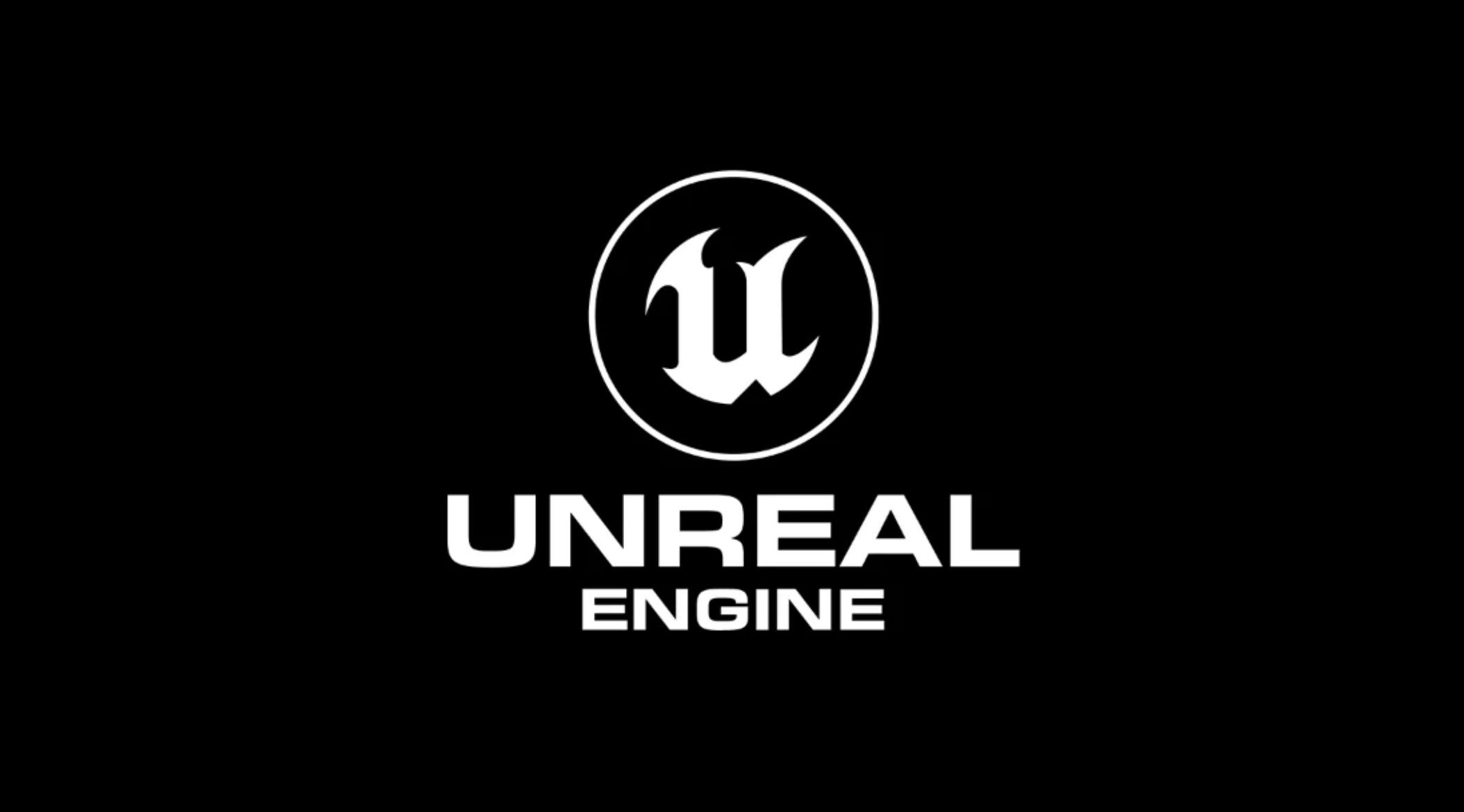
The game boots normally, the studio intro plays, and the Unreal Engine logo appears. Immediately after, the display goes completely dark, though you might still hear the hum of your PC working in the background.
Black Screen With Only a Mouse Cursor
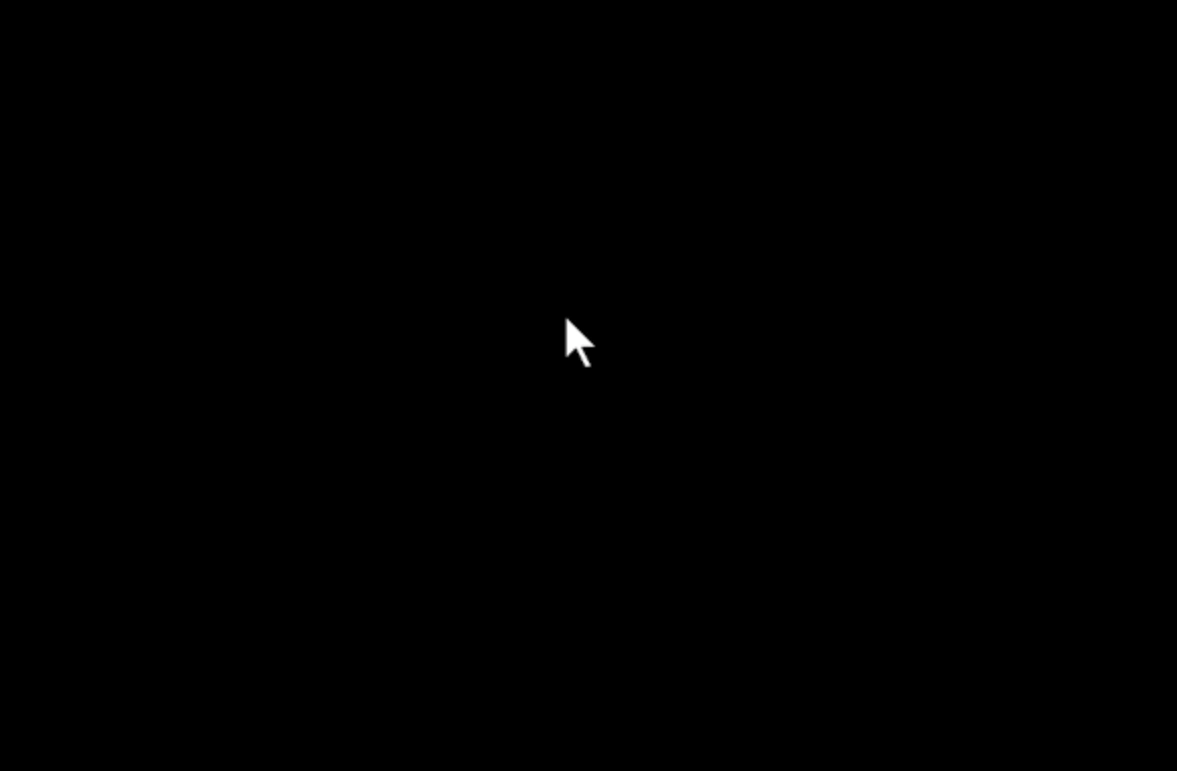
In this scenario, the display is void of any game assets, but your custom in-game mouse cursor (or the default Windows cursor) is still visible and can be moved around the screen. This usually indicates the game engine loaded, but the graphical rendering failed.
Black Screen Before the Main Menu
Everything seems to be loading fine, but just as the main menu UI is supposed to populate, the screen cuts out. This is often tied to the game attempting to connect to live servers to fetch your player data.
Black Screen With Audio but No Picture
You launch the game, and while you cannot see anything, you can distinctly hear the main menu music, UI hover sound effects, or environmental audio. The game is running, but your GPU has stopped communicating with the display.
White or Empty Popup After Launching
Sometimes, instead of pure darkness, the Mistfall Hunter startup black screen is accompanied by a tiny, blank white window or an empty error prompt that forces you to force-quit the application via Task Manager.
Part 2: Why Does Mistfall Hunter Launch to a Black Screen?
Understanding the root cause is half the battle. When players ask, "Why is Mistfall Hunter showing a black screen?", the answer usually traces back to one of the following technical culprits. Let's break down exactly what is happening beneath the hood.
Steam Authentication Does Not Complete Correctly
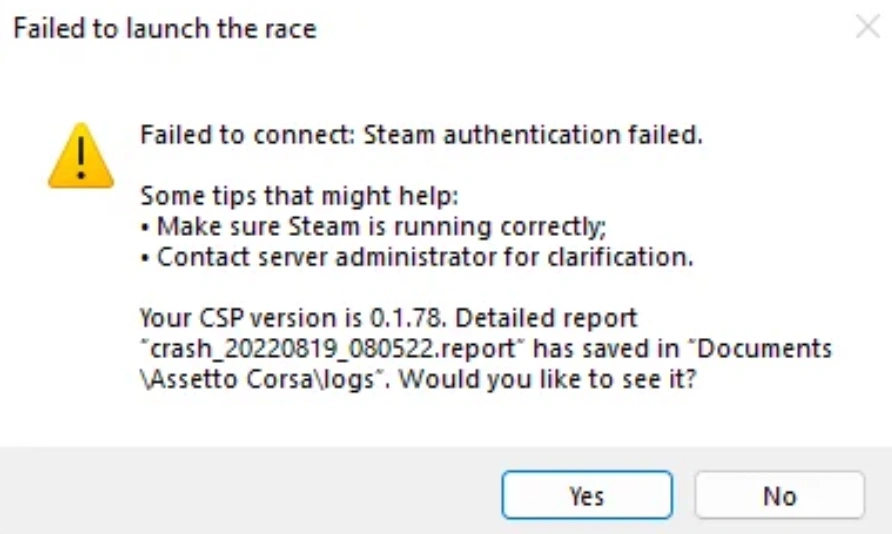
The game requires a secure handshake with Steam to verify ownership and server status. If this handshake times out, the game doesn't know how to proceed and halts on a blank display.
Corrupted or Missing Game Files
Incomplete updates or micro-interruptions during the download process can leave essential engine files missing. Without them, the game simply cannot render the next scene.
NVIDIA or AMD Graphics Driver Problems
Outdated GPU drivers are notorious for causing a Mistfall Hunter black screen PC error. If your graphics card doesn't understand the rendering instructions sent by the game, it defaults to outputting nothing at all.
DirectX 12 Compatibility Issues
While modern games run beautifully on DX12, older graphics cards or unstable Windows builds can struggle with it, causing an immediate rendering crash upon launch.
Shader Compilation or Shader Cache Errors
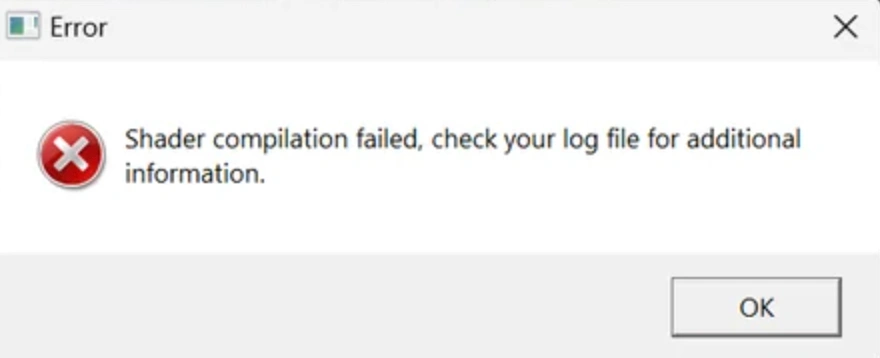
When you first boot a game, it compiles shaders for your specific hardware. If this cache becomes corrupted, the game will freeze right when it tries to load these visual instructions.
Fullscreen and Display Resolution Conflicts
Sometimes, the game attempts to force a resolution or refresh rate that your monitor does not support. The monitor responds by dropping the signal, resulting in a dark display.
Firewall or Antivirus Interference
Security software, including overly aggressive Windows Defender settings, can block the game's anti-cheat (like Bellring Anti-Cheat) or network components, immediately halting the boot sequence.
Missing Visual C++ Runtime Files
Unreal Engine games rely heavily on Microsoft Visual C++ libraries. If these are outdated or missing from your Windows installation, the game lacks the fundamental architecture to run.
Part 3: Fix Mistfall Hunter Black Screen by Restarting Steam Authentication
Often, the simplest and most effective Mistfall Hunter black screen fix is forcing a fresh connection between the game client and Steam's servers. A stuck background process can easily cause a startup halt.
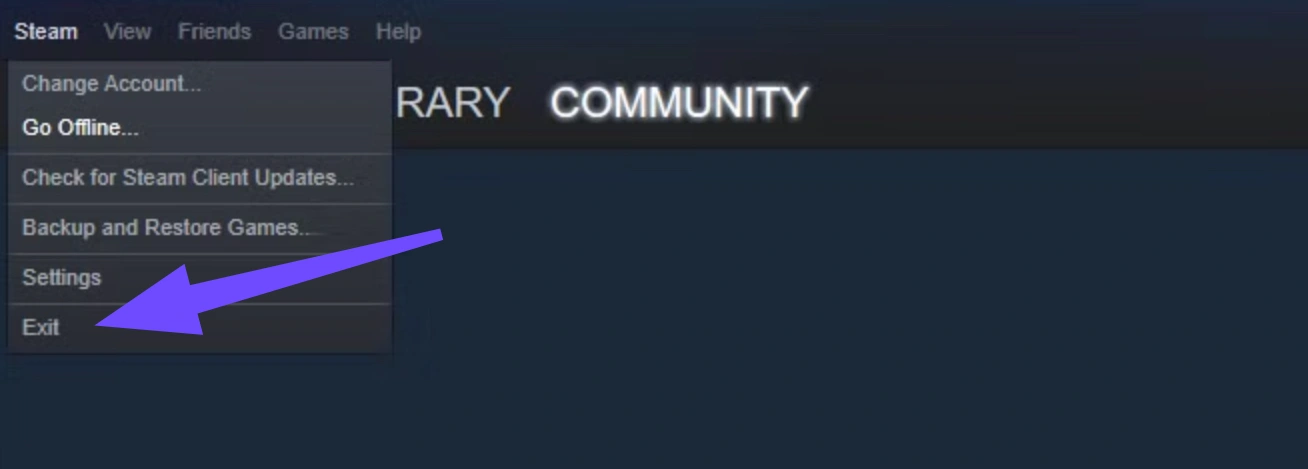
Close Mistfall Hunter and Steam Completely
Do not just click the "X" in the corner of the window. Make sure you use the Steam menu to select "Exit" so the application fully shuts down.
End Remaining Processes in Task Manager
Press Ctrl + Shift + Esc to open Task Manager. Scroll through the background processes and manually "End Task" on anything related to Steam, Mistfall Hunter, or the anti-cheat system.
Sign Out and Sign Back Into Steam
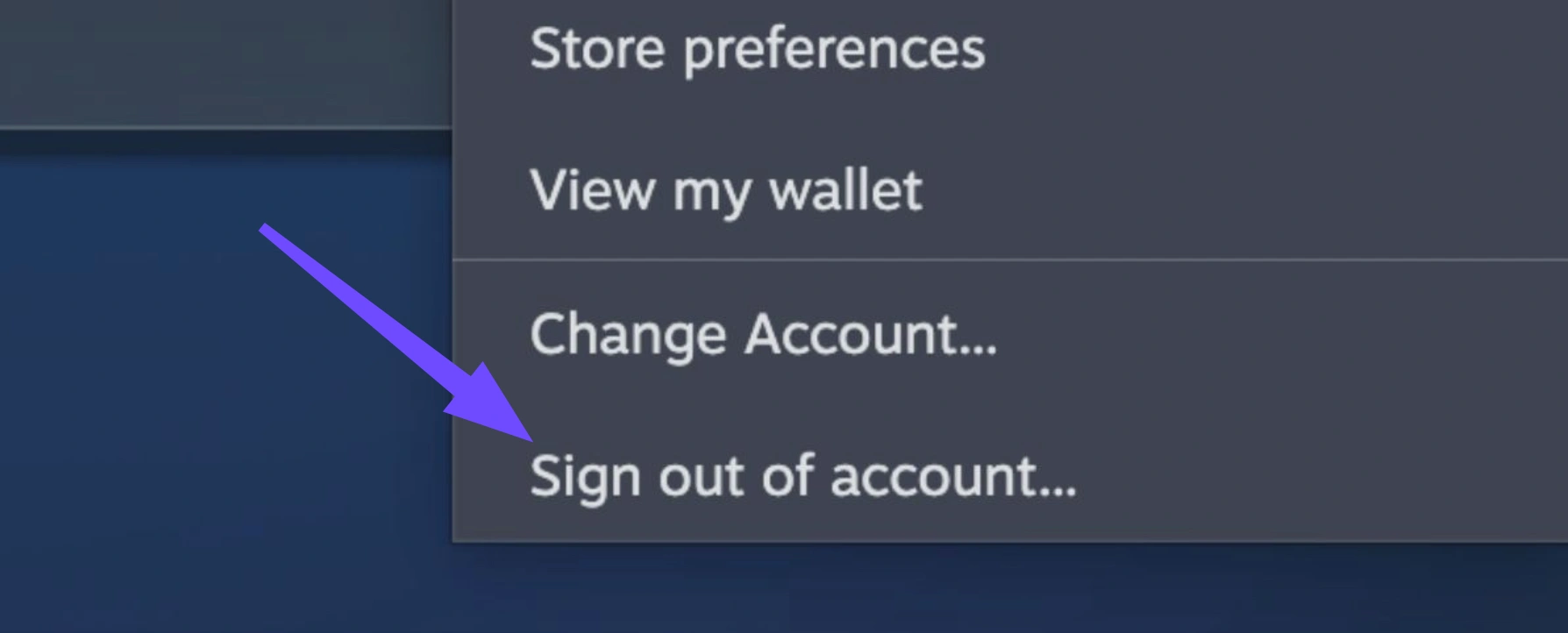
Open Steam, click on your profile name in the top right corner, and select "Sign out of account." Logging back in forces a fresh synchronization of your cloud data and authentication tokens.
Launch Steam as Administrator
Right-click your Steam shortcut and choose "Run as administrator." This grants the client the elevated Windows permissions needed to bypass minor security blocks that might be halting the game.
Part 4: Optimize the Connection Before Launching Mistfall Hunter
Network instability can interrupt the initial server ping, causing the game to hang indefinitely. Using a dedicated gaming booster is the most reliable way to bypass bad routing and ensure a clean boot.
Use LagoFast to Stabilize Steam and Game Server Connections
LagoFast is the top game booster and is designed specifically to optimize gaming traffic. By rerouting your connection through premium global nodes, it bypasses the congested ISP routes that often cause authentication timeouts.
Select a Node Close to the Mistfall Hunter Server
Open LagoFast, search for the game, and manually select a server node that matches the region you intend to play in. This minimizes the physical distance your data needs to travel.
Launch Steam and Mistfall Hunter Through the Optimized Route
Once LagoFast is running and the connection is boosted, launch Steam directly. The optimized routing will apply to the initial authentication handshake, significantly reducing the chances of a freeze.
Test Another Node if the Black Screen Appears Again
If you still encounter a Mistfall Hunter black screen on startup, tab out to LagoFast and switch to a different recommended node. Sometimes, a specific regional server might be undergoing unexpected maintenance.
How to Stabilize Steam and Game Server Connections With LagoFast:
Step 1. Download and Install LagoFast
Step 2. In the main search bar, type Mistfall Hunter. Select the game from the results list to open its dedicated acceleration hub.
Step 3. Click on Select Server and choose the region closest to your location. Next, choose an optimized node.
Step 4. Click the Boost button to lock in your optimized connection. Once active, launch Mistfall Hunter directly through Steam or the boosted route in LagoFast to bypass startup authentication hangs.
Part 5: Verify Mistfall Hunter Game Files on Steam
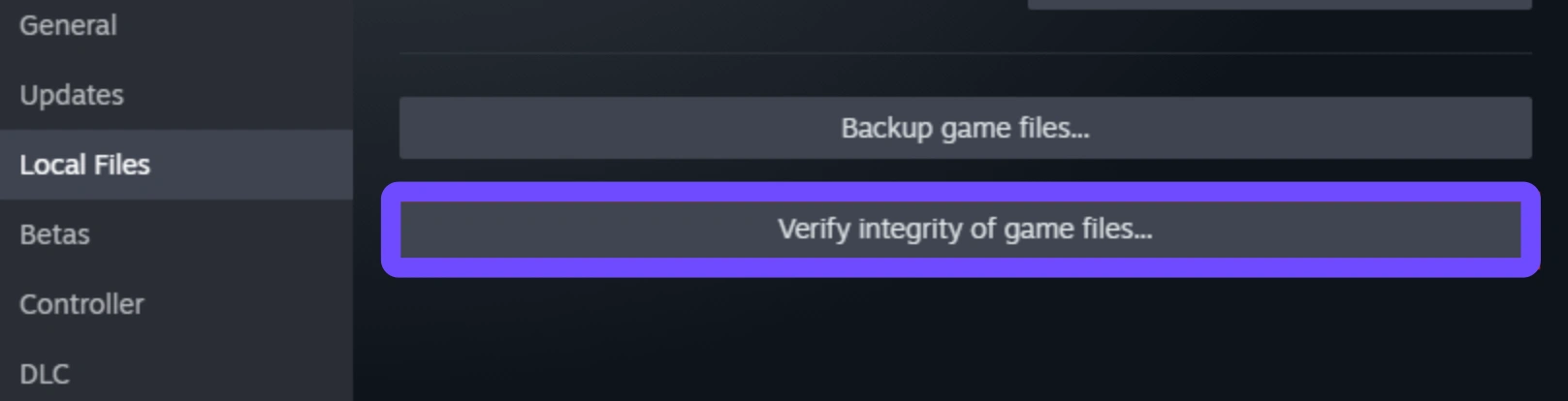
Corrupted or missing game assets often stop the game from rendering properly, leaving you stuck. Using Steam’s built-in repair tool allows you to scan for damaged files and automatically redownload any necessary components to fix the Mistfall Hunter black screen.
Step 1. Open your Steam client and navigate to the Library tab.
Step 2. Right-click on Mistfall Hunter in your games list and select Properties.
Step 3. Click on the Installed Files tab on the left-hand menu.
Step 4. Click the Verify integrity of game files button and wait for the scan to finish.
Part 6: Update or Reinstall the Graphics Driver
An outdated or corrupted NVIDIA or AMD driver is a common reason why Mistfall Hunter launches to a black screen. Keeping your graphics drivers updated ensures your GPU can properly render the game's high-fidelity Unreal Engine environment.
Step 1. Open the NVIDIA App, GeForce Experience, or AMD Adrenalin software.
Step 2. Navigate to the Drivers tab and click Check for Updates.
Step 3. If an update is found, select Express Installation and let the process complete.
Step 5. Restart your computer before attempting to launch the game again.
Part 7: Clear the DirectX Shader Cache
Storing compiled shaders helps the game load faster, but if these cache files become corrupted, they will cause visual glitches and a Mistfall Hunter startup black screen. Clearing the cache forces the game to compile fresh files upon the next launch.
Step 1. Press the Windows key, type Disk Cleanup, and press Enter.
Step 2. Select your C: drive (or whichever drive Windows is installed on).
Step 3. In the list of files to delete, check the box next to DirectX Shader Cache.
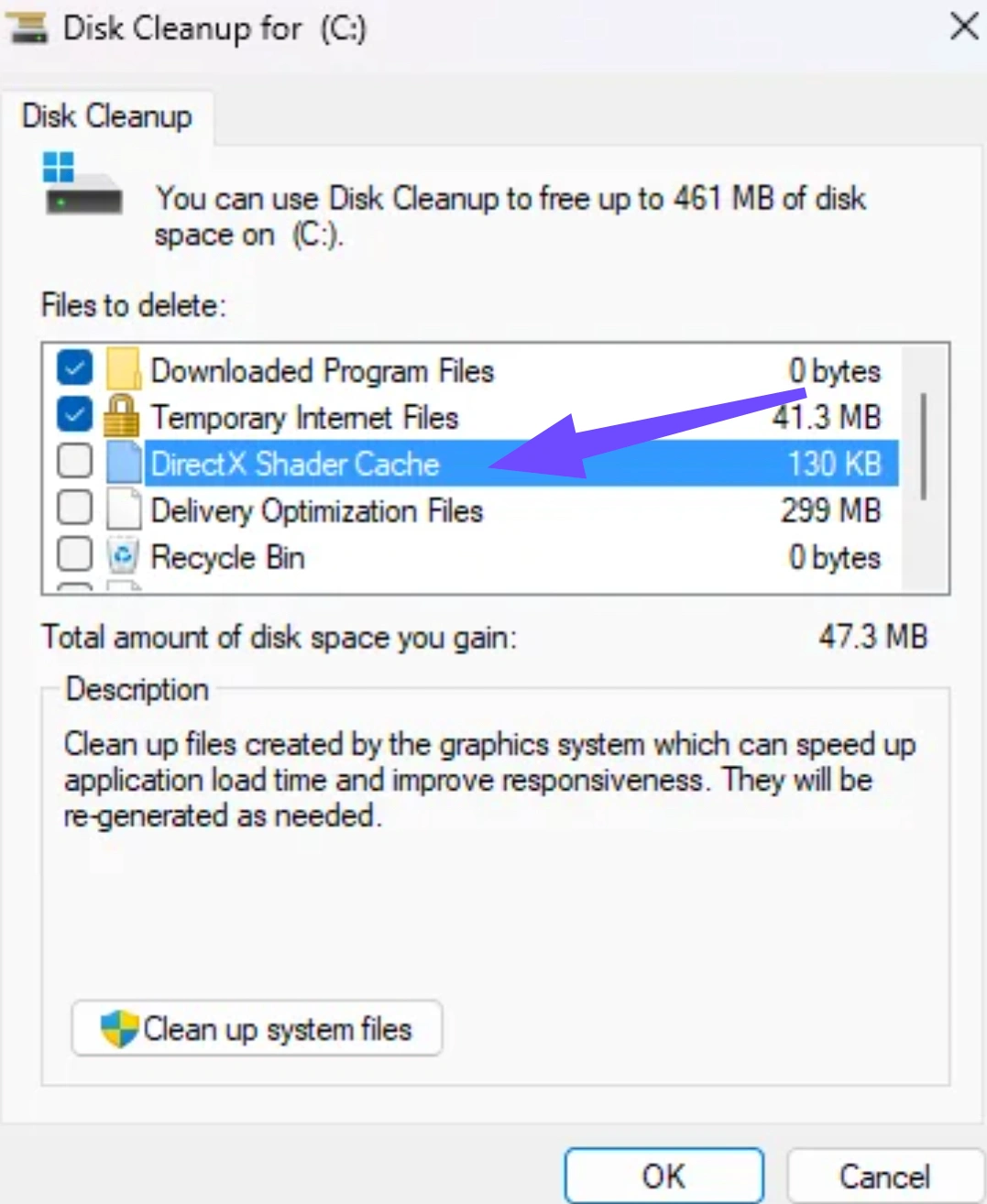
Step 4. Click OK and then Delete Files to clear the corrupted data.
Part 8: Launch Mistfall Hunter With DirectX 11
If your PC struggles with DirectX 12, forcing the game to use DirectX 11 can bypass rendering issues that cause the Mistfall Hunter black screen after Unreal Engine logo. DX11 is often much more stable on older hardware configurations.
Step 1. Right-click Mistfall Hunter in your Steam Library and click Properties.
Step 2. Stay on the General tab and locate the Launch Options text box at the bottom.
Step 3. Type -dx11 or -d3d11 into the box exactly as shown.
Step 4. Close the menu and launch the game to see if the display works.
Part 9: Disable Fullscreen Optimizations
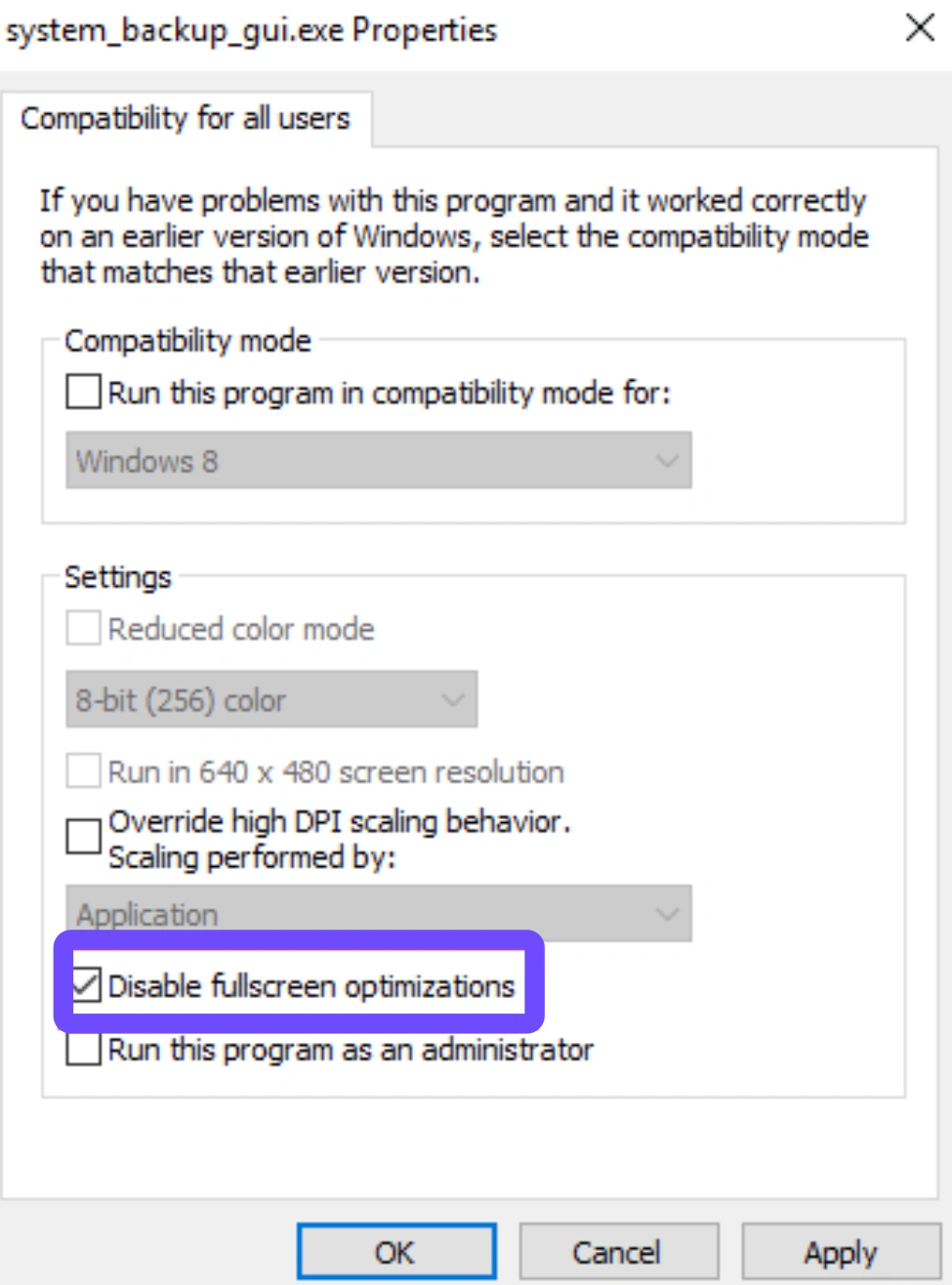
Windows 10 and 11 feature an automatic fullscreen optimization mode that can conflict with certain game engines. Disabling this feature for Mistfall Hunter allows the game to run with exclusive display rights, which can resolve persistent black screen PC issues.
Step 1. Right-click Mistfall Hunter in Steam, go to Manage, and select Browse local files.
Step 2. Find the main game .exe file, right-click it, and select Properties.
Step 3. Navigate to the Compatibility tab.
Step 4. Check the box labeled Disable fullscreen optimizations and click Apply.
Part 10: Reset Mistfall Hunter Graphics Settings
If you accidentally set the resolution or graphics settings higher than your monitor or GPU can handle, the display may fail to render. Forcing the game to launch in windowed mode or resetting the graphics configuration file can bypass this display failure.
Step 1. Open Steam, right-click the game, and select Properties.
Step 2. Under General, select Launch Options, type -windowed to force a smaller window.
Step 3. Launch the game; if it loads successfully, go to the in-game display settings.
Step 4. Lower the resolution and disable heavy graphical features before returning to Fullscreen.
Part 11: Disable Steam, Discord, and NVIDIA Overlays
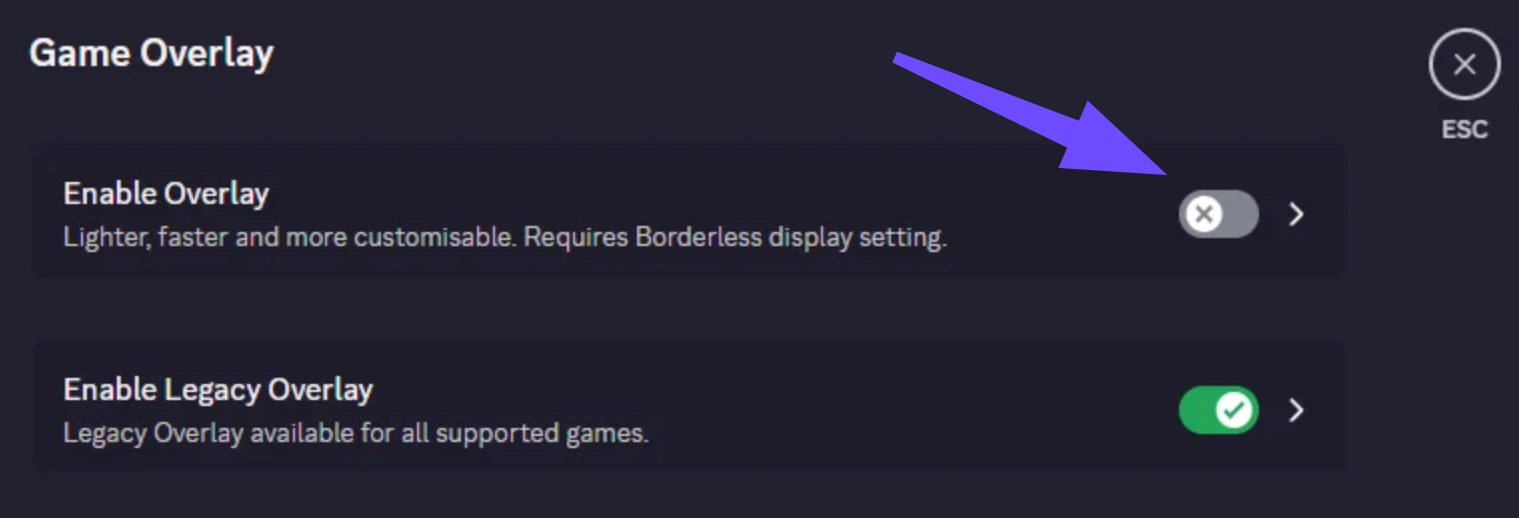
In-game overlays from applications like Discord, GeForce Experience, or even Steam itself can inject code into the game client. This interference occasionally blocks the rendering process, resulting in a Mistfall Hunter black screen. Turning them off ensures a clean launch.
Step 1. Open Steam Settings, go to the In Game tab, and toggle off the Steam Overlay.
Step 2. Open Discord Settings, click on Game Overlay, and switch it off.
Step 3. Open NVIDIA GeForce Experience settings and toggle the In-Game Overlay switch to off.
Step 4. Relaunch the game to verify if the black screen has been bypassed.
Part 12: Allow Mistfall Hunter Through Windows Security
Antivirus programs can be overly aggressive and block the game’s executable files from accessing essential system resources. Adding an exception for Mistfall Hunter in Windows Defender ensures security protocols don’t mistakenly trigger a black screen or crash on startup.
Step 1. Type Windows Security in your Windows search bar and open the app.
Step 2. Click on Virus & threat protection, then select Manage settings.
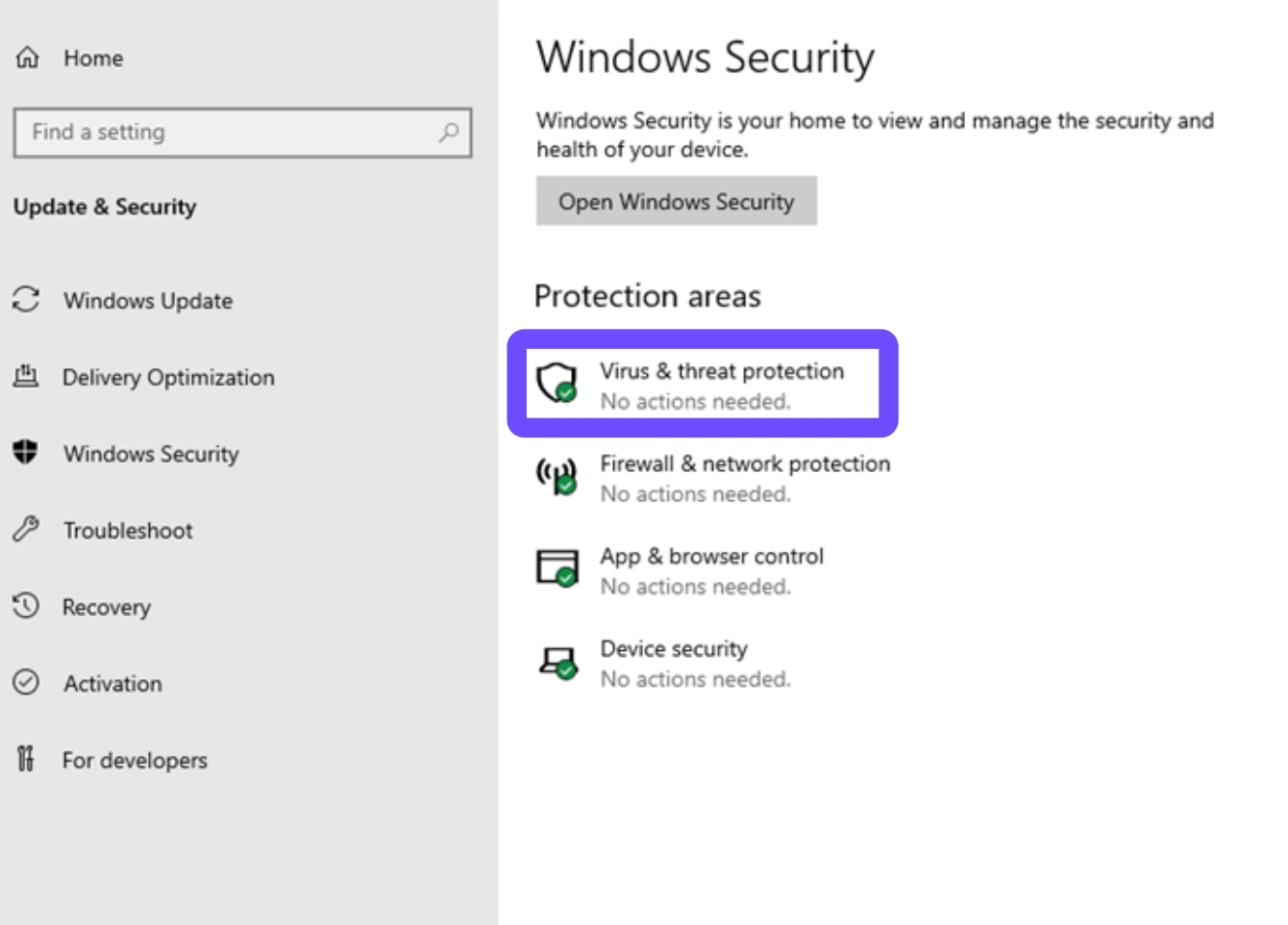
Step 3. Scroll down to Exclusions and click Add or remove exclusions.
Step 4. Click Add an exclusion, choose Folder, and select your Mistfall Hunter installation folder.
Part 13: Repair Microsoft Visual C++ Redistributables
The game relies on underlying Microsoft Visual C++ libraries to run its engine code. If these system files are outdated, damaged, or entirely missing, Mistfall Hunter will immediately fail to render, showing only a black window upon opening.
Step 1. Press Win + R, type appwiz.cpl, and hit Enter to open Programs and Features.
Step 2. Look for Microsoft Visual C++ Redistributable (2015-2022) in the list.
Step 3. Right-click it and select Change, then click the Repair button.
Step 4. Allow the repair to finish and restart your computer to apply the fix.
Part 14: Fix Mistfall Hunter Black Screen on Steam Deck or Linux
Playing Mistfall Hunter on a Steam Deck or Linux machine introduces a different set of variables. Since the game requires a compatibility layer to translate Windows API calls, a Mistfall Hunter startup black screen is often tied to Proton version conflicts or anti-cheat issues.
Check Current Proton Compatibility
Navigate to the game properties on your Steam Deck, go to the Compatibility tab, and see which version of Proton is currently active. Sometimes, the default stable release lacks the specific rendering fixes needed for newly launched titles.
Test Proton Experimental
Check the box to "Force the use of a specific Steam Play compatibility tool" and select Proton Experimental from the dropdown menu. This bleeding-edge version often contains hotfixes for Unreal Engine 5 games that suffer from startup display errors.
Install Required Runtime Components
Linux users may need to manually inject Visual C++ runtimes into the game's prefix. You can use tools like Protontricks to install vcrun2022 directly into the Mistfall Hunter wine prefix to ensure rendering dependencies are met.
Check Anti-Cheat Compatibility
Many black screens on Linux are actually silent crashes caused by unsupported anti-cheat software. Verify if the game’s Bellring Anti-Cheat has officially enabled Proton support. If not, the game will block rendering instantly upon launch.
Part 15: Mistfall Hunter Startup Black Screen vs In-Game Black Screen
It is crucial to distinguish between a black screen that happens when you first boot the game and one that happens unexpectedly while you are playing. Identifying the timing can narrow down the root cause significantly. Here is a breakdown of the differences.
|
Timing of the Issue |
Common Cause |
Recommended Fix |
|
Startup / After Logo |
Missing files, DX12 errors, Overlay conflicts |
Verify game files, Add -dx11 launch option, Disable Discord overlay |
|
During Matchmaking |
Network packet loss, Server authentication timeout |
Use LagoFast, Reset router, Switch to a wired Ethernet connection |
|
Mid-Game/During Combat |
GPU overheating, Driver crash, VRAM exhaustion |
Lower graphics settings, Update GPU drivers, Monitor hardware temps |
Black Screen Before Reaching the Main Menu
This is primarily a software initialization failure. It means your computer failed to load the necessary graphical assets or network handshake required to display the UI.
Black Screen During a Match
If your screen goes black while you are actively fighting enemies, it is almost certainly a hardware or driver failure. The GPU driver likely crashed under heavy load and failed to recover.
Black Screen With Audio Stuttering
When the visual goes black and the audio starts looping or buzzing aggressively, your entire PC has likely hard-locked. This indicates a severe memory leak, CPU bottleneck, or faulty RAM stick.
Black Screen Followed by a Game Crash
If the screen goes black for five seconds and then immediately drops you back to the Windows desktop, the game engine purposefully aborted the process to prevent system damage, usually due to a missing critical shader or missing Visual C++ file.
Part 16: Frequently Asked Questions About Mistfall Hunter Black Screen
How do I fix a black screen on Mistfall Hunter?
Start by verifying your game files on Steam and updating your graphics drivers. If the issue persists, disable background overlays (Discord, Steam) and use LagoFast to ensure your connection isn't timing out.
Why is Mistfall Hunter showing a black screen with my cursor?
This means the application launched, but the graphics engine failed to render the visual assets. Forcing DirectX 11 via Steam launch options (-dx11) usually resolves this specific bug.
Can my antivirus cause a startup crash?
Yes. Overly strict antivirus software can mistakenly flag the game's anti-cheat system as a false positive, instantly blocking the execution and leaving you with a dark screen.
Why does the screen go dark after the Unreal Engine logo?
This is usually caused by shader cache corruption or a failed server handshake. Clear your DirectX Shader Cache and use LagoFast to stabilize your boot connection.
How do I fix the black screen issue on Steam Deck or Linux?
Go to the game's Properties, select the Compatibility tab in Steam, and switch your compatibility tool to Proton Experimental or GE-Proton.
Will reinstalling Mistfall Hunter fix the persistent crash?
Yes, but only if local files are damaged. Try verifying game files via Steam and repairing Microsoft Visual C++ Redistributables first to save time.
Conclusion
Dealing with a Mistfall Hunter black screen can be incredibly frustrating, but identifying the exact trigger makes troubleshooting much easier. Whether you need to update drivers, verify game files, or stabilize your network, the solutions above cover every scenario. For the best long-term stability and to prevent connection-based startup crashes, keeping LagoFast running in the background is your best bet. Get back in, and happy hunting!
Boost Your Game with LagoFast for Epic Speed
Play harder, faster. LagoFast game booster eliminates stutter and lags on PC, mobile, or Mac—win every match!
Quickly Reduce Game Lag and Ping!
Boost FPS for Smoother Gameplay!