

Quick Answer: How to Fix Meccha Chameleon Invite Not Working & Multiplayer Not Working?
If you are experiencing the Meccha Chameleon invite not working & multiplayer not working error, the quickest way to bypass server-side blocks, network mismatches, and broken invitation loops is to use LagoFast Game Booster. By optimizing your network routing with a single click, LagoFast fixes connection bugs, stabilizes Epic Online Services authentication, and immediately restores multiplayer functionality.
For manual solutions, ensure all players are running identical game updates on Steam, verify that the Steam Overlay is enabled globally, use the in-game manual server browser instead of direct overlay shortcuts, and temporarily allow the game through Windows Defender Firewall.
Introduction
The viral hide-and-seek sensation Meccha Chameleon has taken the gaming world by storm with its frantic, color-blending camouflage gameplay. However, nothing ruins a chaotic party session faster than connection errors. If you are struggling to join your friends, here is exactly how to get your lobby working again.

- ✅Less ping and crashes.
- ✅ Higher FPS and better performance.
- ✅ Support for 2000+ games.
- ✅ Stable connection and region switching.
Part 1: Meccha Chameleon Invite Not Working & Multiplayer Not Working Overview
Part 2: How to Fix Meccha Chameleon Steam Invite Not Working?
Part 3: How to Fix Meccha Chameleon Friend Didn't Receive the Invitation?
Part 4: How to Fix After Clicking on the Invitation, You Cannot Enter the Room
Part 5: How to Fix Steam Overlay Invite Fails
Part 6: How to Fix Meccha Chameleon Private Room Not Showing
Part 7: How to Fix Meccha Chameleon Invite Stopped Working
Part 8: How to Fix Multiplayer Not Working After an Update
Part 1: Meccha Chameleon Invite Not Working & Multiplayer Not Working Overview
When multiplayer errors hit this indie hit, they usually stem from a breakdown in communications between Steam, Epic Online Services (which manages the game's backend matching), and your local network routing.
|
Symptom / Specific Issue |
Main Root Cause |
|
Steam invite has no response |
Conflict between Steam client cache and Epic Online Services overlay initialization. |
|
Friend didn't receive the invitation |
Steam privacy settings set to "Offline" or "Invisible," or a localized Steam notification delay. |
|
Cannot enter the room after clicking invite |
Network Address Translation (NAT) type strictness or host bandwidth restrictions preventing direct entry. |
|
Steam overlay invite fails completely |
Disabled Steam Overlay settings or corrupted global overlay application runtime files. |
|
Invitation stopped working suddenly |
Dynamic session expiration or host IP changes during an active lobby session. |
Part 2: How to Fix Meccha Chameleon Steam Invite Not Working?
When you click "Invite" via your Steam buddy list and absolutely nothing happens inside Meccha Chameleon, the core issue is almost always a failure in the application launch arguments or background service states.
To fix this, you and your friend need to perform a clean synchronization reset:
Step 1. Close Meccha Chameleon completely.
Step 2. Open your Steam Client, click Steam in the top-left corner, and select Exit.
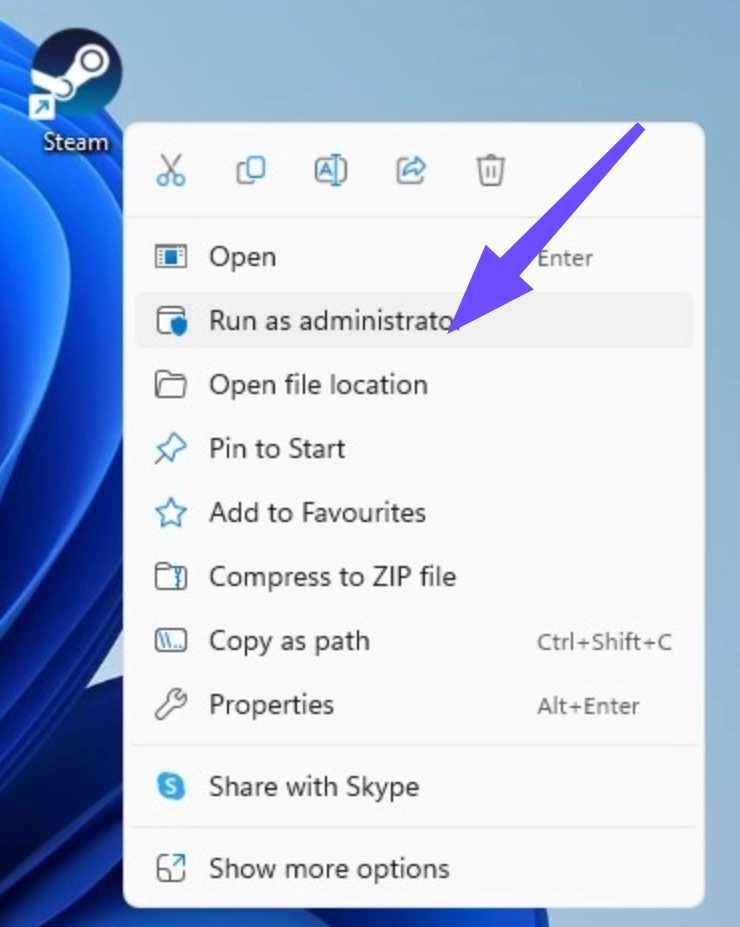
Step 3. Right-click the Steam shortcut on your desktop and select Run as Administrator.
Step 4. Launch the game.
Running both Steam and the game with administrative privileges ensures that the background network hooks can properly bind with your system's network adapters, which clears up unhandled client-side execution blockages.
Part 3: How to Fix Meccha Chameleon Friend Didn't Receive the Invitation?
If your dashboard says the invitation was sent successfully but your friends insist their notification trays are completely empty, the issue typically points to client status flags or Steam privacy filters.
Step 1. First, ensure your friend's profile status isn't set to "Invisible" or "Offline." Being invisible frequently blocks incoming third-party game invite tokens.
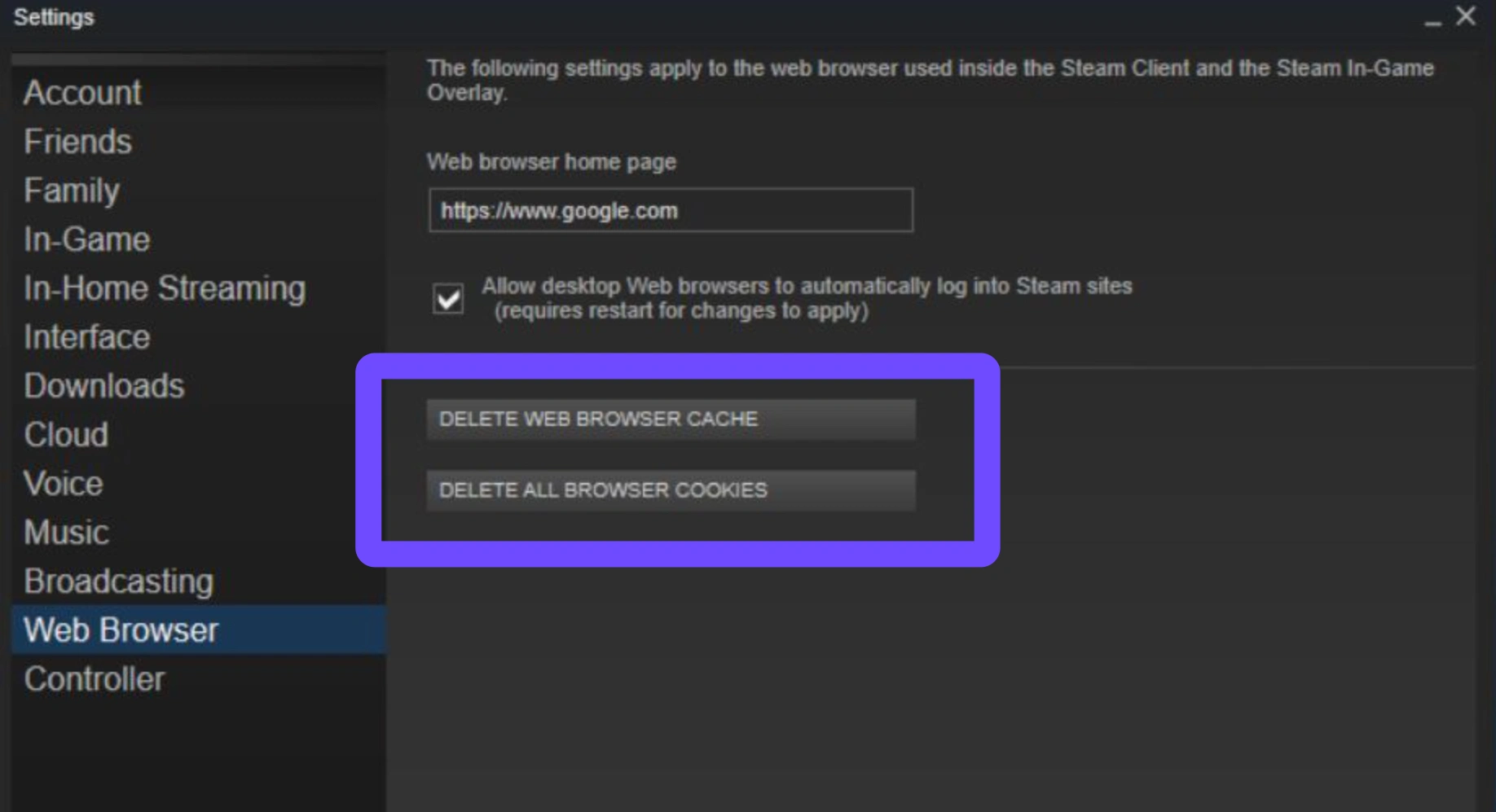
Step 2. Second, have the host clear their Steam Web Browser cache: Go to Steam, select Settings, and click In-Game.
Step 3. Locate the Delete Web Browser Data option and click it.
Step 4. Restart Steam.
This forces the client to download a fresh set of security tokens, ensuring your invitations actually route across Valve's signaling servers down to your friend's desktop notifications.
Part 4: How to Fix After Clicking on the Invitation, You Cannot Enter the Room
You click the invite link, Meccha Chameleon attempts to load, and then it either kicks you back to the main menu or spins infinitely. This happens because the game relies heavily on the host's direct internet connection to anchor the lobby.
If your local router or your friend's router is operating on a Strict NAT configuration, your devices cannot talk to one another directly. To resolve this:
- Enable UPnP: Log into your home router's configuration panel and ensure Universal Plug and Play (UPnP) is toggled on.
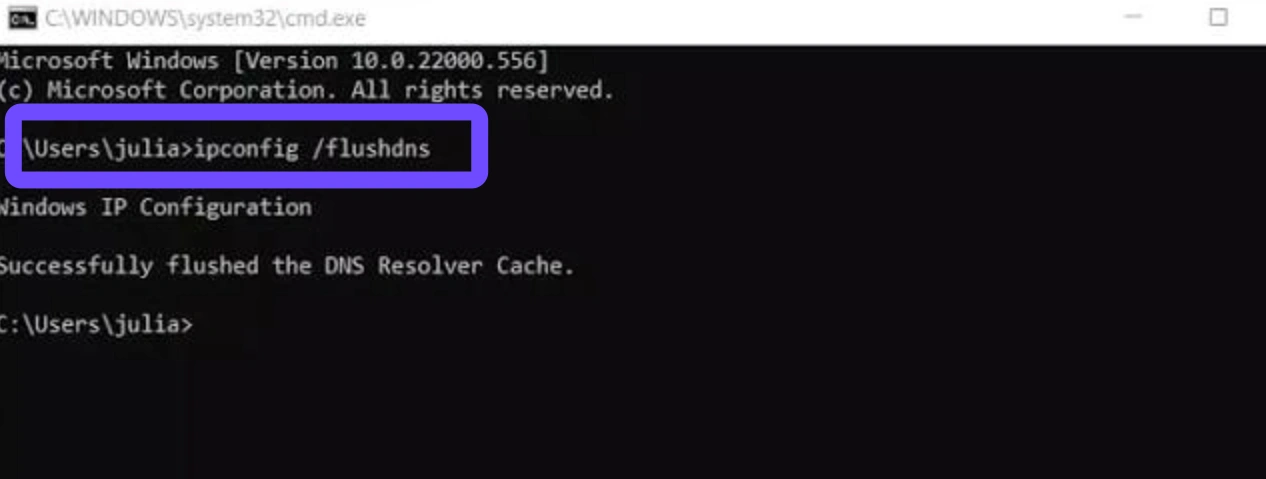
- Flush Your DNS Cache: Open Command Prompt as an administrator and type ipconfig /flushdns, then press Enter. This clears out broken, outdated IP pathways that your system might be holding onto when attempting to connect to the host.
Part 5: How to Fix Steam Overlay Invite Fails
Because Meccha Chameleon uses Epic Online Services under the hood, a broken or disabled Steam Overlay will completely break the internal game invitation loops.
If your Steam overlay invite fails, verify the following configuration layer:
Step 1. Open Steam and go to your Library.
Step 2. Right-click Meccha Chameleon and open Properties.
Step 3. Under the General tab, make sure the toggle for Enable the Steam Overlay while in-game is switched firmly to the ON position.
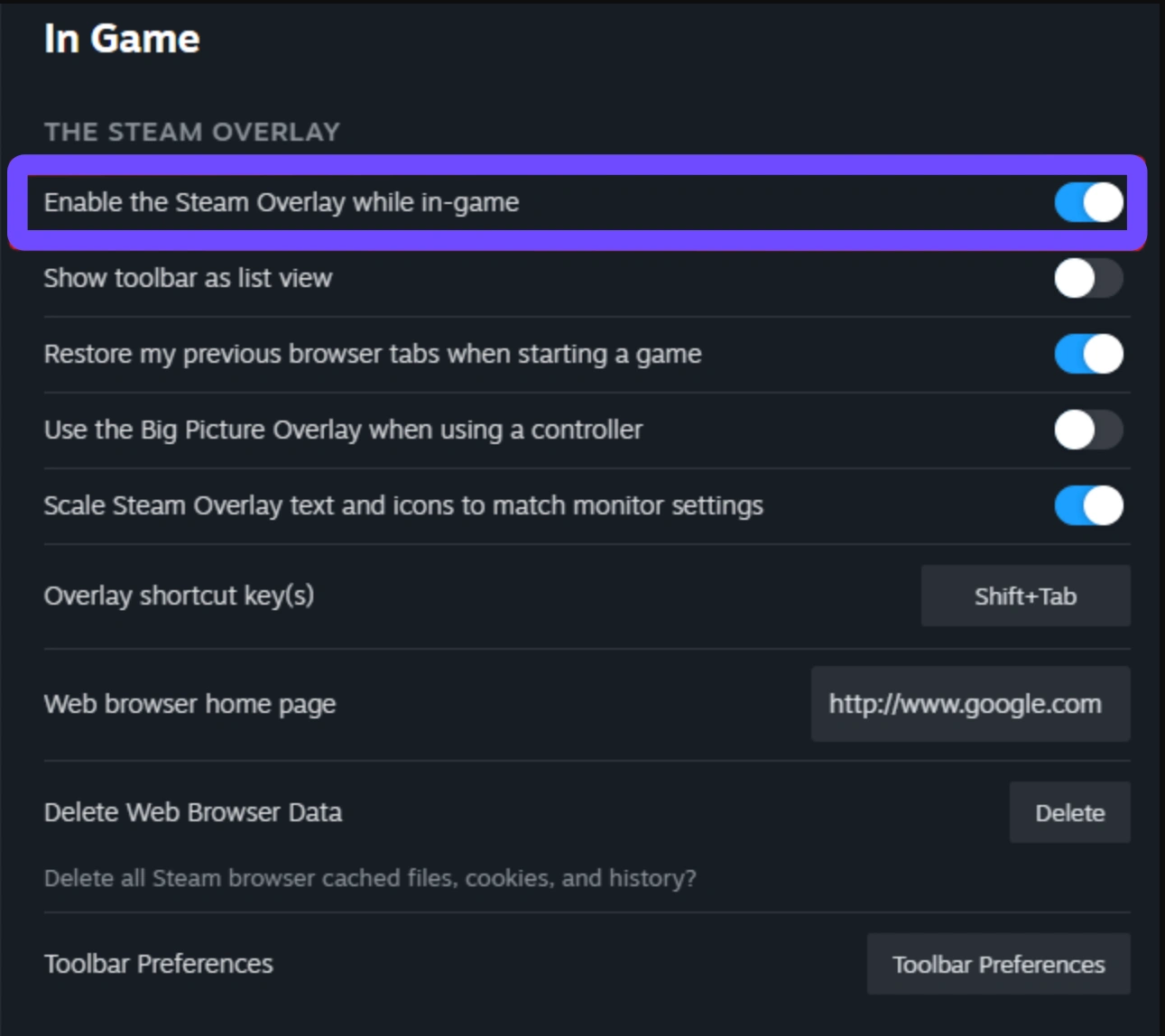
If it is already on, toggle it off, close the window, open it again, and switch it back on. This simple toggle forces Steam to rewrite its internal overlay hook configuration file for the game directory.
Part 6: How to Fix Meccha Chameleon Private Room Not Showing
When trying to bypass direct invites, many groups opt for manual server discovery. If your Meccha Chameleon private room not showing or Meccha Chameleon private room not visible error persists, the root cause is almost always a regional mismatched filter or game version differences.
The game's built-in server browser filters rooms strictly by your selected geographical region to prevent unplayable latency. The host must explicitly tell the players which region they selected (e.g., North America, Europe, Asia) during room creation.
All connecting players must manually change their search region in the multiplayer settings menu to match the host exactly. Additionally, verify that nobody is applying accidental player-count or ping filters that could inadvertently hide password-protected rooms from the main index.
Part 7: How to Fix Meccha Chameleon Invite Stopped Working
You might have successfully played three rounds in a row, only for the invitation mechanics to abruptly stop working entirely on the fourth attempt. This drop-off is caused by a token timeout on the matchmaking backend.
When an indie title experiences massive concurrent player spikes, the global authentication nodes will drop stale or idle session instances to save server capacity. When this happens:
- The host must completely dissolve the lobby and return to the main menu.
- Build a brand-new room from scratch with a slightly modified server name.
- This process generates an entirely clean session ID string across Epic Online Services, bypassing the stalled connection data pipeline.
Part 8: How to Fix Multiplayer Not Working After an Update
If you find that multiplayer not working after an update, it means you are encountering a classic Meccha Chameleon can't join private games scenario caused by a version mismatch mismatch. Because the developers push quick hotfixes to address stability, players' steam clients frequently drop out of sync.
To fix this immediately, verify your local files to force a download check:
Step 1. Open your Steam Library.
Step 2. Right-click Meccha Chameleon and select Properties.
Step 3. Navigate to the Installed Files tab.
Step 4. Click Verify integrity of game files.
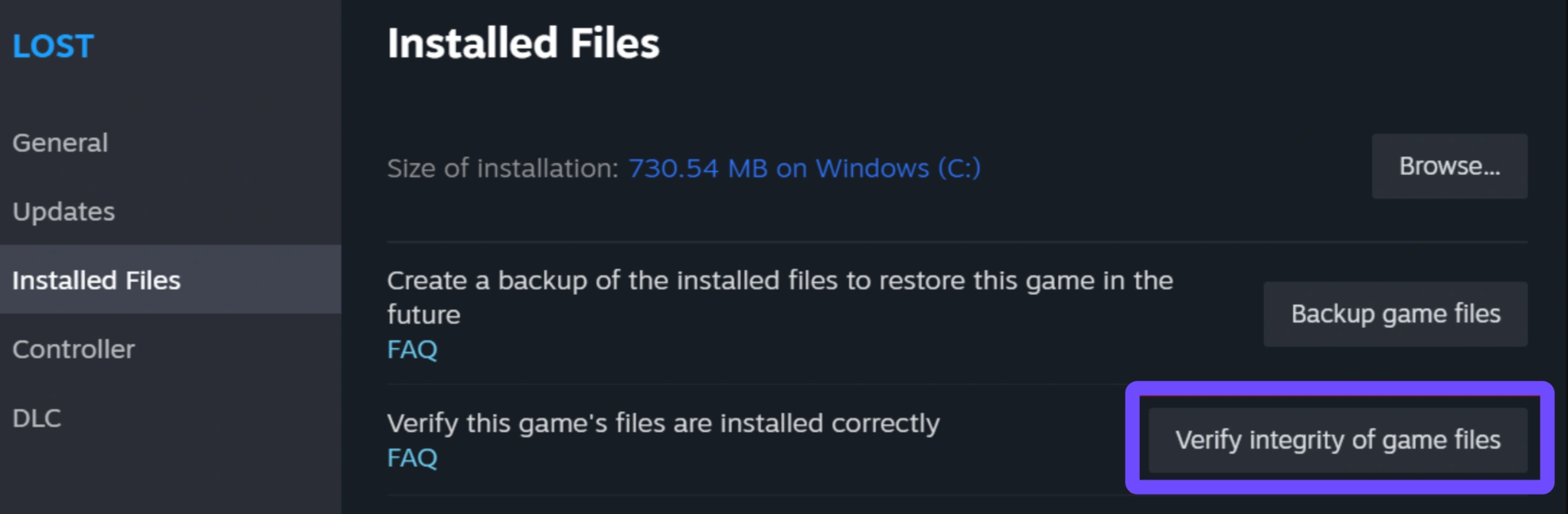
If even one player in your group is running a sub-version that is 10 megabytes behind the host, the master server browser will block the connection to prevent gameplay errors.
Part 9: All-In-One Solution: Fix All Meccha Chameleon Invite Not Working & Multiplayer Not Working Issues
While manual troubleshooting steps like resetting your router, changing your Steam settings, or tweaking your Windows settings can sometimes patch the problem, they rarely fix the underlying network congestion that causes these bugs in the first place.
The absolute best and most efficient way to achieve a permanent fix for all Meccha Chameleon invite not working & multiplayer not working issues is to use LagoFast Game Booster. LagoFast handles all the complex network routing automatically, optimizing your path to the game servers with a single click.
Key Features of LagoFast:
- One-Click Network & Invite Fix: Instantly repairs broken invite pathways and connection errors by stabilizing your game's Epic Online Services backend integration.
- High Ping Reducer: Uses smart, multi-path proxy routing technology to dynamically choose the fastest global server routes, eliminating rubber-banding and disconnects.
- One-Click Game Crash Fix Tool: Features a built-in diagnostic utility that scans and cleans up corrupted game files, runtime dependencies, and engine crashes with a single click.
- Real-Time FPS Boost: Optimizes your local Windows system resources, controls background apps, and maximizes your CPU/GPU allocation to give you smooth framerates while hunting or hiding.
Tutorial to Use LagoFast to Fix All Meccha Chameleon Invite Not Working & Multiplayer Not Working Issues:
Step 1: Click the Free Trial button to download and install LagoFast.
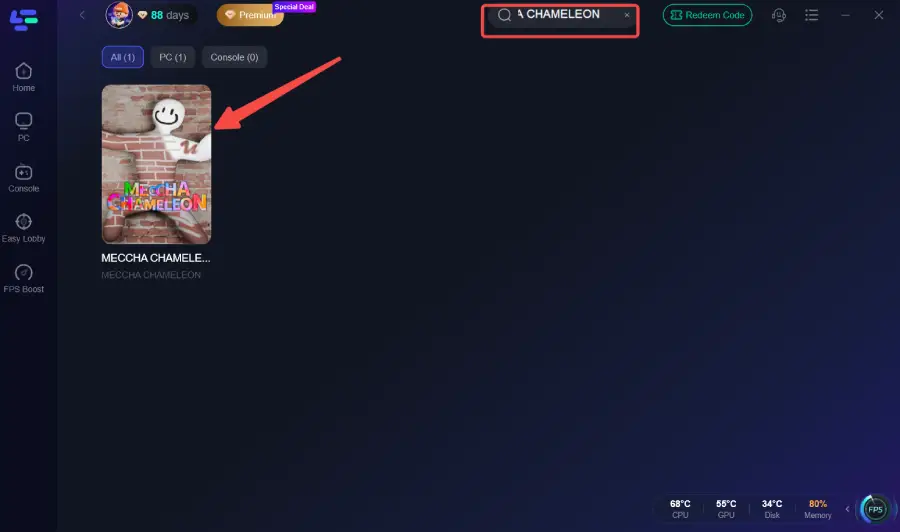
Step 2: Open LagoFast, then click the PC button on the left, search for Meccha Chameleon in the search bar, and click it after it appears.
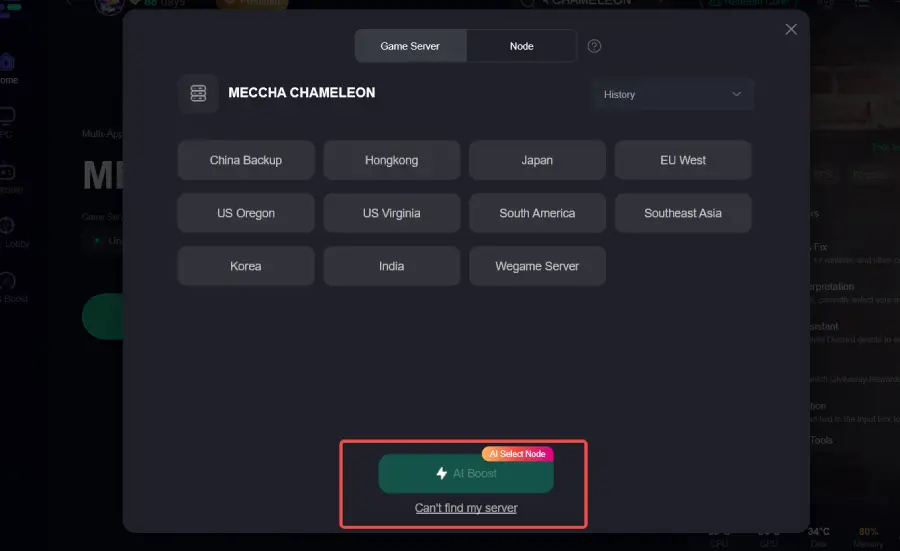
Step 3: Click on “Server” to change to a better server that ensures a better gaming experience, then click on “Smart Boost” to fix Meccha Chameleon common errors.
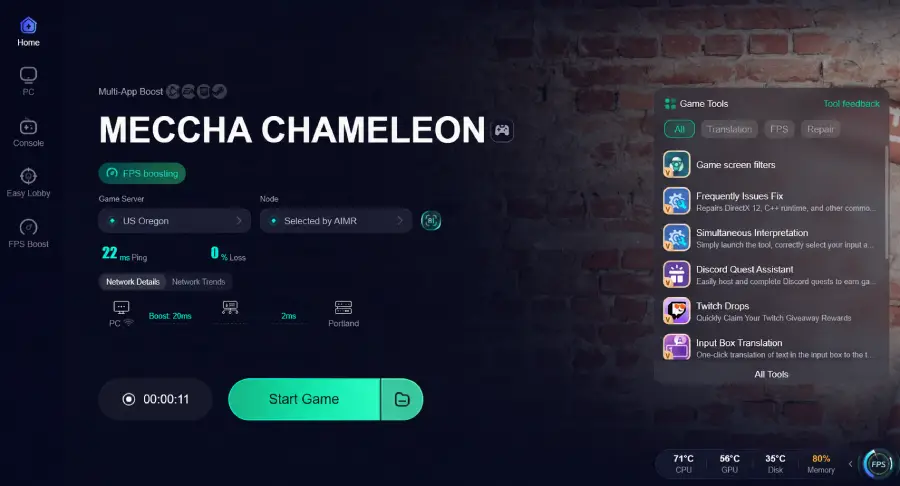
Step 4: Check the specific game ping, packet loss, and multiple path connections on the right side. Finally, click “Start Game” to play the game.
Part 10: FAQs
Why does Meccha Chameleon require Epic Online Services if I bought it on Steam?
The game was built by a small indie team that utilizes Epic Online Services' free multiplayer networking infrastructure to handle cross-region lobby syncing, matchmaking, and player data routing without passing massive server upkeep costs onto the players.
What should I do if my in-game server list is completely empty?
Go to your Steam client download settings and change your download region to a major metropolitan area closest to you. Afterward, clear your Steam download cache and restart the client to force the server indexer to rebuild your available pool.
Why does the game say "Connection Timed Out" whenever I accept a private match invite?
This indicates that your connection to the host timed out before the handshake completed. This happens if the host has an unstable upload speed or if your network packet loss is too high. Using a game booster like LagoFast stabilizes this specific data transfer window.
Does Meccha Chameleon support crossplay with consoles or mobile devices?
No. Meccha Chameleon is exclusively available on PC via Steam. Everyone in your party must be playing on the Steam PC version to join private rooms or receive invites.
Will disabling my antivirus software help fix multiplayer issues?
Sometimes. Strict third-party antivirus suites can flag the game's peer-to-peer networking processes as suspicious. Instead of disabling your entire security suite, simply add the installation folders for both Steam and Meccha Chameleon to your antivirus and Windows Defender firewall exclusion white-lists.
Will verifying game files delete my custom camo configurations or progress?
No. Verifying game files only checks your core engine systems and asset directories against the official repository, replacing broken data without touching your saved player profiles.
Conclusion
Fixing the connection bugs in Meccha Chameleon doesn't have to turn into a headache. By matching up your regional server settings, keeping your game files updated, and utilizing LagoFast to automate your network optimization, you can banish lobby errors for good. Get back into the match, perfect your camouflage, and enjoy seamless hide-and-seek gaming with your friends!
Boost Your Game with LagoFast for Epic Speed
Play harder, faster. LagoFast game booster eliminates stutter and lags on PC, mobile, or Mac—win every match!
Quickly Reduce Game Lag and Ping!
Boost FPS for Smoother Gameplay!