
Call of Duty: Black Ops 7 has quickly become one of the most talked-about titles in the franchise, offering intense gameplay, cinematic storytelling, and a polished multiplayer experience. However, like every major release in the Call of Duty series, the game has not escaped technical hurdles. From connection problems to frustrating bugs, players often report issues that disrupt gameplay. This article covers the most common known issues in Call of Duty: Black Ops 7, solutions discussed across Reddit and other gaming forums, and introduces a reliable tool—LagoFast—as the ultimate fix for smoother gameplay.

- ✅Reduce Lag and High Ping.
- ✅Boost FPS at the Same Time.
- ✅ Support 2000+ Popular Online Games.
- ✅ Change Server without Latency.
- ✅ Boost Game Loading Speed.
Part 1: Known Issues in Call of Duty: Black Ops 7
Part 2: How to Fix All Issues in Call of Duty: Black Ops 7 – Ultimate Solution
Part 1: Known Issues in Call of Duty: Black Ops 7
Here are the top eight Call of Duty BO7 issues that players frequently complain about, along with step-by-step solutions for each.
Game Crashing on Launch
One of the most common BO7 bugs is the game crashing right after launch, often leaving players stuck at the loading screen.
Fix:
Step 1: Ensure your graphics drivers (NVIDIA/AMD/Intel) are up to date. Outdated drivers are the main cause of crashes.
Step 2: Verify game files through Steam or Battle.net. Corrupted files can trigger launch failures.
Step 3: Disable background overlays (Discord, GeForce Experience, Steam Overlay) as they sometimes conflict with BO7.
Step 4: Run the game as administrator and ensure Windows is updated.
BO7 High Ping and Lag Spikes
Players on Reddit constantly report Call of Duty BO7 lag spikes even with stable internet.
Fix:
Step 1: Switch to a wired Ethernet connection instead of Wi-Fi for lower latency.
Step 2: Close background downloads or streaming apps consuming bandwidth.
Step 3: Change the in-game server region manually to a closer server for reduced ping.
Step 4: Use a game optimizer like LagoFast (discussed later) to route traffic through faster servers.
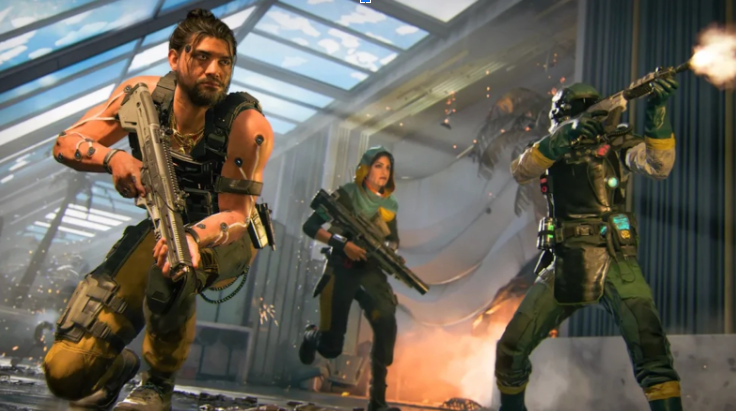
Stuck on “Connecting to Online Services”
Many players face the Call of Duty BO7 connection issue, where the game refuses to connect to servers.
Fix:
Step 1: Restart your router and ensure your NAT type is “Open” or “Moderate.”
Step 2: Clear cache files by restarting your console or deleting the PC’s temporary files.
Step 3: Check Activision’s official server status page for ongoing outages.
Step 4: If persistent, try changing DNS settings to Google DNS (8.8.8.8 / 8.8.4.4).
BO7 Dev Error Codes (6068, 6034, etc.)
Like earlier COD titles, BO7 comes with notorious dev errors that suddenly crash the game.
Fix:
Step 1: Lower in-game graphics settings to reduce GPU stress.
Step 2: Set the game’s texture resolution to “Normal” instead of “High.”
Step 3: Reinstall shaders from the in-game graphics menu.
Step 4: Delete the players folder in the game directory to reset corrupted config files.
Audio Bugs (No Sound or Delayed Sound)
Players report BO7 sound issues, such as gunfire or footsteps not syncing.
Fix:
Step 1: Ensure your audio drivers are updated.
Step 2: Disable 3D audio features (like Windows Sonic or Dolby Atmos) if they conflict.
Step 3: In settings, toggle between “Stereo” and “Surround Sound” modes to re-sync audio.
Step 4: Plug in a different headset/speaker to rule out hardware faults.
Texture Not Loading / Graphic Glitches
Some PC players encounter Call of Duty BO7 texture bugs, where environments or skins don’t render properly.
Fix:
Step 1: Increase the allocated VRAM under the graphics settings.
Step 2: Reinstall the high-resolution texture pack.
Step 3: Ensure your PC meets the minimum GPU memory requirements.
Step 4: Lower settings like “Streaming Quality” to reduce texture streaming load.
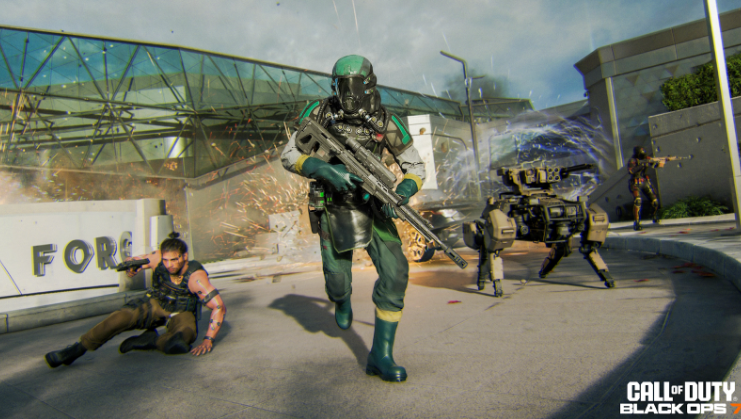
BO7 Freezing During Matches
Another widely discussed issue is random freezing mid-game, causing players to lose matches.
Fix:
Step 1: Disable overclocking on CPU/GPU, as instability often causes freezes.
Step 2: Update DirectX and Visual C++ Redistributables.
Step 3: Run BO7 in Borderless Windowed mode instead of Fullscreen.
Step 4: Clear the shader cache from the in-game graphics menu.
Progression and Unlock Bugs
Many BO7 players complain that weapons, operators, or achievements don’t unlock after completing tasks.
Fix:
Step 1: Ensure you’re connected to Activision’s servers before completing challenges.
Step 2: Restart the game after each major achievement to sync progress.
Step 3: Check for known BO7 bug reports on Activision Trello boards (they often patch progression issues).
Step 4: If missing items persist, contact Activision Support with screenshots for a manual fix.
Part 2: How to Fix All Issues in Call of Duty: Black Ops 7 – Ultimate Solution
While the above fixes can resolve individual Call of Duty BO7 issues, players often face recurring problems like lag, high ping, and stuttering. This is where LagoFast comes in—a powerful optimization tool designed for gamers. LagoFast offers game acceleration, lag reduction, and crash prevention, making it the most reliable solution for BO7 players. Even better, LagoFast continuously updates its game issue fixability after every major release, meaning once Black Ops 7 is fully launched, it will roll out targeted updates to address new bugs and performance problems, ensuring you always have the latest optimizations.
Key Features of LagoFast:
- Ping Reducer: Routes your connection through optimized servers to reduce latency in BO7.
- Stability Booster: Minimizes packet loss and prevents sudden lag spikes.
- One-Click Optimization: Automatically adjusts settings for smoother gameplay.
- Crash Fixer: Reduces dev errors and system instability by stabilizing performance.
- Global Servers: Allows you to connect to the nearest or best-performing BO7 server.
- Multi-Game Support: Works not only with Black Ops 7 but also with Warzone, Fortnite, Apex, and more.
With LagoFast, you don’t need to waste time applying dozens of trial-and-error fixes—it offers a one-stop solution for all known issues in Call of Duty: Black Ops 7.
Tutorial to use LagoFast to fix game issues and optimize your gaming experience on PC:
Step 1: Click the Free Trial button to download and install LagoFast.
Step 2: Open LagoFast, then click the PC button on the left and search Black Ops 7 in the search bar, click it after it appears.

Step 3: Click on “Server” to change to a better server that fixes connection issues and optimizes the Black Ops 7 gaming experience, then click on “Smart Boost.”

Step 4: Finally, check the specific game ping, packet loss, and multiple path connections on the right side. Finally, click the “Start Game” to fix all the game issues and play the game.

Conclusion
Call of Duty: Black Ops 7 is an incredible game, but it’s not free from bugs and issues. From BO7 crashes, lag spikes, and dev errors to progression bugs, players face multiple challenges. While the step-by-step solutions provided above can help, the most efficient way to resolve all problems is by using LagoFast, which ensures smoother gameplay, lower ping, and fewer crashes. If you want to maximize your BO7 experience, LagoFast is the ultimate solution.
Boost Your Game with LagoFast for Epic Speed
Play harder, faster. LagoFast game booster eliminates stutter and lags on PC, mobile, or Mac—win every match!
Quickly Reduce Game Lag and Ping!
Boost FPS for Smoother Gameplay!