
Quick Answer
If Hell Let Loose: Vietnam is stuck on the "Press Any Button to Continue" screen, first press Alt+Tab to check for hidden windows from Epic Games Launcher, Easy Anti-Cheat, or account-linking services that may require interaction. Make sure your primary keyboard, mouse, or controller is properly detected by Windows and the game. You should also verify game files, disable overlays, repair Easy Anti-Cheat, and update graphics drivers. If startup issues are accompanied by network instability or connection problems, using LagoFast Game Booster may help improve overall performance and stability.
Introduction
Many players encounter the Hell Let Loose: Vietnam stuck on press any button to continue issue, where the game loads normally but does not respond to any keyboard, mouse, or controller input at the startup screen.
This usually happens on Steam or Epic Games Launcher and is often linked to hidden pop-ups, Easy Anti-Cheat issues, corrupted files, or input conflicts. In most cases, it can be fixed without reinstalling.
This guide briefly explains the main causes behind the Hell Let Loose: Vietnam press any button to continue not working problem and how to resolve it quickly.

- ✅ Reduce Lag and High Ping.
✅ Boost FPS at the Same Time.
✅ Support 8000+ Popular Online Games.
✅ Change Server without Latency.
✅ Boost Game Loading Speed.
Part 1: Why is Hell Let Loose: Vietnam Press any button to continue not working?
Part 2: Hell Let Loose: Vietnam Stuck on Press Any Button To Continue: Top Fixes
Part 3: Fix Hell Let Loose: Vietnam press any button not working Epic Games
Part 4: Fix Hell Let Loose: Vietnam Stuck On Loading Screen, or Press Any Button Not Working
Part 5: Troubleshooting Input Devices and Controller Conflicts
Part 6: How to Enhance Your Game Experience with LagoFast Game Booster
Part 1: Common Causes of the Hell Let Loose: Vietnam Press Any Button to Continue Not Working Issue
Before applying fixes, it helps to understand what may be causing the problem. Although the title screen appears simple, multiple background systems are involved before the game can successfully proceed to the main menu. The following are the most common reasons why Hell Let Loose: Vietnam gets stuck at the "Press Any Button to Continue" screen.
Hidden Pop-Ups and Background Processes
Hidden launcher prompts are among the most frequent causes of this issue. When launching through Steam or Epic Games Launcher, the game may trigger additional windows in the background, such as launcher updates, account-linking requests, privacy agreements, or Easy Anti-Cheat confirmation dialogs.
If one of these windows is minimized or hidden behind the game window, Hell Let Loose: Vietnam may appear frozen while waiting for user interaction. Since the game cannot continue until the prompt is acknowledged, players often mistake the situation for an input failure.
Because of this, checking for hidden windows should always be your first troubleshooting step.
Input Device Conflicts
Another common cause involves input device conflicts. Many modern gaming setups include multiple controllers, keyboards, mice, flight sticks, racing wheels, or virtual input devices running simultaneously.
In some cases, Hell Let Loose: Vietnam may prioritize a connected controller while the player attempts to use a keyboard and mouse. Conversely, a controller may stop responding if the game expects keyboard input first. Outdated drivers and improperly configured devices can further complicate the issue and prevent the game from recognizing commands correctly.
As a result, the title screen may appear completely unresponsive even though the game itself is functioning normally.
Corrupted Game Files or Installation Problems
Corrupted game files can also prevent Hell Let Loose: Vietnam from progressing beyond the startup sequence. During launch, the game must load various assets, configuration files, authentication modules, and menu components before allowing access to the main menu.
If one or more critical files are missing, damaged, or improperly installed, the game may become stuck during initialization. The "Press Any Button to Continue" screen often acts as a checkpoint before the main menu loads, making it a common location for file-related issues to appear.
Fortunately, both Steam and Epic Games Launcher provide built-in verification tools that can automatically repair damaged files.
Overlay Interference
Many players run multiple gaming utilities in the background, including Steam Overlay, Discord Overlay, NVIDIA GeForce Experience, MSI Afterburner, and various monitoring applications.
While these tools are generally safe, they sometimes interfere with input detection and startup processes. Because overlays inject themselves into the game environment, software conflicts may prevent Hell Let Loose: Vietnam from correctly receiving keyboard, mouse, or controller commands.
Disabling overlays temporarily can help determine whether one of these background applications is responsible for the problem.
Easy Anti-Cheat (EAC) Initialization Issues
Like many competitive multiplayer games, Hell Let Loose: Vietnam relies on Easy Anti-Cheat (EAC) to verify game integrity and maintain fair play.
If EAC fails to initialize correctly, encounters corrupted files, or is blocked by antivirus software or Windows Firewall, the game may never complete its startup sequence. This can leave players stuck at the title screen indefinitely.
Because EAC operates before multiplayer services become available, any issue affecting the anti-cheat system can directly impact whether the game proceeds beyond the "Press Any Button to Continue" prompt.
Part 2: Top Fixes for Hell Let Loose: Vietnam Stuck on Press Any Button To Continue
Now that we've covered the most likely causes, it's time to focus on practical solutions. The following fixes have helped many players resolve the Hell Let Loose: Vietnam Stuck on Press Any Button To Continue issue and regain access to the game.
Check for Hidden Pop-Ups Using Alt+Tab
This is often the fastest and most effective solution.
Press Alt+Tab repeatedly to cycle through all active windows on your desktop. Carefully check for Epic Games Launcher prompts, Easy Anti-Cheat notifications, account-linking requests, update confirmations, or permission dialogs.
If you discover a hidden window, complete the required action by selecting Allow, Accept, Continue, or any similar option. Once the prompt has been addressed, return to the game and test whether the title screen now responds to your input.
Many players find that this simple step immediately resolves the issue.
Verify Hell Let Loose: Vietnam Game Files
If hidden windows are not the problem, the next step is to verify the integrity of your installation.
For Steam:
- Open Steam Library.
- Right-click Hell Let Loose: Vietnam.
- Select Properties.
- Navigate to Installed Files.
- Click Verify Integrity of Game Files.
For Epic Games Launcher:
- Open Epic Games Launcher.
- Navigate to Library.
- Click the three-dot menu beside Hell Let Loose: Vietnam.
- Select Verify.
This process scans all game files and automatically replaces any missing or corrupted components that may be preventing the game from progressing beyond the startup screen.
Restart Your PC and Game Launcher
While it may sound simple, a full restart often resolves temporary software conflicts.
Close Hell Let Loose: Vietnam completely and exit Steam or Epic Games Launcher. Restart your computer rather than using sleep mode, then launch your game platform again with administrator privileges.
This process clears temporary memory conflicts, refreshes system services, and can restore proper communication between the game, launcher, and anti-cheat software.
If the issue was caused by a temporary process conflict, a clean reboot may resolve it immediately.
Update Graphics Drivers
Outdated graphics drivers can cause far more than visual problems. In some cases, they interfere with game initialization, shader compilation, menu rendering, and input recognition.
Visit the official website for your GPU manufacturer and download the latest driver version:
- NVIDIA GeForce Drivers
- AMD Radeon Software
- Intel Graphics Drivers
Whenever possible, perform a clean installation rather than a standard update. This removes older driver components that may be contributing to startup issues.
Keeping your graphics drivers current is one of the most effective ways to prevent both launch failures and long-term stability problems.
Part 3: How to Fix Hell Let Loose: Vietnam Press Any Button Not Working on Epic Games
After handling general startup issues, it’s important to look specifically at launcher-related problems. Many players encountering the Hell Let Loose: Vietnam press any button not working epic games issue are actually dealing with Epic Games services failing to sync correctly in the background. This is especially common when accounts are linked across Steam and Epic ecosystems.
Ensure Epic Games Launcher Is Running Properly
Even if the game is launched through Steam, Hell Let Loose: Vietnam may still rely on Epic Games services for authentication and backend communication. If the launcher is not running, outdated, or stuck in a background update loop, the game may fail to proceed past the startup screen.
Make sure Epic Games Launcher is fully opened before launching the game. It is also recommended to run it as administrator so it can properly initialize all required services and permissions.
Re-Link Your Epic Games Account
In some cases, account synchronization issues can block progression beyond the title screen. If your Steam account and Epic Games account are not correctly linked, the game may fail to validate your session.
Re-linking your accounts through Epic Games settings or the in-game account system can help refresh authentication tokens and restore proper communication between services. This step is particularly useful when the issue appears suddenly after a platform update.
Check Epic Games Launcher Pop-Ups
One of the most overlooked causes of the issue is hidden launcher windows. Epic Games Launcher may trigger update confirmations, EULA agreements, promotional dialogs, or account verification requests that appear behind the game window.
If these prompts are not acknowledged, Hell Let Loose: Vietnam will remain stuck at the "Press Any Button to Continue" screen because it is waiting for user input elsewhere. Using Alt+Tab to search for these hidden windows is essential in this scenario.
Repair Easy Anti-Cheat for Epic Games
If authentication or startup validation is failing, repairing Easy Anti-Cheat can often resolve the issue.
Navigate to the installation directory, typically:
C:\Program Files\Epic Games\HellLetLooseVietnam\EasyAntiCheat
Run EasyAntiCheat_Setup.exe as administrator, select Hell Let Loose: Vietnam, and choose Repair Service.
This process reinstalls or fixes corrupted anti-cheat components that may be preventing the game from fully launching.
Part 4: Fix Hell Let Loose: Vietnam Stuck on Loading Screen or Press Any Button Not Working
In some cases, the issue is not limited to the title screen. Players may also experience longer loading times, frozen transitions, or combined symptoms where Hell Let Loose: Vietnam stuck on press any button to continue is linked with general loading failures. These problems are often caused by system performance limitations or asset streaming delays.
Clear Shader Cache Files
Modern Unreal Engine-based games rely heavily on shader compilation. If shader caches become corrupted or outdated, the game may freeze during initialization or appear stuck at the startup prompt.
Clearing the DirectX shader cache through Windows Disk Cleanup can resolve these inconsistencies. NVIDIA users can also reset shader-related data through the NVIDIA Control Panel or driver settings. The first launch after clearing cache may take longer, but performance will usually improve afterward.
Install the Game on an NVMe SSD
Storage speed plays a major role in how quickly Hell Let Loose: Vietnam loads assets and initializes game systems. If the game is installed on a traditional HDD, slow read speeds can cause delays that appear as frozen or unresponsive screens.
Installing the game on an NVMe SSD significantly improves asset streaming, reduces loading times, and helps prevent stalls during startup transitions such as the "Press Any Button to Continue" phase.
Check for Background Downloads or Updates
Another often overlooked factor is background system activity. If Steam, Epic Games Launcher, or Windows Update is downloading large files in the background, disk usage can spike and slow down game initialization.
This can cause Hell Let Loose: Vietnam to appear stuck even though it is still processing data. Pausing all downloads and ensuring system resources are fully available can resolve this issue quickly.
Adjust In-Game Resolution and Display Mode
Display configuration conflicts can also lead to startup freezes. If the game attempts to launch in an unsupported resolution or fullscreen mode, it may fail to transition past the initial screen.
Switching to windowed mode or lowering resolution settings through launch options or configuration files can help bypass this problem. Once inside the game, settings can be adjusted back to preferred values.
Part 5: Fix Controller and Input Device Issues in Hell Let Loose: Vietnam
Input-related problems are another major reason behind Hell Let Loose: Vietnam Stuck on Press Any Button To Continue scenarios. Even when the game is running normally, incorrect input detection can make it appear completely frozen.
Disconnect Unnecessary Input Devices
Having multiple input devices connected at the same time can confuse the game’s input priority system. Devices such as extra controllers, steering wheels, or virtual input drivers may interfere with normal keyboard or mouse input.
Disconnecting all non-essential devices and leaving only the primary keyboard and mouse connected can immediately restore input responsiveness.
Update Controller and Peripheral Drivers
Outdated drivers can prevent proper device recognition. This is especially common with gaming controllers that rely on Windows or third-party driver support.
Updating drivers through Windows Update or the manufacturer’s official software ensures that Hell Let Loose: Vietnam correctly identifies input signals and avoids conflicts during the startup sequence.
Disable Steam Input
Steam Input is a powerful controller configuration system, but it can sometimes interfere with native game input handling.
To test this, go to Steam Library, right-click Hell Let Loose: Vietnam, open Properties, then Controller settings, and disable Steam Input. This forces the game to rely on native input detection, which often resolves unresponsive screen issues.
Check for Controller Emulators
Tools such as DS4Windows or other controller emulators can create virtual devices that confuse the game. These virtual inputs may override real hardware inputs or cause duplicate signal conflicts.
If such software is running, temporarily disabling it or reconfiguring device output can help restore normal input behavior.
Part 6: Improve Stability and Connectivity with LagoFast in Hell Let Loose: Vietnam
Although the Hell Let Loose: Vietnam stuck on press any button to continue issue is usually caused by local system or input problems, network instability and backend synchronization delays can also contribute to situations where the game appears frozen during startup. This is especially relevant for always-online multiplayer titles where authentication and server handshake occur before reaching the main menu.
Why Network Optimization Matters
In some cases, what looks like Hell Let Loose: Vietnam Press any button to continue not working is actually a delayed response caused by unstable routing between the game client, launcher services, and authentication servers. High packet loss, unstable routing paths, or overloaded network nodes can slow down initialization processes and make the game appear stuck even when it is still attempting to connect.
Optimizing network routes helps reduce unnecessary delays during these early-stage connections, especially when multiple services like Steam, Epic Online Services, and Easy Anti-Cheat are all involved in the startup sequence.
How to Use LagoFast for Hell Let Loose: Vietnam
LagoFast Game Booster is designed to stabilize routing paths and reduce latency fluctuations by optimizing the connection between your system and game servers. It does not modify game files but instead improves network consistency during gameplay and startup phases.
Step 1: Click the Free Trial button to download and install LagoFast.
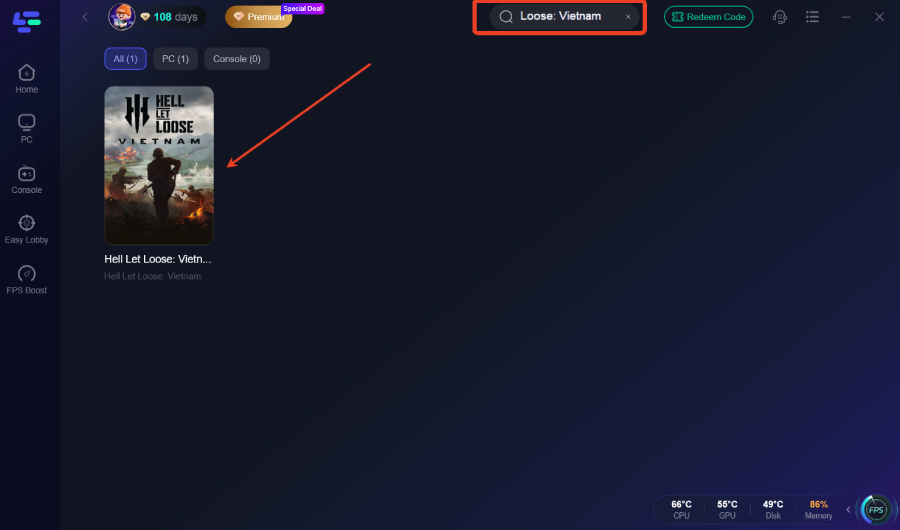
Step 2: After installation, search "Hell Let Loose: Vietnam" in the search bar and select the game.
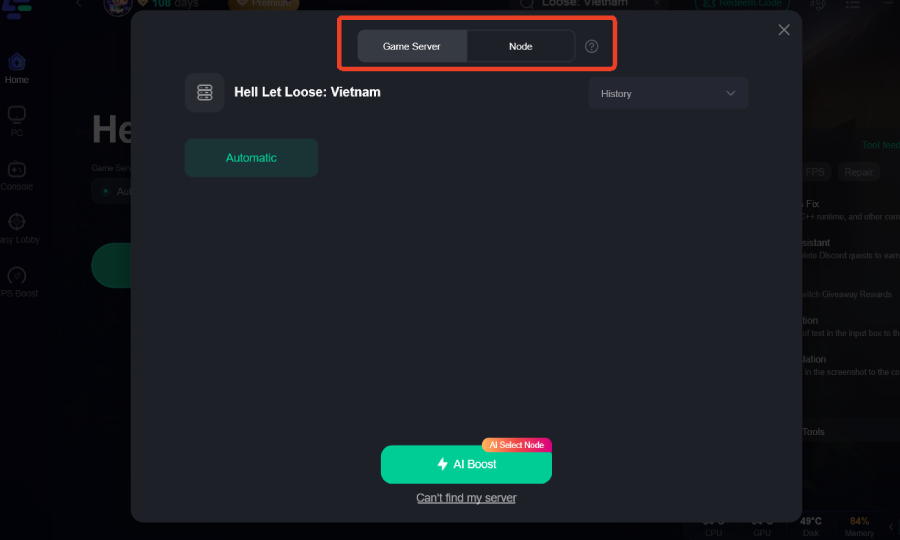
Step 3: Choose your preferred server node and click "Smart Boost" to start optimizing.
Step 4: Launch your game and enjoy smooth, optimized gameplay with lower ping and no stutter.
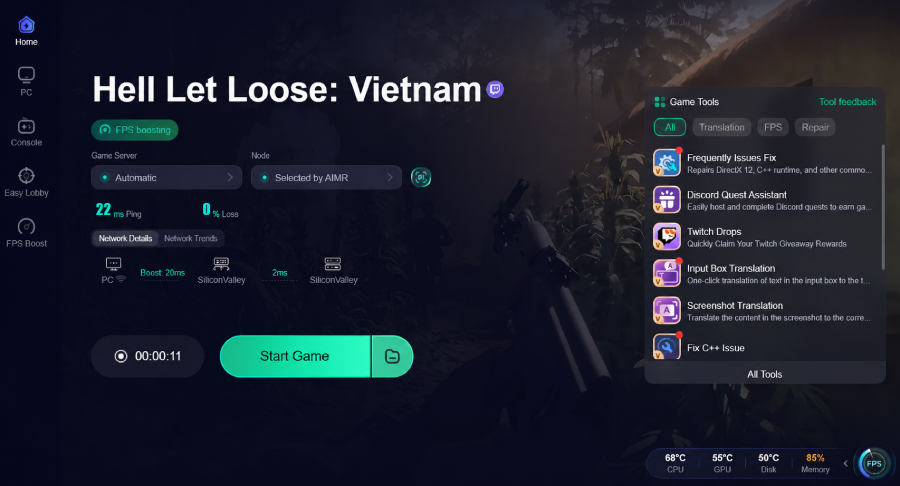
Once enabled, the system continuously optimizes routing paths, which can help reduce the likelihood of connection-related startup stalls and improve overall responsiveness.
Part 7: FAQs
Why does Hell Let Loose: Vietnam get stuck on the press any button screen?
This usually happens due to hidden launcher prompts, Easy Anti-Cheat initialization errors, input device conflicts, or corrupted game files. The game is often waiting for background confirmation rather than actual player input.
Why is Hell Let Loose: Vietnam press any button not working Epic Games version specifically?
The Epic Games version may experience additional authentication steps through Epic Online Services. If pop-ups are hidden or account linking fails, the game may not proceed past the startup screen.
How do I fix Hell Let Loose: Vietnam stuck on loading screen or press any button not working?
Common fixes include verifying game files, clearing shader cache, updating GPU drivers, disabling overlays, and ensuring the game is installed on an SSD instead of an HDD.
Can controllers cause input issues in Hell Let Loose: Vietnam?
Yes. Multiple connected devices, outdated drivers, Steam Input conflicts, or controller emulators can all interfere with input detection and cause the game to become unresponsive at the title screen.
Does internet connection affect startup issues?
While most cases are local system-related, unstable connections can sometimes delay authentication or server handshake processes, making the game appear frozen during startup.
Conclusion
The Hell Let Loose: Vietnam stuck on press any button to continue issue is typically caused by a combination of hidden pop-ups, Easy Anti-Cheat initialization problems, input device conflicts, corrupted files, or overlay interference. In some cases, launcher-specific issues from Steam or Epic Games can further delay or block progression into the main menu.
By systematically applying the solutions in this guide, most players can resolve the Hell Let Loose: Vietnam Stuck on Press Any Button To Continue problem without needing to reinstall the game. Additional fixes such as driver updates, shader cache clearing, and proper device management can further improve stability.
If you also experience Hell Let Loose: Vietnam stuck on loading screen or press any button not working issues alongside network lag or unstable connections, optimizing routing with tools like LagoFast Game Booster may provide additional stability benefits during startup and gameplay.
Once these steps are completed, the game should launch normally, allowing you to enter matches without further interruption.

Boost Your Game with LagoFast for Epic Speed
Play harder, faster. LagoFast game booster eliminates stutter and lags on PC, mobile, or Mac—win every match!
Quickly Reduce Game Lag and Ping!
Boost FPS for Smoother Gameplay!