
Quick Answer: How to Fix Hell Let Loose: Vietnam Low FPS & Lagging
The fastest, most efficient way to resolve Hell Let Loose: Vietnam Low FPS & Lagging issues is by using an optimized gaming booster like LagoFast. LagoFast targets the root network and hardware bottle-necks simultaneously. It diagnoses server routing paths to eliminate latency while adjusting system resource allocations to stop aggressive frame drops. By using its automated performance engine, you can instantly stabilize your frame rate, bypass congested nodes, and maintain high fluid performance even in dense, foliage-heavy multiplayer combat zones.
Introduction
The scale of 50v50 tactical combat in Hell Let Loose: Vietnam is breathtaking, but the game's dense foliage, dynamic weather, and intense explosions can easily crush your hardware's performance. Encountering sudden frame rate issues or massive lag spikes in the middle of a tactical push ruins the simulation entirely. Whether you are running a top-tier graphics card or trying to maintain a steady baseline on a mid-range setup, optimization is required. This guide breaks down why performance takes a hit and outlines the best ways to restore your competitive edge.

- ✅ Reduce Lag and High Ping.
✅ Boost FPS at the Same Time.
✅ Support 8000+ Popular Online Games.
✅ Change Server without Latency.
✅ Boost Game Loading Speed.
Part 1: Performance Breakdown: Symptoms & Causes
Part 2: Manual Fixes to Solve Hell Let Loose: Vietnam Low FPS & Lagging Issue
Part 3: Why Do Manual Fixes Often Fail?
Part 4: All-In-One Solution: Fix Hell Let Loose: Vietnam Low FPS & Lagging Quickly
Part 5: What’s New In Hell Let Loose: Vietnam?
Part 1: Performance Breakdown: Symptoms & Causes
Before exploring solutions, it helps to match your exact in-game issue with its likely technical root cause.
|
Performance Symptom |
Probable Technical Cause |
Recommended Fix |
|
Why is my FPS so low all of a sudden |
Outdated graphics drivers, background application conflicts, or thermal throttling. |
Update drivers, clear background apps, and verify hardware cooling. |
|
Hell Let Loose: Vietnam low fps on good pc |
Poor optimization by the game engine, incorrect DirectX utilization, or power management saving modes. |
Enable High Performance power profile and force DirectX 12 parameters. |
|
Hell Let Loose: Vietnam fps drops |
Shader compilation stuttering or sudden CPU overhead during artillery and explosive sequences. |
Adjust in-game shadows and effects quality; optimize asset streaming. |
|
Hell Let Loose: Vietnam fps stuck at 60 |
V-Sync active in settings, display driver caps, or monitor refresh rate mismatch. |
Disable V-Sync in-game and override within your GPU control panel. |
|
Hell Let Loose: Vietnam Low FPS & Lagging |
Poor network server routing paired with high local system memory usage. |
Implement network optimization tools like LagoFast and use wired connections. |
Part 2: Manual Fixes to Solve Hell Let Loose: Vietnam Low FPS & Lagging Issue
If you prefer to manually configure your Windows operating system and graphic configurations, these five proven solutions can help stabilize your frame rate.
Solution 1: Force DirectX 12 Launch Parameters
The game engine can struggle with default rendering paths. Forcing the game to run on DX12 often drastically stabilizes frame rates and utilizes modern GPU architectures correctly.
Step 1: Open your Steam client and navigate to your library.
Step 2: Right-click on Hell Let Loose: Vietnam and select Properties.
Step 3: Under the General tab, locate the text field labeled Launch Options.
Step 4: Type -dx12 exactly into the field.
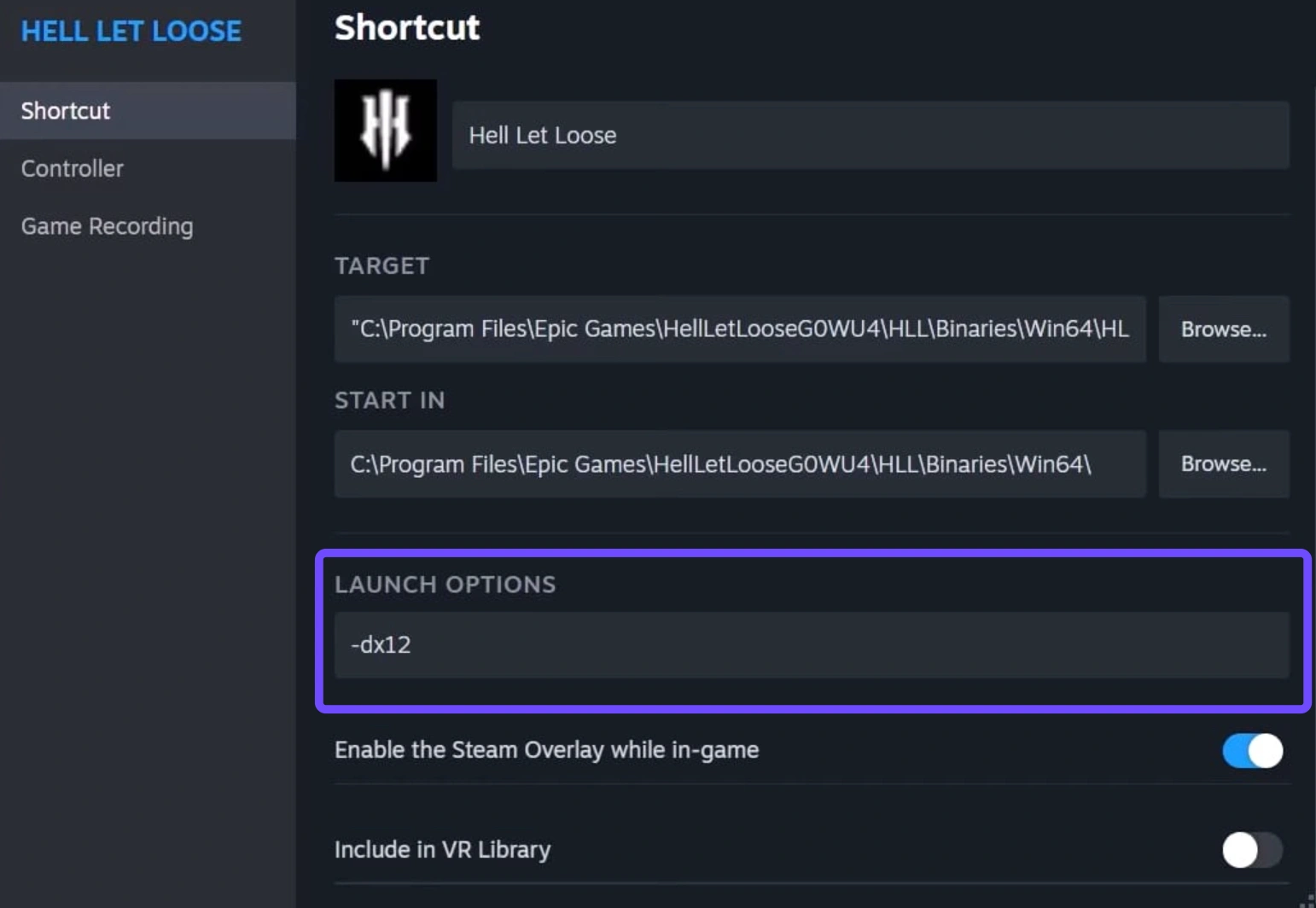
Step 5: Close the properties window and launch the game to build new shader caches.
Solution 2: Optimize In-Game Graphical Settings
Maxing out every setting creates immense visual clutter and drops frames unnecessarily. Certain settings offer high performance returns for low visual impact.
Step 1: Open the in-game menu and click on the Video settings tab.
Step 2: Change Shadow Quality from Epic down to Medium (this reduces immense CPU strain).
Step 3: Set Foliage Quality to Medium to prevent the dense jungle plants from choking your GPU rendering queue.
Step 4: Set Post-Processing Quality to Low or Medium to eliminate intense motion blur and heavy depth of field.
Step 5: Apply the changes and restart the match to see the frame rate stabilize.
Solution 3: Change Windows Power and Graphic Plan
Windows frequently throttles power to the processor or graphics card to save energy, leading to sudden, unexplained performance drops.
Step 1: Press the Windows Key, type Control Panel, and hit enter.
Step 2: Select Power Options and switch the checkbox from Balanced to High Performance.
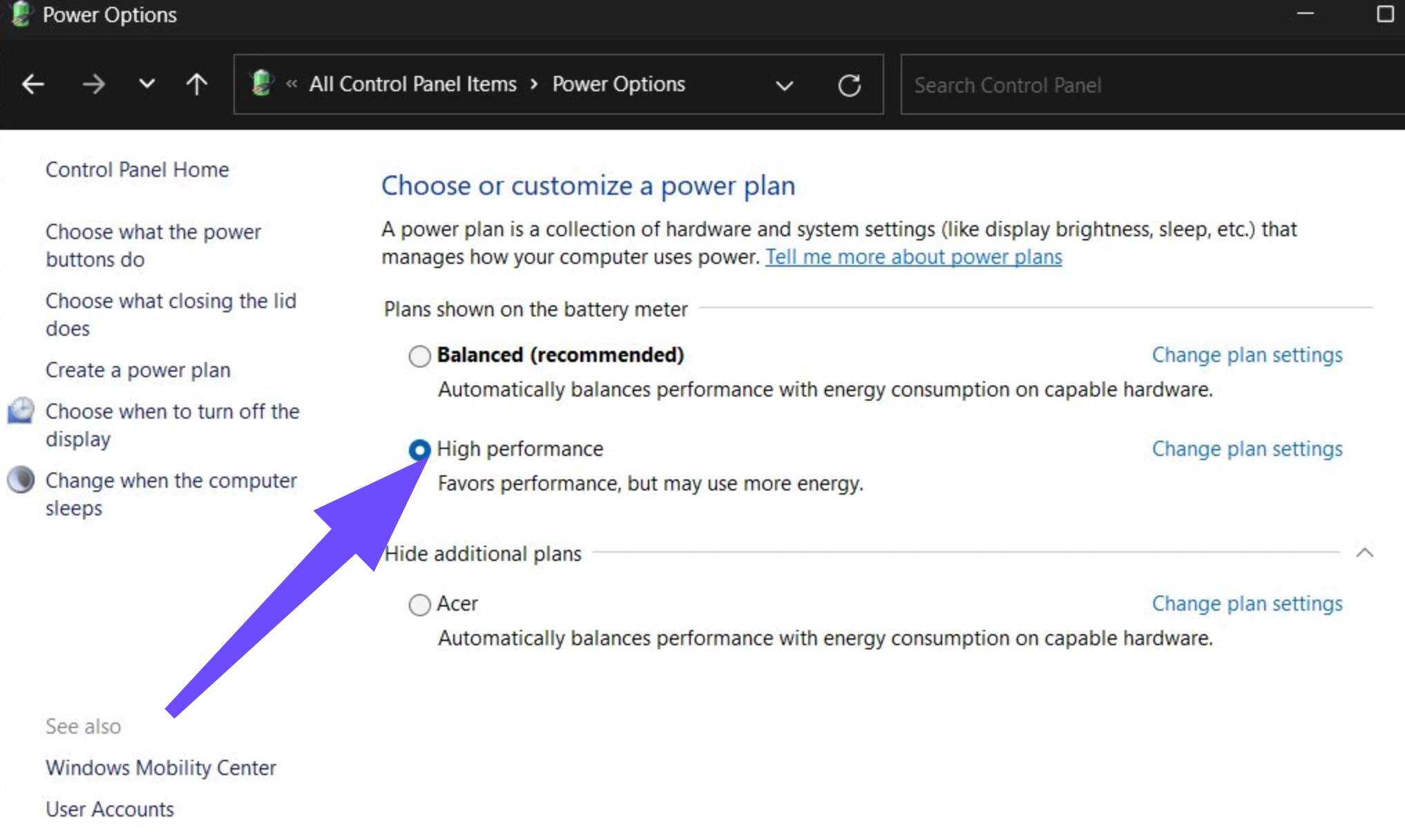
Step 3: Next, close that window, open Windows Settings, and navigate to System then Display.
Step 4: Click on Graphics settings and ensure Hardware-accelerated GPU scheduling (HAGS) is turned ON.
Step 5: Restart your PC to allow the operating system kernel to apply the power adjustments.
Solution 4: Clean Install GPU Drivers
Corrupted or outdated graphics configurations can lead to unexpected frame locks or structural instability during massive battles.
Step 1: Download the newest driver package directly from NVIDIA or AMD's official website.
Step 2: Run the installer and select the custom installation option.
Step 3: Check the box that says Perform a clean installation (this wipes out legacy, potentially corrupted settings files).
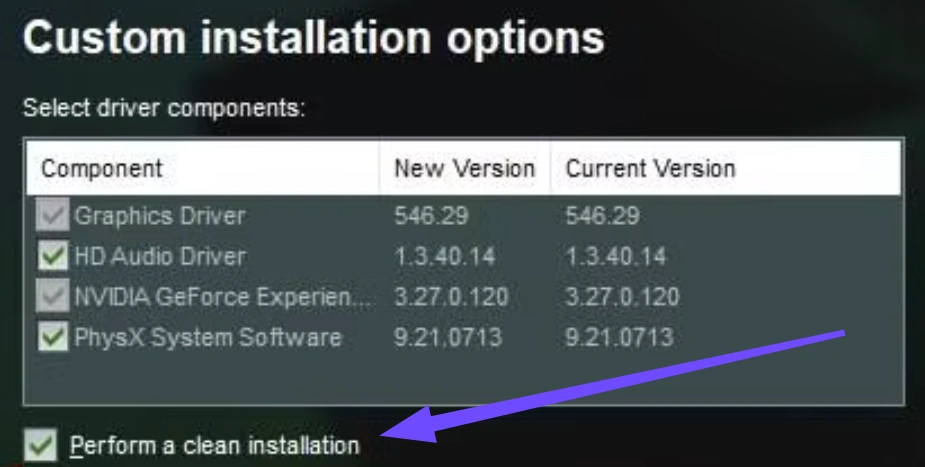
Step 4: Allow the installer to complete and restart the computer.
Step 5: Open your GPU control panel to verify your primary monitor is running at its maximum rated native refresh rate.
Solution 5: Adjust Shader Cache Limits
If your shader cache size is too small, your computer will constantly delete and rebuild assets, causing violent stutter spikes as you walk into new sectors.
Step 1: Right-click your desktop and open the NVIDIA Control Panel (or AMD Software equivalent).
Step 2: Go to Manage 3D Settings on the left navigation tree.
Step 3: Scroll through the global settings list until you locate Shader Cache Size.
Step 4: Change this value from "Driver Default" to 10GB or Unlimited.
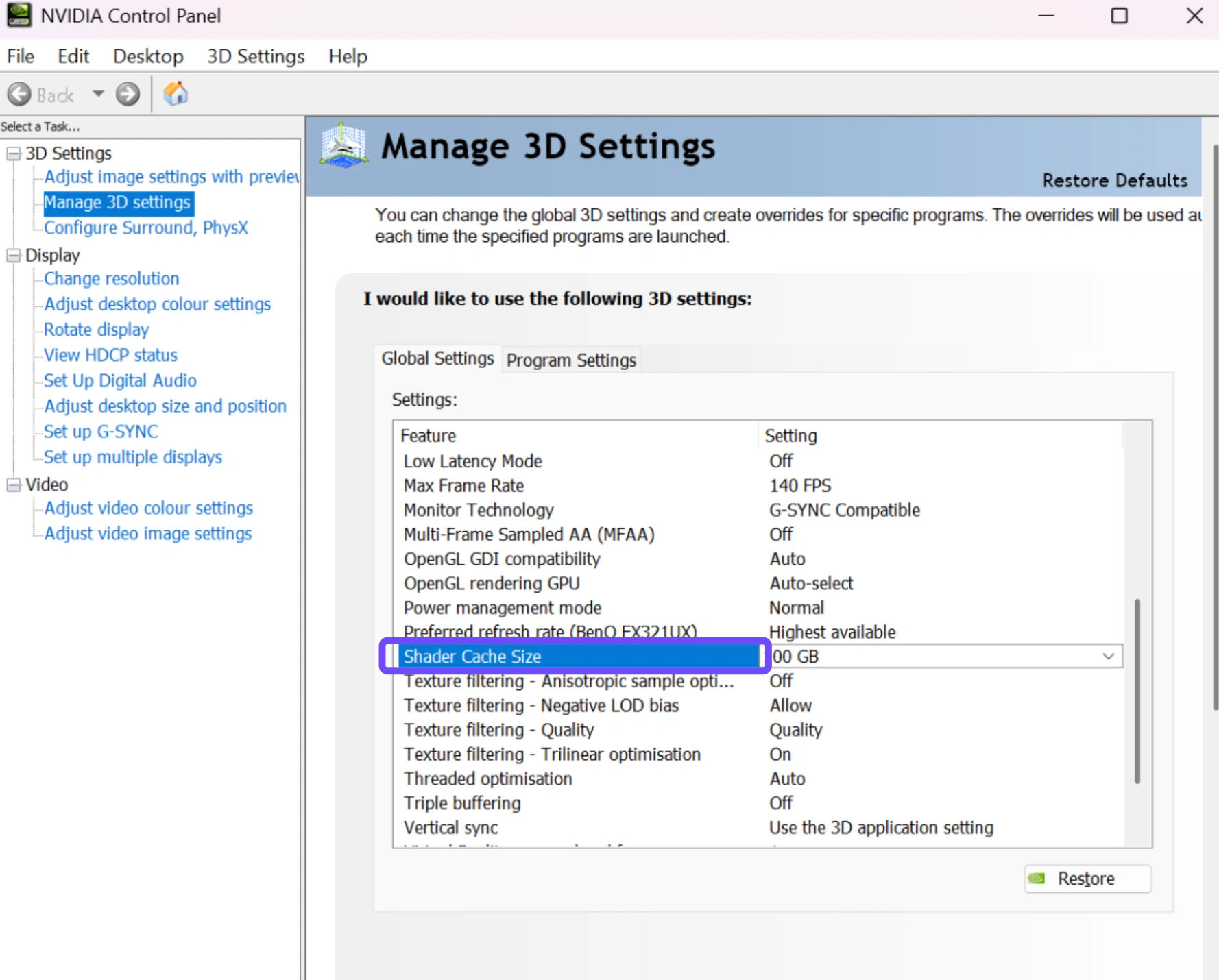
Step 5: Click Apply at the bottom right and close the control panel.
Part 3: Why Do Manual Fixes Often Fail?
While manual fixes sound great on paper, many tactical shooters still suffer from poor performance even after you complete them. There are a few key reasons for this:
- Dynamic Server Bottlenecks: No matter how fast your physical computer is, if the game's servers are experiencing high packet burst or poor optimization, your PC will artificially stall waiting for information.
- Jungle Asset Stuttering: The sheer density of foliage in the Vietnam setting means your system is constantly loading and unloading assets. Standard Windows configurations simply aren't designed to prioritize game assets dynamically over background tasks.
- ISP Route Throttling: Internet service providers regularly bundle your data pathways alongside generic web traffic, causing massive ping spikes and connection delays that feel exactly like hardware stuttering.
Part 4: All-In-One Solution: Fix Hell Let Loose: Vietnam Low FPS & Lagging Quickly
If you want to skip tedious manual troubleshooting, LagoFast offers an elegant, automated game boosting utility designed to fix performance and network hitches instantly. It optimizes your PC environment with a single click, allowing you to focus on the game.
Key Features of LagoFast:
- One-Click FPS Boost: Instantly stops unnecessary background system processes, manages CPU core allocation, and frees up system memory to maximize your frame rate.
- Multipath Connection Routes: Dynamically analyzes network pathways, instantly connecting you to the fastest, lowest-ping data routes available.
- Real-Time Ping Reduction: Actively prevents network jitter and data packet loss, eliminating sudden rubber-banding issues on massive 50v50 server maps.
- Smart Server Switching: Automatically switches your connection to optimal nodes if a regional server experiences sudden traffic congestion.
Tutorial to Optimize Your Hell Let Loose: Vietnam Gaming Experience with LagoFast:
Step 1: Click the Free Trial button to download and install LagoFast.
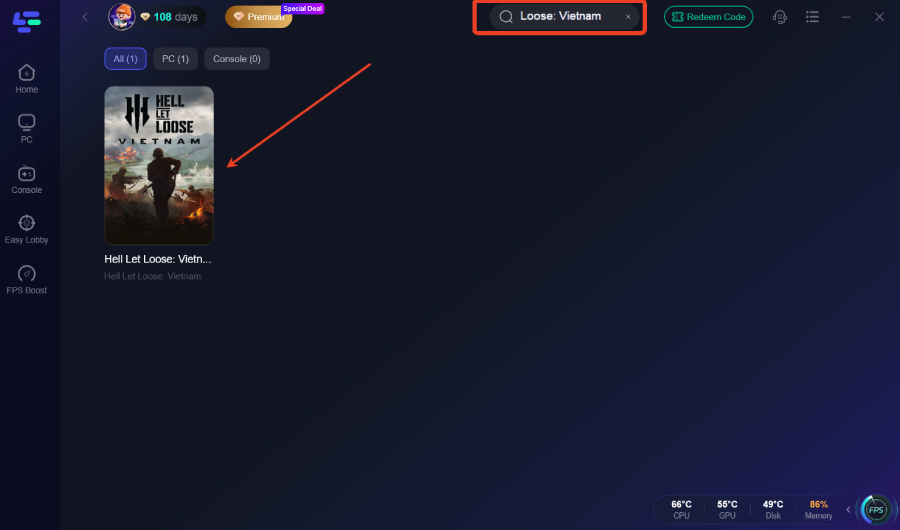
Step 2: After installation, search "Hell Let Loose: Vietnam" in the search bar and select the game.
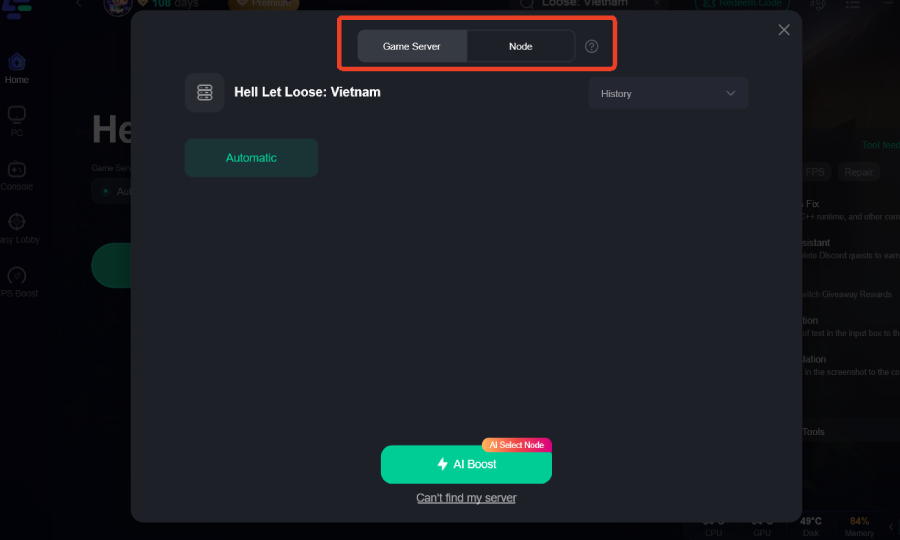
Step 3: Choose your preferred server node and click "Smart Boost" to start optimizing.
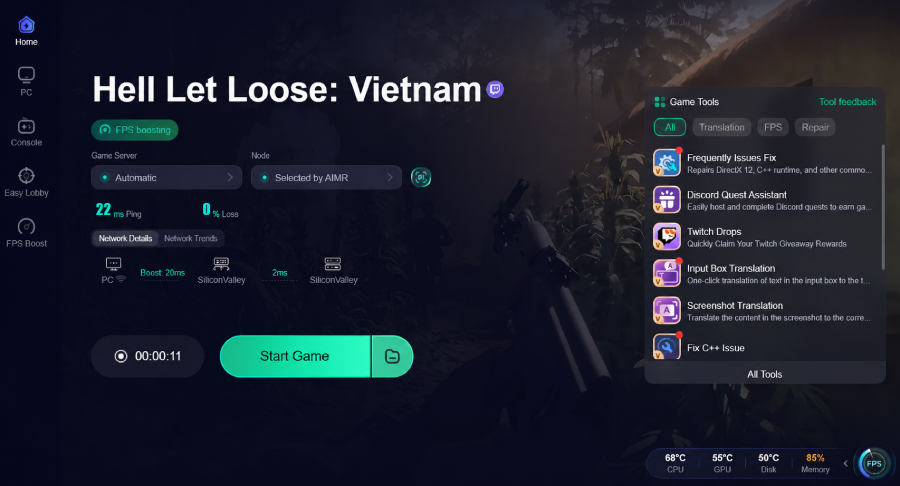
Step 4: Launch your game and enjoy smooth, optimized gameplay with lower ping and no stutter.
Part 5: What’s New In Hell Let Loose: Vietnam?
The shift away from World War II battlefields completely redefines the pacing, infrastructure, and tactical combat loops of the series. The table below outlines the core changes that impact both tactical gameplay and overall system rendering strain.
|
Core Gameplay Element |
Feature Overview & Tactical Design |
System Performance Considerations |
|
Asymmetrical Armies |
Pits the heavily equipped US Armed Forces against the stealth-focused North Vietnamese Army (NVA). |
Diverse tactical weapon loadouts and distinct soldier uniform models create variable asset streaming loads. |
|
Aerial & River Vehicles |
Introduces usable transport and attack helicopters along with heavily armed river patrol boats. |
Fast transport speeds across large maps increase asset streaming demands on your hard drive and CPU. |
|
6 New Massive Maps |
Environments include iconic locations like the Thanh Hóa Bridge, featuring extreme terrain variation. |
Dense jungle canopies, complex foliage, and dynamic river networks heavily strain GPU fill rates. |
|
Stealth & Traps |
Features NVA tunnel systems, hidden underground pathways, and complex ambush mechanics. |
Increased audio design complexity and hidden assets require constant CPU tracking calculations. |
Part 6: FAQs
Why is my FPS so low all of a sudden?
A sudden drop in performance is usually caused by outdated graphics drivers, automated background software updates, or corrupted shader caches building up after a recent game update.
How do I fix severe micro-stuttering on high-end computer configurations?
Ensure your operating system is utilizing Hardware-Accelerated GPU Scheduling (HAGS), force the application to run via DirectX 12 launch parameters, and ensure your game files are installed on a high-speed NVMe SSD rather than a traditional hard drive.
Does turning off V-Sync help increase my in-game frames per second?
Yes. Turning off V-Sync removes artificial frame synchronization limits, eliminating input delay and stopping performance from locking at lower refresh rate baselines like 60 Hz.
Why does my game lag even when my home internet speed is incredibly fast?
High download bandwidth does not guarantee a stable connection. Ping issues and rubber-banding are caused by poor data routing to regional game servers, network packet loss, or high signal jitter.
Can running the game in borderless windowed mode cause performance issues?
Yes. Standard windowed configurations force your desktop window manager to render background windows alongside the game. Using exclusive full-screen mode helps your system focus its processing resources on the game.
Why does HLL: Vietnam FPS and Graphics boost steps sometimes make the game look blurry?
This occurs when you turn on aggressive anti-aliasing methods or aggressive dynamic resolution scaling. Try using a sharper, static resolution and adjust specific heavy parameters like shadows instead of lowering overall textures.
Conclusion
Getting bogged down by performance stutters while playing Hell Let Loose: Vietnam can completely ruin an otherwise great tactical experience. While manual Windows adjustments can offer small improvements, using an automated system booster like LagoFast is the easiest way to ensure steady frames, low ping, and a stutter-free experience. Optimize your system configuration, jump back into the jungle, and lead your squad to victory without any performance issues holding you back.

Boost Your Game with LagoFast for Epic Speed
Play harder, faster. LagoFast game booster eliminates stutter and lags on PC, mobile, or Mac—win every match!
Quickly Reduce Game Lag and Ping!
Boost FPS for Smoother Gameplay!