
Quick Answer: How to Fix Hell Let Loose: Vietnam Not Launching?
If Hell Let Loose: Vietnam won't start or keeps crashing on startup, the quickest root cause is usually outdated drivers, missing administrative privileges, or network congestion blocking initialization servers. While manual troubleshooting can take time, the absolute fastest way to handle system bottlenecks, optimize server routes, and fix startup issues across platforms is by using a dedicated game booster like LagoFast. It repairs connection handshakes and optimizes system resources with a single click.
Introduction
The highly anticipated tactical jungle warfare of Hell Let Loose: Vietnam delivers intense, large-scale 50v50 historical battles. However, encountering a black screen, an immediate crash to desktop, or a total refusal to boot up can completely ruin your deployment plans. If you are stuck staring at your game launcher instead of hunting through the dense forests of the Thanh Hóa Bridge map, you are not alone. This guide outlines exactly why these issues happen and provides comprehensive, platform-specific solutions to get you straight into the action.

- ✅ Reduce Lag and High Ping.
✅ Boost FPS at the Same Time.
✅ Support 8000+ Popular Online Games.
✅ Change Server without Latency.
✅ Boost Game Loading Speed.
Part 1: Hell Let Loose: Vietnam Not Launching: Overview
Part 2: How to Manually Fix Hell Let Loose: Vietnam Not Launching on PC?
Part 3: Fix Hell Let Loose: Vietnam Not Launching on PS5 & Xbox Series X|S – Full Manual Solutions
Part 4: Why Manual Solutions Sometimes Fail?
Part 5: One-Click to Fix Hell Let Loose: Vietnam Launching Issue Across All Platforms: 100% Working
Part 1: Hell Let Loose: Vietnam Not Launching: Overview
Before diving into step-by-step methods, it helps to understand what you are facing. Launch and crash errors are typically categorized into specific symptoms caused by software conflicts, missing assets, or configuration errors.
|
Symptom |
Potential Causes |
Recommended Fix |
|
Crash to Desktop (CTD) on Startup |
Corrupted Unreal Engine 5 binaries, outdated graphics card drivers, or active overlays. |
Verify integrity of game files; update GPU drivers. |
|
Infinite Loading / Black Screen |
Direct3D initialization failure, missing DirectX 12 components, or corrupted cache files. |
Run as Administrator; clear local AppData configuration. |
|
Launcher Error (Steam/Epic Games) |
Administrative restriction, broken cloud sync data, or background process locks. |
Clear download cache or bypass the launcher using direct .exe. |
|
Console Freeze / Error Code |
Fragmented system installation, corrupted local profile data, or bad server handshake. |
Rebuild database (PS5) / Clear persistent storage (Xbox). |
Related Article: Is Hell Let Loose: Vietnam Crossplay? Everything You Need to Know
Part 2: How to Manually Fix Hell Let Loose: Vietnam Not Launching on PC?
If you are trying to launch the game on Windows through Steam or the Epic Games Store, local operating system environments are the primary culprit for failures. Use these three comprehensive solutions to fix the issue manually.
Solution 1: Grant Administrative Privileges and Bypass Launchers
Many tactical shooters built on modern frameworks require deeper system permissions to initiate anti-cheat protocols and access game files. Standard user restrictions can silently kill the process before a window even opens.
Step 1: Open your game platform library (Steam or Epic Games Store), right-click on Hell Let Loose: Vietnam, select Manage, and choose Browse local files.
Step 2: Locate the main application executable file, typically named HLLVietnam.exe.
Step 3: Right-click on the executable file and select Properties from the context menu.
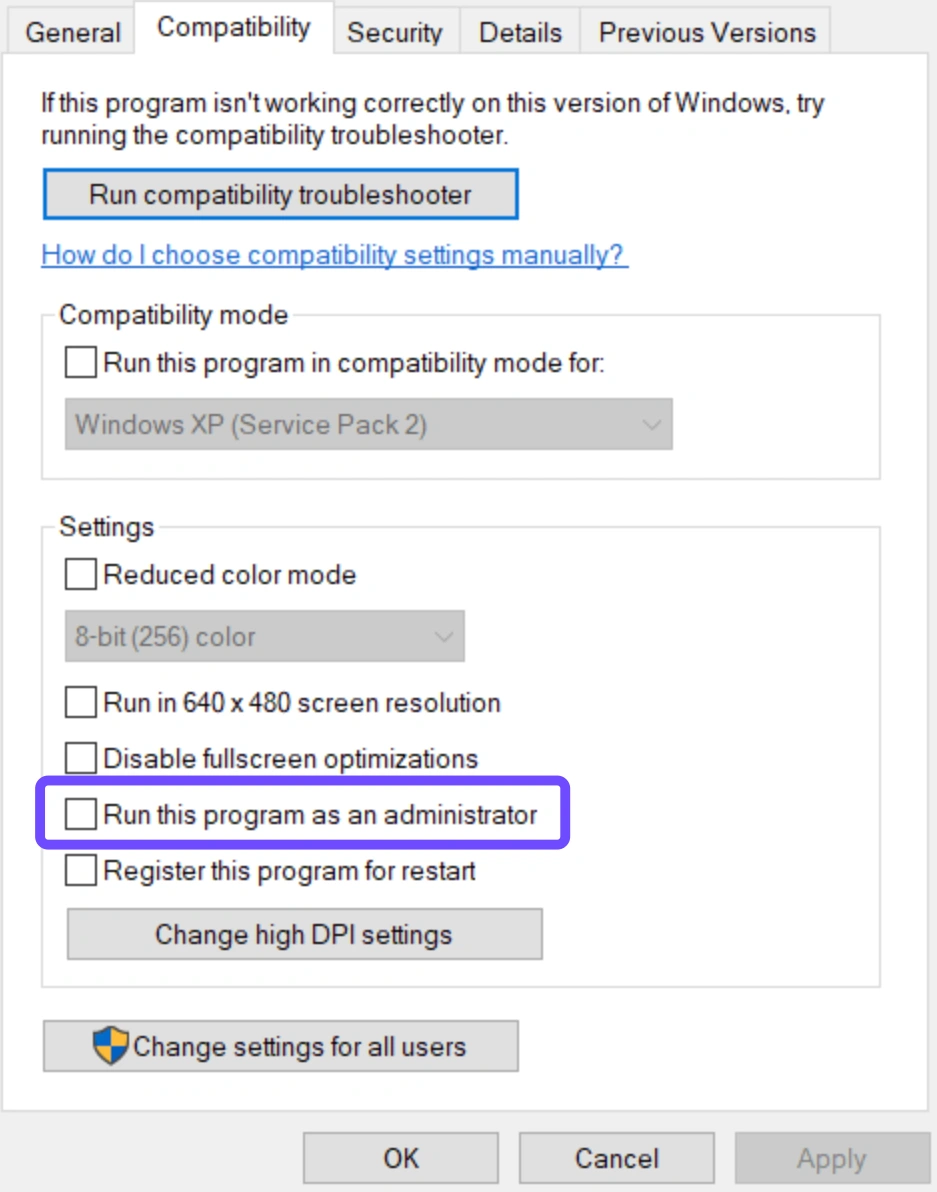
Step 4: Navigate to the Compatibility tab at the top of the properties window.
Step 5: Check the box that says Run this program as an administrator, click Apply, and select OK. Launch the game directly by double-clicking this executable rather than using your launcher.
Solution 2: Clean Install Graphics Drivers via DDU and Update DirectX
Because the game runs on demanding engine architecture, any corruption in your GPU instructions will trigger an immediate crash during the pre-loading phase.
Step 1: Download the latest official driver package from NVIDIA, AMD, or Intel depending on your hardware hardware.
Step 2: Download Display Driver Uninstaller (DDU), boot your PC into Windows Safe Mode, and run DDU to completely wipe all traces of old display drivers.
Step 3: Restart your PC back into normal Windows mode and install the freshly downloaded driver package using the "Express" or "Clean Install" option.
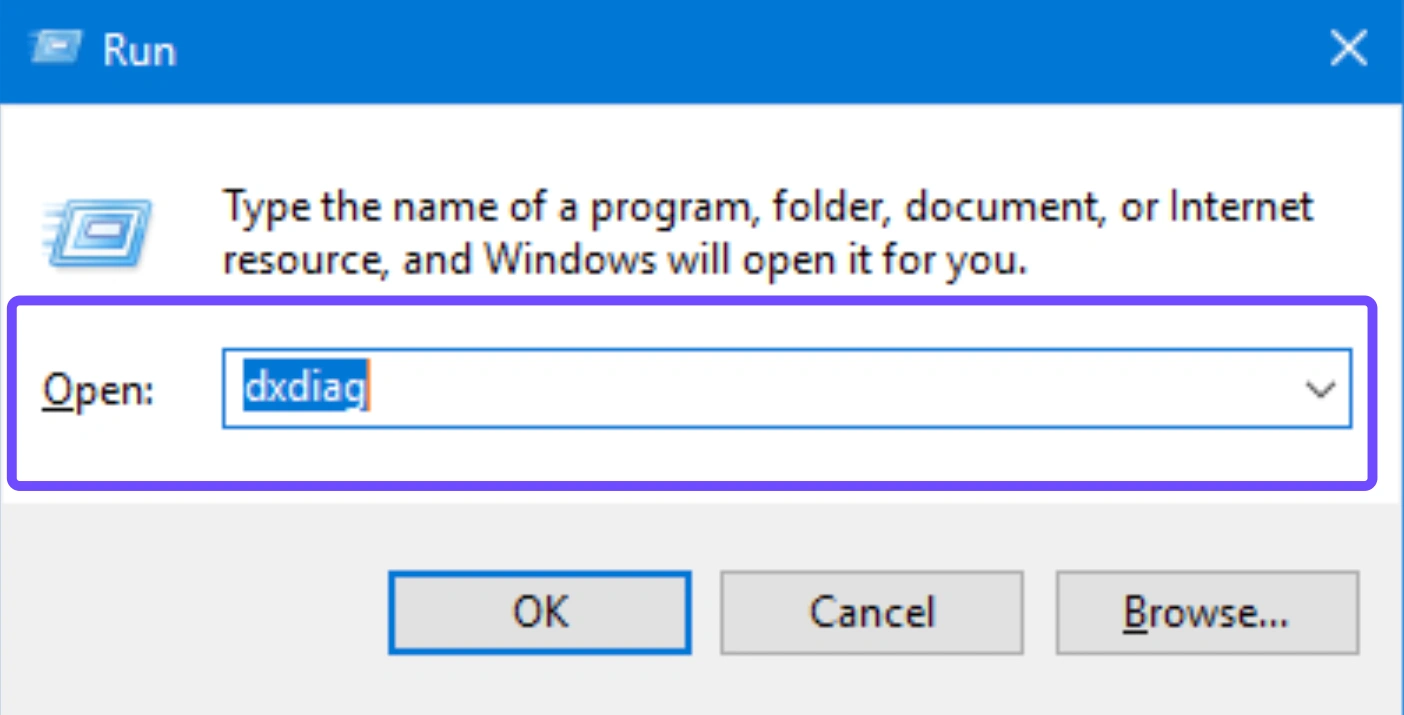
Step 4: Press the Windows Key + R, type dxdiag, and press Enter to check your current DirectX version; make sure Windows Update has installed the latest runtime environments.
Step 5: Right-click the game in Steam, go to Properties, and in the General tab under Launch Options, type -dx12 to force the game engine to utilize stable structural pipelines.
Solution 3: Verify Game Integrity and Wipe Corrupted AppData
A minor network hiccup during pre-loading or updating can lead to corrupt game files. Deleting localized cache files forces the engine to rebuild a healthy configuration profile.
Step 1: Open Steam, right-click Hell Let Loose: Vietnam, click Properties, navigate to Installed Files, and click Verify integrity of game files. For Epic Games, click the three dots next to the title and choose Manage, select Verify.
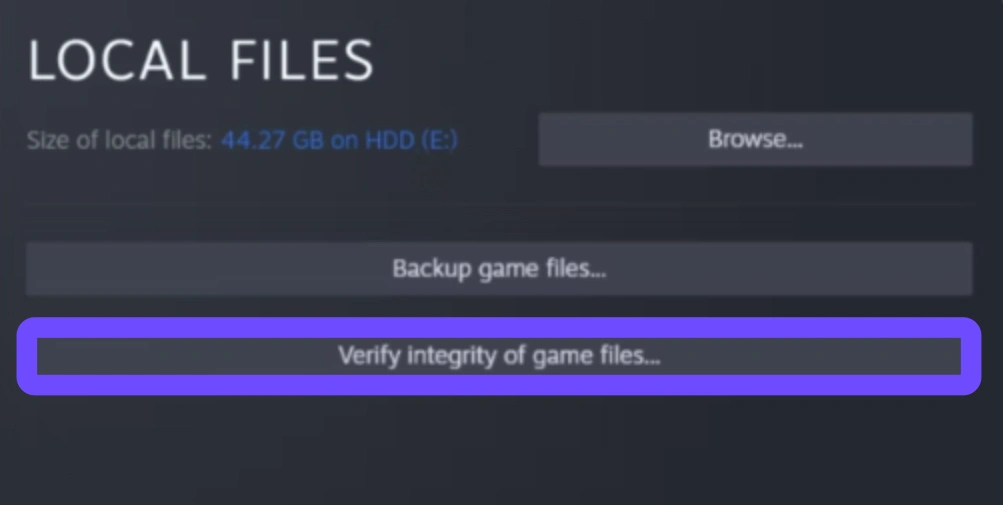
Step 2: Wait for the verification bar to reach 100% and allow the launcher to re-download any corrupted or missing blocks.
Step 3: Press the Windows Key + R, type %localappdata%, and press Enter.
Step 4: Look for a folder labeled HLLVietnam or its publisher container file.
Step 5: Delete this specific folder entirely (Note: This will reset your local video and audio settings, but safely clears out corrupted caching bugs preventing initialization).
Part 3: Fix Hell Let Loose: Vietnam Not Launching on PS5 & Xbox Series X|S – Full Manual Solutions
Console players aren't completely immune to launch issues. System cache corruption or incomplete game patches can cause the game to freeze on its splash screen. Here are full manual solutions tailored for consoles.
PS5 Manual Fixes Solution 1: Rebuild the PS5 Database via Safe Mode
Fragmented system storage can prevent the console from fetching data fast enough during initial resource allocation, causing the software to timeout.
Step 1: Turn off your PlayStation 5 completely by holding down the power button for three seconds until the indicator stops flashing.
Step 2: Press and hold the power button again, releasing it only after you hear a second distinct beep, which occurs roughly seven seconds after the first.
Step 3: Connect your DualSense wireless controller using the official USB charging cable and press the PS button on the controller.
Step 4: From the Safe Mode menu options that appear on your screen, navigate down and select Clear Cache and Rebuild Database.
Step 5: Select Rebuild Database. Wait for the automated process to complete; your console will restart normally without losing any personal save data.
PS5 Manual Fixes Solution 2: Clear Local Save Synced Conflicts and Perform a Cold Power Cycle
If your local game save or cloud backup sync experiences a verification conflict, the operating system might block the game from opening.
Step 1: Navigate to the PS5 Settings menu from the main dashboard, then go to Saved Data and Game/App Settings.
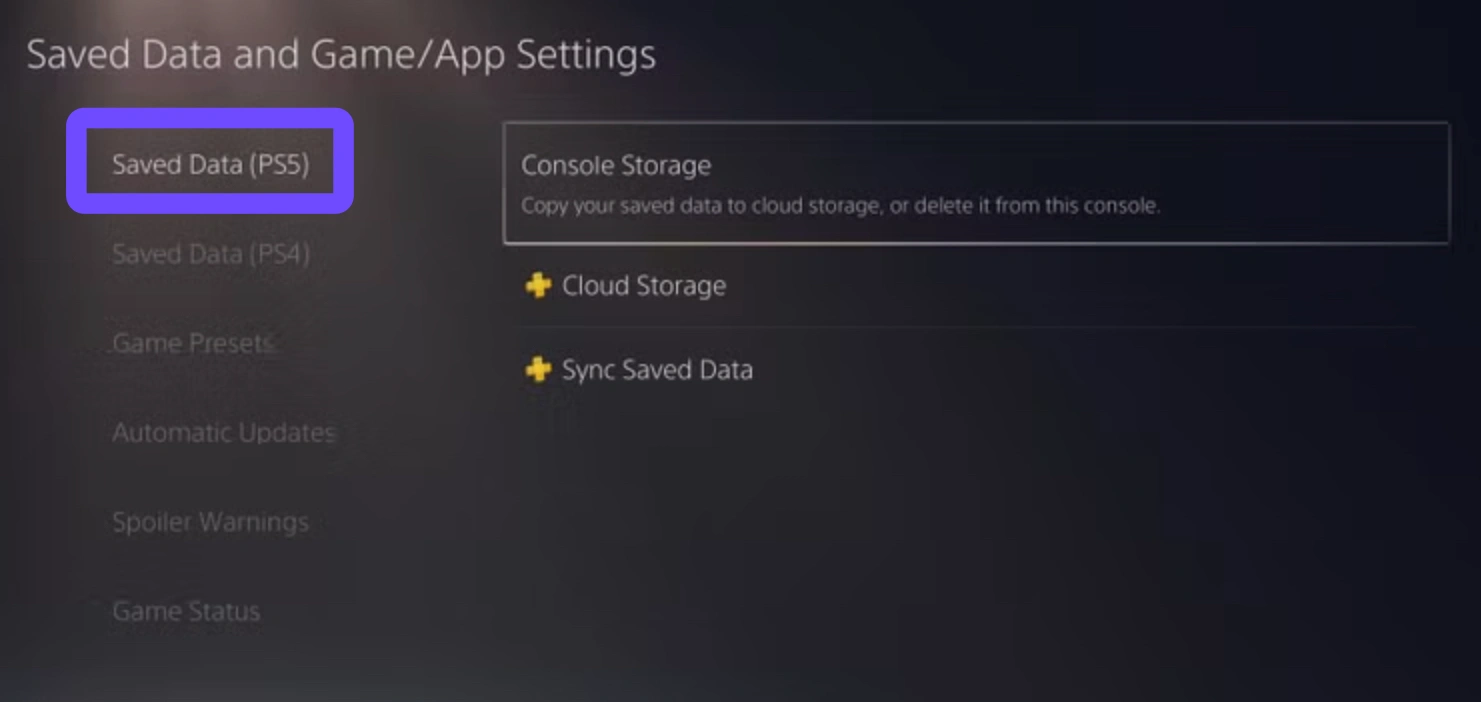
Step 2: Choose Saved Data (PS5), select Console Storage, and delete the temporary local save profile data associated with the game.
Step 3: Back out, shut down the PlayStation 5 entirely, and physically unplug the power cable from the rear of the console.
Step 4: Leave the cable disconnected for at least two full minutes to clear the hardware's volatile cache memory.
Step 5: Reconnect the power cable, boot up the console, download your clean cloud save from your PlayStation Plus cloud storage, and launch the game.
Xbox Series X|S Manual Fixes Solution 1: Clear the Persistent Storage Cache
The Xbox blue-ray and software subsystem allocates temporary storage known as persistent memory. When this becomes cluttered with invalid data, it can cause launch crashes.
Step 1: Press the glowing Xbox button on your controller to open the main guide menu overlay.
Step 2: Navigate to the right and select Profile & system, then open the Settings menu.
Step 3: Go down to the Devices & connections sub-menu and select Blu-ray.
Step 4: Choose the option labeled Persistent Storage.
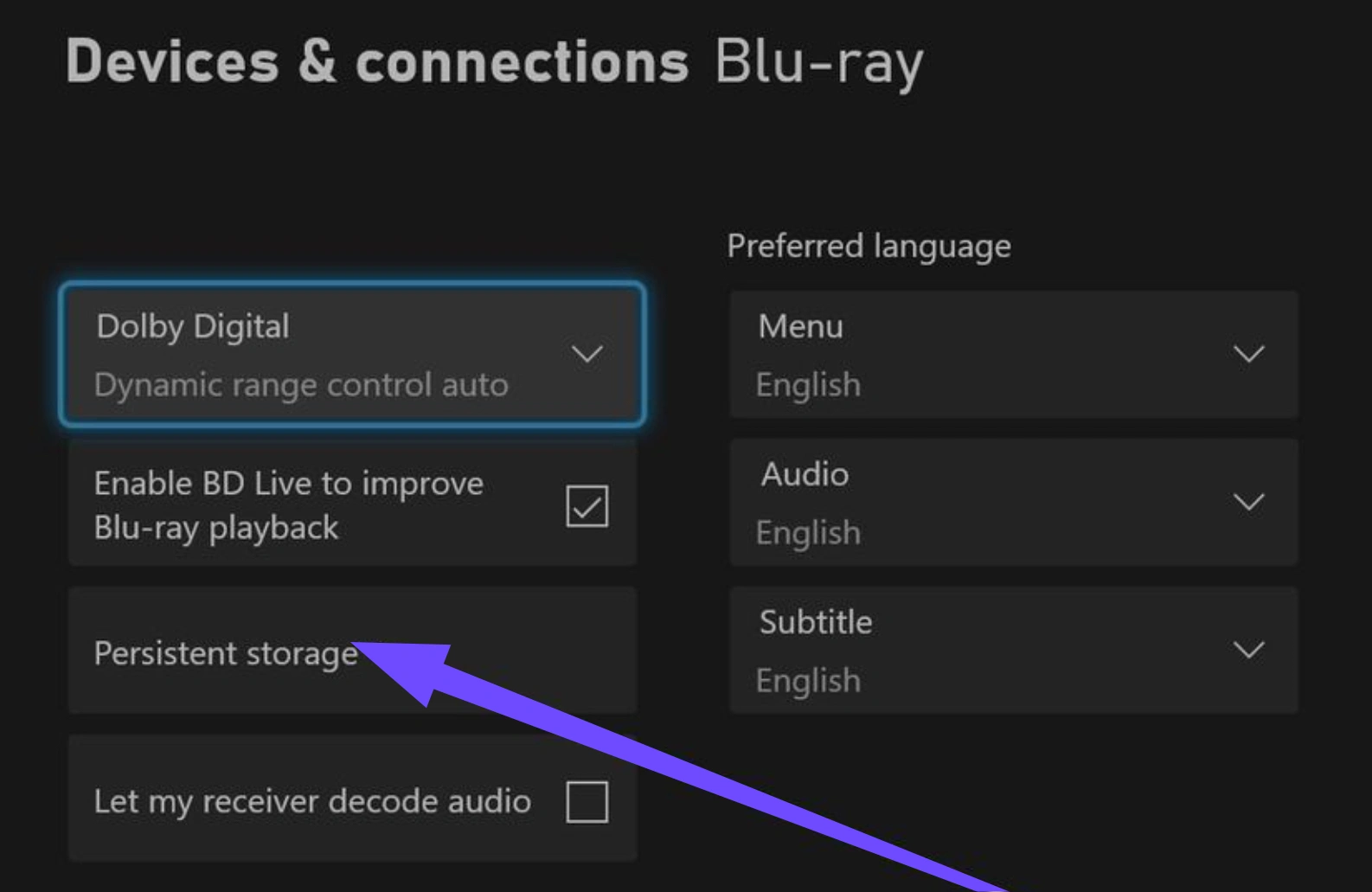
Step 5: Click on Clear Persistent Storage. Once cleared, restart your console using the guide menu option.
Xbox Series X|S Manual Fixes Solution 2: Perform a Complete MAC Address Reset and Network Cycle
Online tactical games like Hell Let Loose: Vietnam rely heavily on secure network initialization. An outdated or blocked network configuration can cause the game to crash during its initial connection handshake.
Step 1: Open the Xbox Settings menu and navigate directly to the General category tab.
Step 2: Select Network settings, and then choose Advanced settings from the secondary column.
Step 3: Scroll down and click on Alternate MAC address.
Step 4: Click the Clear button on the configuration window.
Step 5: The console will prompt you to restart to apply the network modifications. Confirm the restart and let the console rebuild a clean network route.
Part 4: Why Manual Solutions Sometimes Fail?
While manual troubleshooting can work, it frequently falls short for several key reasons:
- Hidden Cross-Layer Issues: A manual fix only targets one variable at a time (e.g., updating drivers won't fix an unstable network handshake or a congested server route).
- Deep Registry/Configuration Problems: Manually wiping folders can miss deeper system registry conflicts or blocked communication ports controlled by background processes.
- Complex OS Environments: Consoles offer limited administrative control over internal storage structures, while PCs vary wildly in background apps, security software, and hardware configurations.
- Dynamic Network Hurdles: If your ISP dynamically reroutes data through inefficient regional nodes during launch synchronization, altering local console or PC files won't fix the server-side timeout.
Part 5: One-Click to Fix Hell Let Loose: Vietnam Launching Issue Across All Platforms: 100% Working
When manual troubleshooting becomes tedious, LagoFast offers an all-in-one optimization solution. LagoFast is an elite gaming booster designed to diagnose, repair, and accelerate games on all platforms. By automatically cleaning system resources, optimizing server synchronization, and bypassing problematic network routes, LagoFast eliminates launch bottlenecks with zero manual hassle.
Key Features Include:
- One-Click FPS Boost: Instantly optimizes your operating system, allocates maximum hardware resources, and stops unnecessary background processes to maximize performance.
- High Ping Reducer & Multipath Connection: Dynamically routes your connection through dedicated high-speed gaming nodes to eliminate packet loss and drastic ping spikes.
- Cross-Platform Compatibility: Easily boosts and stabilizes games across PC, mobile, and more systems.
- Game Ready Driver & Asset Verifier: Identifies underlying initialization conflicts automatically, preventing startup black screens and launch crashes.
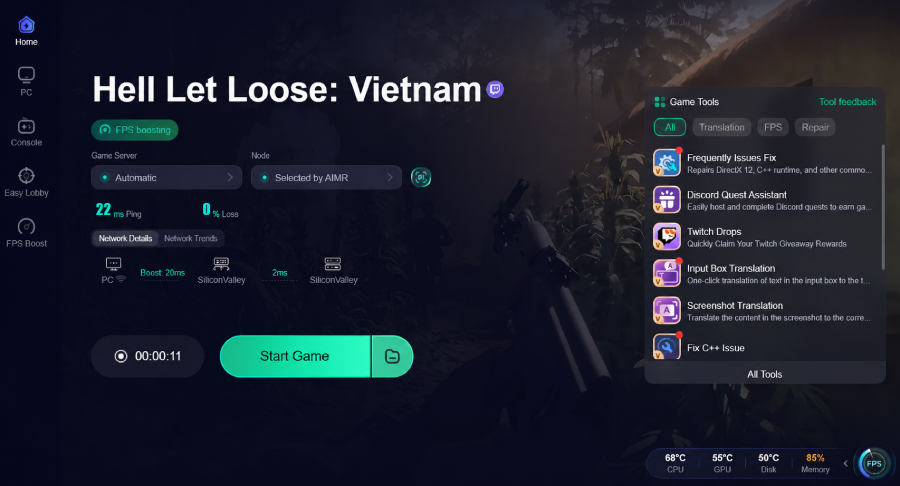
Tutorial to Fix Hell Let Loose: Vietnam Launching Issue with LagoFast:
Step 1: Click the Free Trial button to download and install LagoFast.
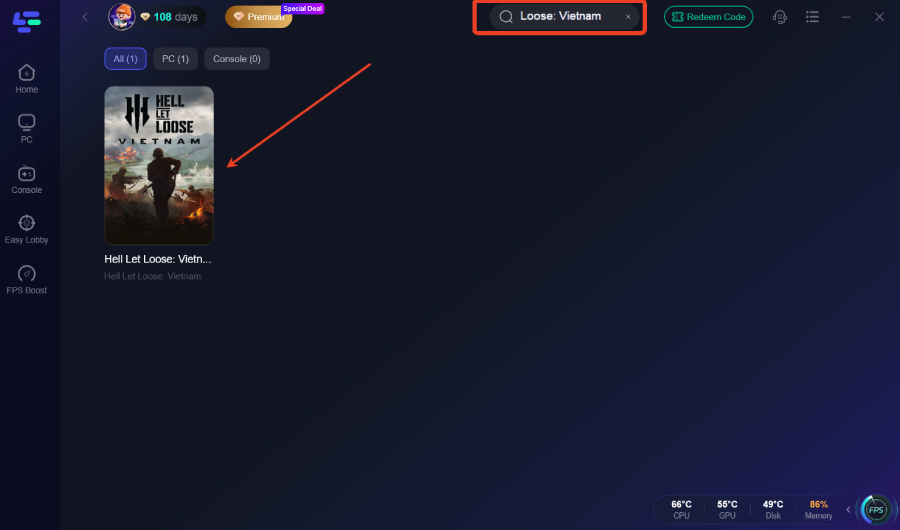
Step 2: After installation, search "Hell Let Loose: Vietnam" in the search bar and select the game.
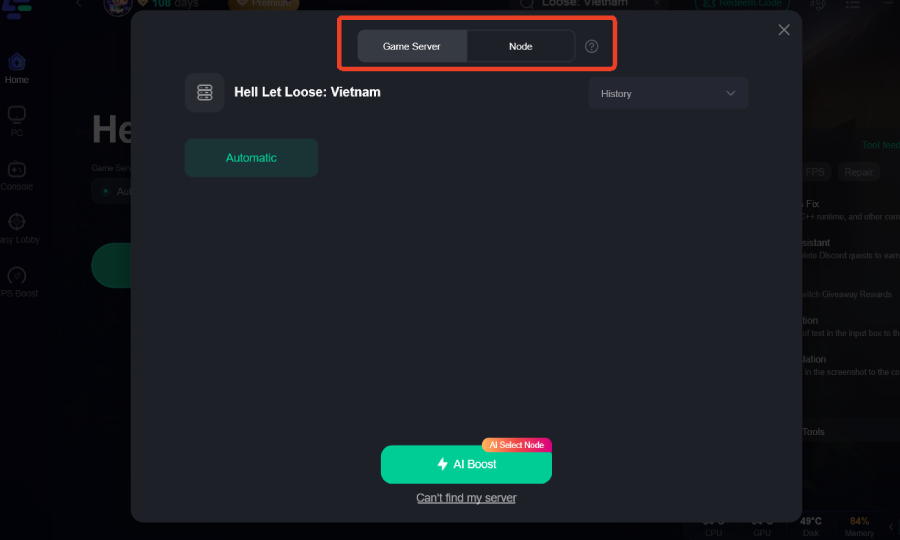
Step 3: Choose your preferred server node and click "Smart Boost" to start optimizing.
Step 4: Launch your game and enjoy smooth, optimized gameplay with lower ping and no stutter.
Part 6: FAQs
Why won't Hell Let Loose: Vietnam launch on my PC?
It is usually caused by outdated graphics drivers, corrupted local installation cache files, or system permissions blocking the game engine's anti-cheat framework from initializing properly.
Does Hell Let Loose: Vietnam support DirectX 11, or must I use DirectX 12?
The game is built using modern Unreal Engine 5 architecture, meaning it natively relies on DirectX 12 functionality. Forcing the game into older DirectX 11 pathways through manual launch lines can cause instant startup crashes.
How do I fix the black screen crash on launch for Steam?
Try deleting the game's localized caching directory found within your user %localappdata% path. Alternatively, run the primary executable application directly as an administrator to bypass launcher conflicts
Why does the game load fine on console but crash at the menu?
This behavior points toward a profile synchronization or network handshake breakdown. Resetting your console's network MAC address or rebuilding your storage database usually resolves these layout blockages.
Why does Easy Anti-Cheat give me an error when launching?
This typically happens when the anti-cheat driver files are corrupted or conflict with a background program. Navigate to the game's installation folder, locate the EasyAntiCheat subfolder, run the setup tool, and select "Repair" to fix it.
How do I fix the Epic Games Store launcher loop error?
Log out of the Epic Games client, close the application completely, and right-click the Epic Games icon to select "Run as Administrator." Additionally, clearing the launcher's web cache folder in your local AppData directory can resolve persistent launch loops.
Conclusion
Dealing with launch errors in Hell Let Loose: Vietnam can be frustrating, but following these structured manual steps will help you fix most software and hardware issues. For an easier, more reliable fix, use LagoFast to clear out network bottlenecks and optimize your system performance in just one click, letting you focus on the battlefield.

Boost Your Game with LagoFast for Epic Speed
Play harder, faster. LagoFast game booster eliminates stutter and lags on PC, mobile, or Mac—win every match!
Quickly Reduce Game Lag and Ping!
Boost FPS for Smoother Gameplay!