

Stepping into the rebuilt world of Halo: Campaign Evolved on Unreal Engine 5 delivers stunning sci-fi vistas and intense combat, but technical bottlenecks can ruin the experience. Nothing breaks immersion faster than sudden frame rate dips during a massive Covenant firefight. If you are dealing with Halo Campaign Evolved low FPS & FPS drops & stuttering, this guide walks you through the exact hardware tweaks, in-game settings, and network solutions needed to restore buttery-smooth gameplay.

- ✅ Reduce Lag and High Ping.
✅ Boost FPS at the Same Time.
✅ Support 3000+ Popular Online Games.
✅ Change Server without Latency.
✅ Boost Game Loading Speed.
Part 2: How to Fix Halo Campaign Evolved Low FPS
Part 3: How to Fix Halo Campaign Evolved FPS Drops
Part 4: How to Fix Halo Campaign Evolved Stuttering
Part 5: How to Fix Halo Campaign Evolved Laggy on PC
Part 6: LagoFast: All-In-One Solution Fix Low FPS & FPS Drops & Stuttering
Part 7: Bonus Tips: Best Halo Campaign Evolved Game Settings For Stable FPS
Part 8: Halo Campaign Evolved FAQs
Part 1: Halo Campaign Evolved Low FPS & FPS Drops & Stuttering Overview: Symptoms, Causes & Quick Fixes
When playing on PC, performance issues usually manifest in distinct ways depending on your hardware load and system configuration. Identifying whether your machine is suffering from general Halo Campaign Evolved low FPS, momentary freezes, or network latency helps pinpoint the correct fix immediately. The overview below breaks down common symptoms, underlying root causes, and immediate quick fixes to get you back into the action.
|
Symptom |
Primary Cause |
Quick Fix |
|
Persistent Low FPS |
GPU overload or rendering high native resolution |
Lower resolution scale and enable DLSS or FSR upscaling |
|
Sudden FPS Drops |
Background CPU spikes or thermal throttling |
Close background browsers and set power mode to maximum |
|
Micro-Stuttering |
Shader compilation hitches or VSync mismatch |
Toggle off VSync and enable Async Compute in video settings |
|
Input Delay & Lag |
Network routing hops or high server ping |
Use a dedicated game booster to optimize global server routes |
|
Game Crashes |
Corrupted DirectX 12 cache or outdated drivers |
Update GPU drivers and run a one-click game crash fix tool |
Part 2: How to Fix Halo Campaign Evolved Low FPS
Dealing with persistent Halo Campaign Evolved low FPS usually points to your graphics card struggling to render demanding lighting and shadow systems at native resolutions. Instead of sacrificing all visual fidelity by dropping presets to low across the board, targeted adjustments relieve GPU strain while keeping the Halo ring looking crisp. Follow these five sequential steps to permanently lift your baseline frame rate:
Step 1. Enable Modern Upscaling Techniques: Open the Settings menu, navigate to Video, and select your vendor-specific upscaling method under the Advanced section. Choose NVIDIA DLSS, AMD FSR, or Intel XeSS, and set the Upscaling Quality dropdown to Balanced or Quality for an immediate 20–30% boost in raw frame output.
Step 2. Reduce Global Illumination and Shadows: Unreal Engine 5 relies heavily on dynamic lighting. Lowering Global Illumination Quality and Lighting Quality from Ultra to Medium significantly frees up video memory without making environments look washed out.
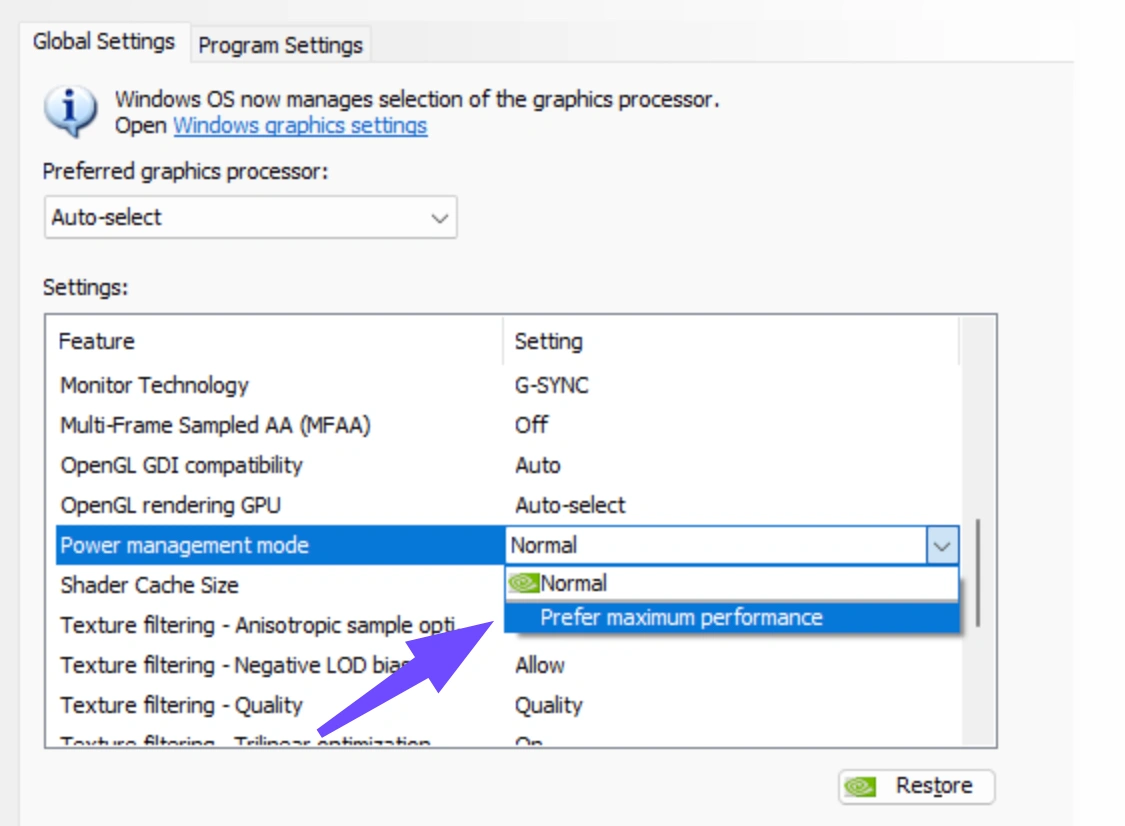
Step 3. Set GPU Power Management to Maximum: Open the NVIDIA Control Panel or AMD Software, locate Halo: Campaign Evolved under Manage 3D Settings, and change the Power Management Mode from Optimal to Prefer Maximum Performance.
Step 4. Configure Minimum Frame Rate Targets: In the in-game Video settings under the Frame Rate section, set the Minimum Frame Rate option to match your acceptable baseline (such as 60 FPS). The engine will dynamically adjust internal resolution during chaotic explosions to prevent baseline drops.
Step 5. Disable High-Resolution Texture DLCs If VRAM Is Limited: If you are running on a graphics card with 6 GB or less of video memory, uncheck the optional High-Resolution Texture Package in your Steam or Xbox app game properties to prevent severe texture swapping and memory bottlenecks.
Part 3: How to Fix Halo Campaign Evolved FPS Drops
Nothing hurts competitive co-op or LASO (Legendary All Skulls On) runs more than unpredictable Halo Campaign Evolved FPS drops when entering new areas or triggering checkpoints. These sudden plunges occur when your CPU gets choked by background processes or when system memory fails to stream assets fast enough. Eliminate jarring spikes by stabilizing your system resources with these five practical steps:
Step 1. Eliminate Resource-Hogging Background Apps: Press Ctrl+Shift+Esc to open Task Manager before launching the game. Terminate hardware-accelerated applications running in the background, including web browsers with dozens of tabs, Discord hardware acceleration, and third-party game launchers.
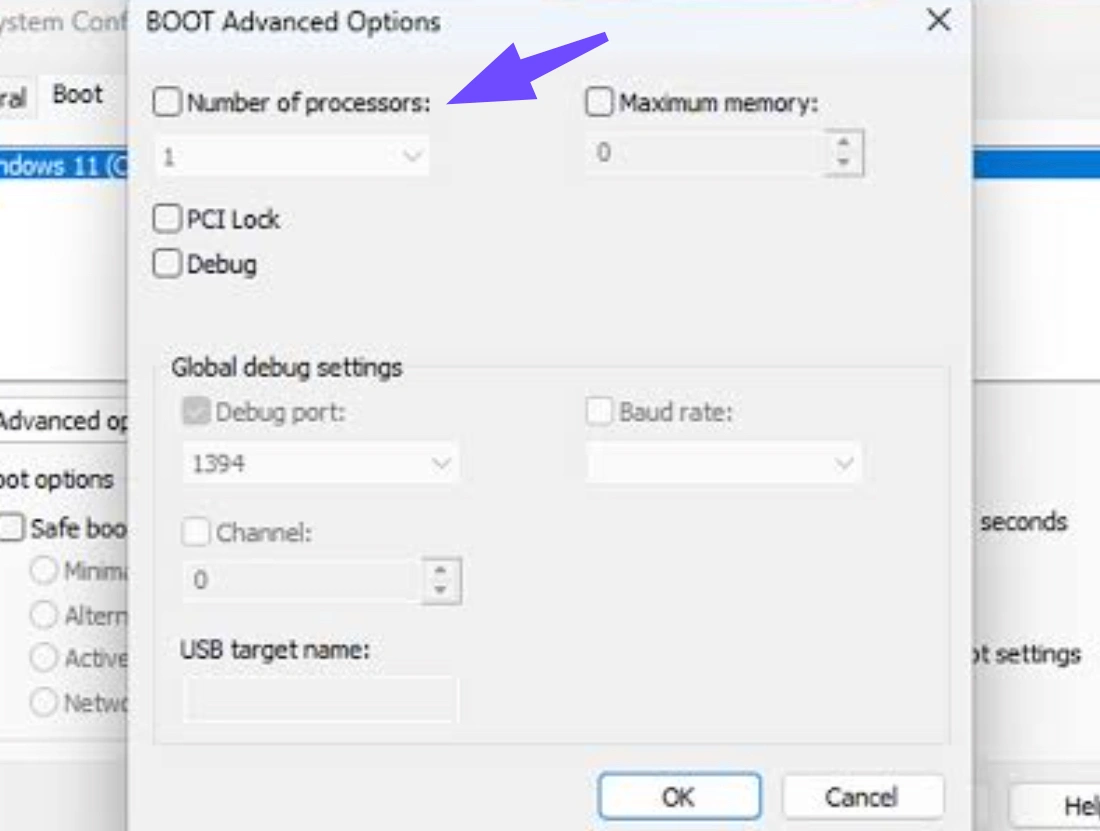
Step 2. Optimize Windows Boot Processors: Press Windows Key + R, type msconfig, and navigate to the Boot tab. Click Advanced options, check the Number of processors box, select the highest available number from the dropdown, apply the changes, and restart your PC.
Step 3. Turn Off Uncapped Frame Rate Limits: Uncapped frame rates cause your GPU to run at 100% utilization during quiet indoor scenes, leading to thermal throttling when stepping out into expansive outdoor landscapes. Cap your Frame Rate Limit in the Video settings to match your monitor's native refresh rate.
Step 4. Enable Async Compute: Scroll down to the Advanced section in the in-game Video settings and toggle Async Compute ON. This allows your graphics card to execute complex geometry and compute workloads simultaneously, preventing bottleneck drops during intense particle effects.
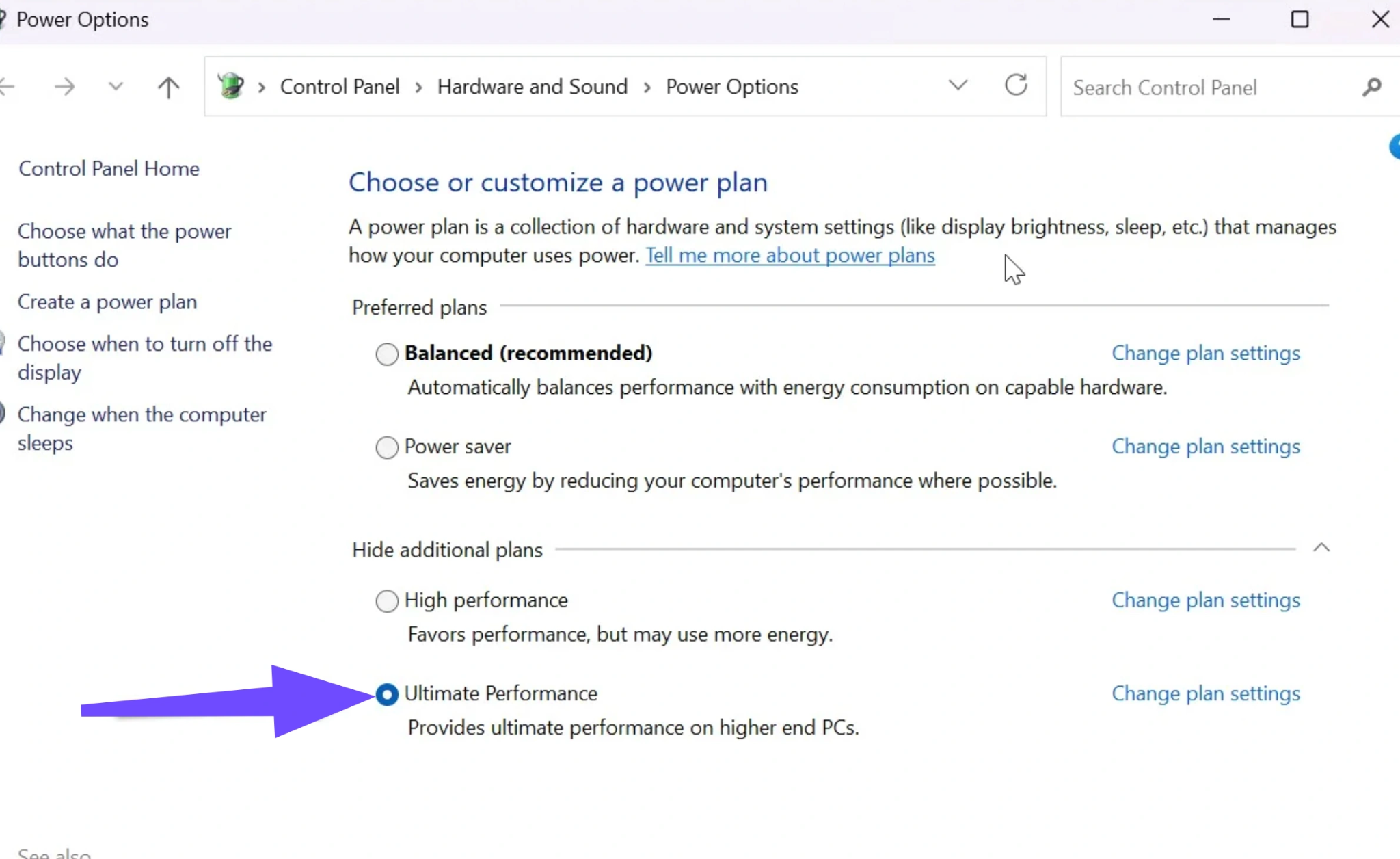
Step 5. Switch to High-Performance Windows Power Plan: Open the Windows Control Panel, select Power Options, and choose the High Performance or Ultimate Performance power plan to prevent your CPU cores from parking or downshifting clocks during gameplay.
Part 4: How to Fix Halo Campaign Evolved Stuttering
Micro-stuttering feels different from standard frame drops; your FPS counter might read a high number, but the on-screen movement feels jittery, harsh, and unresponsive. Halo Campaign Evolved stuttering is typically tied to frame pacing mismatches, display synchronization conflicts, or background shader loading. Smooth out frame delivery by applying these five optimization techniques:
Step 1. Turn Off In-Game VSync: While vertical sync prevents screen tearing, the standard in-game implementation often introduces frame pacing hitches and input latency. Toggle VSync OFF in the Frame Rate settings and rely on hardware-level display sync instead.
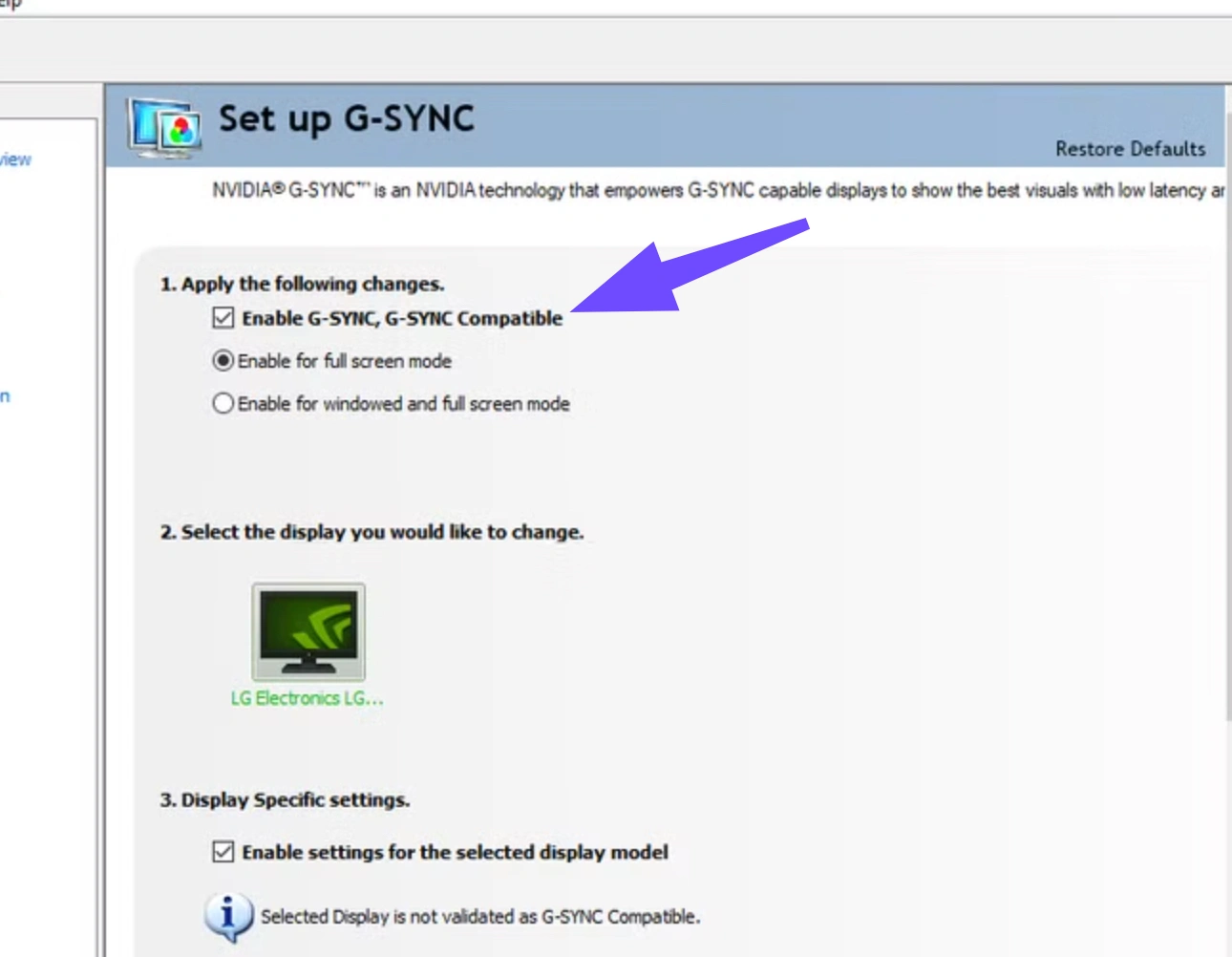
Step 2. Force G-Sync or FreeSync in Monitor Settings: Ensure that NVIDIA G-Sync or AMD FreeSync is actively enabled on your physical monitor and configured for both full-screen and windowed modes within your GPU desktop control panel.
Step 3. Enable Vendor-Specific Low-Latency Mode: Under the Advanced video settings tab, change the Low-Latency Mode dropdown from Off or Standard to Vendor Specific (NVIDIA Reflex or AMD Anti-Lag). This synchronizes the CPU render queue directly with the GPU to eliminate stutter caused by frame buffering.
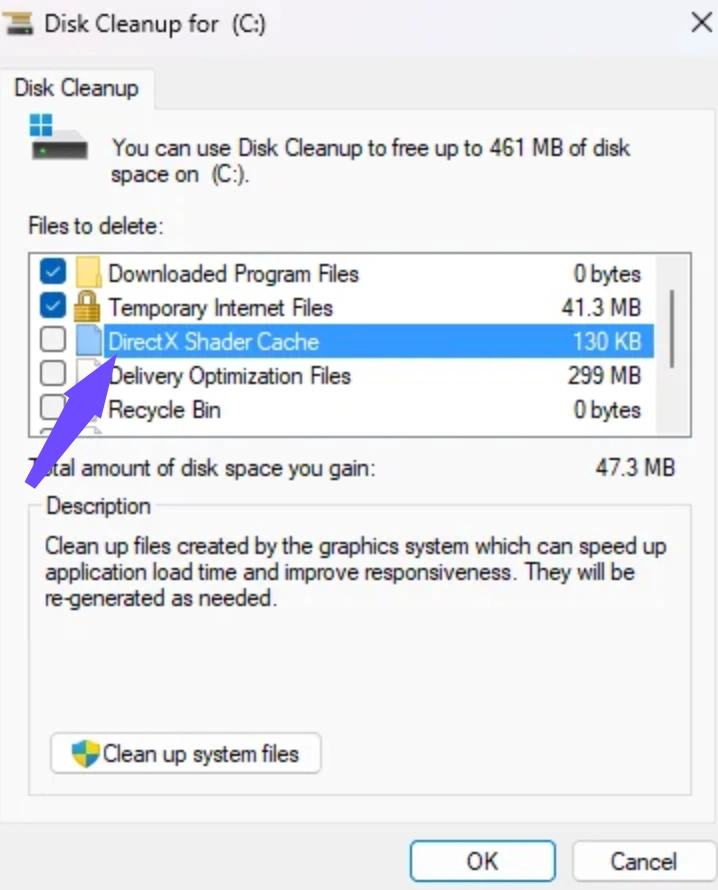
Step 4. Clear DirectX Shader Cache: Stutters often trigger when the engine encounters corrupted cached shaders. Open Windows Disk Cleanup, select your primary system drive, check the box for DirectX Shader Cache, and execute the cleanup before restarting the game.
Step 5. Disable Windows Fullscreen Optimizations: Navigate to your game installation folder, right-click the main executable file (HaloCampaignEvolved.exe), select Properties, go to the Compatibility tab, and check the box labeled Disable fullscreen optimizations.
Part 5: How to Fix Halo Campaign Evolved Laggy on PC
When players complain about Halo Campaign Evolved laggy on PC, the issue is not always visual rendering; it is frequently network latency, packet loss, or poor routing during online co-op sessions. Because online co-op supports up to four players across diverse platforms and regions, network synchronization is vital. Fix responsiveness and eliminate multiplayer delay with these five networking and system adjustments:
Step 1. Switch to a Wired Ethernet Connection: Wi-Fi connections are susceptible to signal interference and micro-disconnections. Plug an Ethernet cable directly from your PC to your router to stabilize packet transmission and eliminate wireless jitter.
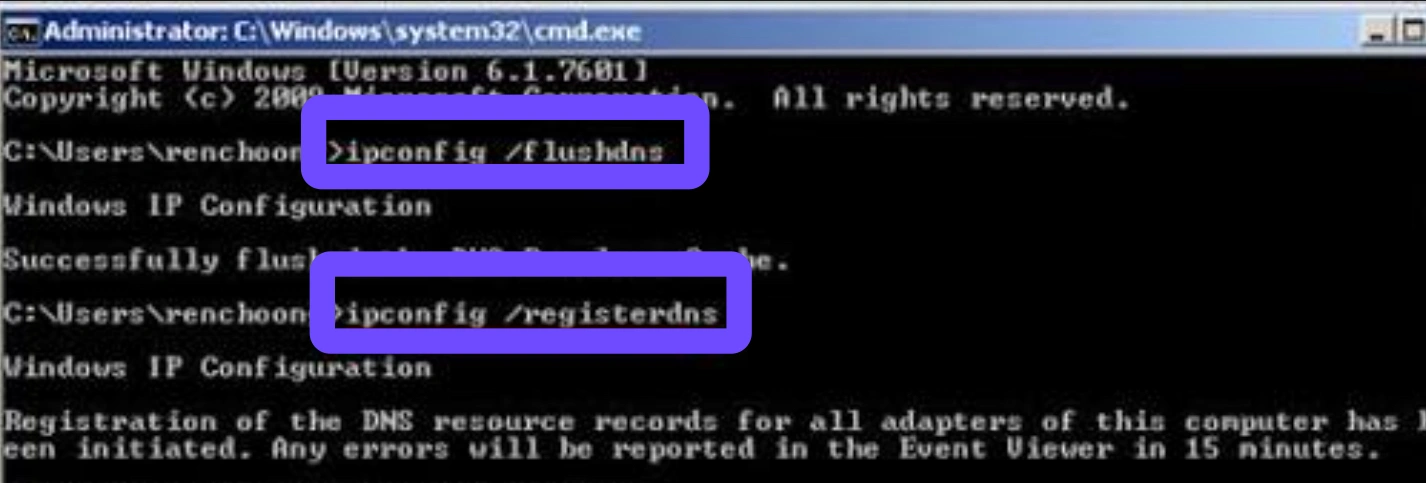
Step 2. Flush DNS and Reset Network Sockets: Open the Windows Command Prompt as an Administrator and execute ipconfig /flushdns followed by netsh winsock reset. Restart your computer to clear out stale routing tables that delay server communication.
Step 3. Select Geographically Closer Co-op Host Servers: In multiplayer co-op lobbies, ensure the player with the most stable, high-bandwidth fiber connection acts as the Fireteam leader, reducing distance-based latency for joining squadmates.
Step 4. Close Background Bandwidth Consumers: Pause any ongoing background downloads, cloud storage file syncing (like OneDrive or Google Drive), and 4K video streams on secondary monitors while playing online co-op.
Step 5. Configure QoS (Quality of Service) on Your Router: Log into your home router's admin dashboard and prioritize your PC's local IP address or gaming traffic within the QoS settings to ensure game packets bypass standard household web browsing traffic.
Part 6: LagoFast: All-In-One Solution Fix Low FPS & FPS Drops & Stuttering
Manually tweaking Windows registry files, digging through GPU control panels, and restarting background services takes time away from actually playing the game. When you want to eliminate Halo Campaign Evolved performance issues without the tedious trial-and-error troubleshooting, LagoFast provides a seamless, all-in-one optimization hub designed specifically for modern PC gaming demands.
Instead of treating hardware stuttering and network latency as separate problems, LagoFast tackles both simultaneously through an intelligent desktop client. Whether you are dealing with Halo Campaign Evolved laggy on PC during international 4-player online co-op or struggling with frame drops during graphic-intense vehicle hijacking sequences, LagoFast automates system tuning so your PC runs at peak efficiency.
LagoFast’s Key Features:
- Smart Multi-Path Technology & Ping Booster: Real-time network routing scans global server nodes every second, automatically switching your connection to the fastest, lowest-latency path available. This eliminates lag spikes, packet loss, and high ping during online multiplayer sessions.
- Dedicated FPS Booster: With a single toggle, LagoFast optimizes your CPU and GPU resource allocation, closes unnecessary background processes, and unlocks hidden system performance to maximize average frame rates.
- One-Click Game Crash Fix Tool: Tired of random desktop crashes interrupting your campaign progress? LagoFast includes an integrated diagnostic tool that scans for corrupted game files, registry conflicts, and DirectX errors, repairing them instantly with one click.
- Customized Profiles for Unreal Engine 5 Titles: LagoFast automatically detects demanding engine characteristics and deploys tailored optimization scripts that smooth out frame pacing and eliminate shader micro-stuttering without degrading visual quality.
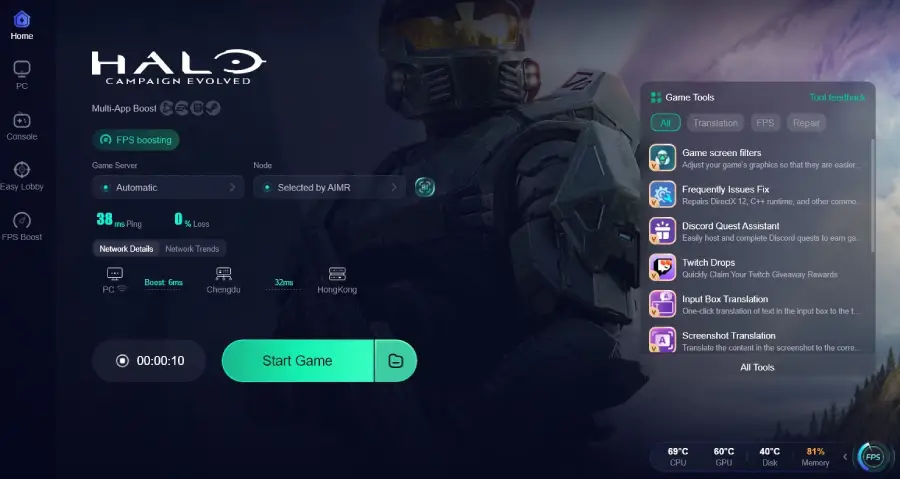
Tutorial: Use LagoFast to Fix Low FPS & FPS Drops & Stuttering:
Step 1: Click the Free Trial button to download and install LagoFast.
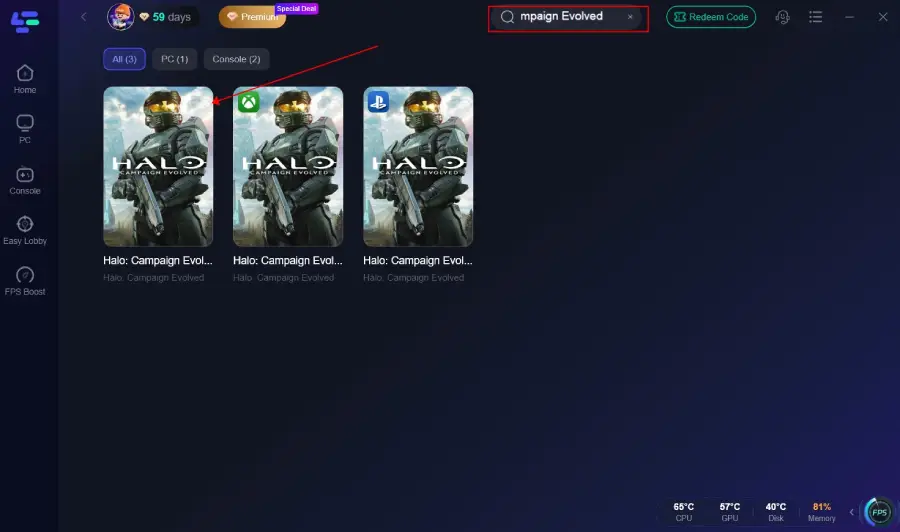
Step 2: Open LagoFast, then click the PC button on the left, search for Halo Campaign Evolved in the search bar, and click it after it appears.
Step 3: Click the FPS Unlocker Tool on the right to boost FPS.
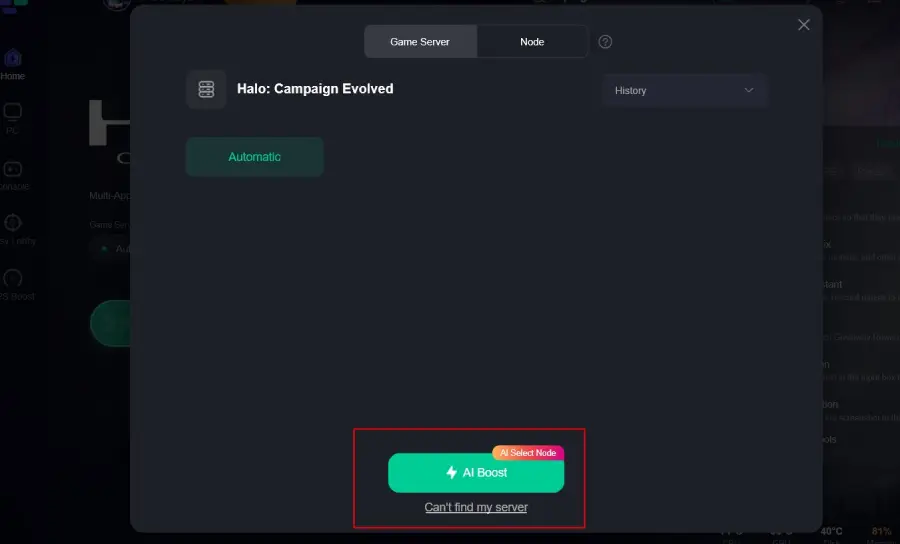
Step 4: Click on “Server” to change to a better server that ensures a better gaming experience, then click on “Smart Boost” to fix Halo Campaign Evolved lag and stuttering.
Step 5: Check the specific game ping, packet loss, and multiple path connections on the right side. Finally, click “Start Game” to play the game.
Part 7: Bonus Tips: Best Halo Campaign Evolved Game Settings For Stable FPS
Finding the perfect balance between high-definition visual fidelity and competitive responsiveness requires adjusting specific in-game sliders. The Unreal Engine 5 upgrade brings remastered audio, refined controls, and stunning lighting, but certain settings demand excessive GPU power for minor visual gains.
Use the interactive widget below to understand how optimizing these settings balances your performance metrics against visual quality:
For quick manual configuration, apply the optimized settings in this reference table to secure a rock-solid frame rate:
|
Game Setting |
Recommended Value |
Performance Impact |
|
Upscaling Technique |
DLSS / FSR / XeSS |
High (Massive FPS boost) |
|
Upscaling Quality |
Balanced or Quality |
High (Improves frame stability) |
|
Global Illumination |
Medium |
High (Saves significant VRAM) |
|
Shadow Quality |
Medium |
Medium (Reduces GPU load) |
|
Async Compute |
On |
Medium (Smoother frame pacing) |
|
VSync |
Off |
High (Reduces input delay) |
|
Motion Blur |
Off |
Low (Improves visual clarity) |
|
Texture Quality |
High (if VRAM > 8GB) |
Medium (Depends on hardware) |
Part 8: Halo Campaign Evolved FAQs
Why is Halo Campaign Evolved stuttering on my high-end PC?
Even on high-end hardware like RTX 40-series or RX 7000-series cards, stuttering often occurs due to Unreal Engine 5 background shader compilation or conflicts between in-game VSync and monitor refresh rates. Turn off in-game VSync, enable Async Compute, and ensure Windows High Performance power mode is active.
Does lowering resolution scale actually fix Halo Campaign Evolved low FPS?
Yes. Lowering your native resolution scale reduces the number of raw pixels your graphics card has to render every second. Instead of manually lowering the slider to blurry levels, enable modern upscaling technologies like DLSS or FSR to maintain sharp image quality while gaining substantial frame rate increases.
Can network lag cause frame rate drops in Halo Campaign Evolved online co-op?
While network lag typically causes rubber-banding and delayed hit registration rather than true graphical frame drops, severe packet loss can cause the game client to briefly freeze while waiting for server synchronization. Using a game booster with smart multi-path routing stabilizes server communication and prevents network-induced hitches.
What is the easiest way to fix unexpected game crashes in Halo Campaign Evolved?
Outdated GPU drivers and corrupted DirectX caches are the leading causes of crashes. You can manually verify game integrity through Steam or Xbox Game Pass, or use LagoFast's built-in Game Crash Fix tool to automatically diagnose and resolve system conflicts with a single click.
How does LagoFast improve Halo Campaign Evolved performance compared to manual Windows tweaking?
Manual tweaking requires editing system configurations, managing task priorities, and experimenting with individual driver settings. LagoFast combines these hardware optimization techniques with proprietary global network routing into one automated dashboard, boosting FPS and reducing ping simultaneously without technical guesswork.
Should I turn on Minimum Frame Rate in the video settings?
Yes, especially if you experience sudden FPS drops during heavy combat. Setting a Minimum Frame Rate target (e.g., 60 FPS) allows the engine to dynamically adjust render resolution on the fly during demanding moments, keeping gameplay smooth when explosions and enemy AI flood the screen.
Conclusion
Conquering the remastered campaign of Halo: Campaign Evolved requires a responsive, stutter-free PC environment. By adjusting in-game upscaling settings, optimizing Windows CPU allocation, and managing background system resources, you can permanently eliminate Halo Campaign Evolved low FPS & FPS drops & stuttering. For gamers who want guaranteed stability, maximum frame rates, and lag-free online co-op without the hassle of manual troubleshooting, launching LagoFast provides the ultimate all-in-one performance upgrade.

Boost Your Game with LagoFast for Epic Speed
Play harder, faster. LagoFast game booster eliminates stutter and lags on PC, mobile, or Mac—win every match!
Quickly Reduce Game Lag and Ping!
Boost FPS for Smoother Gameplay!