
Quick Answer: To fix Halo Campaign Evolved crashing issues, start by verifying game file integrity through your launcher, updating your graphics drivers to the latest version, and ensuring Windows and the game are running with administrator privileges. Disable all in-game overlays (Steam, Discord, NVIDIA/AMD) and background applications. For persistent crashes, especially those related to NVIDIA cards or specific launch sequences, consider a clean reinstallation of drivers or the game, and optimize your network with LagoFast Game Booster for a stable connection.

- ✅ Reduce Lag and High Ping.
✅ Boost FPS at the Same Time.
✅ Support 3000+ Popular Online Games.
✅ Change Server without Latency.
✅ Boost Game Loading Speed.
Part 1: Why Does Halo Campaign Evolved Keep Crashing?
Part 2: How to Fix Halo Campaign Evolved Crashing on Startup
Part 3: How to Fix Halo Campaign Evolved Not Launching or Black Screen
Part 4: How to Fix Halo Campaign Evolved Crashes After Launch
Part 5: Best PC Settings to Prevent Halo Campaign Evolved Crashes
Part 6: How to Enhance Your Game Experience with LagoFast Game Booster
Part 7: Frequently Asked Questions
Part 1: Why Does Halo Campaign Evolved Keep Crashing?
Halo: Campaign Evolved, the highly anticipated Unreal Engine 5 remake of the iconic Halo: Combat Evolved, brings Master Chief's original journey to modern hardware with stunning fidelity. However, like many ambitious PC titles, it's not immune to technical hiccups. Players might encounter a range of stability issues, from the game refusing to launch to sudden crashes mid-mission. Understanding the common culprits behind these crashes is the first step toward a stable gameplay experience.
Historical Halo Issues Resurface

The Halo franchise has a history of PC performance quirks. Older versions of Halo on PC, particularly Halo: Combat Evolved and Halo 2 in The Master Chief Collection, have seen issues with NVIDIA graphics cards, Steam login failures, and abnormal behavior in windowed mode. While Campaign Evolved is a ground-up remake, some underlying engine or system-level interactions can echo these past problems.
Unreal Engine 5 Specifics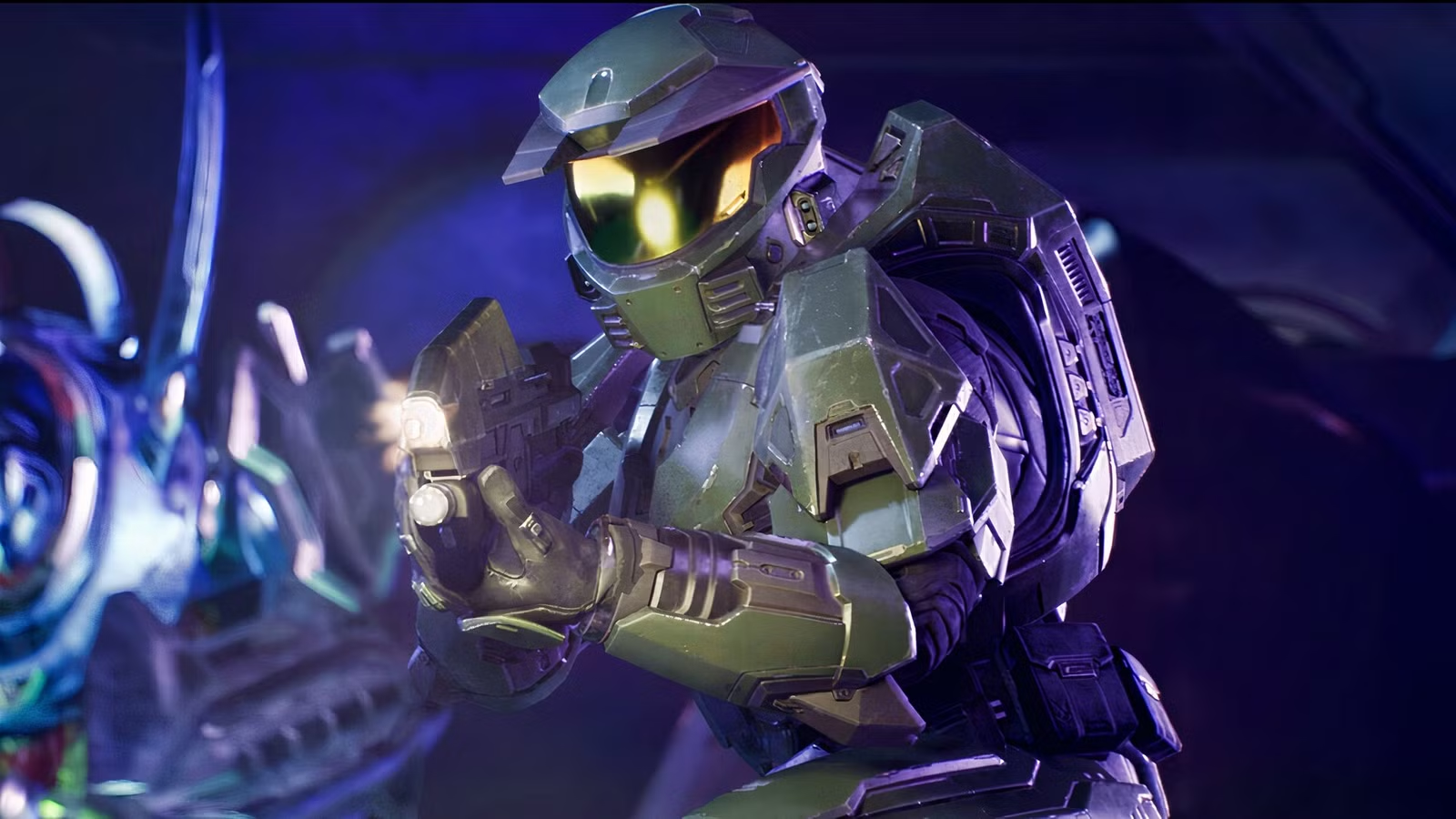
Being built on Unreal Engine 5, Halo: Campaign Evolved leverages cutting-edge graphics technologies. This also means it can be sensitive to certain hardware configurations and software environments. Issues commonly associated with modern UE5 titles include:
- Shader Compilation Stutter: The game might compile shaders on the fly, leading to temporary freezes or crashes, especially during initial gameplay.
- High-Resolution Asset Streaming: Demanding texture packs and 4K cinematics can strain VRAM and system memory, potentially causing instability on systems with insufficient resources.
- Hardware-Accelerated GPU Scheduling (HAGS): While designed to improve performance, HAGS can sometimes introduce instability or crashes in specific game engines or driver versions.
- Ray Tracing Implementation: If Campaign Evolved utilizes ray tracing, this highly demanding feature can be a significant source of crashes if not properly optimized or if your GPU drivers are not fully compatible.
Driver Conflicts and Outdated Software
Graphics drivers are a frequent cause of game instability. Outdated, corrupted, or even newly released but buggy drivers can lead to Halo Campaign Evolved crashing on startup or mid-game. Similarly, an outdated Windows operating system or DirectX version can create compatibility problems.
In-Game Overlays and Background Applications
Applications running in the background, especially those with in-game overlays (like Steam, Discord, GeForce Experience, or Xbox Game Bar), can interfere with the game's processes, consuming resources and triggering crashes. Antivirus software can also sometimes mistakenly flag game files, preventing proper execution.
Corrupted Game Files or Installation
Missing or corrupted game files, often due to incomplete downloads, interrupted updates, or disk errors, can prevent Halo Campaign Evolved from launching or cause it to crash unexpectedly. A faulty installation can lead to a black screen or crashes before the main menu.
Part 2: How to Fix Halo Campaign Evolved Crashing on Startup
When Halo Campaign Evolved refuses to launch, presenting a crash to desktop or an immediate error message, these steps are your first line of defense:
Verify Game File Integrity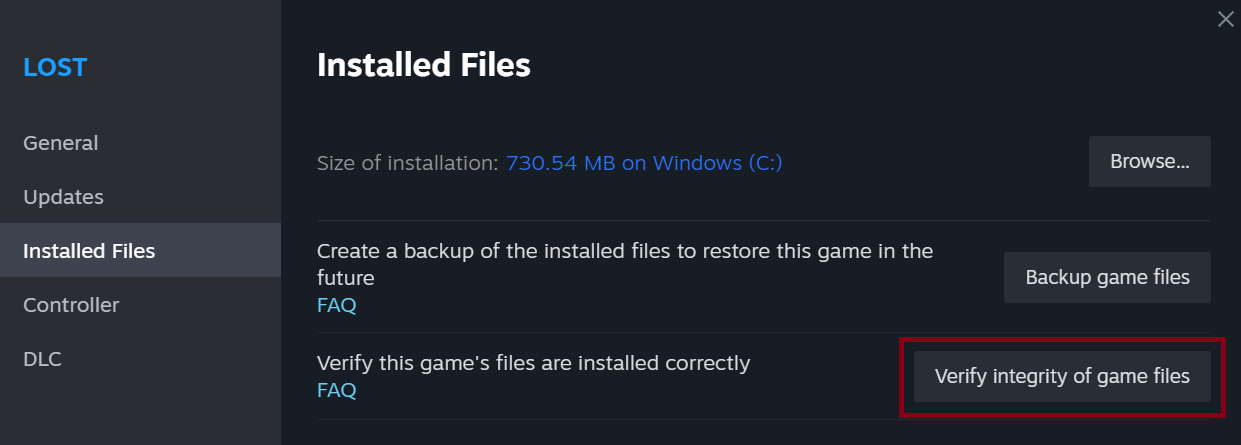
This is a fundamental troubleshooting step for any PC game. Your game launcher (Steam, Xbox App, Epic Games Store) has a built-in tool to check for and repair corrupted or missing files.
- Steam: Right-click Halo Campaign Evolved in your Library > Properties > Installed Files > Verify integrity of game files.
- Xbox App (PC Game Pass): Go to My Library > Halo Campaign Evolved > ... (three dots) > Manage > Files > Verify and Repair.
Update Graphics Drivers
Ensure your NVIDIA or AMD graphics drivers are up to date. Visit the official NVIDIA or AMD website, download the latest
drivers for your specific GPU, and perform a clean installation. This often resolves compatibility issues that lead to Halo Campaign Evolved crashing on startup.
Run as Administrator
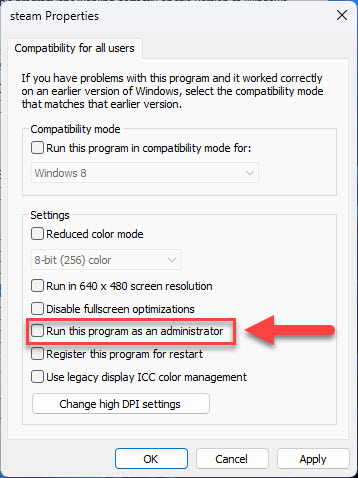
Sometimes, games require elevated permissions to access certain system resources. Right-click the game's executable file (or the launcher shortcut) and select "Run as administrator."
Disable All Overlays
Overlays from Steam, Discord, Xbox Game Bar, GeForce Experience, or AMD Radeon Software can conflict with the game. Disable them all before launching Halo Campaign Evolved.
Close Background Applications
Ensure no other demanding applications are running in the background. This includes web browsers with many tabs, streaming software, or other games.
Check Antivirus/Firewall
Your antivirus or firewall might be mistakenly blocking the game. Temporarily disable them to see if it resolves the issue. If it does, add Halo Campaign Evolved to your antivirus exceptions list.
Part 3: How to Fix Halo Campaign Evolved Not Launching or Black Screen
If the game fails to launch, presents a black screen, or crashes before reaching the main menu, these solutions can help:
Update Windows
An outdated Windows operating system can cause compatibility problems. Ensure your Windows 10 or 11 installation is fully updated.
Reinstall Graphics Drivers (Clean Installation)
If a simple update doesn't work, a clean installation of your graphics drivers is recommended. Use Display Driver Uninstaller (DDU) to completely remove old drivers before installing the latest version. This is particularly important for historical NVIDIA driver issues with Halo titles.
Disable Fullscreen Optimizations
Windows' Fullscreen Optimizations can sometimes interfere with games. Right-click the game's executable > Properties > Compatibility tab > check "Disable fullscreen optimizations."
Adjust Display Mode
If you're getting a black screen, try forcing the game into windowed mode. You can often do this by pressing Alt + Enter immediately after launching the game. Alternatively, some games allow you to set the display mode in a configuration file or launcher settings.
Check DirectX Version
Ensure your system has the necessary DirectX version installed. Halo: Campaign Evolved likely requires DirectX 12. You can check and update DirectX through Windows Update.
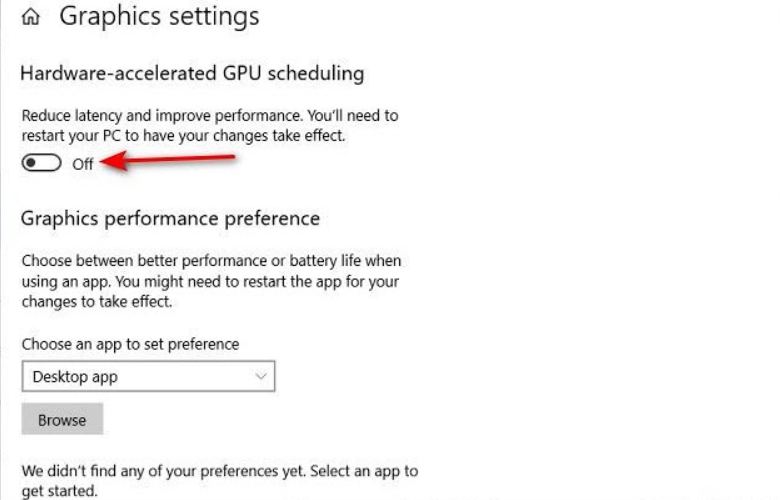
Disable Hardware-Accelerated GPU Scheduling (HAGS)
For some systems, HAGS can cause instability. To disable it: Windows Settings > System > Display > Graphics settings > Change default graphics settings > toggle off "Hardware-accelerated GPU scheduling."
Part 4: How to Fix Halo Campaign Evolved Crashes After Launch
When the game launches successfully but crashes during gameplay, mission loading, or after a few minutes, these fixes are relevant:
Lower Graphics Settings
Halo: Campaign Evolved is a visually demanding game. If your system barely meets the minimum requirements, or even if it's mid-range, high graphics settings can lead to crashes. Reduce settings like:
- Texture Quality: Especially if you have less than 8GB of VRAM.
- Shadow Quality: Often the most demanding setting.
- Volumetric Lighting/Fog: Can be very taxing.
- Ray Tracing (if applicable): Disable or lower if enabled.
- Resolution Scale: Reduce to improve performance at your native resolution.
Cap Frame Rate
Uncapped frame rates can sometimes lead to instability, especially in menus or less demanding scenes, causing the GPU to work excessively. Cap your FPS to your monitor's refresh rate or slightly below (e.g., 141 FPS for a 144Hz monitor) using in-game settings or your GPU control panel (NVIDIA Control Panel, AMD Radeon Software).
Monitor Temperatures
Overheating CPU or GPU can cause crashes. Use monitoring software (e.g., MSI Afterburner, HWMonitor) to check your component temperatures during gameplay. If they exceed 85°C, consider improving your system's cooling or reducing overclocks.
Disable Overclocking
If you have overclocked your CPU or GPU, revert to stock settings. Unstable overclocks are a common cause of game crashes.
Update Audio Drivers
Less common, but outdated or corrupted audio drivers can sometimes lead to game crashes. Ensure your audio drivers are up to date.
Clear Shader Cache
Corrupted shader caches can cause stuttering and crashes. Clear your NVIDIA or AMD shader cache through their respective control panels or by deleting the cache files manually.
Reinstall the Game
As a last resort, a complete reinstallation of Halo Campaign Evolved can resolve deep-seated file corruption or installation issues. Ensure you uninstall the game completely and delete any leftover files before reinstalling.
Part 5: Best PC Settings to Prevent Halo Campaign Evolved Crashes
Optimizing your in-game settings can significantly reduce the likelihood of crashes while maintaining a good visual experience. Here's a general guideline:
- Display Mode: Fullscreen (Exclusive Fullscreen is often more stable)
- Resolution: Native monitor resolution
- VSync: Off (use an FPS cap instead to reduce input lag)
- FPS Limit: Set to your monitor's refresh rate (e.g., 60, 120, 144)
- Texture Quality: High (if 8GB+ VRAM), Medium (if 6GB VRAM), Low (if 4GB VRAM)
- Shadow Quality: Medium or Low
- Anti-Aliasing: TAA (Temporal Anti-Aliasing) or FXAA, avoid MSAA if performance is an issue
- Volumetric Fog/Lighting: Medium or Low
- Reflections: Medium or Low
- Ray Tracing: Off (unless you have a high-end RTX/RX GPU and stable drivers)
- Resolution Scale: 100% (or slightly lower if needed for FPS)
Part 6: How to Enhance Your Game Experience with LagoFast Game Booster
For players experiencing persistent network-related crashes, high ping, or packet loss in Halo: Campaign Evolved, especially during online co-op sessions, LagoFast(LagoFast Game Booster - Get No Lag and Lower Ping) Game Booster can provide a crucial advantage. It optimizes your network route to the game servers, bypassing congested pathways and ensuring a stable, low-latency connection. This can prevent crashes caused by network timeouts and improve overall game responsiveness.
Detailed Steps to Use LagoFast Game Booster:
Click the Free Trial button to download and install LagoFast Free Trial.
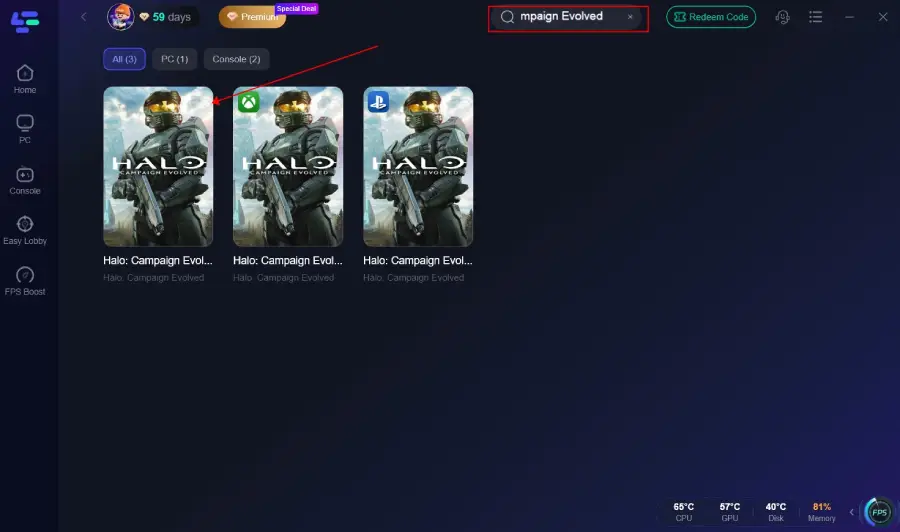
Search for the Game: Open LagoFast and use the search bar to find Halo: Campaign Evolved.
Select the Best Node: LagoFast will automatically detect your region and recommend the optimal server node for the lowest ping. Select it.
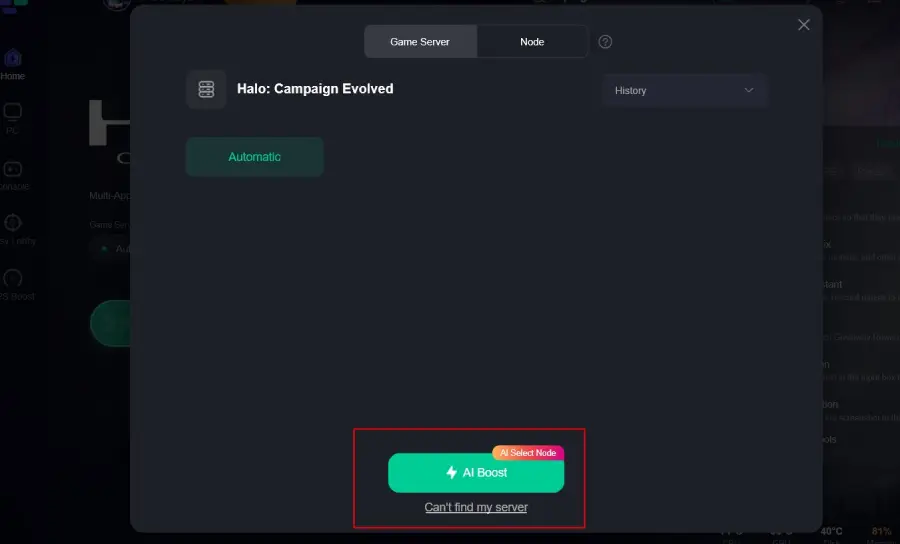
Activate the Boost: Click the "Boost" button. LagoFast will then optimize your network connection in real-time.
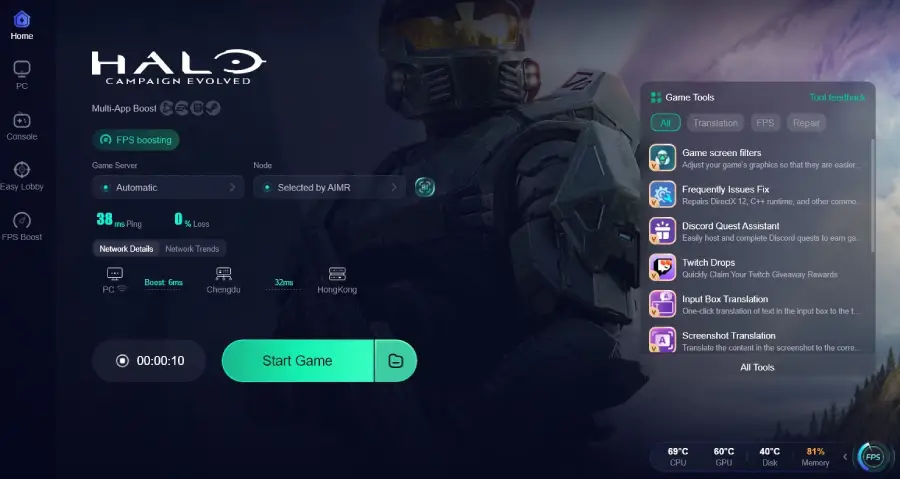
Launch the Game: Start Halo: Campaign Evolved through your usual launcher (Steam, Xbox App) and enjoy a more stable and responsive online experience.
Part 7: Frequently Asked Questions
Q1: Why does my game crash only during specific missions or cutscenes?
A: Crashes during specific game segments often point to corrupted game files related to that content, or a resource bottleneck (CPU, GPU, RAM) that is particularly stressed during those demanding scenes. Verify game files and lower graphics settings.
Q2: Can mods cause Halo Campaign Evolved to crash?
A: Yes, unofficial mods are a very common cause of game instability and crashes. If you have any mods installed, disable or remove them and verify your game files.
Q3: My game crashes with an NVIDIA error. What should I do?
A: NVIDIA-specific crashes often indicate a driver issue. Perform a clean installation of your NVIDIA drivers using DDU. Ensure your drivers are up-to-date, but also be prepared to roll back to a previous stable version if the latest drivers cause problems.
Q4: Is it better to play in Fullscreen or Borderless Windowed mode?
A: Exclusive Fullscreen mode generally offers the best performance and lowest input lag. Borderless Windowed mode is more convenient for alt-tabbing but can sometimes introduce minor performance overhead or stuttering.
Q5: Why does my game crash after a recent update?
A: Game updates can sometimes introduce new bugs or conflicts with existing drivers or system configurations. Check official forums or community hubs for similar reports and potential hotfixes. Verify game files and update drivers after any major game patch.
Part 8: Conclusion
Experiencing crashes in Halo: Campaign Evolved can be frustrating, but most issues are resolvable with systematic troubleshooting. The key is to address potential conflicts from drivers, background applications, and system settings, while also ensuring your hardware can comfortably handle the game's demands. By following the steps outlined in this guide, you can significantly improve your game's stability and immerse yourself fully in Master Chief's epic journey.
Key Takeaway
To effectively resolve Halo Campaign Evolved crashing issues, prioritize verifying game files, updating graphics drivers with clean installations, and disabling all unnecessary overlays and background processes. For network-related stability, consider utilizing LagoFast Game Booster to ensure a smooth and uninterrupted experience.
Boost Your Game with LagoFast for Epic Speed
Play harder, faster. LagoFast game booster eliminates stutter and lags on PC, mobile, or Mac—win every match!
Quickly Reduce Game Lag and Ping!
Boost FPS for Smoother Gameplay!