
Crimson Desert won’t start after the latest update? Following the Enhanced 2.00.00 update on August 25, some Steam players have reported that the game no longer launches and instead shows an installation error asking them to reinstall. If Crimson Desert worked before the update but suddenly won’t start, this guide covers the latest issue and the most effective fixes.

- ✅ Fix Common Errors & Crashes.
- ✅ Fix Crimson Desert Not Working.
- ✅ Fix Low FPS & Stuttering.
- ✅ Reduce Lag & High Ping.
- ✅ Boost Game Performance.
Part 1: Check System Requirements First
Part 2: Verify Game Files in Your Launcher
Part 3: Update Graphics Drivers
Part 4: Run the Game as Administrator
Part 5: Disable Background Software
Part 6: Check for Windows Updates
Part 7: Disable Fullscreen Optimization
Part 9: Check Firewall and Internet Authentication
Part 10: Reinstall as a Last Resort
Part 11: Why Crimson Desert Won’t Start After an Update
Part 12: Improve Game Launch Stability with LagoFast
Part 1: Check System Requirements First
If the game does nothing when you click “Play,” your system may not meet the minimum requirements.
Verify:
- CPU model
- GPU model
- Available RAM
- Storage space
- Operating system version
Even if your system technically meets minimum specs, outdated drivers can prevent the game from launching properly.
Part 2: Verify Game Files in Your Launcher
Corrupted or incomplete files are one of the most common causes when Crimson Desert won’t start. If the game stopped launching after the Enhanced 2.00.00 update, verify your files first, especially if Steam shows an installation error asking you to reinstall.
If you are using Steam:
- Right-click the game in your library
- Go to Properties
- Select Installed Files
- Click Verify integrity of game files
This replaces missing or damaged files without requiring a full reinstall.
Part 3: Update Graphics Drivers
Outdated GPU drivers frequently cause launch crashes, black screens, or instant shutdown after pressing Play.
Update drivers via:
- NVIDIA GeForce Experience
- AMD Adrenalin Software
- Official GPU manufacturer websites
After updating, restart your PC before testing the launch again.
Part 4: Run the Game as Administrator
Permission conflicts can block the executable from starting.
To test:
- Right-click the Crimson Desert executable
- Select Run as Administrator
You can also configure this permanently in the Compatibility settings.
Part 5: Disable Background Software
Startup failures are often triggered by:
- Overlay software
- Antivirus programs
- Third-party monitoring tools
- RGB management utilities
Temporarily disable overlays and monitoring tools, then attempt to launch again.
Part 6: Check for Windows Updates
Missing system updates can cause DirectX or runtime conflicts.
Ensure:
- Windows is fully updated
- Visual C++ Redistributables are installed
- DirectX components are current
System libraries are essential for modern game engines.
Part 7: Disable Fullscreen Optimization
Windows fullscreen optimization can interfere with certain game engines.
To disable:
- Right-click the game executable
- Select Properties
- Open the Compatibility tab
- Check Disable fullscreen optimizations
Apply changes and test the launch again.
Part 8: Clear Shader Cache
Corrupted shader cache files can prevent proper initialization.
You can:
- Clear GPU shader cache via driver software
- Delete temporary DirectX shader files
Restart your system afterward.
Part 9: Check Firewall and Internet Authentication
Even though Crimson Desert is primarily single-player, initial authentication may require a brief internet connection.
If the game immediately closes:
- Allow it through Windows Defender Firewall
- Disable VPN
- Confirm your launcher is online
Authentication failures can block startup.
Part 10: Reinstall as a Last Resort
If none of the above works:
- Uninstall the game
- Delete leftover installation folders
- Reboot your PC
- Reinstall fresh
Avoid skipping the reboot step, as it clears locked system files.
Part 11: Why Crimson Desert Won’t Start After an Update
After the Enhanced 2.00.00 update, some Steam players have reported that Crimson Desert no longer launches and displays: “There may be a problem with the game installation. Please reinstall.”
If the game worked before the update, possible causes include:
- Incomplete or corrupted update files
- Conflicting leftover or modified files
- Driver or software conflicts after the update
Start by verifying your Steam files. If the error remains, try the other fixes above before performing a full reinstall.
Part 12: Improve Game Launch Stability with LagoFast
If Crimson Desert won’t start due to authentication timeouts, platform verification failures, or unstable patch downloads, the root cause may be inconsistent network routing rather than a hardware issue. Even single-player titles often require a stable internet handshake during launch. Optimizing your connection before opening the game can reduce these interruptions. LagoFast helps stabilize routing and minimize packet loss during startup verification.
How to Use LagoFast Before Launching
1. Download and install LagoFast using the Free Trial option.
2. Open the application and search for Crimson Desert.
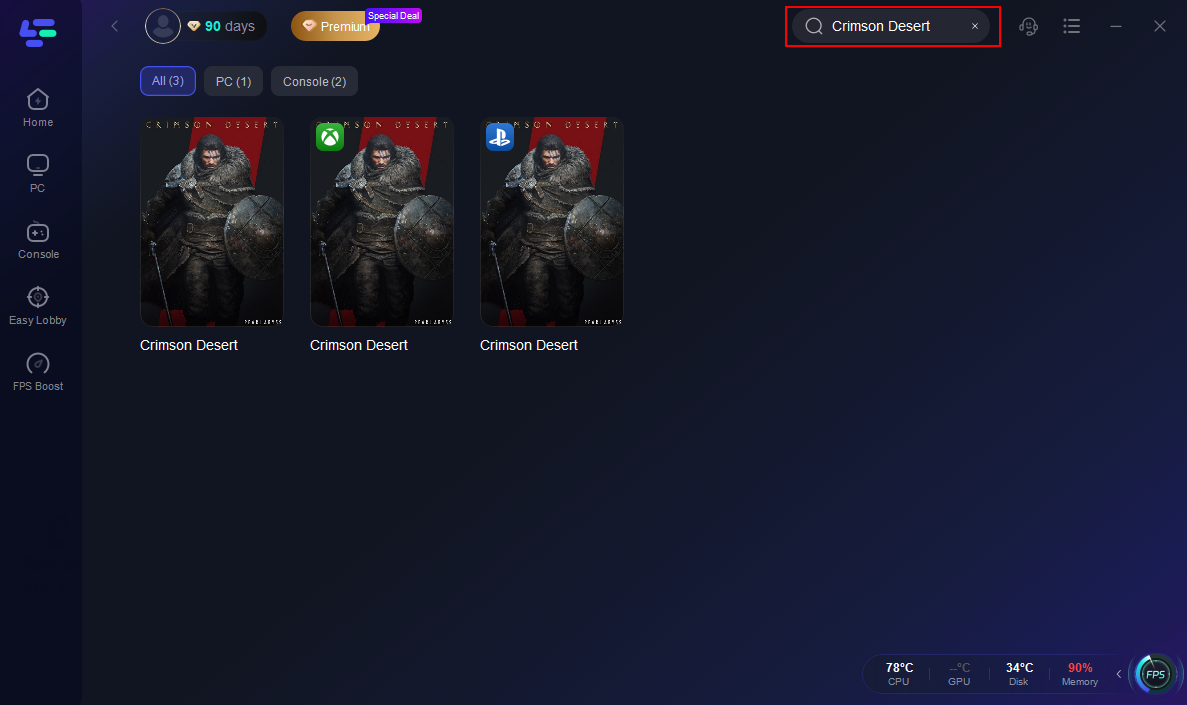
3. Select the recommended server region and manually choose the node with the lowest latency.

4. Click Smart Boost and confirm stable ping and packet loss indicators before launching the game.
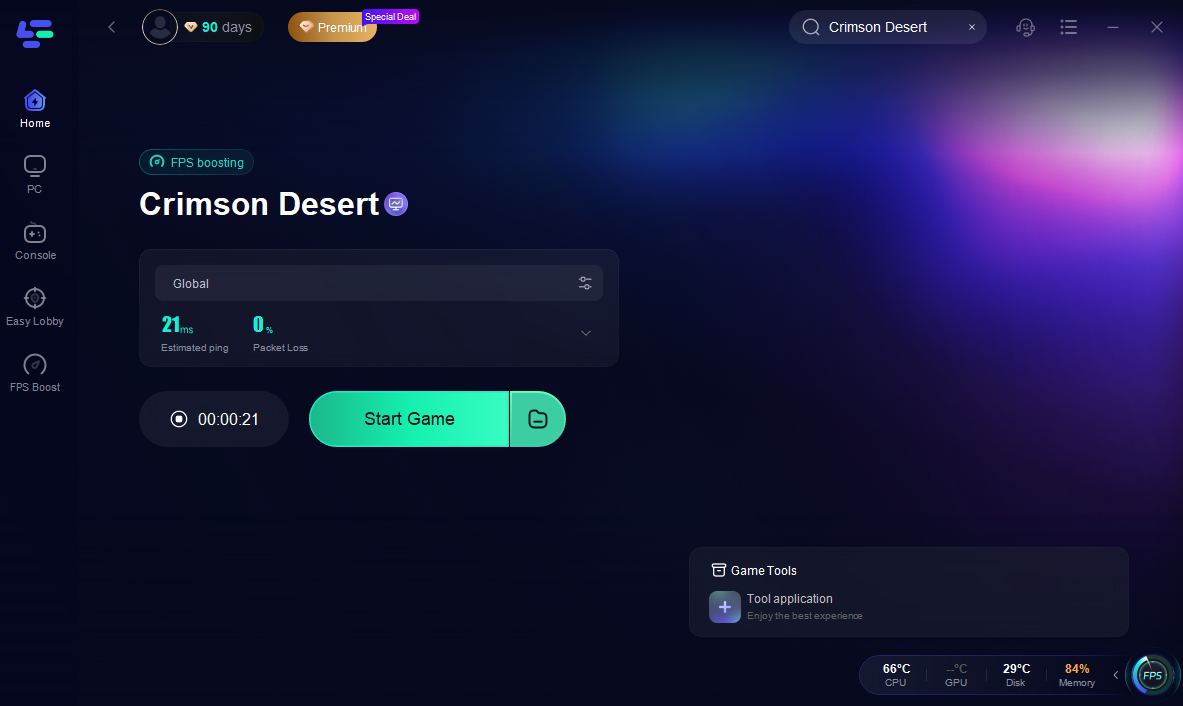
5. Once enabled, LagoFast reroutes traffic through optimized nodes to improve communication between your system and platform authentication services.
Benefits of Using LagoFast
- Reduces latency spikes during launch verification
- Minimizes packet loss during DRM checks
- Optimizes routing paths automatically
- Displays real-time network diagnostics
- One-click activation before starting the game
While LagoFast cannot resolve official platform outages, it can significantly improve local connection stability. If unstable routing rather than corrupted files causes your launch issue, optimizing your network before starting Crimson Desert can help reduce authentication errors and improve startup reliability.
FAQs About Crimson Desert Won't Start
Why does Crimson Desert show running on Steam but not open?
The game process may start but fail before the window appears because of a driver, background software, permission, or corrupted file conflict. Close any remaining Crimson Desert processes in Task Manager before trying again.
Why does Crimson Desert close immediately after pressing Play?
An instant shutdown usually points to a startup conflict, missing system component, corrupted file, or graphics driver issue. Check Steam files and Windows Event Viewer for additional error details.
Can mods cause Crimson Desert not to start after an update?
Yes. Mods or modified files made for an older build may become incompatible after a major update. Temporarily disable them and test the game with its original files.
Should I reinstall Crimson Desert if it won’t start?
Reinstallation should be a last resort because Steam file verification can repair many missing or corrupted files without downloading the entire game again. Try the other startup fixes first.
Why does Crimson Desert start with a black screen?
A black screen means the game may have launched but failed to display correctly, which can be related to graphics drivers, display settings, or game files. If the game opens but stays black, troubleshoot it as a black-screen issue rather than a complete startup failure.
Conclusion
If Crimson Desert won’t start, the problem is typically related to corrupted files, outdated drivers, permission conflicts, or background software interference, not hardware failure. Start with file verification and driver updates before attempting a reinstall. Following a structured troubleshooting order significantly increases the likelihood of resolving the startup issue quickly and efficiently.
Boost Your Game with LagoFast for Epic Speed
Play harder, faster. LagoFast game booster eliminates stutter and lags on PC, mobile, or Mac—win every match!
Quickly Reduce Game Lag and Ping!
Boost FPS for Smoother Gameplay!