

With the global launch of Odin: Valhalla Rising in April 2025, players worldwide are diving into its Norse-inspired open world, featuring seamless cross-platform gameplay and massive 30v30 battles . As Kakao Games prioritizes security, Google OTP verification has become a cornerstone for protecting accounts against hacks. In this guide, we’ll explore how to leverage Google Authenticator and LagoFast’s tools to enhance both security and performance in Odin: Valhalla Rising.

- ✅ Reduce Lag and High Ping.
- ✅ Boost FPS at the Same Time.
- ✅ Support change server all around the world.
- ✅ Download Odin: Valhalla Rising Global from Anywhere
- ✅ Odin: Valhalla Rising Translation Tool
Part 1: What is Google OTP Verification?
Part 2: How to Set Up Google Authenticator Easily for Odin: Valhalla Rising
Part 3: Common Method to Verify Through Google OTP for Odin: Valhalla Rising
Part 4: Enhance Your Gaming Experience with LagoFast Game Booster
Part 1: What is Google OTP Verification?
Google OTP (One-Time Password) is a two-factor authentication (2FA) method that generates 6-digit codes every 30 seconds using the Time-Based One-Time Password (TOTP) algorithm . Unlike SMS-based 2FA, Google Authenticator eliminates risks like SIM swapping or interception, making it the gold standard for securing accounts. For Odin: Valhalla Rising, enabling Google OTP adds a critical layer of protection against unauthorized access, especially in high-stakes PvP battles or guild activities.
Part 2: How to Set Up Google Authenticator Easily for Odin: Valhalla Rising
While Google Authenticator is effective, manually setting it up can be tedious. Enter LagoFast Game Booster, a tool designed to streamline the process for Odin: Valhalla Rising players.
Why Choose LagoFast’s OTP Generator?
- One-Click Setup: Automatically generates and syncs OTP codes with your Kakao Games account, bypassing manual QR code scanning or secret key entry.
- Cross-Platform Support: Works seamlessly on both PC and mobile, ensuring consistent security across devices.
- Reduced Lag: LagoFast’s network optimization minimizes delays during code generation, crucial for time-sensitive logins .
Step-by-Step Guide for Odin on PC:
Step 1. Download and install LagoFast.
Step 2. Once installed, open LagoFast and find Odin: Valhalla Rising.
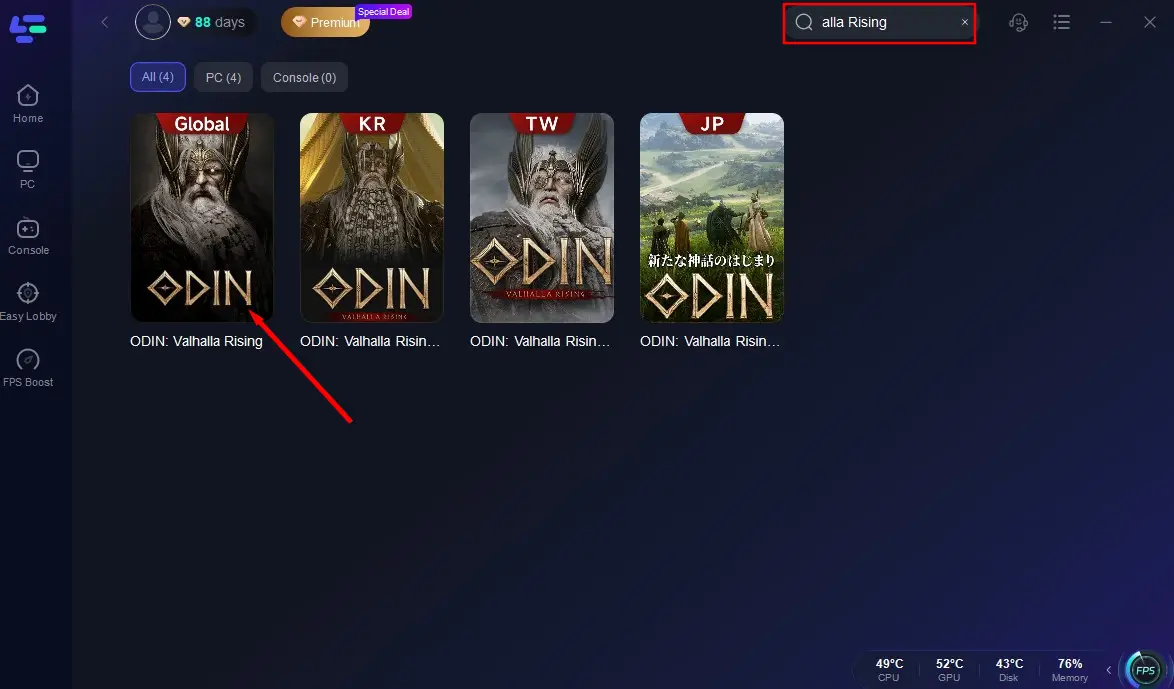
Step 3. Click the OTP Generator tool on the right.
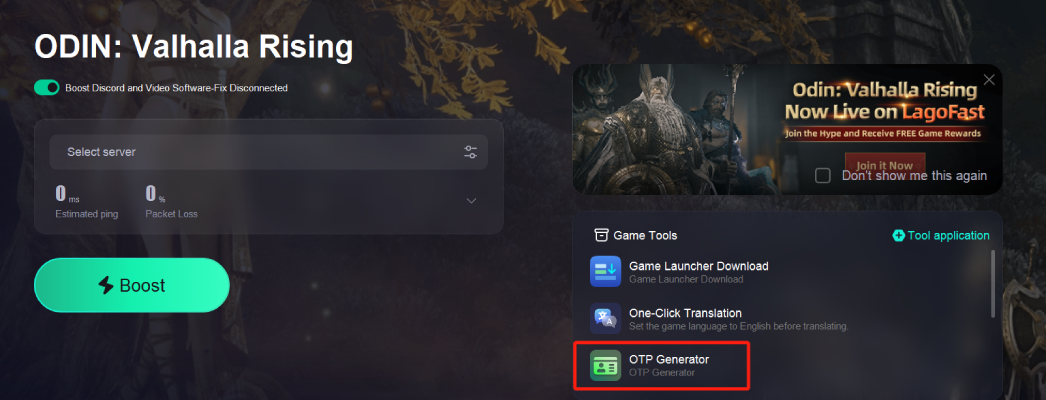
Step 4. Input your secret key.
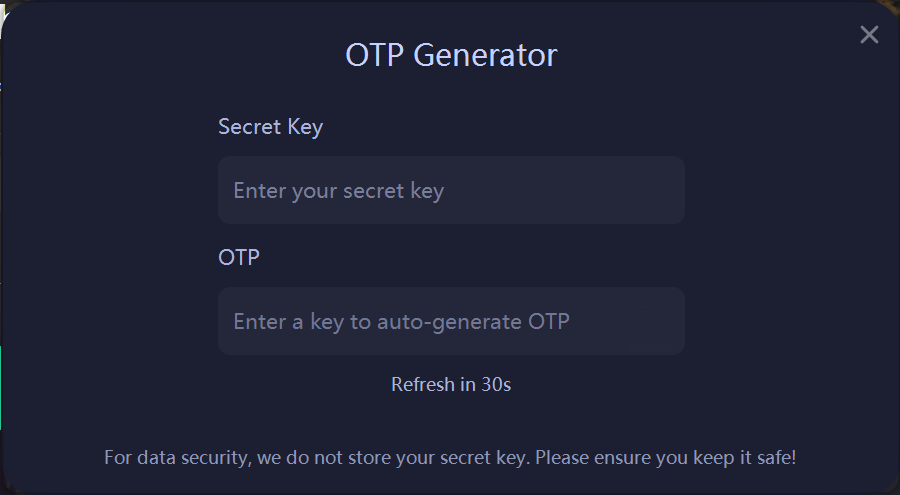
Note: How to Get Secret Key
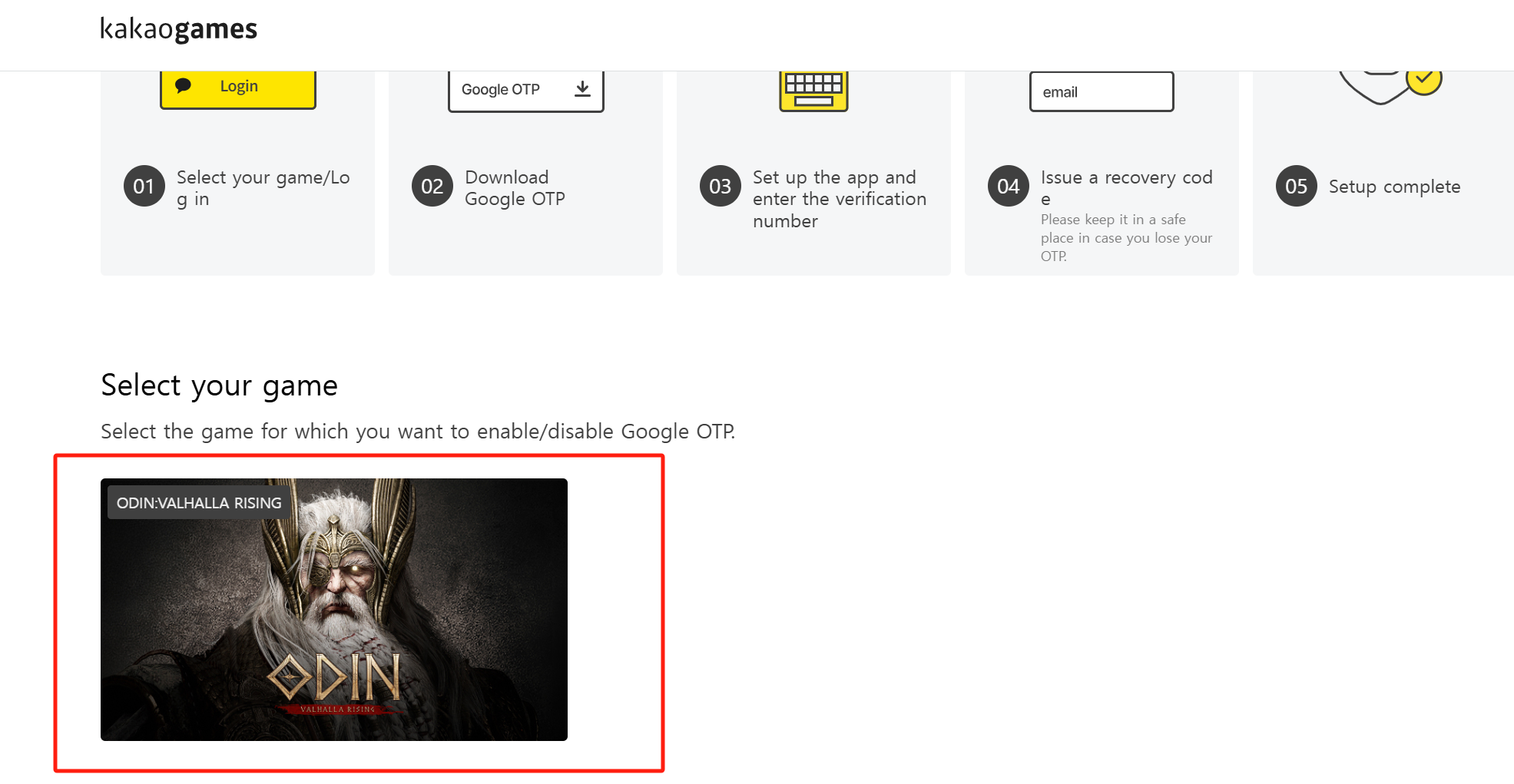
- After starting the game, there is a chance that the OTP authentication requirement will pop up in the lower right corner. Click to enter the additional authentication page and select Google OTP.
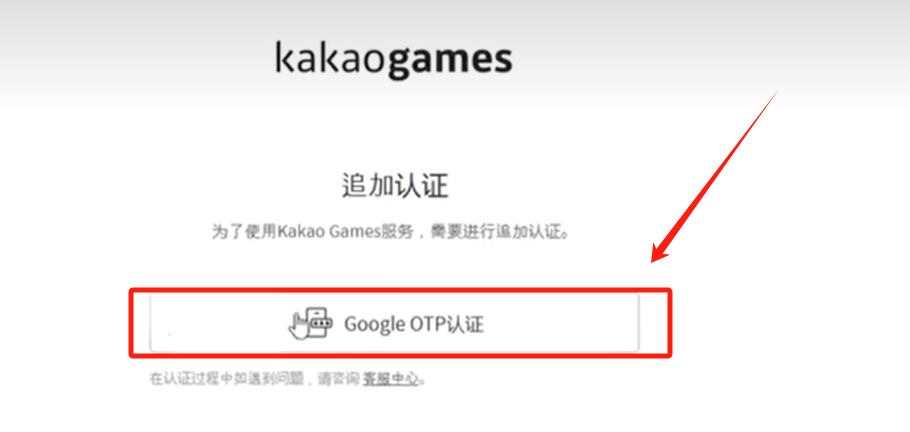
2. Choose the game to start certification
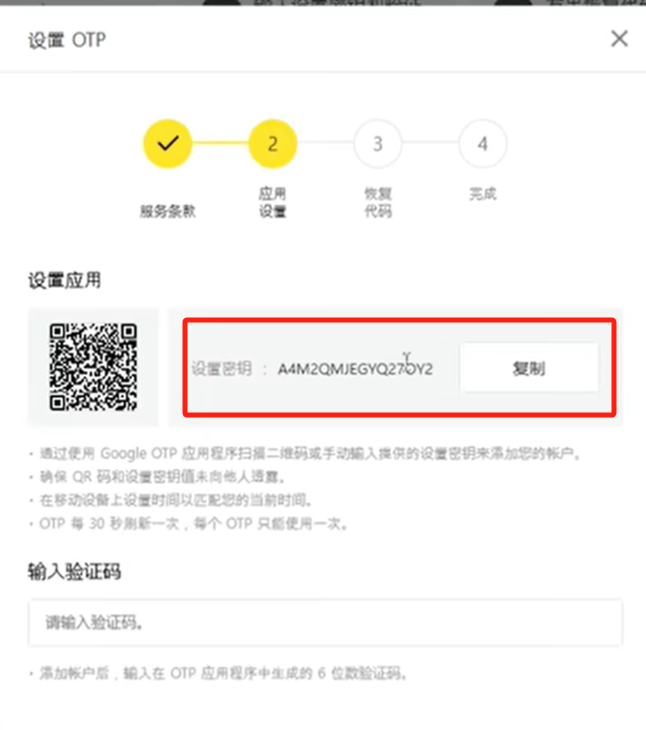
3. Copy the key
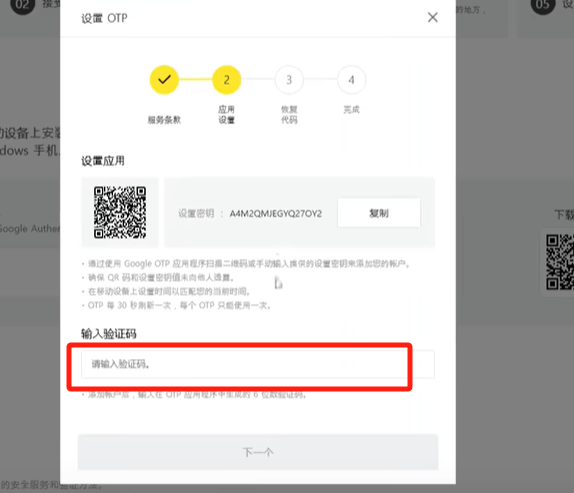
Step 5. LagoFast's OTP tool will automatically generate OTP. Copy the automatically generated OTP to the verification code on the verification page.
How to Set Up Google Authenticator for Odin on Mobile?
Step 1: Download LagoFast Mobile from Google Play or the App Store. Or scan the QR code to download it.

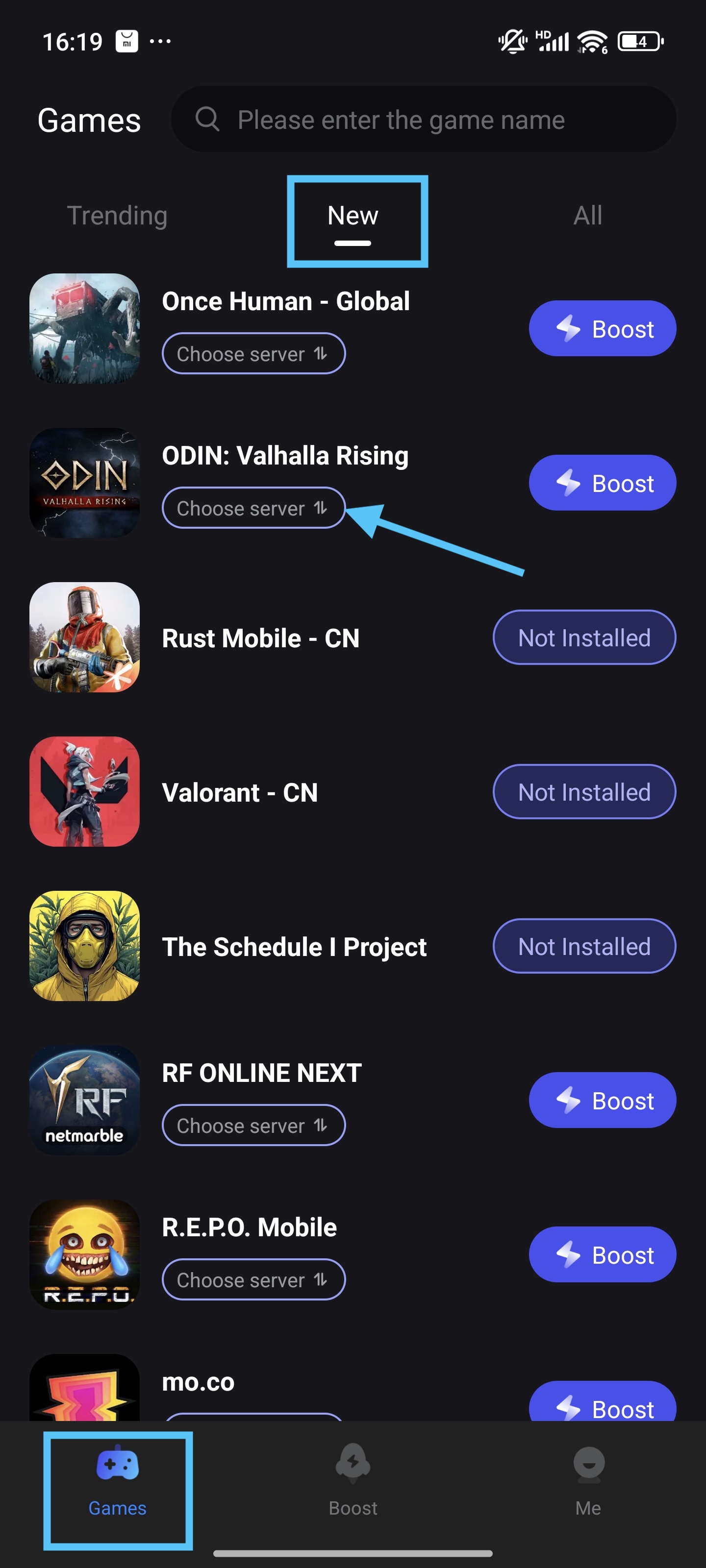
Step 2: Open the LagoFast Game Booster app and boost Odin: Valhalla Rising. Select the optimal server (Asia or America) to ensure stable access to the game.
Step 3. Trigger Google OTP Verification
- Launch Odin: Valhalla Rising and select log in using your Google account.
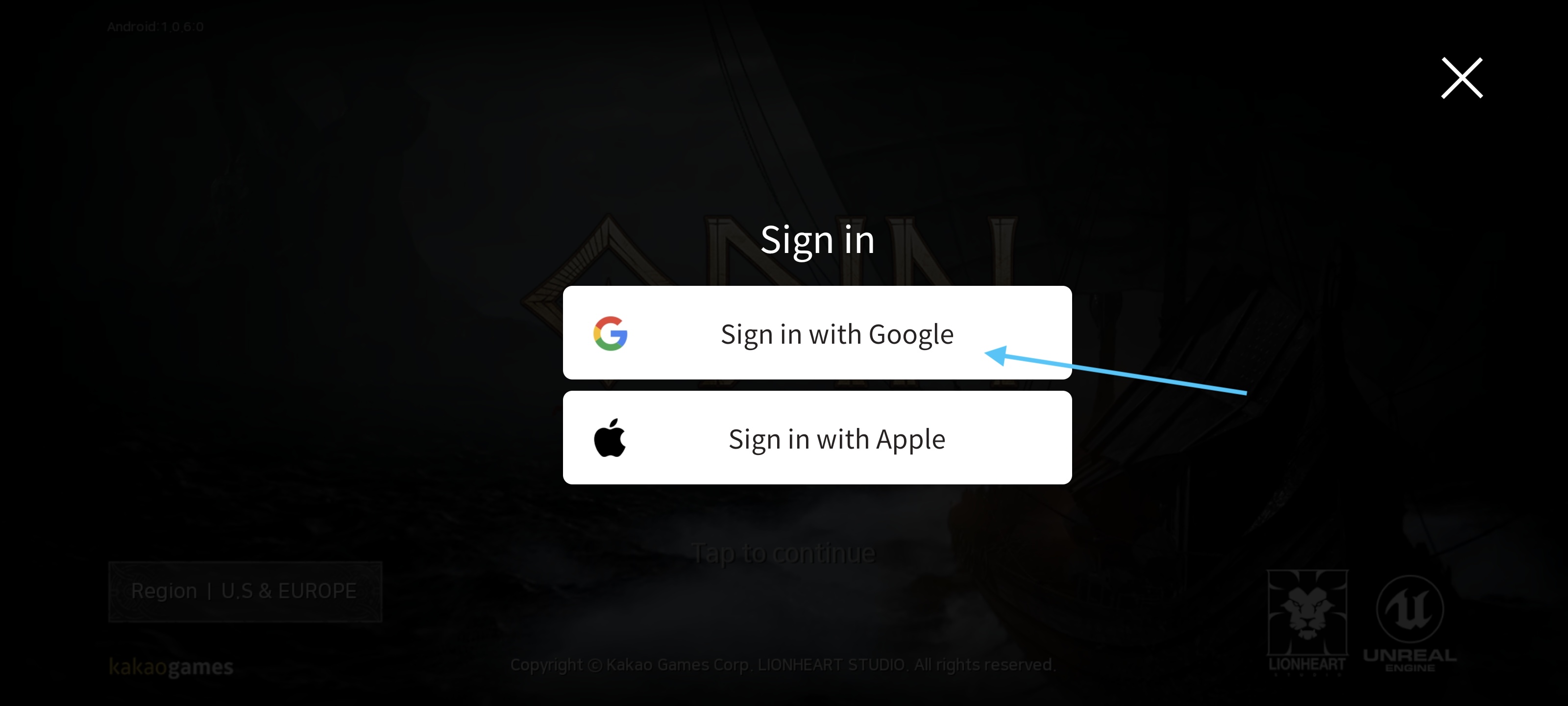
- If prompted for self-authentication, proceed to the verification page.
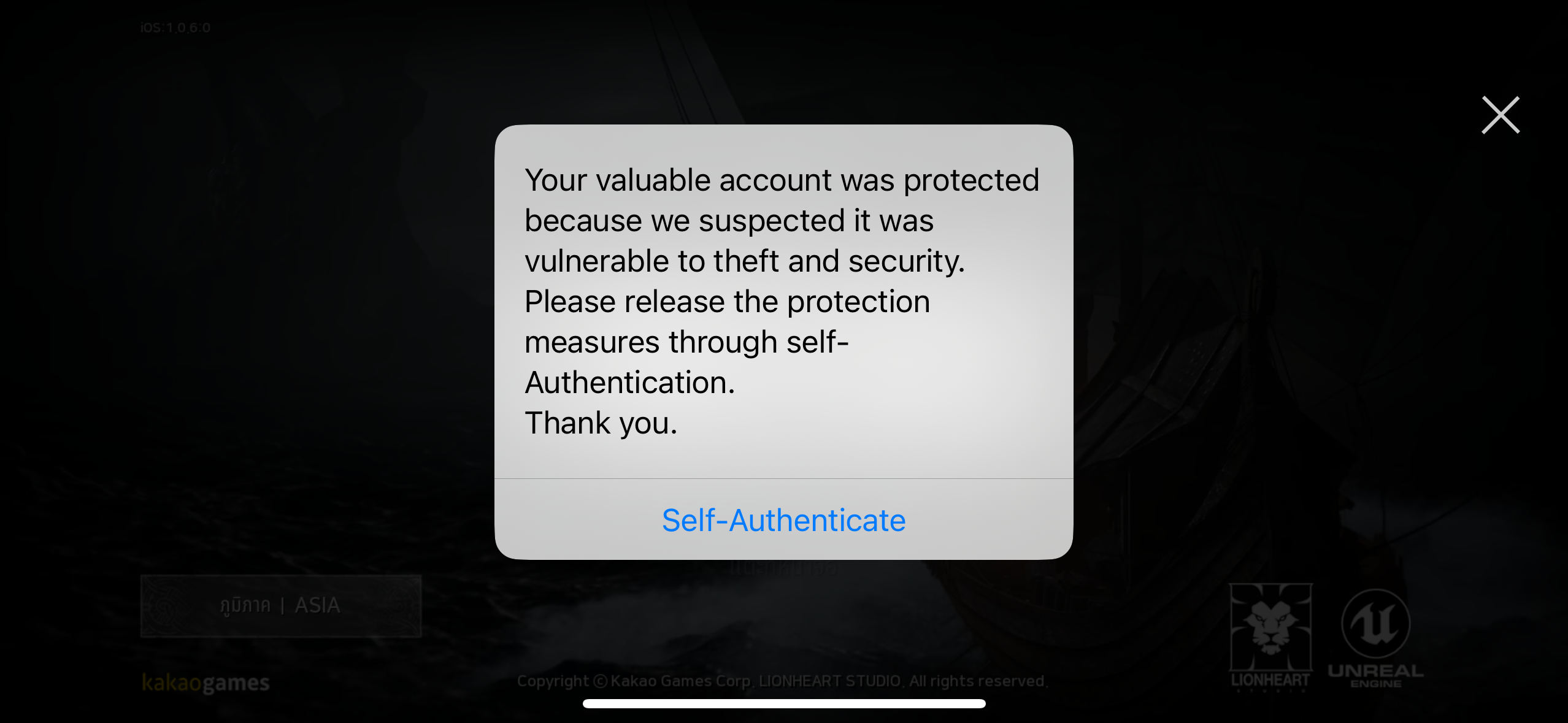
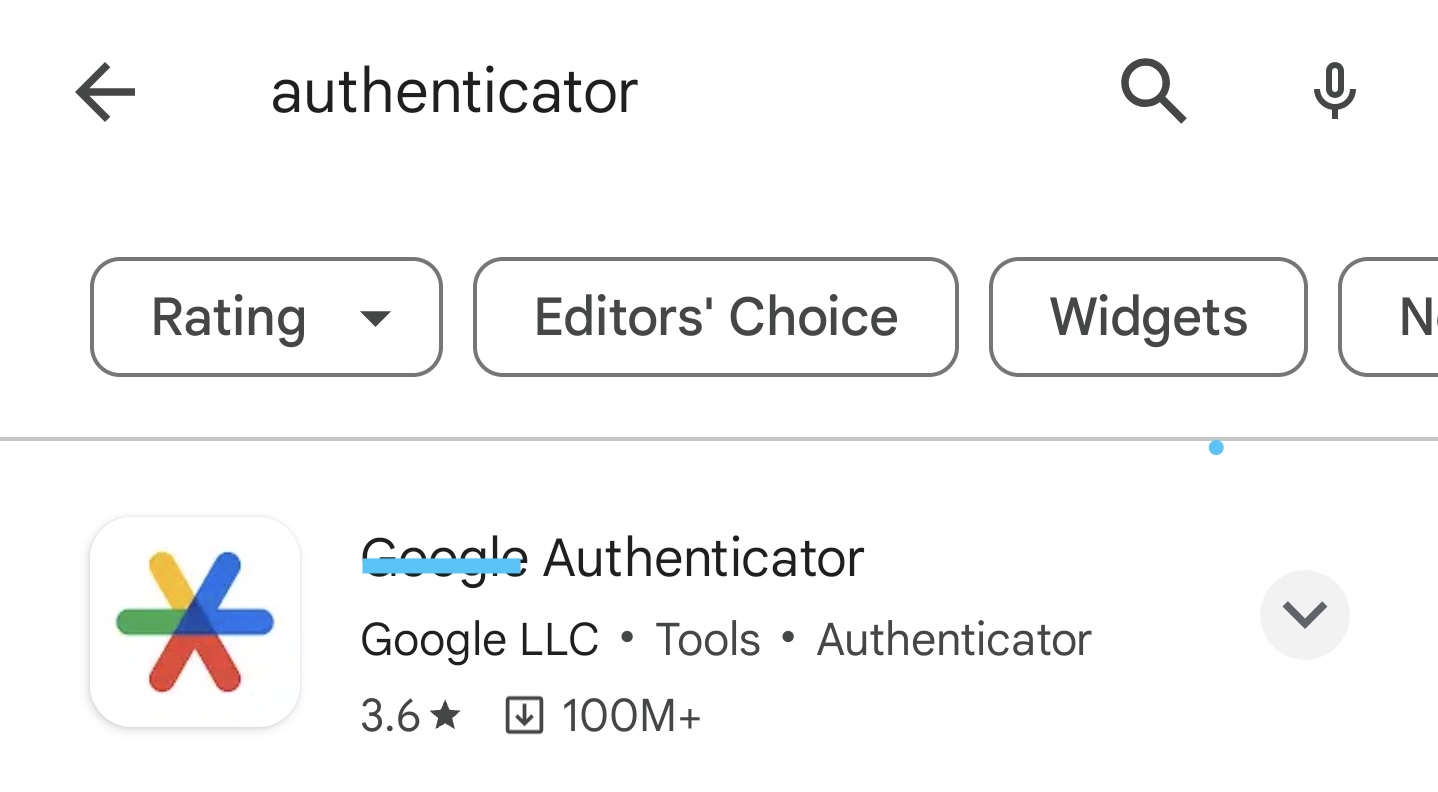
Step 4. Download an Authenticator App
- Install Google Authenticator from your device’s app store (iOS/Android).
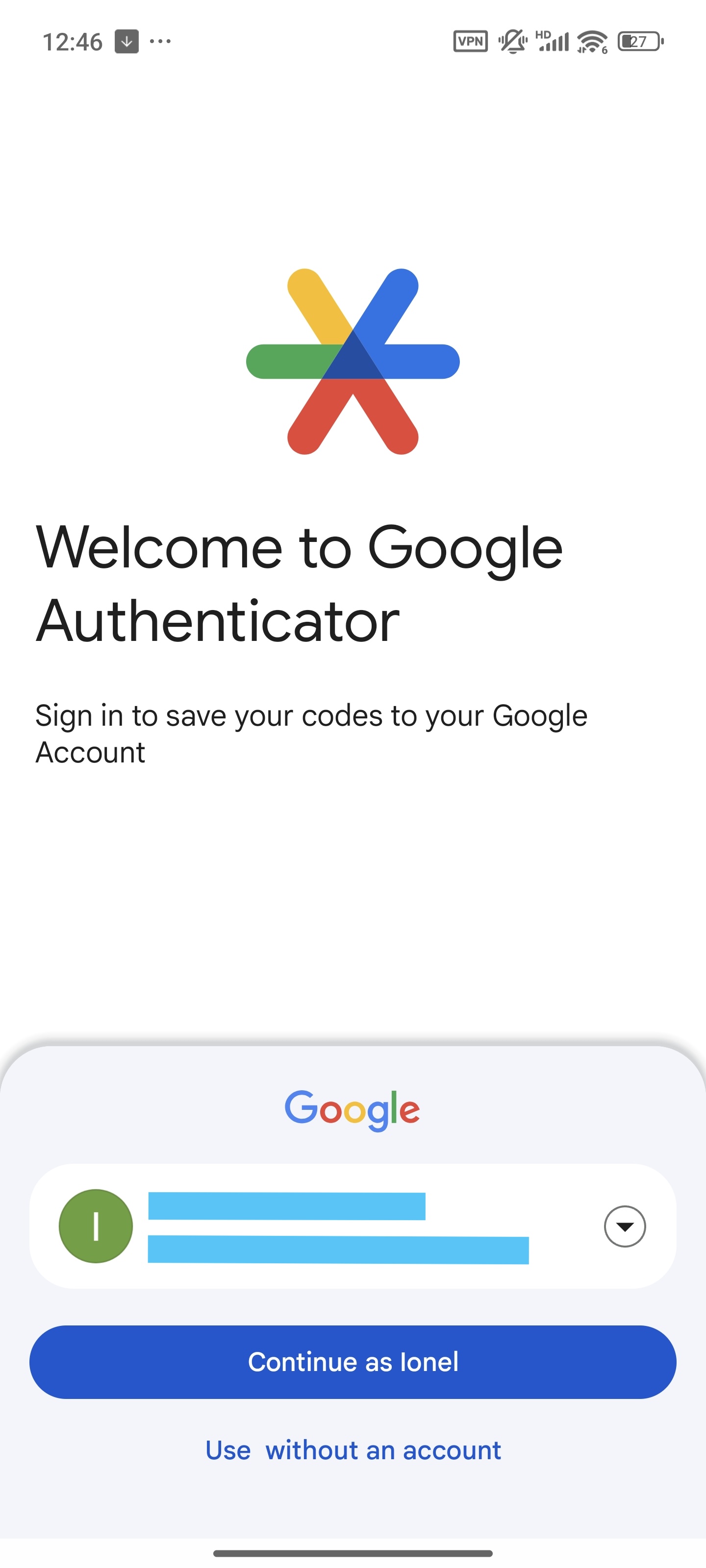
Step 5. Link the Authenticator to Your Account
- Open the Authenticator, log in to your Google account if this is the first time you install the Authenticator.
- Tap “Add a Code”, then you can select scan QR code or enter the setup key
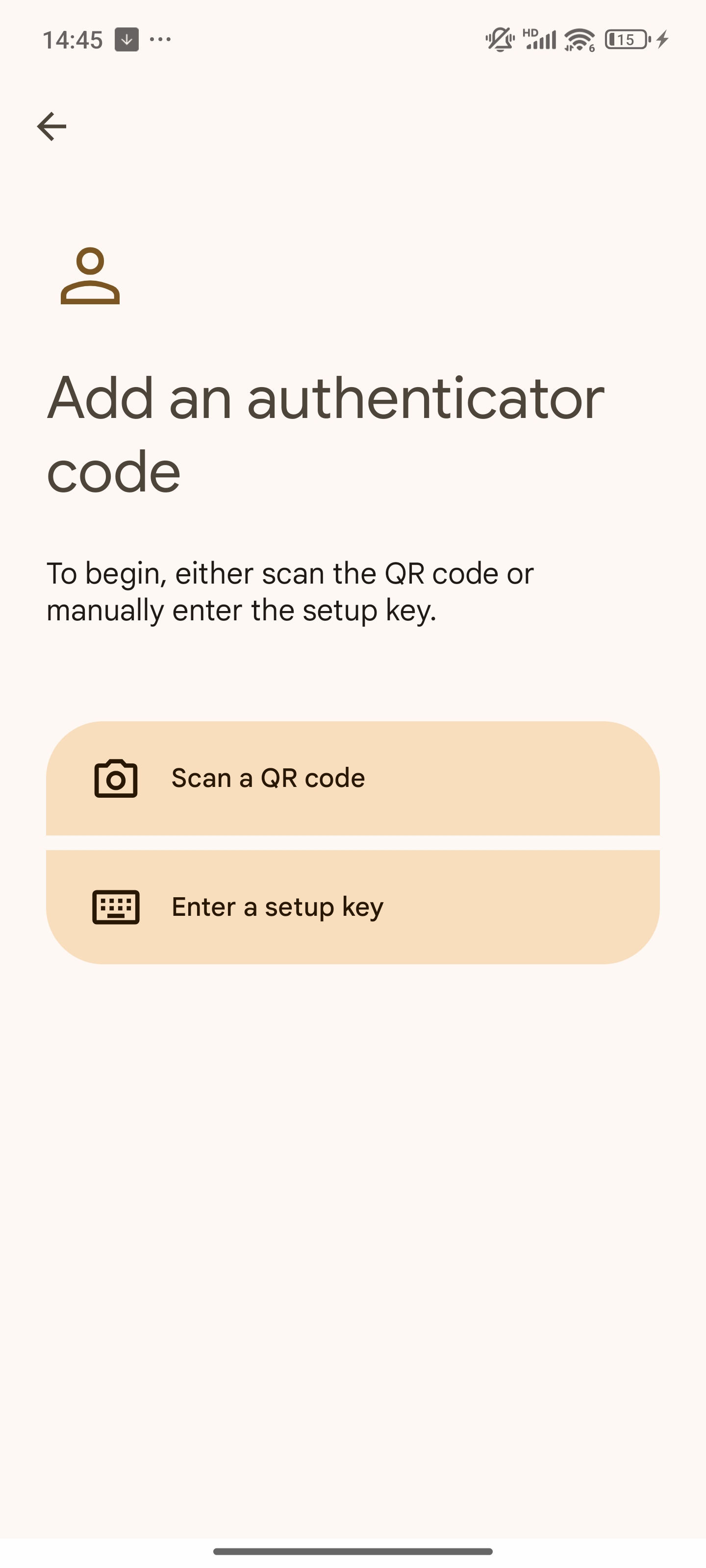
- Then you can scan the game's QR code or input the secret key from the game.
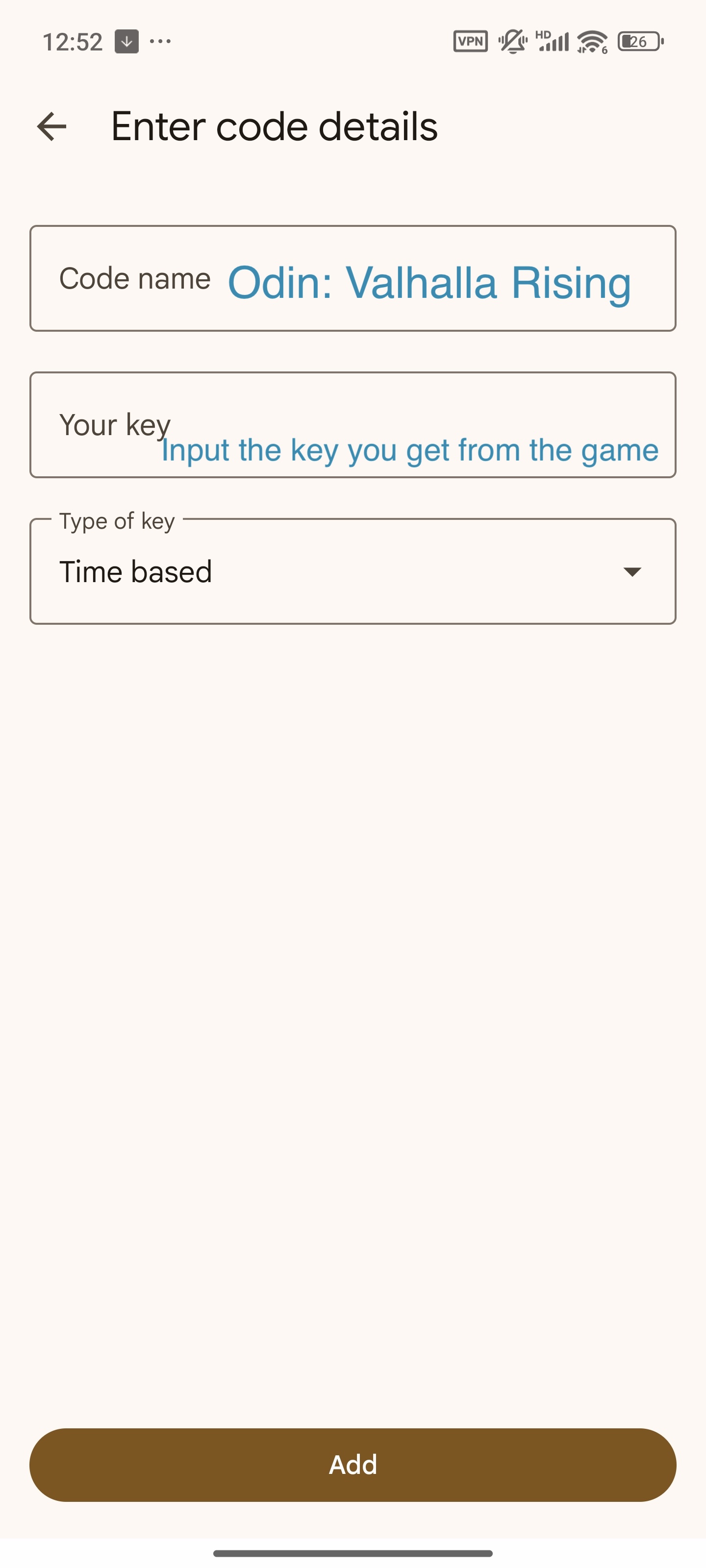
- Tap "Add". You have a new verification added to the authenticator now.
Step 6. Log In Securely
- Return to Odin: Valhalla Rising and log in with your Google account.
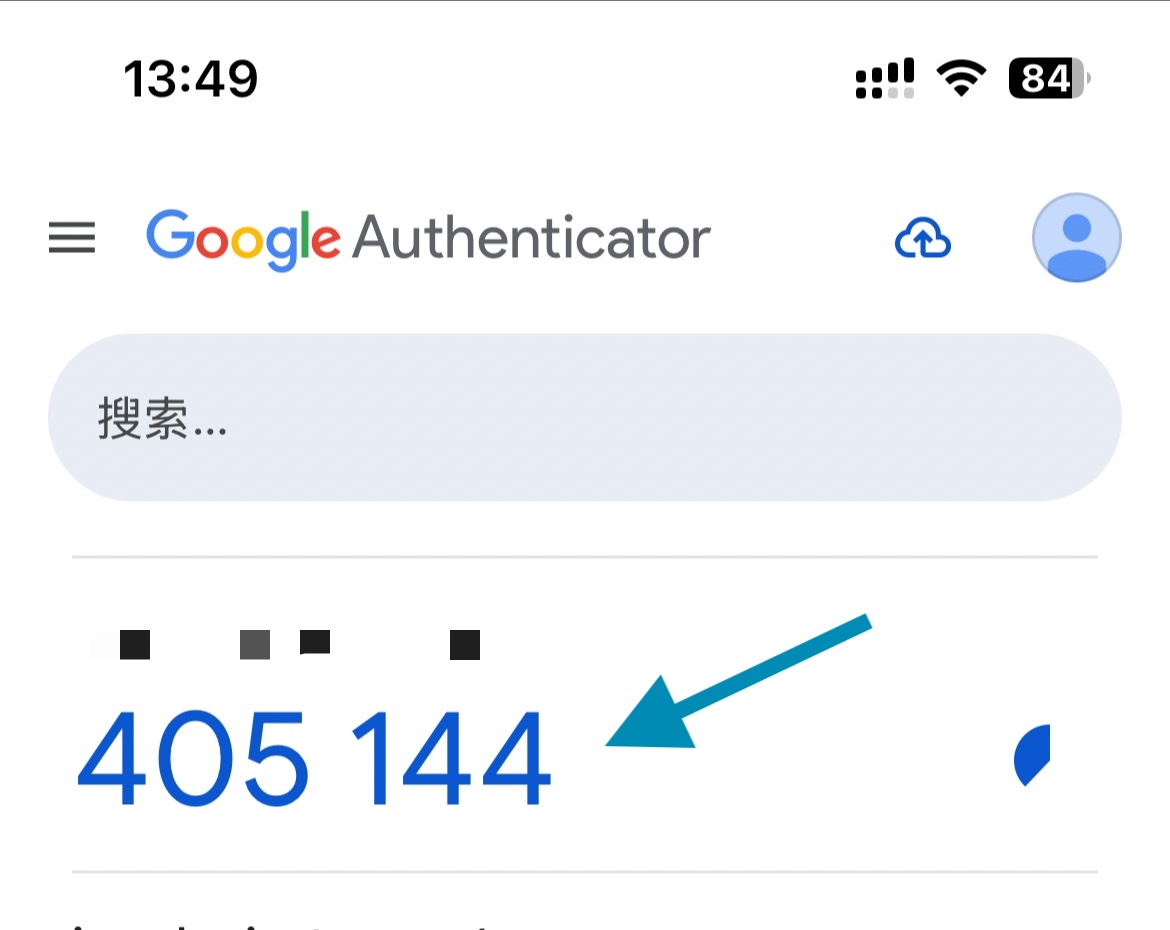
- When you are asked, open the Authenticator app and enter the latest 6-digit code.
Pro Tips:
- Save your secret key in a secure place (e.g., notes app) for backup.
Part 3: Common Method to Verify Through Google OTP for Odin: Valhalla Rising
If you prefer the traditional route, here’s how to set up Google Authenticator manually:
For PC Users
Download Google Authenticator: Install the app on your phone (iOS/Android).
Access Kakao Games Account Settings:
- Log into your Kakao Games account.
- Navigate to “Security” > “Two-Factor Authentication.”
Generate QR Code/Secret Key:
- Scan the QR code with your phone or manually enter the secret key into Google Authenticator.
Confirm Setup: Enter the 6-digit code from the app into the game’s verification field.
For Mobile Users
Open Odin: Valhalla Rising: Go to “Settings” > “Account.”
Enable 2FA: Select “Google Authenticator” and follow the on-screen prompts to scan the QR code or enter the secret key.
Backup Codes: Save the recovery codes provided by Kakao Games in case you lose access to your phone.
Part 4: Enhance Your Gaming Experience with LagoFast Game Booster
Beyond OTP generation, LagoFast offers a suite of tools tailored for Odin: Valhalla Rising:
Lag Reduction & FPS Boost
- Smart Boost: Automatically selects the optimal server route to reduce ping and packet loss .
- FPS Optimization: Fine-tunes CPU/GPU settings to eliminate lag spikes during intense battles.
How to Use LagoFast to Boost Odin on PC:
Step 1: Get LagoFast for free.
Step 2: Launch LagoFast, search for Odin: Valhalla Rising in the search bar, and click on it.
Step 3: Select a server node based on your geographic location and desired gaming performance.
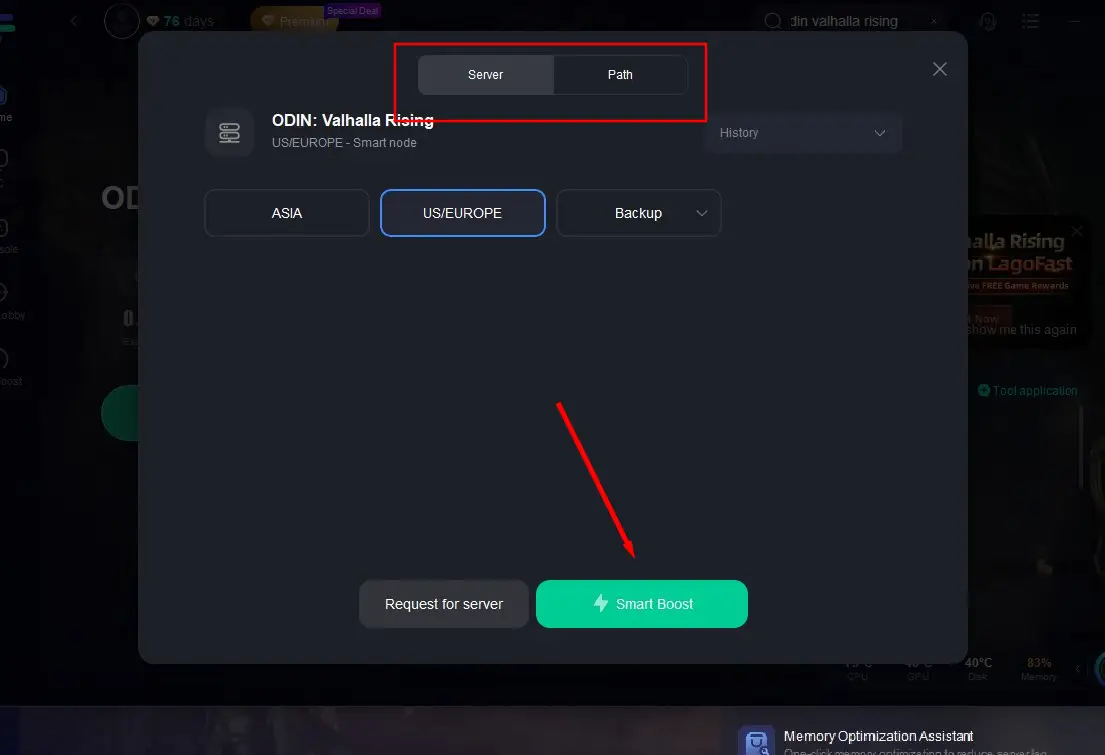
Step 4: Check the game’s real-time ping and packet loss rate, then return to the game to begin your journey.
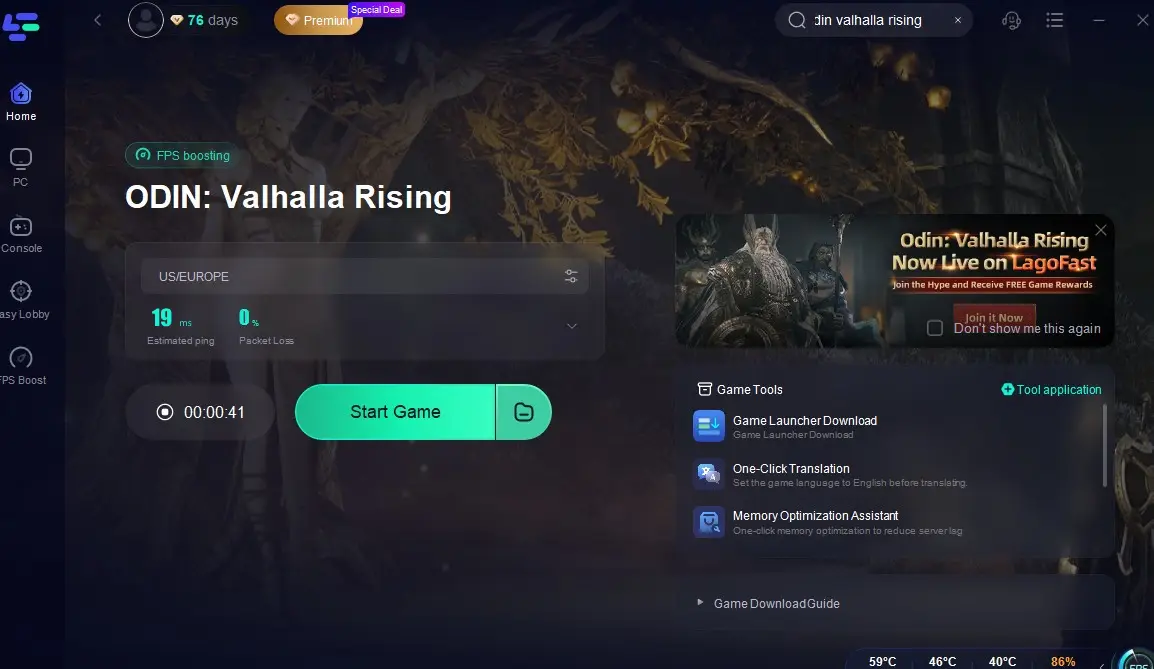
Odin Global Download Tool
Bypasses regional restrictions to download Odin: Valhalla Rising Global from anywhere .
How to Use LagoFast to Enjoy Odin Global from Anywhere:
Step 1. Click the Game Launcher Download tool.
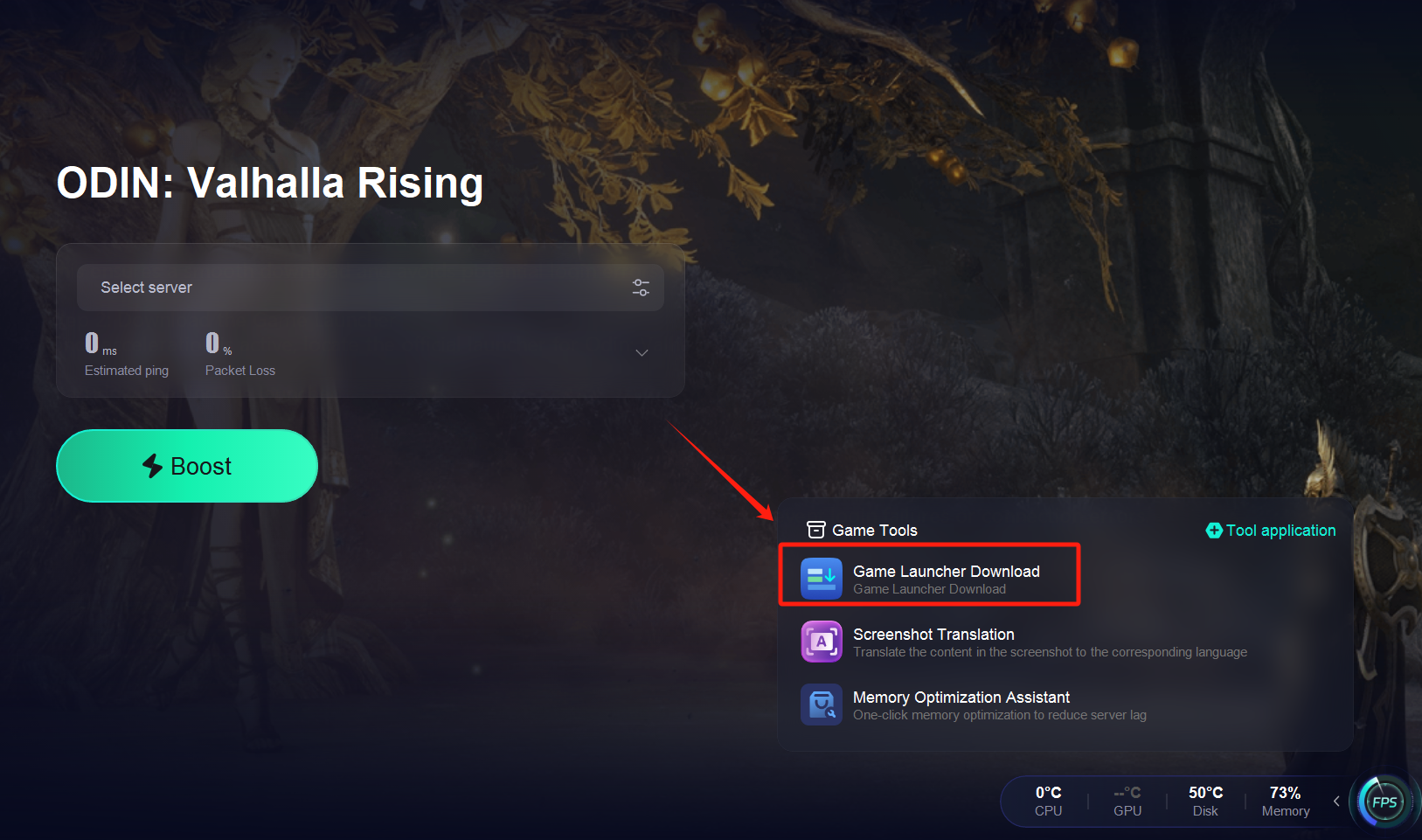
Step 2: Download the Game Launcher
Once acceleration is active, locate the official launcher for Odin: Valhalla Rising.
Start downloading the launcher.
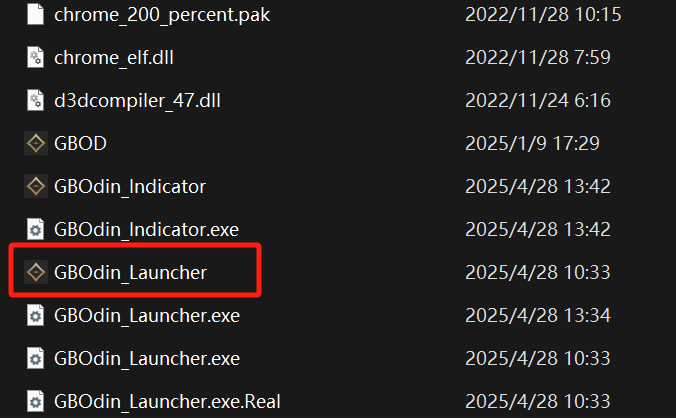
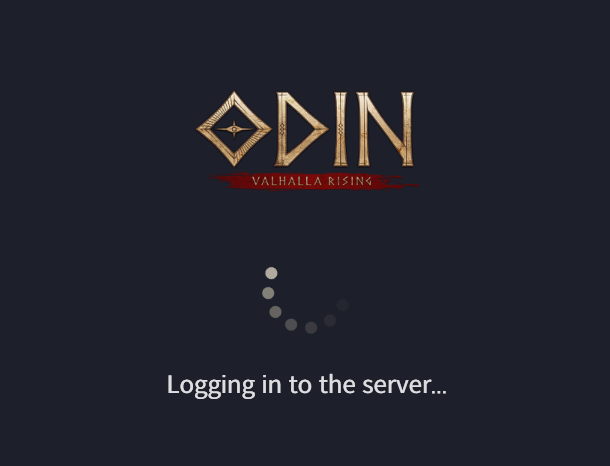
Step 3: Log In with Your Google Account
After installing the launcher, sign in using your Google account.
Important: Make sure you remain connected to LagoFast during this step to prevent login failures or connection errors.
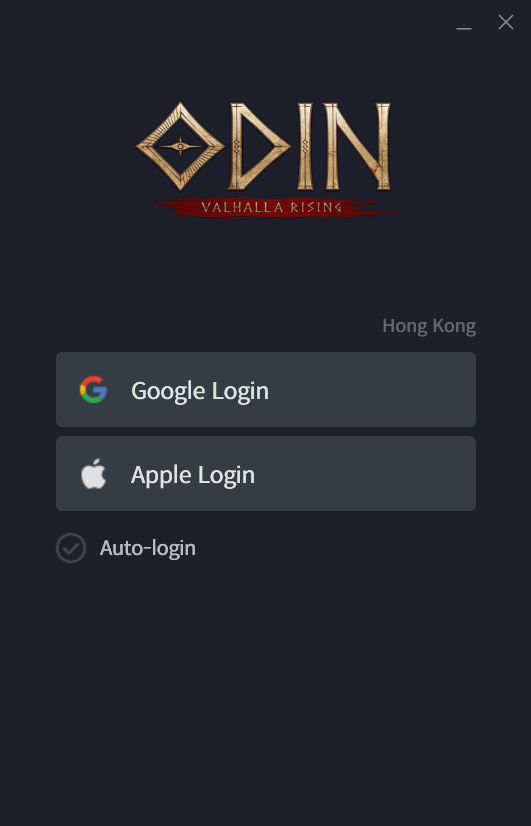
Step 4: Download and Install the Game
After a successful login, proceed to download and install the full game.
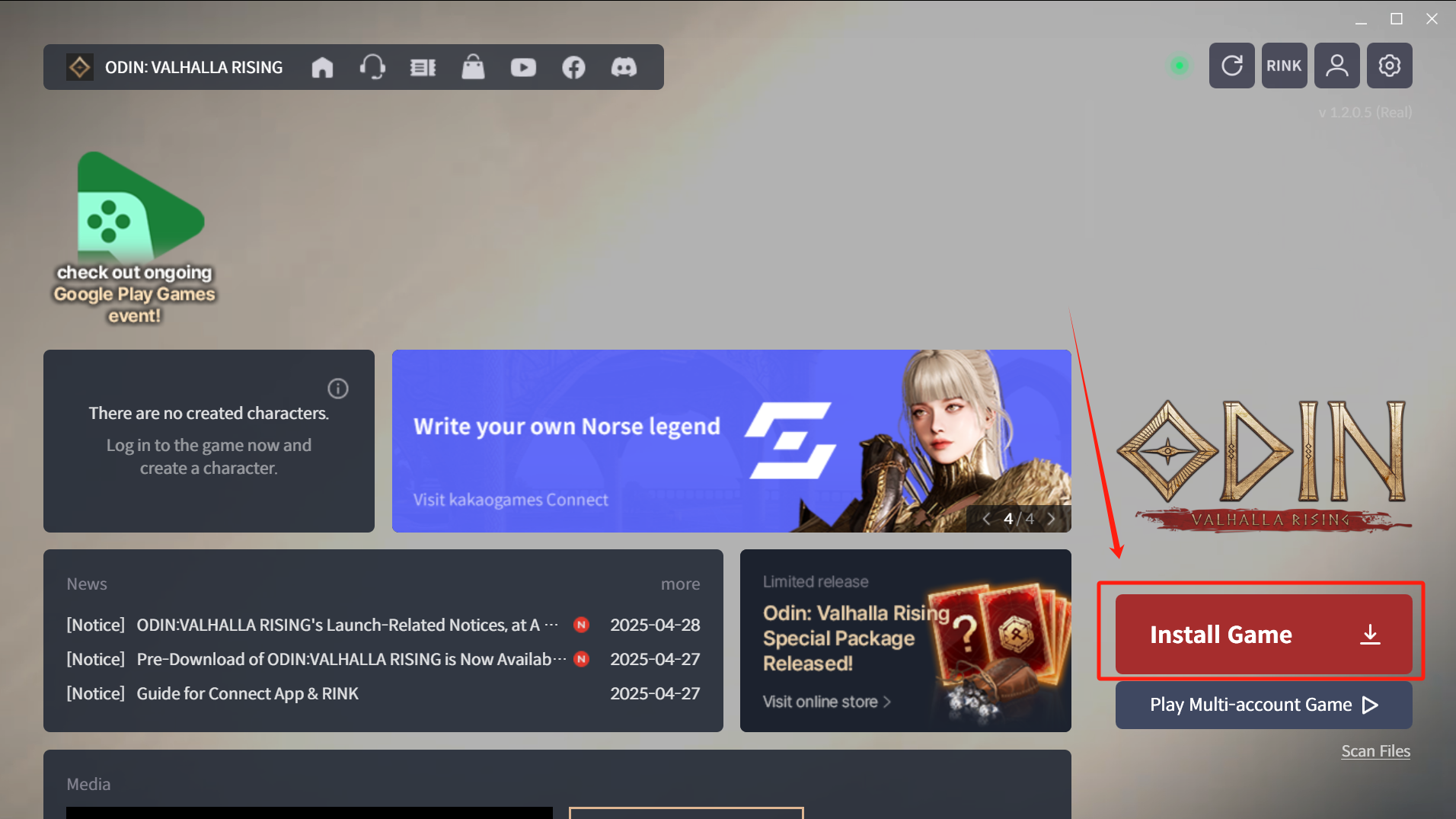
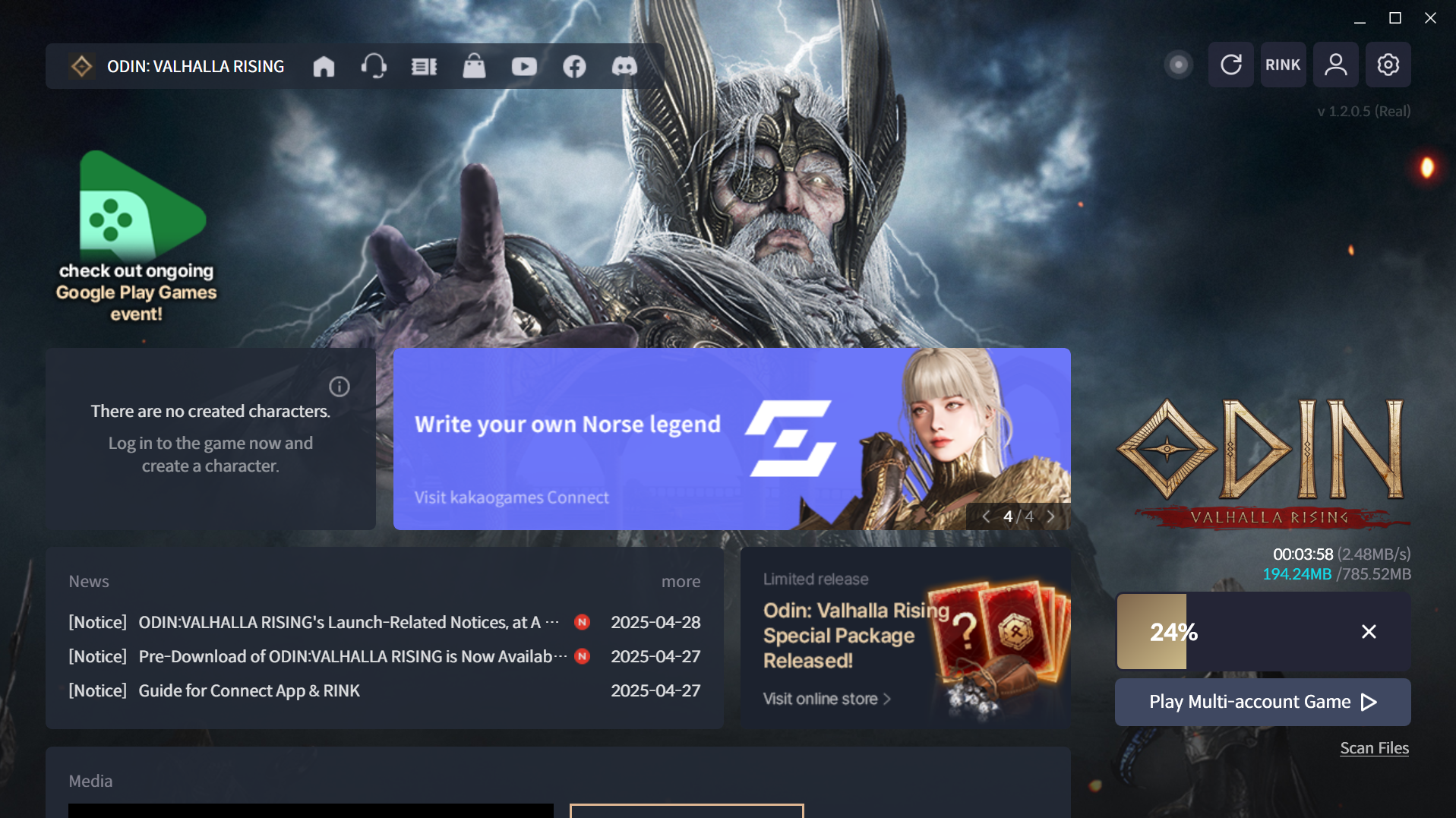
This method bypasses geo-blocks and ensures a secure, high-speed download, even in previously restricted countries.
Best ODIN In-Game Translation Tool
- Supports languages like English, Arab, Turkish, Russian, Thai, Indonesian, Vietnamese, Spanish and Portuguese.
- Available on both PC and Mobile.
- Instantly translates quest descriptions, NPC dialogues, and menus, ideal for players in non-English regions.
How to Get Odin Translation on PC:
Step 1. Click the "One-Click Translation".
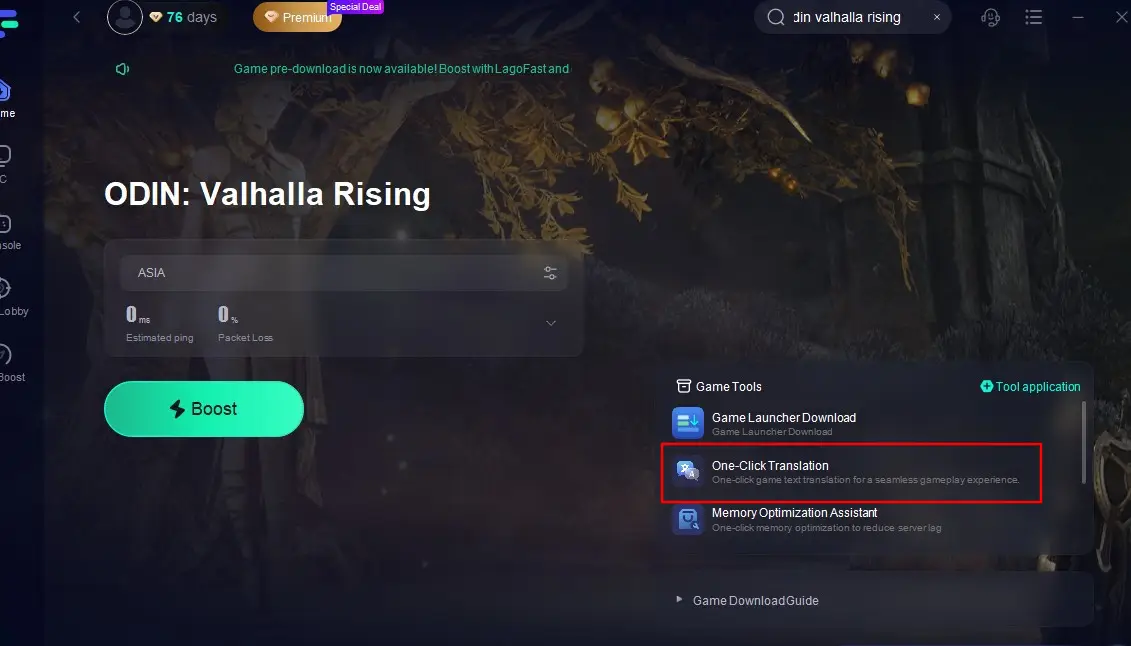
Step 2. Select the path to Odin: Valhalla Rising’s installation folder. This is typically located in your Steam, Xbox, or PlayStation directories.
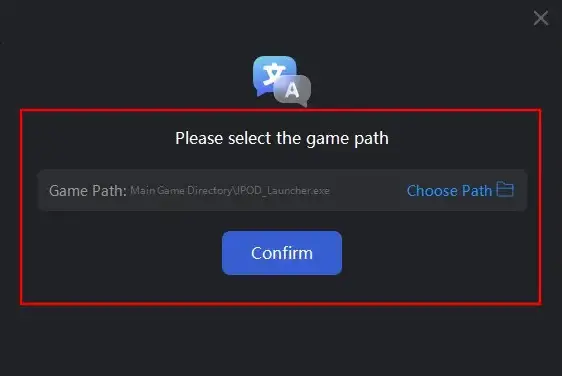
Step 3. Choose your desired language (e.g., English or Spanish). LagoFast provides a list of supported languages, including Vietnamese, Arabic, and Portuguese. Select your preferred language from the drop-down menu.
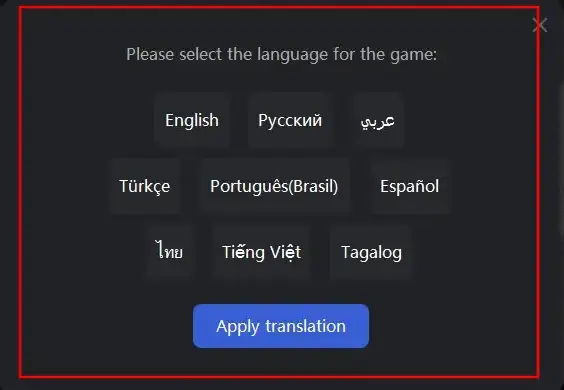
Step 4. Apply the Translation
After selecting the language, LagoFast will begin the translation process. The game’s interface, menus, and subtitles will be translated to your chosen language.
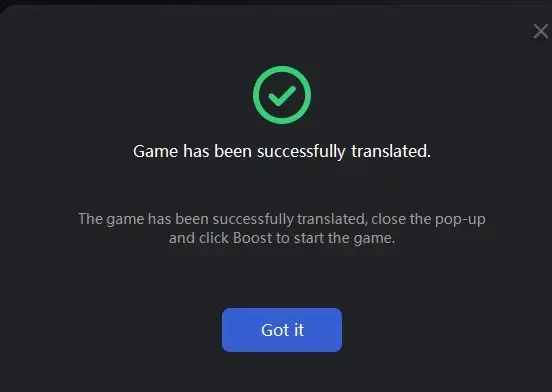
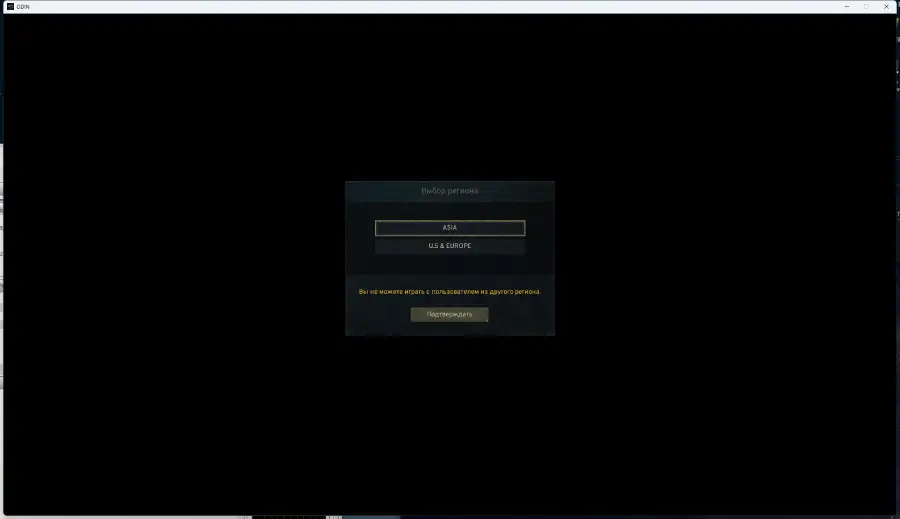
Step 5. Revert to Default Settings
If you want to switch back to the game’s original language at any time, simply launch LagoFast again and choose the option to restore the default settings. LagoFast offers a flexible and reversible translation process.
How to Get Odin Translation on Mobile:
1. Find Odin: Valhalla Rising game in the Boost tab.
2. Then you can see the "quick translate" tool. Tap "Enable"
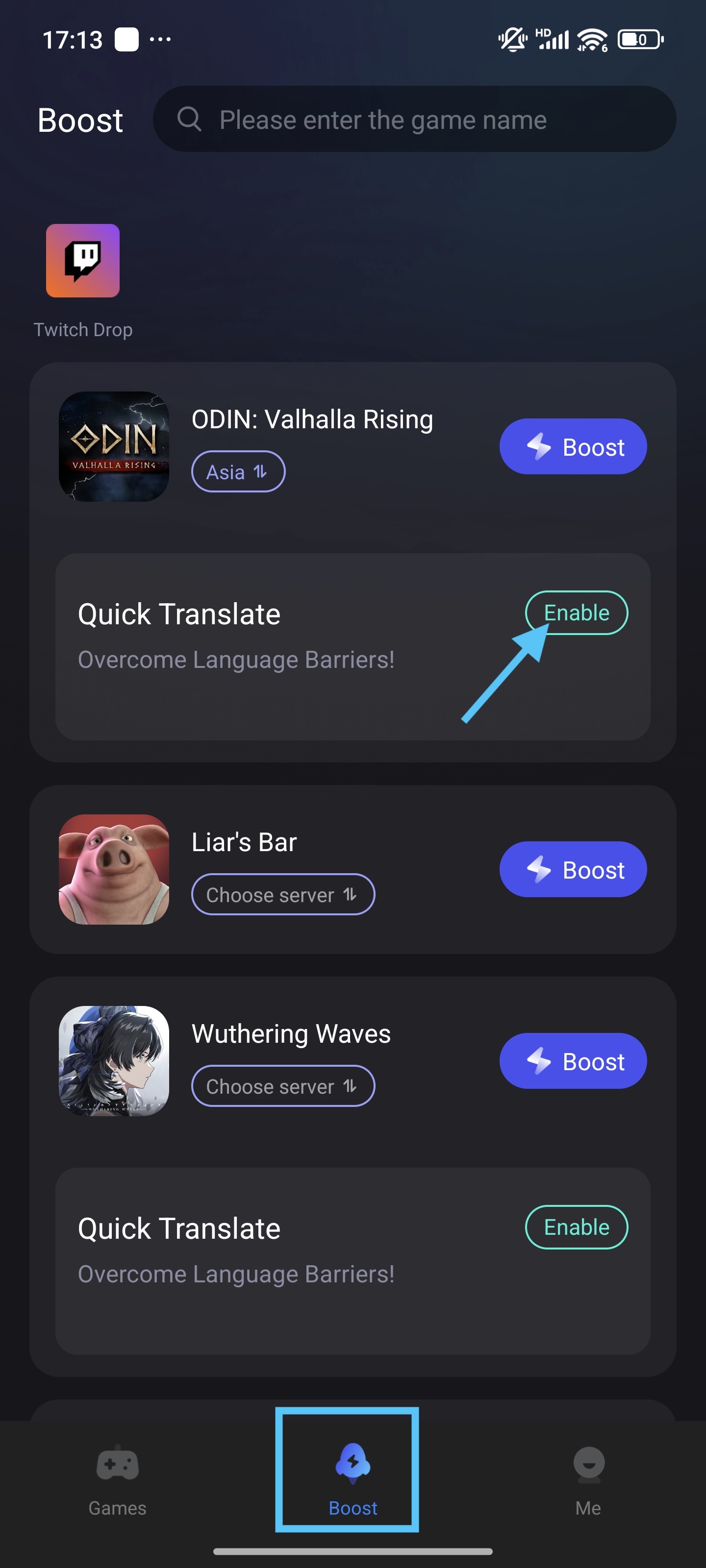
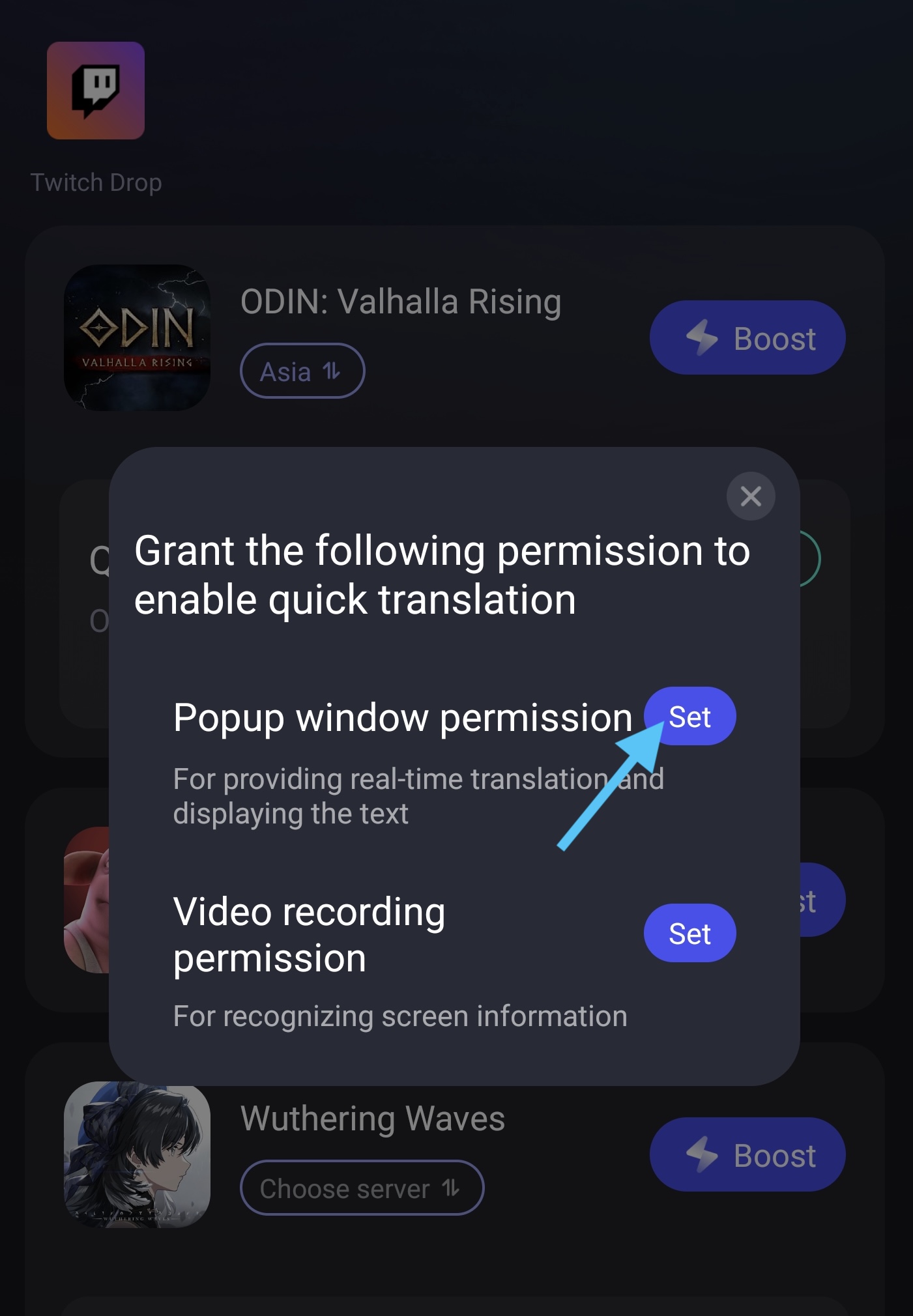
3. Before you turn on the Quick Translate tool, you have to set the permission. First, tap the "Set" button, then find the LagoFast app on the page it leads you to.
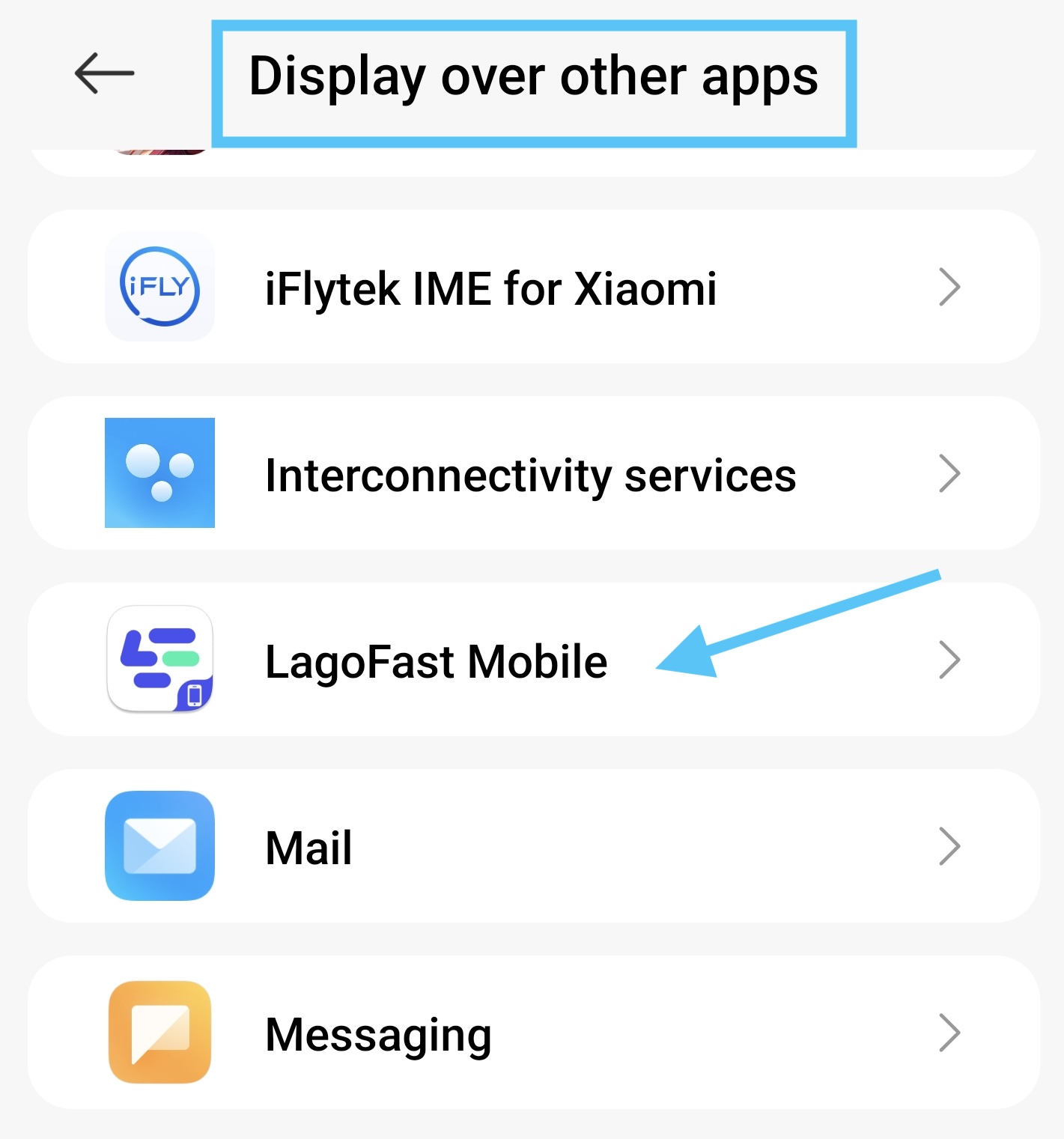
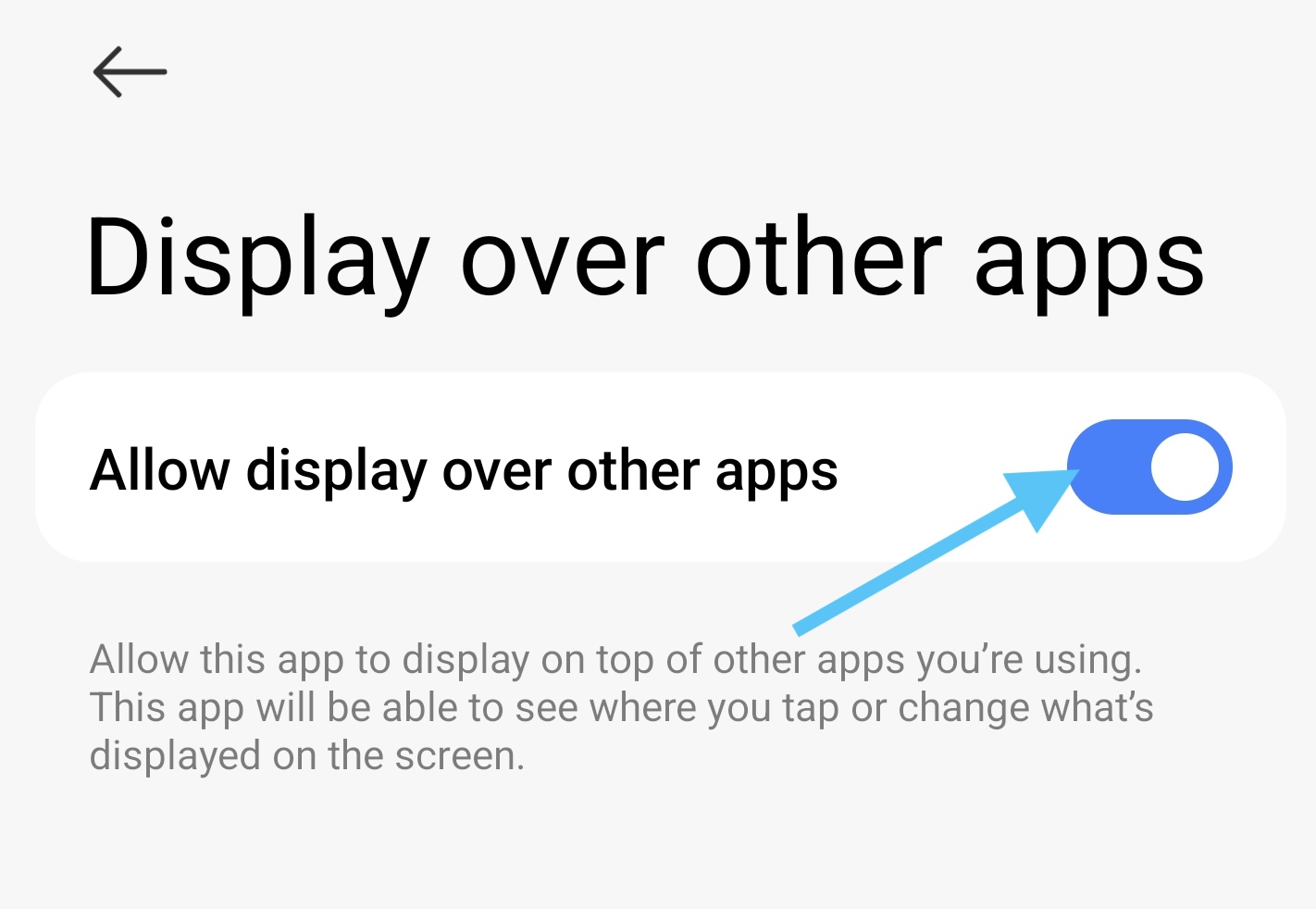
4. Turn on the permission to allow the translate window to display over other apps.
5. Second, go back to the LagoFast app, and tap "Set" button of Video Recording Permission.
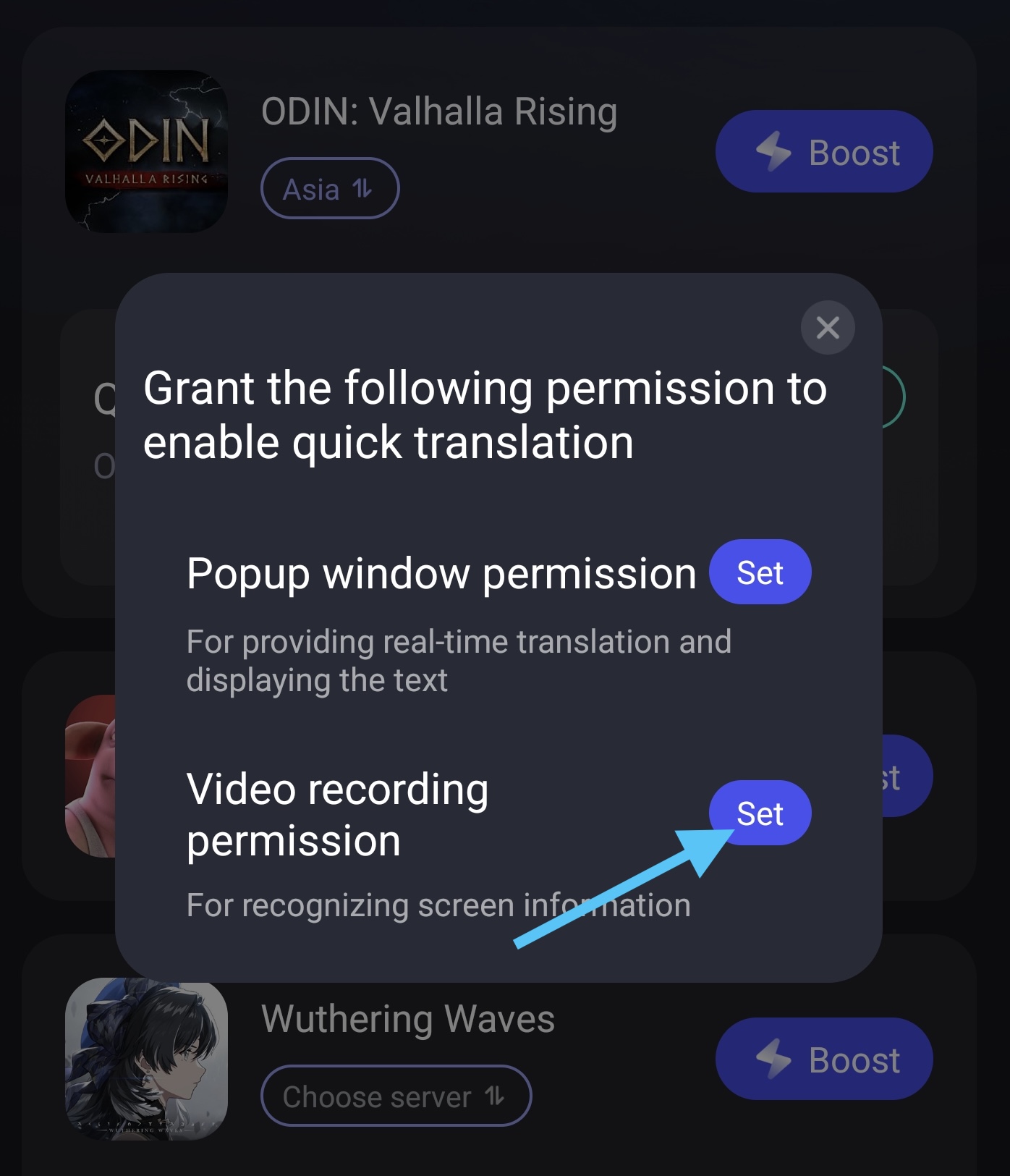
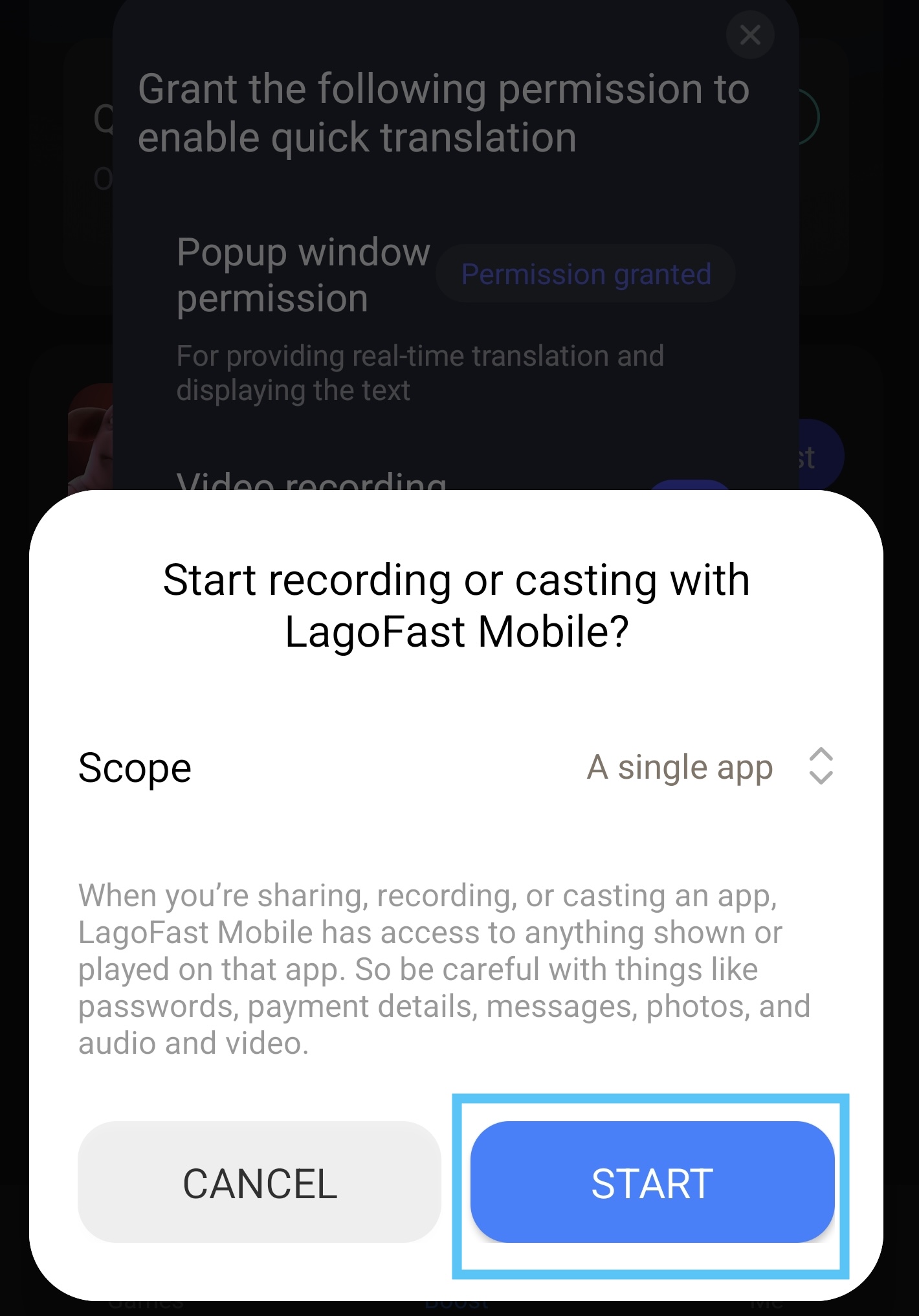
6. Select “Start”
7. Then select the Odin game on the "Share or record an app" page.
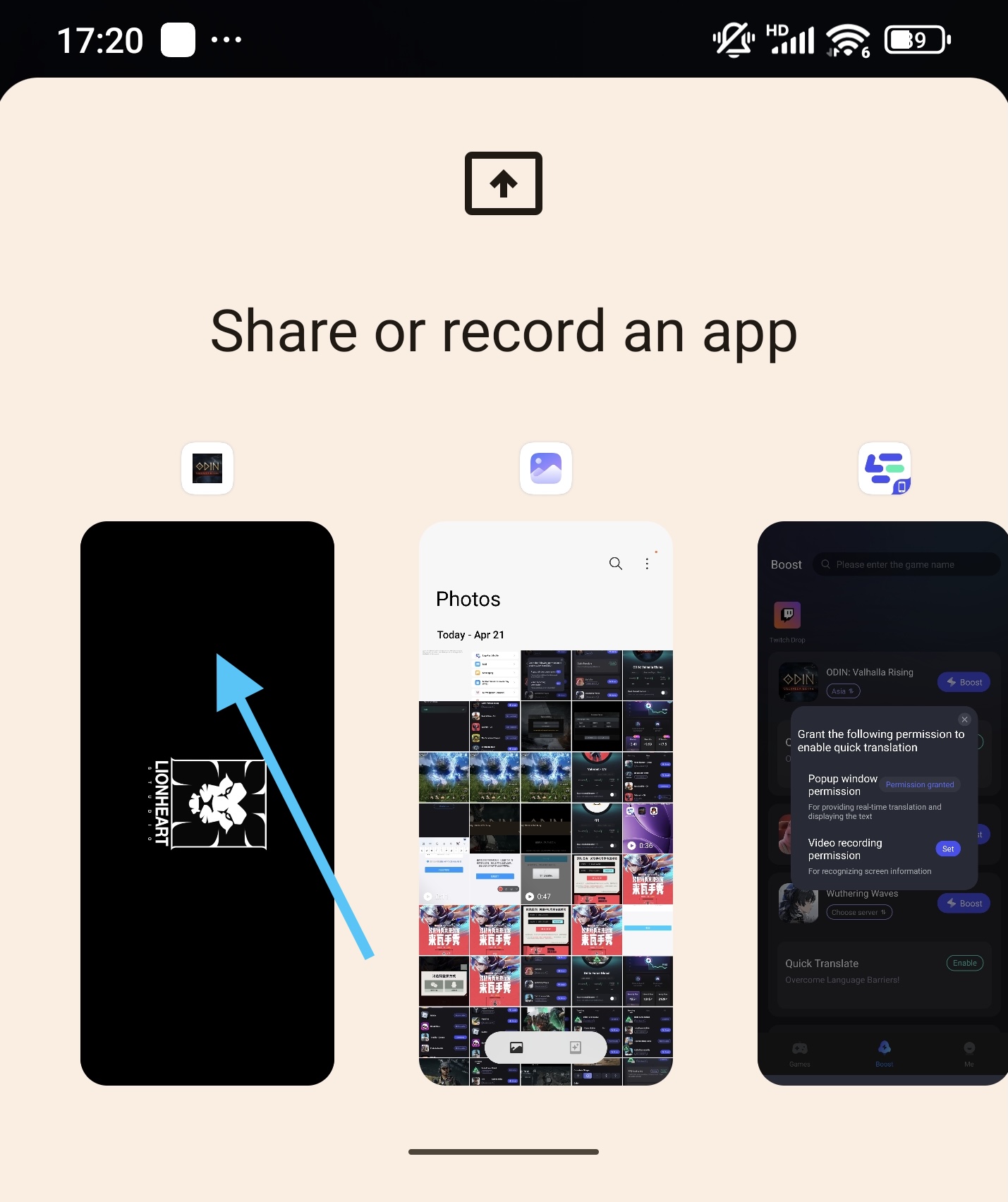
Please note, the tool can only translate the text on your current screen. If the text is changed, you need to re-tap the translate tool and re-select the app you wanna translate (step 5 - step 7).
Get LagoFast Right Now!
Conclusion
Securing your Odin: Valhalla Rising account with Google OTP is non-negotiable in today’s gaming landscape. While manual setup works, LagoFast’s OTP Generator simplifies the process while delivering additional benefits like lag reduction and cross-platform support. Combine it with LagoFast’s translation and download tools, and you’ll enjoy a smoother, more immersive gameplay experience. Whether you’re battling in Valhalla or exploring Midgard, stay secure and optimized with these essential tools.
Boost Your Game with LagoFast for Epic Speed
Play harder, faster. LagoFast game booster eliminates stutter and lags on PC, mobile, or Mac—win every match!
Quickly Reduce Game Lag and Ping!
Boost FPS for Smoother Gameplay!