

Fortnite, one of the most popular battle royale games in the world, offers a highly immersive gaming experience. However, like all online games, it can sometimes run into technical issues that prevent players from logging in or accessing their accounts. One of the most frustrating errors you might encounter is the “Unable to Login to Your Epic Games Account” error.
This issue can occur for a variety of reasons, and while it’s an inconvenience, it’s usually fixable with the right steps. In this article, we will discuss the possible causes behind this error and provide a comprehensive guide to help you fix it on both PC and console. Additionally, we will highlight how to enhance your Fortnite experience with LagoFast Game Booster, a tool that can help optimize your connection and improve performance.

- ✅ Reduce Lag and High Ping
- ✅ Boost FPS in Real Time
- ✅ Get the Easiest Server in Fortnite
- ✅ End All Connection Login Issues.
- ✅ Support 2000+ Video Games.
- ✅ Multiplatform: PC, Mobile, Console
Part 1. Introduction: Understanding the 'Unable to Login to Your Epic Games Account' Error
Part 2. What Causes 'Unable to Login to Your Epic Games Account' Error in Fortnite
Part 3. How to Fix Fortnite 'Unable to Login to Your Epic Games Account' Error
Part 4. How to Enhance Fortnite Game Experience with LagoFast Game Booster
Part 1. Understanding the 'Unable to Login to Your Epic Games Account' Error
If you've been playing Fortnite for any amount of time, you’ve likely encountered the "Unable to Login to Your Epic Games Account" error at least once. This error can prevent you from accessing your game, resulting in frustration, especially during peak gaming hours or after a long wait for new updates.
The error typically occurs when there’s an issue with Epic Games' login servers, a problem with your account credentials, or an issue on your device that prevents a successful login. The good news is that this error is generally easy to resolve, and once fixed, you’ll be back in the action.
Understanding the possible causes and solutions for this issue can save you time and ensure you’re ready to jump back into Fortnite with minimal downtime. Let’s explore the causes and fixes for the “Unable to Login” error.
Part 2. What Causes 'Unable to Login to Your Epic Games Account' Error in Fortnite
There are several potential reasons why you might encounter the “Unable to Login to Your Epic Games Account” error when trying to play Fortnite. These causes can range from simple account problems to more complex system errors. Understanding these causes is essential to applying the right fix.
1. Server Issues
Epic Games' servers might be experiencing downtime or undergoing maintenance. This is one of the most common reasons players are unable to log in. When the servers are down, no one can access the game until the issue is resolved by Epic Games.
2. Incorrect Login Credentials
If you’ve recently changed your password or your account was hacked, you may be trying to log in with outdated or incorrect credentials. Ensuring that you’re using the correct username and password is key.
3. Corrupted Game Files
Sometimes corrupted game files or data can cause issues with the login process. Missing or incomplete files can prevent Fortnite from properly verifying your account.
4. Network Problems
Issues with your internet connection can also cause problems during the login process. Slow or unstable connections can disrupt the login sequence, resulting in an error.
5. Outdated Drivers or Software
Running outdated drivers, especially graphics card drivers, can cause compatibility issues with Fortnite, including login problems. It’s important to regularly update your drivers to ensure optimal game performance and smooth login processes.
6. Cache Issues
On consoles, cache issues can sometimes cause login problems. Clearing the cache may resolve this problem and allow you to log in successfully.
Now that we’ve covered some of the potential causes, let’s move on to the steps you can take to fix the “Unable to Login to Your Epic Games Account” error.
Part 3. How to Fix Fortnite 'Unable to Login to Your Epic Games Account' Error
If you're encountering the "Unable to Login to Your Epic Games Account" error while trying to play Fortnite, don’t worry! There are a few troubleshooting steps you can follow to resolve the issue, whether you’re on PC or console. Here’s a step-by-step guide to help you get back to the Battle Royale action.
Methods 1. Update Your Graphics Card Drivers
Outdated graphics drivers are often the culprit behind various game-related issues, including login problems. These drivers act as a bridge between your hardware (such as the video card) and software (like Fortnite). Keeping them up to date ensures smooth performance and fewer errors. Head to your PC manufacturer’s website or the graphics card provider’s page to check for and install any updates.

Methods 2. Close Background Applications
Running too many applications in the background can interfere with Fortnite’s ability to launch or sign in. By reducing the number of apps that start up with your computer, you can improve performance and free up system resources. Here’s how to perform a clean boot to troubleshoot the issue:
1. Log in as Administrator: Ensure you're logged in with an administrator account. If you're unsure, check Microsoft’s guide for help.
2. Access System Configuration: Type “msconfig” into the search bar and select System Configuration from the results.

Important: If the computer is connected to a network, network policy settings might prevent you from following these steps. Only use the System Configuration utility to change the advanced boot options on the computer with guidance from a Microsoft support engineer. Using the System Configuration utility might make the computer unusable.
3. On the Services tab of System Configuration, select Hide all Microsoft services, and then select Disable all. Select Apply.

4. On the Startup tab of System Configuration, select Open Task Manager.

5. On the Startup apps tab in Task Manager, for each Enabled startup item, select the item and then select Disable. (Keep track of which items have been Disabled. You will need to know this later.)
6. Close Task Manager.
7. On the Startup tab of System Configuration, select OK. When you restart the computer, it will be in a clean boot environment. You can now try to troubleshoot your problem by trying the troubleshooting steps in the section, Install, uninstall, or run an application.
Warning: Your computer might temporarily lose some functionality while in a clean boot environment.
8. Once you are done troubleshooting your problem and want to return your computer to a normal startup, follow the steps in the section, Reset the computer to start normally after clean boot troubleshooting.
Methods 3. Make Sure That Your PC Meets the Minimum System Requirements for Fortnite
If your computer doesn’t meet the minimum system requirements, you might face login issues, crashes, or poor gameplay. It’s essential to check if your PC meets the basic specs required to run Fortnite. You can find the minimum system requirements on the official Fortnite website.
Recommended System Requirements:
- Graphics Card: Nvidia GTX 960, AMD R9 280, or equivalent DX11 GPU
- Processor: Core i5-7300U 3.5 GHz, AMD Ryzen 3 3300U, or equivalent
- Memory: 16 GB RAM or higher
- Storage: NVMe Solid State Drive
- OS: Windows 10/11 64-bit
Minimum System Requirements:
- Graphics Card: Intel HD 4000 (PC); AMD Radeon Vega 8
- Processor: Core i3-3225 3.3 GHz
- Memory: 8 GB RAM
- OS: Windows 10 64-bit version 1703
How to verify your PC meets system requirements
1. Click Start.
2. Type System Information and press Enter.
3. Go to the System Summary to view and review your operating system, type of processor, and amount of memory. Make sure these meet or exceed the requirements list above.
Example:
Fortnite requires a Core i3-3225 3.3 GHz and the system information file shows a Core i7-7600U 2.8GHz, which meets (and exceeds) the minimum system requirements.

4. Click the + sign next to Components to expand the list.
5. Click Display to show your video card(s).
6. Review your video card(s) to ensure the minimum requirements are met.
Example:
Fortnite requires an Intel HD 4000 and the file shows a Nvidia GeForce 940MX, which meets (and exceeds) the minimum system requirements.

Methods4. Wait It Out
Sometimes the issue isn’t on your end. Fortnite’s servers might be undergoing maintenance or experiencing downtime. Before troubleshooting too much, check the official FortniteStatus Twitter account for updates on server status. If there’s an ongoing issue, waiting for the servers to come back online might be the best solution

Part 4. How to Enhance Fortnite Game Experience with LagoFast Game Booster
Once you’ve fixed the login issue, you can further improve your Fortnite gameplay experience with LagoFast Game Booster. LagoFast is a powerful tool designed to reduce lag, boost FPS, and enhance overall network performance, making your gaming experience smoother and more enjoyable.
Here’s how LagoFast can enhance your Fortnite experience:
- Reduce Lag and Latency: LagoFast optimizes your internet connection, ensuring that you get low ping and minimal lag during gameplay.
- Boost FPS: LagoFast automatically adjusts your settings to optimize your computer’s performance, allowing for smoother frame rates and improved game responsiveness.
- Faster Downloads: With LagoFast’s acceleration technology, you can download Fortnite updates and patches more quickly, minimizing wait times.
- Server Selection: LagoFast allows you to choose the best server location for a better online experience, ensuring that your connection to Fortnite’s servers is stable and fast.
Using LagoFast Game Booster will ensure that you’re always ready to enjoy Fortnite without disruptions, whether you’re playing casually or competing in high-stakes matches.
How to use LagoFast on PC
Step 1: Click the Free Trial button to download and install LagoFast Free Trial.
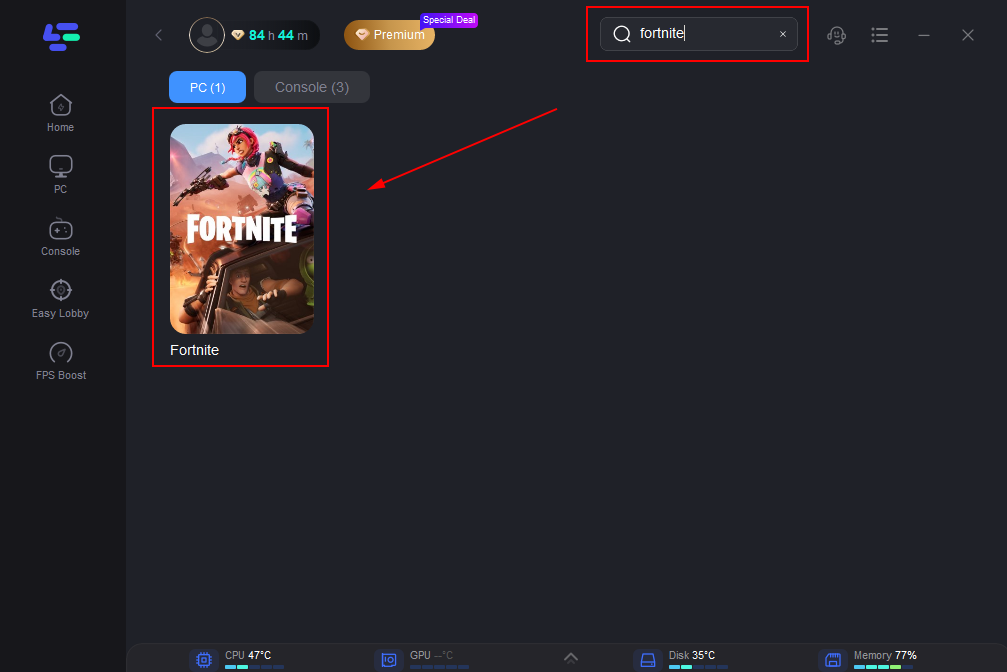
Step 2: Open LagoFast then click the PC button on the left and search Fortnite in the search bar, click it after appearing.
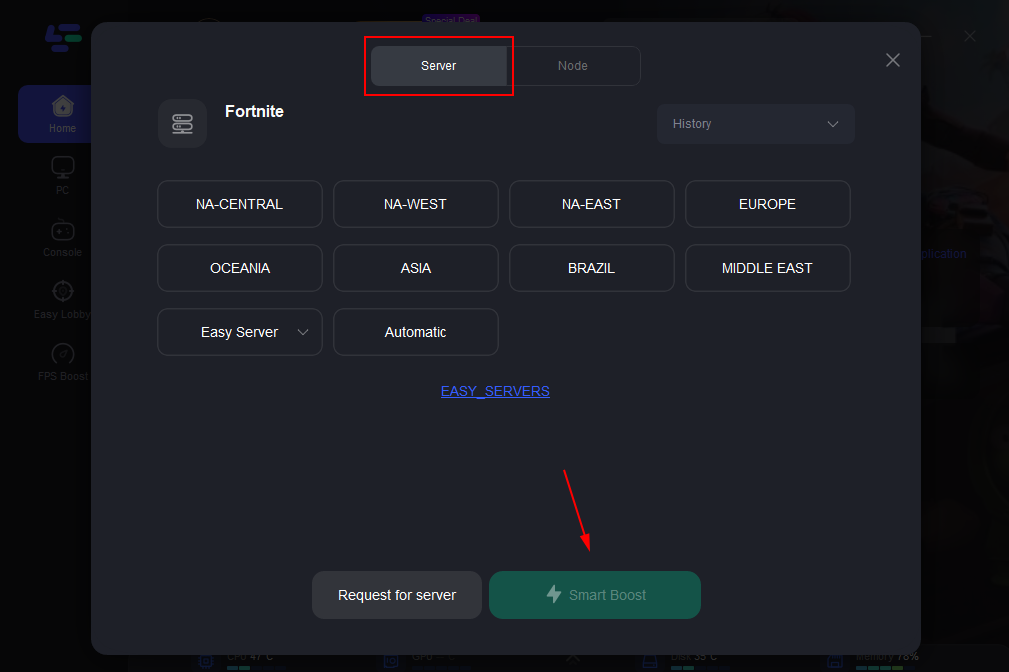
Step 3: Click on Server to change to a better server that ensures a stable connection, then click on Smart Boost.
Step 4: Check the specific game ping, packet loss, and multiple path connection on the right side.
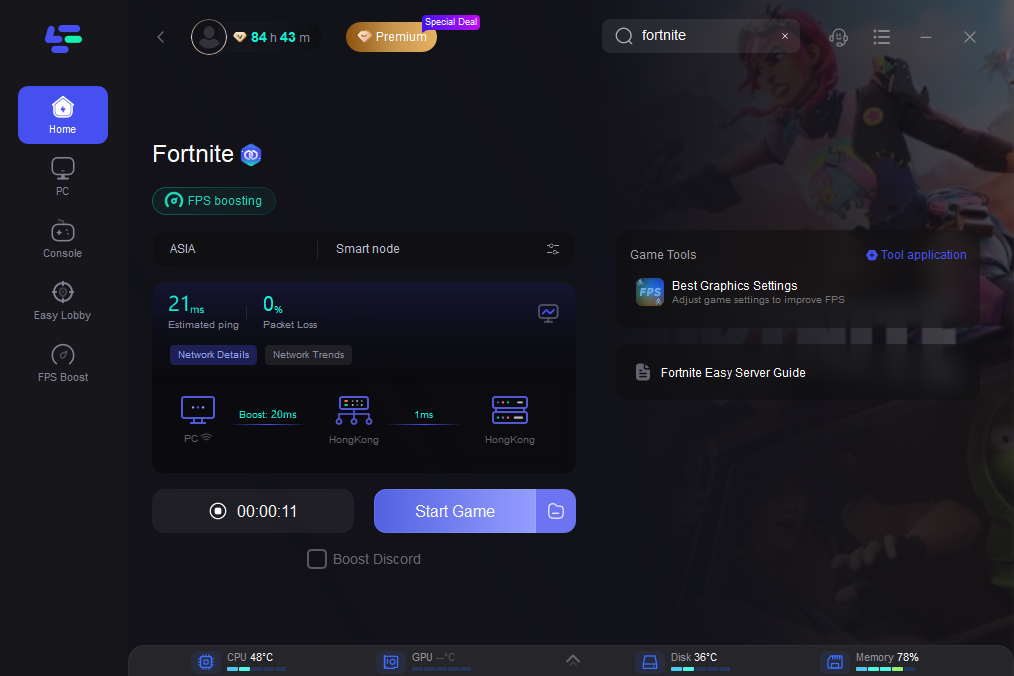
LagoFast automatically optimizes your FPS & network for a smoother gameplay experience.
Part 5. FAQs
1. Why does Fortnite keep saying “Unable to Login to Your Epic Games Account”?
This error can occur due to server issues, incorrect login credentials, corrupted game files, network problems, or outdated drivers. You should check if there are any server outages, ensure that your credentials are correct, and follow the troubleshooting steps provided in this guide.
2. How can I check if the Epic Games servers are down?
You can check Epic Games' server status on their official status page. If the servers are down for maintenance, you'll need to wait for them to be back online.
3. Can I fix the login error on a console?
Yes, clearing the cache and ensuring your console has the latest updates can often resolve the issue. You can also try restarting your console and logging in again.
4. What should I do if my drivers are up to date but I still can’t log in?
If your drivers are up to date, try disabling background applications, checking for corrupted game files, or ensuring your internet connection is stable. If the issue persists, consider reinstalling Fortnite.
5. How does LagoFast Game Booster help with login issues?
While LagoFast doesn’t directly fix login issues, it can improve your overall Fortnite experience by reducing lag, improving network stability, and optimizing your FPS. It can help ensure a smoother connection when accessing Epic Games services.
Conclusion
In conclusion, the “Unable to Login to Your Epic Games Account” error in Fortnite can be a frustrating roadblock, but with the right troubleshooting steps, you can fix it and return to the game. Whether you're playing on PC or console, the solutions provided here should help resolve the issue. Additionally, optimizing your game experience with LagoFast Game Booster will ensure that you enjoy smoother gameplay with minimal disruptions.

Boost Your Game with LagoFast for Epic Speed
Play harder, faster. LagoFast game booster eliminates stutter and lags on PC, mobile, or Mac—win every match!
Quickly Reduce Game Lag and Ping!
Boost FPS for Smoother Gameplay!