
Quick Answer
If Fortnite looks pixelated on your PC, the most common culprits are low 3D Resolution settings, playing in Performance Mode, or aggressive DLSS/TSR/FSR scaling. To fix this, ensure your 3D Resolution is set to 100%, use your monitor's native resolution, switch from Performance Mode to DirectX 11 or 12, and set DLSS/TSR/FSR to Quality or Native. Update your GPU drivers and verify game files for a stable foundation. While these core settings are crucial, tools like LagoFast Game Screen Filters can further enhance visual clarity, sharpness, and color visibility, making enemies easier to spot and the game more immersive.

- ✅ Reduce Lag and High Ping
- ✅ Boost FPS in Real Time
- ✅ Get the Easiest Server in Fortnite
- ✅ End All Connection Login Issues.
- ✅ Support 2000+ Online Games.
- ✅ Fortnite Game Filter
Part 1: Why Fortnite Looks Pixelated on PC
Part 2: How to Fix Pixelated Fortnite Graphics
Part 3: Can a Fortnite Filter Tool Fix Pixelated Graphics?
Part 4: How to Enhance Your Game Experience with LagoFast Game Booster
Part 1: Why Fortnite Looks Pixelated on PC
Few things are as frustrating in a fast-paced battle royale like Fortnite as a pixelated, blurry, or generally low-quality visual experience. When distant enemies appear as indistinct blobs, textures fail to load, or the entire landscape seems to be rendered in chunky squares, your competitive edge is severely dulled. This isn't just an aesthetic issue; it directly impacts gameplay, making target acquisition harder and immersion impossible. Understanding why your Fortnite might look pixelated is the first step toward reclaiming visual fidelity and, consequently, your win rate.
The causes behind a pixelated Fortnite can range from simple in-game settings to more complex system configurations. Often, players inadvertently optimize for performance at the expense of visual quality, leading to a compromised experience. Modern games, especially those with competitive modes, offer a plethora of graphical options, and navigating them without a clear understanding can lead to unintended visual degradation. Let's break down the primary reasons why your Fortnite might be looking less than stellar.
3D Resolution Is Set Too Low
This is arguably the most common culprit for pixelated graphics. The 3D Resolution setting in Fortnite determines the internal rendering resolution of the game's 3D elements. If your display resolution is 1920x1080 (1080p) and your 3D Resolution is set to 50%, the game is effectively rendering its 3D world at 960x540 pixels and then upscaling it to your monitor's native resolution. This upscaling process results in a noticeably pixelated and blurry image, as there isn't enough native detail to fill the screen.
Many players, particularly those with less powerful hardware, lower this setting to gain a few extra frames per second (FPS). While it does boost performance, the trade-off in visual quality is significant. It's a direct cause of the
chunky, blocky appearance often described as pixelated.
Your Game Resolution Is Not Native
Playing Fortnite at a resolution that doesn't match your monitor's native resolution can also lead to a pixelated or blurry image. Monitors are designed to display images optimally at their native resolution. When you run a game at a different resolution, your monitor or GPU has to scale the image, which can introduce blurriness and reduce sharpness. For instance, if you have a 1440p monitor but play Fortnite at 1080p, the image will be stretched or compressed, leading to a less crisp display.
Performance Mode Reduces Visual Quality
Fortnite offers a
Performance Mode specifically designed for older or less powerful PCs. This mode aggressively scales back visual fidelity to prioritize high frame rates. It simplifies textures, reduces the complexity of lighting and shadows, and often lowers the internal rendering resolution. While it's excellent for achieving smooth gameplay on low-end hardware, the visual cost is substantial. Textures can appear muddy, distant objects lose detail, and the overall image can look significantly more pixelated compared to DirectX 11 or 12 modes.
DLSS, TSR, or FSR Is Set to Performance Mode
Deep Learning Super Sampling (DLSS), Temporal Super Resolution (TSR), and FidelityFX Super Resolution (FSR) are advanced upscaling technologies. They render the game at a lower internal resolution and then use sophisticated algorithms to upscale the image to your target resolution, aiming to provide a balance between performance and visual quality. However, if these settings are pushed to their "Performance" or "Ultra Performance" presets, the internal rendering resolution becomes very low. The upscaling algorithms, while impressive, cannot fully reconstruct the lost detail, resulting in a pixelated or blurry final image, especially in fast-moving scenes or when viewing distant objects.
Anti-Aliasing or View Distance Is Too Low
Anti-aliasing (AA) is a technique used to smooth out jagged edges (jaggies) on objects in the game world. If AA is turned off or set to a low quality, edges will appear pixelated and stair-stepped. This is particularly noticeable on thin objects like power lines or the edges of buildings.
View Distance determines how far away objects are rendered in detail. If set too low, distant terrain, buildings, and even players will appear as low-resolution, blurry blobs until you get closer. This can contribute to an overall feeling of pixelation, especially in a game like Fortnite where spotting distant enemies is crucial.
Textures Are Not Loading Properly
Sometimes, the issue isn't a setting but a technical glitch. If textures fail to load correctly, objects will appear with low-resolution placeholder textures, making them look incredibly blurry and pixelated. This can be caused by slow storage drives (like older HDDs), insufficient VRAM on your graphics card, or corrupted game files.
Part 2: How to Fix Pixelated Fortnite Graphics
Now that we understand the potential causes, let's explore the solutions. Fixing pixelated graphics in Fortnite usually involves adjusting a combination of in-game settings and ensuring your system is optimized.
Set 3D Resolution to 100%
This is the most critical step. Navigate to Fortnite's Video settings and locate the 3D Resolution slider. Ensure it is set to exactly 100%. This guarantees that the game is rendering its 3D elements at the same resolution as your display, eliminating the blurriness caused by internal upscaling. If your performance drops significantly after doing this, you may need to lower other settings like shadows or effects, rather than sacrificing 3D Resolution.
Use Your Monitor’s Native Resolution
Check your monitor's native resolution (e.g., 1920x1080, 2560x1440) in your Windows display settings. Then, in Fortnite's Video settings, ensure the "Resolution" matches this native value. Playing at native resolution ensures the sharpest possible image, as no scaling is required by your monitor or GPU.
Change DLSS / TSR / FSR to Quality or Native
If you are using upscaling technologies like DLSS, TSR, or FSR, review their settings. If they are set to "Performance" or "Ultra Performance," change them to "Quality" or "Native" (if available). The "Quality" setting renders the game at a higher internal resolution before upscaling, providing a much sharper image that is closer to native rendering while still offering a slight performance boost.
Adjust Anti-Aliasing and View Distance
To combat jagged edges, ensure Anti-Aliasing is enabled. Options like TAA (Temporal Anti-Aliasing) or TSR (when used for anti-aliasing) generally provide the best balance of smoothness and performance.
For View Distance, try setting it to "Epic" or "Far." This ensures that distant objects and terrain are rendered with higher detail, reducing the blurry, low-resolution appearance of the horizon. This setting can impact performance, so adjust it based on your hardware capabilities.
Update GPU Drivers and Verify Game Files
Outdated graphics drivers can cause a myriad of visual issues, including texture loading problems and pixelation. Visit the official website of your GPU manufacturer (NVIDIA, AMD, or Intel) and download the latest drivers for your specific card.
Additionally, corrupted game files can lead to missing or low-resolution textures. Open the Epic Games Launcher, go to your Library, click the three dots next to Fortnite, select "Manage," and then click "Verify." This process will check your game files and replace any that are corrupted or missing.
Part 3: Can a Fortnite Filter Tool Fix Pixelated Graphics?
When players encounter visual issues, they often turn to third-party tools, such as game screen filters, hoping for a quick fix. It's crucial to understand the capabilities and limitations of these tools. LagoFast Game Screen Filter tools, for instance, are powerful utilities for enhancing visual aesthetics, but they are not a magic bullet for fundamental rendering problems.
What Filters Can Improve
Game screen filters excel at modifying the final rendered image to improve clarity, contrast, and color vibrancy. They are highly effective in the following scenarios:
- Washed-Out Colors: If Fortnite looks gray or lacks vibrancy, filters can boost saturation and contrast, making the world pop.
- Poor Visibility: Filters can sharpen the image, making edges more defined and helping distant enemies stand out against the background.
- Atmospheric Haze: They can cut through in-game fog or haze, improving overall clarity.
- Personal Preference: Filters allow you to customize the visual style of the game to your liking, whether you prefer a more vibrant, cinematic, or realistic look.
What Filters Cannot Fix
It is vital to understand that filters operate on the image after it has been rendered by the game engine. They cannot add detail that isn't there. Therefore, filters cannot fix pixelation caused by:
- Low 3D Resolution: If the game is rendering at a low internal resolution, a filter will only sharpen the pixelated blocks; it won't magically create high-resolution textures.
- Performance Mode Limitations: Filters cannot restore the complex lighting, shadows, or high-resolution textures that Performance Mode intentionally disables.
- Aggressive Upscaling (DLSS/TSR Performance): If the upscaler is struggling to reconstruct detail from a very low internal resolution, a filter cannot replace that lost information.
- Incorrect Display Resolution: Filters cannot correct the blurriness caused by playing at a non-native resolution.
In essence, filter tools are not the primary solution for "fixing pixelation." They are supplementary tools designed to enhance clarity, sharpness, contrast, and visibility after you have optimized your core rendering settings.
Visual Issues Comparison Table
To clarify the distinction between different visual issues and the appropriate solutions, refer to this table:
|
Visual Issue |
User Experience |
Primary Causes |
Is a Filter Tool Suitable? |
|
Fortnite Pixelated |
Blocky appearance, low resolution, blurry distance, jagged edges. |
Low 3D Resolution, non-native resolution, Performance Mode, low DLSS/TSR settings. |
No (Only for auxiliary sharpening). Must fix core settings first. |
|
Fortnite Looks Blurry |
Overall blurriness, smearing during movement, unclear distant objects. |
Motion Blur, aggressive TSR/DLSS, poor Anti-Aliasing, low render scale, unstable FPS. |
Yes (Can assist in improving clarity). |
|
Fortnite Looks Washed Out |
Colors lack vibrancy, low contrast, image appears covered in a gray film. |
HDR settings, brightness/contrast calibration, monitor color profiles, driver settings. |
Yes (Highly suitable for improvement). |
Part 4: Best Fortnite Game Screen Filter Tool - LagoFast
LagoFast Game Screen Filter is a visual enhancement tool designed to improve clarity in Fortnite. It helps fix common issues like washed-out colors, foggy or gray visuals, low contrast, and difficulty spotting enemies at long distances. By adjusting sharpness, contrast, and color vibrancy, it delivers a cleaner and more defined image for better visibility in gameplay.
In addition to its filter features, LagoFast also works as a game booster. It optimizes network routing to reduce ping, stabilize connections, and minimize lag and packet loss, ensuring smoother and more responsive Fortnite matches.
Steps to Use LagoFast Game Booster for Fortnite:
Step 1: Begin by clicking the Free Trial button to download and install the LagoFast Free Trial.
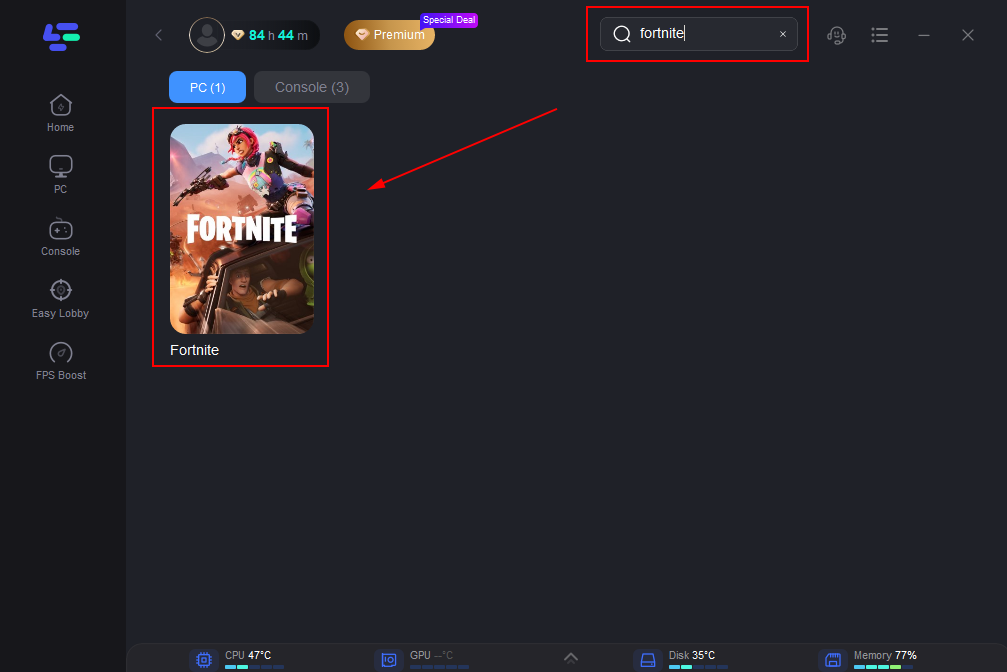
Step 2: After the installation is complete, launch LagoFast and use the search function to locate Fortnite and choose it from the list of results.
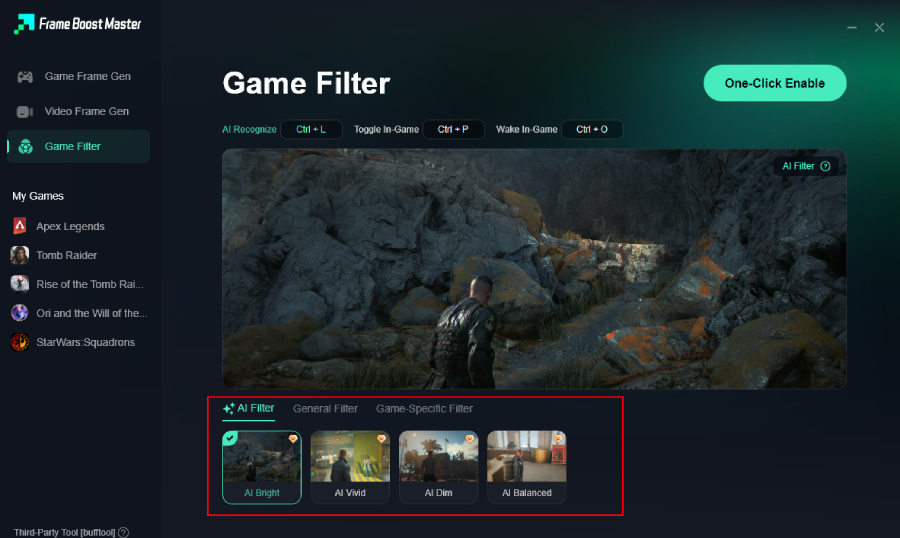
Step 3: Click the Game Screen Filter Tool on the right.
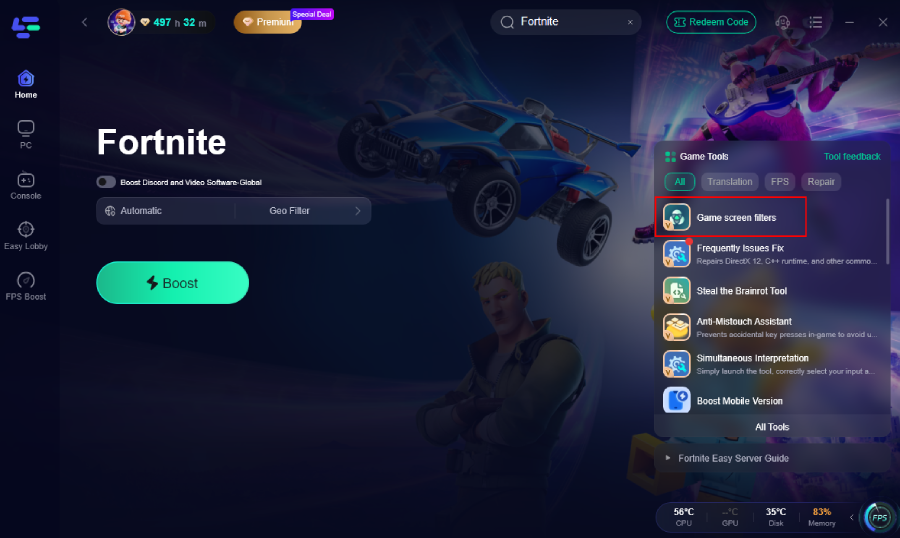
Step 4. Select your preferred filter like AI Bright and click One-Click Enable button to unlock the new experience.
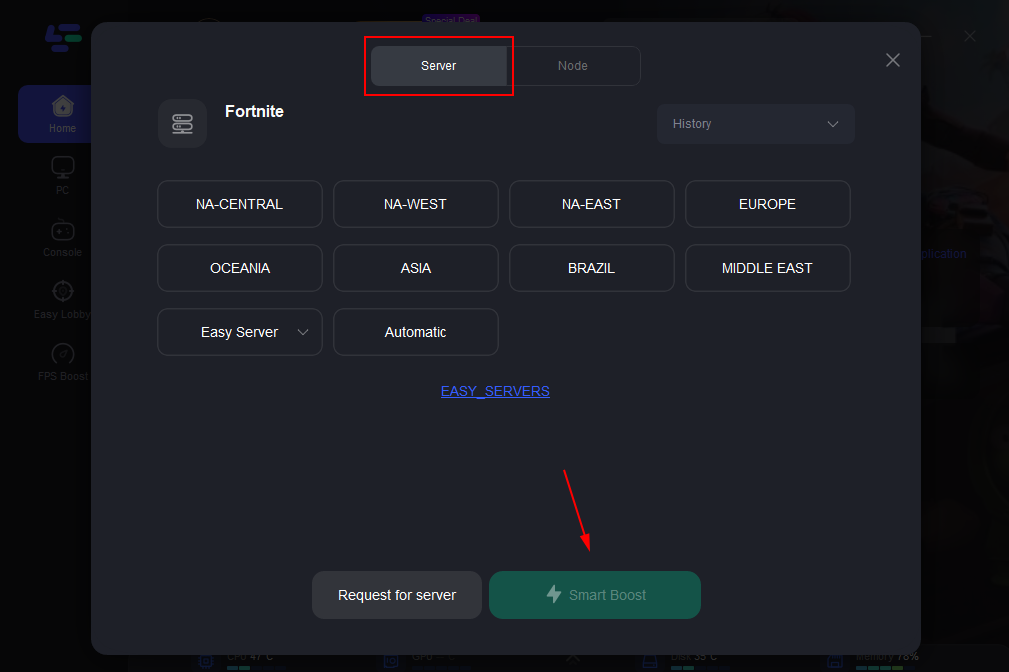
Step 5: Pick a server that is closest to your location or offers the lowest latency for optimal performance.
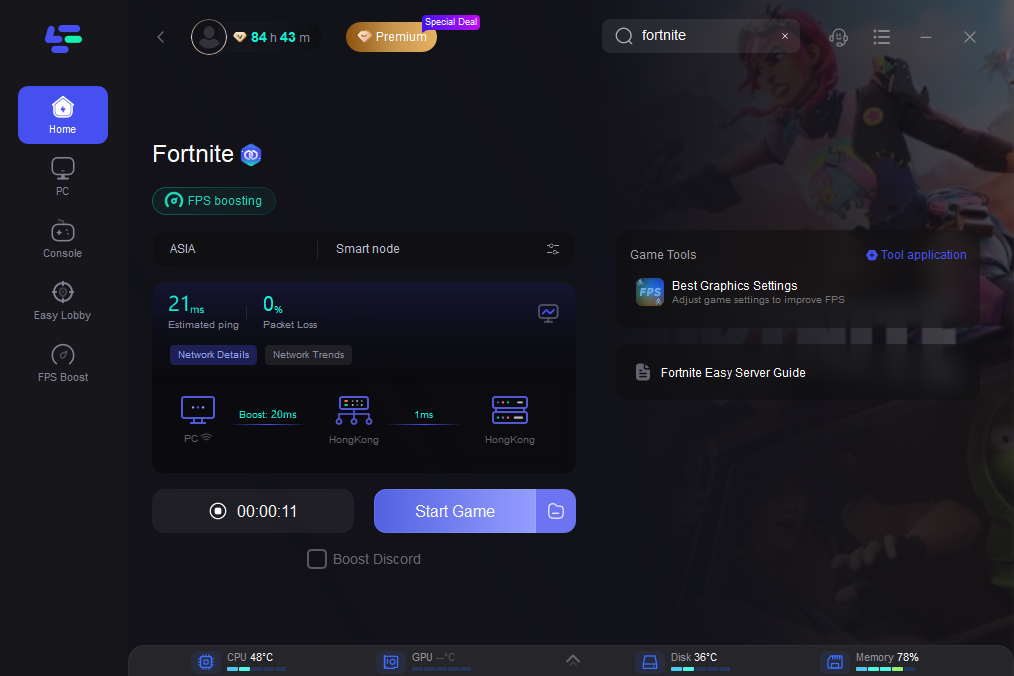
Step 6: Wait for the connection to establish, and enjoy a more stable gaming experience.
Part 5: FAQ
Q1: Will turning off Performance Mode lower my FPS significantly?
A: Yes, switching from Performance Mode to DirectX 11 or 12 will likely decrease your FPS, as the game will render more complex textures, lighting, and shadows. However, it is the most effective way to significantly improve visual quality and reduce pixelation. You will need to find a balance between acceptable FPS and desired visual fidelity based on your hardware.
Q2: Why does my game look blurry when I move the camera quickly?
A: This is typically caused by the "Motion Blur" setting. Motion Blur intentionally blurs the image during fast camera movements to simulate real-world camera behavior. While some players prefer the cinematic effect, it can make spotting enemies difficult. Disabling Motion Blur in the Video settings usually resolves this issue.
Q3: Can a slow hard drive cause pixelated textures?
A: Yes. If you are playing Fortnite on an older, slower Hard Disk Drive (HDD), the game may struggle to load high-resolution textures quickly enough as you move through the world. This can result in objects appearing blurry or pixelated until the higher-quality textures finally load. Upgrading to a Solid State Drive (SSD) is highly recommended for modern gaming.
Q4: Does changing my monitor's refresh rate affect pixelation?
A: No, your monitor's refresh rate (e.g., 60Hz, 144Hz, 240Hz) determines how many times per second the screen updates the image. It affects the smoothness of motion and responsiveness but does not directly impact the resolution or pixelation of the rendered image.
Q5: I've set my 3D Resolution to 100%, but the game still looks slightly blurry. What else can I do?
A: If your 3D Resolution is at 100% and you are at native resolution, check your Anti-Aliasing settings. Some forms of AA, like TAA, can introduce a slight softness to the image. You can try adjusting the AA quality or experimenting with different upscaling technologies (like DLSS or TSR set to Quality) to find the sharpest image for your setup. Additionally, this is where a tool like LagoFast's Game Screen Filter can be used to add a touch of sharpening to enhance clarity.
Key Takeaway
Fixing pixelated graphics in Fortnite requires addressing core rendering settings like 3D Resolution, Performance Mode, and DLSS/TSR scaling. While filter tools like LagoFast Game Screen Filters cannot fix fundamental resolution issues, they are excellent supplementary tools for enhancing clarity, sharpness, and color vibrancy once your core settings are optimized.
Boost Your Game with LagoFast for Epic Speed
Play harder, faster. LagoFast game booster eliminates stutter and lags on PC, mobile, or Mac—win every match!
Quickly Reduce Game Lag and Ping!
Boost FPS for Smoother Gameplay!