
A useful Fortnite FPS booster does not create frames from nowhere. It reduces avoidable load, applies sensible game and Windows settings, or fixes a separate network problem that only feels like low FPS. Start with Fortnite Performance Mode, close unnecessary background apps, update your GPU driver, and use a stable frame cap. If the FPS counter is steady but you still rubber-band, teleport, or see delayed builds, troubleshoot ping, jitter, and packet loss instead.
In this guide
- The 60-second FPS fix
- Low FPS, stutter, or network lag?
- Best Fortnite FPS settings
- Performance Mode vs. DirectX 12
- Windows and driver fixes
- How LagoFast can help
- Fortnite FPS booster tools compared
- How to test your results
- Low-end PC priorities
- FAQ
How to Boost Fortnite FPS: The 60-Second Answer
- Turn on Show FPS in Fortnite so you can measure the problem.
- Try Performance - Lower Graphical Fidelity under Rendering Mode, then restart Fortnite.
- Use Fullscreen, turn off V-Sync and Motion Blur, and lower Shadows, Effects, and post-processing options.
- Cap FPS at a number your PC can hold during a busy fight, not the highest number visible in an empty area.
- Update the GPU driver, close recording tools and browser tabs, and select a high-performance Windows power mode.
- Verify Fortnite files if the problem began after an update.
- Check temperatures if performance becomes worse after playing for a while.
These steps follow the troubleshooting order recommended by Epic Games Support. Epic also warns that results depend on your hardware and that software changes may produce only a small improvement—or none at all.

- ✅ Reduce Lag and High Ping.
- ✅ Boost FPS at the Same Time.
- ✅ Support 8000+ Popular Online Games.
- ✅ Support Easy Lobby in all Cod Games without Lag
First, Identify What Is Actually Causing the Problem
“Fortnite is lagging” can describe several different failures. Watch the FPS counter and, when possible, your ping and packet-loss indicators while the symptom happens.
| What you see | Likely problem | Start here |
|---|---|---|
| The FPS counter stays low in every match | GPU, CPU, graphics settings, power mode, or hardware limit | Performance Mode, lower GPU-heavy settings, driver and power checks |
| Average FPS looks fine, but the image freezes for a moment | Poor 1% lows, shader compilation, storage, RAM pressure, heat, or background activity | Stable FPS cap, file verification, SSD/RAM/temperature checks |
| Your character rubber-bands or builds appear late | High ping, jitter, packet loss, or an unstable route | Wired connection, stop downloads, test the route and game region |
| A mouse click feels late although FPS and ping are stable | System/display latency, V-Sync, display mode, or peripheral latency | Fullscreen, V-Sync off, NVIDIA Reflex if supported, monitor settings |
| FPS drops only after an update | Changed settings, corrupted files, new shaders, driver conflict, or background download | Verify files, restart, recheck Rendering Mode, update the driver |
This distinction matters because a ping reducer normally cannot repair a GPU bottleneck, while lowering Shadows cannot repair packet loss. The best Fortnite optimizer is the one that matches the measured problem.
Best Fortnite FPS Settings for PC
There is no single preset for every PC. Players in a current FortNiteBR settings discussion raised a useful point: maximum FPS is not always the same as the best experience. Use the Competitive preset for the clearest and fastest presentation, Balanced when you want visual detail without large performance spikes, and Visual only when your PC can hold its target frame rate in real fights.
| Setting | Competitive | Balanced | Visual |
|---|---|---|---|
| Window Mode | Fullscreen | Fullscreen | Fullscreen or Windowed Fullscreen |
| Resolution | Native; lower only if GPU-limited | Native | Native |
| Frame Rate Limit | A stable value near the monitor refresh rate | A stable value the PC holds in fights | Cap for consistent frame time and temperature |
| Rendering Mode | Performance Mode | Test Performance Mode and DirectX 12 | DirectX 12 on suitable hardware |
| 3D Resolution | Start at 100%; reduce gradually if GPU-limited | 100% | 100% |
| View Distance | Medium or Far | Far | Far or Epic |
| Shadows | Off | Off or Low | As hardware allows |
| Textures | Low | Medium | High if VRAM allows |
| Effects | Low | Low or Medium | Medium or High |
| V-Sync | Off | Off; use VRR if available | Enable only if tearing is the larger problem |
| Motion Blur | Off | Off | Personal preference |
| NVIDIA Reflex Low Latency |
On test On + Boost on supported hardware |
On | On |
Change one group of settings at a time, then repeat the same test. If you change the rendering mode, resolution, driver, power plan, and frame cap together, you will not know which change helped. NVIDIA explains that Reflex reduces system latency on supported hardware; it is a latency feature, not a promise of a particular FPS increase.
Fortnite Performance Mode vs. DirectX 12
Performance Mode lowers graphical fidelity to reduce rendering load. It is the first mode to test on an older PC, integrated graphics, limited RAM, or a system that loses frames during fights. DirectX 12 can be a better fit for a stronger modern PC when you want more visual quality, but it may need time to build shaders after a driver or game update.
| Choose Performance Mode when… | Test DirectX 12 when… |
|---|---|
| Your PC is close to Fortnite’s minimum specification | You have a modern dedicated GPU and enough RAM |
| You prioritize competitive visibility and stable FPS | You want a balance of performance and visual quality |
| GPU usage is high and lowering visual load helps | Performance Mode is unstable or looks too limited for your preference |
How to enable Fortnite Performance Mode
- Launch Fortnite and open Settings.
- Select the Video tab.
- Under Display, find Rendering Mode.
- Select Performance - Lower Graphical Fidelity.
- Apply the change and restart Fortnite.
Epic’s current Performance Mode instructions also explain how to remove High Resolution Textures from the Epic Games Launcher. Epic says doing so can save more than 15 GB and may help PC performance.
What official example data can—and cannot—prove
Epic’s low-FPS support page includes two illustrative 720p laptop tests in a standard Squads match. One system with an Intel i5-8265U, 8 GB RAM, and UHD 620 moved from 24 to 61 FPS; another with an AMD A10-5745M, 6 GB RAM, and Radeon HD 8610G moved from 18 to 45 FPS. Those are Epic’s examples, not LagoFast tests, and they do not guarantee the same change on your PC or the current Fortnite build. They show why Performance Mode is worth testing on limited hardware.
Windows, GPU, Driver, and Background-App Fixes
1. Make Fortnite use the high-performance GPU
On a laptop with integrated and dedicated graphics, Windows may assign the wrong GPU. Open Settings → System → Display → Graphics, add FortniteClient-Win64-Shipping.exe, and select High performance. Epic also recommends enabling Hardware-accelerated GPU scheduling when it is available and stable on your system.
2. Stop background work before a match
Close unused browsers, launchers, RGB utilities, recorders, overlays, and downloads. Do not disable security tools or random Windows services from an unverified “FPS pack.” Epic’s Windows FPS guide recommends turning off Delivery Optimization downloads, using a high-performance power mode, turning Game Mode on, and turning Xbox Game Bar off when it is not needed.
3. Update the graphics driver—but keep a rollback option
Install drivers from NVIDIA, AMD, or Intel rather than a third-party driver site. If the FPS problem started immediately after a driver update, test a clean reinstall or a known stable earlier version instead of assuming newer always means faster.
4. Verify Fortnite files after a suspicious update
- Open the Epic Games Launcher and find Fortnite in the Library.
- Click the three dots, select Manage, then choose Verify.
- Wait for validation to finish before launching the game.
According to Epic’s verification guide, this checks for damaged or changed files without affecting saved data.
5. Check heat and frame-time stability
If Fortnite runs well at first and slows down later, inspect CPU and GPU temperatures, vents, fans, and clock speeds. A stable 144 FPS can feel better than a counter that jumps between 220 and 90 because consistent frame delivery matters during building and close fights.
How LagoFast Can Help—and What It Cannot Fix
LagoFast has two relevant functions, and they should not be confused:
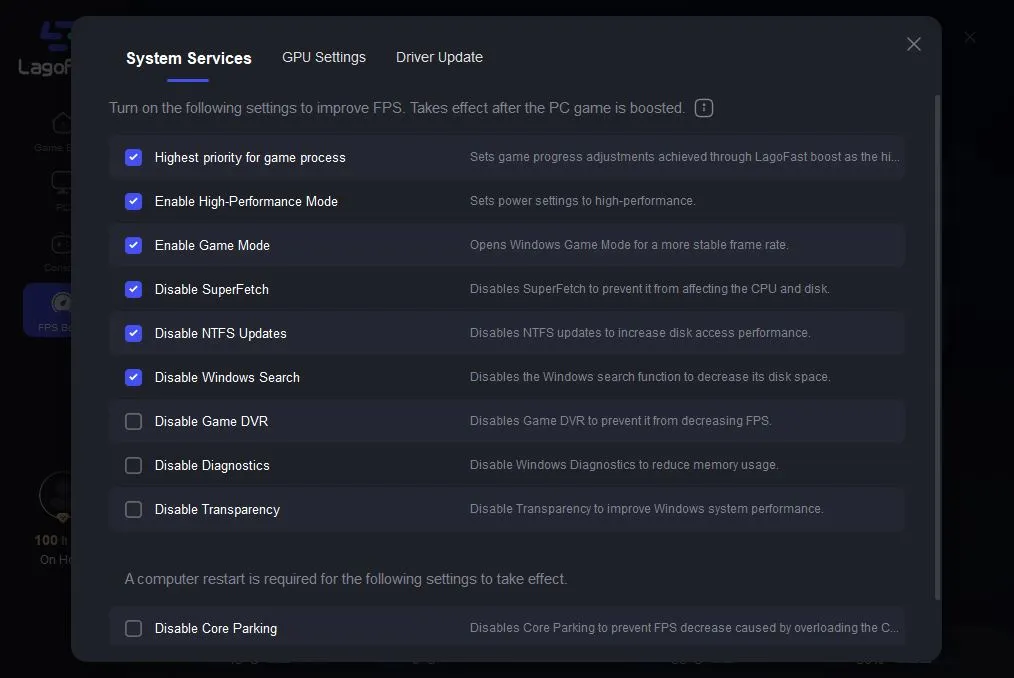
- FPS Boost provides PC optimization controls for operating-system, CPU/GPU, driver, and game settings. Review every proposed change before enabling it.
- Game route optimization targets network-side symptoms such as high ping, jitter, packet loss, or an unstable path to Fortnite.
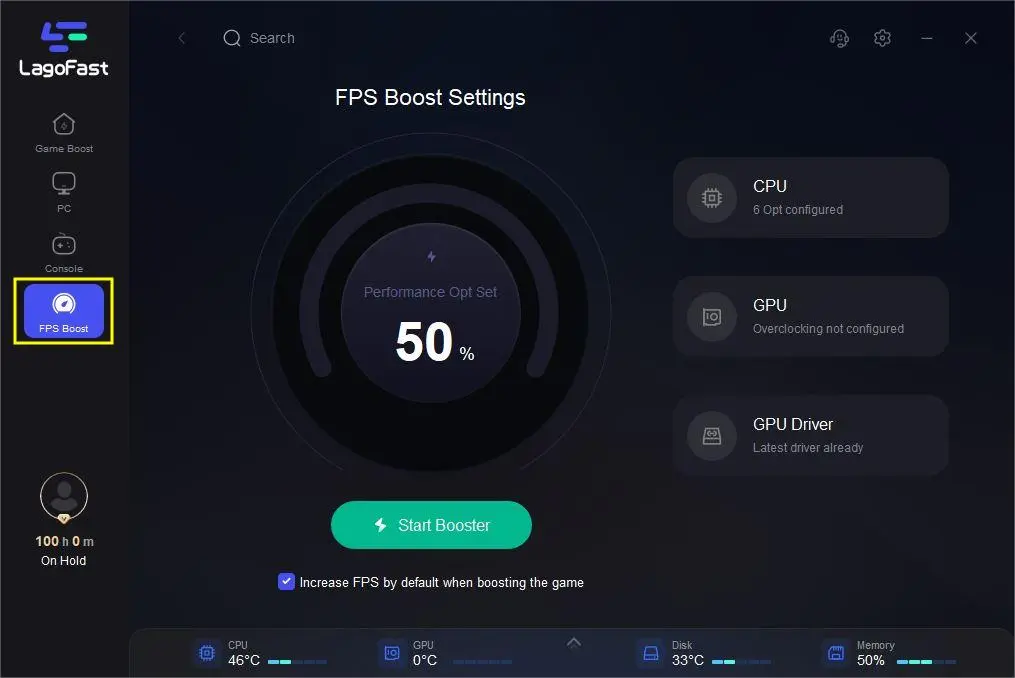
How to use LagoFast FPS Boost for Fortnite
- Download LagoFast for Windows from the official LagoFast domain.
- Open LagoFast and select FPS Boost.
- Read the available changes and enable only the settings you understand and want to test.
- Restart Fortnite or Windows when the selected change requires it.
- Repeat the same Fortnite test scene and compare average FPS, 1% low, and frame time.
If your FPS counter is stable but ping or packet loss is not, use the Fortnite network optimization guide to test the connection path separately. Do not change region merely to seek easier opponents; choose a supported region that fits your account, party, and latency needs.
Fortnite FPS Booster Tools Compared by Problem Type
We removed the old list of loosely verified “top 10” utilities. A shorter problem-based comparison is safer and more useful because these tools do different jobs.
| Option | Best for | What it does | Main limit |
|---|---|---|---|
| Fortnite Performance Mode | Free first step for low-end PCs | Reduces graphical fidelity and rendering load | Visual quality is reduced; gains vary by bottleneck |
| Windows and official GPU tools | Drivers, GPU selection, power and background settings | Removes configuration problems without an extra booster | Manual setup; no benefit if the hardware is already saturated |
| LagoFast FPS Boost + route optimization | Players who want guided PC settings and also need network diagnostics | Exposes system optimization controls and can optimize the game route | Cannot exceed hardware limits; network features do not directly create FPS |
| Razer Cortex | Closing non-essential processes and restoring them after play | Manages background apps and Windows resources | Benefits may be small on an already clean, capable PC |
| MSI Afterburner with RivaTuner | Monitoring FPS, temperature, utilization, and frame behavior | Helps identify the bottleneck and verify a change | Monitoring alone does not boost FPS; unsafe overclocking can reduce stability |
Razer’s official Cortex page says its Game Booster manages non-essential processes and restores the PC afterward. MSI’s official Afterburner guide explains its in-game monitoring setup. Neither source proves a universal Fortnite FPS gain, so test on your own system.
How to Test Whether a Fortnite FPS Booster Worked
A screenshot of the sky at “1000 FPS” is not a useful benchmark. Test the same demanding scene before and after each change.
- Write down the test date and current Fortnite version.
- Record CPU, GPU, RAM, storage, driver, monitor refresh rate, resolution, and Rendering Mode.
- Use the same Replay segment, Creative map route, or repeatable training sequence.
- Warm up the game first so shader compilation or a cold launch does not distort one run.
- Run at least three samples of the same length.
- Compare average FPS, 1% low, frame time, temperature, ping, and packet loss.
- Keep only changes that improve the target metric without crashes, visual problems, or unsafe temperatures.
| Metric | Why it matters | Better result |
|---|---|---|
| Average FPS | Overall rendering throughput | Higher, if frame time remains stable |
| 1% Low FPS | Shows the slower moments that often feel like stutter | Higher and closer to the average |
| Frame time | Shows how consistently frames arrive | Lower and flatter |
| Ping and jitter | Measures network delay and variation | Lower and steadier |
| Packet loss | Explains rubber-banding and missing network updates | 0% or as close to 0% as the connection allows |
Low-End PC Fixes and Upgrade Priorities
A low-end gaming discussion illustrates a common limit: setting every option to Low is not enough when an integrated GPU, limited memory bandwidth, or slow storage is the bottleneck. Community reports are useful for discovering pain points, but they are not controlled benchmarks.
- Try Performance Mode and remove High Resolution Textures. This is free and officially supported.
- Install Fortnite on an SSD. It can reduce loading-related hitches compared with a slow hard drive.
- Use enough RAM in a suitable configuration. Integrated graphics share system memory and can suffer on constrained or single-channel setups.
- Control temperatures. Clean blocked vents and confirm clocks do not fall during a long session.
- Upgrade the actual bottleneck. A dedicated GPU helps a GPU-limited system; it will not fix high ping.
Epic’s current Fortnite PC requirements list 8 GB RAM and Intel HD 4000 or AMD Radeon Vega 8 among the minimums, while the recommended specification includes 16 GB RAM and NVMe storage. Meeting a minimum requirement means the game can run; it does not guarantee a high competitive frame rate.
Fortnite FPS Booster FAQ
How do I boost Fortnite FPS on PC?
Enable Show FPS, test Performance Mode, lower GPU-heavy settings, use a stable frame cap, update the graphics driver, close unnecessary background apps, and select a high-performance Windows power mode. Verify the game files if the drop started after an update.
Is Fortnite Performance Mode better than DirectX 12?
Performance Mode is usually the first choice for older or weaker hardware and competitive settings. DirectX 12 may suit a stronger modern PC that needs a balance of visuals and performance. Test both in the same repeatable scene because the answer changes with hardware and Fortnite updates.
Is 200 FPS overkill for Fortnite?
It depends on your monitor, system latency, and whether the PC can hold that rate during a fight. Stable frame time matters more than a high peak. A 240 Hz display can make better use of 200 FPS than a 60 Hz display, but consistency should remain the priority.
Can Fortnite really run at 1000 FPS?
A powerful system may show an extreme number in a light scene, menu, or deliberately reduced test, but that is not a practical match target. Judge performance in real gameplay using average FPS, 1% low, and frame time.
Can a Fortnite booster give me zero delay?
No tool can guarantee zero total delay. Input, CPU, GPU, display, network, distance to the server, and server processing all add latency. A tool or setting may reduce one part of that chain, but “zero delay” is not a credible universal promise.
Is there a free Fortnite FPS booster?
Yes. Fortnite Performance Mode, Windows Game Mode, official GPU drivers, background-app cleanup, and sensible in-game settings are free. Start there before installing another utility.
Why does Fortnite FPS drop after an update?
An update can change settings, rebuild shaders, interact differently with a driver, or leave damaged files. Restart the PC, verify Fortnite files, check the Rendering Mode and frame cap, update or roll back the graphics driver, and allow the game time to finish shader-related work.
Does a ping booster increase FPS?
Route optimization normally targets ping, jitter, and packet loss, not rendered frames. Some products include a separate PC optimization feature, but the network function itself cannot solve a GPU or CPU bottleneck.
Are Fortnite FPS boosters safe?
Use official downloads, review every setting, keep a restore path, and avoid tools that ask you to disable security, anti-cheat, or unexplained Windows services. Avoid “FPS packs” that promise impossible results or distribute unknown executables.
Boost Your Game with LagoFast for Epic Speed
Play harder, faster. LagoFast game booster eliminates stutter and lags on PC, mobile, or Mac—win every match!
Quickly Reduce Game Lag and Ping!
Boost FPS for Smoother Gameplay!