
Fortnite remains one of the most popular online games in the world, but like any live-service title, it isn’t immune to technical issues. Players frequently run into frustrating problems such as error codes, matchmaking failures, or the game simply refusing to launch. These issues can interrupt gameplay and waste valuable time, especially during events or competitive matches. The good news is that most Fortnite error codes have clear causes and reliable fixes. In this guide, we’ll break down the most common Fortnite error codes and show you exactly how to fix them step by step.

- ✅ Reduce Lag and High Ping
- ✅ Boost FPS in Real Time
- ✅ Get the Easiest Server in Fortnite
- ✅ End All Connection Login Issues.
- ✅ Support 2000+ Online Games.
- ✅ Multiplatform: PC, Mobile, Console
Part 2: How To Fix Fortnite Not Launching and Common Code Errors – 100% Working
Part 1: Fortnite Error Codes
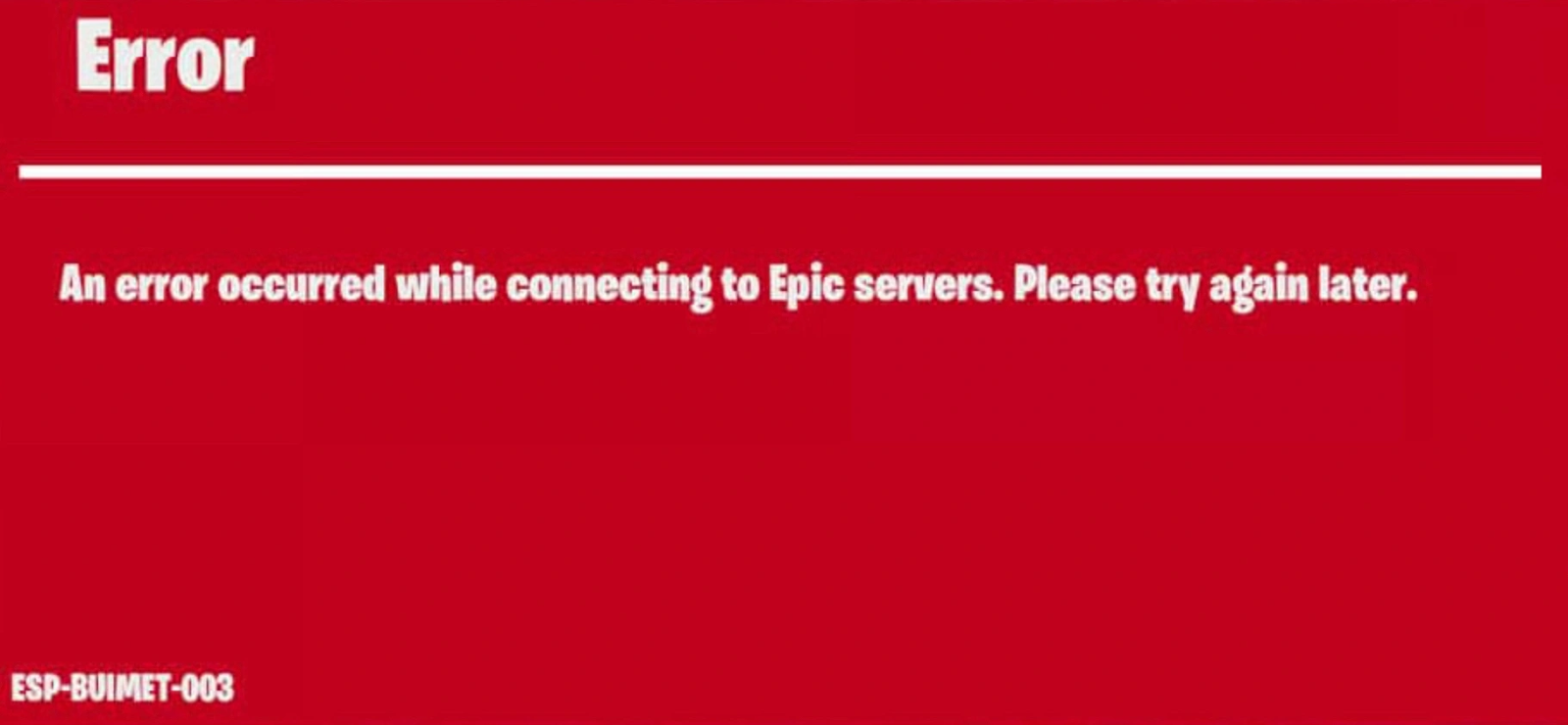
This error usually appears when Fortnite cannot connect to its servers. It’s often caused by network instability, DNS issues, or firewall restrictions.
- Error Code 91: A notorious matchmaking error code. It usually suggests that your party isn't responding or there is a connectivity issue within the party services.
- Error Code 0: This is a generic "Fortnite not launching" error code often tied to corrupted game files or Anti-Cheat (EAC/BattlEye) initialization failures.
- Error Code 83: Often pops up when the game fails to load your profile or skins. It’s a synchronization error between your device and the Epic account servers.
- Error Code MD-DL: A specific download/update error. If your launcher can't fetch the latest patch data, this code will halt your progress.
- Error Code 93: Similar to Code 91, this is a matchmaking error code that prevents you from joining a specific lobby or party.
- Error Code LS-0013: A "Game Launch Failed" error. This usually indicates that the launcher doesn't have the necessary permissions to run the game executable.
- Error Code 20006: Specifically related to Easy Anti-Cheat. If the service is disabled or blocked by a firewall, Fortnite simply won't start.
- Matchmaking Error: "Successful Check-in, but Failed to Connect": A common server-side congestion issue where the game recognizes you but can't find a slot in a match.
Part 2: How To Fix Fortnite Not Launching and Common Code Errors – 100% Working
Fixing these issues ranges from simple software tweaks to deep-diving into your network settings. Below, we provide both the streamlined, automated route and the manual "do-it-yourself" methods.
The All-in-One Solution: LagoFast
If you're tired of playing IT technician every time there's a game update, LagoFast is the definitive answer. As a premium game booster, LagoFast goes beyond simple ping reduction; it acts as a comprehensive repair kit for Fortnite's most common connectivity and launching errors. By optimizing your data route and verifying game integrity through its specialized "One-Click Crash Fix," it eliminates the root causes of Matchmaking Error 91 and Code 83. It’s designed for gamers who value their time, offering a seamless experience with a built-in FPS boost to ensure your hardware performs as smoothly as your connection.
Key Features of LagoFast:
- One-Click Crash Fix: Automatically detects and repairs common Fortnite launch errors.
- Real-Time FPS Boost: Optimizes system resources to prevent frame drops during build fights.
- Global Multipath Connection: Routes your data through the fastest nodes to eliminate matchmaking lag.
- Easy Anti-Cheat Repair: Resolves "Error 20006" by ensuring security services are correctly configured.
Tutorial to Use LagoFast to Fix Fortnite Common Issues:
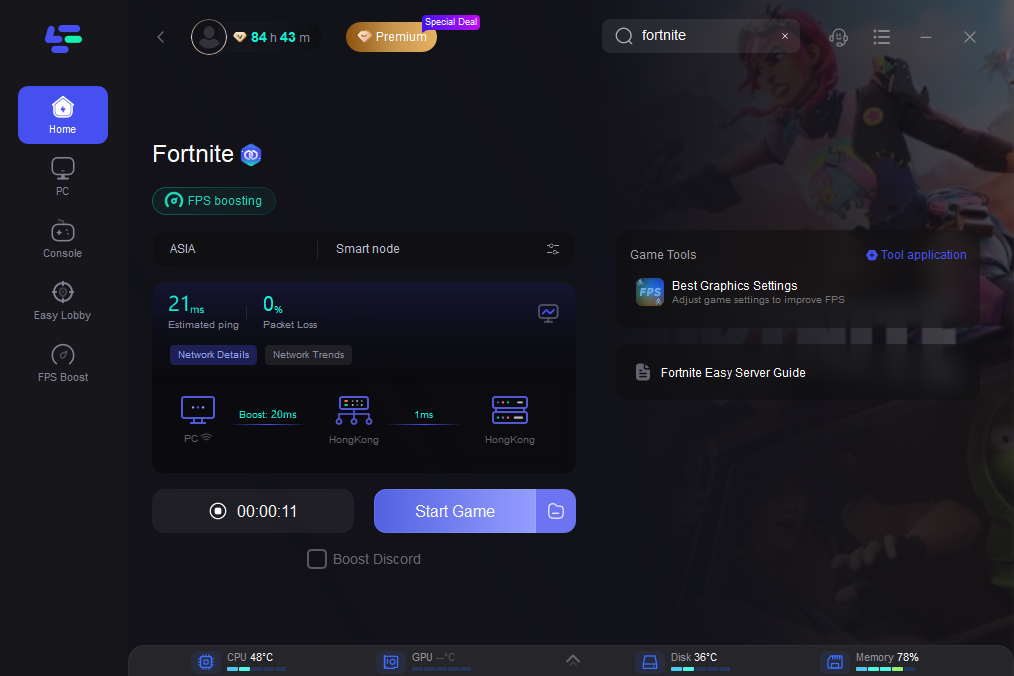
Step 1: Click the Free Trial button to download and install LagoFast.
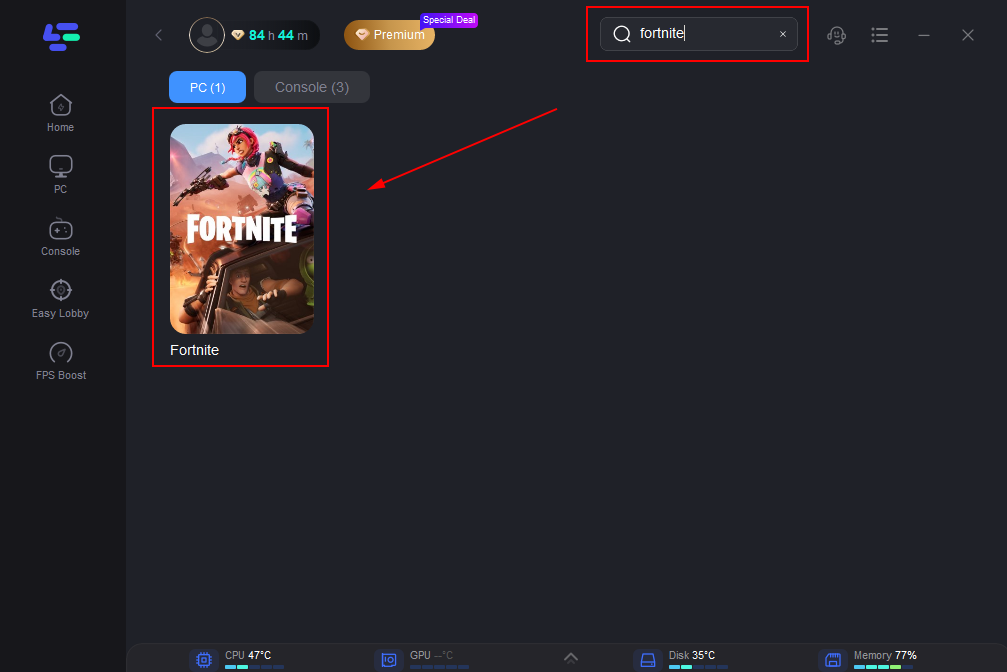
Step 2: Open LagoFast, then click the PC button on the left and search for Fortnite in the search bar and click it after it appears.
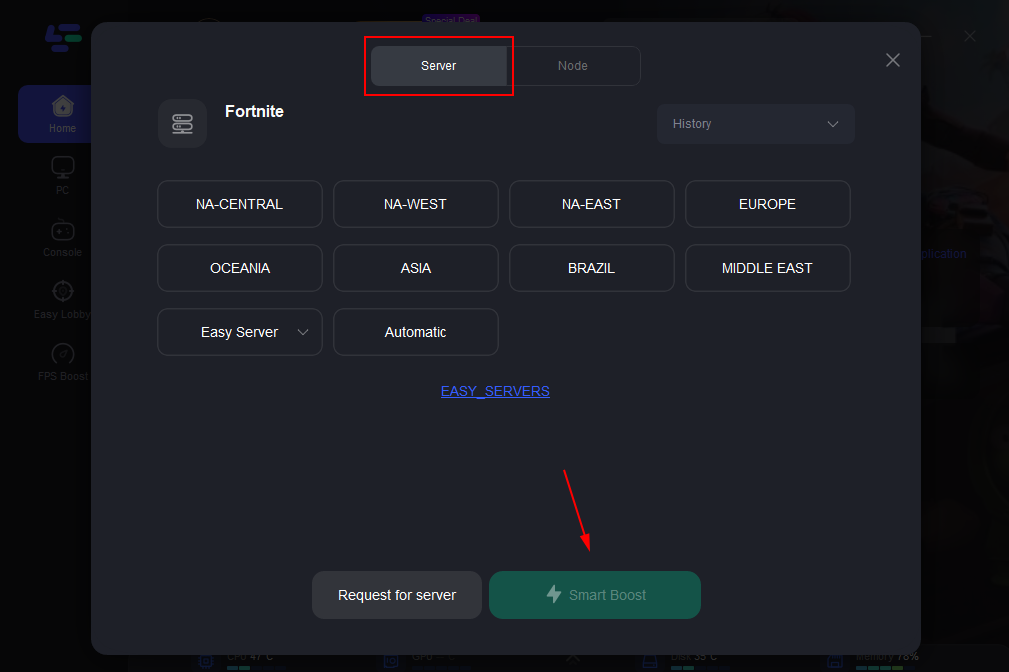
Step 3: Click “Server” to switch to a better server, such as EU or NA, which can improve the gaming experience. Then click “Smart Boost” to resolve the common issue.
Step 4: Check the specific game ping, packet loss, and multiple path connections on the right side. Finally, click the “Start Game” to play the game.
For those who prefer a hands-on approach, here are the step-by-step manual fixes for the errors mentioned above. While these are effective, keep in mind that LagoFast is a significantly faster and more reliable way to handle these issues without risk of human error.
Fix for Error Code 91 & 93 (Matchmaking Errors)
Step 1. Change Party Privacy: In the Fortnite lobby, click your profile icon and change your "Party Privacy" from Public to Private, then back to Public.
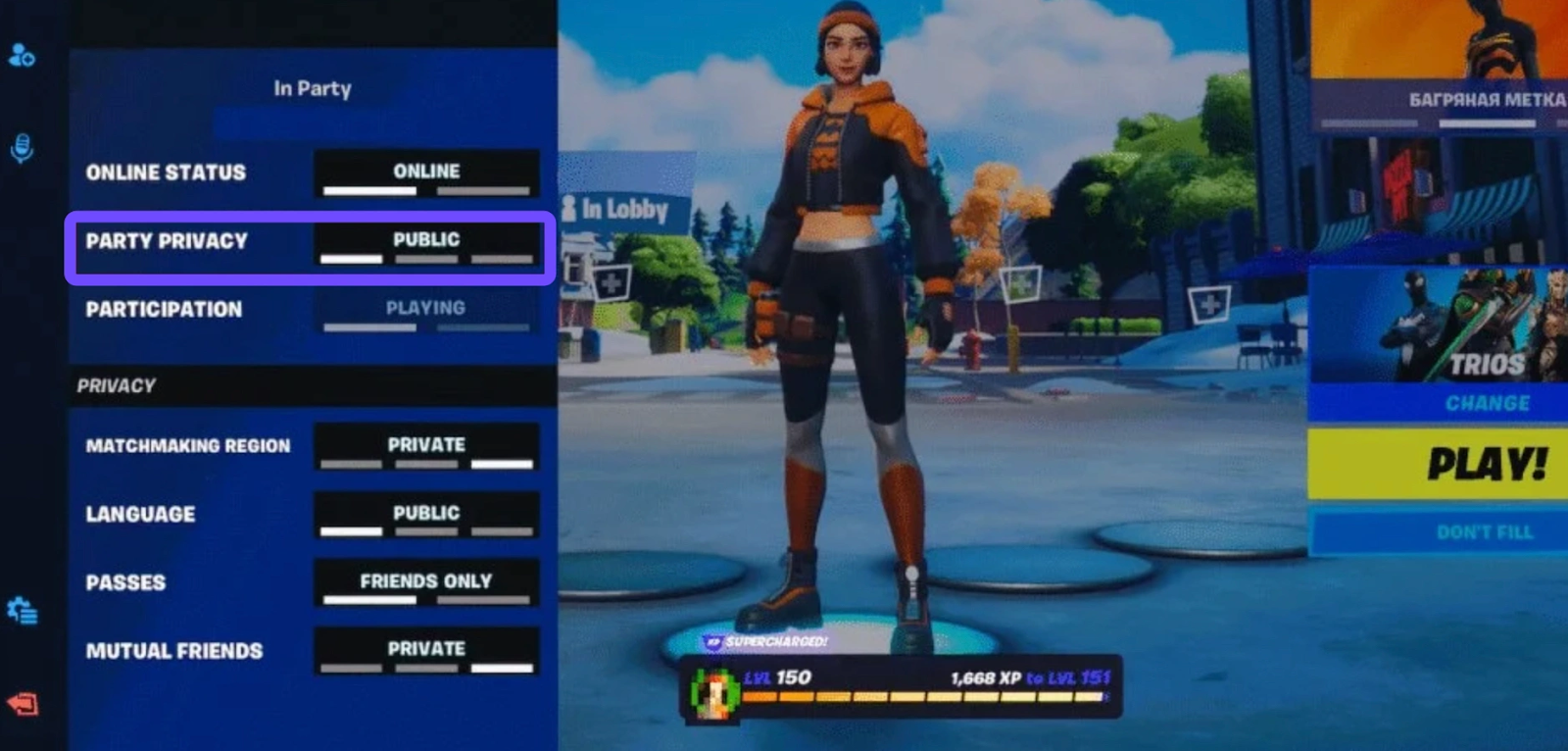
Step 2. Restart the Party: Have all party members leave the group, then reinvite everyone to refresh the session ID.
Step 3. Verify Game Files: Open the Epic Games Launcher, go to Library, click the three dots on Fortnite, and select "Verify."
Step 4. Flush DNS: Open Command Prompt as Admin and type ipconfig /flushdns to clear your network cache.
Step 5. Switch Matchmaking Region: Go to Settings, click Game (cog icon), and select Matchmaking Region. Manually select your closest region instead of "Auto."
Fix for Error Code 0 (Launch Failure)
Step 1. Run as Administrator: Navigate to your Fortnite install folder, right-click FortniteClient-Win64-Shipping.exe, and select "Run as Administrator."
Step 2. Update Graphics Drivers: Ensure your NVIDIA or AMD drivers are on the latest version to support the DirectX 12 backend.
Step 3. Reinstall Easy Anti-Cheat: Navigate to FortniteGame\Binaries\Win64\EasyAntiCheat, run the Setup, and choose "Repair Service."
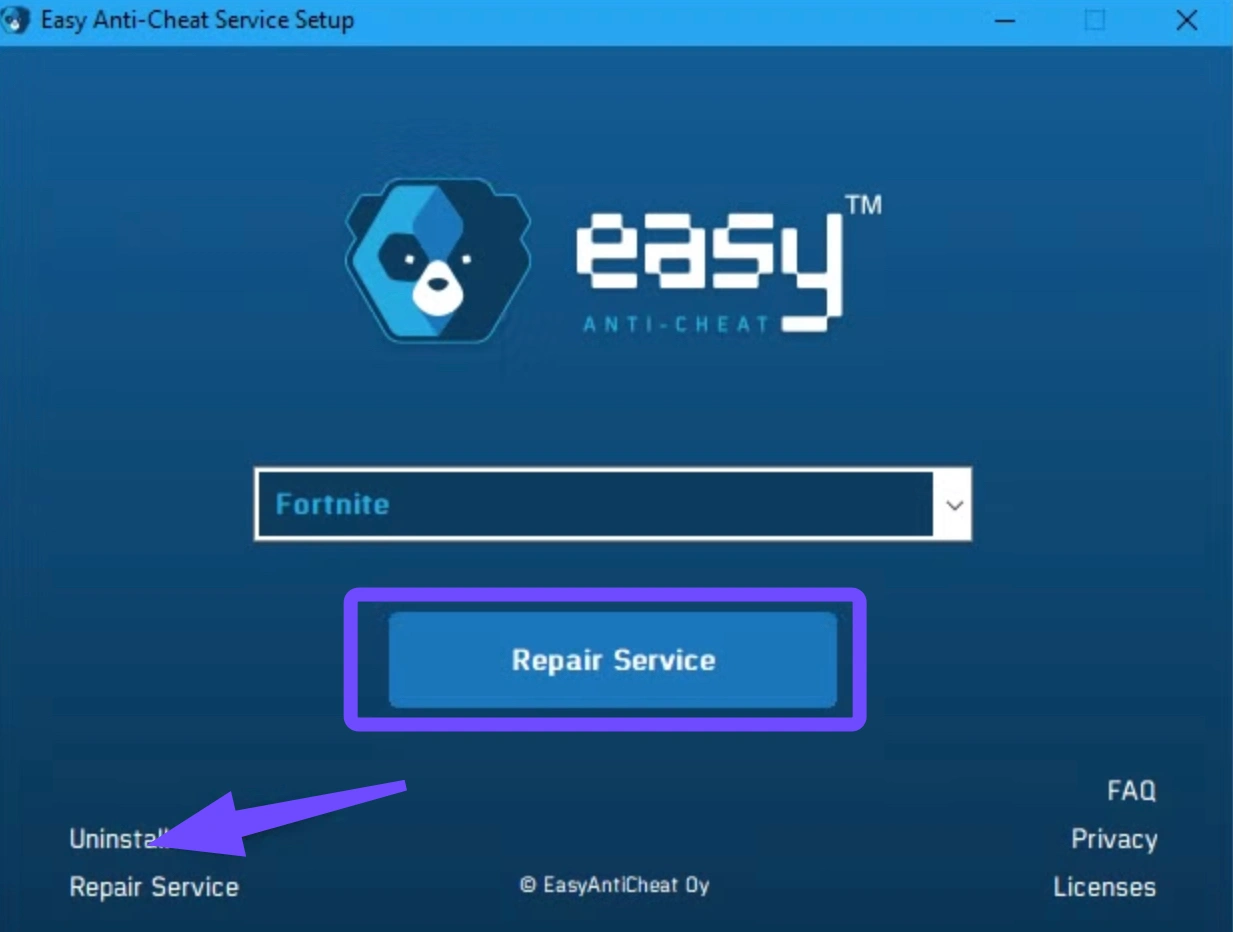
Step 4. Disable Background Overlays: Close Discord, Spotify, and Steam overlays, which can conflict with the launch process.
Step 5. Check for Windows Updates: Ensure your OS is fully updated, as Fortnite requires specific C++ Redistributable packages found in Windows updates.
Fix for Error Code 83 (Profile Sync Error)
Step 1. Logout/Login: Log out of the Epic Games Launcher entirely and log back in to refresh your credentials.
Step 2. Check Epic Server Status: Visit the official Epic Games Status website to ensure the account services aren't currently down.
Step 3. Sync System Clock: Go to Windows Settings, select Time & Language, and click "Sync Now" to ensure your PC time matches the server time.
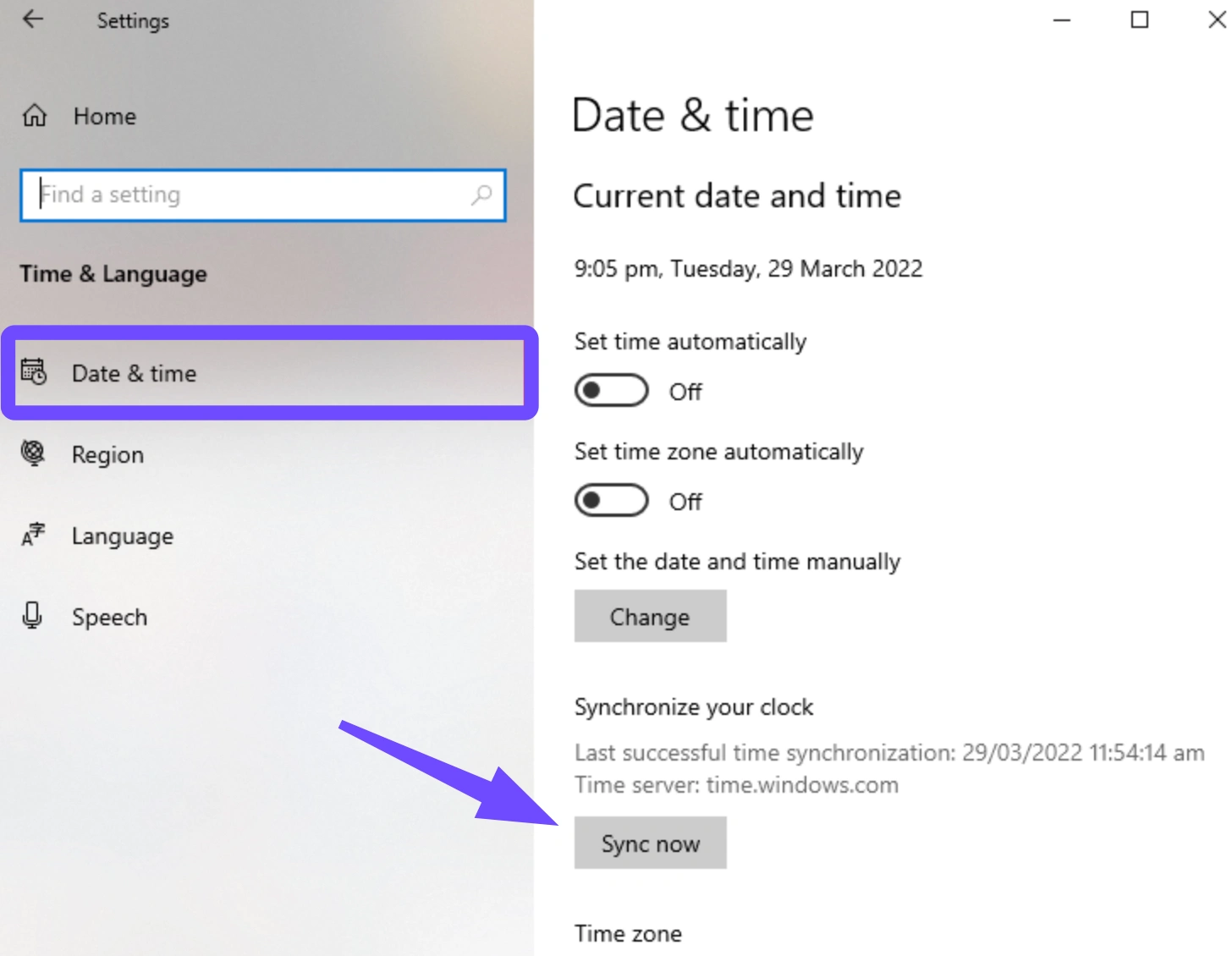
Step 4. Power Cycle Router: Turn off your router for 30 seconds to clear any stale IP assignments.
Step 5. Reset Fortnite Settings: Navigate to %LocalAppData% and delete the FortniteGame folder to reset corrupted local configurations.
Fix for Error Code LS-0013 (Permissions Error)
Step 1. Clear Launcher Cache: Close the launcher, go to %localappdata%\EpicGamesLauncher\Saved, and delete the webcache folder.
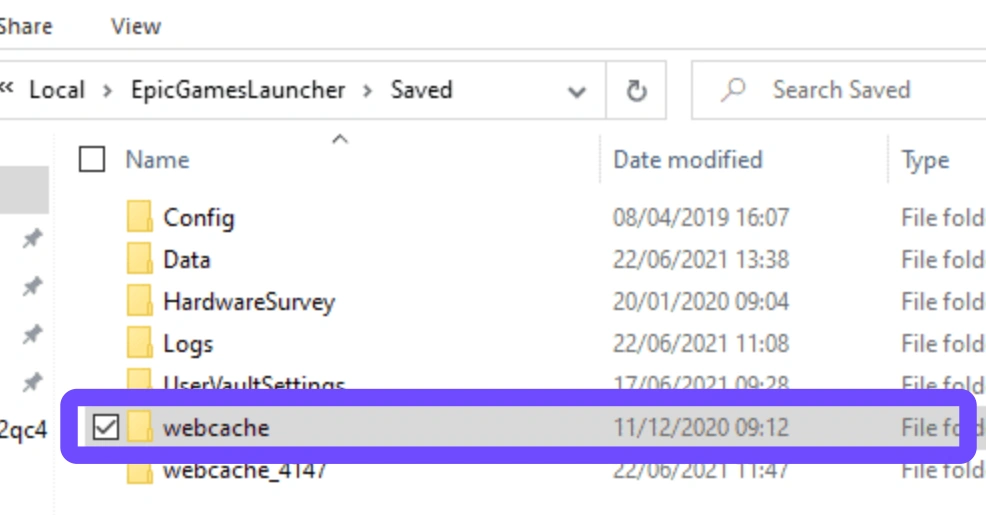
Step 2. Disable "Run as Admin" on Launcher: Ironically, sometimes having the launcher (not the game) as admin causes this. Right-click the launcher, select Properties, select Compatibility, and Uncheck "Run as Administrator."
Step 3. Check Disk Space: Ensure your installation drive has at least 10GB of free space for temporary swap files.
Step 4. Update DirectX: Ensure you have the latest DirectX End-User Runtimes installed.
Step 5. Disable Firewall/Antivirus: Temporarily disable your firewall or add an exception for the Epic Games folder to prevent the executable from being blocked.
Fix for Error Code 20006 (Easy Anti-Cheat)
Step 1. Manual Service Start: Press Win+R, type services.msc, find "Easy Anti-Cheat," and ensure its startup type is set to "Manual."
Step 2. Delete EAC Folder: Delete the EasyAntiCheat folder in your Fortnite directory and then "Verify" the game in the Epic Launcher to redownload a clean version.
Step 3. Repair System Files: Run sfc /scannow in Command Prompt to fix any corrupted Windows files that EAC relies on.
Step 4. Disable Driver Signature Enforcement: Some older drivers trigger EAC. Restart Windows in "Advanced Startup" and choose "Disable Driver Signature Enforcement."
Step 5. Check for "Cheating" Software: Ensure no macro software or lighting controllers (like older versions of RGB Fusion) are running in the background.
Conclusion
Technical errors in Fortnite are an unfortunate reality of modern gaming, but they don't have to end your session. By following the manual steps above, you can address specific software conflicts and network hitches. However, for a permanent fix that addresses lag, low FPS, and connectivity errors in one go, using a specialized tool like LagoFast is the most efficient path forward. Don't let a "Matchmaking Error" keep you out of the action, optimize your setup, and get back to the island today
Boost Your Game with LagoFast for Epic Speed
Play harder, faster. LagoFast game booster eliminates stutter and lags on PC, mobile, or Mac—win every match!
Quickly Reduce Game Lag and Ping!
Boost FPS for Smoother Gameplay!