
Few things are as frustrating as being mid-mission in Fortnite Save the World (STW), defending your ATLAS or finishing a complex trap tunnel, only to have the screen freeze and display the dreaded "Network Connection Lost" message. It’s a specialized pain for the STW community, one that often feels ignored compared to the Battle Royale updates. This error doesn't just kick you to the lobby; it wipes your mission progress and wastes your valuable resources. If you are tired of being completely unable to play STW due to persistent network drops, you aren’t alone. In this guide, we’ll break down exactly why this happens and provide the definitive steps to get you back to husking without the heartbreak of a disconnect.

- ✅ Reduce Lag and High Ping
- ✅ Boost FPS in Real Time
- ✅ Get the Easiest Server in Fortnite
- ✅ End All Connection Login Issues.
- ✅ Support 2000+ Online Games.
- ✅ Multiplatform: PC, Mobile, Console
Part 1: What is the Fortnite Save the World Network Connection Lost Error and Its Causes?
Part 1: What is the Fortnite Save the World Network Connection Lost Error and Its Causes?
The "Fortnite Save the World Network Connection Lost" error is a specific communication failure between your local hardware and the Epic Games dedicated servers. Unlike Battle Royale, which handles player movement in short bursts of high-intensity data, Save the World involves complex AI pathfinding for hundreds of husks, persistent world building, and loot tracking. When the flow of this data is interrupted, the game client loses its "handshake" with the server, resulting in a total disconnect.
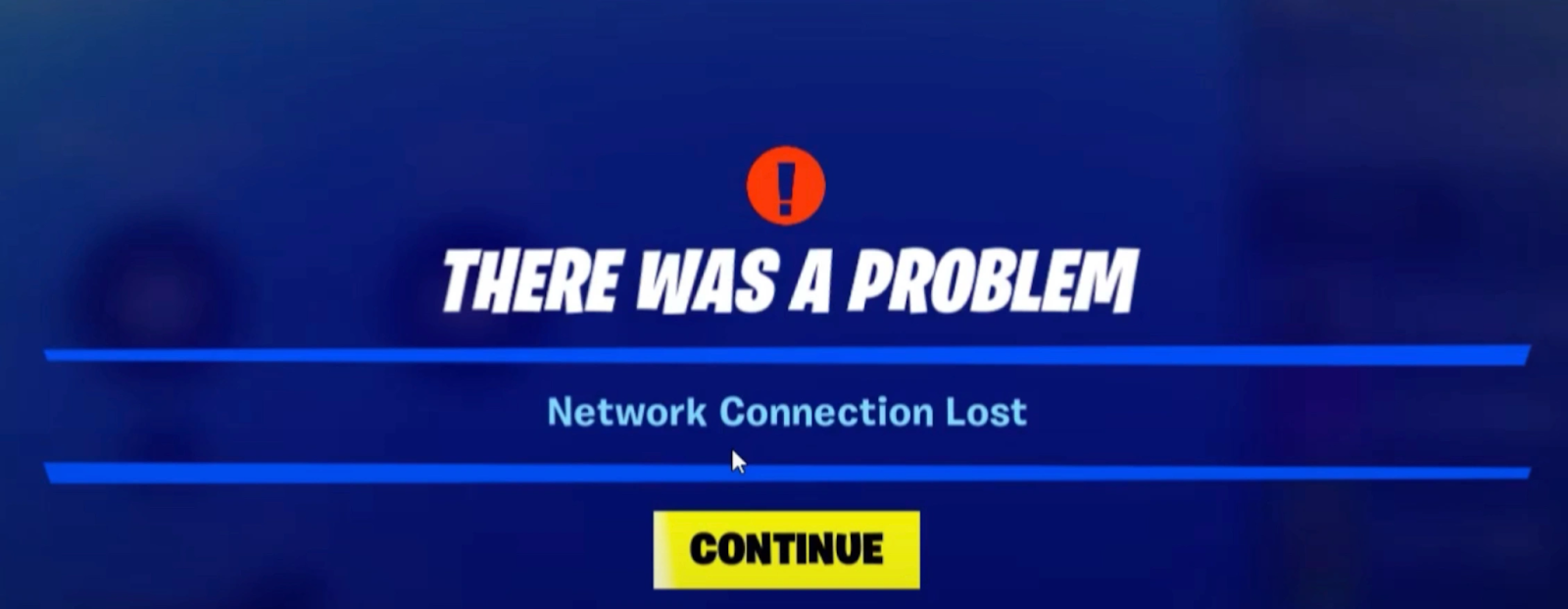
Common Causes of Connection Failures:
- Server-Side Instability: With the launch of Chapter 7 Season 2 in March 2026, server loads have spiked significantly. Routine maintenance or unexpected surges during peak hours can cause the STW back-end to struggle.
- Packet Loss and High Latency: If your internet service provider (ISP) routes your data through congested nodes, "packets" of information are dropped. Even a 1% packet loss can trigger the "Completely unable to play STW" issue.
- Incomplete Game Installation: Specifically in STW, the "Network connection lost" error frequently occurs because the Save the World expansion files are not fully updated or checked in the Epic Games Launcher settings.
- Network Hardware Fatigue: Overloaded routers or outdated firmware can lead to intermittent signal drops that the STW client is particularly sensitive to.
- Congested Inventory (Backpack Issues): A unique quirk of STW is that a "full backpack" can sometimes trigger a sync error during mission loading, which the game misinterprets as a network failure.
Part 2: How to Fix the Fortnite Save the World Network Connection Lost Error - 100% Working Solutions
While manual troubleshooting is a staple of PC gaming, the sheer complexity of modern network routing means that local "fixes" don't always address the root cause of the problem. That’s where specialized tools come in.
The Quick Solution: LagoFast Game Booster
When you are looking for an immediate, hassle-free way to fix the Fortnite Save the World network connection lost error, LagoFast stands out as the premier solution. While manual troubleshooting can take hours of trial and error, LagoFast uses a self-developed data transfer protocol to find the fastest, most stable route to Epic’s servers. It acts as a dedicated highway for your gaming data, effectively bypassing the congested public routes that cause packet loss and "Network connection lost" issues. Whether you are playing on a high-end PC, a console, or mobile, LagoFast provides a seamless, one-click experience that stabilizes your connection and ensures you never lose mission progress again.
Key Features of LagoFast:
- One-Click Fix: Instantly resolves common Fortnite errors and crashing issues with a single button.
- FPS Boost: Optimizes your system resources to ensure maximum frame rates and zero stuttering.
- Multipath Connection: Automatically switches to the best node to prevent high ping and disconnects.
- Cross-Device Compatibility: Full boosting support for PC, PlayStation, Xbox, and Mobile platforms.
While LagoFast is significantly faster and more effective at providing a permanent fix, you can also attempt these manual methods to troubleshoot your network.
Tutorial to Use LagoFast to Fix the Fortnite Save the World Network Connection Lost Error:
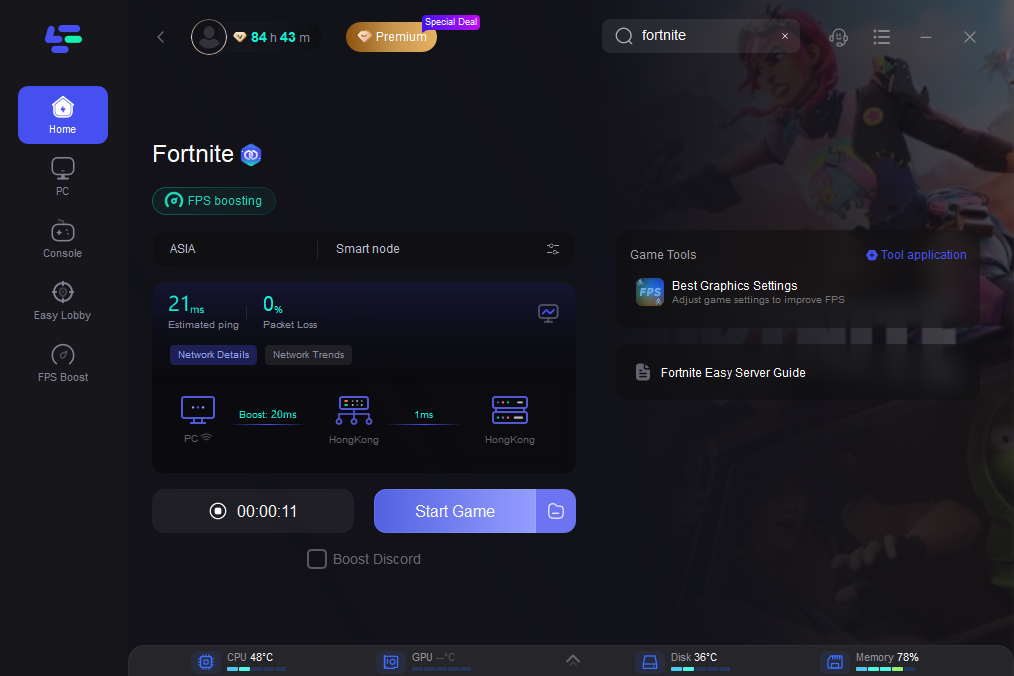
Step 1: Click the Free Trial button to download and install LagoFast.
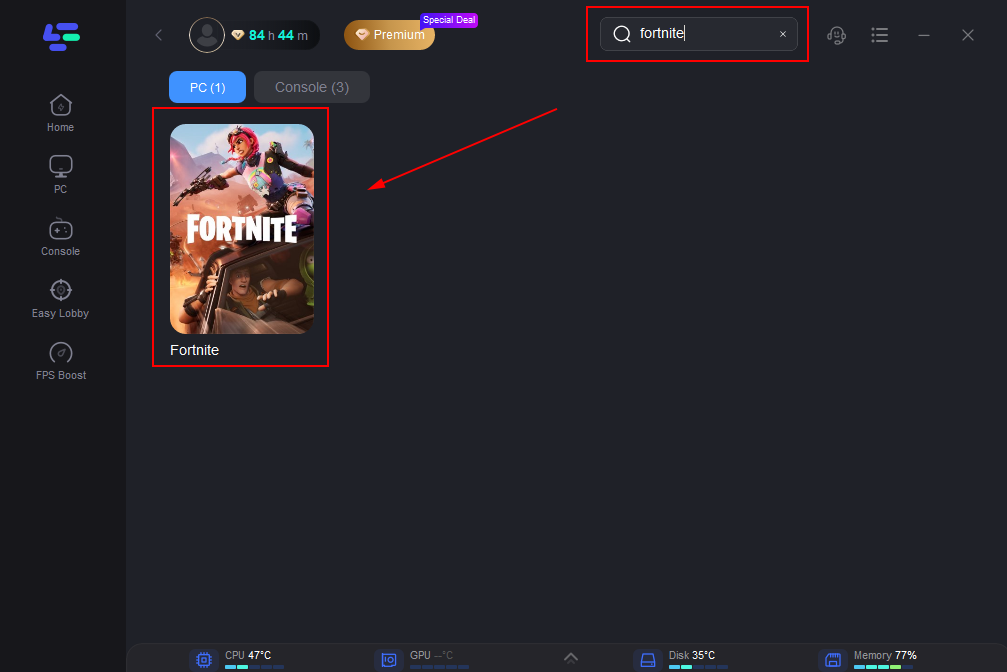
Step 2: Open LagoFast, then click the PC button on the left and search for Fortnite Save the World in the search bar, and click it after it appears.
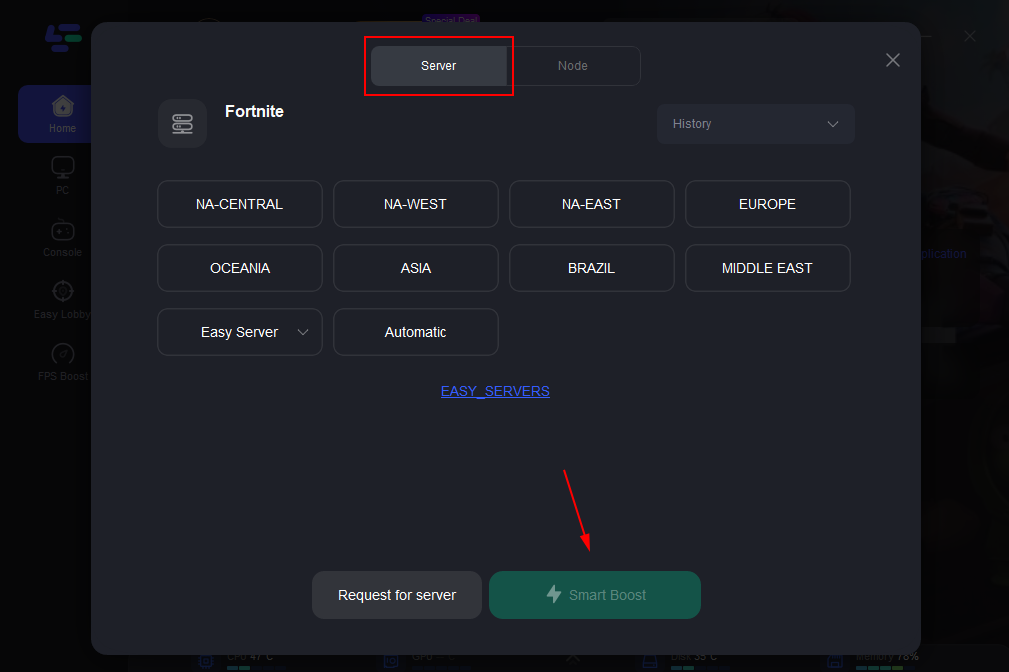
Step 3: Click “Server” to switch to a better server, such as EU or NA, which can ensure a stable gaming experience. Then click “Smart Boost” to fix the Network Connection Lost Error.
Step 4: Check the specific game ping, packet loss, and multiple path connections on the right side. Finally, click the “Start Game” to play the game.
Tutorial to Use LagoFast Box to Enhance Your Fortnite Save the World Gaming Experience on Consoles:
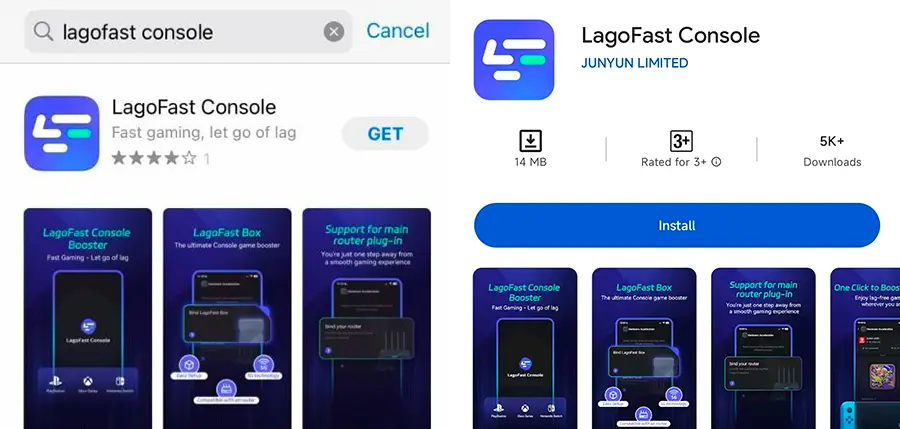
Step 1: Get the LagoFast Console App on your phone to manage the LagoFast Box.
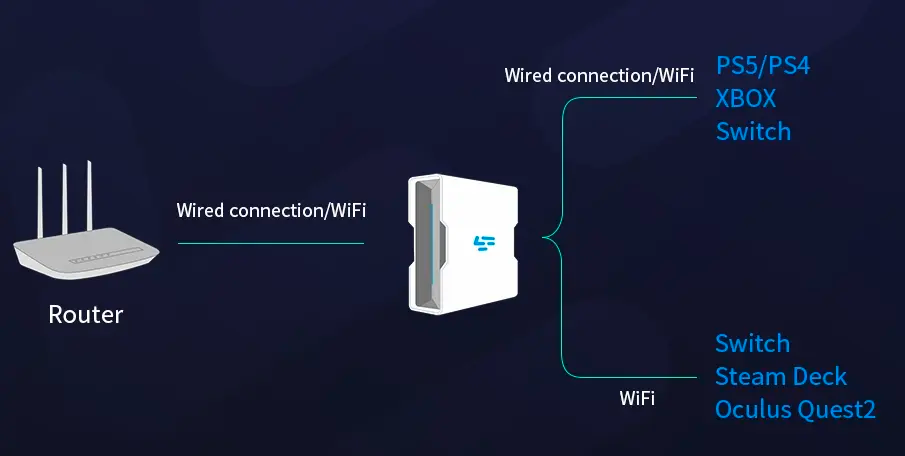
Step 2: Connect your LagoFast Box to your router and console, selecting either a wired or wireless connection.
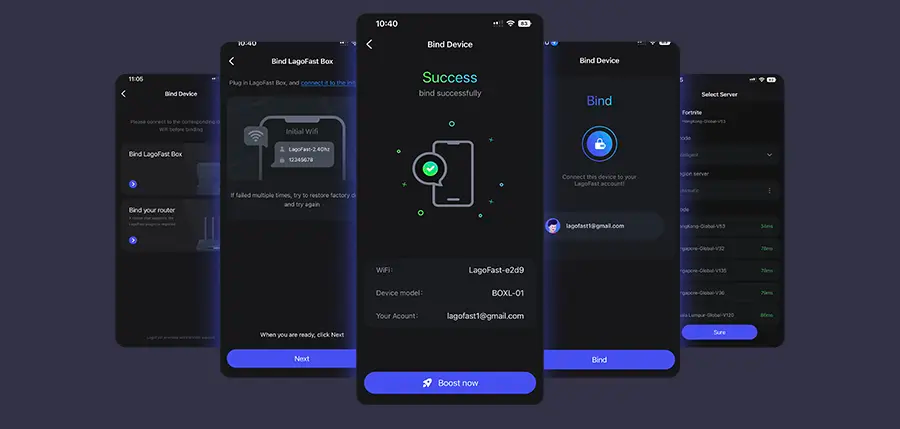
Step 3: Open the LagoFast Console App. After completing the binding process with the LagoFast Box, proceed to boost Fortnite Save the World within the app.
Solution 1: Verify Installation Options (PC)
The most common cause for being "Completely unable to play STW" on PC is that the expansion isn't correctly "checked" in the launcher.
Step 1. Close Fortnite and the Epic Games Launcher entirely.
Step 2. Open the Epic Games Launcher and navigate to your Library.
Step 3. Locate Fortnite and click the three dots (...) next to the game title.
Step 4. Select Options from the dropdown menu.
Step 5. Ensure the box next to Fortnite Save the World is checked (if it’s already checked, uncheck it, click apply, and then re-check it to force a refresh).
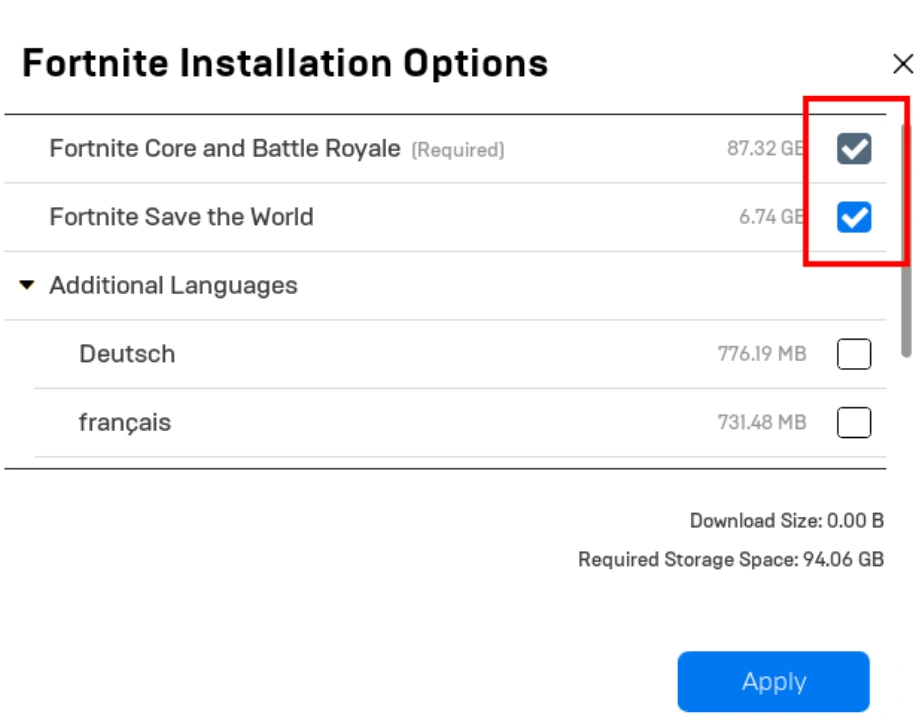
Step 6. Click Apply to download any missing files (usually around 6-7 GB).
Solution 2: Flush DNS and Reset IP
Old or corrupted network cache data can prevent your PC from communicating with the Fortnite matchmaking service.
Step 1. Press the Windows Key, type "cmd", right-click it, and select Run as Administrator.
Step 2. Type ipconfig /flushdns and press Enter.
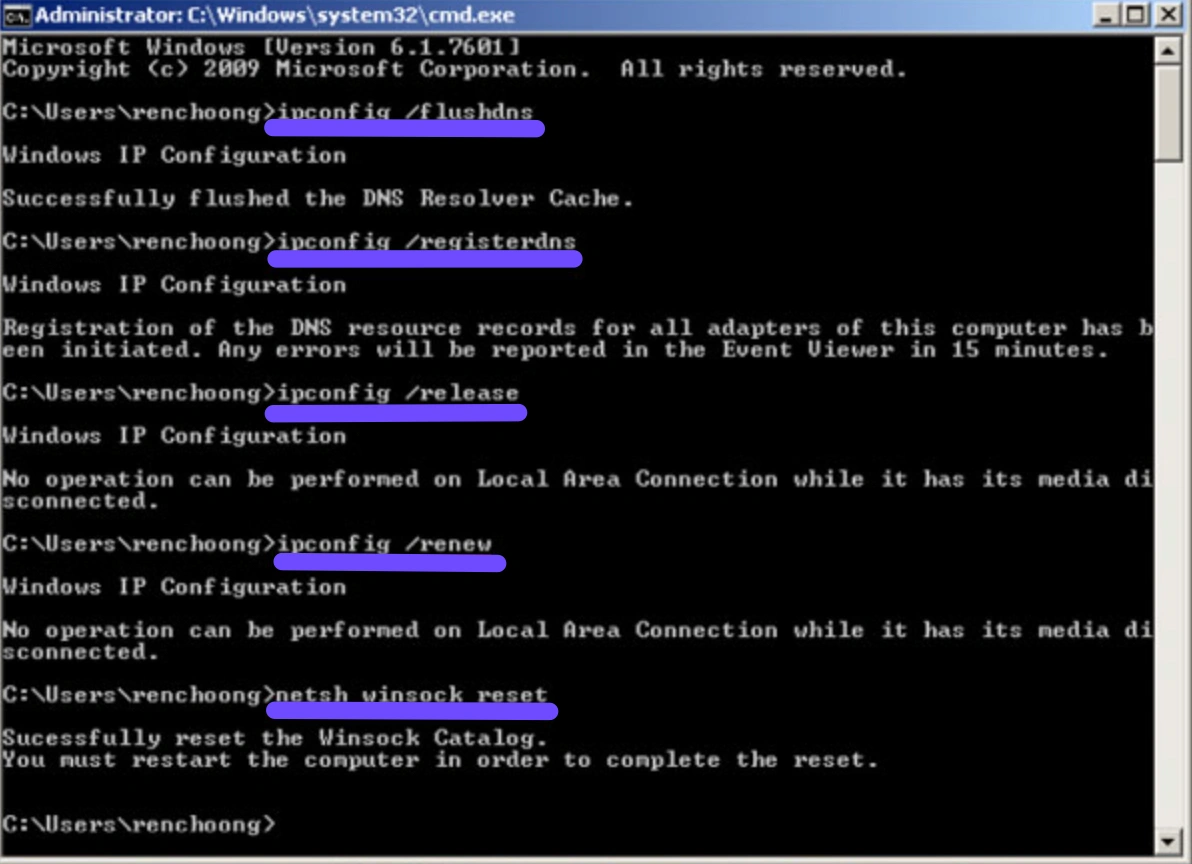
Step 3. Type ipconfig /release and press Enter to drop your current IP.
Step 4. Type ipconfig /renew and press Enter to assign a new IP address from your router.
Step 5. Type netsh winsock reset and press Enter to reset the network catalog.
Step 6. Restart your computer and launch Fortnite.
Solution 3: Change DNS Servers (Consoles & PC)
Your ISP’s default DNS servers might be slow or unstable. Switching to a public DNS like Google or Cloudflare can resolve "Save the World Network Connection Failed" messages.
Step 1. Go to your system’s Network Settings and select Set Up Internet Connection.
Step 2. Choose Custom or Manual setup.
Step 3. Set IP Address to Automatic and DHCP Host Name to Do Not Specify.
Step 4. For DNS Settings, select Manual.
Step 5. Enter 8.8.8.8 for Primary DNS and 8.8.4.4 for Secondary DNS (Google).
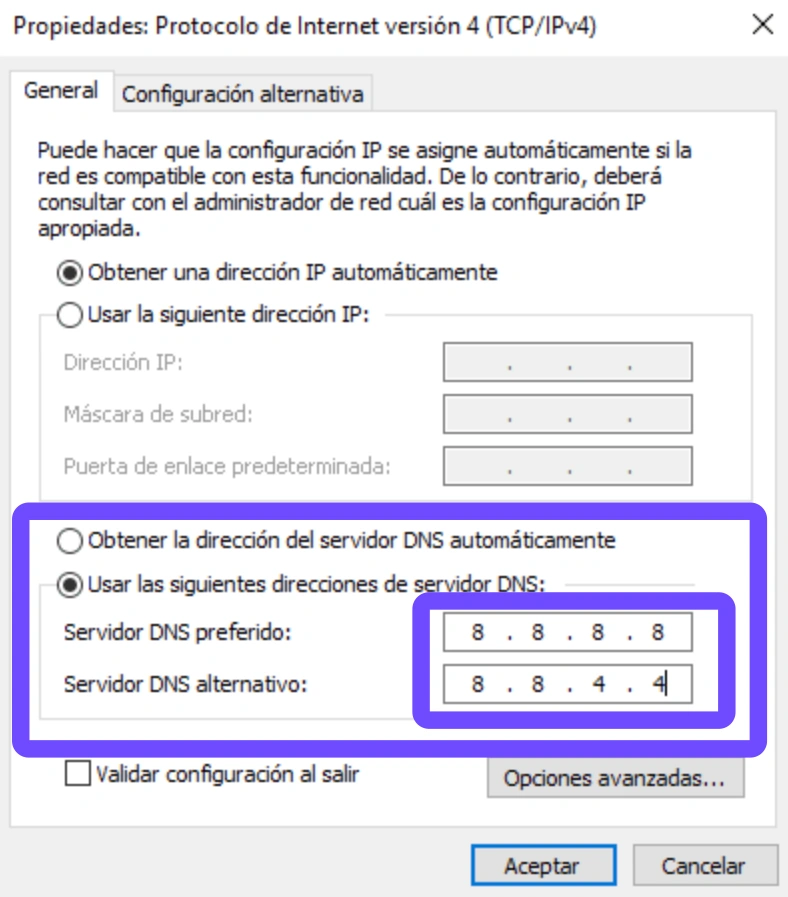
Step 6. Set MTU to Automatic and Proxy Server to Do Not Use, then test your connection.
Solution 4: Perform a Power Cycle
Electronic interference and "zombie" processes in your modem/router can cause intermittent drops.
Step 1. Shut down your PC or Console and unplug it from the power source.
Step 2. Unplug your modem and router from the wall outlet.
Step 3. Wait at least 60 full seconds to allow all residual electricity to drain.
Step 4. Plug the modem back in first and wait for the lights to become steady.
Step 5. Plug the router back in and wait for the Wi-Fi/Internet light to stabilize.
Step 6. Turn on your gaming device and attempt to enter a Save the World mission.
Solution 5: Manage In-Game Inventory and Backpack
Surprisingly, the "Network connection lost issue Fortnite Save the World" is often linked to the size of your persistent data (inventory).
Step 1. Launch Fortnite and enter the Save the World menu.
Step 2. Go to the Command tab and select Heroes or Backpack.
Step 3. Recycle any unwanted weapons, traps, or survivors that are cluttering your storage.
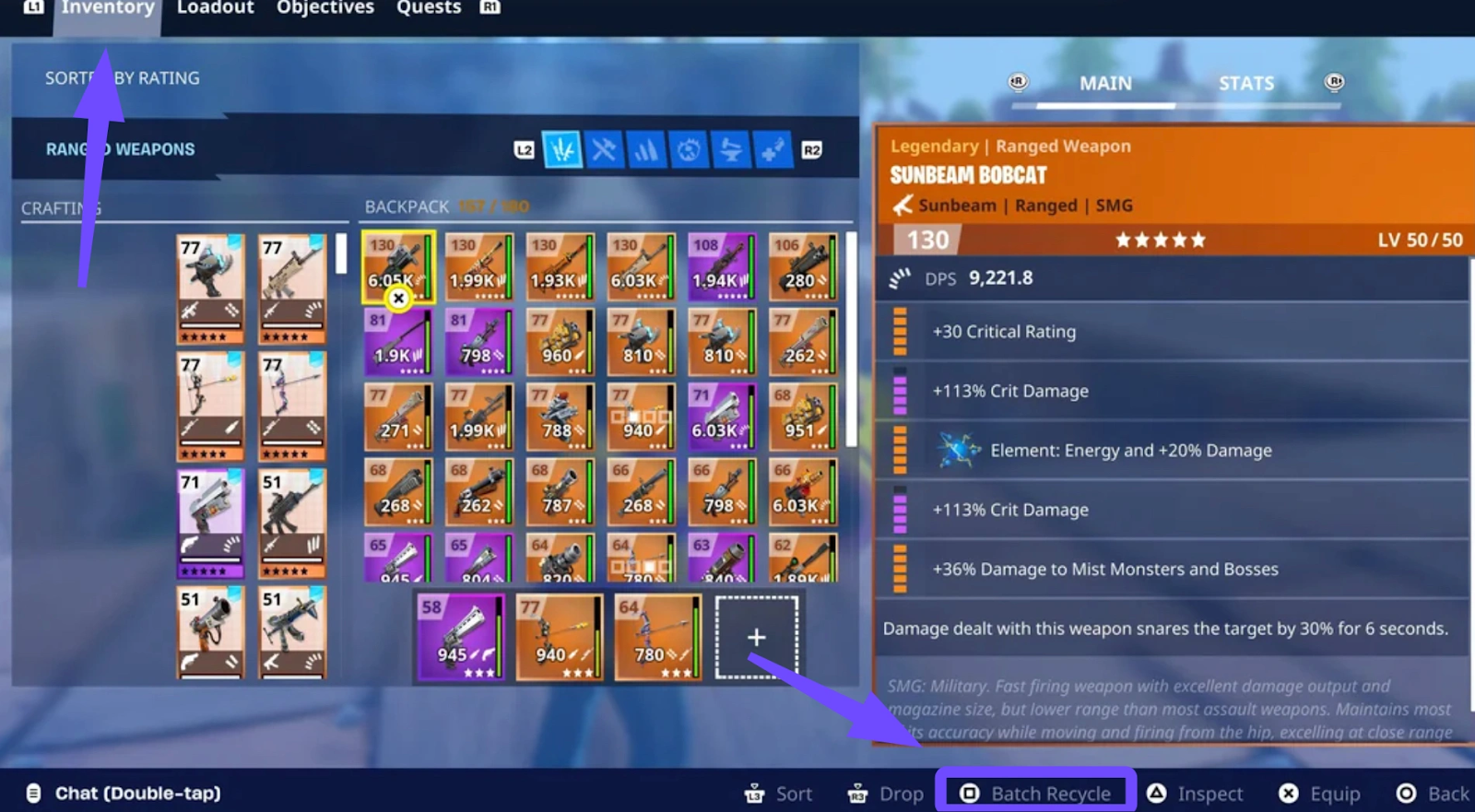
Step 4. If your backpack is 250/250, drop or destroy basic materials (like wood or low-tier ore) until you are well under the limit.
Step 5. Empty your Storm Shield Storage if it is overfilled.
Step 6. Attempt to launch a private mission first to see if the game can successfully sync your reduced inventory data.
Conclusion
Fixing the Fortnite Save the World network connection lost error is essential for any player who wants to progress into the late-game content of Canny Valley and Twine Peaks. While manual steps like flushing your DNS or verifying game files can provide a temporary band-aid, they often fail to address the underlying routing issues inherent in modern internet infrastructures. For a definitive, high-performance solution that covers all your devices, using LagoFast is the most reliable way to stay connected. Don't let a "Save the World network connection failed" message stand between you and your mission rewards. Optimize your connection today and get back to saving the world!
Boost Your Game with LagoFast for Epic Speed
Play harder, faster. LagoFast game booster eliminates stutter and lags on PC, mobile, or Mac—win every match!
Quickly Reduce Game Lag and Ping!
Boost FPS for Smoother Gameplay!