Fortnite players on Windows sometimes run into launch problems where the game refuses to start, crashes instantly, or shows strange DLL errors. One of the most common error points involves GameInput.dll — a Windows system file Fortnite needs to handle controller and input device support. This guide will walk you through How to Fix GameInput.dll Missing Error in Fortnite using proven troubleshooting steps, including launcher repairs, Windows system fixes, GPU updates, and auxiliary measures.
Part 1: What Exactly Is GameInput.dll and Why Fortnite Needs It
Part 2: Typical Error Messages You Might See
Part 3: How to Fix GameInput.dll Missing Errors — Step by Step
Part 4: Advanced or Community-Suggested Fixes
Part 5: Using Lago’s Game Crash Fix Tool (One-Click Option)
Part 1: What Exactly Is GameInput.dll and Why Fortnite Needs It
GameInput.dll is a Windows gaming API component developed by Microsoft. It provides modern input handling for gamepads, joysticks, racing wheels, and other devices, replacing parts of older input systems like DirectInput and XInput. The DLL lives in the Windows System folders (System32 or SysWOW64) and is used by many applications that support multiple controllers or advanced input features.
Fortnite uses this file to read input from keyboards, mice, controllers, and other connected devices. If the file is missing, corrupted, or the wrong version, the game can’t properly initialize input support, causing launch failures. Testimony from players shows that the error can pop up suddenly even if Fortnite worked fine previously.
Part 2: Typical Error Messages You Might See
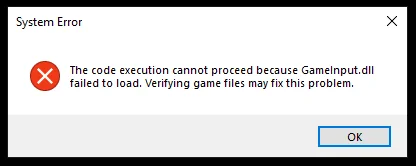
When GameInput.dll is missing or won’t load, Windows may show one of these messages:
- “The code execution cannot proceed because GameInput.dll was not found.”
- “The code execution cannot proceed because GameInput.dll failed to load.”
- “GameInput.dll is either not designed to run on Windows.”
All of these indicate that Fortnite tried to load GameInput.dll but failed — either because the file isn’t there, is damaged, or the wrong architecture (32‑bit vs 64‑bit). Many players on forums report these exact pop‑ups, sometimes after a Fortnite update, and they’re linked directly to the system’s gaming input support rather than Fortnite’s internal files.
It’s worth noting that other system components like ntdll.dll sometimes throw errors in similar situations. If you’ve asked “How do I fix ntdll.dll errors Fortnite,” that usually means your Windows system files need repair — a topic closely related to fixing GameInput.dll issues.
Part 3: How to Fix GameInput.dll Missing Errors — Step by Step
Here’s a complete set of steps to fix How to Fix GameInput.dll Missing Error in Fortnite, including standard Windows fixes, launcher repairs, system tools, and extra measures for stubborn cases.
Method 1: Verify Fortnite Files in Epic Games Launcher
- Open Epic Games Launcher and log in to your account.
- Go to your library and locate Fortnite.
- Click the three-dot icon next to Fortnite to open the menu.
- Select Verify. The launcher will automatically scan game files.
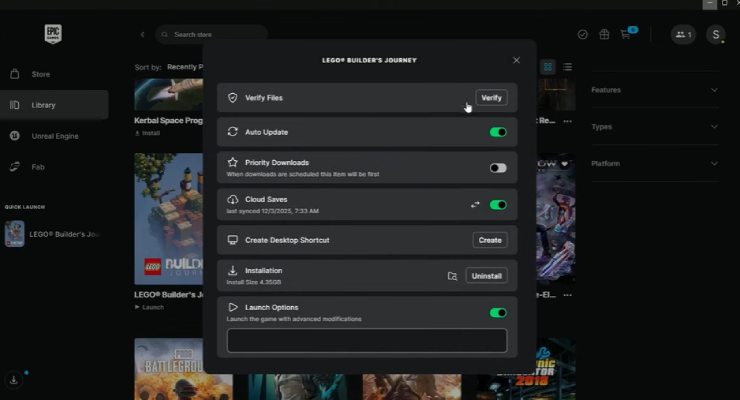
- Wait for the scan to complete — missing or corrupted files, including GameInput.dll, will be repaired automatically.
- Close and reopen the launcher, then try starting Fortnite.
This is the simplest and most reliable first step for fixing GameInput.dll errors.
Method 3: Repair Windows System Files (SFC & DISM)
- Open Command Prompt as Administrator.
- Run:
- Restart your PC and try Fortnite.
Method 4: Repair DirectX and Visual C++ Redistributables
- DirectX: Download and install the DirectX End-User Runtime Web Installer.
- Visual C++: Install both x86 and x64 Visual C++ Redistributables (repair or reinstall if old versions exist).
- Restart PC.
Method 5: Update Graphics Drivers
- NVIDIA → GeForce Experience, update drivers.
- AMD → Radeon / Adrenalin Software, check for updates.
- Intel → Intel Driver & Support Assistant for latest drivers.
- Restart PC.
Method 6: Disable Overlays
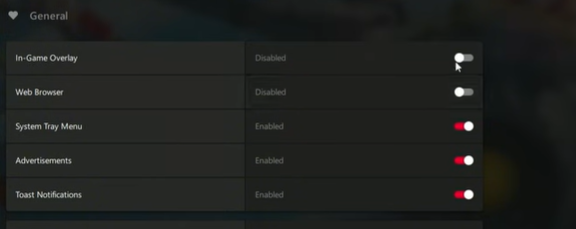
Turn off conflicting overlays:
- Discord
- GeForce Experience
- Steam
- Xbox Game Bar
Method 7: Run Fortnite as Administrator
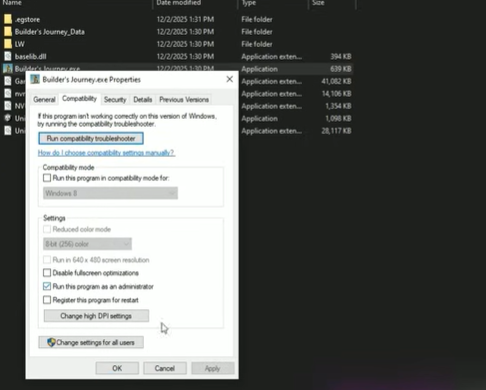
Right-click Fortnite shortcut or FortniteClient-Win64-Shipping.exe → Run as Administrator. Prevents permission issues.
Method 8: Close Background Programs
Shut down unnecessary software:
- MSI Afterburner
- OBS Studio
- Third-party GPU monitoring tools
Method 9: Check Windows Updates
Install all pending updates via Settings → Windows Update. Missing system files can trigger Fortnite crash errors.
Method 10: Temporarily Disable Antivirus
Turn off antivirus or Windows Defender for testing. Some security programs may block essential DLLs.
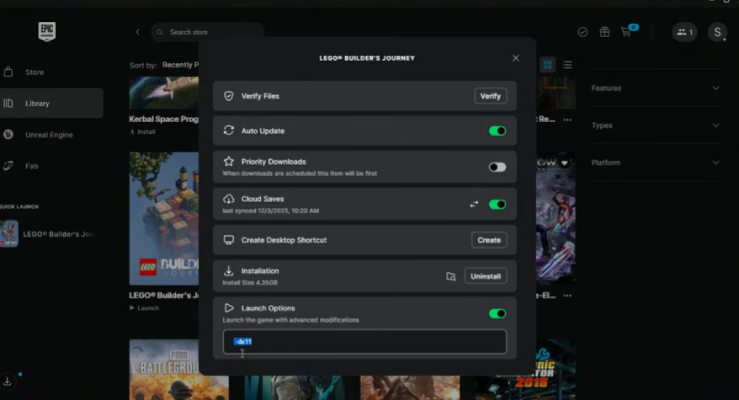
Method 11: Change Launch Options in Epic Games Launcher
- Epic Games Launcher → Settings → Fortnite → Enable Additional Command Line Arguments.
- Add:
This forces DirectX 11 and often resolves crashes.
Method 12: Reinstall Fortnite
If all else fails:
- Uninstall Fortnite completely.
- Delete leftover installation folders.
- Reinstall from Epic Games Launcher.
Some players report unorthodox fixes that worked in specific cases, though they should be approached with caution:
Rename an existing GameInputRedist.dll in the System32 folder to GameInput.dll. This method reportedly worked for some users, but success varies and carries risk — always back up before trying.
Ensure the correct architecture: a 64‑bit game needs a 64‑bit DLL and vice versa. Wrong bitness can trigger DLL not designed to run on Windows errors.
Manual registry or DLL replacement from untrusted sources is not recommended due to security risks. Always prioritize official Windows repair tools first.
Part 5: Using Lago’s Game Crash Fix Tool (One-Click Option)
If manual troubleshooting feels technical or time-consuming, a dedicated utility like LagoFast’s Game Crash Fix can help. This tool automatically detects and fixes common Windows gaming issues, including:
- Missing or broken system DLLs
- DirectX, .NET, and C++ runtime problems
Here’s a detailed guide on how to use LagoFast to Fix GameInput.dll Missing Error in Fortnite :
Step 1: Visit the LagoFast website and click on 'Free Trial' to download the game booster. Install it on your device to get started.
Free Trial
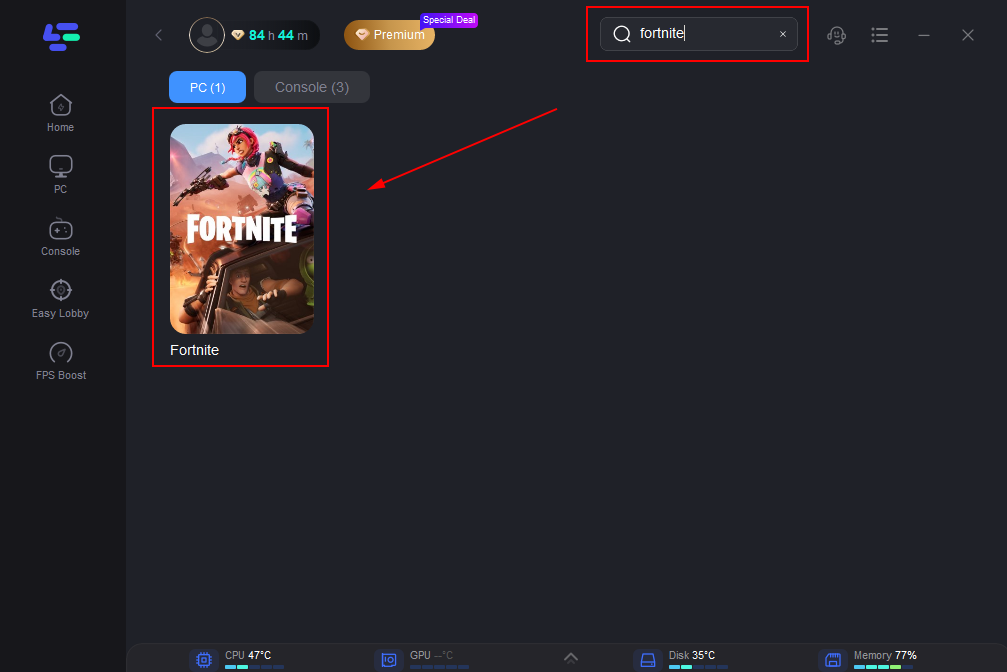
Step 2: Before opening Fortnite, launch LagoFast and use its search feature to find your game. This ensures that the booster will optimize specifically for the game.
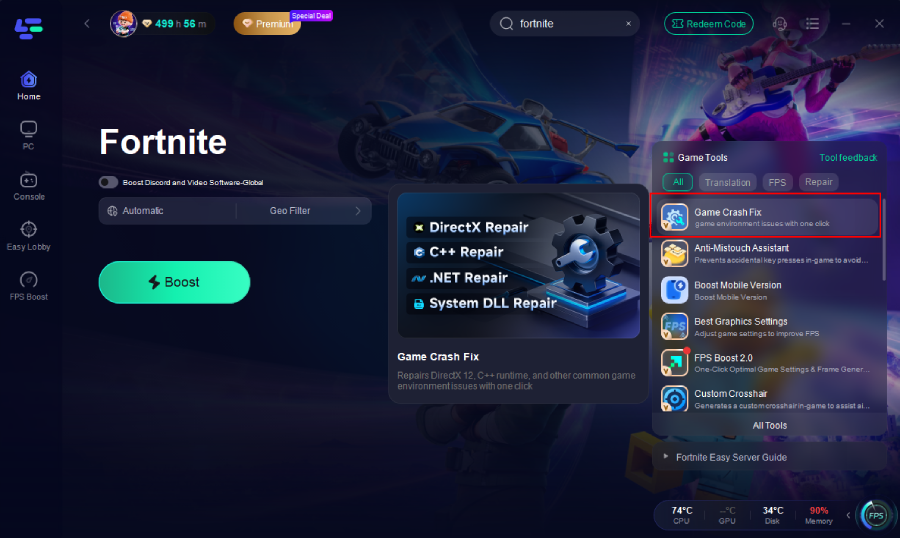
Step 3: Click the Game Crash Fix tool on the right.
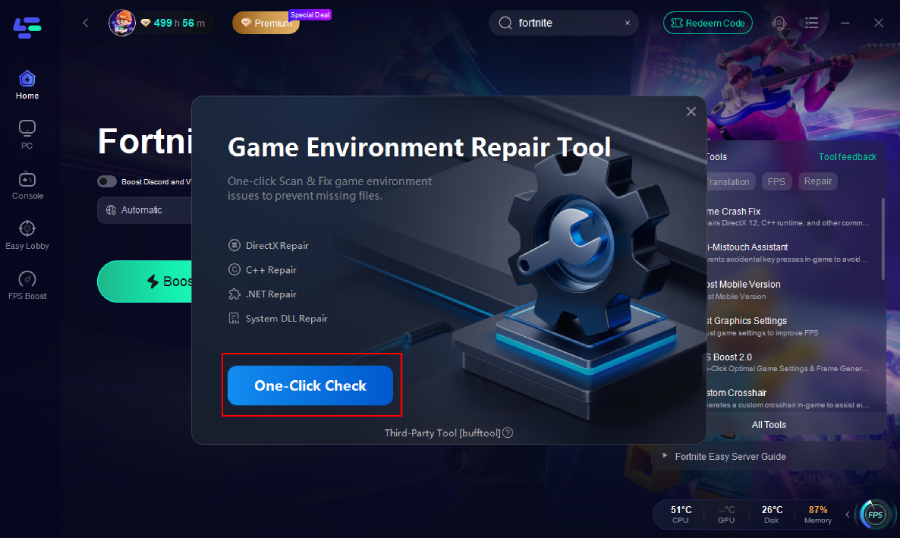
Step 4. Click One-Click Check button.
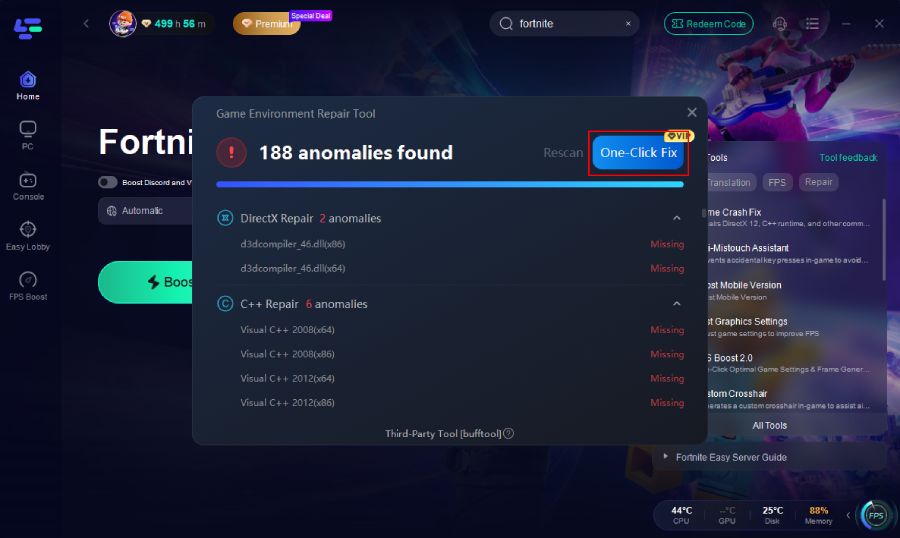
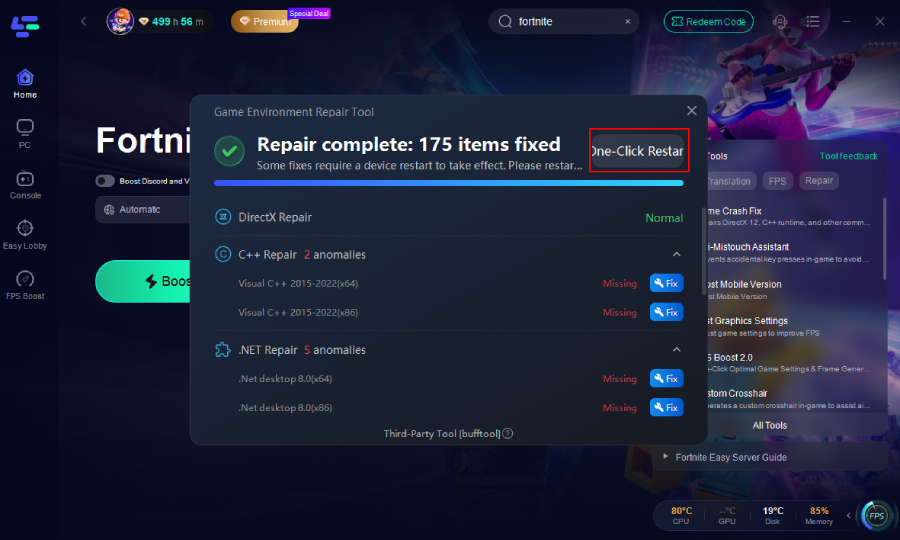
Step 5. Repair complete.
Step 6. Optimize your server connection by selecting 'Select Server' in LagoFast. Choose a stable server from the list, then fine-tune by selecting the most effective 'Node' available on the right side of the application.
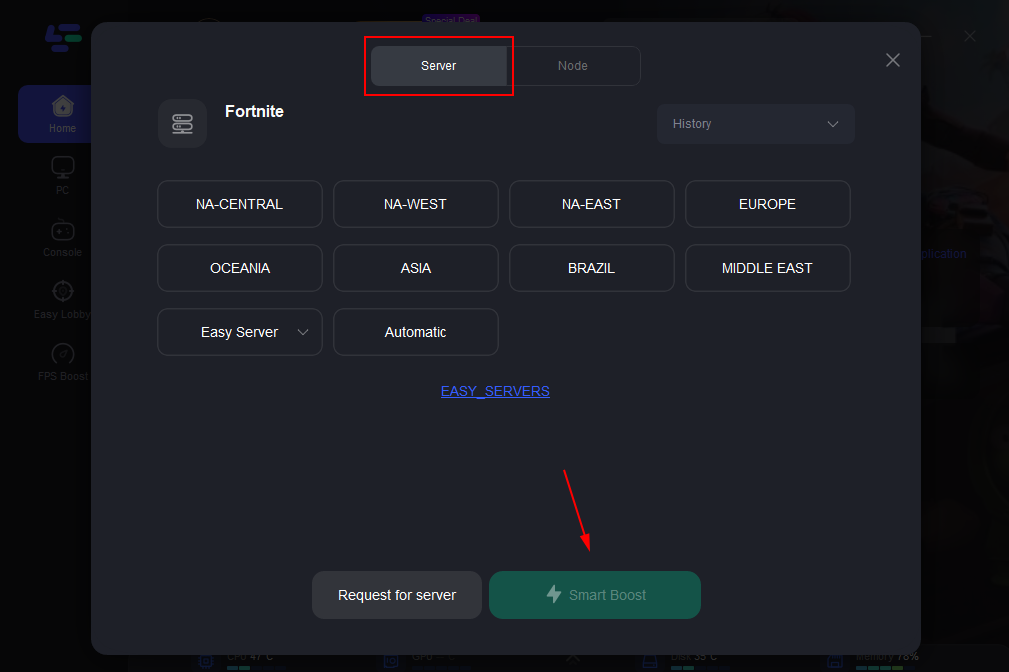
Step 7: Click on the 'Smart Boost' button to activate LagoFast’s optimization features. You’ll be able to view real-time stats on game ping, packet loss, and network type, which are crucial for monitoring the quality of your connection.
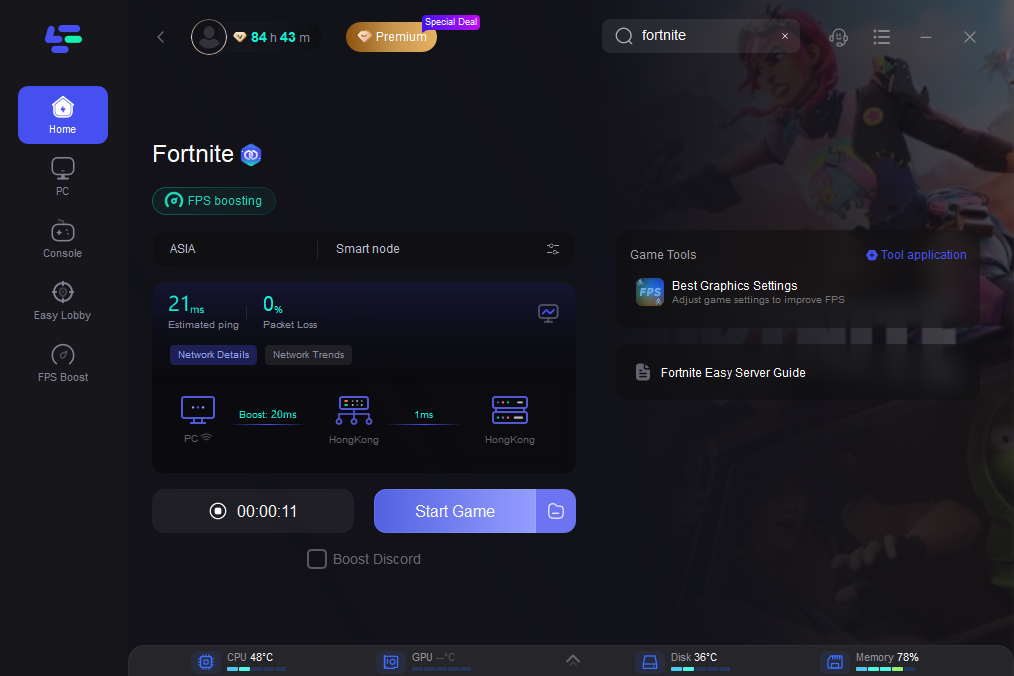
It scans your PC and applies fixes with a single click, making it especially helpful for players who want to avoid command-line tools or manual system work.
Conclusion
Errors like “The code execution cannot proceed because GameInput.dll failed to load” or “GameInput.dll is either not designed to run on Windows” are Windows system issues, not bugs specific to Fortnite. By verifying game files, updating Windows, repairing system files, checking security software, or using tools like Lago’s Game Crash Fix, most players can restore Fortnite functionality quickly.
If these steps don’t help, contacting Epic Games Support or considering a Windows repair install may be necessary for deeper system corruption. Once GameInput.dll is restored, you can get back into Fortnite without crashes.