
If Fortnite crashes the moment you enable DirectX 12, freezes on the loading screen, or suddenly won’t launch after an update, you’re not alone. Many players switch to DirectX 12 expecting smoother performance, only to run into constant crashes, severe stutters, or a game that refuses to open.
This guide breaks down what actually causes DirectX 12 crashes in Fortnite and walks you through the fixes that have helped countless players—starting with the fastest solutions and moving on to manual options if needed.

- ✅ Reduce Lag and High Ping
- ✅ Boost FPS in Real Time
- ✅ Get the Easiest Server in Fortnite
- ✅ End All Connection Login Issues.
- ✅ Support 2000+ Online Games.
- ✅ Multiplatform: PC, Mobile, Console
Part 1: What Is the Fortnite DirectX 12 Crash Error?
Part 2: Why Does DirectX 12 Crash Error Happen in Fortnite?
Part 3: Fastest Way to Fix Fortnite DirectX 12 Crash Error
Part 4: Manual & Alternative Ways to Fix Fortnite DirectX 12 Crash Error
Part 1: What Is the Fortnite DirectX 12 Crash Error?
The Fortnite DirectX 12 Crash Error occurs when the game becomes unstable or fails to run after DirectX 12 is enabled. Instead of launching or loading normally, Fortnite may crash immediately, freeze during loading, or break as soon as a match starts.
This issue often appears after switching to DirectX 12 or following a game, system, or graphics settings change, even though Fortnite may run fine in other modes.
Common Fortnite DirectX 12 Crash Error Symptoms
If you’re seeing one or more of the symptoms below, you’re likely dealing with a DirectX 12 crash issue:
- Fortnite crashes on startup with DirectX 12 enabled
- Fortnite crashing on DirectX 12 or 11
- Fortnite DirectX 12 not working even though the GPU supports it
- Fortnite DirectX 12 suddenly stops working after an update
- Severe stuttering, freezing, or frame drops in DirectX 12 mode
- DirectX-related errors such as DXGI or D3D12 crashes
- Unable to enable DirectX 12 in Fortnite graphics settings
Part 2: Why Does the DirectX 12 Crash Error Happen in Fortnite?
Fortnite crashes in DirectX 12 are usually not caused by your hardware but by conflicts or missing system components. The most common reasons include:
- Broken or outdated graphics drivers: Some driver versions don’t work well with DirectX 12, which can cause instant crashes or stuttering.
- Missing or corrupted system components: Essential files like Visual C++ Redistributables, .NET Framework, or system DLLs may be damaged, preventing DirectX 12 from running properly.
- Corrupted DirectX shader cache: Old or corrupted shader files from previous updates can trigger crashes or severe stuttering.
- Windows system file issues: Damaged DirectX or other Windows components can stop DirectX 12 from initializing correctly.
- Overly aggressive DirectX 12 graphics settings: Pushing shadows, effects, or ray tracing to maximum can make the game unstable—even on high-end GPUs.
Part 3: Fastest Way to Fix Fortnite DirectX 12 Crash Error
The quickest way to fix Fortnite DirectX 12 crashes is by repairing the system environment, and the LagoFast Game Crash Fix tool makes this process effortless. With just one click, it can resolve DirectX 12 crash errors, fix DirectX initialization issues, repair Visual C++ and .NET Framework problems, and restore missing or damaged system DLL files.
Beyond these fixes, LagoFast also helps improve your overall gaming experience by reducing ping, stabilizing your network, optimizing routing, boosting FPS, and offering other practical tools to keep Fortnite running smoothly.
How to Use LagoFast Game Crash Fix
Step 1: Click the Free Trial button to download and install LagoFast.
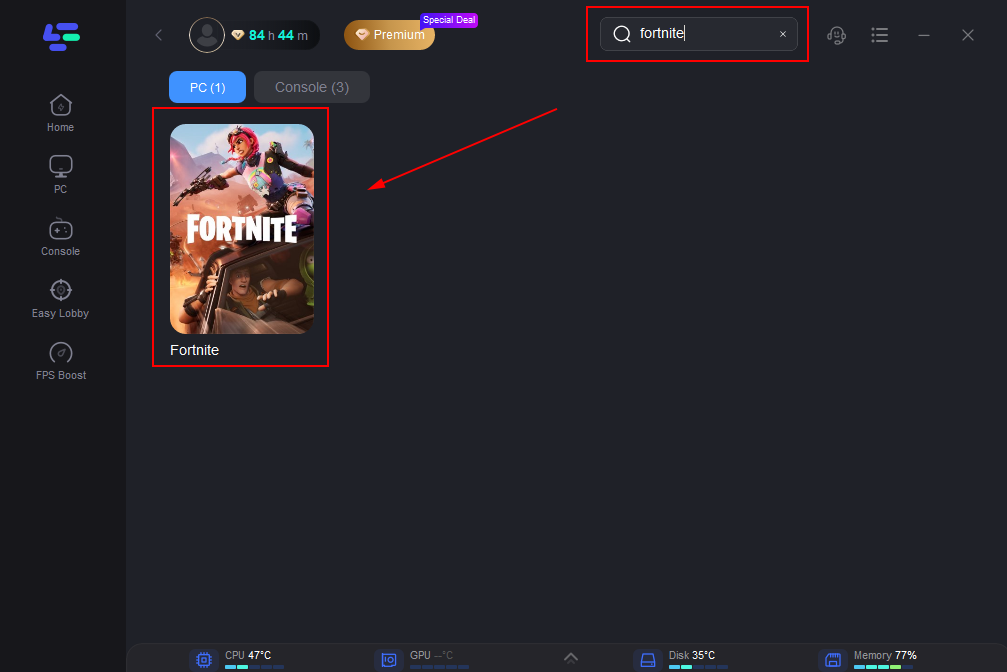
Step 2: After installation, search "Fortnite" in the search bar and select the game.
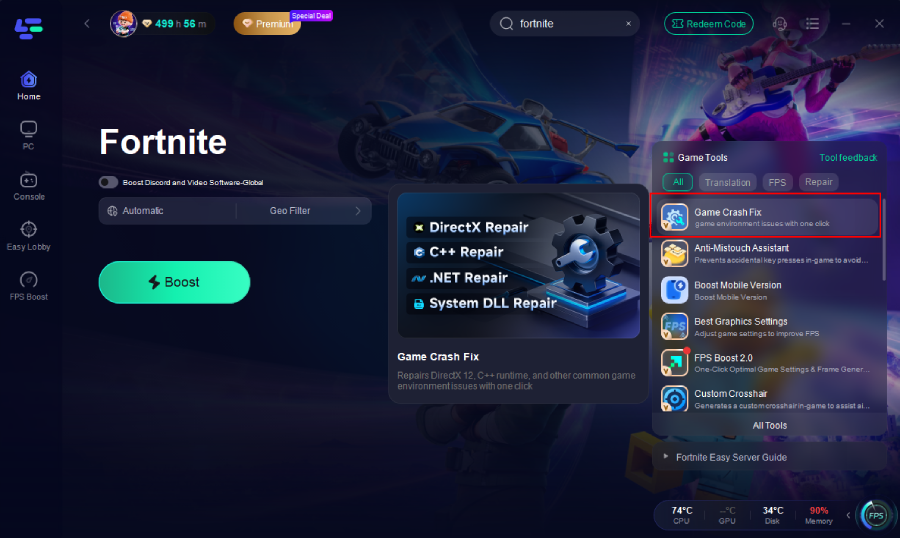
Step 3: Click the Game Crash Fix tool on the right.
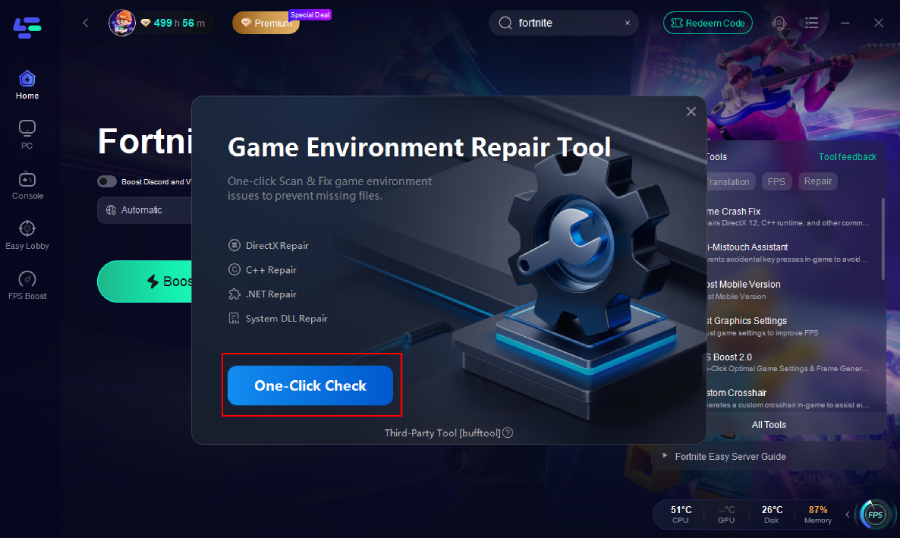
Step 4: Click One-Click Check to apply the fix.
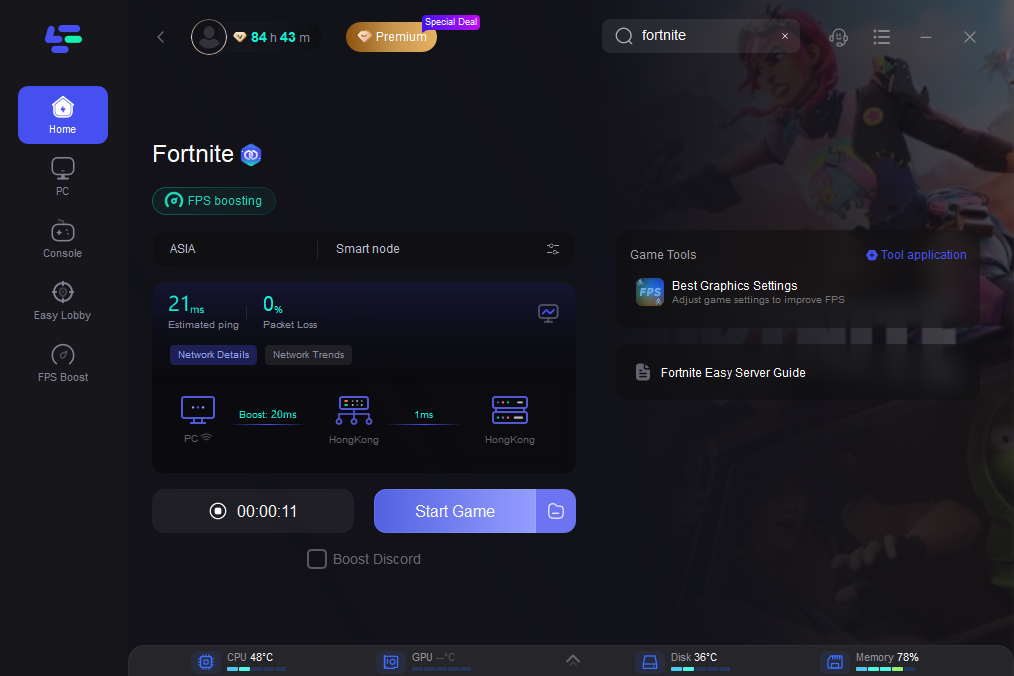
Step 5: Choose your preferred server node and click "Smart Boost" to start optimizing.
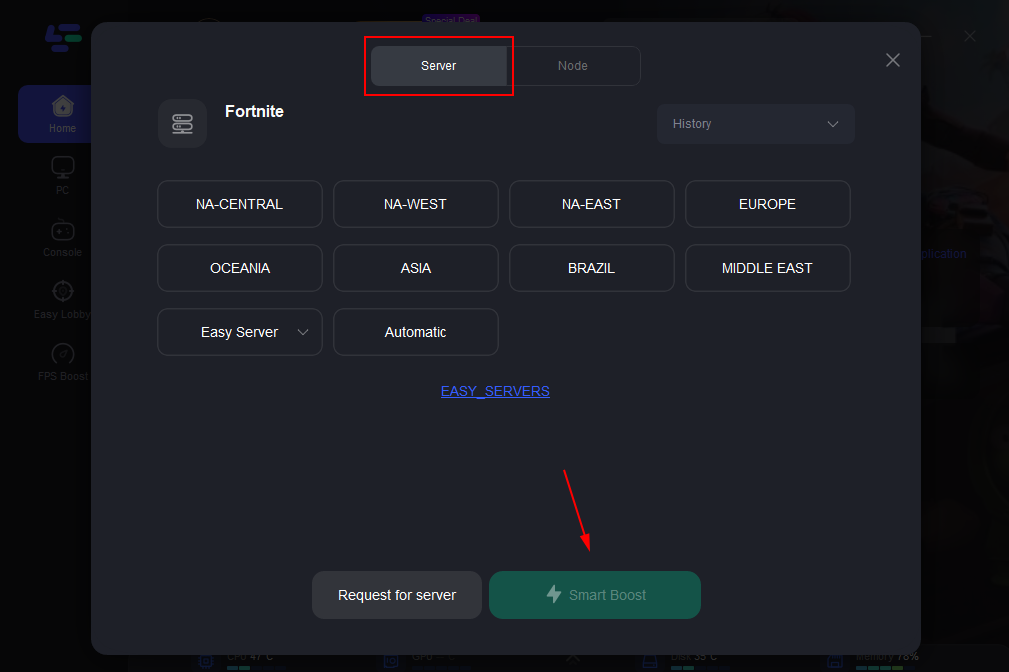
Step 6: Launch your game and enjoy smooth, optimized gameplay with lower ping and no stutter.
Part 4: Manual & Alternative Ways to Fix Fortnite DirectX 12 Crash Error
If you prefer manual solutions, these steps can help resolve DirectX 12 crashes.
1. Force Fortnite to Launch Without DirectX 12
If DirectX 12 crashes prevent Fortnite from opening, run the game in DX11 mode:
- Open Epic Games Launcher
- Go to Library → Fortnite → click the three dots → Manage
- Enable Additional Command Line Arguments
- Enter -d3d11
- Launch Fortnite normally
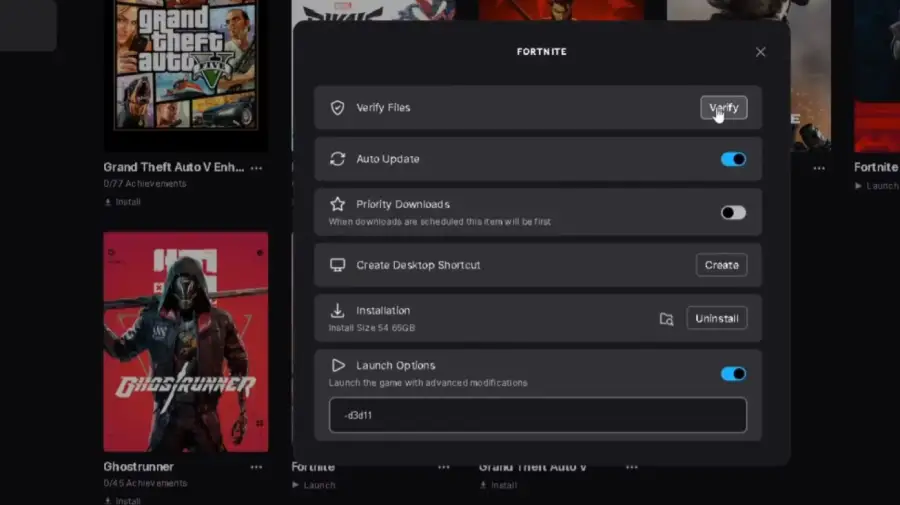
This helps when DirectX 12 crashes instantly and blocks the game from starting.
2. Clear DirectX Shader Cache
Old or corrupted shader files can cause crashes or stuttering:
- Press Win + R, type cleanmgr, and press Enter
- Select your system drive
- Check DirectX Shader Cache and click OK
- Restart your PC
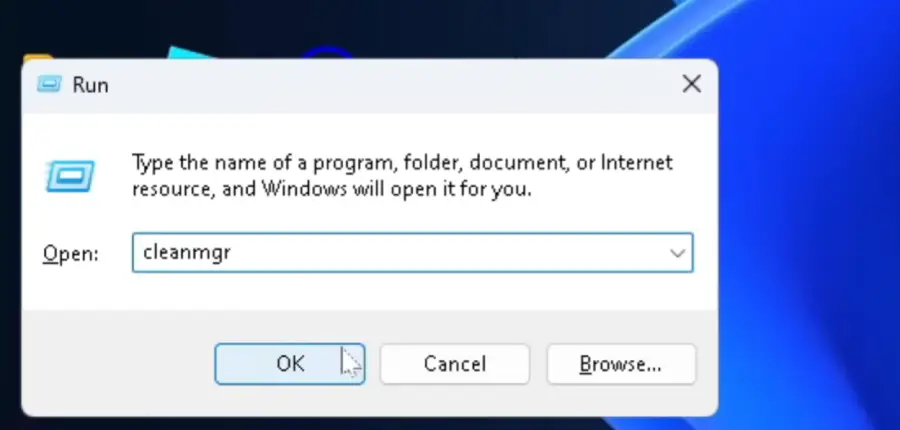
This method is especially effective for random DirectX 12 crashes and stuttering.
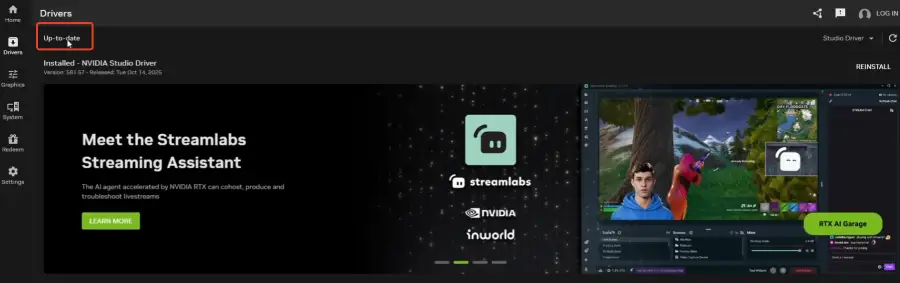
3. Update or Roll Back Graphics Drivers
Driver issues are a common cause of DirectX 12 crashes:
- If crashes started after a driver update → roll back to a stable version
- If drivers are outdated → update to the latest stable release
- Avoid beta drivers for DirectX 12 gameplay
4. Verify Fortnite Game Files
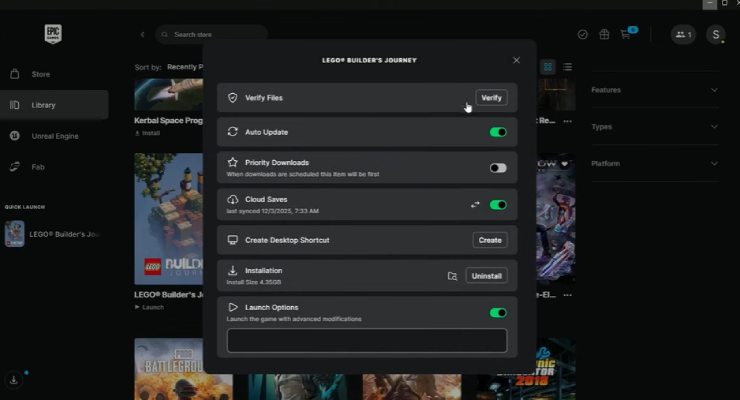
Corrupted game files can trigger crashes:
- Open Epic Games Launcher
- Go to Library → click the three dots next to Fortnite → Select Verify
- Wait for the process to complete
Bonus Tips: Recommended DirectX 12 Settings (Performance Focus)
- Rendering Mode: DirectX 12
- Nanite Virtualized Geometry: Off
- Lumen Global Illumination: Off
- Shadows: Medium
- Effects: Medium
- Ray Tracing: Off
- V-Sync: Off
- FPS Limit: Match your monitor refresh rate
Tip: These settings prioritize performance and stability while keeping visuals acceptable. Adjust individual settings if you prefer higher graphics quality and your hardware can handle it.
Conclusion
Fortnite DirectX 12 crashes are usually caused by drivers, system files, or graphics settings, not your hardware. You can fix them quickly with LagoFast or use manual methods like forcing DX11, clearing shader cache, updating drivers, and verifying game files. Using performance-focused DirectX 12 settings also helps reduce crashes. Follow these steps for smoother, more stable Fortnite gameplay.
Boost Your Game with LagoFast for Epic Speed
Play harder, faster. LagoFast game booster eliminates stutter and lags on PC, mobile, or Mac—win every match!
Quickly Reduce Game Lag and Ping!
Boost FPS for Smoother Gameplay!