
Imagine you’ve just built a top-tier gaming rig with the latest GPU, only to jump into a match and realize your Fortnite DirectX 12 lag is making the game unplayable. It’s a frustrating paradox: your FPS counter says 240, but your screen feels like a slideshow. This isn't your typical internet lag where players teleport; it is a specialized rendering issue that causes "stuttering" or "hitching," especially during build fights or when landing in new POIs. In this guide, we will break down why Fortnite stuttering on high-end PCs happens even when you have the hardware to handle it and provide the definitive steps to fix these frame-time inconsistencies once and for all.

- ✅ Reduce Lag and High Ping
- ✅ Boost FPS in Real Time
- ✅ Get the Easiest Server in Fortnite
- ✅ End All Connection Login Issues.
- ✅ Support 2000+ Online Games.
- ✅ Multiplatform: PC, Mobile, Console
Part 1: What is Fortnite DirectX 12 Lag & Why Does It Appear?
Part 2: How to Fix Fortnite DirectX 12 Lag? – Top Solutions
Part 1: What is Fortnite DirectX 12 Lag & Why Does It Appear?
DirectX 12 lag in Fortnite is primarily a frame time consistency issue, not a raw performance problem. Unlike DirectX 11, DX12 offers better CPU utilization but requires the game to "build" or "compile" shaders on the fly. If these shaders aren't ready when you turn your camera or enter a new area, the game hitches, resulting in a stutter even if your FPS counter says 144.
This often appears on high-end PCs because DX12 tries to push advanced features like Nanite or Lumen that can overwhelm the shader cache. Essentially, the lag is the result of your GPU and CPU briefly "disagreeing" on how to render a frame, leading to those micro-stutters that ruin your competitive edge.
Part 2: How to Fix Fortnite DirectX 12 Lag? – Top Solutions
Solution 1: The Best Solution: Use LagoFast Game Booster
While manual tweaks can help, they often require constant maintenance. LagoFast is the best game booster specifically designed to fix Fortnite DirectX 12 lag. Unlike standard optimizers, LagoFast features a dedicated "Game Crash & Lag Fix" tool that addresses the root cause of DX12 stuttering by optimizing system resource allocation and ensuring your shader pipeline remains stable. It can automatically clear redundant cache files and fine-tune your PC's environment to ensure smooth frame times, making it the most reliable "set-and-forget" solution for competitive players. While the following methods can provide temporary relief, they are generally less effective and more time-consuming than using LagoFast.
Tutorial to Use LagoFast to Fix Fortnite DirectX 12 Lag on PC:
Step 1: Click the Free Trial button to download and install LagoFast.
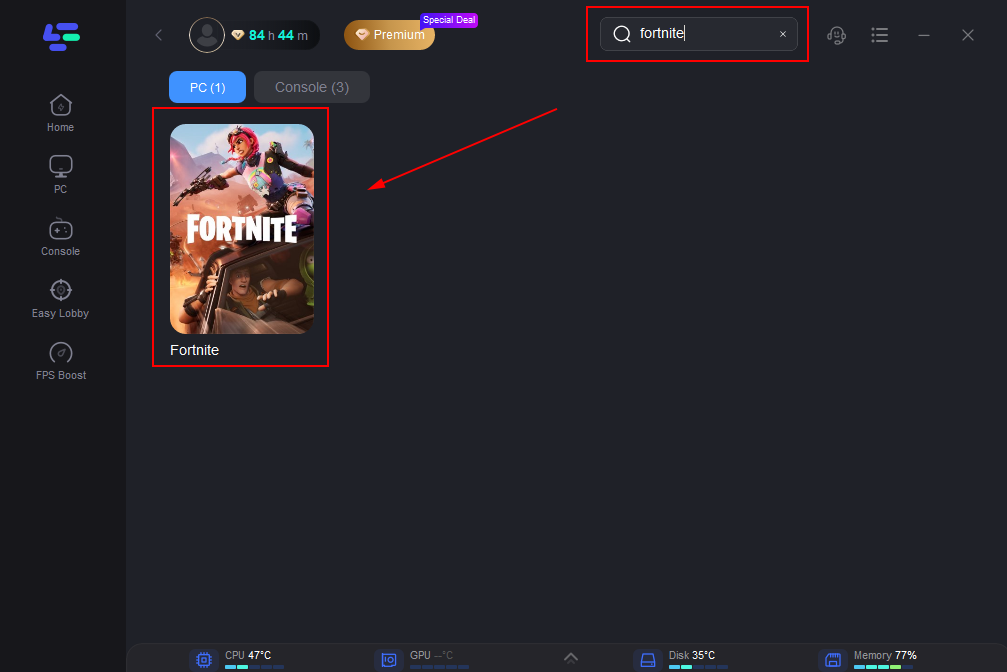
Step 2: Open LagoFast, then click the PC button on the left and search for Fortnite in the search bar, and click it after it appears.
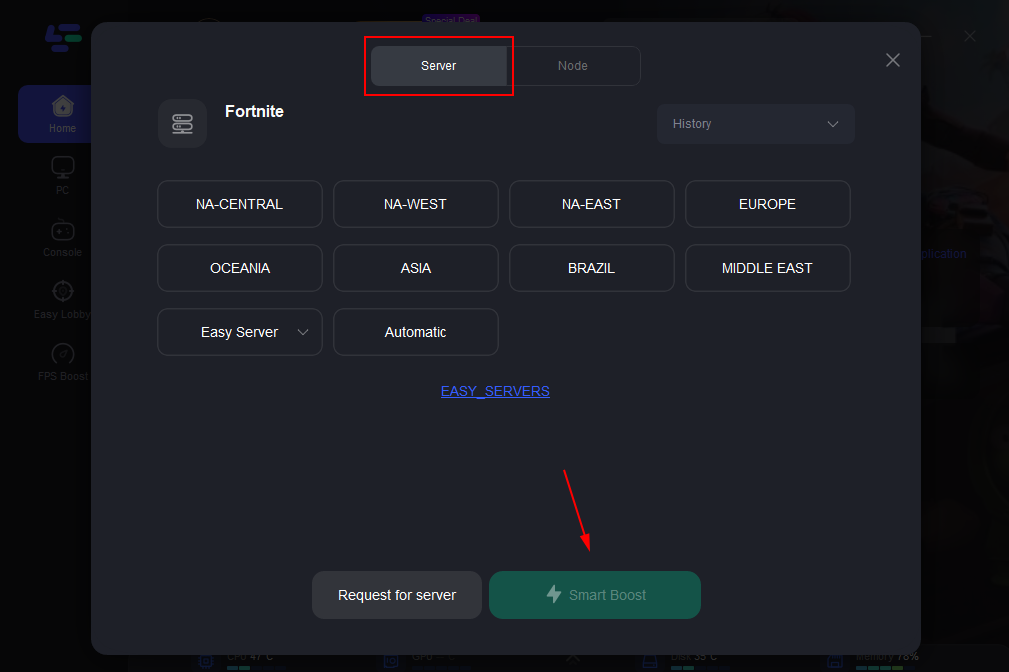
Step 3: Click on “Server” to change to a better server that fixes lag and ensures Fortnite gaming experience, then click on “Smart Boost.”
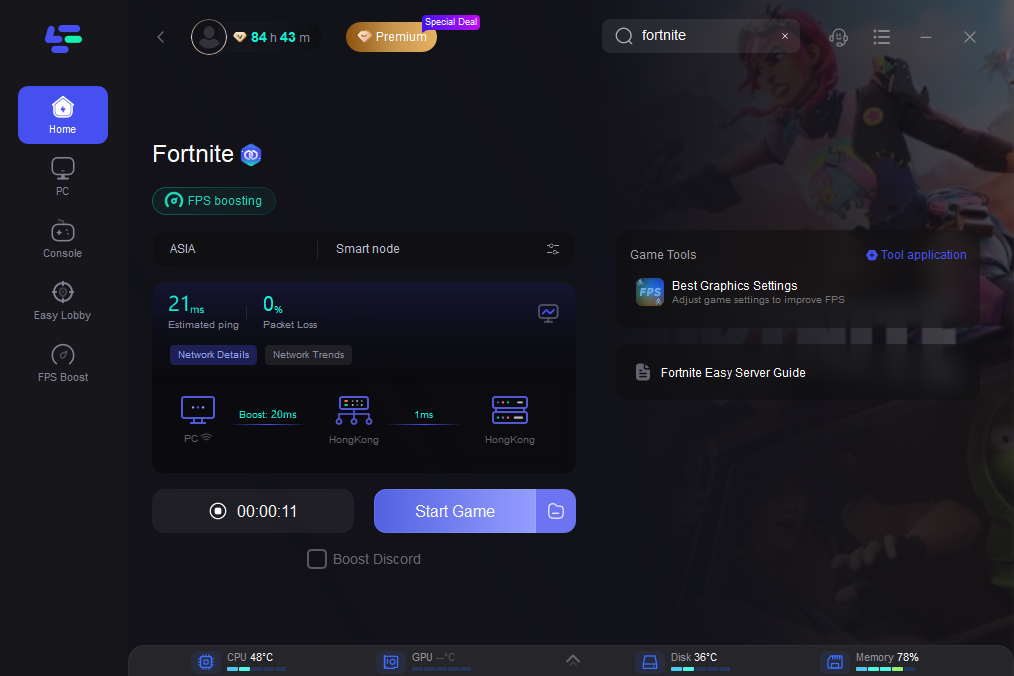
Step 4: Check the specific game ping, packet loss, and multiple path connections on the right side. Finally, click the “Start Game” to play the game.
Solution 2: Clear the DirectX Shader Cache
If your shaders are corrupted, the game will constantly try to re-compile them, leading to massive stutters.
Step 1. Open the Start Menu and type "Disk Cleanup."
Step 2. Select your main drive (usually C:) and click OK.
Step 3. Check the box next to DirectX Shader Cache (uncheck others to avoid deleting important files).
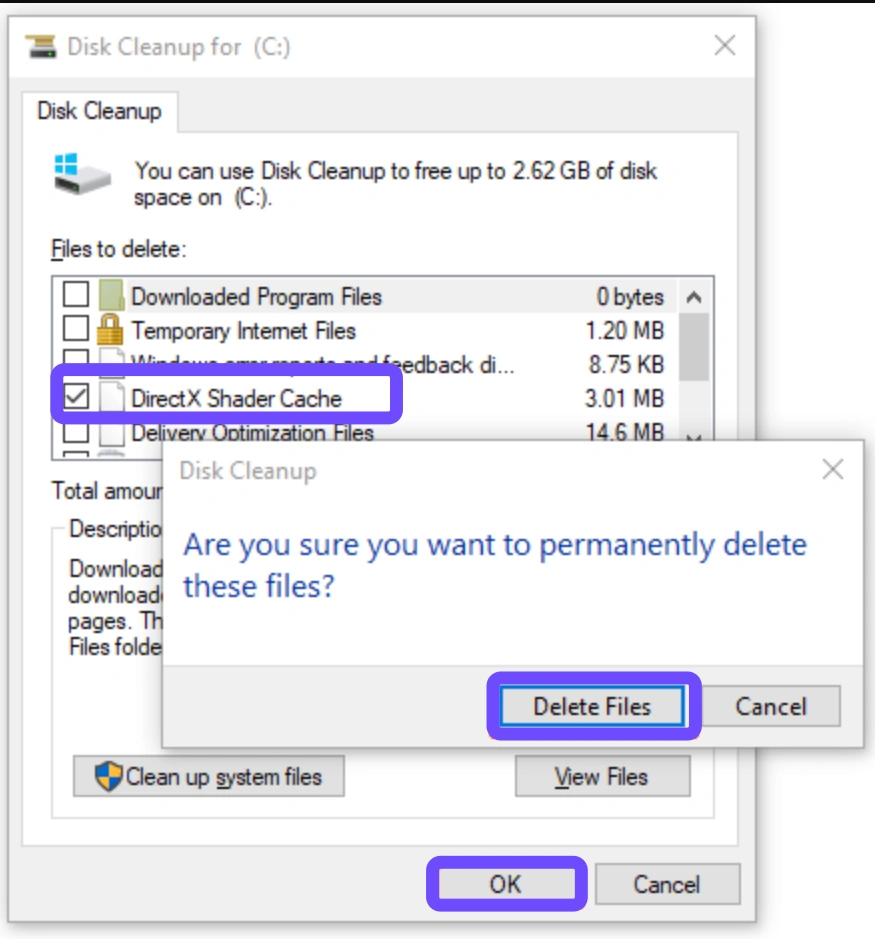
Step 4. Click OK and select Delete Files.
Step 5. Restart your PC and launch Fortnite; note that the first match may still stutter as it builds a fresh cache.
Note: This is a "reset" button, not a permanent fix. Unlike LagoFast, it won't prevent future cache bloat.
Solution 3: Enable "Pre-Download Streamed Assets"
Fortnite often stutters because it tries to download high-resolution textures while you are actively playing.
Step 1. Open the Epic Games Launcher.
Step 2. Go to your Library and find Fortnite.
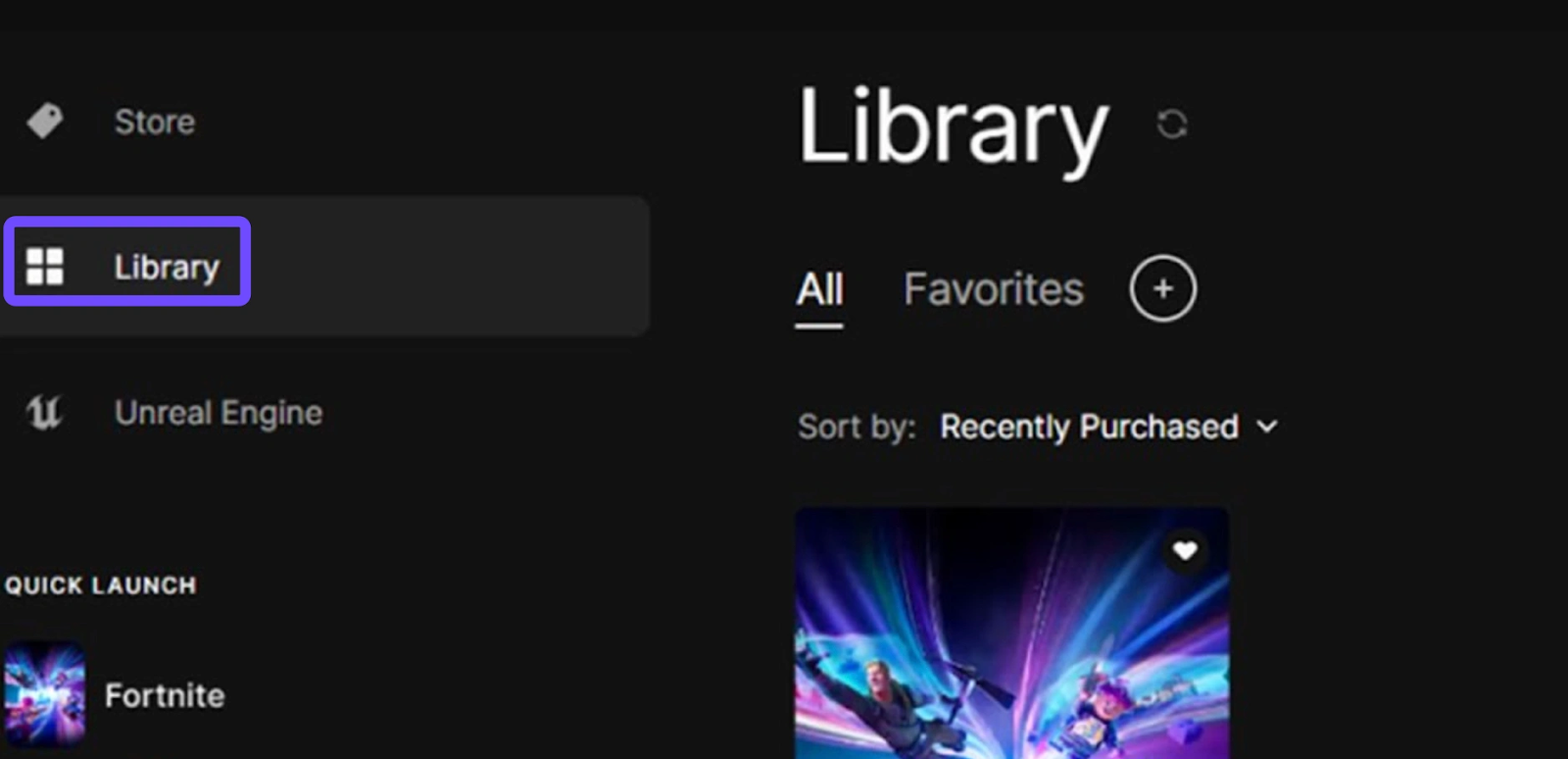
Step 3. Click the three dots (...) and select Options.
Step 4. Check the box for Pre-download Streamed Assets.
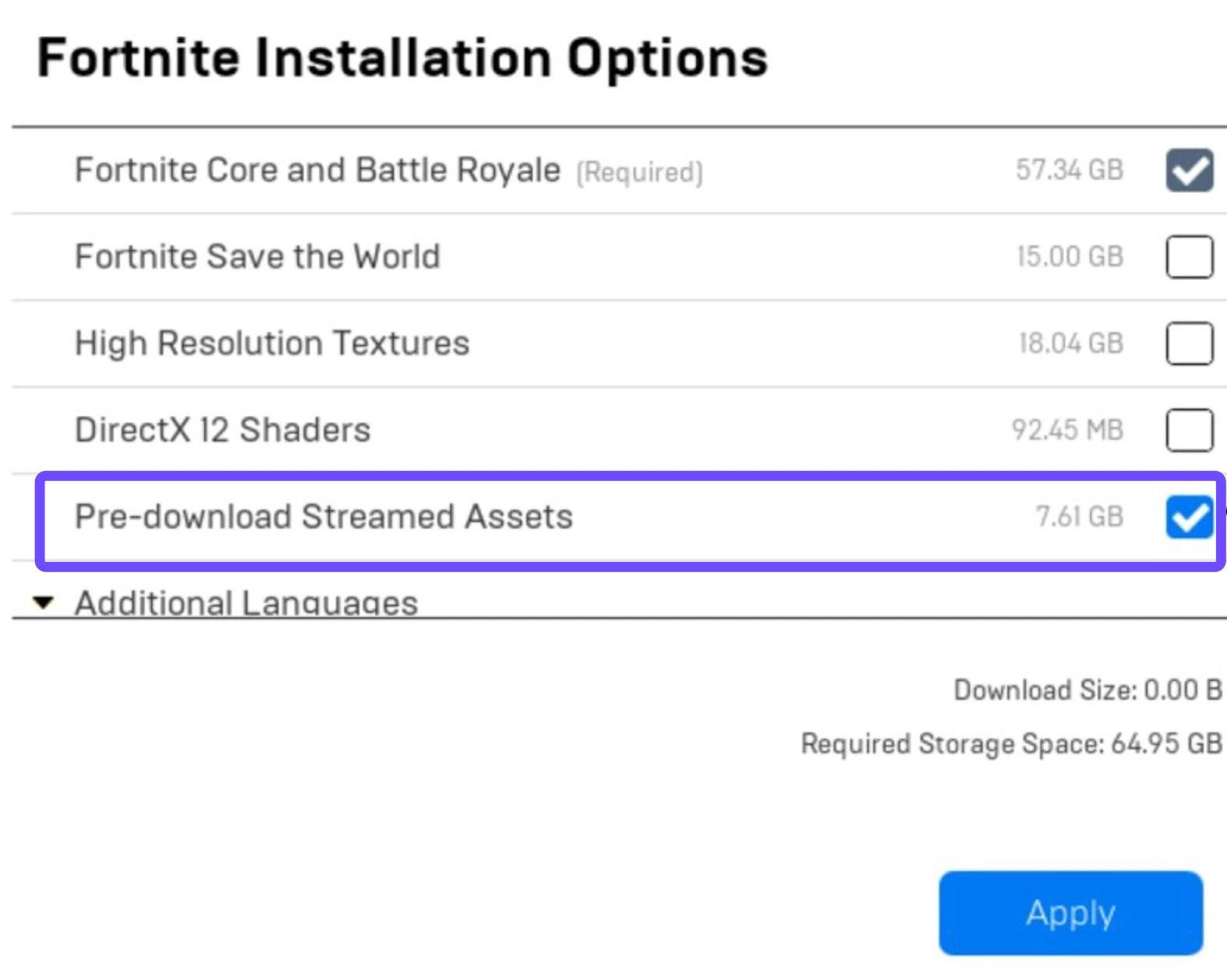
Step 5. Click Apply and wait for the download (usually several GBs) to finish.
Solution 4: Perform a Clean GPU Driver Install (DDU)
Old driver fragments can conflict with DX12's low-level communication.
Step 1. Download the latest drivers from NVIDIA or AMD and the Display Driver Uninstaller (DDU) tool.
Step 2. Disconnect your internet to prevent Windows from auto-installing generic drivers.
Step 3. Boot into Safe Mode and run DDU to wipe all existing graphics drivers.
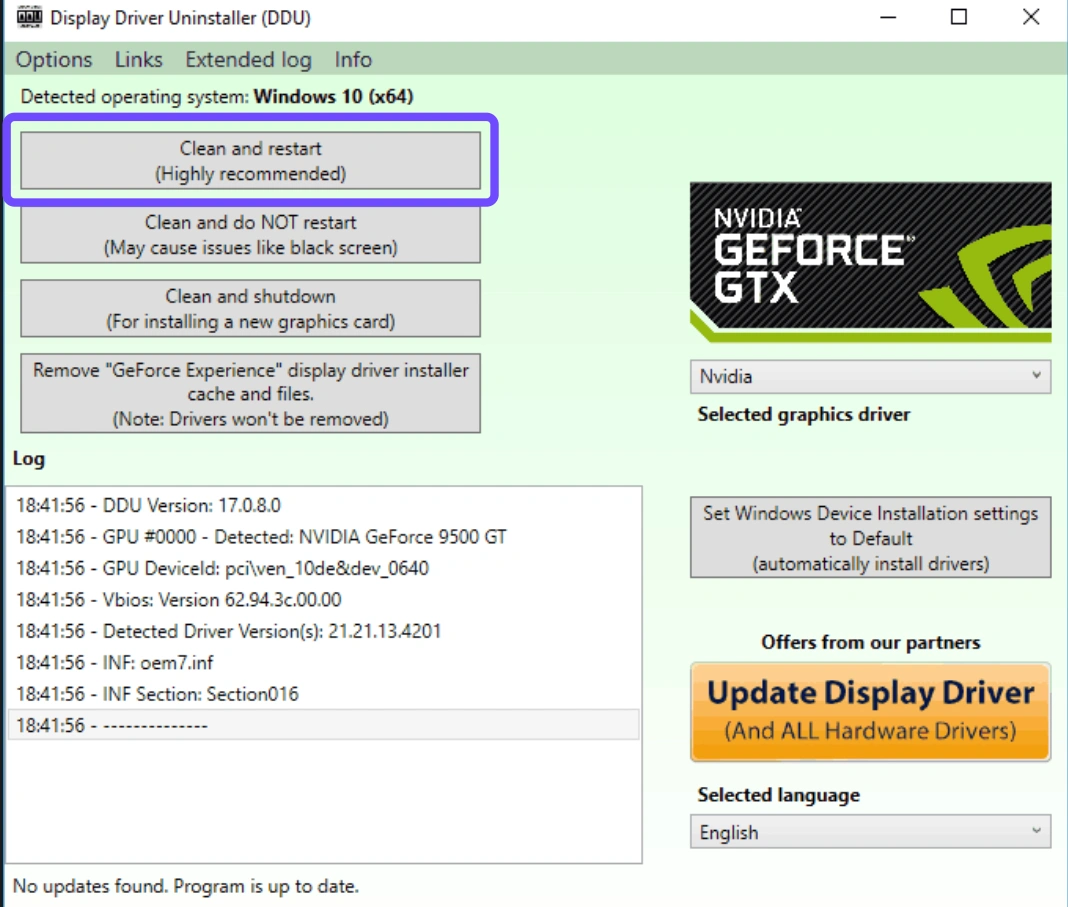
Step 4. Restart into normal Windows and install the new driver package.
Step 5. Reconnect the internet and restart once more.
Solution 5: Disable Fullscreen Optimizations
Windows sometimes interferes with how games handle "Exclusive Fullscreen," causing frame delivery delays.
Step 1. Navigate to the Fortnite installation folder (usually FortniteGame\Binaries\Win64).

Step 2. Right-click FortniteClient-Win64-Shipping.exe and select Properties.
Step 3. Go to the Compatibility tab.
Step 4. Check the box for Disable fullscreen optimizations.
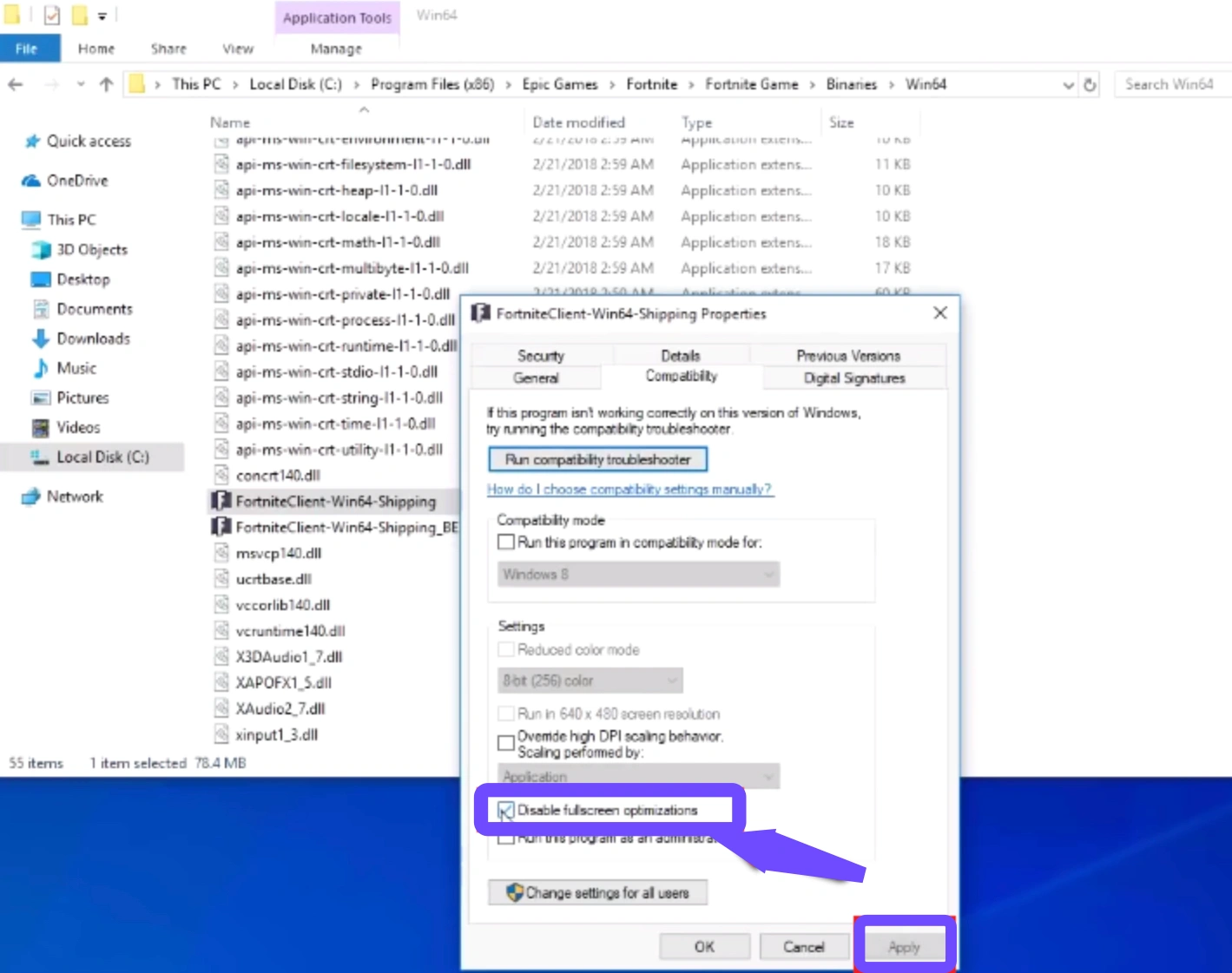
Step 5. Click Change high DPI settings and check "Override high DPI scaling behavior," then hit Apply.
Solution 6: Adjust "Exploit Protection" Settings
A little-known Windows security feature can cause "Control Flow Guard" (CFG) to slow down DX12 applications.
Step 1. In the Windows Search bar, type Exploit Protection.
Step 2. Switch to the Program Settings tab and click "Add program to customize."
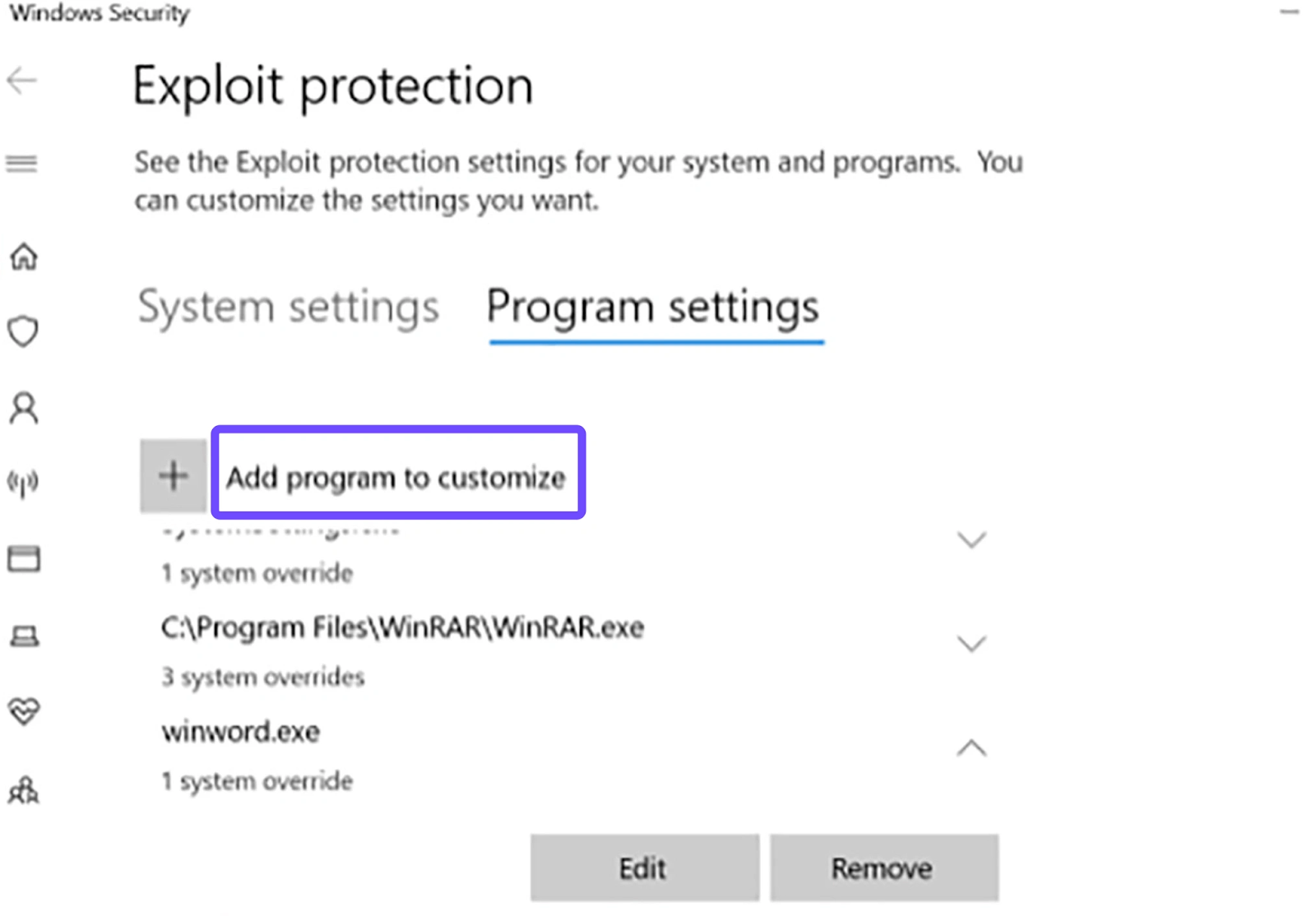
Step 3. Choose "Choose exact file path" and navigate to your Fortnite Win64 executable.
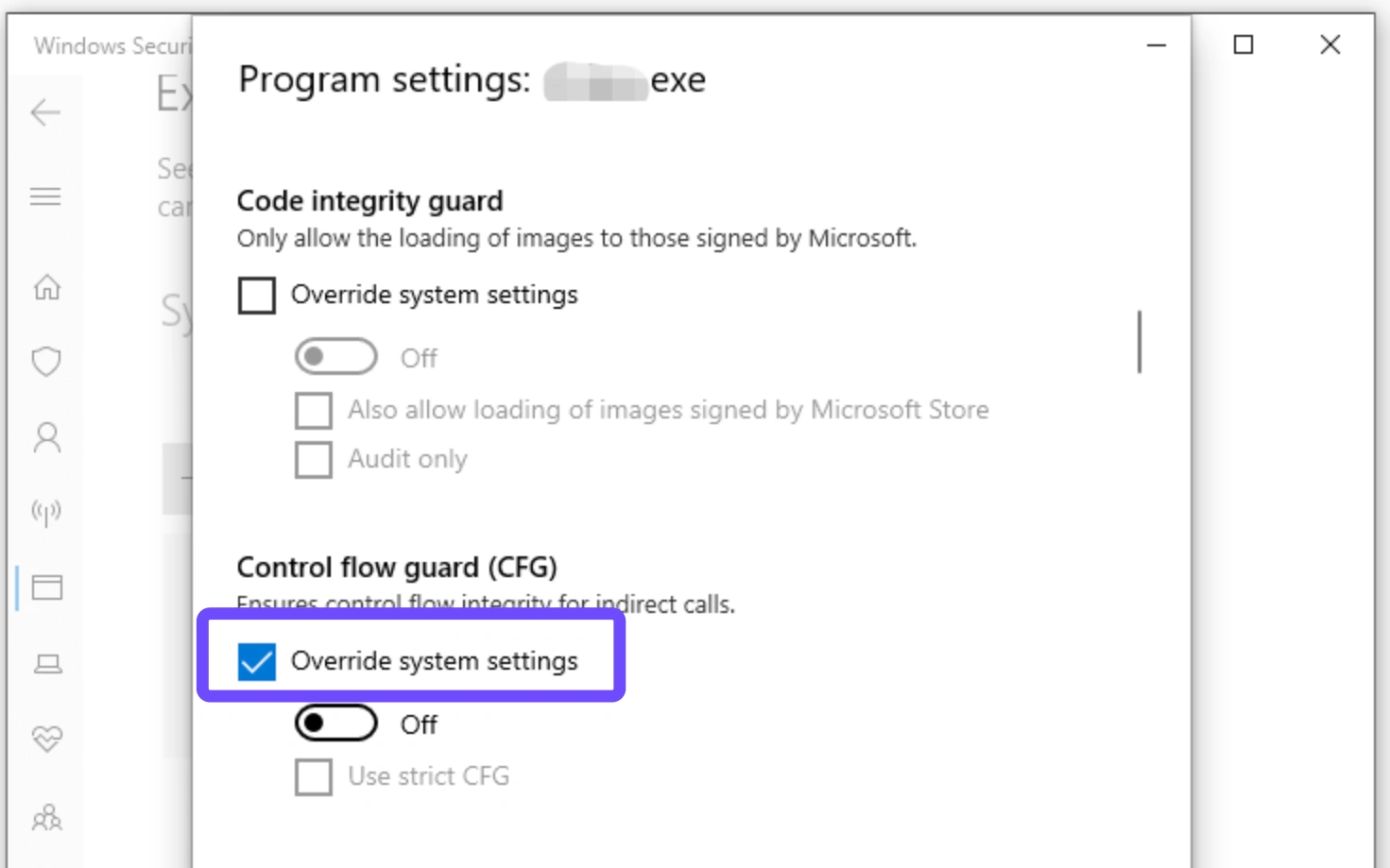
Step 4. Scroll down to Control Flow Guard (CFG).
Step 5. Check "Override system settings," turn it Off, and click Apply.
Conclusion
Fixing Fortnite DirectX 12 lag is all about stabilizing your frame times and ensuring your hardware isn't bottlenecked by shader compilation. While manual fixes like clearing your cache or disabling overlays provide a baseline, they often act as "band-aids" for a deeper optimization issue. For players who want a permanent, high-performance experience without the headache of digging through system settings, LagoFast is the definitive choice. By addressing the specific way Fortnite handles DirectX 12, LagoFast allows you to finally enjoy the visual fidelity of the modern engine without the game-breaking stutters.
Boost Your Game with LagoFast for Epic Speed
Play harder, faster. LagoFast game booster eliminates stutter and lags on PC, mobile, or Mac—win every match!
Quickly Reduce Game Lag and Ping!
Boost FPS for Smoother Gameplay!