
Nothing ruins a weekend gaming session faster than prepping your Ultimate Team, clicking to start a Division Rivals or Champions game, and getting slammed with an instant rejection pop-up: "Entering a match is temporarily disabled."
If you are staring at this screen right now, you aren't alone. This error is one of the most notorious roadblocks in EA SPORTS FC 26. While it often points to scheduled EA server maintenance, it can just as easily be triggered by glitched player cards, localized network desyncs, or corrupted squad files.
Below, we break down exactly what happens under the hood when this error strikes, how to diagnose where the problem originates, and the fastest ways to get back onto the pitch using smart optimization tools like LagoFast.

- ✅ Reduce Lag and High Ping.
✅ Boost FPS at the Same Time.
✅ Support 3000+ Popular Online Games.
✅ Change Server without Latency.
✅ Boost Game Loading Speed.
Part 1: What Really Happens When Match Entry Is Disabled?
Part 2: Decoding EA Matchmaking Errors: What's the Difference?
Part 3: Why Is FC 26 Matchmaking Disabled? The 5 Root Causes
Part 4: How to Diagnose Your Issue: A Step-by-Step Scenario Guide
Part 5: Best Solution for FC 26 Matchmaking & Connection Issues: LagoFast Game Booster
Part 6: Comprehensive Step-by-Step Troubleshooting Guide
Part 7: EA Matchmaking Disabled FAQs
Part 1: What Really Happens When Match Entry Is Disabled?
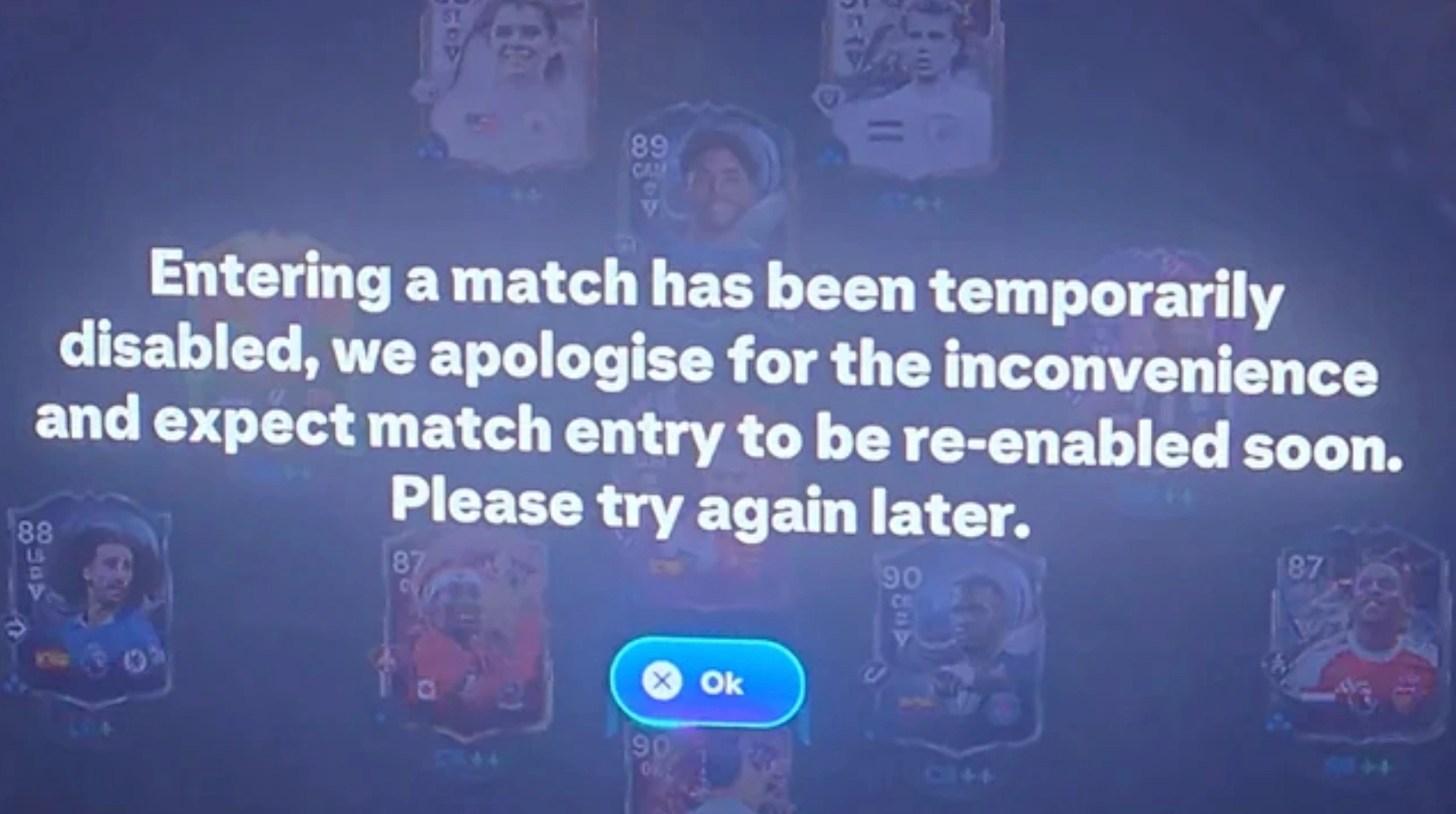
To fix the issue, you first need to understand the technical sequence occurring behind the scenes when you try to load into a game. When FC 26 entering a match is temporarily disabled appears on your screen, the normal matchmaking pipeline is getting intentionally interrupted at the very first step:
- You Click "Enter Match": Your client sends a request to EA’s backend to open a new competitive match session.
- EA Rejects Session Creation: Before the server even looks at your skill rating or division, the backend server denies the session request.
- No Opponent Search Begins: Because the session creation was blocked, the game never starts searching for an opponent.
- The Error Pops Up: You immediately receive the on-screen prompt stating that entering a match has been temporarily disabled.
This immediate rejection is why you don't see a spinning loading icon or a timer. The server is actively refusing to let your account enter the matchmaking pool.
Part 2: Decoding EA Matchmaking Errors: What's the Difference?
Not all matchmaking errors in FC 26 are created equal. Players frequently confuse a locked matchmaking pool with connection dropouts or regional lobby shortages. Here is a clear breakdown of how this specific error compares to other common online issues:
|
Error Message |
When It Happens |
What It Actually Means |
Root Cause |
|
Entering a match is temporarily disabled |
Immediately upon clicking "Play" or starting a match. |
Session creation rejected. The system directly blocks you from entering the matchmaking pool; no search ever begins. |
EA server maintenance, mode-specific closures, glitched squad/player cards, or account soft bans. |
|
Unable to find league match |
After the matchmaking timer has run for several seconds or minutes. |
Matchmaking pool empty. The game actively searched for an opponent but couldn't find a suitable match. |
Playing at off-peak hours, strict matchmaking filters (e.g., turning off crossplay), or regional server isolation. |
|
Failed to connect to opponent |
After an opponent is found and the kit/ping confirmation screen appears. |
Handshake failure. You found a match, but the data connection between you, your opponent, and the EA server failed to sync. |
High packet loss, strict NAT type, ISP routing desync, or your opponent quitting during the loading screen. |
Part 3: Why Is FC 26 Matchmaking Disabled? The 5 Root Causes
When you run into the FC 26 matchmaking temporarily disabled notification, it usually boils down to one of five distinct scenarios:
Scheduled EA Server Maintenance or Hotfixes
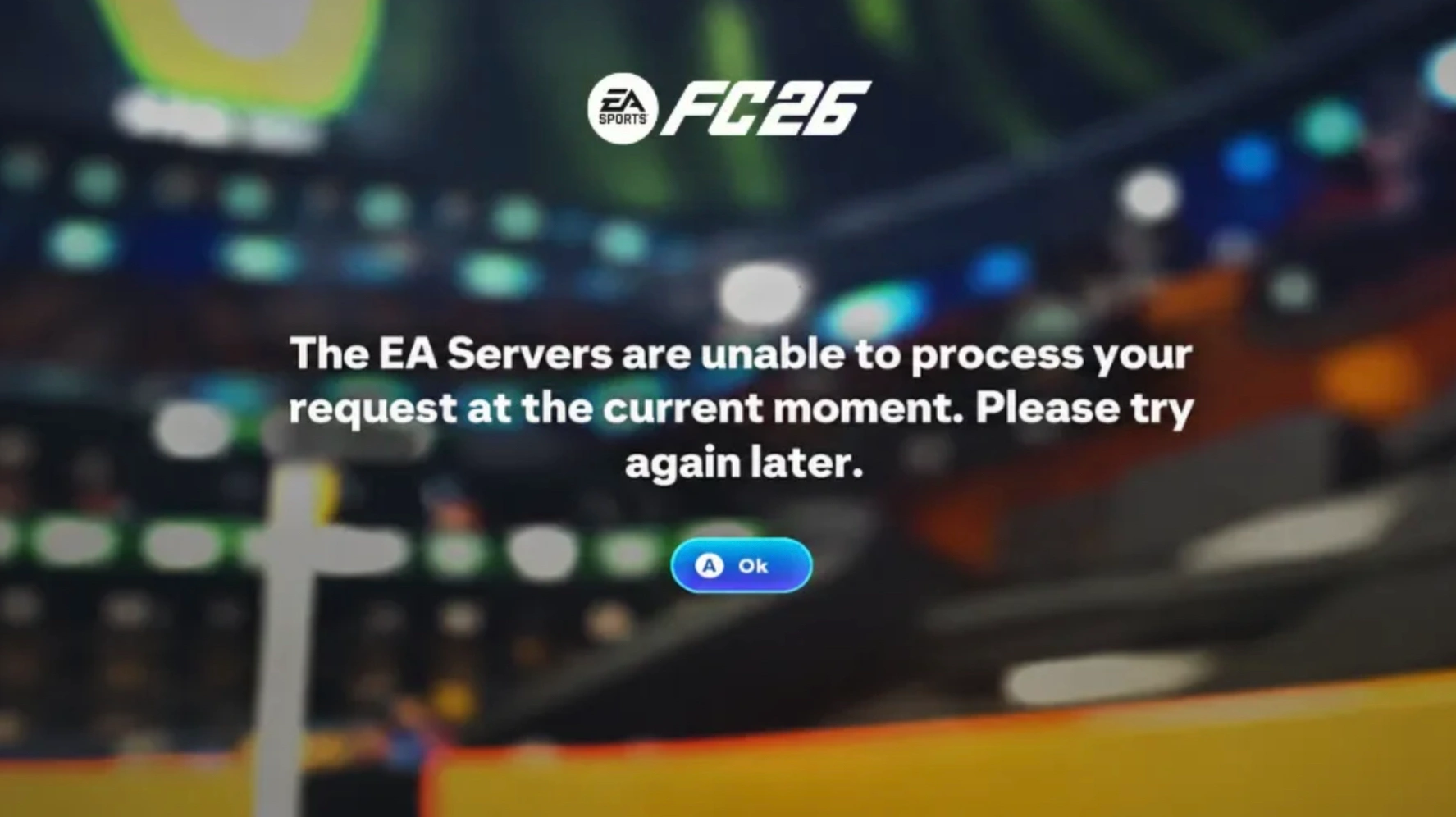
The most frequent culprit is official server downtime. When EA prepares to push a title update, adjust gameplay balance, or fix major exploits, they initiate a pre-maintenance lockdown. Typically, 30 to 60 minutes before the servers actually go offline, EA disables new match creation so players don't get disconnected mid-game. If you are wondering why is FC 26 matchmaking disabled right at the top of the hour, a scheduled patch is almost always the reason.
Ultimate Team Mode or Event Glitches
Sometimes the core servers are completely healthy, but a specific game mode crashes. When FC 26 Ultimate Team matches temporarily disabled starts trending among players, it usually means a newly released promo, Evo card, or Weekend League objective has triggered a breaking bug. In these cases, EA temporarily shuts down match entry for that specific mode while leaving Clubs, Seasons, and Co-op untouched.
Glitched Player Cards or Squad Corruption
If your account data falls out of sync with the EA database, often after applying a consumable, evolving a player, or switching tactics, your squad file can become corrupted. When you try to play, the server reads an invalid data parameter in your lineup and refuses to create a match session.
Account Cooldowns and Soft Bans
If you have been grinding Icon Swaps or Friendlies by playing "Golden Goal" and quitting matches repeatedly within a short window, EA’s automated anti-bot system will flag your account. This triggers a temporary soft ban, leaving FC 26 entering a match disabled on your profile for anywhere from 15 minutes to 24 hours.
Unstable ISP Routing and DNS Desync
Even when EA's servers are fully operational, local routing bottlenecks can prevent your client from completing the initial security handshake with the matchmaking servers. If your ISP experiences data packet loss or routes your gaming traffic through a congested network node, EA's security protocols will reject your session attempt.
Part 4: How to Diagnose Your Issue: A Step-by-Step Scenario Guide
Before you spend hours tinkering with your router or reinstalling the game, use this quick diagnostic matrix to pinpoint exactly where the problem lies:
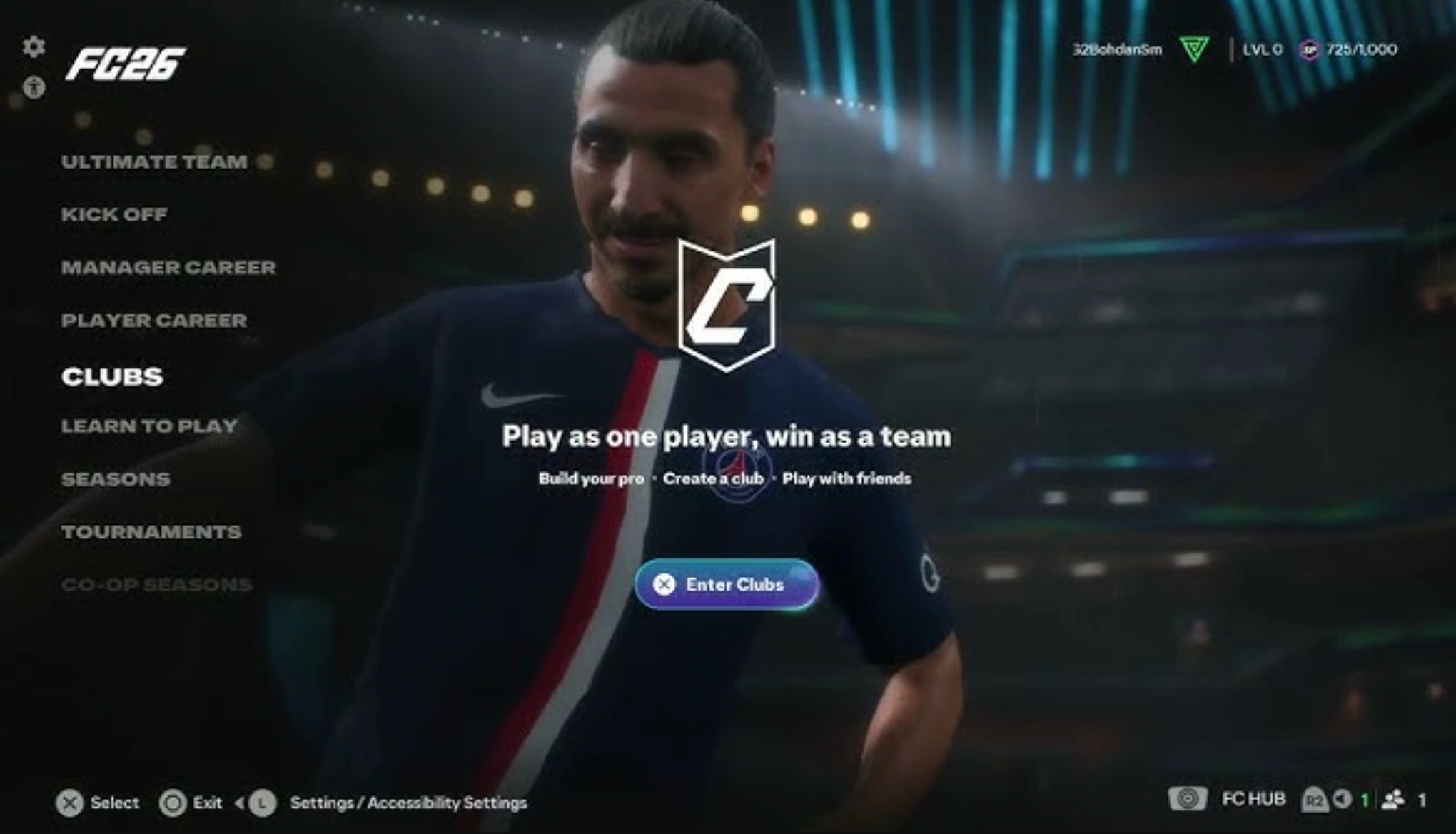
Scenario A: All Modes and All Squads Cannot Enter
- Diagnosis: Global server maintenance or server-side matchmaking closure.
- What to check: This is almost certainly an official blackout. Check the real-time ea fc26 server status or visit ea.com/unable-to-connect fc26 to look for active maintenance alerts. When ea fc 26 maintenance today is confirmed by official channels, no local fix will bypass it; you simply have to wait until the servers reopen.
Scenario B: Only Ultimate Team Cannot Enter
- Diagnosis: FUT service degradation or mode-specific bug.
- What to check: If you can jump into a Pro Clubs drop-in match or an Online Seasons game without any issues, the global servers are fine. The problem is isolated to the Ultimate Team servers or an active event mode.
Scenario C: Changing Your Squad Allows You to Enter
- Diagnosis: Localized squad bug or corrupted player item.
- What to check: Create a brand-new, blank squad generator. Populate it with random bronze or silver cards from your club and try entering an Offline Squad Battles match. If the match starts normally, your previous primary squad contains a glitched player card (often a recently evolved player or a red FUT Champions reward card) or a bugged custom tactic.
Scenario D: Only You Continuously Face the Error (Others Play Normally)
- Diagnosis: Client cache corruption, network routing desync, or matchmaking penalty.
- What to check: If your friends are searching and playing matches without issue while you sit locked out, your local network path to the EA datacenter is failing, your local game cache is corrupted, or you are sitting on a temporary DNF soft ban.
Part 5: Best Solution for FC 26 Matchmaking & Connection Issues: LagoFast Game Booster
When the issue isn't a global server outage, meaning your friends are playing while you are stuck with FC 26 entering a match not working, the culprit is almost always how your internet connection routes to EA's servers. Standard home internet connections are designed for basic web browsing and streaming, not the ultra-responsive, continuous data stream required by sports games.
When your ISP routes your game data through congested regional nodes, packet loss occurs during match initialization. EA’s servers interpret this broken data stream as a security risk or high-latency spike and reject your session creation.
This is where LagoFast Game Booster becomes an essential tool for EA SPORTS FC players. Rather than relying on your ISP's default routing, LagoFast optimizes your network path from the ground up to ensure uninterrupted server communication:
Why LagoFast Solves Matchmaking & Disconnect Issues
- Smart Routing to EA Datacenters: LagoFast analyzes real-time network traffic and automatically reroutes your connection through dedicated, un-congested gaming pipelines. This ensures your match session request reaches the EA server instantly and cleanly, avoiding the handshake timeouts that trigger matchmaking bans.
- Real-Time Packet Loss Elimination: Packet loss during the pre-match loading phase is a primary cause of session rejections and disconnects. LagoFast locks your connection stability, keeping data transmission consistent throughout the match creation process.
- Server Region Switching Without Latency: If your local regional EA server is experiencing high traffic or node failure, LagoFast allows you to seamlessly switch to a neighboring server region with stabilized latency, allowing you to bypass localized server lockouts.
How to Use LagoFast to Fix FC 26 Matchmaking:
Step 1. Click the Free Trial button to download and install LagoFast.
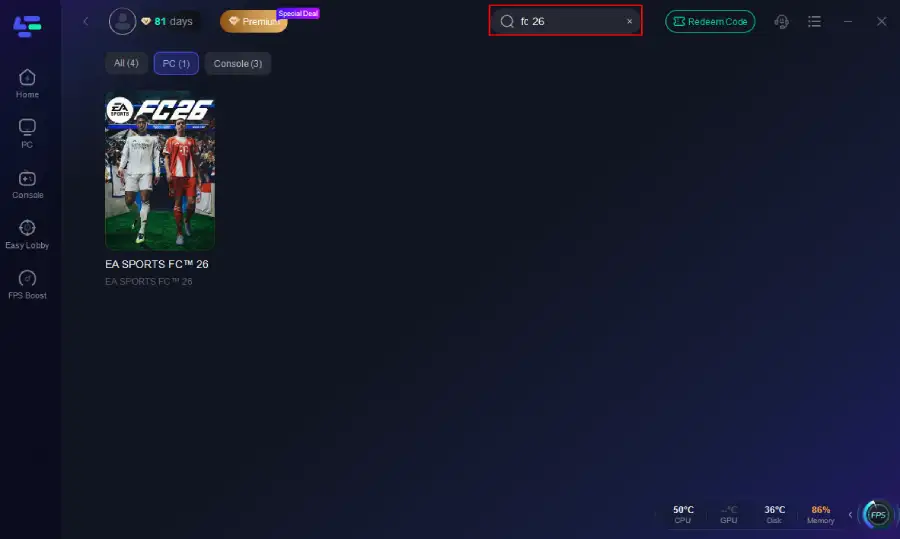
Step 2. Open LagoFast, then click the PC button on the left, search for FC 26 in the search bar, and click it after it appears.
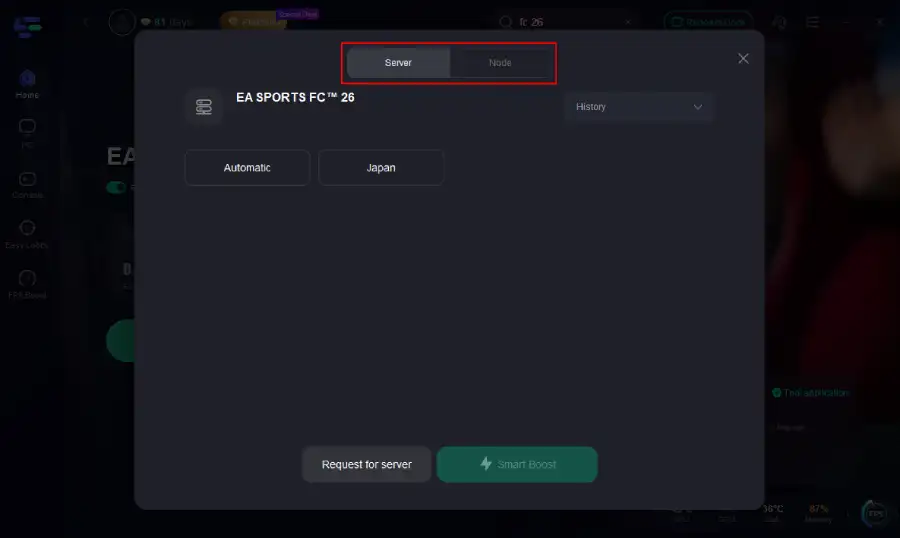
Step 3. Choose the server region closest to you, or let LagoFast’s Smart Routing automatically select the lowest-ping node.
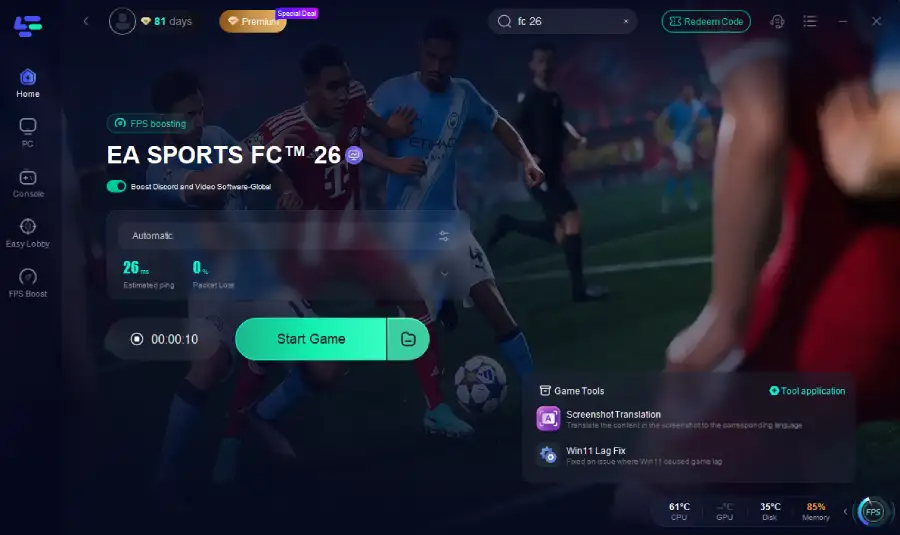
Step 4. Click the "Boost" button. Once your ping is optimized and packet loss drops to 0%, launch the game and enter matchmaking cleanly.
Part 6: Comprehensive Step-by-Step Troubleshooting Guide
If you have verified that EA servers are online but you are still greeted by Match Entry Disabled / Matchmaking Temporarily Disabled, follow this ordered checklist to clear out local software and network errors:
Perform the "Squad Reset" Method
If your lineup data is corrupted, you need to force the EA servers to generate a clean squad file for your account:
Step 1. Go to your Ultimate Team Club tab and select Squad Selector.
Step 2. Create a new squad from scratch and do not copy an existing lineup.
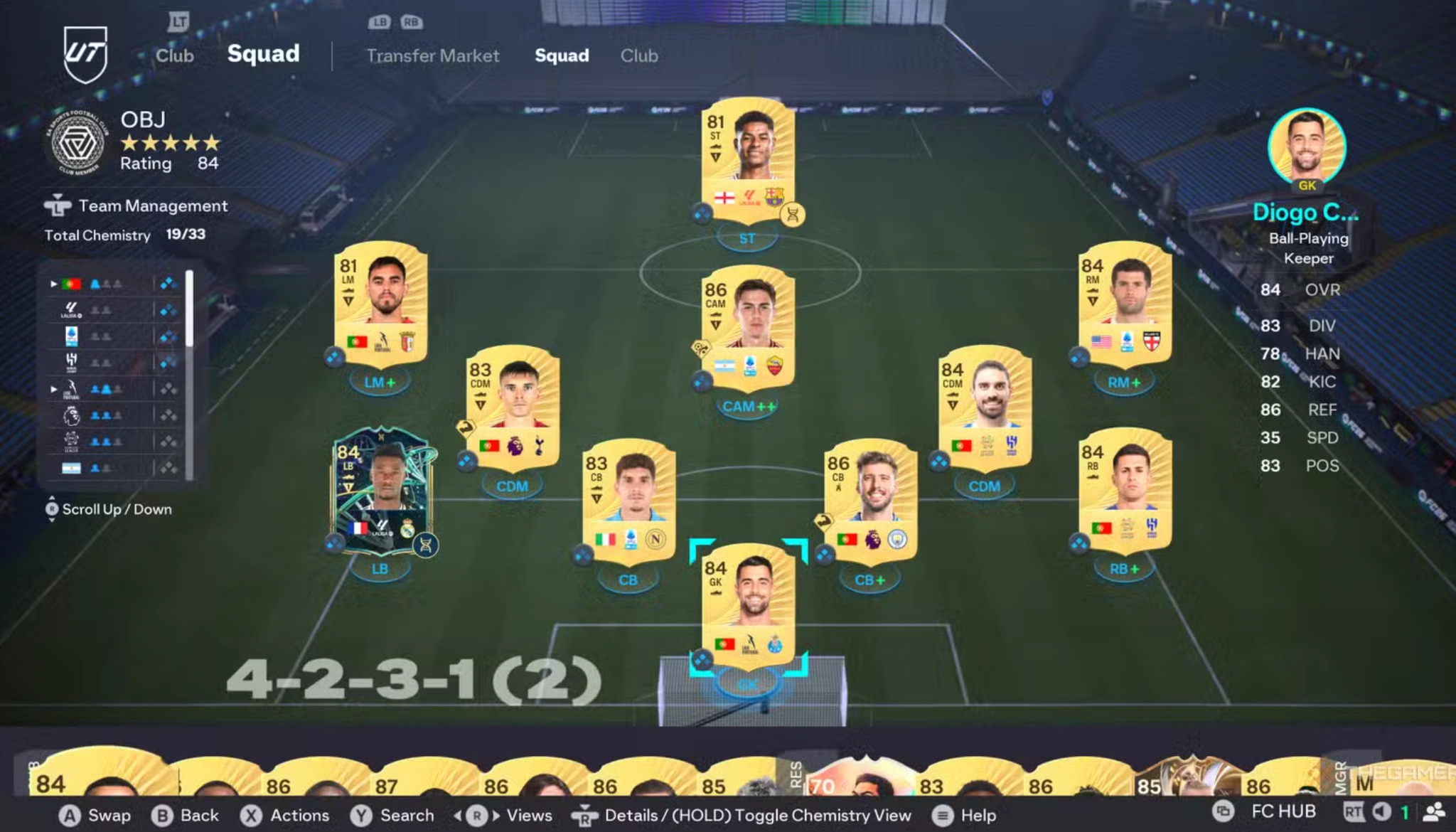
Step 3. Add a different manager and assign a default, unmodified tactic sheet (e.g., standard 4-4-2 with balanced tactics).
Step 4. Move your starting 11 into the new squad manually. If you recently completed an Evolution or bought a newly released promo card, leave them on the bench initially to test if they are the source of the glitch.
Step 5. Delete your old, corrupted squad profile completely.
Clear Platform Cache and Temporary Game Files
Stale cache data from previous title updates frequently conflicts with live matchmaking protocols.
- On EA App (PC): Click the three dashes in the top-left corner, Select Help, Click App Recovery, Select Clear Cache.
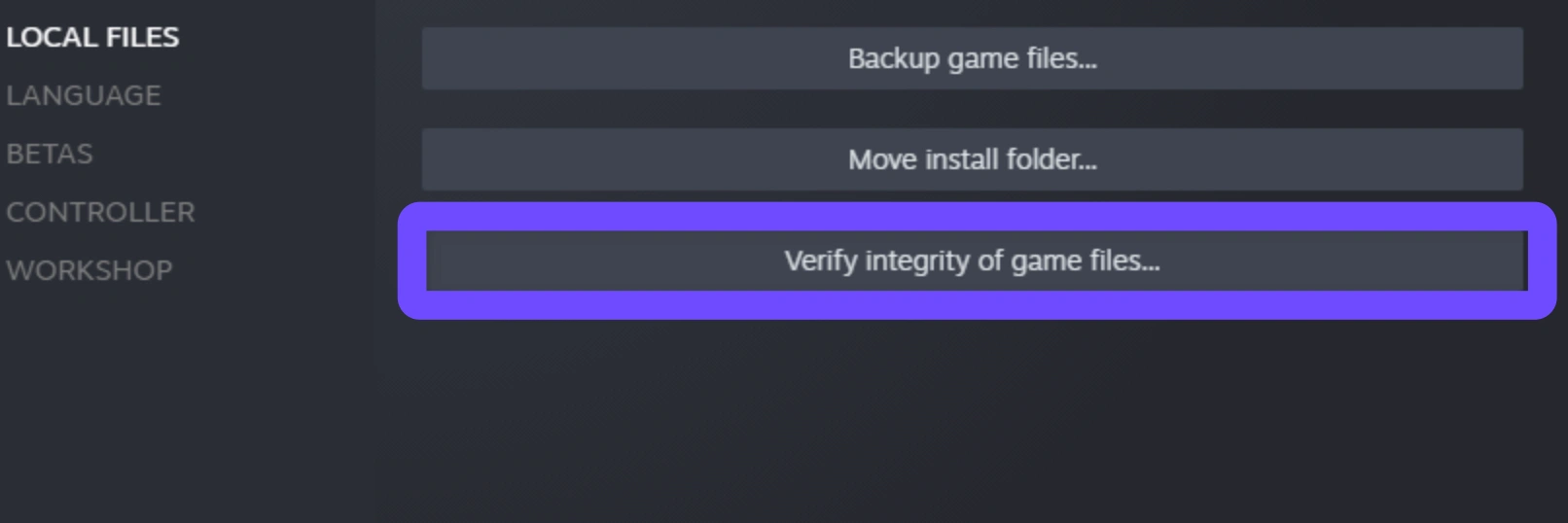
- On Steam (PC): Right-click EA SPORTS FC 26 in your library, Properties, Installed Files, Click Verify integrity of game files.
- On PlayStation 5: Turn off the console completely. Press and hold the power button until you hear a second beep to enter Safe Mode. Plug in your controller via USB and select Clear Cache and Rebuild Database, Clear System Software Cache.
- On Xbox Series X|S: Turn off the console. Unplug the power cable from the back of the system for 2 minutes to completely drain the internal power capacitor, then plug it back in and reboot.
Flush DNS and Reset Local Network Protocols
If your local routing table is holding onto an outdated EA server IP address, clearing your DNS will force a fresh connection:
Step 1. On PC, press the Windows Key, type cmd, right-click Command Prompt, and select Run as administrator.
Step 2. Type ipconfig /flushdns and press Enter.
Step 3. Type netsh winsock reset and press Enter.
Step 4. Restart your computer and router before relaunching the game.
Check for DNF / Soft Ban Cooldowns
If you triggered an automated temporary restriction by leaving too many matches early:
Step 1. Stop attempting to search for an online game immediately; repeatedly hitting "enter match" can reset or extend the cooldown timer.
Steo 2. Play a full, un-skipped offline match in Squad Battles or Kick-Off mode to completion. Finishing a full offline game often forces the EA backend to update your account status and clear temporary DNF locks.
Step 3. If the lockout persists, log out of Ultimate Team, close the application entirely, and wait 60 to 120 minutes before logging back in.
Part 7: EA Matchmaking Disabled FAQs
Why does EA disable matchmaking before the servers actually go offline?
EA employs a "rolling shutdown" protocol before maintenance windows. By disabling new match creation 30 to 60 minutes before pulling the servers offline, they ensure that players who are already mid-match (especially in 15-minute FUT Champions games) have enough time to finish their games naturally without suffering a forced disconnect and a DNF penalty.
Why am I getting "FC 26 servers down cannot enter match" when my internet works fine?
Your high-speed home internet and gaming connection quality are two completely different things. You can have 1000 Mbps fiber internet for downloading files and streaming 4K video, but if your ISP routes your gaming packets through a high-latency backbone node that drops data packets on the way to EA's servers, your match session request will fail. Using a routing optimizer like LagoFast fixes this specific pathway issue.
Can a soft ban cause the "entering a match is temporarily disabled" error?
Yes. When EA’s servers detect an unnatural frequency of matches played in a short timeframe, such as completing 15 Golden Goal friendlies in 20 minutes, the anti-cheat architecture places a temporary hold on your account’s matchmaking permissions. This usually presents as an instant session creation rejection.
Could a pending game update or cross-play setting cause the "entering a match is temporarily disabled" error?
Yes. If EA deploys a small background patch or playlist update while your game is still open, the server will instantly reject your match session request due to a client-server version mismatch. When this happens, simply close the game application completely and restart it to trigger the pending update download. Additionally, cross-play synchronization glitches can sometimes lock your account out of the matchmaking pool; toggling your cross-play settings OFF and then back ON in the main social settings menu can often force a fresh server handshake and let you back onto the pitch.
How long does a temporary EA FC 26 matchmaking lockout or server maintenance usually last?
If the lockout is due to scheduled pre-patch maintenance, matchmaking is typically disabled for 30 to 60 minutes before the servers officially go offline, and full maintenance usually lasts between 2 and 4 hours. For emergency hotfixes, such as patching a broken Ultimate Team promo or glitch, lockouts generally last around 1 to 3 hours. If you are dealing with a personal account soft ban from quitting too many matches, the cooldown usually expires on its own within 1 to 24 hours.
Will uninstalling and reinstalling FC 26 fix the "entering a match is temporarily disabled" error?
In almost every case, no. Reinstalling a massive game takes hours and rarely fixes this specific issue because the error occurs at the server-session level or stems from ISP routing bottlenecks. Before wasting time on a full reinstallation, you should always check the live EA server status, clear your system's temporary cache, recreate your Ultimate Team squad to fix glitched player cards, or use a tool like LagoFast to bypass localized network desyncs.
Conclusion
Encountering the "entering a match is temporarily disabled" error in EA SPORTS FC 26 can derail your gaming session, but diagnosing the root cause puts you back in control. Always check EA's official server status first, clear your system cache, and rebuild any bugged Ultimate Team squads. When the servers are online but you still face stubborn connection rejections or routing bottlenecks, LagoFast Game Booster provides the ultimate network fix. Optimize your connection today and dominate the pitch without interruptions!
Boost Your Game with LagoFast for Epic Speed
Play harder, faster. LagoFast game booster eliminates stutter and lags on PC, mobile, or Mac—win every match!
Quickly Reduce Game Lag and Ping!
Boost FPS for Smoother Gameplay!