If you are encountering the CS2 steam offline error, you are not alone. Many players trying to launch Counter-Strike 2 suddenly see messages like “Steam is currently in Offline Mode,” “Steam must be online to play Counter-Strike 2,” or “Steam rejected your connection.”
Because CS2 relies on constant online authentication through Steam, even small network interruptions or client issues can prevent the game from verifying your account. This often leads players to wonder: why does it keep saying my Steam is offline even when their internet appears to be working normally.
The good news is that in most cases, this issue can be resolved quickly once you identify the root cause.

Best CS2 Game Booster — LagoFast
- ✅ Reduce Lag and High Ping.
- ✅ Boost FPS at the Same Time.
- ✅ Add CS2 to Steam Library.
- ✅ Change Server Without Latency.
- ✅ End All Connection crash Issues.
- ✅ Multiplatform: PC, Mobile, Console.
Free Trial
Part 1: What Is the CS2 Steam Offline Error
Part 2: Why the Steam Offline Error Happens in CS2
Part 3: Restart Steam and Your Network to Fix CS2 Steam Offline Error
Part 4: Check Steam Server Status for CS2 Connection Issues
Part 5: Verify CS2 Game Files to Fix Authentication Errors
Part 6: Disable VPN or Proxy to Avoid Steam Connection Conflicts
Part 7: Check Firewall and Security Settings in CS2
Part 8: Related Errors Similar to CS2 Steam Offline Error
Part 9: Fix CS2 Steam Offline Error with LagoFast
Part 1: What Is the CS2 Steam Offline Error
Understanding Steam Authentication Failure in CS2
The CS2 steam offline error occurs when the game fails to verify your account through Steam servers before launching or connecting to matchmaking.
Players typically see messages such as:
- Steam is currently in Offline Mode
- Steam must be online to play Counter-Strike 2
- Steam rejected your connection
These messages indicate that Steam authentication failed, preventing the game from accessing online services. Without successful authentication, CS2 cannot connect to servers or load multiplayer features.
Common CS2 Errors That Are Often Confused
Many players confuse the CS2 steam offline error with other similar connection issues. Although they may look alike, their causes are different:
- Steam Offline Error: Steam is detected as offline, and the client is not properly connected to Steam services
- Steam Validation Rejected: Steam authentication fails, usually due to account or file verification issues
- Unable to establish connection with gameserver: the game cannot connect to the CS2 server
- Connecting to Counter-Strike Network Error: failure to connect to the CS2 matchmaking network
Key difference:
The CS2 steam offline error is related to Steam client connection and authentication, while the other errors are typically caused by game server or network-level connection failures.
Understanding these differences can help you apply the correct fix more quickly instead of troubleshooting the wrong issue.
Part 2: Why the Steam Offline Error Happens in CS2
Common Causes Behind Steam Offline Issues
There are several reasons why this problem appears. The most common causes include:
- Steam server issues: temporary outages or maintenance
- Unstable internet connection: packet loss or high latency
- Offline Mode enabled: Steam client not properly connected
- Firewall restrictions: blocking Steam services
- VPN conflicts: incorrect routing through different regions
- Corrupted game files: missing or damaged CS2 data
- Authentication timeout: delayed response from Steam servers
Because CS2 requires real-time communication with Steam, even a brief interruption can trigger the CS2 steam offline error.
Part 3: Restart Steam and Your Network to Fix CS2 Steam Offline Error
Quick Reset Method for Steam Connection
One of the simplest and most effective fixes is restarting both Steam and your network.
Steps:
- Close Steam completely
- Restart your PC
- Restart your router or modem
- Launch Steam again and log in
Why it works:
This process clears cached sessions and refreshes your connection, resolving many temporary authentication issues.
Part 4: Check Steam Server Status for CS2 Connection Issues
Identify Server-Side Problems
Sometimes the issue is not caused by your setup. Steam servers may go offline during:
- Major updates: large patches or releases
- Maintenance periods: scheduled downtime
- High traffic spikes: peak player activity
If you are asking why does it keep saying my Steam is offline, checking server status should be one of your first steps. If servers are down, you will need to wait until services are restored.
Part 5: Verify CS2 Game Files to Fix Authentication Errors
Repair Corrupted or Missing Files
Damaged or incomplete files can prevent Steam from properly validating your game.
Steps:
- Open Steam Library
- Right-click Counter-Strike 2
- Select Properties
- Go to Installed Files
- Click Verify integrity of game files
Result: Steam will automatically detect and repair any corrupted files that may be causing the CS2 steam offline error.
Part 6: Disable VPN or Proxy to Avoid Steam Connection Conflicts
Fix Routing Issues Affecting Steam Authentication
VPNs and proxy services can interfere with Steam authentication by altering your connection route.
Solution:
- Disable VPN or proxy temporarily
- Restart Steam
- Launch CS2 again
Why this helps:
It restores a direct connection to Steam servers and resolves errors like “Steam rejected your connection.”
Part 7: Check Firewall and Security Settings
Ensure Steam Is Not Being Blocked
Security software may prevent Steam from connecting properly.
Make sure these are allowed:
- Steam.exe
- Steam Client Service
- Counter-Strike 2 executable
If needed, temporarily disable antivirus software to test whether it is causing the issue.
Part 8: Related Errors Similar to CS2 Steam Offline Error
Understanding Similar Connection Messages
Some errors look similar but have different causes:
- Steam Offline Error: Steam client not connected
- Steam Validation Rejected: authentication failed
- Unable to establish connection with gameserver: server connection failure
- Connecting to Counter-Strike Network Error: matchmaking network issue
Understanding these differences helps you apply the correct fix more efficiently.
Part 9: Fix CS2 Steam Offline Error with LagoFast
If you frequently encounter the CS2 Steam offline error, unstable routing between your network and Steam servers may be one of the main causes. Packet loss or latency spikes can interrupt the authentication process, causing Steam to incorrectly detect your client as offline.
To improve connection stability and reduce authentication failures, tools like LagoFast can optimize your network environment before launching the game.
Benefits of Using LagoFast
- Reduced latency: improves response time between your device and Steam servers, ensuring a smoother authentication process and faster login when launching CS2
- Lower packet loss: minimizes data interruption during connection, reducing the risk of disconnections or Steam being incorrectly detected as offline
- Optimized routing: automatically selects more efficient network paths, providing a more stable connection between your network and Steam services
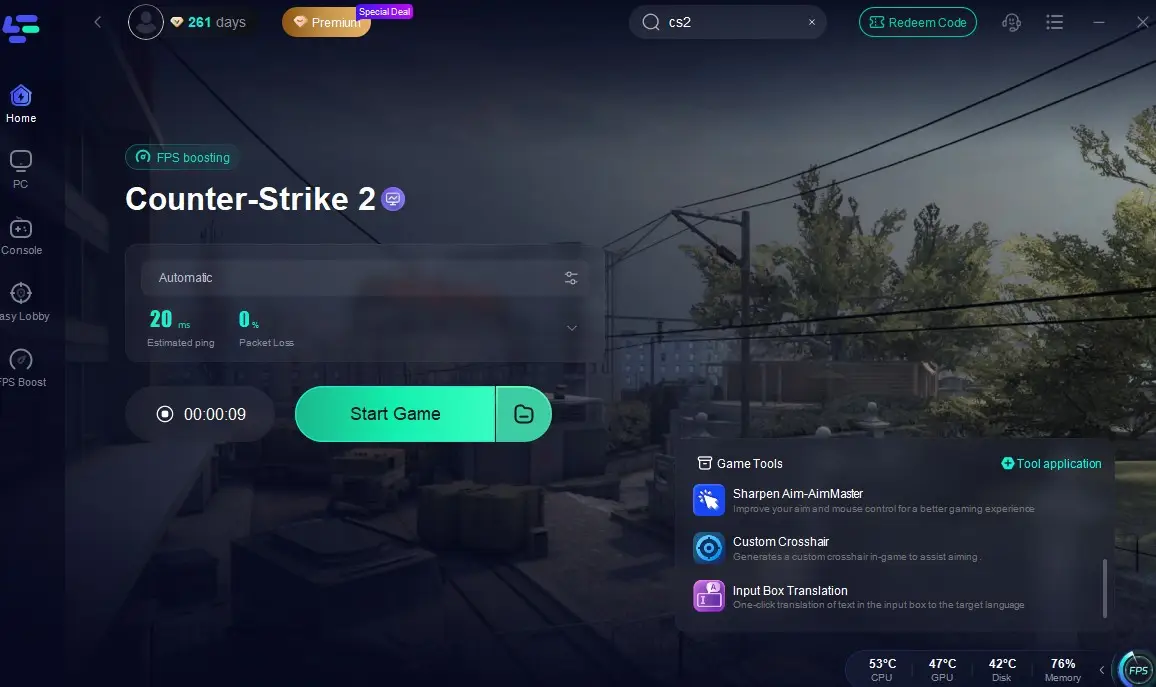
- Real-time monitoring: tracks ping, packet loss, and connection quality in real time, helping you quickly identify network instability
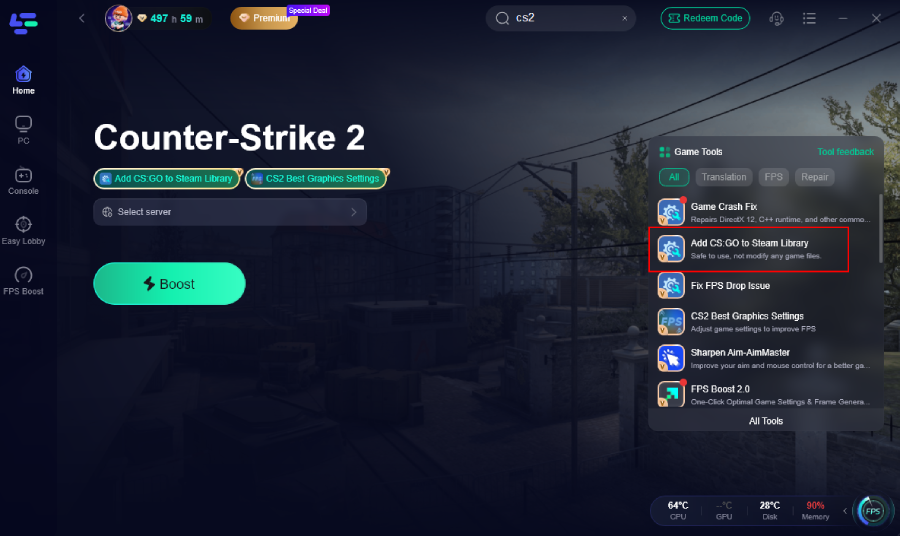
- Add CS2 to Steam Library: helps properly register the legacy CS:GO version after CS2 replaced it in the Steam store, fixing issues such as missing game entries, failed recognition, or Steam validation errors
Quick Steps to Use LagoFast
Step 1: Install LagoFast Game Booster and open the program.
Free Trial
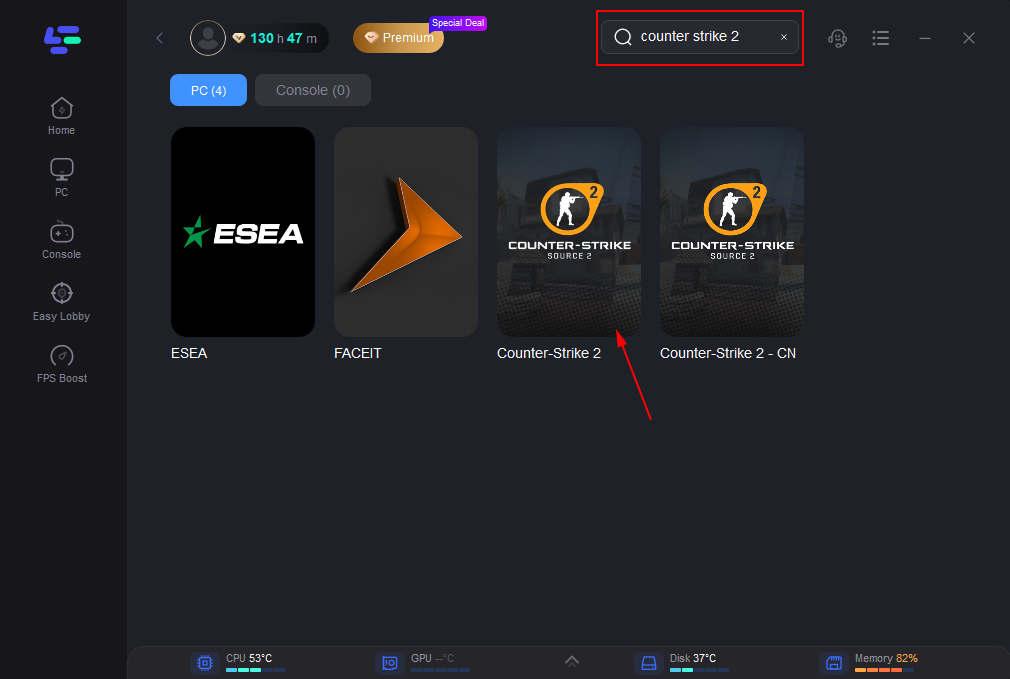
Step 2: Use the search bar in LagoFast to find Counter-Strike 2.
Step 3: Click “Add CS2 to Steam Library.” The tool will automatically register the game with your Steam client.
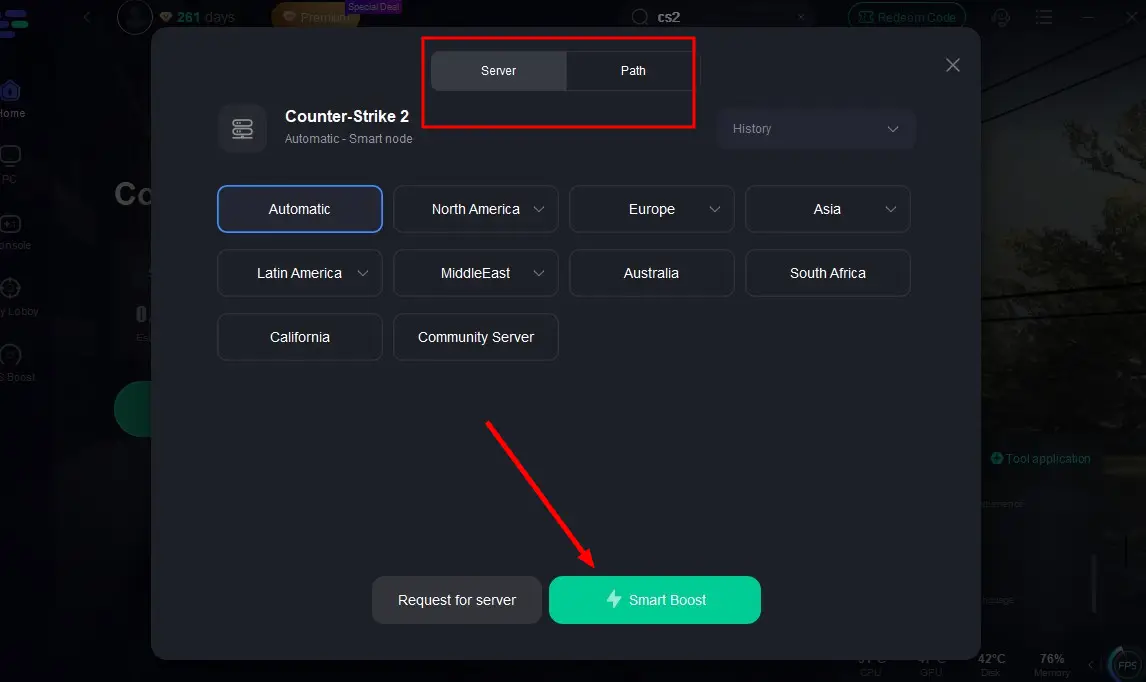
Step 4: Choose a stable server from LagoFast's server list, and click "Smart Boost" button to activate real-time optimization.
Step 5: Check the real-time game data and click the Start Game to play CS2 without any lag!
Conclusion
The CS2 steam offline error occurs when Steam fails to verify your connection while launching Counter-Strike 2. Although it may seem serious, most cases can be fixed quickly by restarting Steam, checking server status, verifying game files, or disabling VPN services.
Since CS2 depends entirely on continuous online authentication, maintaining a stable network connection and properly configured system settings is essential. By following the steps above, you can resolve offline errors and get back into the game without interruption.