
The Path of Exile 2 0.5.5 update and the Forbidden Rites event will become available on September 4 at 11:00 PM Moscow Time.
The game worlds will be taken offline at 9:00 PM MSK, two hours before launch, while the update is being installed. The patch is approximately 17 GB on Steam and the standalone client and around 12 GB on consoles. During this maintenance window, messages such as Unable to connect to login server, Unexpected disconnection, or Servers are unavailable do not mean that there is a problem with your PC.
When the servers are back online, focus on exactly where PoE 2 stops working to choose the right solution.
Fix 1. Use LagoFast if PoE 2 Cannot Connect to the Login or Instance Server
Use LagoFast if:
- the maintenance period has already ended;
- the game is fully updated;
- other players can log in;
- PoE 2 cannot connect to the login server;
- no ping is displayed for the gateways;
- the update server constantly disconnects;
- the character cannot connect to a new zone;
- the game disconnects every few minutes.
These symptoms often mean that the route to the PoE 2 update, login, or instance servers is unstable. Reinstalling the game will not change this route.
How to Use LagoFast for Path of Exile 2
Close Path of Exile 2.
Completely exit Steam or the standalone launcher.
Open LagoFast.
Find Path of Exile 2.
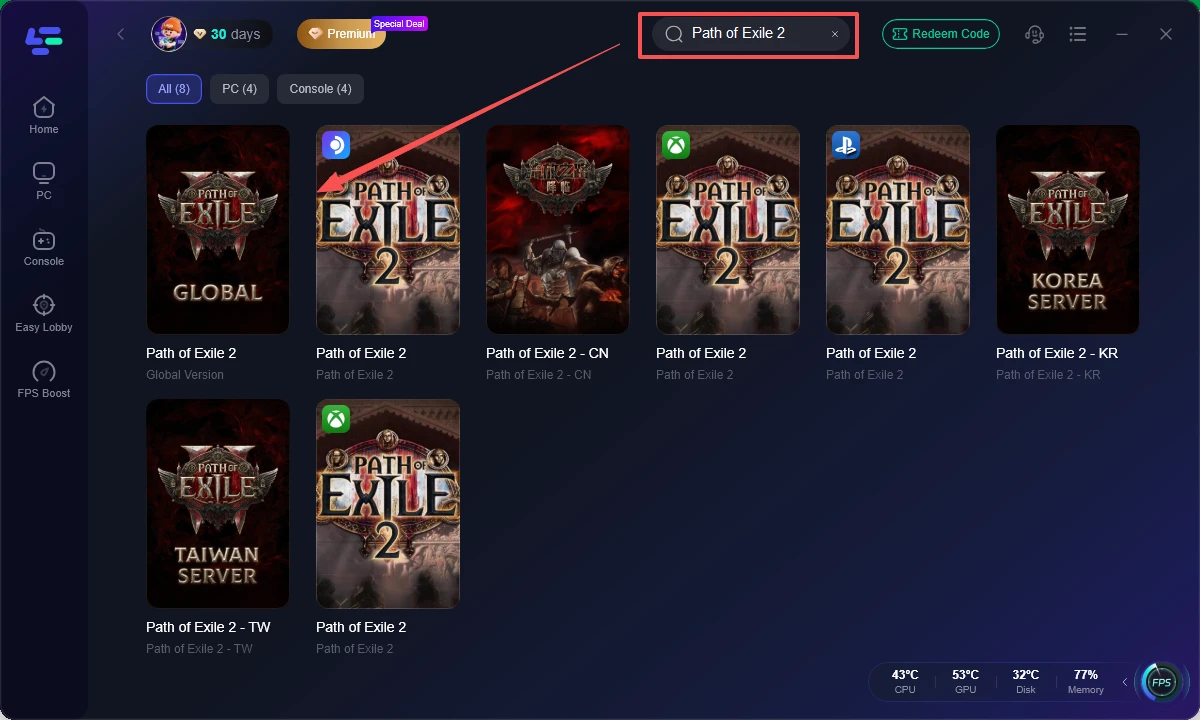
Select the region where you want to play.
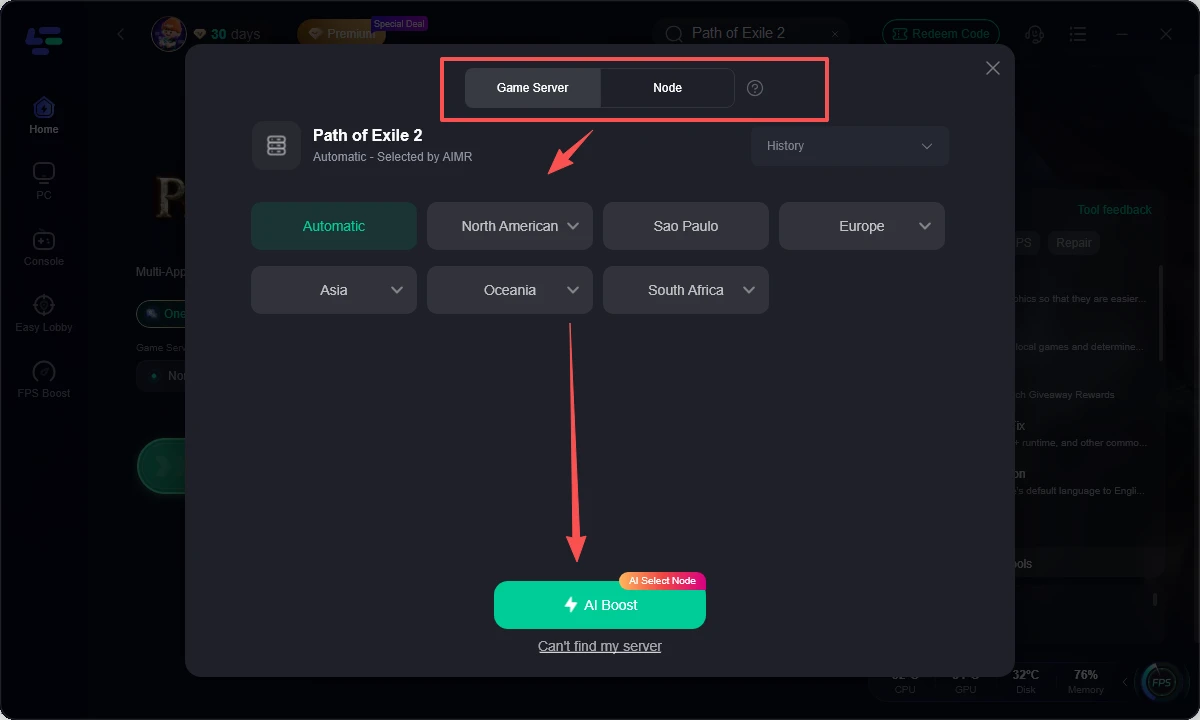
Select the recommended node with stable latency.
Click Boost.
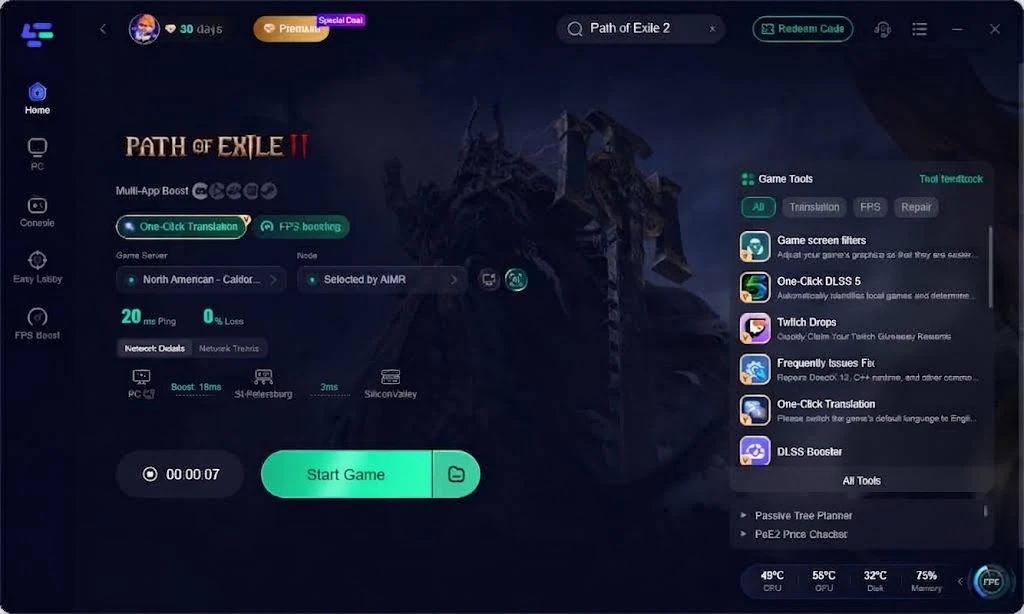
Open Steam or the standalone client again.
Launch PoE 2.
Select the nearest European gateway and log into the game.
Players in Russia should test several European gateways. If Frankfurt does not create instances or constantly disconnects, try Amsterdam or another nearby gateway instead of reconnecting to the same one again and again. Switching from an unstable gateway to another European gateway has already helped resolve persistent crashes and instance errors without reinstalling the client.
Check Whether LagoFast Helps
Check whether LagoFast helps:
- load the gateway list;
- enter the login queue;
- open the character selection screen;
- create a new zone instance;
- go through portals without disconnecting;
- stay connected while playing.
LagoFast can optimize the connection route, but it cannot bring the worlds online during maintenance or shorten the login queue if it is on the server side.
Fix 2. Do Not Try to Fix the Game During Forbidden Rites Maintenance
Schedule for September 4 in Moscow Time:
| Event | Moscow Time |
|---|---|
| Game worlds go offline | September 4, 9:00 PM |
| Patch installation begins | Shortly after shutdown |
| Forbidden Rites launches | September 4, 11:00 PM |
If PoE 2 says that it cannot connect between 9:00 PM and 11:00 PM MSK, simply wait for the servers to come back online.
You do not need to:
- reinstall the game;
- reset Windows network settings;
- delete configuration files;
- change graphics card drivers;
- repeatedly click Login.
It is better to use this time to install the update. PC players will need approximately 17 GB, but Steam may also request additional temporary disk space while unpacking the patch.
Fix 3. PoE 2 Update Is Not Downloading in Steam
If Forbidden Rites has already launched but Steam is still opening the old client, PoE 2 may display the following message:
There has been a patch that you need to update to. Please restart Path of Exile.
Simply restarting the game window may not update the Steam build.
How to Force Download Patch 0.5.5 in Steam
- Close Path of Exile 2.
- Open Steam → Downloads.
- Check whether the PoE 2 update has been paused or scheduled.
- Start the download manually.
- Wait for both the download and installation to finish.
- Completely close Steam.
- Open Steam again.
- Launch PoE 2 again.
If Steam still does not show the update:
- Go to Steam → Settings → Downloads.
- Select Clear Download Cache.
- Log into Steam again.
- Open your library.
- Right-click Path of Exile 2.
- Select Properties → Installed Files.
- Click Verify integrity of game files.
- Restart Steam after the verification.
If the message saying that a patch is required keeps appearing, it means that the client and server versions do not match. Reinstalling network drivers will not fix this. This error can also occur when Steam repeatedly downloads an incomplete or outdated version of the patch.
Fix 4. “Disconnected from Patching Server Before Patching Completed”
This error occurs before the normal game login:
Disconnected from patching server before patching completed
For players in Russia, this may be a routing problem between the standalone client and the PoE content delivery server.
First, try LagoFast. Boost Path of Exile 2, reopen the standalone client, and allow the patch to finish installing without interrupting the process.
Fix for the Standalone Client in Russia
If the standalone launcher still cannot complete the update, use the Russian PoE patch endpoint:
- Find PathOfExile2.exe.
- Right-click it and select Create shortcut.
- Right-click the new shortcut.
- Open Properties.
Add the following parameter after the closing quotation mark in the Target field:
--patching-server ru-patch.poecdn.com
The complete line should look approximately like this:
"C:\Program Files (x86)\Grinding Gear Games\Path of Exile 2\PathOfExile2.exe" --patching-server ru-patch.poecdn.com
Click Apply.
Launch PoE 2 through this shortcut.
Wait for the patch to finish.
This solution is intended for the standalone client, not the Steam or Epic Games version. The RU patch endpoint has already helped resolve this particular error after updates on several installations in Russia.
Do not delete the entire game until you have checked the correct route for the patch. Re-downloading more than 100 GB through the same problematic route may result in the same error again.
Fix 5. “Unable to Connect to Login Server”
Use this section if the game reaches the login screen but displays:
Connecting to login server…Unable to connect to login server
First, look at the gateway list.
Gateway Ping Is Displayed
If the gateways show normal ping values, select another European gateway.
Try:
- Frankfurt
- Amsterdam
- London
- Paris
Do not always use the same gateway simply because it has the lowest displayed ping. A gateway with slightly higher latency can still provide a much more stable route for login and instances.
“Downloading” Is Displayed in the Gateway List or There Is No Ping
If all gateways are empty and Downloading is still displayed in the corner of the login screen, the client may not be receiving information from the servers or CDN.
Try the following in this order:
- Launch PoE 2 through LagoFast.
- Restart your router.
- Temporarily disable custom DNS filters.
- Check AdGuard DNS, Pi-hole, parental controls, or filtering on your router.
- Change the DNS in Windows.
- Restart the game.
A DNS-level filter may block PoE servers even if browsers and other games work normally.
DNS Fix for Connections from Russia
For connections from Rostelecom or a similar provider:
- Open Windows Settings.
- Go to Network & Internet.
- Open the active Ethernet or Wi-Fi connection.
- Find DNS server assignment.
- Select Edit → Manual.
- Enable IPv4.
- Enter:
Preferred DNS: 8.8.8.8
Alternate DNS: 8.8.4.4
- Save the settings.
- Open Command Prompt as administrator.
- Run:
ipconfig /flushdns
- Restart PoE 2.
Switching to Google DNS has already restored access to PoE 2 login on a Rostelecom connection when changing gateways and verifying files did not help.
Fix 6. The PoE 2 Login Queue Is Stuck or Constantly Resets
If a queue appears, it means that your client has successfully connected to the login service.
The Queue Number Is Decreasing
Stay in the queue.
You do not need to:
- restart the client;
- change the gateway;
- disable LagoFast;
- repeatedly click Login.
Doing so may cause you to lose your place in the queue and start the attempt again.
The Queue Reaches Zero and Then Disconnects You
If you are returned to the login screen with the message:
- An unexpected disconnection occurred
- the authentication service may be struggling with the launch load.
Wait a few minutes and try connecting once. Repeated login attempts will not fix the server and may send you back into the same queue again.
The Queue Does Not Appear at All
If other users can enter the queue while you only receive Unable to connect to login server, return to LagoFast and test another route or another game gateway.
The difference is important:
- Queue appears: you have reached the service.
- No queue and an immediate connection error: your route may not be reaching it.
Everyone is disconnected after the queue: the login service needs time to recover.
Fix 7. An Unexpected Disconnection Occurred
This error can occur at three different stages.
Immediately After Clicking Login
Try another gateway and another LagoFast node.
The login server accepted the initial connection but could not maintain authentication.
After Selecting a Character
The character may be trying to enter an unavailable or broken zone instance. Go to the next section.

- ✅ Reduce Lag and High Ping.
- ✅ Boost FPS at the Same Time.
- ✅ Support 8000+ Popular Online Games.
- ✅ Support Easy Lobby in all Cod Games without Lag
Every 5–15 Minutes During Gameplay
Press F1 and monitor the latency graph.
If latency remains low and then suddenly jumps to thousands before disconnecting:
- Switch to another European gateway.
- Try another route in LagoFast.
- Use a wired Ethernet connection.
- If Ethernet and Wi-Fi are active at the same time, disable Wi-Fi.
- Temporarily stop downloads and streams.
- Test a mobile hotspot once.
If mobile internet works while your home connection does not, do not reinstall PoE 2. The game files are already fine; the problem is with your home network route.
Switching from London to Amsterdam has already helped resolve persistent disconnects every 5–15 minutes, while moving away from an unstable Frankfurt gateway resolved character loading and zone problems.
Fix 8. Failed to Connect to Instance
This error appears after login, when PoE 2 attempts to create or open:
- a town;
- a story zone;
- a hideout;
- a map;
- a portal;
- a Trial zone.
This means that the game login itself has already worked. You do not need to repeatedly change your password or repair the launcher.
Try Another Gateway
- Return to the login screen.
- Change the current gateway to another nearby one.
- Log into the game again.
- Try to open the same zone.
If the zone works through Amsterdam but does not work through Frankfurt, continue playing through Amsterdam during this session.
Create a New Zone Instance
If only one story zone does not work:
- Go to the zone entrance or waypoint.
- Hold Ctrl.
- Click the destination.
- Select New Instance.
- Enter the new version of the zone.
This way, you can avoid reconnecting to the same broken instance. Creating a new instance through Ctrl-click has already restored access when an old zone repeatedly produced unexpected disconnections.
Only One Character Does Not Load
If the other characters work:
- Log in with another character.
- Change the gateway.
- Wait for the old zone instance to disappear.
- Return to the problematic character.
- Create a new instance as soon as you can reach the required waypoint.
Do not reinstall the entire game if the problem only affects one character or one zone.
All Characters and All Zones Do Not Work
Then consider it a gateway or instance-routing problem:
LagoFast route → another European gateway → one router restart → try again
If many users cannot create instances at the same time, wait for the instance servers to recover.
Fix 9. Forbidden Rites Is Not Showing
Forbidden Rites is a separate event league with a new economy. You enter it when creating a character, not by transferring an existing character.
If the option is missing:
- Make sure it is already after 11:00 PM MSK on September 4.
- Close PoE 2.
- Completely install patch 0.5.5.
- Restart Steam or the standalone launcher.
- Verify the game files if the update was installed incorrectly.
- Open character creation.
- Select Forbidden Rites.
- Create a new character in this league.
Your existing Runes of Aldur character will remain in its current league. It will not automatically move to Forbidden Rites.
Fix 10. Black Screen or Infinite Loading After Selecting a Character
First, determine whether the problem affects all characters.
Only One Character Is Stuck
Change the gateway or wait for the old instance to disappear. This is most likely an instance problem rather than a graphics problem.
All Characters Are Stuck on the Loading Screen
Reset the PoE 2 configuration:
1. Close the game.
2. Open:
Documents\My Games\Path of Exile 2
3. Find:
poe2_production_Config.ini
4. Rename the file to:
poe2_production_Config_backup.ini
5. Launch PoE 2 again.
The game will create a new configuration file. You will need to configure your graphics settings and controls manually again.
Recreating this file has already helped in cases where loading remained stuck indefinitely after selecting a character.
If the game reaches the menu after this, test DirectX 12 first. If loading still crashes, switch to Vulkan, restart the game, and test again.
Fix 11. “Deadlock Detected” After Patch 0.5.5
Deadlock Detected is not a connection error to the game server.
It usually appears when PoE 2 freezes during:
launch;
- zone loading;
- portal transitions;
- intensive combat;
- shader processing.
- Try the following in this order:
- Disable the Steam overlay.
- Close Discord overlay, Overwolf, Afterburner, and similar programs.
- Reset PoE 2 graphics settings.
- Try Windowed or Fullscreen instead of Borderless.
- Lower the graphics settings.
- Make sure the Windows system drive has at least 15–20% free space.
- Set the Windows paging file to Automatically manage paging file size for all drives.
- Switch between DirectX 12 and Vulkan.
- Restart your PC.
Freeing space on the system drive, enabling automatic virtual memory management, lowering graphics settings, and changing the display mode have already allowed players to continue playing after repeated Deadlock errors. Closing overlays has also helped on some configurations.
If the entire PC freezes only during loading screens, temporarily disable Engine Multithreading before entering the next zone. Turn this setting back on after loading, because performance will be noticeably lower without it.
Fix 12. PoE 2 Forbidden Rites Not Working on PS5 or Xbox
The patch size on consoles is approximately 12 GB. Before trying to enter the new event, make sure the update has been completely installed.
If the console says:
- There has been a patch that you need to update to
- even though the update does not appear:
- Completely close PoE 2.
- Restart the console.
- Check for updates manually.
- Make sure there is enough free space.
- Install the patch completely.
- Launch PoE 2 again.
If PS5 displays Failed to get authentication token or the game cannot connect to the login server, also check whether PlayStation Network is working. A platform network outage can interfere with PoE 2 authentication even if the PoE worlds themselves are already online.
Do not reinstall the entire game on the console until you have confirmed that the latest build is installed and the platform network is working.
Which Fix Should You Try First?
The most important step is to determine at which stage Path of Exile 2 stops working.
If the client cannot download patch 0.5.5, fix the update route. If the update is installed but login does not work, check LagoFast, DNS, and another gateway. If login works but portals do not work, create a new instance or change the instance gateway. If the game freezes before connecting to any server, then you need to investigate the configuration, renderer, and fixes for Deadlock.
This way, you can avoid completely reinstalling the game because of a problem that is actually occurring at the login gateway, patching server, or in one specific zone instance.
How LagoFast Can Help You in Path of Exile 2
When you encounter connection problems in Path of Exile 2, it is important to understand that this may be caused not only by the operation of the servers but also by your internet connection. In such cases, it is useful to have tools on hand that can help optimize your network and improve your gaming experience. Learn more about LagoFast.
Steps to Use LagoFast
Try LagoFast for free to improve your gaming performance.
If you encounter connection problems with the Path of Exile 2 server, this may be related to an unstable internet connection. LagoFast can help optimize your network for a more stable gaming experience.
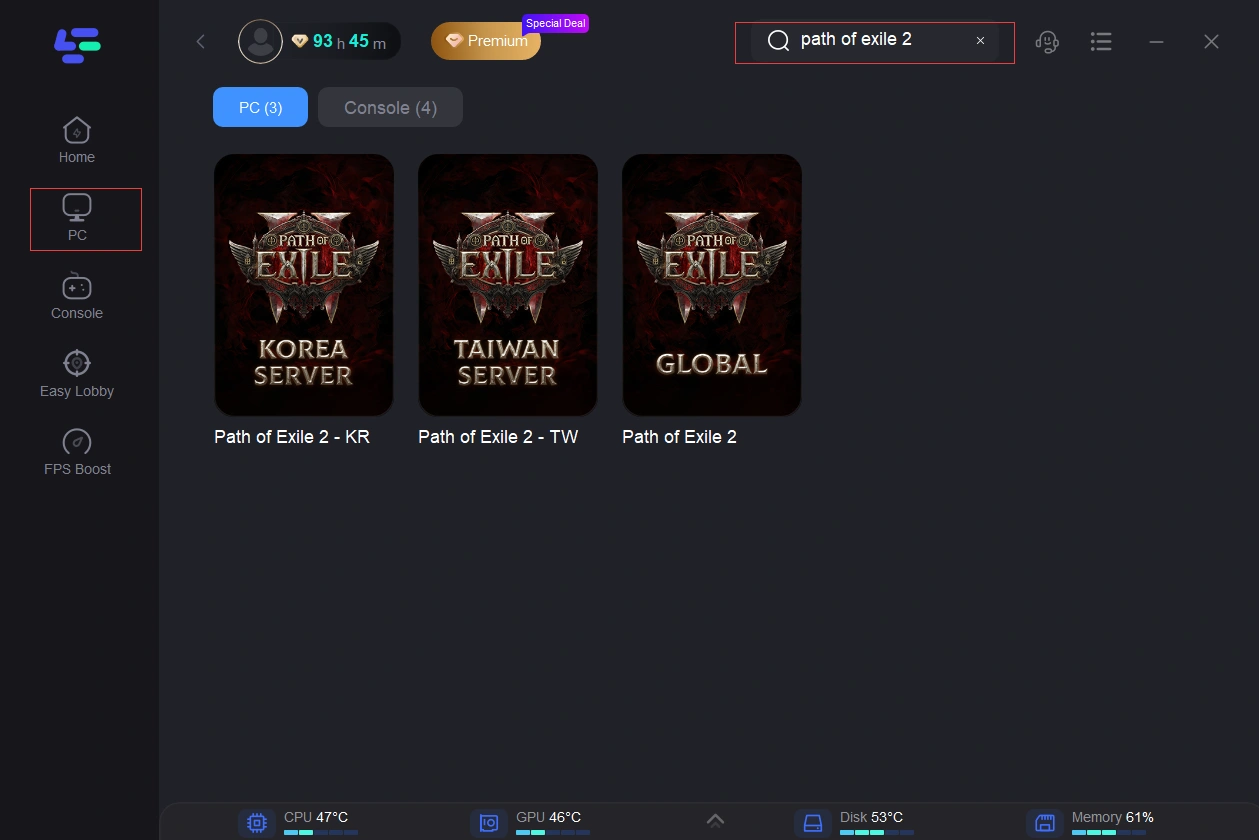
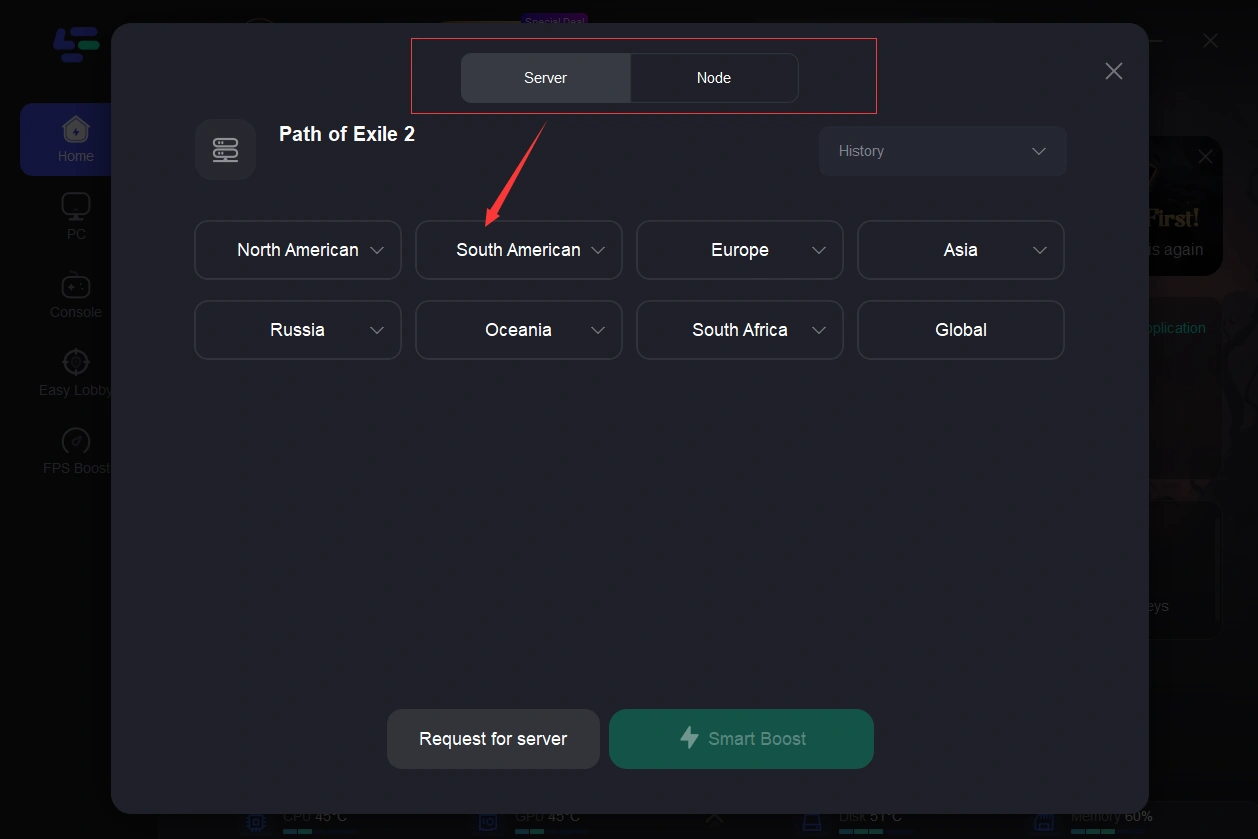
After installing LagoFast, you can select a server that provides the best connection for your location, which is especially important during major updates and events such as Forbidden Rites.
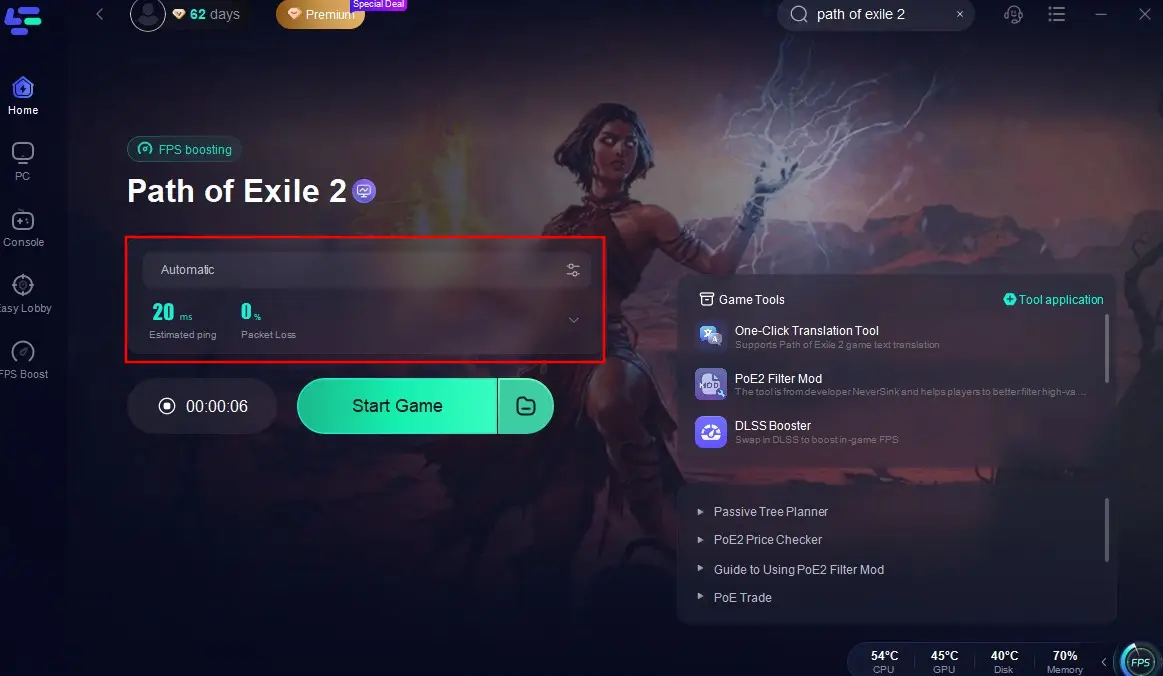
LagoFast also provides real-time monitoring of ping and packet loss, which can help you identify and resolve connection problems.
With LagoFast, you can adjust network settings to minimize latency and improve the overall performance of the game.
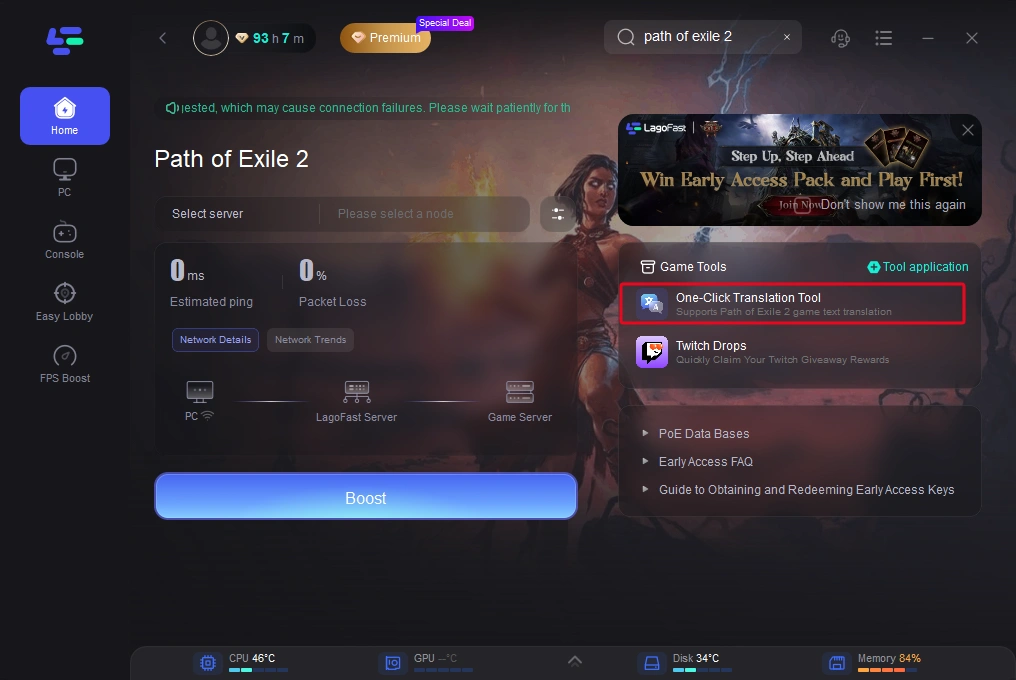
Don't forget to check how LagoFast can help you with other games as well, so you can always stay one step ahead in your gaming adventures.

Boost Your Game with LagoFast for Epic Speed
Play harder, faster. LagoFast game booster eliminates stutter and lags on PC, mobile, or Mac—win every match!
Quickly Reduce Game Lag and Ping!
Boost FPS for Smoother Gameplay!