
There is nothing more frustrating than geary-up for a competitive match only to be met with the dreaded cs2 connecting to counter strike network error. Whether you’ve just launched the game or are trying to refresh your lobby, this persistent message acts as a complete roadblock to your CS2 experience. While the game has evolved significantly in 2026, network handshake issues remain a common headache for players globally. This guide explores why this error happens, how it differs from in-game lag, and provides a comprehensive roadmap to getting you back into the server with minimal downtime.

- ✅ Reduce Lag and High Ping.
- ✅ Boost FPS at the Same Time.
- ✅ Add CSGO to Steam Library.
- ✅ Change Server Without Latency.
- ✅ End All Connection crash Issues.
- ✅ Multiplatform: PC, Mobile, Console.
Part 1: CS2 Connecting to Counter-Strike Network Error Overview
Part 2: How to Fix CS2 Connecting to Counter-Strike Network Error? - Quick Fixes
Part 1: CS2 Connecting to Counter-Strike Network Error Overview
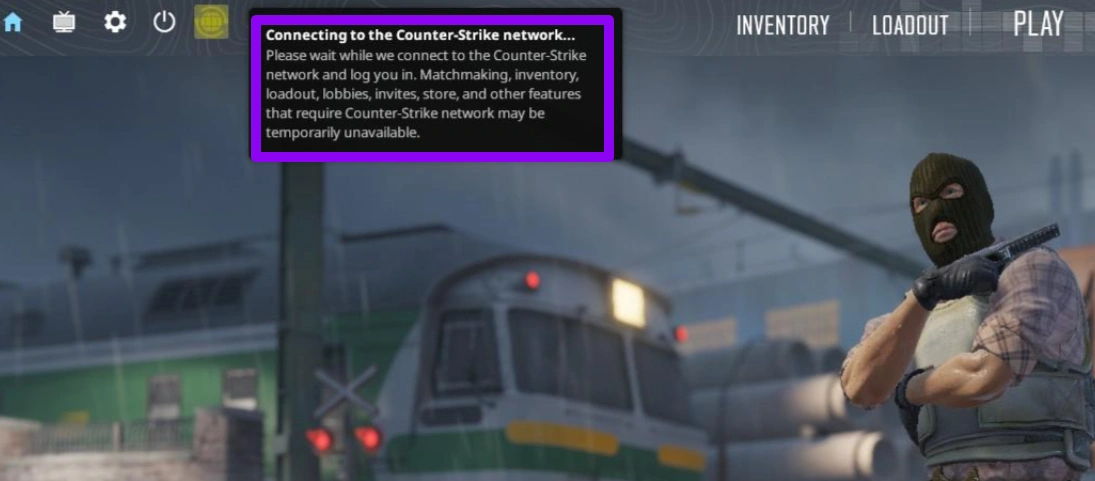
The CS2 connecting to the Counter-Strike network error is one of the earliest connection issues you can face in the game. Unlike in-match lag or server disconnections, this error occurs before you successfully connect to the official CS2 network infrastructure.
In simple terms, the game fails during the initial handshake with the Counter-Strike network. This means you’re not even reaching the stage where you connect to a matchmaking server. Instead, the process gets stuck at “cs2 connecting to Counter-Strike network,” or worse, loops indefinitely.
When Does This Error Occur?
This issue usually appears:
Right after launching the game
During the loading screen before the main menu fully initializes
When trying to reconnect after a disconnect
Occasionally, after updates or patches
Typical Symptoms
- Players experiencing this issue often report:
- Being stuck on “cs2 stuck on connecting to Counter-Strike network.”
- Long loading times followed by connection failure
- Error messages related to network or server connectivity
- Inability to access online features
Main Causes
Several factors can trigger the CS2 connecting to the Counter-Strike network error, including:
- Unstable or high-latency internet connection
- Server-side outages (counter strike network down situations)
- Firewall or antivirus blocking game traffic
- Corrupted game files
- ISP routing issues
Because this error happens so early in the connection process, even small disruptions can prevent the game from connecting properly.
Part 2: How to Fix CS2 Connecting to Counter-Strike Network Error? - Quick Fixes
Fix 1: Use LagoFast: The All-in-One CS2 Connection Fix
If you want to bypass the headache of manual configuration, LagoFast is widely considered the premier game booster for tackling the CS2 connecting to the Counter-Strike network error. LagoFast uses a dedicated global network of nodes to find the most direct route to Valve's servers. Its 2026 updated engine is specifically tuned for Counter-Strike 2, ensuring that your game client maintains a persistent, high-priority connection to the network at all times.
Key Features of LagoFast for CS2:
- One-Click Crash & Error Fix: Features a specialized tool designed to repair the "Connecting to Network" loop and common startup crashes instantly.
- Real-Time Path Optimization: Automatically switches to the fastest server route to avoid regional ISP congestion.
- Advanced FPS Boost: Beyond just fixing the network, it optimizes your Windows background processes to maximize frame rates and minimize input lag.
- Global Server Coverage: Whether you are playing in Europe, Asia, or North America, LagoFast ensures you aren't affected by local counter strike network down scenarios.
Tutorial to Use LagoFast to Fix CS2 Connecting to Counter-Strike Network Error:
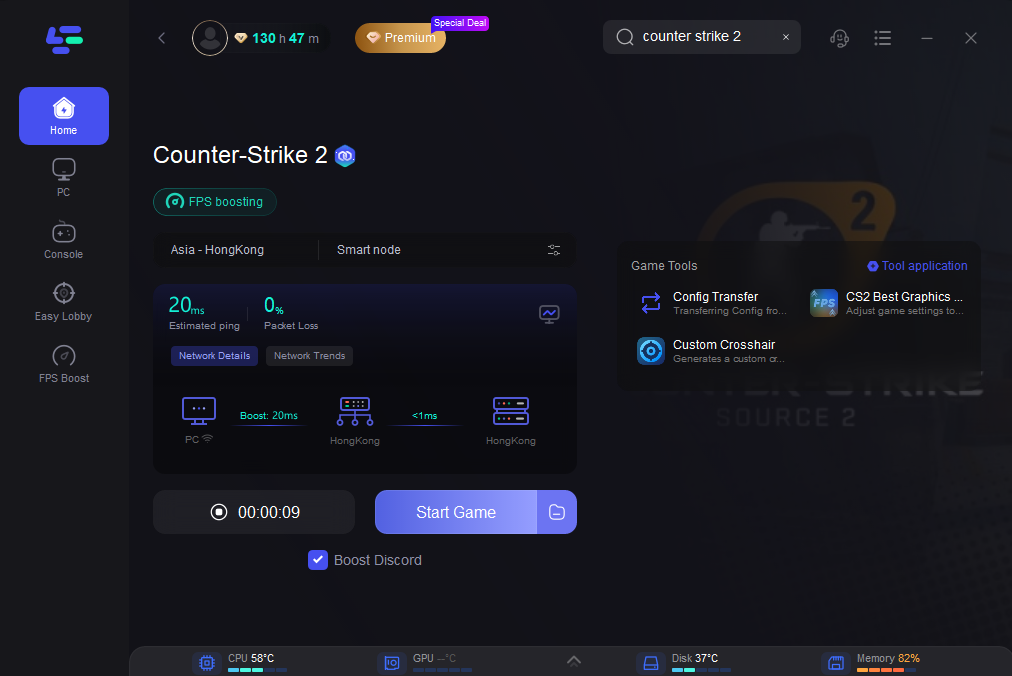
Click the "Free Trial" button below to download and install LagoFast for free.
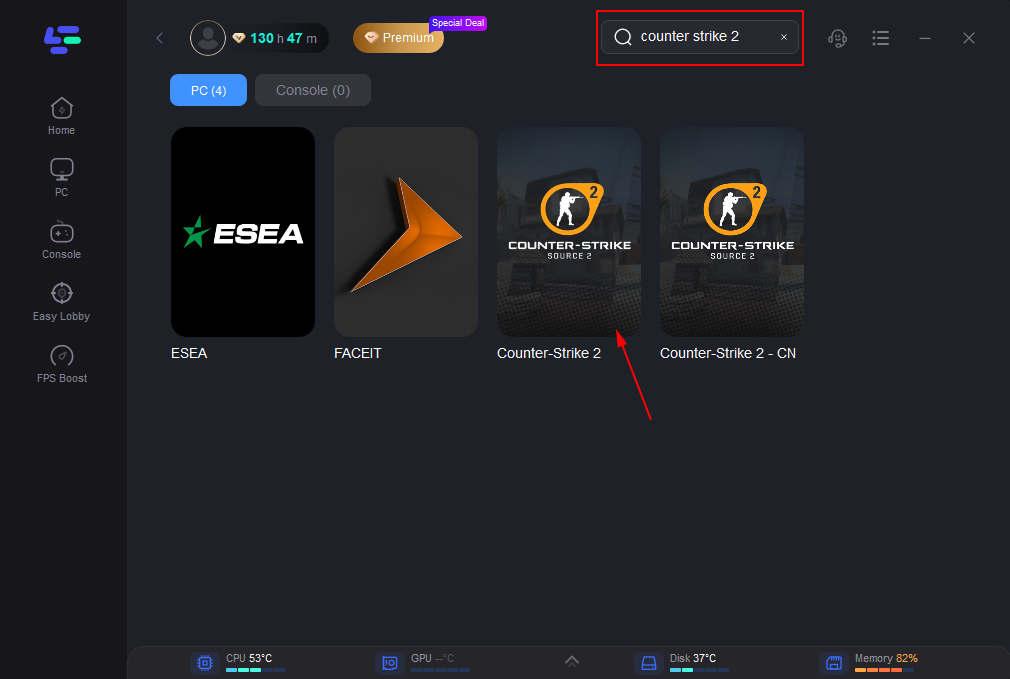
Use the search bar in LagoFast to find Counter-Strike 2.
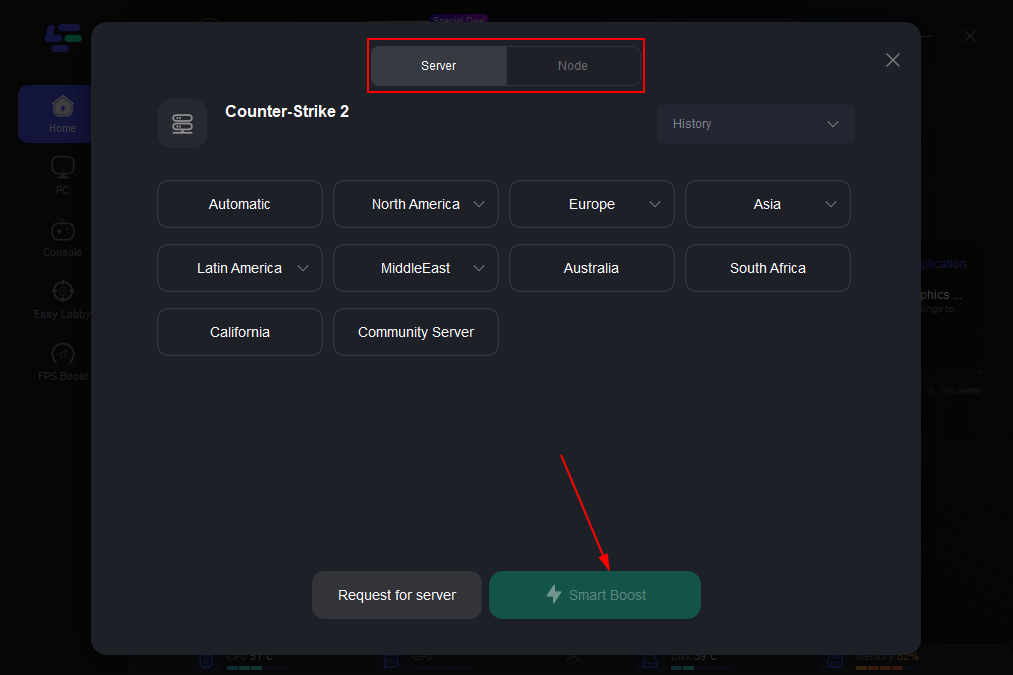
Click on “Server” to change to a better server that ensures smooth gameplay, then click on “Smart Boost”.
Check the specific game ping, packet loss, and multiple path connection on the right side. Finally, click the “Start Game” to play the game.
Below are the most frequently reported crash errors in Counter-Strike 2, along with their causes and practical solutions.
What makes it stand out is how simple it is to use. You don’t need to tweak complicated settings, just launch it, select CS2, and let it handle the rest. Compared to manual fixes, this approach is faster, more reliable, and far less frustrating.
While LagoFast offers the easiest fix, you can also try the following manual solutions. Keep in mind that these methods can be inconsistent and may not fully resolve the issue.
Fix 2: Check CS2 Server Status
Sometimes the problem isn’t on your end at all.
Step 1. Visit a server status website like CSGO Database or the community.
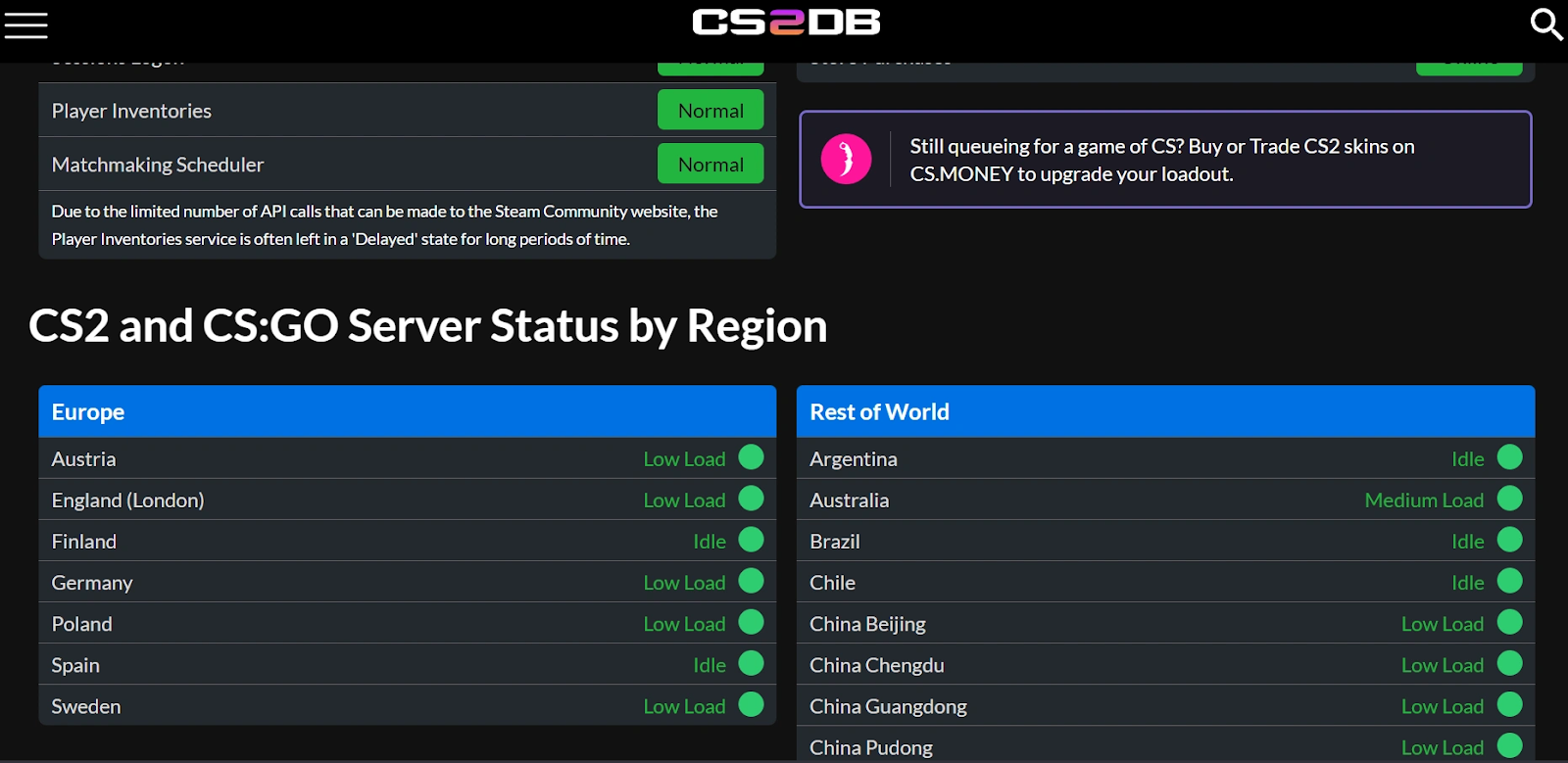
Step 2. Check if there are reports of “counter strike network down”
Step 3. Wait for servers to stabilize if outages are confirmed
Step 4. If servers are down, no local fix will work until service is restored.
Fix 3: Check for Tuesday Maintenance
Before you dive into complex fixes, check the calendar. Valve performs routine maintenance every Tuesday (typically around 4:00 PM - 6:00 PM Pacific Time).
Step 1: Check a site like SteamStat.us.
Step 2: If the "CS2 Services" or "Steam Community" are marked as "Down," no amount of troubleshooting will help.
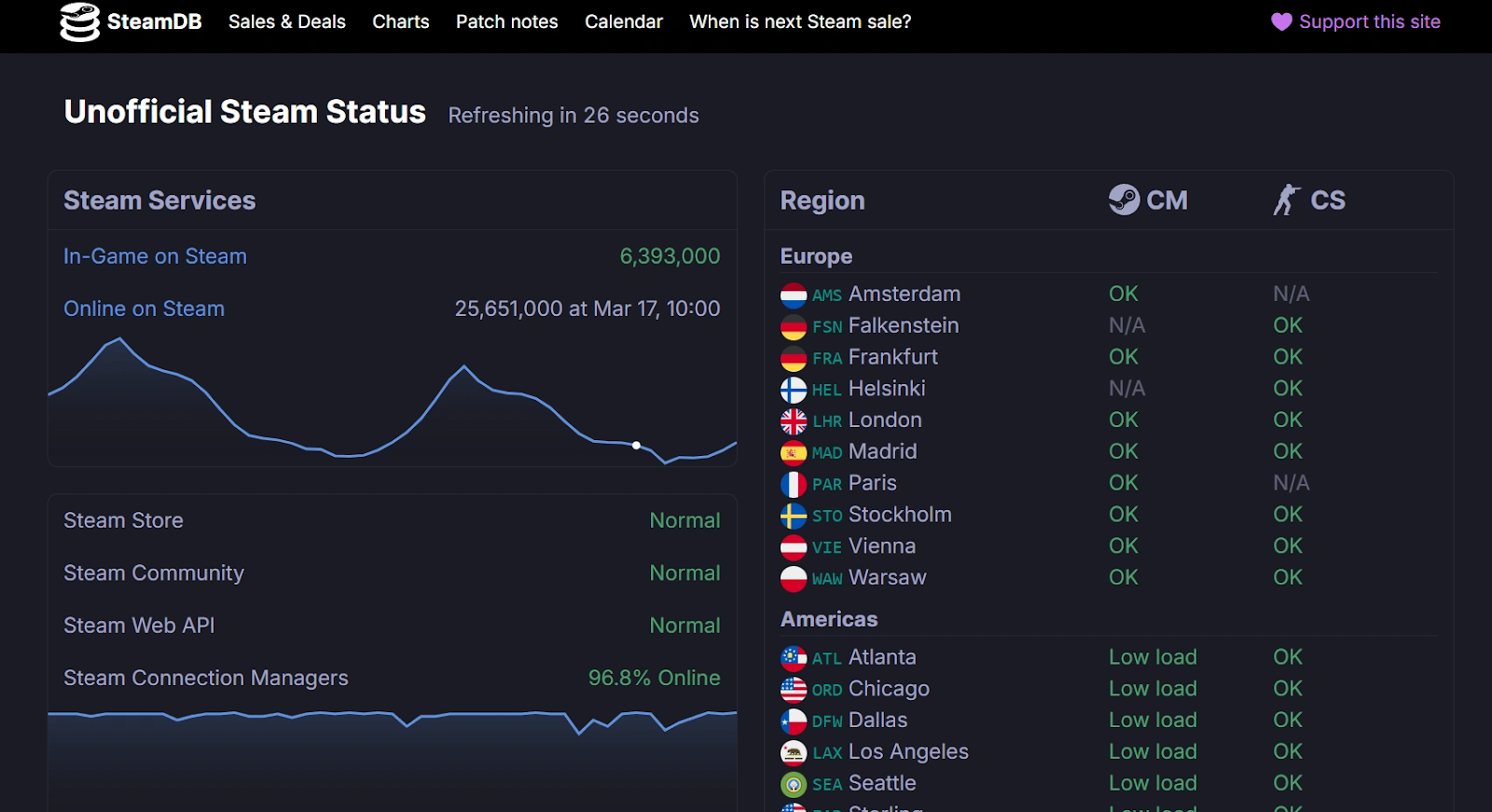
Step 3: Wait 15–30 minutes for the servers to come back online.
This is the most common cause of the counter strike network down message, but it’s frustrating because you’re essentially powerless until Valve finishes.
Fix 4: Clear the Steam Download Cache
A cluttered Steam cache can lead to the cs2 stuck on connecting to counter strike network loop. This "washes" the temporary data that Steam uses to log you into various game services.
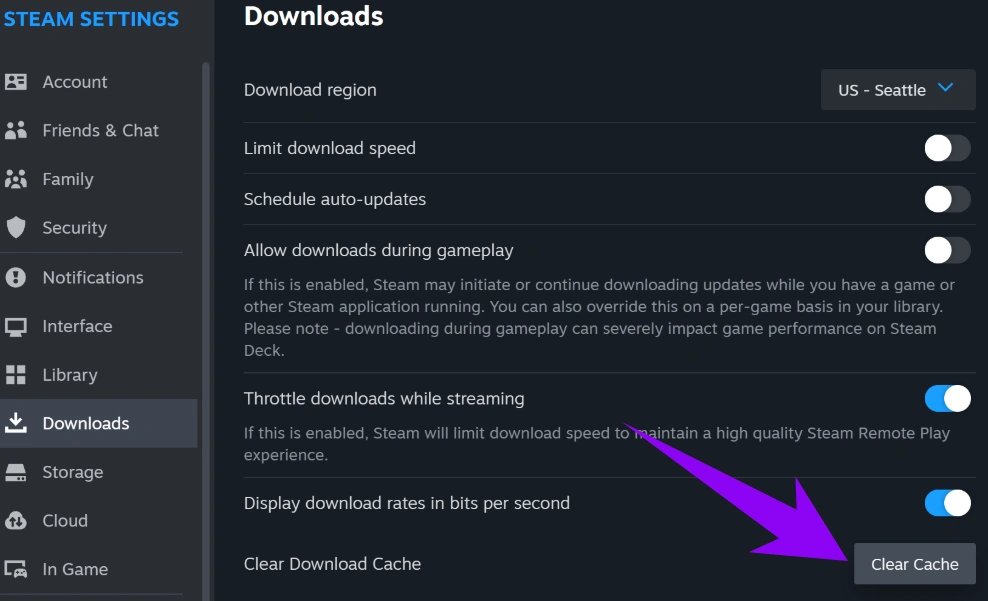
Step 1: In the Steam client, click on Steam in the top left and go to Settings.
Step 2: Navigate to the Downloads tab.
Step 3: Click Clear Download Cache and confirm.
Fix 5: Verify Game Files
Corrupted or missing files can prevent proper network initialization.
Step 1. Open Steam
Step 2. Go to your Library
Step 3. Right-click Counter-Strike 2 and select Properties
Step 4. Navigate to Installed Files
Step 5. Click “Verify integrity of game files.”
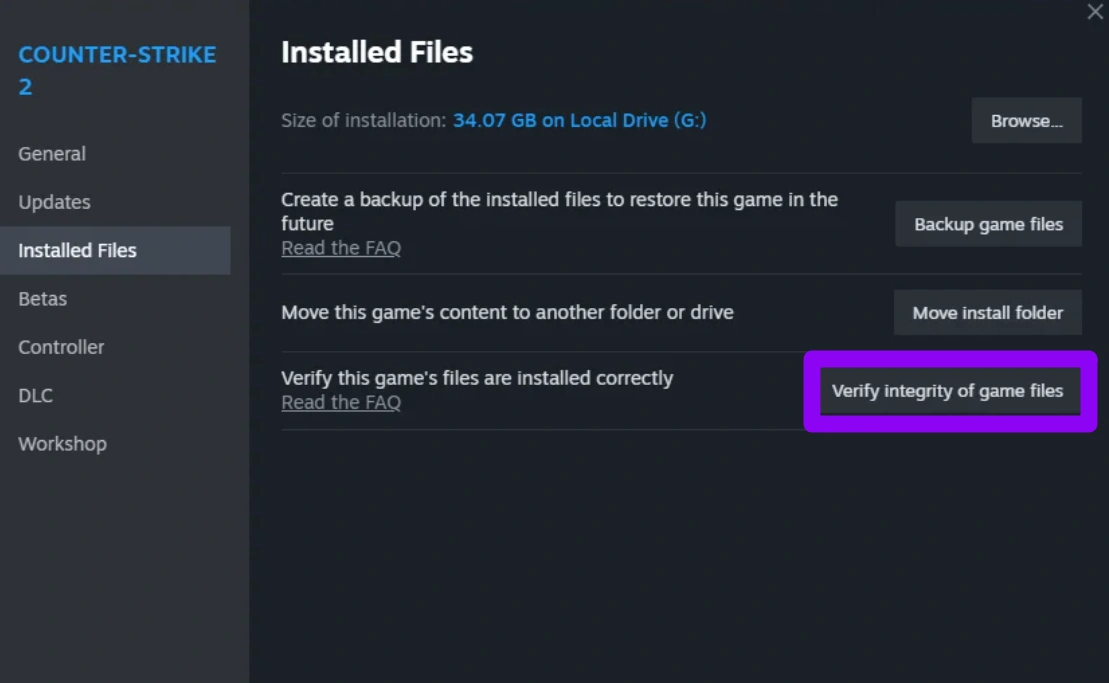
Wait for the process to complete and restart the game.
Fix 6: Flush DNS and Reset Network Stack
If your Windows network settings have "gone stale," you might need to force a reset. This is a common manual fix for the cs2 connecting to counter strike network error.
Step 1: Press the Windows Key, type cmd, and run as Administrator.
Step 2: Type ipconfig /flushdns and hit Enter.
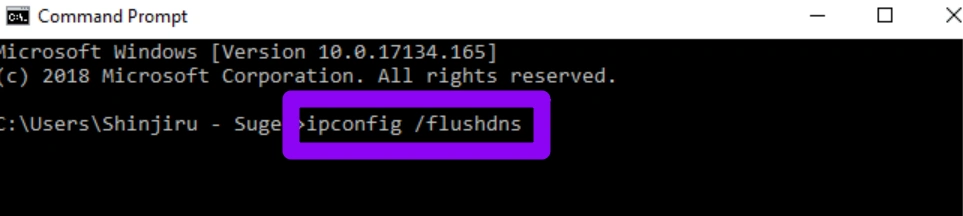
Step 3: Type netsh winsock reset and hit Enter, then restart your PC.
This is a "brute force" method. It resets your entire PC's network environment, which can be annoying if you have custom configurations.
Conclusion
The cs2 connecting to counter strike network error can be frustrating, especially since it stops you before you even enter the game. While there are several manual fixes you can try, they often require time and don’t always work consistently. If you want a faster and more reliable solution, using a dedicated tool like LagoFast can make a significant difference by optimizing your connection instantly. Whether the issue is caused by routing problems, packet loss, or server instability, the right approach can get you back into CS2 without the hassle.
Boost Your Game with LagoFast for Epic Speed
Play harder, faster. LagoFast game booster eliminates stutter and lags on PC, mobile, or Mac—win every match!
Quickly Reduce Game Lag and Ping!
Boost FPS for Smoother Gameplay!