
Few things are more frustrating than launching a competitive FPS and getting nothing in return—no window, no error, just silence. Since its release, Counter-Strike 2 has delivered strong gameplay, but technical issues like startup crashes and launch failures remain common. Many players report problems such as black screens, instant crashes, or the game appearing in Task Manager but never opening.
This guide focuses on counter strike 2 not launching problems, covering real causes and working solutions tested by experienced PC players. Instead of repeating basic fixes, it breaks down system-level issues, Steam conflicts, and update-related bugs. Whether your CS2 is not launching at all or stuck on loading, this article helps you identify the exact issue and fix it efficiently.

- ✅ Reduce Lag and High Ping.
- ✅ Boost FPS at the Same Time.
- ✅ Add CSGO to Steam Library.
- ✅ Change Server Without Latency.
- ✅ End All Connection crash Issues.
- ✅ Multiplatform: PC, Mobile, Console.
Part 1. Why CS2 Not Launching: Common Causes Explained
Part 2. CS2 Is Not Launching or Crashing on Startup: Symptoms Breakdown
Part 3. How To Fix CS2 Not Launching From Steam (Step-by-Step)
Part 4. CS2 Won’t Launch After Update: What Changed?
Part 5. How to Fix CS2 Stuck on Loading Screen
Part 6. Advanced Fix Counter-Strike 2 (CS2) Not Launching
Part 7. How to Enhance Your Game Experience with LagoFast Game Booster
Part 1. Why CS2 Not Launching: Common Causes Explained
Understanding why cs2 not launching is the first step to solving it.
1. Corrupted Game Files
Broken or missing files are the leading cause of launch failure.
2. Outdated GPU Drivers
Driver incompatibility accounts for a large percentage of cases.
3. Software Conflicts (Overlays & Apps)
Steam, Discord, or third-party overlays can interfere with startup.
4. Incorrect Launch Settings
Bad config files or launch options can prevent CS2 from opening
5. Windows Compatibility Issues
Outdated OS versions can cause startup failures
Part 2. CS2 Is Not Launching or Crashing on Startup: Symptoms Breakdown
When CS2 is not launching, it doesn’t always look the same.
Common Scenarios
- Game opens briefly then closes
- Black screen on startup
- Stuck in background process
- Instant crash with no error
- Infinite loading screen
These issues often share the same root cause but require slightly different fixes.
Why Is CS2 Crashing on Startup?
- Shader cache corruption
- GPU driver mismatch
- Broken config files
- Background software interference
Clearing shader cache and resetting configs often resolves persistent crashes.
Part 3. How To Fix CS2 Not Launching From Steam (Step-by-Step)
If you Cannot Launch CS2, start with these core fixes.
1. Verify Game Files (Most Effective Fix)
- Open Steam Library
- Right-click CS2 → Properties
- Installed Files → Verify integrity
Steam replaces missing or corrupted files automatically.
2. Update GPU Drivers
- NVIDIA / AMD / Intel drivers must be up to date
- Use clean install if issues persist
3. Run as Administrator + Compatibility Mode
- Right-click CS2 → Properties
- Enable “Run as Administrator”
- Try Windows 8 compatibility
This resolves permission-related launch failures.
4. Disable Overlays and Background Apps
Disable:
- Steam Overlay
- Discord Overlay
- MSI Afterburner / Razer software
These are known to cause launch conflicts.
5. Reset Launch Options
Try:
-autoconfig -windowed
This resets broken settings and avoids fullscreen crashes.
Part 4. CS2 Won’t Launch After Update: What Changed?
Many players report CS2 won t launch after update, especially after major patches.
Why Updates Break CS2
- Config files become incompatible
- Shader cache becomes outdated
- Drivers conflict with new engine updates
Fix Strategy After Updates
- Clear DirectX Shader Cache
- Reset launch options
- Verify game files
- Restart system
Clearing cache forces the system to rebuild graphics data, fixing hidden issues.
Part 5. How to Fix CS2 Stuck on Loading Screen
If you’re stuck at loading, the issue is slightly different.
Common Causes
- Shader compilation delays
- Storage speed issues
- Corrupted temporary files
Fixes That Work
- Move game to SSD
- Clear temp files
- Wait on first launch after updates
- Lower initial graphics settings
Some players report long loading times during shader compilation, especially after updates.
Part 6. Advanced Fix Counter-Strike 2 (CS2) Not Launching
If basic fixes don’t work, try advanced methods.
Advanced Solutions
1. Clear Shader Cache
Use Disk Cleanup → Select DirectX Shader Cache
2. Disable Overclocking
CPU/GPU overclocking can cause instability
3. Reinstall CS2 (Last Resort)
Only after trying all other fixes
4. Check Antivirus Settings
Add Steam/CS2 to exclusions
Part 7. How to Enhance Your Game Experience with LagoFast Game Booster
Even after fixing launch issues, performance instability can still affect gameplay. That’s where LagoFast (LagoFast Game Booster—Get No Lag and Lower Ping) Game Booster becomes useful.
Why LagoFast Helps
- Optimizes network routing
- Reduces ping spikes and packet loss
- Stabilizes connection during matches
- Improves overall responsiveness
How to Use LagoFast Game Booster
Step 1: Click the Free Trial button to download and install LagoFast Free Trial.
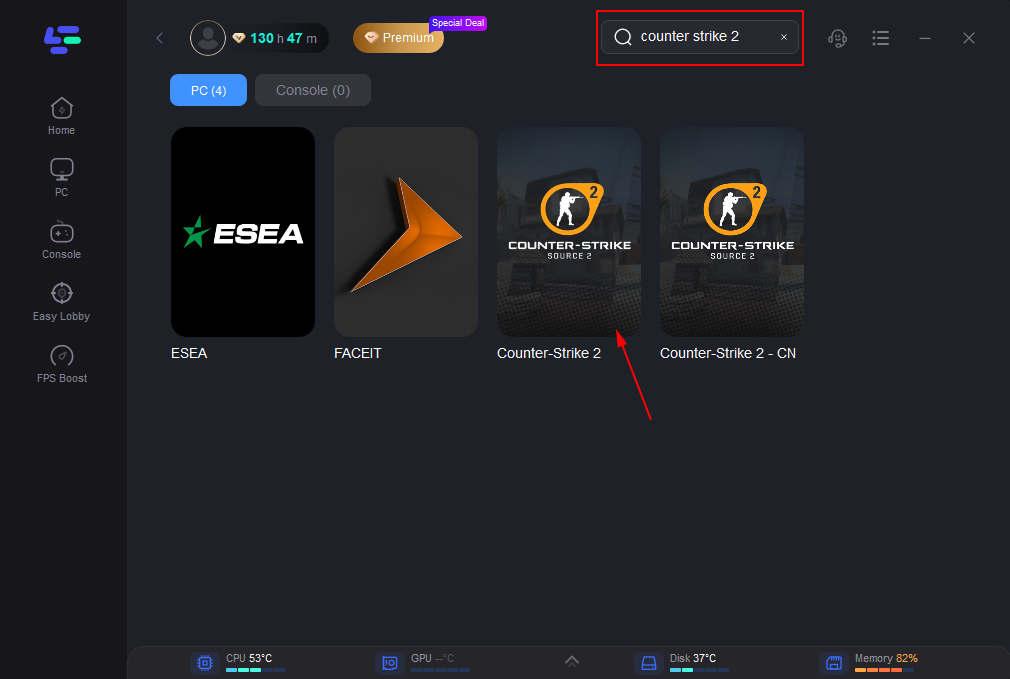
Step 2: Open the app and search for Counter-Strike 2.
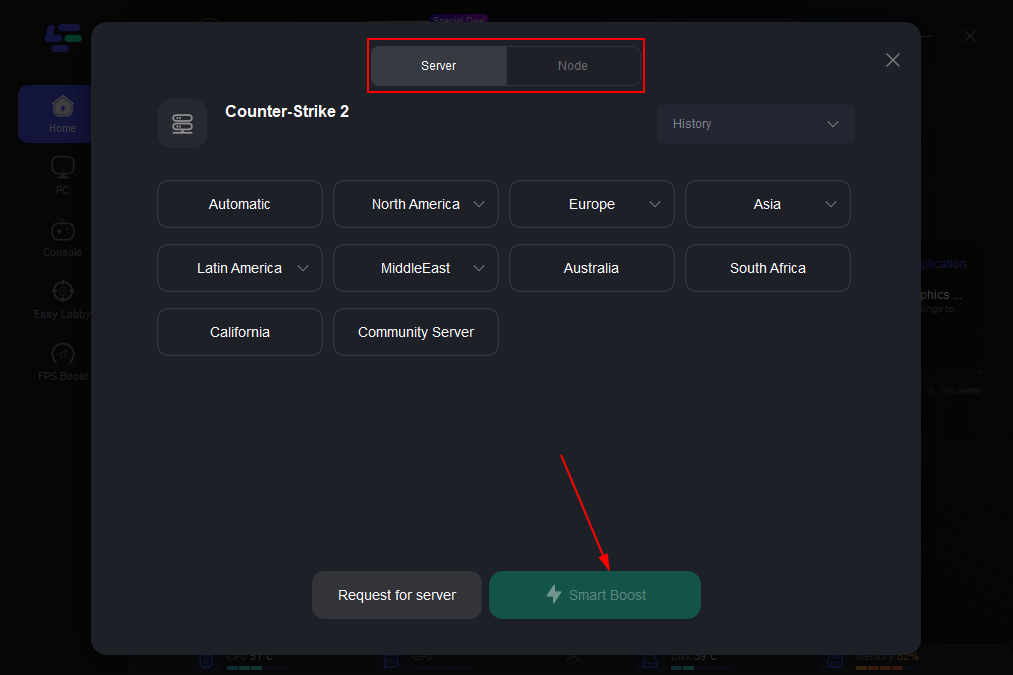
Step 3: Choose automatic or lowest ping routing to regional matchmaking servers.
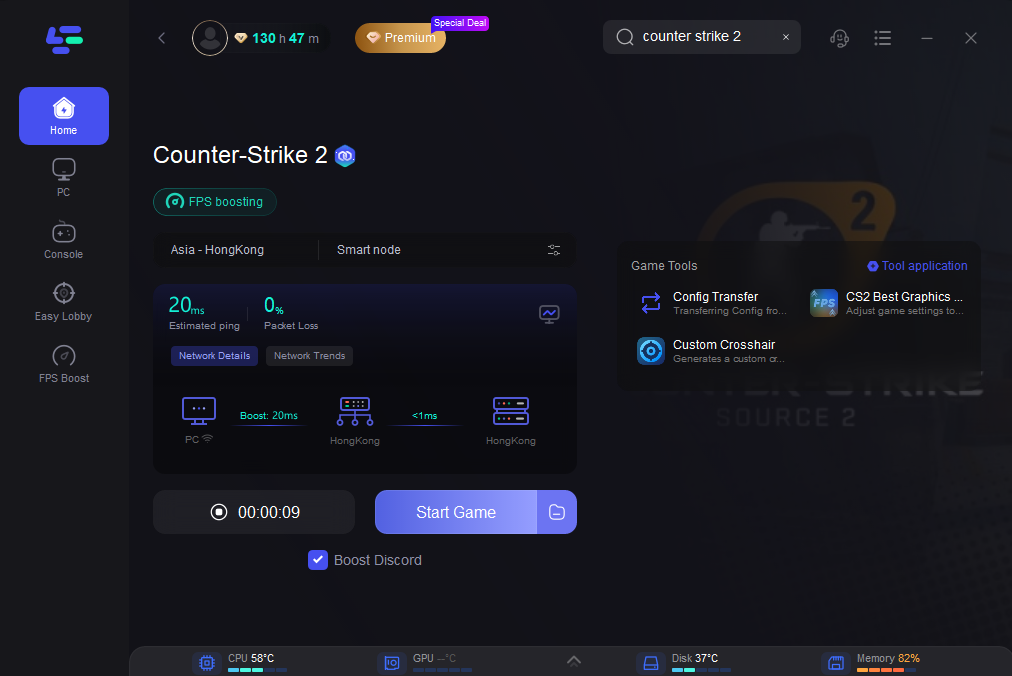
Step 4: With optimized routing, your game should connect more smoothly, reducing disconnects that can impact matchmaking success.
Part 8. FAQs
1. Why is CS2 not launching from Steam?
Most commonly due to corrupted files, outdated drivers, or overlay conflicts.
2. How do I fix CS2 crashing on startup?
Verify files, update drivers, clear shader cache, and disable overlays.
3. Why does CS2 run in Task Manager but not open?
This is usually caused by background conflicts or broken config files.
4. What causes CS2 stuck on loading screen?
Shader compilation, storage speed issues, or corrupted temp files.
5. Is reinstalling CS2 necessary?
Only as a last resort. Most issues can be fixed without reinstalling.
Conclusion
Counter Strike 2 not launching is a common but solvable issue. The key is identifying whether the problem comes from files, system settings, or external conflicts. Most cases are resolved with simple fixes like verifying files, updating drivers, or disabling overlays.
For more persistent problems, advanced solutions such as clearing shader cache or resetting configs become necessary. Combined with tools like LagoFast Game Booster for better stability, you can restore both functionality and performance.
Once everything is running properly, the difference is immediate—faster startup, smoother gameplay, and no interruptions when it matters most.
Boost Your Game with LagoFast for Epic Speed
Play harder, faster. LagoFast game booster eliminates stutter and lags on PC, mobile, or Mac—win every match!
Quickly Reduce Game Lag and Ping!
Boost FPS for Smoother Gameplay!