
If you encounter errors in Counter-Strike 2 such as “An error occurred while updating Counter-Strike 2 (missing executable)”, Error 1114 / “A game file appears to be missing or corrupted”, or the game gets stuck on “Connecting to Counter-Strike network” / fails to establish a connection, start with the fixes that most commonly resolve Steam and Windows-related issues: fully restart Steam, run Steam as an administrator, and verify CS2 game files.
Since Counter-Strike 2 is a PC game distributed through Steam, this guide focuses first on troubleshooting via Steam and Windows, before moving on to network-related and platform-specific issues.

- ✅ Reduce Lag and High Ping.
- ✅ Boost FPS at the Same Time.
- ✅ Add CSGO to Steam Library.
- ✅ Change Server Without Latency.
- ✅ End All Connection crash Issues.
- ✅ Multiplatform: PC, Mobile, Console.
Part 1: What Counter-Strike 2 Errors Mean
Part 2: Quick Fixes That Solve Most CS2 Errors
Part 3: Fixing Steam Update and Installation Errors
Part 4: Fixing Launch Errors and Corrupted Files (Error 1114)
Part 5: Fixing “Connecting to Counter-Strike Network” Issues
Part 6: Optional Network Optimization (When It Actually Helps)
Part 7: OS and Platform Notes (Windows, Linux, Mac)
Part 8: Advanced Fixes (Use with Caution)
Part 9: When to Contact Support
Part 1: What Counter-Strike 2 Errors Mean
Missing Executable Error in Counter-Strike 2
“An error occurred while updating Counter-Strike 2 (missing executable)”
This usually indicates a Steam installation or update issue—not a server queue problem.
Common causes include:
- Improper or incomplete game file downloads
- Permission issues preventing Steam from writing files
- Corrupted Steam download cache
- Poor download routing or overloaded regions
- High server load during peak hours
Key takeaway: This is primarily a Steam installation/update issue.
Counter-Strike 2 Error 1114 / Corrupted Files
“A game file appears to be missing or corrupted”
This is a Windows-level launch error.
Main causes:
- Missing or corrupted game files
- Permission conflicts
- Outdated GPU drivers
- Unsupported or outdated Windows version
- Antivirus or firewall interference
“Connecting to Counter-Strike Network” Error
This is a network or service connection issue.
Common causes:
- Steam/Valve server outages or maintenance
- Game client not updated after a patch
- Unstable internet connection
- Router issues
- Firewall or antivirus blocking connections
- Unstable Wi-Fi
This error can prevent matchmaking, server access, or even full online functionality.
Part 2: Quick Fixes That Solve Most CS2 Errors
Start with these before moving on to more advanced troubleshooting. These steps consistently appear as the most effective solutions across update, launch, and connection errors in Counter-Strike 2.
1) Fully Restart Steam (Not Just Closing the Window)
Simply clicking the “X” is not enough.
Steps:
- Close Steam
- Open Task Manager
- End all remaining Steam or CS2 processes
- Launch Steam again
A full restart of Steam is one of the most consistently effective fixes for both update errors and connection issues.
2) Run Steam as Administrator
This is one of the most reliable fixes for the missing executable error and file access issues.
Steps:
- Completely exit Steam
- Right-click Steam
- Select Run as Administrator
- Try updating or launching CS2 again
If you’re encountering file access errors or update failures, this is the fastest way to rule out permission issues.
3) Verify Counter-Strike 2 Game Files
This is the next best step and is widely confirmed to fix multiple types of errors, including:
- update issues like missing executable
- Error 1114 / missing or corrupted files
- certain network connection issues caused by corrupted local files
Steps in Steam:
- Open Library
- Right-click Counter-Strike 2
- Select Properties
- Go to Installed Files
- Click Verify integrity of game files
If the issue is caused by missing or corrupted files, Steam will automatically repair and replace them.
Part 3: Fixing Steam Update and Installation Errors
Use this section if your issue is mainly related to installing or updating Counter-Strike 2.
Clear Steam Download Cache
Corrupted temporary download data can break updates or cause CS2 to freeze during installation.
Confirmed data shows that clearing the Steam download cache helps resolve:
- update errors
- stuck downloads
- queue-related issues
After clearing the cache, log back into Steam if prompted, then try updating the game again.
Change Steam Download Region
This is worth trying if:
- downloads keep failing
- updates get stuck repeatedly
- your current region appears overloaded
Data confirms that switching the Steam download region can improve reliability, since some regions perform better during peak traffic or server-side issues.
Choose a nearby alternative region, restart the download, and check if the update completes successfully.
Retry the Update After Restarting Steam
After clearing the cache or changing the region:
- fully close Steam
- relaunch it
- attempt the CS2 update again
This ensures the changes take effect properly.
Check Available Disk Space
If the update fails to complete, make sure the drive where CS2 is installed has enough free space.
This is a basic but essential step before considering reinstalling the game.
Reinstall Only If the Issue Persists
Only reinstall Counter-Strike 2 after trying all of the following:
- restarting Steam
- running Steam as administrator
- verifying game files
- clearing download cache
- changing download region
Reinstallation is a valid final step for persistent file corruption—but it should only be used after exhausting the faster and more common Steam-side fixes listed above.
Part 4: Fixing Counter-Strike 2 Launch Errors and Corrupted Files (Error 1114)
Use this section if Counter-Strike 2 won’t launch, crashes on startup, or shows the error “A game file appears to be missing or corrupted” (Error 1114).
Update GPU Drivers
Outdated graphics drivers are a well-confirmed cause of CS2 launch crashes.
If you haven’t updated your GPU drivers in a while, do this first before trying more complex or less common fixes.
Install Windows Updates
System updates can resolve compatibility issues that prevent CS2 from launching.
This is especially important if:
- you’re running an older Windows version
- the game fails to start without a clear error message
Run Counter-Strike 2 as Administrator
For Error 1114 specifically, running the game with elevated permissions is a commonly supported fix.
This makes sense in cases where:
- Steam launches normally
- but the game itself fails to start
Check Antivirus and Firewall Exceptions
Confirmed data shows that security software can block game files or services, which may affect both launching and connectivity.
If you recently changed any security settings, make sure:
- Steam is allowed
- Counter-Strike 2 is not being blocked or flagged
Disable Overlays and Background Applications
Launch crashes can be difficult to diagnose when third-party software injects into the game.
If CS2:
- launches and immediately closes
- crashes without an error
try temporarily disabling:
- overlays (Discord, GPU tools, etc.)
- unnecessary background apps
Then test again.
Test After Each Change
Avoid making multiple changes at once.
Instead, test the game after each step:
- after updating GPU drivers
- after updating Windows
- after running as administrator
- after checking security software
This helps you clearly identify which fix actually resolved the issue.
Part 5: Fixing “Connecting to Counter-Strike Network” Issues
If Counter-Strike 2 gets stuck while connecting, follow these steps in order.
Check Server Status Before Changing Anything
If the issue started suddenly—especially after a patch or during peak hours—first confirm whether the problem is on Valve’s side.
Do this before any troubleshooting.
Use the following resources to check for broader issues affecting CS2 or Steam:
- SteamDB
- SteamStat.us
- DownDetector
- Official CS2 channels
- Official Steam channels
Confirmed data shows that checking these sources is extremely useful when connection issues are caused by maintenance or outages.
Also note: Steam servers often undergo scheduled maintenance on Tuesdays between 6 PM and 9 PM EST. If your issue started during this window, it’s worth waiting before changing your settings.
Make Sure Counter-Strike 2 Is Updated
This error can occur if a new patch has been released but your client is still outdated.
Restart Steam, allow CS2 to update fully, then try connecting again.
Restart Your Router and Modem
This is a standard and effective fix for connection problems.
Steps:
- Restart your router and modem
- Reconnect to the internet
- Restart Steam and CS2
Disable VPN (If You’re Using One)
If your routing recently changed or matchmaking started failing unexpectedly, disable your VPN and test again.
This aligns with common causes related to unstable routing and region-based connection issues.
Switch to Wired Ethernet
If possible, use a wired Ethernet connection instead of Wi-Fi.
Confirmed data shows that Ethernet provides a more stable and reliable connection, especially for CS2 matchmaking and server communication.
Verify CS2 Game Files
This may sound unrelated to networking, but it’s actually confirmed to help.
Corrupted or missing local files can contribute to connection problems, so verifying files is still worth doing.
Check Firewall and Antivirus Blocking
If CS2 cannot connect to Valve services, your firewall or antivirus may be interfering.
Review any recent changes to your security software and ensure:
- Steam is allowed
- Counter-Strike 2 is not blocked
Then test the connection again.
Part 6: Optional Network Optimization for Counter-Strike 2
If your issue in Counter-Strike 2 is clearly network-related—for example:
- ping spikes
- packet loss
- unstable routing
- matchmaking failures during peak hours
- unstable connections when playing across regions
then you can consider using a network optimization tool like LagoFast.
This is not a solution for corrupted game files, missing executable errors, or permission-related launch issues. It is only useful when the problem is specifically tied to connection quality or routing stability.
How to Use LagoFast (Simple Setup)
Click the "Free Trial" button below to download and install LagoFast for free.
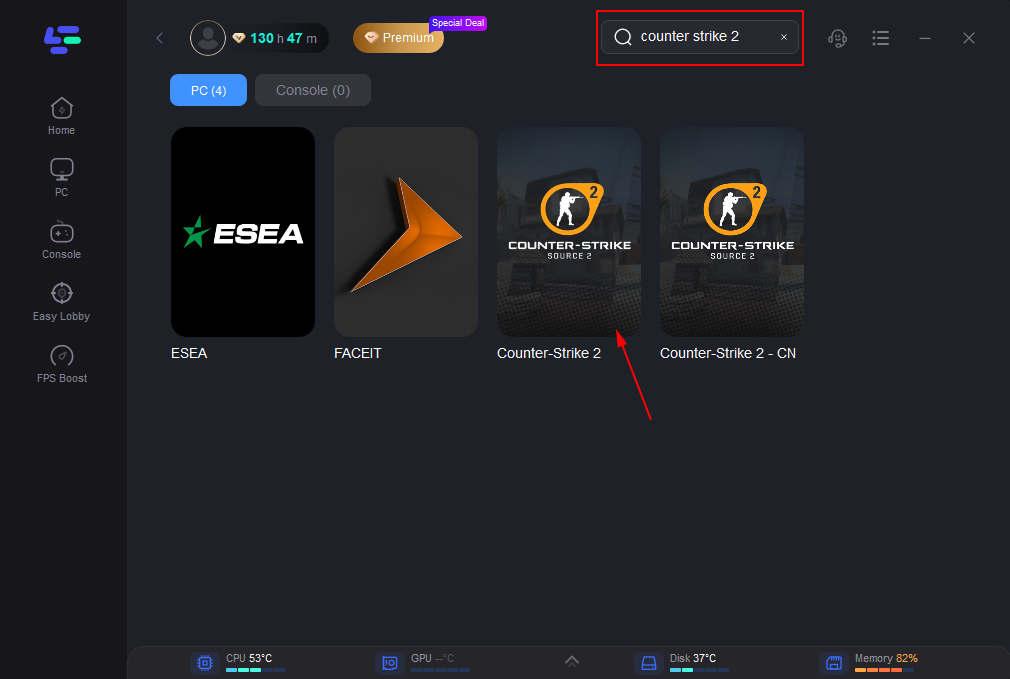
Use the search bar in LagoFast to find Counter-Strike 2.
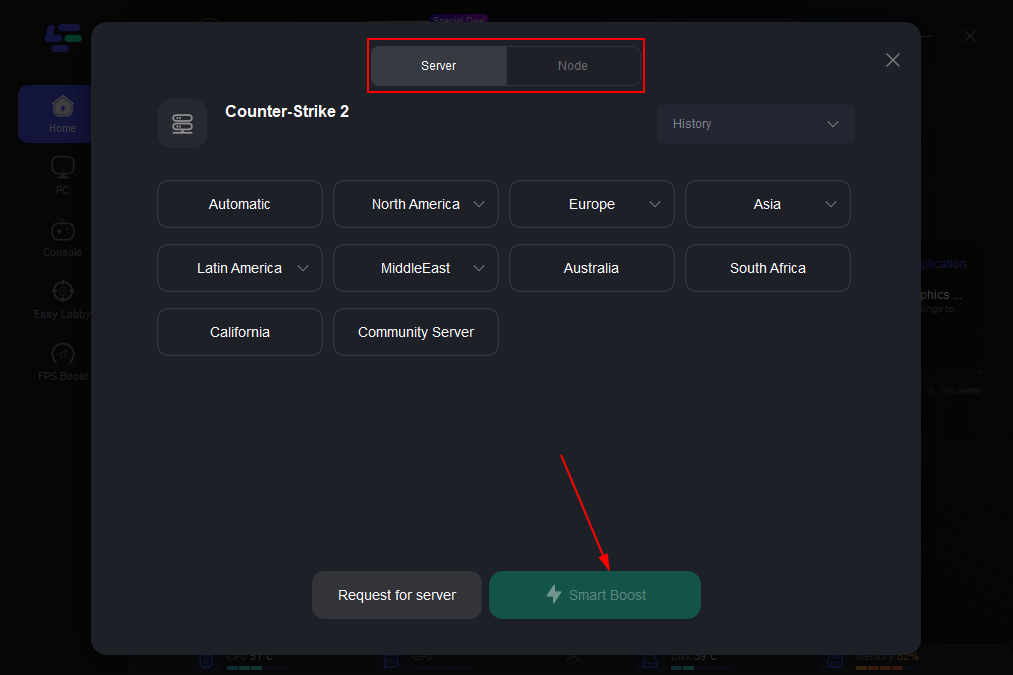
Click on “Server” to change to a better server that ensures smooth gameplay, then click on “Smart Boost”.
Check the specific game ping, packet loss, and multiple path connection on the right side. Finally, click the “Start Game” to play the game.
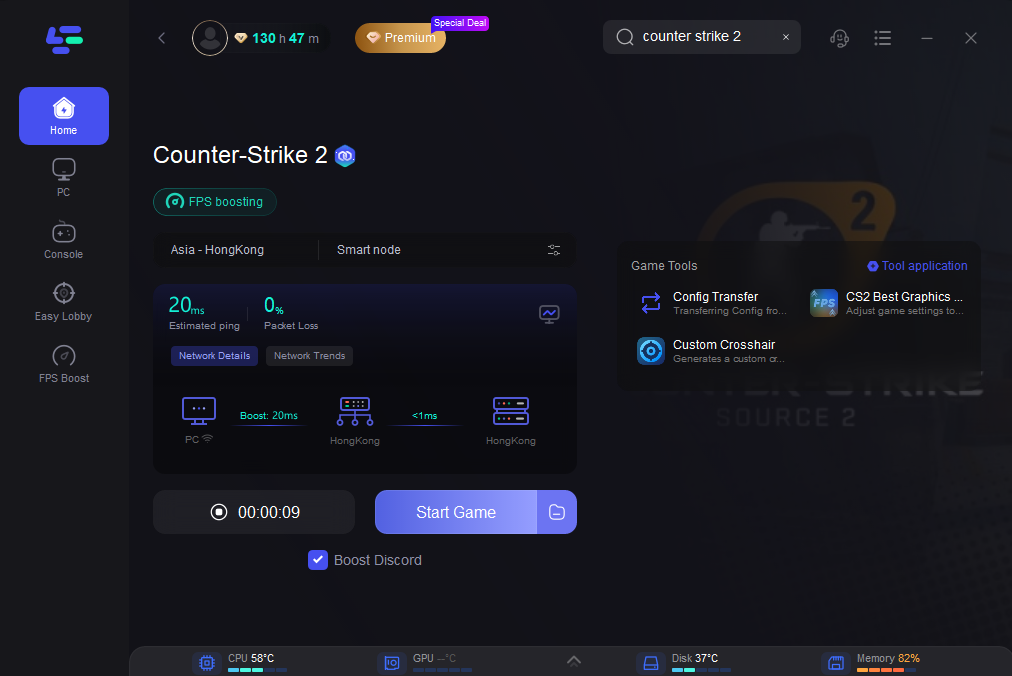
Test matchmaking again, especially during peak hours or when using unstable regional routes
If your issue is packet loss or inconsistent matchmaking—rather than a broken installation—this type of route optimization can be helpful.
Part 7: OS and Platform Notes
Windows
Primary supported platform and main troubleshooting focus.
Linux
CS2 runs natively. Proton/Wine is not recommended.
Mac
CS2 is not officially supported on macOS.
Consoles
Not applicable—CS2 is PC-only via Steam.
Part 8: Advanced Counter-Strike 2 Fixes (Use with Caution)
Only try these solutions if the standard fixes didn’t work. These are community-discovered or edge-case workarounds—not universally verified methods.
Before testing any of them, it’s strongly recommended to back up your configuration files whenever possible.
Delete cs2_video.txt (Rare Launch Fix)
One community workaround suggests deleting the cs2_video.txt file from the game’s installation folder to resolve certain launch issues.
This is not a standard fix. Treat it as a test for a rare, specific case rather than a go-to solution.
Try Launch Options / Command-Line Arguments
User reports indicate that launch options can sometimes help if Counter-Strike 2 fails to start.
However, this method is not as consistently reliable as:
- restarting Steam
- verifying game files
- updating GPU drivers
Use it as a secondary troubleshooting step.
PowerShell / Nvidia-Based Workaround
There is also a user-reported workaround involving PowerShell commands tied to Nvidia camera or system settings.
Because this method comes from user reports rather than widely confirmed sources, proceed carefully—and only if you fully understand what system settings you’re modifying.
Outdated Windows Builds Can Cause Issues
One user report specifically noted that Windows LTSC 1809 failed to launch CS2 until updating to 22H2.
Treat this as a helpful clue, not a guaranteed diagnosis. If you’re on an older Windows build, updating your system may resolve unexpected launch problems.
Part 9: When to Contact Support
If nothing works, contact Steam or Valve support.
Include:
- Exact error message
- Screenshots
- When the issue occurs
- Windows version
- GPU model and driver version
- Recent system or network changes
- List of attempted fixes
Part 10: FAQ
Why does CS2 show “missing executable”?
Usually due to corrupted downloads, permission issues, or Steam cache problems.
Can verifying files fix network errors?
Yes—corrupted local files can affect connectivity.
Why is CS2 stuck on “Connecting to network”?
Common reasons:
- Server outages
- Outdated client
- Network instability
- Firewall blocking
What should I send to support?
Error message, system info, screenshots, and attempted fixes.
Final Thoughts
For most Counter-Strike 2 errors, follow this order:
- Restart Steam completely
- Run Steam as administrator
- Verify game files
- Clear download cache
- Change download region
- Update GPU drivers and Windows
- Restart your network
Only reinstall the game if all else fails.
If server status sites show outages, the issue is likely on Valve’s side. Otherwise, it’s usually related to your local Steam setup, Windows configuration, or network stability.

Boost Your Game with LagoFast for Epic Speed
Play harder, faster. LagoFast game booster eliminates stutter and lags on PC, mobile, or Mac—win every match!
Quickly Reduce Game Lag and Ping!
Boost FPS for Smoother Gameplay!