
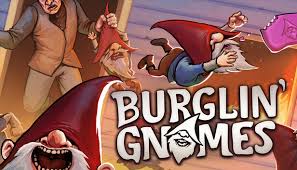
Burglin’ Gnomes is the kind of co-op game that only works when everyone can actually stay in the same lobby. You invite your friends, get ready to break into a house, start planning your gnome chaos — and then someone cannot log in, gets kicked out of the lobby, fails to join, or disconnects right before the run starts.
This problem usually happens because Burglin’ Gnomes depends heavily on Steam online services, lobby hosting, player version sync, and stable co-op routing. If one player has a bad connection, a mismatched game version, a broken Steam session, or a host-side lobby issue, the game may kick that player out instead of letting the group start normally.

- ✅ Lower ping and fewer disconnects.
- ✅ More FPS and better PC performance.
- ✅ Support for 8000+ games.
- ✅ Stable connections and region switching.
Why Burglin’ Gnomes Won’t Log In or Kicks You from Lobby
Burglin’ Gnomes is an online co-op game, so the lobby is not just a menu. It is the connection point between you, your friends, Steam, and the current host. If that connection is unstable, the game may fail before the actual run even begins.
The most common causes are:
Problem | What It Looks Like |
|---|---|
Unstable route or high ping | You join but get kicked shortly after |
Steam session issue | Invite does nothing or login fails |
Host network problem | Everyone joins, then lobby collapses |
Version mismatch | One player cannot join or gets removed |
Demo/full version mismatch | Players cannot connect to the same session |
Too many players joining at once | Lobby fails when starting the run |
Firewall block | Game cannot stay connected online |
Mods or changed files | Lobby rejects the player or crashes the session |
Steam overlay issue | Invite window does not work properly |
The right fix depends on when the problem happens.
Fix 1: Use LagoFast to Stabilize Burglin’ Gnomes Online Co-op
Start here if Burglin’ Gnomes kicks you out of the lobby, fails to load into a friend’s session, disconnects during co-op, or works for some players but not others.
Burglin’ Gnomes is built around online co-op. If your route to the host or game session is unstable, you may be able to open the game but still fail when joining a lobby. This is especially common when friends are playing from different cities, countries, or network providers.
LagoFast helps by optimizing the connection route before you launch the game. For co-op games like Burglin’ Gnomes, this can reduce lobby instability, high ping, packet loss, and random disconnects.
How to Use LagoFast for Burglin’ Gnomes
Open LagoFast.
Search for Burglin’ Gnomes.
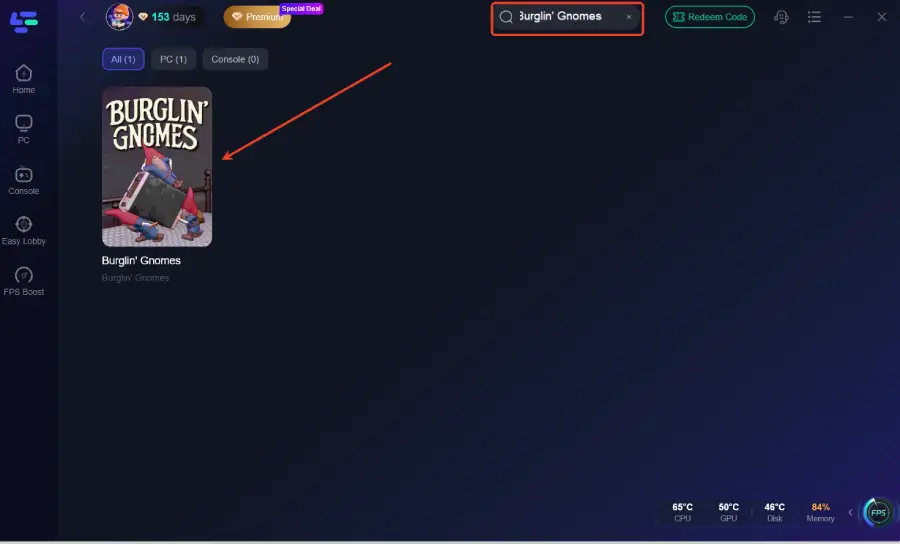
Select the game.
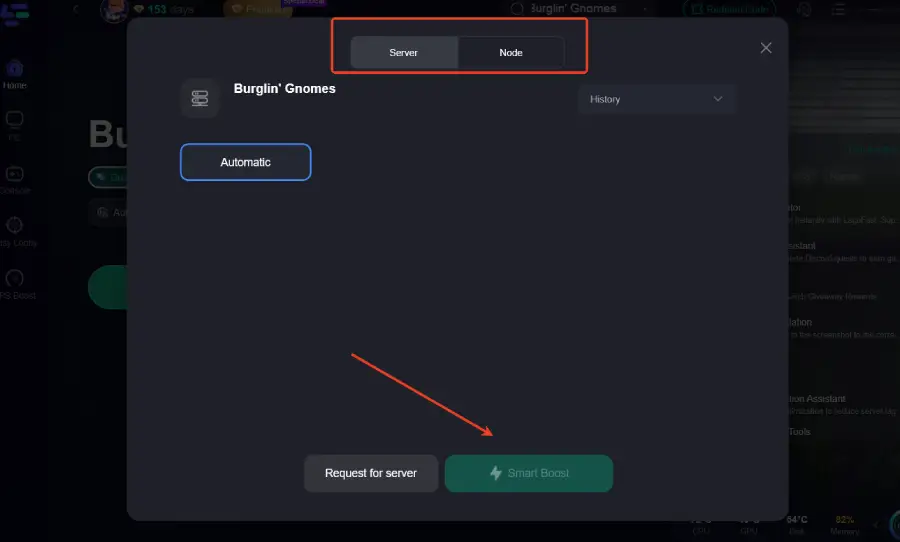
Choose the recommended route or a route close to the host.
Click Boost.
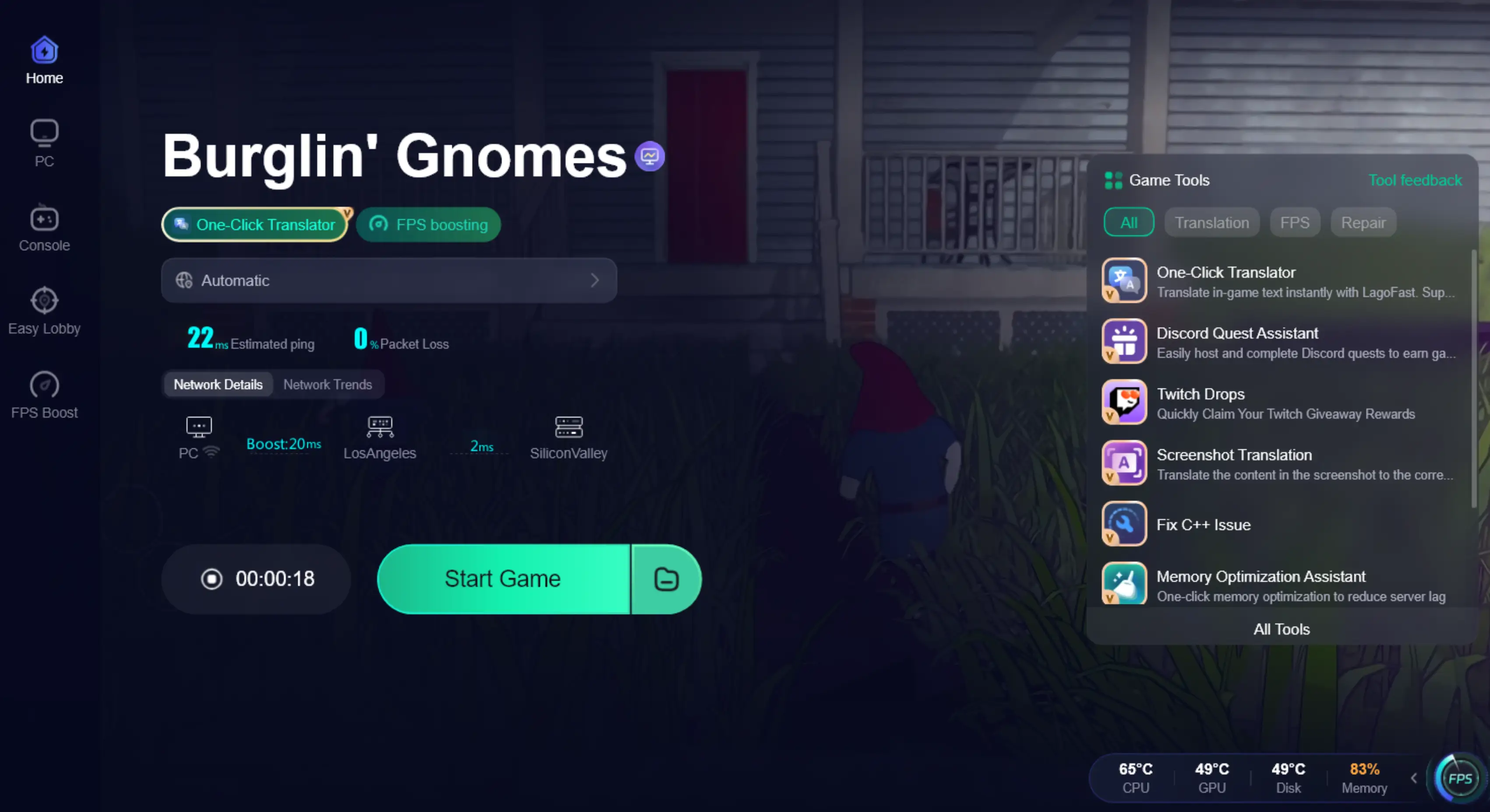
Launch Burglin’ Gnomes from Steam.
Join the lobby again.
This fix is best for these situations:
You get kicked from your friend’s lobby.
You can play solo but not online.
You disconnect when the house run starts.
You keep returning to the main menu.
You are playing with friends from another region.
The lobby feels unstable even though Steam is online.
One specific player always gets kicked.
If only one player keeps getting kicked, that player should use LagoFast first. If the whole lobby collapses, the host should use LagoFast or another player should host.
Fix 2: Fully Restart Steam Before Rejoining
For Burglin’ Gnomes login and lobby problems, restarting only the game is often not enough. Steam may still keep a broken online session in the background.
Do this:
Close Burglin’ Gnomes.
Exit Steam completely.
Open Task Manager.
End any remaining Steam processes.
Wait 10 seconds.
Open Steam again.
Launch Burglin’ Gnomes.
Rejoin the lobby.
Ask every player in the group to do the same if several people cannot join.
This helps when:
Steam invite does nothing.
The game says you are online but lobby join fails.
You can see friends online but cannot connect.
You were kicked once and cannot rejoin.
The lobby shows the wrong player status.
For Steam co-op games, a broken Steam session can make the game behave like your lobby is blocked even when your internet is fine.
Fix 3: Recreate the Lobby Instead of Reusing a Broken One
If a Burglin’ Gnomes lobby kicks someone out once, do not keep forcing the same lobby. The session may already be unstable.
The host should:
Close the current lobby.
Return to the main menu.
Create a fresh lobby.
Invite only one friend first.
Wait until that player fully joins.
Invite the next player.
Start the run only after everyone is stable.
This matters because Burglin’ Gnomes sessions can fail during the transition between lobby and house entry. If the first join attempt breaks, the lobby may continue acting strangely.
A fresh lobby is faster than trying the same broken invite ten times.
Fix 4: Let Another Player Host
If everyone gets kicked, the problem may be the host.
In Burglin’ Gnomes, the host is important because the group is trying to load into the same co-op run. If the host has unstable internet, strict firewall settings, high packet loss, or a bad Steam session, the whole lobby can fail.
Try this:
Leave the lobby.
Ask a different player to host.
Have the new host create a fresh lobby.
Join one by one.
Test with two players first.
Add the rest of the group after the lobby stays stable.
Best host choice:
wired connection
lowest ping
stable internet
no VPN-like tools running in the background
no heavy downloads
no strict firewall
no outdated mods
If changing host fixes the issue, the original host should restart Steam, use LagoFast, check firewall, and avoid hosting until their connection is stable.
Fix 5: Make Sure Everyone Has the Same Game Version
Burglin’ Gnomes can kick players out if the group is not on the same build. This can happen after a patch, demo update, or incomplete Steam download.
Everyone should do this:
Close the game.
Restart Steam.
Check if Burglin’ Gnomes has an update pending.
Let Steam finish the update.
Verify files if needed.
Relaunch the game.
Do not try to join while one player is still downloading or while Steam says “Update queued.”
Also check this carefully:
Are all players using the same version?
Is someone still on the demo?
Is someone on a different branch or test build?
Did one player update while others did not?
Did one player install mods after updating?
If one player always gets kicked and everyone else can join, that player should check version and files first.
Fix 6: Join Through Steam Friends, Not Repeated In-Game Invites
If the in-game invite fails, try joining through Steam instead.
Steps:
Ask the host to create a lobby.
Open Steam Friends list.
Right-click the host’s name.
Choose Join Game if available.
If Join Game does not show, ask the host to invite you through Steam.
Accept the Steam invite once.
Wait for the game to finish connecting.
Do not spam invites. Sending multiple invites quickly can make Steam show old or expired lobby links.
If you receive several invites, ignore the old ones and ask the host to send one fresh invite after recreating the lobby.
Fix 7: Do Not Fill the Lobby Immediately
Burglin’ Gnomes supports chaotic co-op, but if the lobby is unstable, do not start by inviting the full group at once.
Test like this:
Host creates lobby.
One friend joins.
Start a quick test.
Return to lobby.
Add a third player.
Test again.
Add the rest of the group.
This helps you find whether the problem is:
one specific player
full lobby load
host connection
group size
transition into the house
Steam invite problem
If the lobby works with 2–3 players but fails with more, the issue may be host upload stability, high ping between regions, or one player causing the lobby to desync.
Fix 8: Avoid Joining While the Host Is Starting the Run
Do not join at the same time the host is starting the house run. This can cause lobby desync or failed loading.
Use this rule:
Everyone joins first.
Everyone waits until all players are visible.
No one alt-tabs during ready/start.
The host starts the run only after everyone is stable.
No late joining during the loading transition if the lobby is already unstable.
If someone disconnects during the loading screen, return to lobby and recreate the session instead of trying to force the same run.
Fix 9: Remove Mods or Custom Files Before Online Co-op
If you installed mods, custom files, or unofficial tweaks, remove them before joining friends.
Online co-op games can be sensitive to file differences. Even if the mod works in solo mode, it may cause lobby rejection, kicks, or desync in multiplayer.
To test:
Close Burglin’ Gnomes.
Remove all mods.
Remove mod loaders if used.
Verify game files on Steam.
Restart Steam.
Join a clean lobby.
If the game works after removing mods, one of the mods was causing the lobby issue.
For co-op, the safest setup is:
Everyone clean version
Everyone same update
No outdated mods
No custom files
Fix 10: Allow Burglin’ Gnomes and Steam Through Firewall
If the game launches but cannot stay in a lobby, your firewall may be blocking the online session.
On Windows:
Open Windows Security.
Go to Firewall & network protection.
Click Allow an app through firewall.
Allow Steam.
Allow Burglin’ Gnomes.
Enable access on Private network.
Restart Steam.
Try joining the lobby again.
If you use third-party antivirus software, check whether it blocked the game.
Do not permanently turn off your firewall. The better fix is allowing the game and Steam properly.
Fix 11: Check Steam Online Status and Friend Status
Burglin’ Gnomes relies on Steam for multiplayer access. If Steam Friends is broken or your status is wrong, invites may fail.
Check these:
Steam is online, not Offline Mode.
You are visible as online or available.
The host is online.
Steam Friends list is working.
You can open chat with the host.
Steam overlay works.
You are not set to Invisible if invites behave strangely.
If Steam Friends is not loading properly, restart Steam before blaming the game.
Fix 12: Turn Steam Overlay Back On If Invites Do Not Work
For some players, disabling Steam Overlay can help performance. But for Steam invite-based co-op, the overlay can also be needed for accepting invites smoothly.
If you cannot accept invites:
Open Steam.
Go to Library.
Right-click Burglin’ Gnomes.
Select Properties.
Enable Steam Overlay.
Restart the game.
Ask the host to send a new invite.
If the overlay causes crashes, disable it later. But if your main issue is accepting invites or joining through Steam, test with overlay enabled.
Fix 13: Stop Downloads and Streaming While Joining
Burglin’ Gnomes lobby kicks can happen if your connection drops during the join process.
Before joining:
stop Steam downloads
pause cloud backups
close video streams
stop large uploads
avoid torrent apps
ask others on the same network to pause heavy usage
This is especially important for the host. If the host’s upload is unstable, everyone else may feel the problem.
Fix 14: Use Wired Connection If You Keep Getting Kicked
Wi-Fi can be enough for solo play but unstable for co-op sessions. If you keep getting kicked from Burglin’ Gnomes lobbies, test with Ethernet.
If you cannot use Ethernet:
move closer to the router
use 5 GHz Wi-Fi instead of 2.4 GHz
restart the router
avoid playing far from the access point
stop downloads on other devices
use LagoFast to improve routing stability
Lobby kicks are often not caused by internet speed. They are caused by connection drops, jitter, or packet loss.
Fix 15: Verify Game Files If Login Works but Lobby Fails
If you can open Burglin’ Gnomes but get kicked when joining a run, a damaged file can still be the cause.
Verify files:
Open Steam.
Go to Library.
Right-click Burglin’ Gnomes.
Select Properties.
Go to Installed Files.
Click Verify integrity of game files.
Wait for Steam to finish.
Restart Steam.
Try joining again.
This is especially useful after:
a failed update
a demo patch
a crash during loading
mod removal
Steam download interruption
Fix 16: Try a Clean Two-Player Test
If nothing works, test the lobby in the simplest possible setup.
Do this:
Host restarts Steam.
Second player restarts Steam.
Both players use clean, updated game files.
No mods.
No full group.
No background downloads.
Host creates a new lobby.
Second player joins.
Start one short run.
If this works, the game itself can connect. Then add players one by one until the problem appears.
This helps you find the real cause:
Test Result | Meaning |
|---|---|
2 players work, 3rd player fails | Third player has connection/version/mod issue |
Lobby fails with any host | Your local game or Steam session may be broken |
Lobby works with another host | Original host has network or firewall issue |
Everyone fails to log in | Steam/game service may be temporarily unavailable |
Solo works but co-op fails | Multiplayer session, route, or host issue |
Fix 17: Reinstall Only After Testing Lobby Causes
Do not reinstall first. Reinstalling will not fix a bad host, unstable route, Steam Friends issue, or version mismatch between players.
Reinstall only if:
Steam file verification finds problems again and again;
the game still kicks you from every lobby;
your friends can all play without you;
you removed mods but the game still acts broken;
Burglin’ Gnomes fails both solo and online.
Clean reinstall steps:
Uninstall Burglin’ Gnomes.
Restart your PC.
Reinstall from Steam.
Do not add mods.
Launch the game once.
Test solo.
Test a two-player lobby.
Add the full group after it works.
Burglin’ Gnomes Kicks You Out of Lobby: Best Fix Order
If you can enter the game but get kicked from the lobby, use this order:
Use LagoFast.
Recreate the lobby.
Switch host.
Join through Steam Friends.
Make sure everyone has the same version.
Test with two players first.
Remove mods.
Allow the game through firewall.
Verify files.
Add players one by one.
Burglin’ Gnomes Kicks One Specific Player
If only one player keeps getting kicked, that player should:
Restart Steam.
Use LagoFast.
Verify game files.
Remove mods.
Check firewall.
Make sure their game is updated.
Try joining a different host.
Test with only one friend first.
If everyone else can play normally, the problem is probably on that player’s side.
Burglin’ Gnomes Lobby Closes When Starting a Run
If the lobby looks fine but fails when entering the house, focus on session sync.
Try this:
Recreate the lobby.
Let everyone fully load before starting.
Do not invite players during the start transition.
Use a stable host.
Start with fewer players.
Remove mods.
Make sure all players are updated.
Ask the host to use LagoFast.
Try a different host if it fails again.
This issue is usually caused by host instability, player version mismatch, or one player failing to load into the same session.
Burglin’ Gnomes Steam Invite Not Working
If clicking the Steam invite does nothing:
Restart Steam.
Enable Steam Overlay.
Ask the host to send a fresh invite.
Join through Steam Friends list.
Make sure you are online, not invisible/offline.
Recreate the lobby.
Restart the game.
Do not click old invites. Old lobby links may no longer work after the host recreates the session.
Best Setup for a Stable Burglin’ Gnomes Lobby
For the smoothest co-op session, use this setup:
Host has the most stable connection.
Host uses wired internet if possible.
Players join one by one.
Everyone has the same game version.
Everyone removes outdated mods.
No one downloads updates in the background.
Steam is fully restarted before playing.
LagoFast is enabled for players with high ping or cross-region connection.
The lobby is recreated after failed attempts.
The group tests with fewer players before full chaos.
This may sound careful, but it saves time. A stable lobby means you can actually start stealing things instead of spending 30 minutes fighting invites.
Final Thoughts
If Burglin’ Gnomes won’t log in or keeps kicking you out of the lobby, do not treat it like a normal single-player crash. This is usually a co-op connection, Steam session, host, version, or lobby sync problem.
Once the lobby is stable, Burglin’ Gnomes works the way it should: a tiny group of chaotic gnomes breaking into houses, stealing everything possible, and trying not to get kicked out before the fun even begins.
Boost Your Game with LagoFast for Epic Speed
Play harder, faster. LagoFast game booster eliminates stutter and lags on PC, mobile, or Mac—win every match!
Quickly Reduce Game Lag and Ping!
Boost FPS for Smoother Gameplay!