
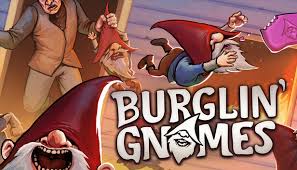
Burglin’ Gnomes is built around online co-op chaos: tiny gnomes breaking into houses, stealing items, completing tasks, escaping danger, and surviving with friends. But if the game keeps crashing, closes during a run, crashes when joining a lobby, or freezes before you even reach gameplay, the fun stops immediately.
The good news is that most Burglin’ Gnomes crash problems are caused by a few common things: unstable co-op connection, corrupted Steam files, outdated GPU drivers, overlay conflicts, firewall blocking, mods, or local PC performance issues.
This guide will help you fix Burglin’ Gnomes crashes step by step.

- ✅ Lower ping and fewer disconnects.
- ✅ More FPS and better PC performance.
- ✅ Support for 8000+ games.
- ✅ Stable connections and region switching.
Quick Fixes First
Try these first before going into deeper troubleshooting:
Restart Burglin’ Gnomes and Steam.
Use LagoFast to stabilize the online co-op connection.
Verify game files on Steam.
Update your graphics driver.
Disable Steam, Discord, and GPU overlays.
Run the game as administrator.
Lower graphics settings.
Remove mods if you installed any.
Allow the game through firewall.
Reinstall the game if nothing else works.
If Burglin’ Gnomes crashes only when playing online or joining friends, start with LagoFast and firewall fixes.
If it crashes on launch, start with file verification, GPU driver updates, and overlay fixes.
Why Does Burglin’ Gnomes Crash?
Burglin’ Gnomes can crash for different reasons depending on when the crash happens.
When It Crashes | Most Likely Cause |
|---|---|
Crashes on launch | Corrupted files, driver issue, overlay conflict |
Crashes when joining lobby | Network instability, host issue, firewall block |
Crashes during loading | Broken files, memory issue, graphics setting problem |
Crashes during a co-op run | Connection drop, host instability, background app conflict |
Crashes after update | Version mismatch, outdated mods, broken cache |
PC shuts down or restarts | Overheating, power issue, hardware instability |
The important thing is to fix the right problem. A crash on startup is usually not the same as a crash during multiplayer.
Fix 1: Use LagoFast to Stabilize Burglin’ Gnomes Connection
If Burglin’ Gnomes crashes when you join a lobby, load into a co-op game, play with friends, or get disconnected during a run, the problem may be related to unstable routing, high ping, packet loss, or host connection instability.
Since Burglin’ Gnomes is an online co-op game, a bad connection can cause lobby failures, loading problems, disconnects, or sudden crashes during multiplayer sessions. LagoFast can help stabilize the route between your PC and the game connection, especially when you are playing with friends from different regions.
How to use LagoFast for Burglin’ Gnomes
Open LagoFast.
Search for Burglin’ Gnomes.
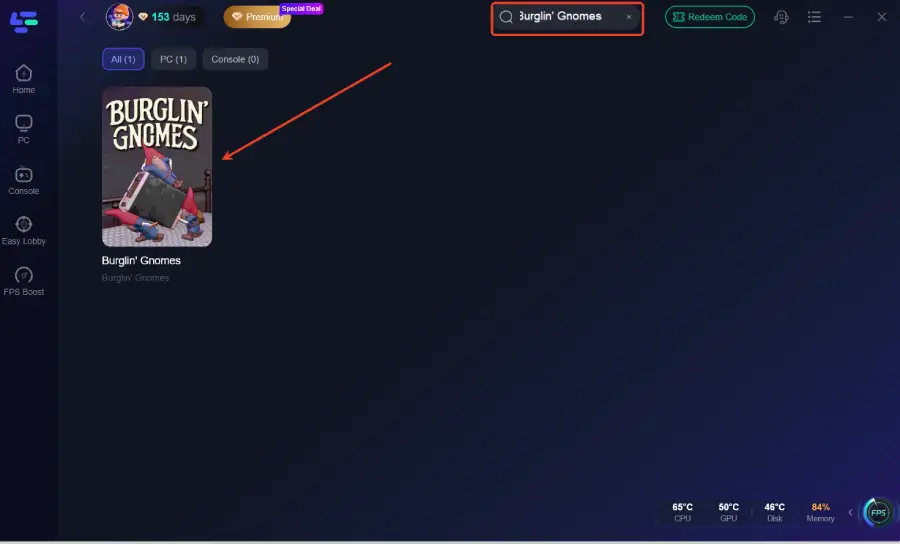
Select the game.
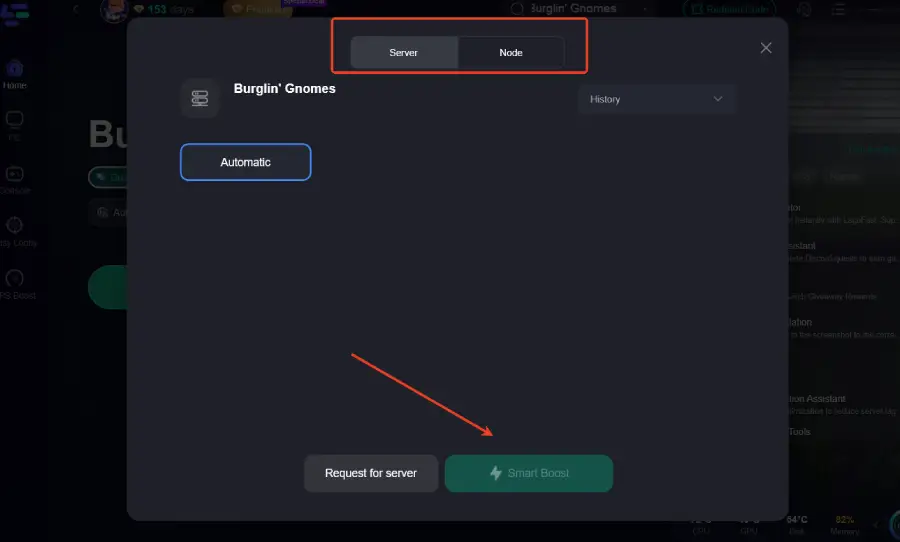
Choose the recommended route.
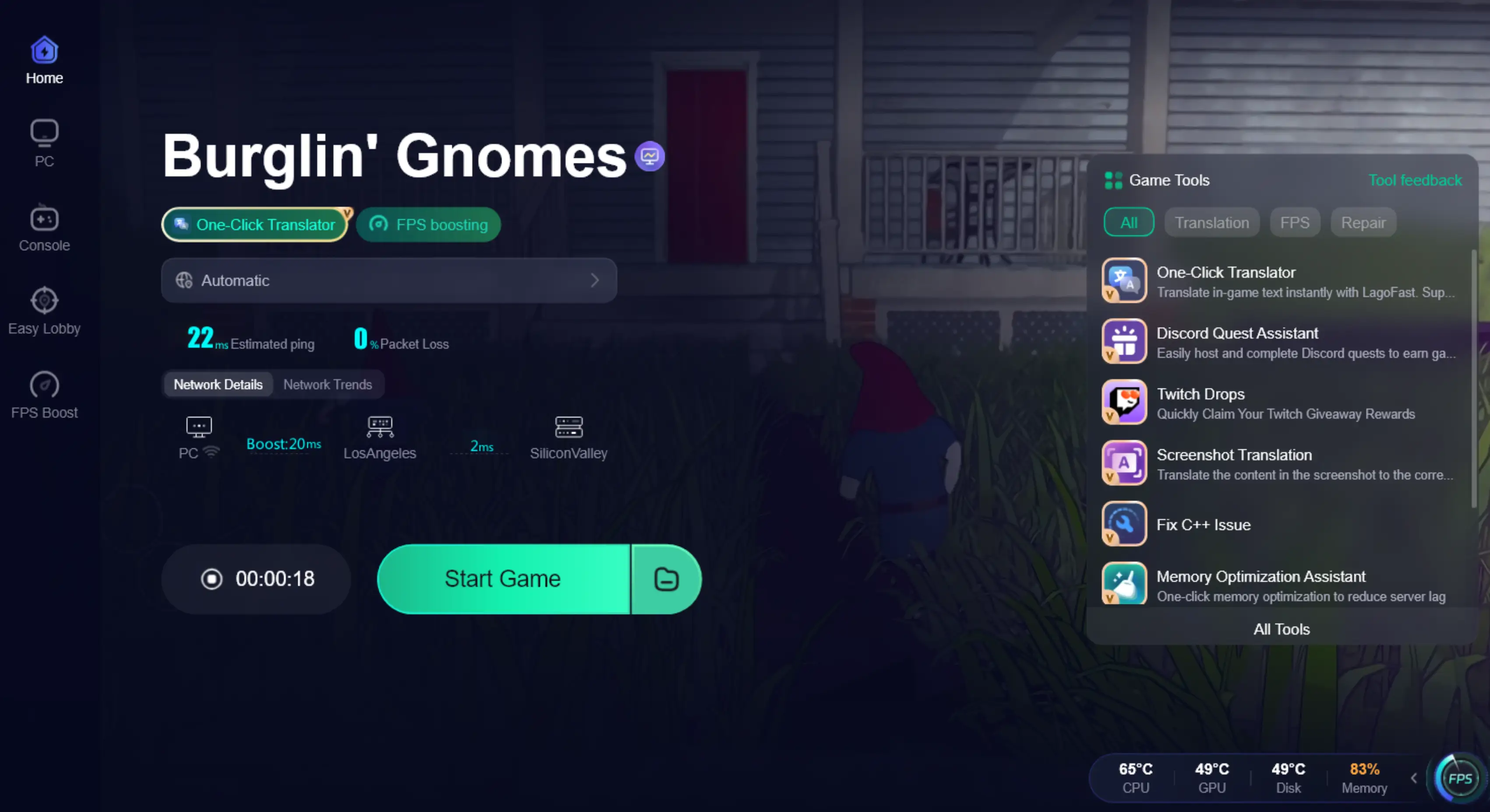
Click Boost.
Launch Burglin’ Gnomes through Steam.
Try joining your friend’s lobby again.
This fix is especially useful if:
Burglin’ Gnomes crashes when joining friends.
The game closes shortly after entering a session.
One player keeps crashing while others can play normally.
The lobby loads slowly or fails randomly.
Your friends are in different countries or regions.
You have high ping, packet loss, or unstable connection.
LagoFast cannot fix every local PC crash, but it is one of the best first fixes for multiplayer-related crashes.
Fix 2: Restart Steam and Your PC
This sounds basic, but it fixes many temporary Steam and memory-related crashes.
Do this:
Close Burglin’ Gnomes.
Exit Steam completely.
Restart your PC.
Open Steam again.
Launch Burglin’ Gnomes.
If the game crashed after a long play session, after switching windows, or after Steam failed to sync properly, restarting can clear temporary issues.
Fix 3: Verify Burglin’ Gnomes Game Files on Steam
If Burglin’ Gnomes crashes on launch, during loading, or when entering a house, your game files may be damaged or incomplete.
To verify files:
Open Steam.
Go to Library.
Right-click Burglin’ Gnomes.
Select Properties.
Go to Installed Files.
Click Verify integrity of game files.
Wait for Steam to finish.
Relaunch the game.
This is one of the most important fixes after a crash, update, failed download, or demo-to-full-version change.
Use this fix if:
Burglin’ Gnomes crashes after an update.
The game closes during loading.
The game crashes at the same point every time.
Textures, objects, or rooms load incorrectly.
Steam download was interrupted.
Fix 4: Update Your Graphics Driver
Outdated GPU drivers can cause crashes, black screens, freezing, or sudden game closure.
Update your driver based on your graphics card:
NVIDIA: update through GeForce Experience or NVIDIA App.
AMD: update through AMD Software.
Intel: update through Intel Driver & Support Assistant.
After updating:
Restart your PC.
Launch Steam.
Start Burglin’ Gnomes.
Test the same area where the crash happened.
This is especially important if Burglin’ Gnomes crashes when loading into the house, entering gameplay, changing graphics settings, or switching between fullscreen and windowed mode.
Fix 5: Disable Overlays
Overlays can conflict with smaller co-op games, especially when multiple overlays run at the same time.
Disable these before launching Burglin’ Gnomes:
Steam Overlay
Discord Overlay
NVIDIA Overlay
AMD Overlay
Xbox Game Bar
MSI Afterburner overlay
RivaTuner Statistics Server
Recording or clipping tools
How to disable Steam Overlay
Open Steam.
Go to Library.
Right-click Burglin’ Gnomes.
Select Properties.
Turn off Enable the Steam Overlay while in-game.
Then restart the game.
If the crash stops after disabling overlays, turn them back on one by one to find the problem.
Fix 6: Run Burglin’ Gnomes as Administrator
Permission issues can sometimes stop the game from writing settings, loading files, or connecting properly.
To run as administrator:
Open Steam.
Right-click Burglin’ Gnomes.
Select Manage.
Click Browse local files.
Find the game executable file.
Right-click it.
Choose Run as administrator.
If this works, you can set it permanently:
Right-click the executable file.
Open Properties.
Go to Compatibility.
Check Run this program as an administrator.
Apply the change.
This fix is useful if the game crashes immediately, fails to save settings, or closes before reaching the main menu.
Fix 7: Lower Graphics Settings
If Burglin’ Gnomes crashes during gameplay, your PC may be struggling with rendering, memory, or sudden scene changes.
Try lowering:
Resolution
Shadows
Effects
Anti-aliasing
Texture quality
View distance
Post-processing
FPS limit
A safer setup for testing:
Use windowed or borderless mode.
Set a lower resolution.
Cap FPS to 60.
Turn off heavy effects.
Lower shadows first.
If the game becomes stable after lowering settings, the crash was probably related to GPU load, memory, or driver stability.
Fix 8: Try Windowed Mode
Fullscreen issues can cause crashes on some PCs, especially when alt-tabbing, using multiple monitors, or running overlays.
Try this:
Launch Burglin’ Gnomes.
Open Settings.
Change Display Mode to Windowed or Borderless.
Apply the setting.
Restart the game.
If you cannot reach the settings menu, try adding this Steam launch option:
-windowed
To add it:
Open Steam.
Right-click Burglin’ Gnomes.
Select Properties.
Find Launch Options.
Type
-windowed.Start the game.
After the game opens normally, adjust your display settings in-game.
Fix 9: Close Background Apps
Burglin’ Gnomes can crash if your PC is running too many background programs, especially while hosting or joining co-op sessions.
Before launching the game, close:
Browser tabs
Screen recorders
Video editors
Torrent apps
RGB software
Game boosters you are not using
Unnecessary launchers
Hardware monitoring overlays
Heavy download tasks
Then open Task Manager and check:
CPU usage
Memory usage
GPU usage
Disk usage
If memory or CPU usage is already high before launching the game, close extra programs first.
Fix 10: Check Firewall and Antivirus
If Burglin’ Gnomes crashes or closes when connecting online, your firewall or antivirus may be blocking the game or Steam connection.
To allow the game through Windows Firewall:
Open Windows Security.
Go to Firewall & network protection.
Click Allow an app through firewall.
Find Burglin’ Gnomes and Steam.
Allow both on Private networks.
Restart Steam and the game.
If your antivirus has a quarantine or blocked app list, check whether it blocked the game executable.
Do not turn off your antivirus permanently. If you test by disabling it briefly, turn it back on after checking the game.
Fix 11: Make Sure Everyone Is on the Same Game Version
If Burglin’ Gnomes crashes only when playing with friends, one player may be on a different version.
Ask everyone to do this:
Close the game.
Restart Steam.
Check for updates.
Verify game files.
Remove outdated mods.
Launch the game again.
If one player keeps crashing while everyone else can play, that player should verify files and remove mods first.
Fix 12: Switch the Lobby Host
Sometimes the crash is not caused by your PC, but by the lobby host or host connection.
Try this:
Let a different player create the lobby.
Invite everyone again.
Use LagoFast before joining.
Avoid joining while someone is still loading.
Start with fewer players to test stability.
If the game works with a different host, the original host may have unstable internet, firewall issues, or local performance problems.
Fix 13: Remove Mods
If you installed Burglin’ Gnomes mods, they may crash the game after an update or conflict with multiplayer.
To test this:
Close the game.
Remove all mods.
Remove mod loaders if used.
Verify game files on Steam.
Restart Steam.
Launch the game again.
If the crash disappears, one of the mods caused the issue.
Use mods carefully in online co-op. Everyone may need the same mod version, and outdated mods can break after patches.
Fix 14: Delete Temporary Cache and Reinstall Cleanly
If the game still crashes after verifying files, do a clean reinstall.
Steps:
Uninstall Burglin’ Gnomes from Steam.
Restart your PC.
Reinstall the game.
Do not install mods yet.
Launch the game once in a clean state.
Test solo mode first.
Then test online co-op.
If the game works after a clean reinstall, the problem was likely caused by damaged files, old cache, or mod conflicts.
Fix 15: Check PC Temperature and Hardware Stability
If Burglin’ Gnomes does not just crash, but your whole PC freezes, restarts, or shuts down, the issue may be hardware-related.
Check for:
GPU overheating
CPU overheating
unstable overclock
weak power supply
memory instability
laptop thermal throttling
dust buildup
driver crashes
Try these:
Remove GPU or CPU overclock.
Close hardware-heavy background apps.
Clean dust from vents and fans.
Use a laptop cooling stand if needed.
Cap FPS to 60.
Lower graphics settings.
Check temperatures while playing.
If your whole PC restarts, do not treat it as a normal game bug. That usually means the system is unstable under load.
Fix 16: Reinstall Visual C++ and DirectX Components
Some crashes happen because Windows runtime components are missing or broken.
Install or repair:
Microsoft Visual C++ Redistributables
DirectX Runtime
Latest Windows updates
GPU driver package
After installing, restart your PC before launching the game again.
This is useful if the game crashes immediately, gives a missing DLL error, or refuses to open after installation.
Burglin’ Gnomes Crashes on Launch
If Burglin’ Gnomes crashes before the main menu, try this order:
Restart Steam and PC.
Verify game files.
Update GPU driver.
Disable overlays.
Run as administrator.
Try windowed mode.
Reinstall Visual C++ and DirectX.
Reinstall the game.
This type of crash is usually local, not multiplayer-related.
Burglin’ Gnomes Crashes When Joining Friends
If the game crashes when joining a lobby or entering co-op, try this order:
Use LagoFast.
Restart Steam.
Let another player host.
Check that everyone has the same version.
Allow Steam and Burglin’ Gnomes through firewall.
Remove mods.
Verify game files.
Test with fewer players.
This type of crash is often related to connection, host stability, or version mismatch.
Burglin’ Gnomes Crashes During Gameplay
If Burglin’ Gnomes crashes after you already start a run, try this order:
Lower graphics settings.
Cap FPS to 60.
Disable overlays.
Close background apps.
Update GPU driver.
Verify files.
Remove mods.
Check temperatures.
If it always crashes in the same room or at the same moment, verify files first. If it crashes randomly, check performance, overlays, and connection stability.
Burglin’ Gnomes Crashes After Update
If the crash started after a patch, do this:
Restart Steam.
Make sure the update fully finished.
Verify game files.
Remove mods.
Update GPU driver.
Ask your friends to update too.
Try hosting a new lobby.
Patches can break older files, outdated mods, or mismatched multiplayer versions.
Boost Your Game with LagoFast for Epic Speed
Play harder, faster. LagoFast game booster eliminates stutter and lags on PC, mobile, or Mac—win every match!
Quickly Reduce Game Lag and Ping!
Boost FPS for Smoother Gameplay!