
Many Warhammer 40,000: Darktide players have recently reported being unable to log in, unable to load into the Mourningstar, or getting disconnected when attempting to join missions.
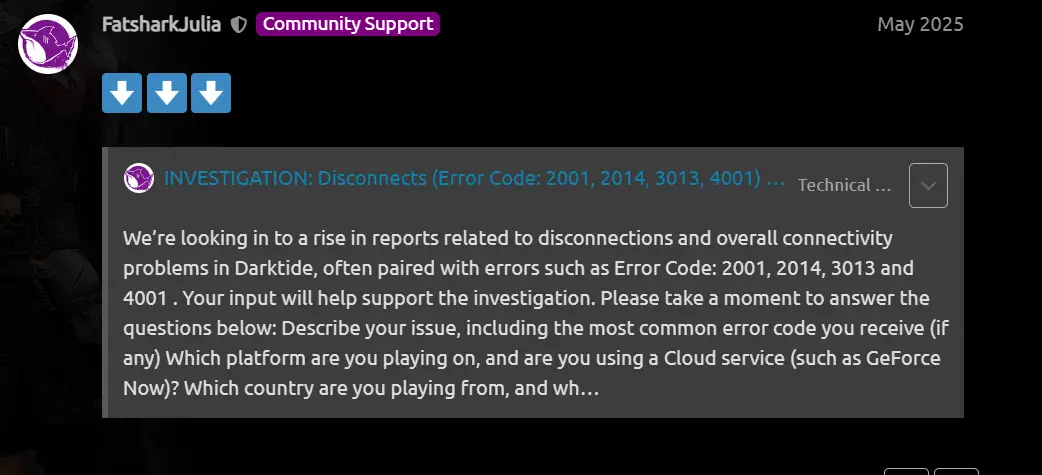
The most common errors include:
- Backend Error: Error Signing In
- Error 2001
- Error 2005
- Error 2014
- Error 3001
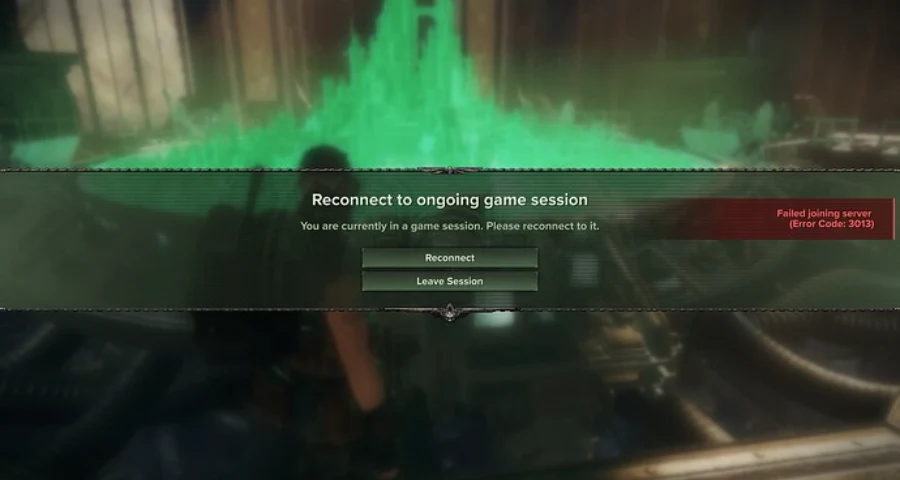
- Error 3013
- Error 4001
- Failed to Load into Mourningstar
- Disconnected When Joining a Mission
- Infinite Reconnect Loop After a Failed Mission Load
This is different from a normal crash or graphics issue. In most cases, the game launches successfully, but it fails to establish a connection with Darktide's backend services.

- ✅Less ping and crashes.
- ✅ Higher FPS and better performance.
- ✅ Support for 2000+ games.
- ✅ Stable connection and region switching.
Why Can't You Log Into Darktide?
Based on recent player reports, Darktide connection issues usually occur at specific stages of gameplay, including login, loading into the Mourningstar, joining missions, or reconnecting after a disconnect.
|
When It Happens |
Common Error |
|
After pressing Space to log in |
Backend Error / Error 2001 |
|
While loading into the Mourningstar |
Error 2005 / Error 2014 |
|
When joining a mission |
Error 3001 / Error 3013 |
|
During reconnect attempts |
Error 3013 / Error 4001 |
|
After a patch or update |
Backend Error / Error 2001 / Login Failures |
In most cases, these problems are related to communication issues between your client and Darktide's backend services.
The underlying causes may include:
- Unstable routing to Darktide servers
- Packet loss
- Backend authentication failures
- Matchmaking service interruptions
- Temporary server-side outages
- Regional network congestion
- Overloaded backend services after updates
- Session synchronization failures during mission loading
Fix 1: Use LagoFast to Stabilize Your Darktide Connection
The first thing you should try is optimizing your connection route to Warhammer 40,000: Darktide.
If your connection to Darktide's backend services is unstable, you may encounter Error 2001, Error 2005, Error 2014, Error 3001, Error 3013, Error 4001, or Backend Error messages even when Steam and other online games are working normally.
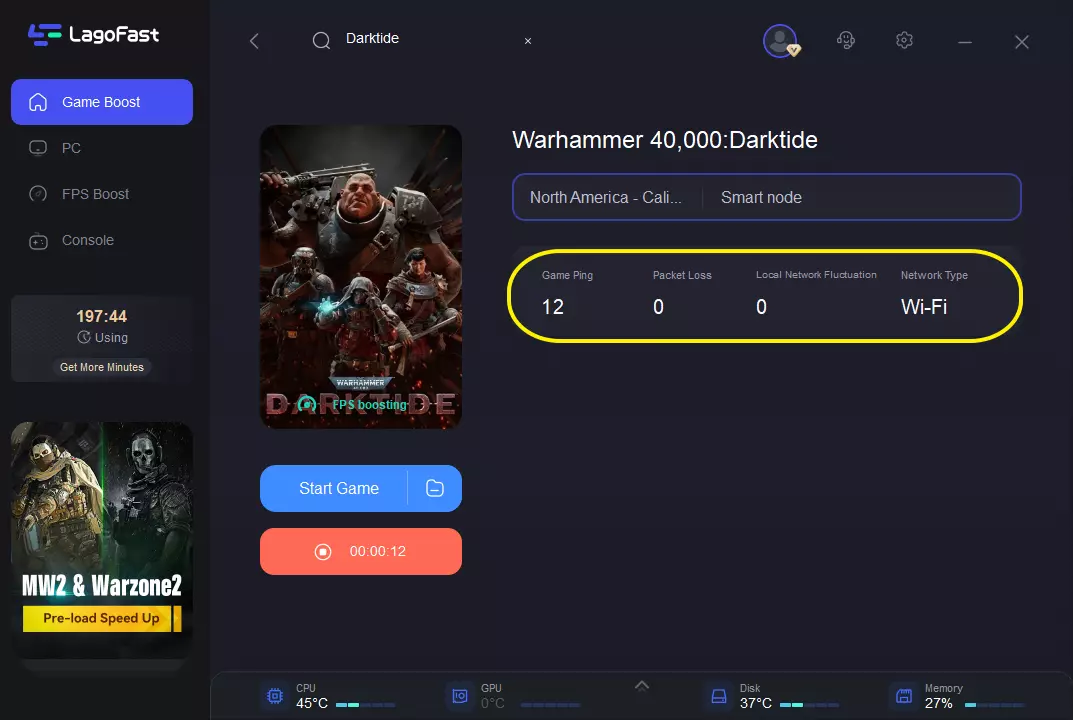
LagoFast can help stabilize your connection route to Darktide, reduce packet loss, and improve your chances of successfully loading into the Mourningstar or joining missions.
How to Use LagoFast for Darktide
Close Warhammer 40,000: Darktide.
Fully exit Steam.
Open LagoFast.
Search for Warhammer 40,000: Darktide
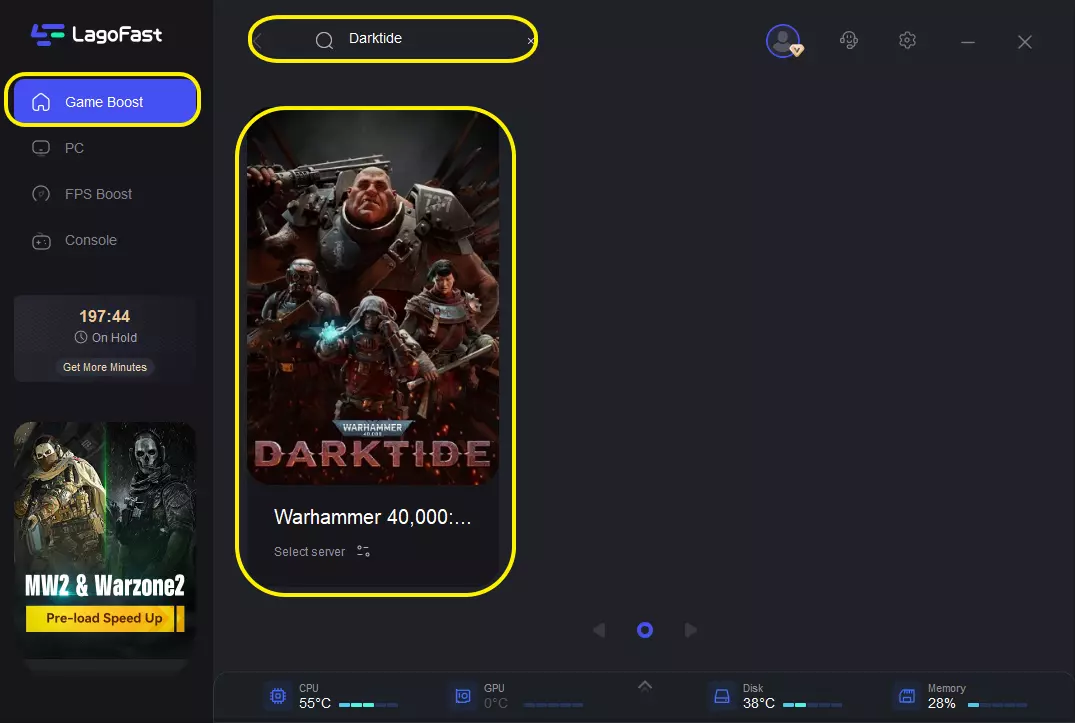
Select the game.
Choose the recommended server route.
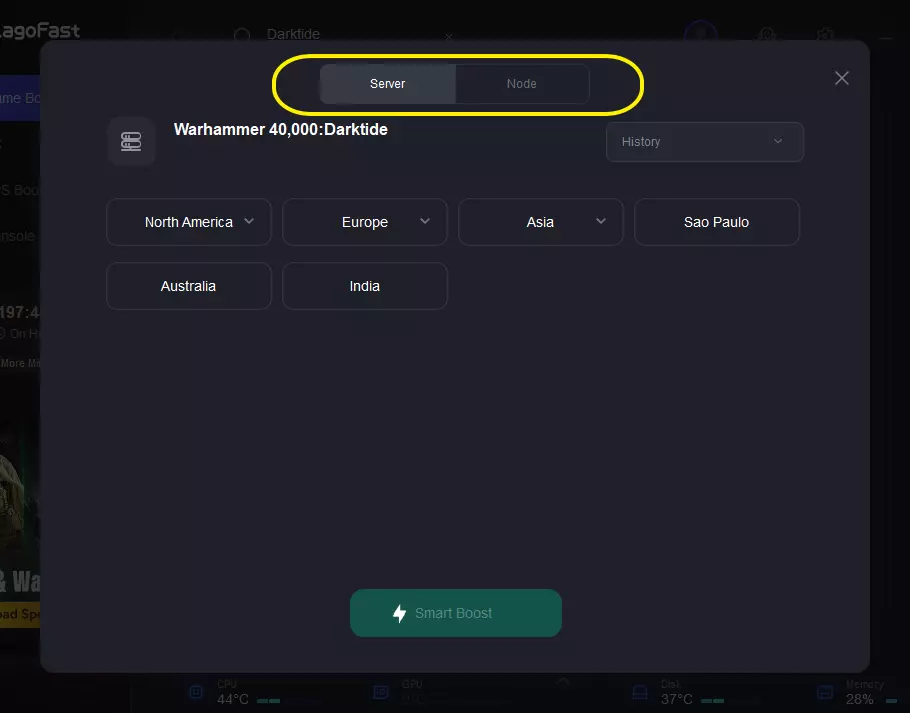
Click Boost.
Reopen Steam.
Launch Darktide.
Press Space to log in and check whether the Mourningstar loads successfully.
What LagoFast Can Help With
Backend Error during login
Error 2001 login failures
Error 2005 while loading into the Mourningstar
Error 2014 server session connection failures
Error 3001 or 3013 when joining missions
Error 4001 reconnect failures
Reconnect loops after failed mission loads
Unstable connections after updates
High ping or packet loss during missions
Backend connection issues
If the game servers are under maintenance, you may still need to wait. However, if the issue is caused by unstable routing or connection failures between your network and Darktide's backend services, LagoFast is one of the first solutions worth trying.
Fix 2: Check Whether the Error Happens Before or After the Mourningstar
Before changing too many settings, identify exactly where the error occurs.
Case A: The Error Appears After Pressing Space
If you press Space to log in and then see:
Backend Error: Error Signing In
Error 2001
A long loading screen followed by a login failure
No character selection screen
This usually means the game cannot complete backend authentication.
Try the following:
Use LagoFast.
Restart Steam.
Sign out of Steam and sign back in.
Restart your router.
Wait a few minutes and try again.
Case B: The Error Happens While Loading the Mourningstar
If you can select your character but cannot enter the hub area, the issue is likely related to the Mourningstar connection.
Common errors include:
Error 2005
Error 2014
Try the following:
Use LagoFast before launching the game.
Avoid repeatedly clicking reconnect.
Restart the game.
Test another network if available.
Wait and try again later if many players are reporting the same issue.
Case C: The Error Happens When Joining a Mission
If you can enter the Mourningstar but receive an error while joining a mission, the issue may be related to matchmaking or game-session connectivity.
Common errors include:
Error 3001
Error 3013
Error 4001
Try the following:
Leave your strike team.
Restart the game.
Re-enter matchmaking.
Use a more stable route through LagoFast.
Avoid excessive reconnect attempts.
Fix 3: Restart Steam and Refresh Your Login Session
Darktide relies on Steam authentication. If your Steam session is outdated or not functioning properly, backend login attempts may fail.
Steps
Close Darktide.
Right-click the Steam icon in the system tray.
Click Exit Steam.
Wait 10 seconds.
Reopen Steam.
Sign in again if necessary.
Launch Darktide.
If the issue persists, manually log out of Steam and sign back in.
Fix 4: Verify Game Files
If the problem started after a patch, local game files may be incomplete or corrupted.
Steps
- Open Steam.
- Go to Library.
- Right-click Warhammer 40,000: Darktide.
- Select Properties.
- Open Installed Files.
- Click Verify Integrity of Game Files.
- Wait for Steam to finish checking files.
- Restart Steam.
- Launch the game again.
This is especially helpful if Backend Error, Error 2001, Error 2005, or Error 2014 started appearing after a recent update.
Fix 5: Clear the Darktide AppData Cache
If Darktide repeatedly fails to log in or load into the Mourningstar, local configuration files may be contributing to the problem.
Steps
Close Darktide.
Close Steam.
Press Win + R.
Enter:
%appdata%\Fatshark\Darktide
Back up the folder first.
Delete temporary cache or configuration files only if you understand what you are removing.
Restart Steam.
Launch Darktide again.
Always create a backup before making changes.
Fix 6: Allow Darktide Through Your Firewall
Windows Firewall or security software may block Darktide's backend communication after updates.
Steps
Open Windows Security.
Go to Firewall & Network Protection.
Click Allow an App Through Firewall.
Make sure the following are allowed:
Steam
Warhammer 40,000: Darktide
Darktide Launcher (if listed)
Allow them on both Private and Public networks.
Restart your PC.
Launch the game again.
If you use third-party antivirus software, check its firewall and network protection settings as well.
Fix 7: Flush DNS and Reset Network Cache
DNS or Windows network cache issues can prevent Darktide from connecting to backend services.
Steps
Open Command Prompt as Administrator.
Run:
ipconfig /flushdns
Then run:
netsh winsock reset
Restart your PC.
Open LagoFast.
Launch Steam and Darktide again.
This may help if the game previously worked but suddenly stopped connecting.
Fix 8: Test Another Network
In some cases, the problem may be related to your ISP or network route. If possible, test another connection.
Try:
A mobile hotspot
Another home network
A different ISP
A wired Ethernet connection instead of Wi-Fi
If Darktide works on one network but not another, the issue is likely route-related rather than a corrupted game installation.
Fix 9: Avoid Excessive Reconnect Attempts
When Darktide fails to enter the Mourningstar or join a mission, the game may offer a reconnect option. Repeated reconnect attempts can sometimes trap you in the same failed session.
Instead:
Cancel reconnect.
Close the game.
Restart Steam.
Wait 2–3 minutes.
Open LagoFast.
Launch Darktide again.
This gives the session time to reset.
Fix 10: For PS5 Players
Some PS5 players also report Error 2014, Error 2005, or backend connection issues while logging into Darktide.
Try the following:
Restart the game.
Restart the console.
Use a wired connection.
Restart your router.
Check PlayStation Network status.
Test another network if available.
Wait if the issue appears to be server-side.
If the same account works on another network, the problem is likely related to routing rather than the account itself.
Error Codes and Best Fixes
|
Error |
What It Usually Means |
Best Solution |
|
Backend Error: Error Signing In |
Backend authentication failure |
Use LagoFast, restart Steam, reset network |
|
Error 2001 |
Login authentication failure |
Restart Steam, use LagoFast, check server status |
|
Error 2005 |
Mourningstar loading connection failure |
Use LagoFast, restart the game, test another network |
|
Error 2014 |
Server session connection failure |
Use LagoFast, test another network, restart the game |
|
Error 3001 |
Backend or matchmaking connection failure |
Restart Steam, use a stable route, verify files |
|
Error 3013 |
Reconnect or game-session failure |
Avoid reconnect loops, restart the game, use LagoFast |
|
Error 4001 |
Backend communication interruption |
Check connection stability, restart Steam, use LagoFast |
|
Errors After Updates |
Patch-related file issues or backend instability |
Verify files, restart Steam, wait for a hotfix |
When It's Best to Wait
You may simply need to wait if:
Large numbers of players are reporting the same error at the same time.
Fatshark is already investigating connection issues.
The problem started immediately after a patch.
The game launches, but backend login always fails.
Error 2001, Error 2005, Error 2014, Error 3001, Error 3013, or Error 4001 appears across multiple networks.
In these situations, local troubleshooting may not provide an immediate solution. Keep the game updated and try again later.
Conclusion
Warhammer 40,000: Darktide login issues are usually not related to your PC's performance. If the game launches but you cannot log in, cannot load into the Mourningstar, or repeatedly encounter Error 2001, Error 2005, Error 2014, Error 3001, Error 3013, Error 4001, or Backend Error messages, the issue is most likely related to backend connectivity, network routing, authentication services, or temporary server-side instability.
Start with LagoFast, then restart Steam, verify your game files, and test a cleaner network route. If the servers are undergoing maintenance or investigation, wait for Fatshark to resolve the issue and keep your game fully updated.
Boost Your Game with LagoFast for Epic Speed
Play harder, faster. LagoFast game booster eliminates stutter and lags on PC, mobile, or Mac—win every match!
Quickly Reduce Game Lag and Ping!
Boost FPS for Smoother Gameplay!