
If you're seeing Error Code E20 Steam, you're likely stuck on the login screen or unable to connect to Steam services. It can block access to your library, downloads, or even basic online features like friends and multiplayer. This guide will walk you through what’s actually causing the issue and show you simple ways to fix it without needing any advanced technical steps.

- ✅ Lower ping and fewer disconnects.
✅ Higher FPS and smoother PC performance.
✅ Supports 3,000+ games.
✅ Stable connections and server region switching.
Part 1: What is Error Code E20 Steam?
Part 2: Why Does the Error Code E20 Steam Happen?
Part 3: Step-by-Step Solutions to Fix Error Code E20 Steam
Part 4: How to Use LagoFast to Enhance and Stabilize Your Steam Connection
Part 1: What is Error Code E20 Steam?
Error Code E20 is a Steam connection error that appears when the client can’t properly communicate with Steam’s servers. It often prevents you from logging in or loading key features like your library, store, friends list, or cloud saves.
You may also see variations like “Steam E20 error” or “Error E20,” but they all point to the same issue—Steam failing to establish a stable connection.
It usually shows up during login or right after an update, especially when your network is unstable, or when VPNs, proxies, or heavy traffic interfere with the connection. In most cases, it’s temporary and resolves once the connection stabilizes or the underlying issue is fixed.
Part 2: Why Does the Error Code E20 Steam Happen?
Error Code E20 usually comes down to a few common issues. Most of the time, it’s not random—it’s your connection, Steam’s servers, or something blocking the client.
Steam server issues
Sometimes Steam itself is the problem. During maintenance or unexpected outages, login and connection errors can show up across many players at once.
Unstable internet connection
A weak or unstable network can easily trigger E20. Packet loss, high traffic, poor Wi-Fi signals, or ISP routing issues can interrupt Steam’s connection.
Corrupted Steam cache
Steam uses cached data to load faster, but if those files get corrupted, it can start causing login or connection failures.
Firewall or antivirus blocking Steam
Security software may incorrectly block Steam’s network requests, which can stop authentication and trigger Error Code E20.
VPN or proxy interference
VPNs and proxies can change your routing path. If the route is unstable or overloaded, Steam may fail to connect properly.
Part 3: Step-by-Step Solutions to Fix Error Code E20 Steam
Try these solutions in order. Start with the easiest fixes first before moving on to more advanced troubleshooting.
Solution 1: Check Steam Server Status
Before changing any settings, make sure Steam isn't experiencing a widespread outage.
If Steam servers are down, there's nothing you need to fix locally. Simply wait until services are restored.
Solution 2: Restart Steam Completely
Temporary client glitches often disappear after a full restart.
Steps:
- Exit Steam completely.
- Open Task Manager.
- End all Steam-related processes.
- Relaunch Steam.
- Attempt to log in again.
Solution 3: Clear Steam Download Cache
Corrupted cache files can cause various login and connection issues.
Steps:
- Open Steam.
- Click Settings.
- Select Downloads.
- Choose Clear Download Cache.
- Restart Steam.
You'll need to log in again after completing this step.
Solution 4: Restart Your Internet Connection
Network interruptions are a common cause of Steam E20 errors.
Quick fix:
- Turn off your modem and router.
- Wait 30 seconds.
- Power them back on.
- Reconnect to Steam.
This refreshes your network connection and may resolve routing issues.
Solution 5: Disable VPN or Proxy Services
If you're currently using a VPN:
- Disconnect from the VPN.
- Restart Steam.
- Test the connection again.
Many users find that Steam E20 disappears immediately after disabling problematic VPN routes.
Solution 6: Allow Steam Through Firewall
Check whether Windows Firewall or antivirus software is blocking Steam.
Make sure these programs are allowed:
- Steam.exe
- SteamService.exe
You can also temporarily disable your firewall to test whether it is causing the issue.
Solution 7: Run Steam as Administrator
Permission conflicts occasionally interfere with Steam's ability to connect.
Steps:
- Right-click Steam.
- Select Run as Administrator.
- Sign in again.
Solution 8: Update or Reinstall Steam
If none of the previous solutions work, Steam files may be damaged.
Try:
- Updating Steam
- Verifying installation files
- Reinstalling the Steam client
Before reinstalling, back up your SteamApps folder to avoid downloading games again.
Part 4: How to Use LagoFast to Enhance and Stabilize Your Steam Connection
If unstable network conditions cause Error Code E20, LagoFast can help improve your Steam connection by optimizing routing to Steam’s servers. It helps reduce ping, fix packet loss, and stabilize your connection to prevent sudden drops during login or gameplay. While it can’t fix Steam server outages, it can reduce many network-related issues that lead to Error Code E20.
Tutorial to Use LagoFast to Stabilize Your Steam Connection
Step 1. Click on the "Free Trial" button to download the application.
Step 2. Open LagoFast and search for Steam.
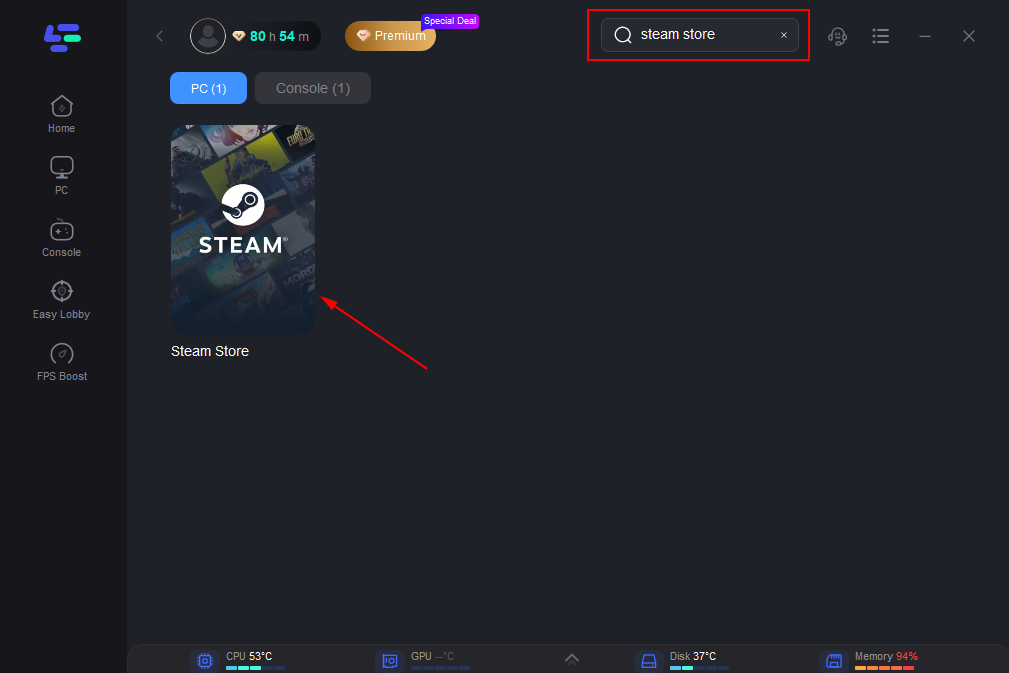
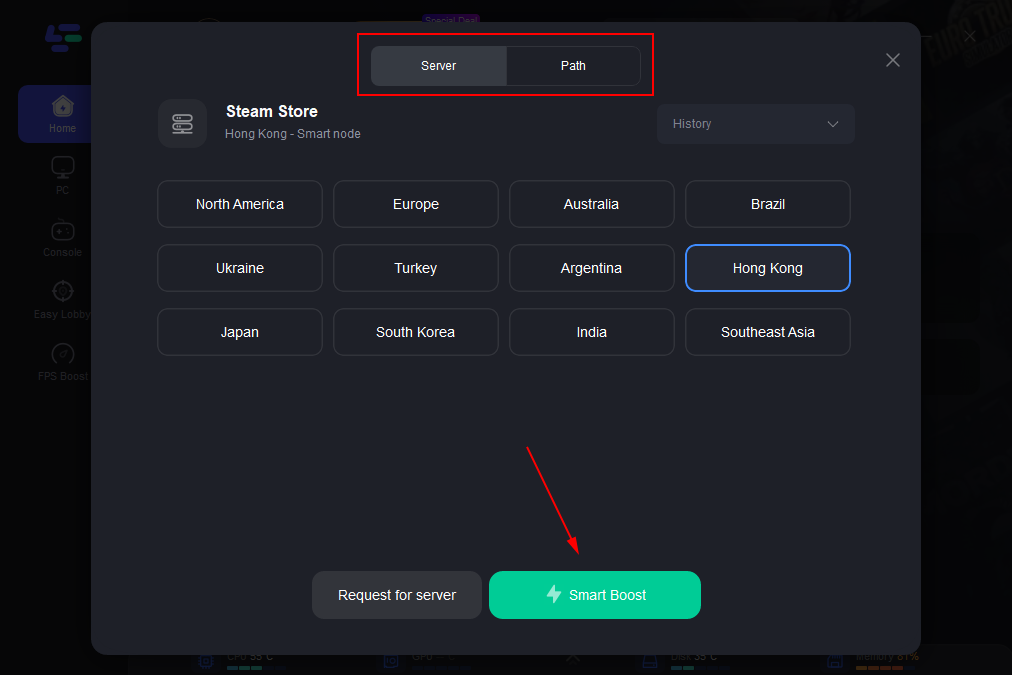
Step 3. Click on “Select Server” to choose the most stable servers available. Then, click on the “Node” on the right to select the best node for your connection.
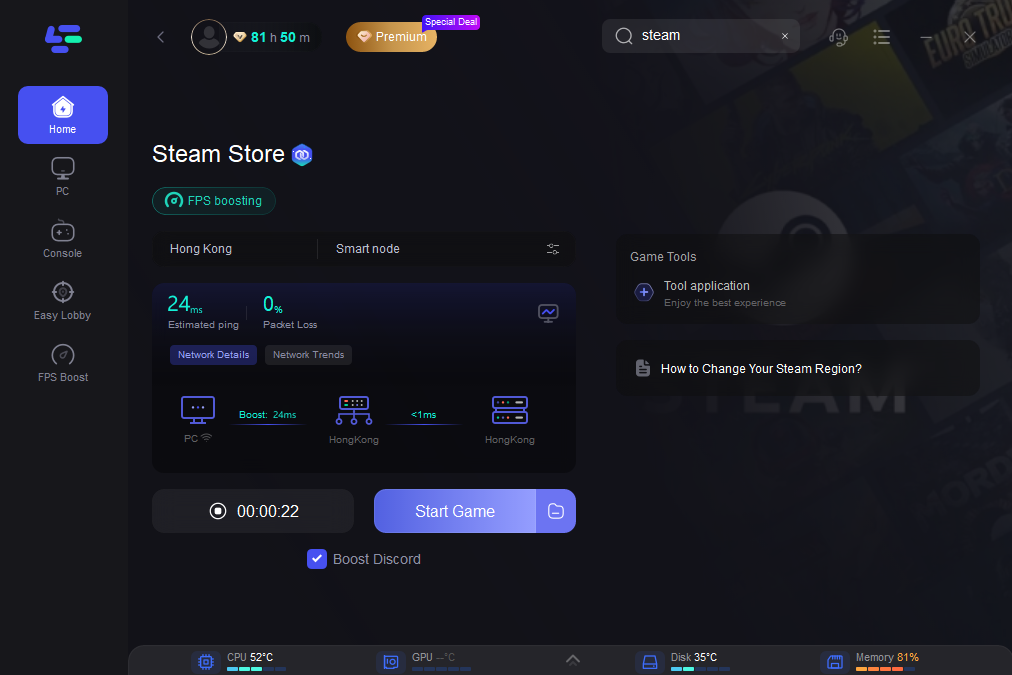
Step 4. Click the “Smart Boost” button to optimize your connection. LagoFast will display your game’s specific ping, packet loss, and network type on the right side, ensuring optimal performance.
Final Thoughts
Error Code E20 Steam is usually not a serious issue, but it can be disruptive when you just want to log in and play. In most cases, it comes down to network instability, cache problems, or temporary Steam server interruptions. Working through the basic fixes step by step is often enough to get things back to normal quickly. If the issue is related to unstable routing or packet loss, tools like LagoFast can also help keep your connection more stable in the long run.

Boost Your Game with LagoFast for Epic Speed
Play harder, faster. LagoFast game booster eliminates stutter and lags on PC, mobile, or Mac—win every match!
Quickly Reduce Game Lag and Ping!
Boost FPS for Smoother Gameplay!