
The highly anticipated Call of Duty: Black Ops 7 is finally available for download. Players around the world can't wait to dive into its new campaign, multiplayer matches with near-future weaponry, and terrifying Zombies mode. But just when you eagerly hit the download button, thinking you're seconds away from the action—your excitement turns to frustration as you find your download is stuck. Nothing kills the mood faster. This guide takes a close look at the various reasons behind download issues and provides a full set of solutions to make sure you get into the world of Black Ops 7 without a hitch.

- ✅Reduce Lag and High Ping.
- ✅ Boost FPS at the Same Time.
- ✅ Support 8000+ Popular Online Games.
- ✅ Change Server without Latency.
- ✅ Boost Game Loading Speed.
Part 1: Why Is My Black Ops 7 Download Stuck?
Part 2: Use LagoFast to Quickly Fix Black Ops 7 Download Issues
Part 3: Other Ways to Fix a Stuck Black Ops 7 Download
Part 1: Why Is My Black Ops 7 Download Stuck?
To solve the problem, it helps to understand what's causing it. If you're dealing with Call of Duty: Black Ops 7 Stuck on Download, here are the most likely reasons:
- Unstable internet connection: This is the most common culprit. Spotty Wi-Fi, network fluctuations, or routing issues from your local Internet Service Provider (ISP) can interrupt the connection to the game servers, pausing your download.
- Overloaded game servers: During a major launch like Black Ops 7, millions of players jump in at once. This surge often overwhelms the servers, slowing them down or even causing temporary outages—leaving some players unable to finish downloading.
- Battle.net client issues: Many PC players are asking, "Why is my Battle.net download stuck?" It could be due to corrupted cache files, incorrect settings, or an outdated Battle.net client. These issues can interfere with the client's ability to download and write game files properly.
- Firewall or antivirus interference: Your firewall or third-party antivirus may mistakenly flag the game's download files as potential threats, blocking or limiting their access to the internet. This often results in downloads freezing at a certain percentage—like the classic "Fix for Battlenet Stuck at 99% Download" scenario.
- Insufficient storage or hard drive problems:The Call of Duty series is known for its massive install size. If your hard drive doesn't have enough free space, the download will stop at some point. Additionally, a slow or failing hard drive can also cause installation errors.
- Background applications using bandwidth: If other apps or devices are hogging your bandwidth while you're trying to download Black Ops 7, it can drastically slow down—or completely halt—your progress.
Part 2: Use LagoFast to Quickly Fix Black Ops 7 Download Issues
Figuring out the above issues one by one can be time-consuming and complicated. That's why we recommend using a professional tool to solve the problem at its root—so you can spend less time troubleshooting and more time gaming. Enter LagoFast game booster, a tool designed not only to improve your in-game experience but also to tackle download problems head-on.
LagoFast is a smart game booster that uses a global server network and multi-path connection technology to create a stable, high-speed channel between you and the Black Ops 7 servers. When your download gets stuck, LagoFast reroutes your connection through the best available server, bypassing congested or unstable nodes—ensuring a smooth and fast download.
How to use LagoFast to fix your download problem:
Step 1: Click the button below to download and install LagoFast for free.
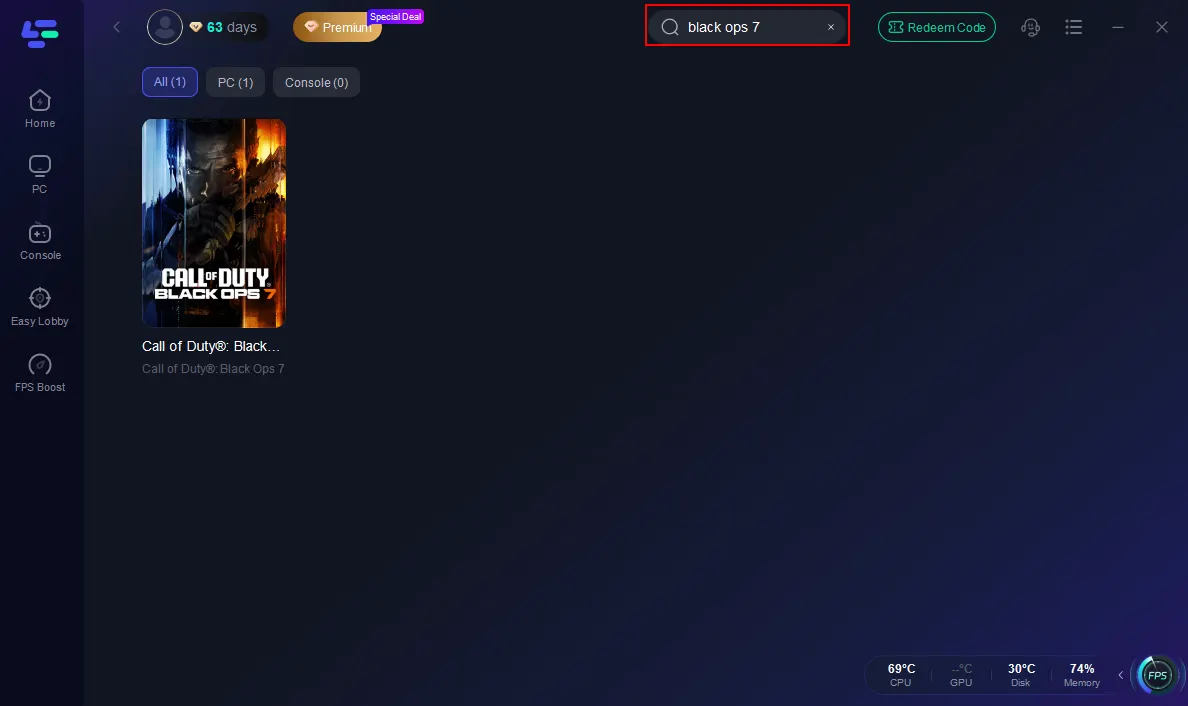
Step 2: Open LagoFast and search for "Call of Duty: Black Ops 7" in the game library.
Step 3: Select a server node with low latency, then click the "Smart Boost" button.
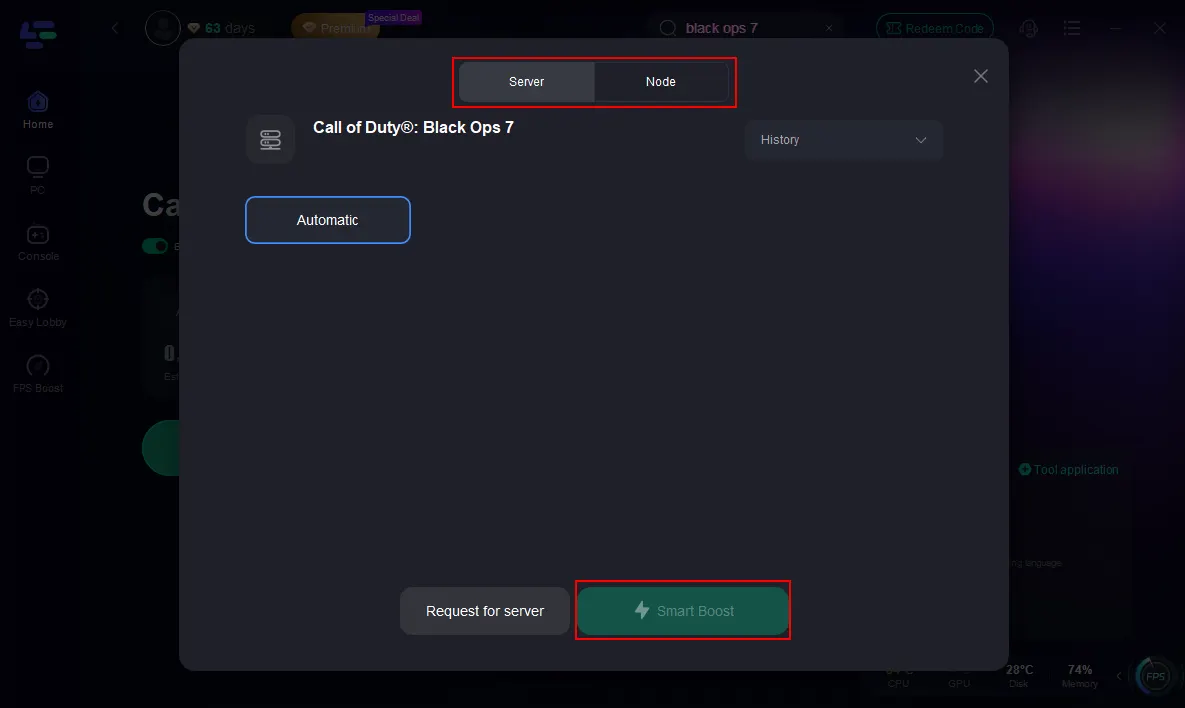
Step 4: Then, click the Smart Boost button to view the real-time ping rate and network status, ensuring 0% packet loss for the game.

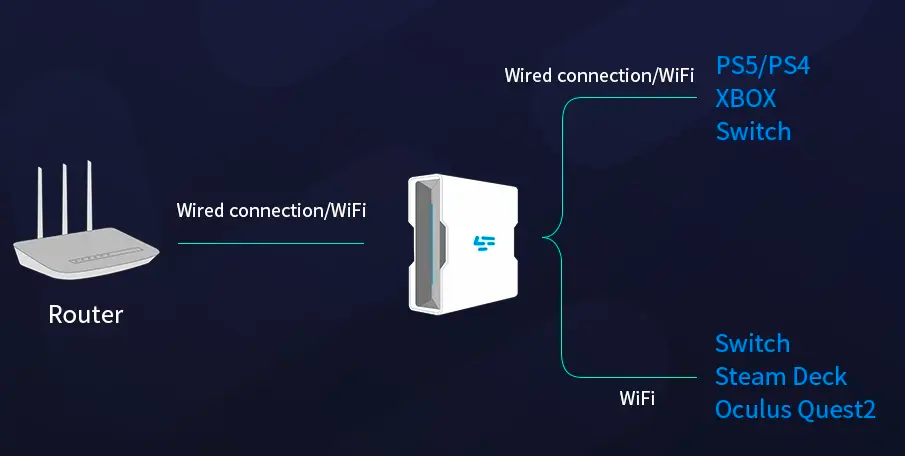
If you're playing Black Ops 7 on PlayStation or Xbox, you can use LagoFast Box to fix the same download issues. Simply connect the Box between your router and console—it will automatically optimize your network route through LagoFast’s global servers. This ensures a stable, high-speed download and smoother gameplay with lower ping once you’re in the match.
How to Use LagoFast Box:
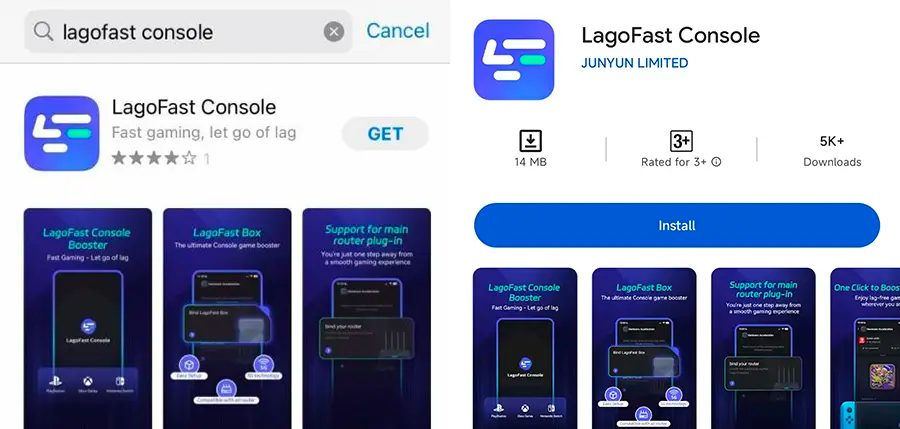
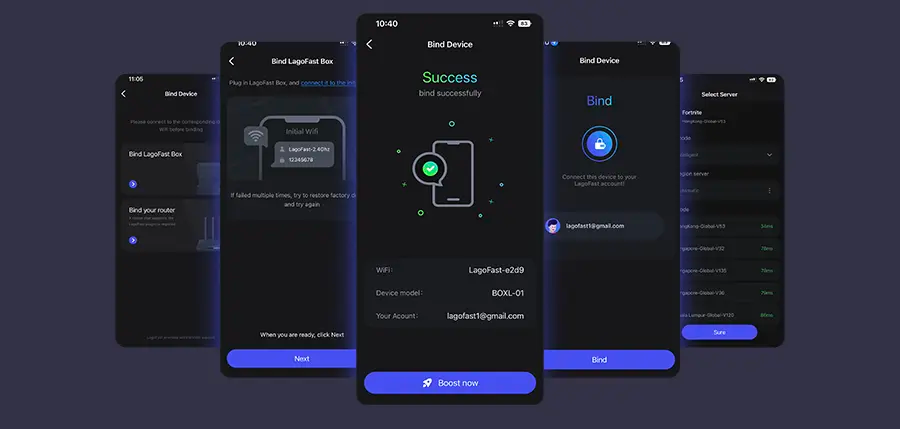
Step 1: Download the LagoFast Console App on your phone to control the LagoFast Box.
Step 2: Establish a connection between your LagoFast Box, router, and console, choosing between a wired or wireless connection.
Step 3: Launch the LagoFast Console App and boost Black Ops 7. Once you have completed the binding process with the LagoFast Box, proceed to boost this game within the LagoFast Console App.
LagoFast isn't just a download assistant. Once the game is installed, it continues to optimize your connection—reducing ping, eliminating packet loss, and boosting FPS—so you can play smoothly and react faster in intense matches.
Part 3: Other Ways to Fix a Stuck Black Ops 7 Download
If you prefer trying manual fixes, here are some proven methods:
1. Check and optimize your network
- Restart your router and modem:Unplug them for 30 seconds, then plug them back in.
- Use a wired connection: an Ethernet cable is more stable than Wi-Fi.
- Pause other downloads:Make sure no other devices or apps are using your bandwidth.
2. Clear Battle.net cache: Corrupted cache is a common cause of Battle.net download stuck errors. First, fully close Battle.net. Then press Win + R, type %ProgramData%, and hit Enter. Next, find and delete the Blizzard Entertainment or Battle.net folder. Finally, restart Battle.net—it will generate new cache files.
3. Run Battle.net as administrator: Insufficient permissions can sometimes prevent file writing. So try to right-click the Battle.net shortcut and select "Run as administrator." Then try downloading again.
4. Change download speed limit: Sometimes unlimited downloads cause issues. In Battle.net, go to Settings > Downloads. Then, under "Network Bandwidth," enable "Limit download bandwidth" and set it to around 80% of your max speed. Save and retry.
5. Check firewall & antivirus settings: Temporarily disable your firewall/antivirus and try downloading. If it works, add Battle.net and Black Ops 7 to your software's allow list. Remember to re-enable your security software after.
6. Free up disk space: Make sure you have at least 150GB of free space on your installation drive.
7. Update your system and drivers: Keep Windows, GPU drivers, and network adapter drivers updated. This helps avoid install failures and improves gameplay performance.
Conclusion
A Black Ops stuck on a download error isn't the end of the world—but manually testing every fix can be tedious and time-consuming. That's where LagoFast comes in. It offers a straight-to-the-point, efficient solution that not only resolves download issues caused by network problems but also keeps your connection optimized after you get into the game. Instead of waiting around and losing momentum, download LagoFast now—break through the barriers, jump into Call of Duty: Black Ops 7 at top speed, and get ready to take on the new world with your squad.
Boost Your Game with LagoFast for Epic Speed
Play harder, faster. LagoFast game booster eliminates stutter and lags on PC, mobile, or Mac—win every match!
Quickly Reduce Game Lag and Ping!
Boost FPS for Smoother Gameplay!