
MONGIL: STAR DIVE is available on PC, iOS, and Android, but it does not work in Russia. Right now, Mongil: Star Dive is basically not playable in Russia.
The game runs on Korean servers with restricted access, so most players cannot log in, load, or stay connected at all.
Some players are hitting login errors straight away. Player report says, “Keeps saying invalid email”, while another says, “You have entered an invalid ID. Please try again.” If that sounds familiar, start by checking whether you are trying to get in during the correct live window and whether your account is actually eligible for that build.

- ✅ Lower ping and fewer disconnects.
- ✅ More FPS and better PC performance.
- ✅ Support for 3000+ games.
- ✅ Stable connections and region switching.
What players are reporting right now
The main reports currently fall into a few clear buckets:
login errors like invalid email or invalid ID
the game not launching or not opening
Android black screen issues
Android app stopping or crashing on startup
installs that appear complete but still need extra data downloaded
Why MONGIL: STAR DIVE is not working
1. You are trying to log in before the correct window or with the wrong account access
This is one of the first things to rule out. The game is live and downloadable through the official MONGIL: STAR DIVE site, but access issues can still happen if you are mixing up CBT timing, launch timing, or account eligibility.
If you are seeing invalid email or invalid ID messages, that does not automatically mean the servers are down. It can also mean the account you are entering is not being accepted for that specific login flow.
2. The install is incomplete
Pre-download went live before launch, which helped players get the client early, but that also means some installs may look ready before all required files are in place.
On mobile, the initial install can be 1GB+, and after voice selection there may be an additional 8GB+ data download. If that second download did not finish, the game may hang, fail to open, or stop on a black screen.
On PC, storage requirements reported for the client range from roughly 20GB to 50GB depending on setup and final downloaded data.
3. Your PC or device is short on memory or storage
For PC, the official minimum includes 8GB RAM. If your system is already tight on RAM or free disk space, launch failures, freezes, or incomplete installs become much more likely.
On mobile, low free storage can interrupt the extra asset download even if the app itself installed normally.
4. Client files may be corrupted
If the launcher opened once, crashed during install, or stopped downloading extra data, some files may be missing or corrupted. That can lead to startup loops, black screens, or repeated crashes.
5. Your network path is unstable
If the app opens but login fails, times out, or gets stuck connecting, the issue may be local network instability rather than a confirmed full outage. That is especially likely around launch congestion, Wi-Fi instability, or route-related connection problems.
Quick Fix — Use a Stable Game Route (Most Important)
This is the only fix that consistently works.
Why this works
The problem isn’t your internet speed — it’s how your data travels to Korea. A route optimizer fixes that path.
How to fix it with LagoFast
Step 1 Download and install LagoFast
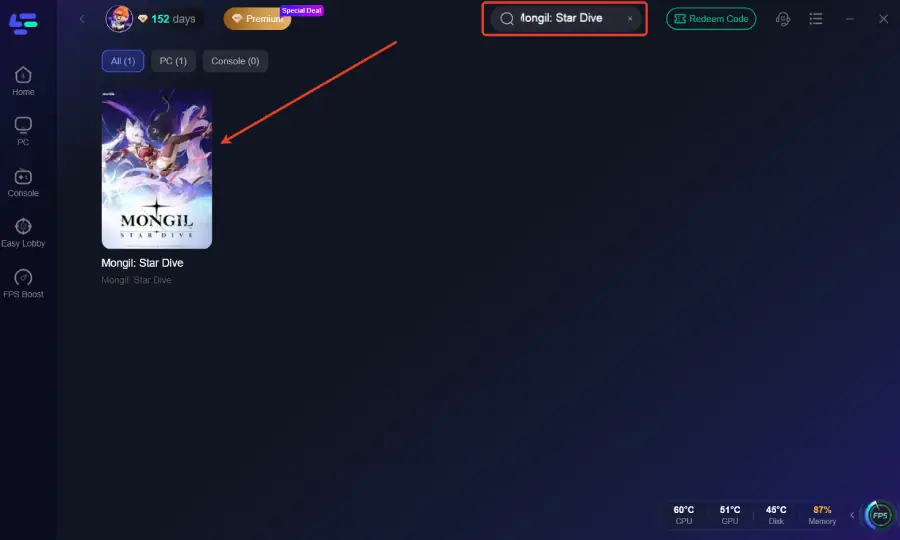
Step 2 Search for Mongil: Star Dive
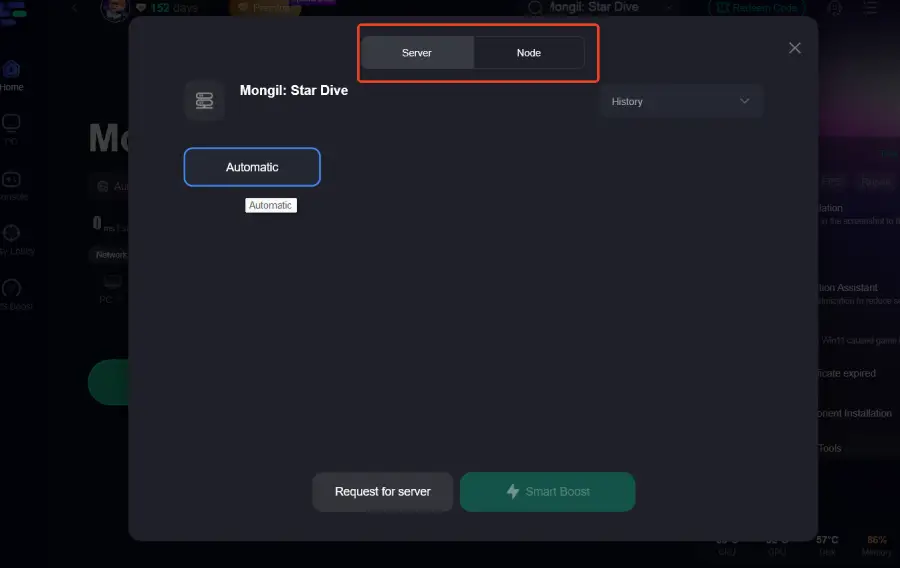
Step 3 Select a route:
Step 4 Click Smart Boost
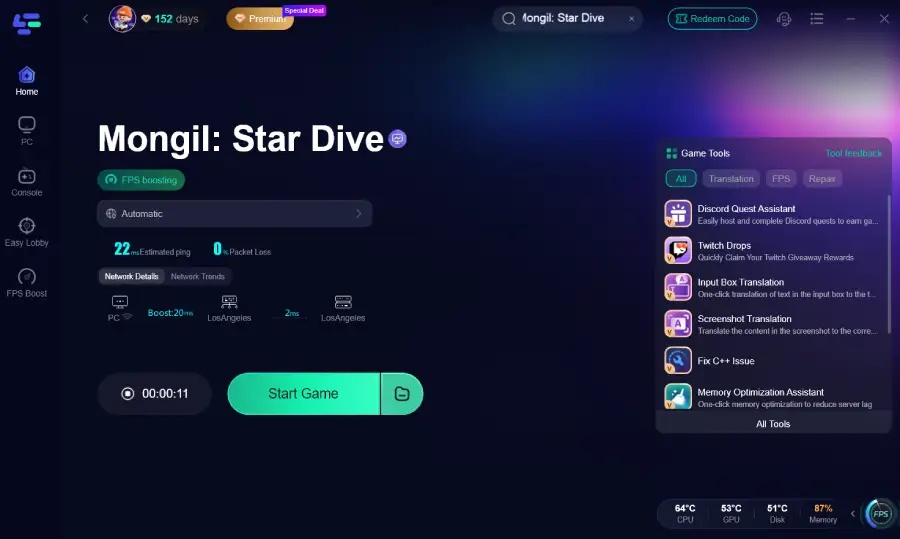
Step 5 Launch the game
Result:
Faster login
No infinite loading
Stable connection
How to fix MONGIL: STAR DIVE not working step by step
Work through these in order. The early checks solve most cases fastest.
1. Confirm you are using the official client and the correct live window
Download or reinstall from the official Netmarble MONGIL: STAR DIVE page or the official PC client page.
Then check whether you are trying to enter the correct build at the correct time:
CBT start was reported at 00:00 GMT-4
global launch time was reported at 1:00 AM UTC on the 15th
If you tried before that, or with an account not accepted for that phase, login errors can happen even if the install is fine.
2. Restart the app and your device
Do a full restart before changing anything else.
close the game completely
reboot your PC, Android device, or iPhone/iPad
launch the game again
This is basic, but it often clears app-stopping loops and temporary login failures.
3. Finish every download, including extra game data
This is a big one for MONGIL: STAR DIVE.
If you are on mobile, do not assume the job is done after the app installs. The initial install can be 1GB+, and after choosing a voice language you may still need to download 8GB+ of extra data.
If the game black screens, crashes, or returns to the home screen, reopen it and check whether it resumes the asset download.
4. Free up storage before trying again
Make sure you have more free space than the bare minimum.
on PC, plan around roughly 20GB to 50GB
on mobile, leave enough room for the base app plus the extra 8GB+ data pack
If storage is nearly full, delete unused apps, temporary files, or old game installs before retrying.
5. Check PC specs, especially RAM
On PC, the official minimum includes 8GB RAM. If your machine is below that, or if you are close to the limit because of other apps running in the background, the client may fail to open properly.
Before relaunching:
close browsers and other heavy apps
stop background downloads
retry the client with as much free memory as possible
6. Switch networks
If the game installs but will not log in, gets stuck on connecting, or fails after entering credentials, try a different connection.
switch from Wi-Fi to mobile data
or switch from mobile data to Wi-Fi
restart your router if you are on PC or home Wi-Fi
This helps rule out local routing problems and unstable packet delivery.
7. Repair or reinstall the client
If the game still will not launch, reinstalling is the safest next step.
Use the official client source again rather than any mirror or reposted installer. On PC, redownload from the official PC page. On mobile, use the official options provided through the game’s official site.
A clean reinstall is especially useful if:
the launcher froze during install
extra data download failed midway
the app opens to a black screen repeatedly
the game started working once and then stopped
8. Re-enter your login details carefully
For the invalid email or invalid ID issue, retry your credentials slowly and exactly.
Check for:
typo in the email address
wrong sign-in method
old account details from a different test or region
account gating during CBT or launch rollout
If you are trying to restart with a deleted account, note that account deletion was reported to take 30 days, so immediate reuse may not work.
Still cannot start or launch?
If the basic fixes did not help, narrow it down by symptom.
Android black screen or app keeps stopping
The most useful checks are:
restart the phone
reopen the game and let all extra assets finish downloading
free more storage
reinstall the app if the first install was interrupted
switch between Wi-Fi and mobile data
Invalid email or invalid ID at login
This is one of the clearest current complaints. If the credentials look correct, the likely causes are:
wrong access window
account eligibility issue
wrong login flow
temporary launch congestion
Unless the official channels confirm an outage, treat this as a login or account issue first, not a confirmed server-wide shutdown.
Server congestion after launch
Around launch, heavy traffic can cause failed logins or stalled connections. If everything is installed correctly and your device meets the requirements, waiting a bit and retrying later is reasonable.
If the problem is widespread, official updates usually appear before any real fix reaches players.
Where to get official updates and help
If MONGIL: STAR DIVE still is not working, check the official and community channels next.
Start with the official MONGIL: STAR DIVE website for download and access status. For player discussion and faster community checks, use the official Star Dive Discord listed on the MONGIL: Star Dive Wiki. You can also watch the Patch Notes section on the wiki for fix-related updates.
FAQ
Why does MONGIL: STAR DIVE say invalid email or invalid ID when I try to log in?
The most likely reasons are account gating, the wrong login flow, a typo in your credentials, or trying to enter during the wrong CBT or launch window. It can also happen during launch congestion.
How much storage does MONGIL: STAR DIVE need after installation?
On PC, reported storage use ranges from roughly 20GB to 50GB. On mobile, the initial install can be 1GB+, followed by an additional 8GB+ data download after voice selection.
Where can I check for official updates if MONGIL: STAR DIVE still is not working?
Check the official game site, the official Discord listed via the MONGIL: Star Dive Wiki, and the wiki’s Patch Notes page.
Bottom line
If MONGIL: STAR DIVE is not working, start with the fast checks: confirm the launch window, make sure you are using the official client, finish every required download, free enough storage, verify that your PC has at least 8GB RAM, and switch networks if login keeps failing.
If the issue is still there after that, it is most likely a login, client, or launch-congestion problem that needs an official update or support response rather than another random reinstall.
Boost Your Game with LagoFast for Epic Speed
Play harder, faster. LagoFast game booster eliminates stutter and lags on PC, mobile, or Mac—win every match!
Quickly Reduce Game Lag and Ping!
Boost FPS for Smoother Gameplay!