
Nothing strikes a frustrated gamer harder than seeing “Connection Failed” or “Unable to Access Online Services” just as you're about to dive into Call of Duty: Black Ops 7. Whether it’s during queue time or mid-match, connection interruptions kill immersion—and often performance. Let's break down why this happens and how to fix it for good.
Ukrainian version: Як Виправити Помилку Black Ops 7 “Connection Failed” та “Unable to Connect to Server”

- ✅ Reduce Lag and High Ping.
- ✅ Boost FPS at the Same Time.
- ✅ Ensure Stable Server Connection.
- ✅ Change Server without Latency.
- ✅ Fix Crashing and Stuck Errors.
- ✅ 0% Packet Loss Rate
- ✅ Boost Game Downloading Speed.
Part 1. Introduction to Connection Issues in Black Ops 7
Part 2. Understanding Why Black Ops 7 Can't Connect to Server
Part 3. Fixing “Unable to Access Online Services/Connection Failed”
Part 4. Troubleshooting Black Ops 7 Connection Interrupted Errors
Part 5. Using LagoFast Game Booster to Improve Black Ops 7 Connection Stability
Part 1: Introduction to Connection Issues in Black Ops 7
Black Ops 7 spans Campaign, Co-op, Multiplayer, Zombies, and the massive Skirmish mode. Every mode requires a stable connection to Activision’s online services. According to Activision's support pages for previous CoD entries, connection errors are frequently tied to server status or local network problems—or both.
Often, players report errors like:
“Connection Failed. Could not connect to online services.”
“Connection interrupted by user.”
Some Reddit threads also warn this may mean the account is banned or flagged.
You May Like: How to Fix Call of Duty: Black Ops 7 Slow Download Speed - 100% Work
Part 2: Understanding Why Black Ops 7 Can't Connect to Server
Common root causes include:
Server Downtime or Maintenance
Activision occasionally shuts down servers for planned updates. Check server status before troubleshooting.
Unstable or Restricted Network
Wi-Fi interference, failing routers, or policies on school/work networks typically block CoD connections.
ISP or DNS Routing Problems
Your ISP's routing path might be suboptimal or congested, leading to failed connections.
Firewall or AV Blocking
Antivirus or firewall apps might mistakenly block the Black Ops network modules.
Account Restrictions or Bans
Rare, but as one user learned the hard way: “Could not connect to online services … you are banned.”
Related Article: Call of Duty Black Ops 7 Beta Guide: Dates, Access, and Smooth Gameplay Tips
Part 3: Fixing “Unable to Access Online Services/Connection Failed”
Here’s what to do, step by step:
Check Server Status
Visit Activision's online services page or their Twitter/X for outage alerts. Wait it out if servers are down.
Restart Your Network Gear
Power cycle your modem and router—unplug for 30 seconds, plug back in—then retry launch.
Switch Connections Temporarily
Use a mobile hotspot to isolate whether your ISP or home network is the culprit.
Use Wired Ethernet Over Wi-Fi
Wired connections offer the lowest latency and highest reliability.
Check and Whitelist in Firewall/AV
Allow Black Ops 7 and your game launcher (Battle.net, Steam, etc.) through your firewall or antivirus settings.
Reset Network Settings
- On console: run connection tests via Network Settings.
- On PC: flush DNS, renew IP, or set custom DNS like 8.8.8.8/8.8.4.4.
Perform Port Forwarding or Enable UPnP
On your router, either configure port forwarding for CoD or enable UPnP to help NAT traversal for gaming.
Account Checks
Verify that no unknown accounts are linked to your Activision account, and confirm you're not currently banned.
Related Article: How to Check Ping and Reduce High Latency in Call of Duty Black Ops 7
Part 4: Troubleshooting Black Ops 7 Connection Interrupted Errors
In Black Ops 7, a mid-match disconnect or session failure often stems from:
Network Instability
Spike in latency or packet loss causing sync disconnects.
Background Bandwidth Usage
Other devices streaming or downloading during gameplay can starve CoD of needed bandwidth.
Server Overload or Lag Spikes
High player load on a data center can disrupt CoD sessions.
Fix Tips:
- Close bandwidth-intensive applications or pause downloads during play.
- Perform a router reboot before joining matches.
- Switch to less competitive queues (e.g., different region).
Related Article: Is CoD Black Ops 7 on Game Pass?
Part 5: Use LagoFast Game Booster to Improve Black Ops 7 Connection Stability
LagoFast is designed to enhance your online experience with smart routing and server optimization.
How it Helps:
- Reroutes your connection through optimized paths, minimizing ISP routing inefficiencies.
- Reduces latency and packet loss, leading to fewer disconnects or connection timeouts.
- Helps you connect through the least congested routes during launch and matchmaking.
How to use LagoFast on PC
Step 1: Click the Free Trial button to download and install LagoFast.
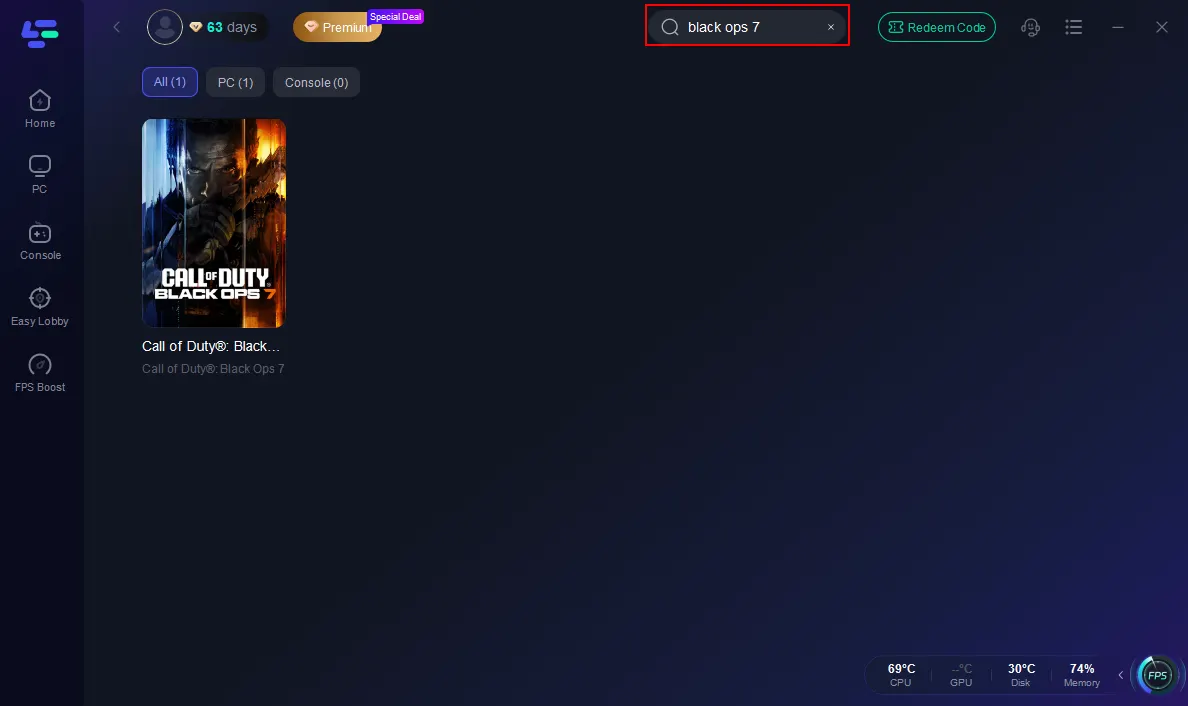
Step 2: Open LagoFast, then click the PC button on the left and search Black Ops 7 in the search bar, and click it after it appears.
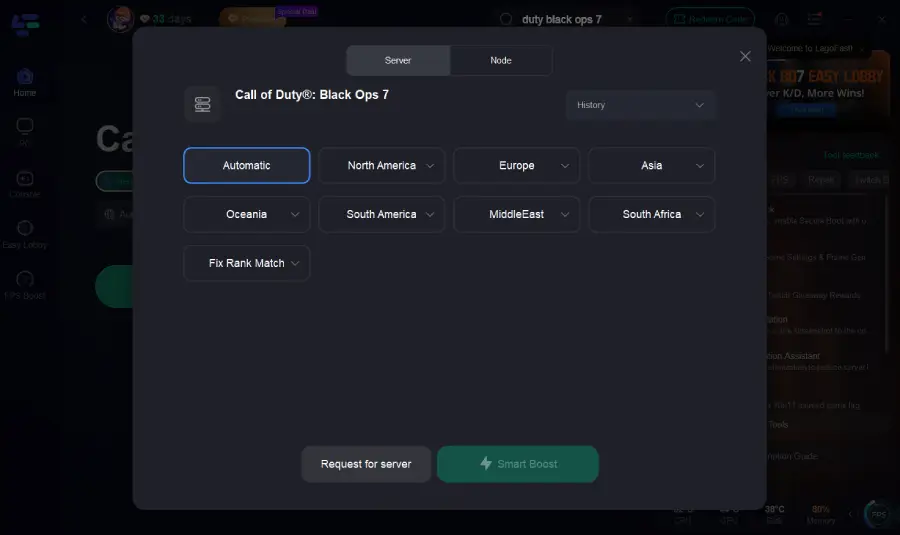
Step 3: Click on “Server” to change to a better server that ensures the Black Ops 7 gaming experience, then click on “Smart Boost”.
Step 4: Launch the game and enjoy an enhanced gaming experience with reduced lag and improved stability.
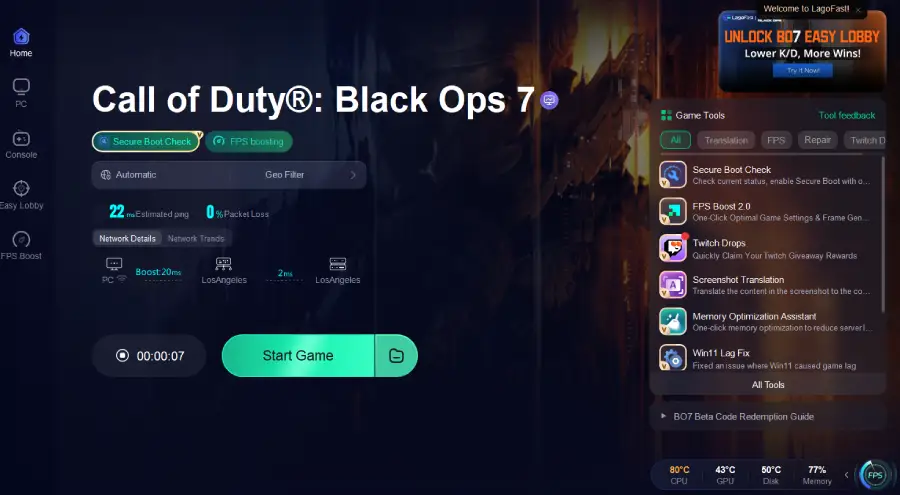
If you are facing the “connection failed” issue on consoles, LagoFast also offers the LagoFast Box, which helps stabilize your network, switch to better servers, and fix connection errors for smoother Black Ops 7 gameplay.
Tutorial on using LagoFast Box to fix BO7 lag on consoles:
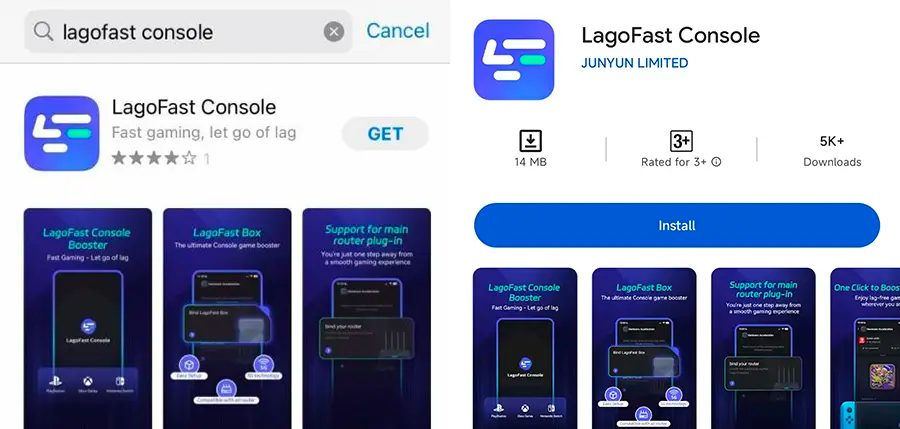
Step 1: Download the LagoFast Console App on your phone to control the LagoFast Box.
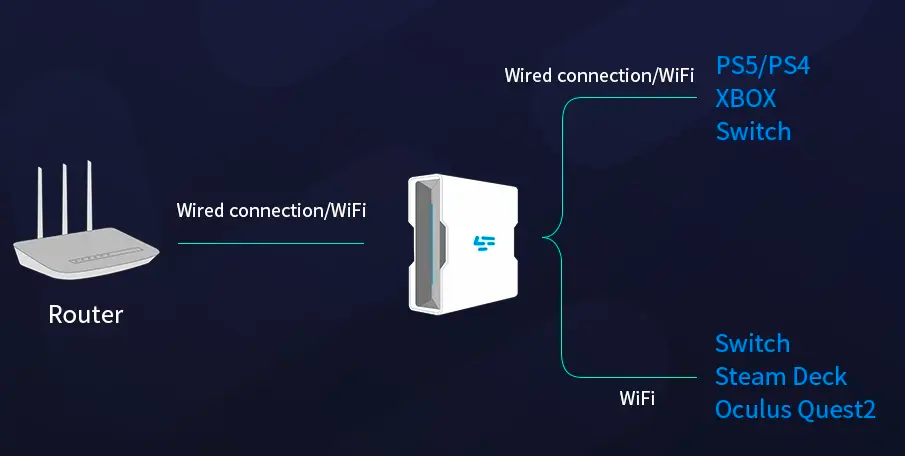
Step 2: Establish a connection between your LagoFast Box, router, and console, choosing between a wired or wireless connection.
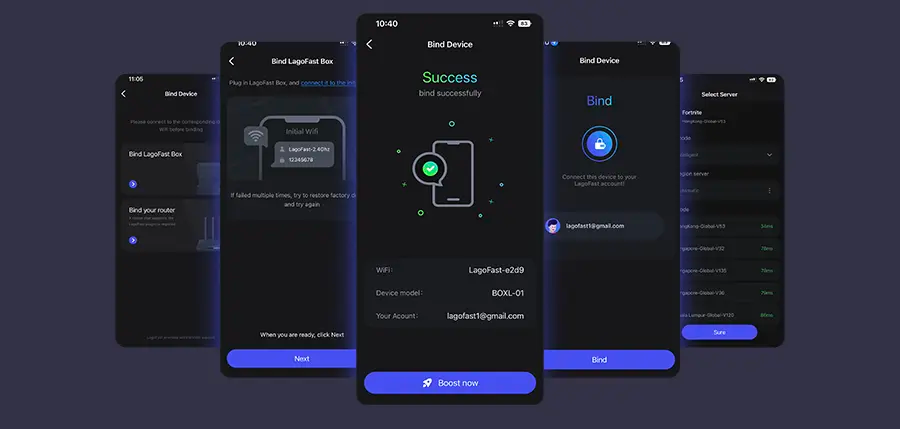
Step 3: Launch the LagoFast Console App and boost Black Ops 7. Once you have completed the binding process with the LagoFast Box, proceed to boost this game within the LagoFast Console App.
You May Also Like: Call of Duty: Black Ops 7 Multiplayer: How to Play Co-Op
Part 6: FAQs
Q: Could "Connection Failed" mean I’m banned?
Yes, in some rare cases a detected cheat or account compromise may result in a ban. Check your email or Activision account for notifications.
Q: Is Wi-Fi ever okay for playing Black Ops 7?
Only if it's 5 GHz and has strong signal—still, wired connections are far better for stability.
Q: Will changing DNS help?
Yes. Fast public DNS like Google’s (8.8.8.8) can bypass slow or faulty ISP resolvers.
Q: Should I port forward every CoD port?
No—UPnP is usually sufficient unless you're managing strict NAT types on older routers.
Conclusion
Connection failures in Black Ops 7 can stem from server issues, local network instability, or account-related problems. Start with the basics—check server status, reset your network, and verify account integrity—then work your way toward advanced network fixes like wired connections, port setups, and smart routing with LagoFast. Do these in sequence, and you’ll dramatically reduce or eliminate “Connection Failed” errors.

Boost Your Game with LagoFast for Epic Speed
Play harder, faster. LagoFast game booster eliminates stutter and lags on PC, mobile, or Mac—win every match!
Quickly Reduce Game Lag and Ping!
Boost FPS for Smoother Gameplay!