
If you’ve been diving into Call of Duty: Black Ops 7 only to face sudden crashes or annoying freezes mid-match, you’re not alone. Many players across PC, PlayStation, and Xbox have reported stability issues that interrupt gameplay and kill momentum. These problems can stem from anything—overheating hardware, outdated drivers, corrupted game files, or even unstable internet connections. The good news? Most causes can be fixed with the right tweaks. In this guide, we’ll walk through the most common reasons Black Ops 7 crashes or freezes, and give you practical solutions to keep your sessions smooth.
Ukrainian version: Black Ops 7 Вильоти та Підвисання: Як Виправити

- ✅ Reduce Lag and High Ping.
- ✅ Boost FPS at the Same Time.
- ✅ Ensure Stable Server Connection.
- ✅ Change Server without Latency.
- ✅ Fix Crashing and Stuck Errors.
- ✅ 0% Packet Loss Rate
- ✅ Boost Game Downloading Speed.
Part 1: Why Black Ops 7 Crashes or Freezes
Part 2: Fixes for Black Ops 7 Crashing on PC
Part 3: Fixes for Black Ops 7 Freezing on Console
Part 4: Network-Related Freezing in Multiplayer
Part 5: Performance Demands of Black Ops 7
Part 6: How LagoFast Helps Fix Black Ops 7 Crashing & Freezing
Part 1: Why Black Ops 7 Crashes or Freezes
Few things are more frustrating than your game locking up mid-match or crashing to the desktop. Call of Duty: Black Ops 7 is a highly demanding title, and a number of factors can cause instability across platforms:
- Hardware stress: Overheating GPUs or CPUs can force the game to shut down.
- Driver or system conflicts: Outdated graphics drivers or OS updates often cause crashes.
- Game bugs or corrupted files: Incomplete downloads or bad patches may trigger freezing.
- Network instability: Lag spikes and packet loss can mimic “freezes” during online play.
You May Like: How to Fix Call of Duty: Black Ops 7 Slow Download Speed - 100% Work
Part 2: Fixes for Black Ops 7 Crashing on PC
If you’re on PC and dealing with constant crashes, try the following steps:
- Update Graphics Drivers – Install the latest drivers from NVIDIA or AMD.
- Verify Game Files – On Steam or Battle.net, use “Verify Integrity” to repair corrupted files.
- Adjust In-Game Settings – Lower textures, shadows, or disable ray tracing to reduce GPU load.
- Check Background Apps – Close overlay apps (Discord, MSI Afterburner, etc.) that may conflict.
- Monitor Temperatures – Use tools like HWMonitor to ensure CPU/GPU temps are under safe limits.
Part 3: Fixes for Black Ops 7 Freezing on Console
On PlayStation or Xbox, freezes are usually less technical but equally disruptive. Here’s how to minimize them:
- Restart & Clear Cache: Power down the console fully, unplug, and restart.
- Reinstall the Game: A clean reinstall often fixes corrupted installs.
- Free Up Storage: Keep at least 20% of your console storage free for performance.
- Check for System Updates: Install the latest firmware patches from Sony or Microsoft.
Part 4: Network-Related Freezing in Multiplayer
Sometimes the issue isn’t the game, but the connection. Multiplayer stutters can feel like freezes if packet loss or poor routing is involved.
Tips to stabilize your network:
- Use a wired Ethernet connection instead of Wi-Fi.
- Reboot your router and update firmware.
- Enable QoS (Quality of Service) on your router to prioritize gaming traffic.
- Try a gaming network optimizer like LagoFast to reduce ping and packet loss.
Part 5: Performance Demands of Black Ops 7
Black Ops 7 pushes the series further with its cinematic visuals, larger maps, and high-intensity multiplayer battles. While this creates a more immersive experience, it also means the game places heavier demands on your hardware and internet connection. Even minor bottlenecks can lead to stuttering, frame drops, or full-on crashes.
- On PC, players with older GPUs or CPUs may find the game maxing out their system resources, especially when running ultra graphics settings or high frame rates.
- Console players, meanwhile, might notice freezes when storage space is low or when the system cache hasn’t been cleared for a while.
- Online multiplayer adds another layer of strain—if your connection can’t keep up with the game’s fast data exchange, freezes and disconnects become almost inevitable.
That’s why optimizing both your system and your network is crucial. Keeping hardware drivers updated, adjusting in-game settings, and ensuring a stable connection can make the difference between a smooth match and repeated crashes.
Part 6: How LagoFast Helps Fix Black Ops 7 Crashing & Freezing
When freezing is caused by unstable connections, LagoFast provides a quick and effective solution. Instead of relying on your default ISP routing—which often leads to packet loss, lag spikes, or sudden disconnects—LagoFast intelligently reroutes your traffic through optimized servers. This ensures your data takes the most stable and efficient path possible, minimizing interruptions during critical moments in Black Ops 7.
Benefits of LagoFast:
- Lower ping and reduced packet loss.
- Stable connections during peak hours.
- Real-time monitoring of ping and network quality.
- Works across PC, PlayStation, and Xbox.
How to Use LagoFast on PC to Fix Black Ops 7 Crashing
Step 1: Click the Free Trial button to download and install LagoFast.
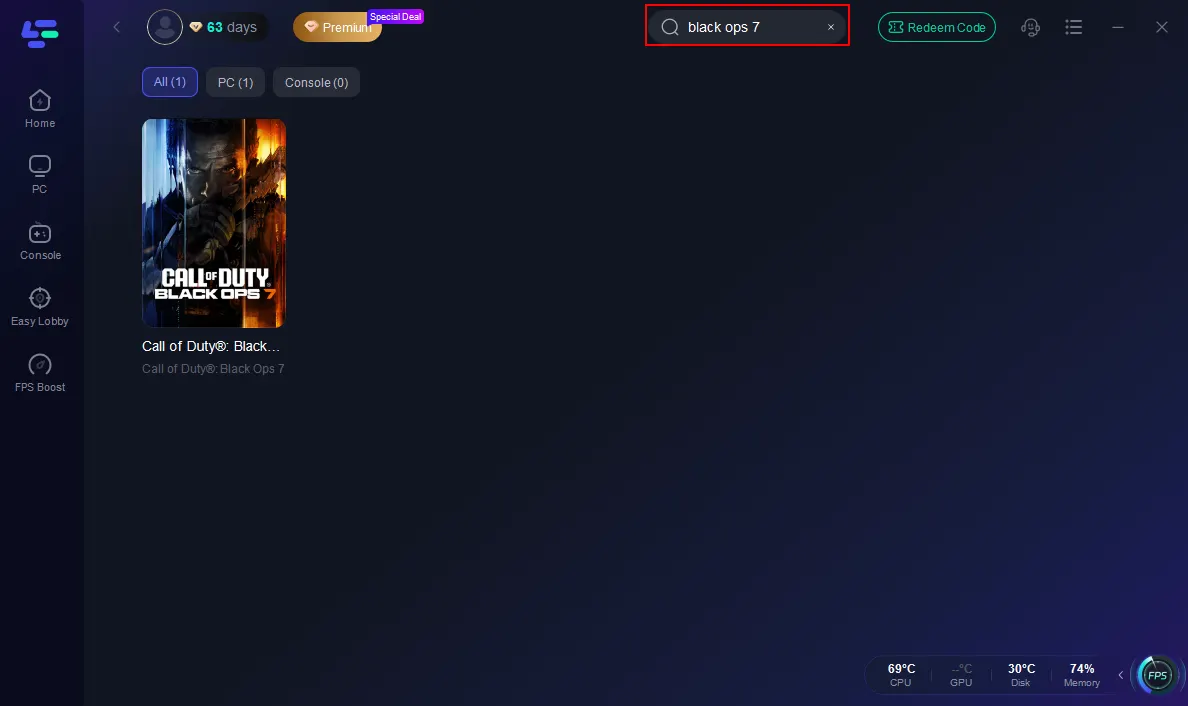
Step 2: Open LagoFast, then click the PC button on the left and search Black Ops 7 in the search bar, and click it after it appears.
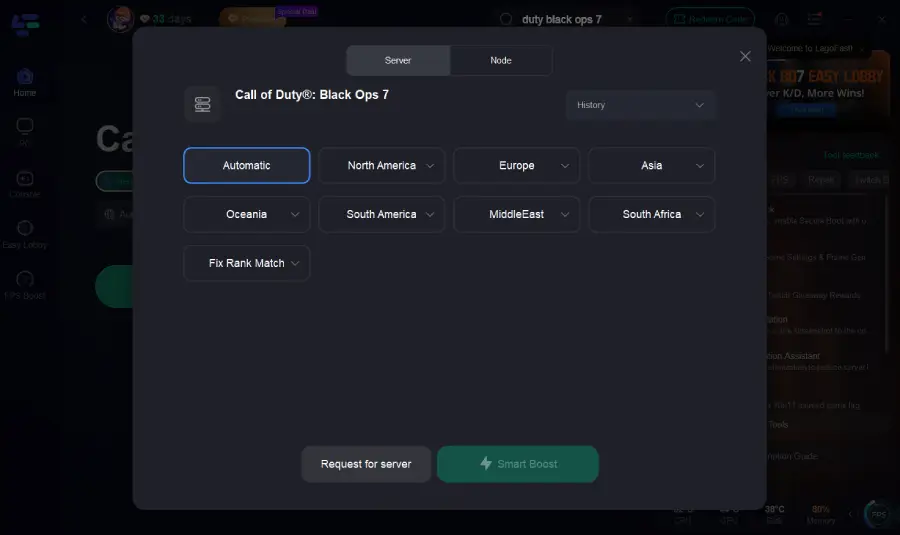
Step 3: Click on “Server” to change to a better server that ensures the Black Ops 7 gaming experience, then click on “Smart Boost”.
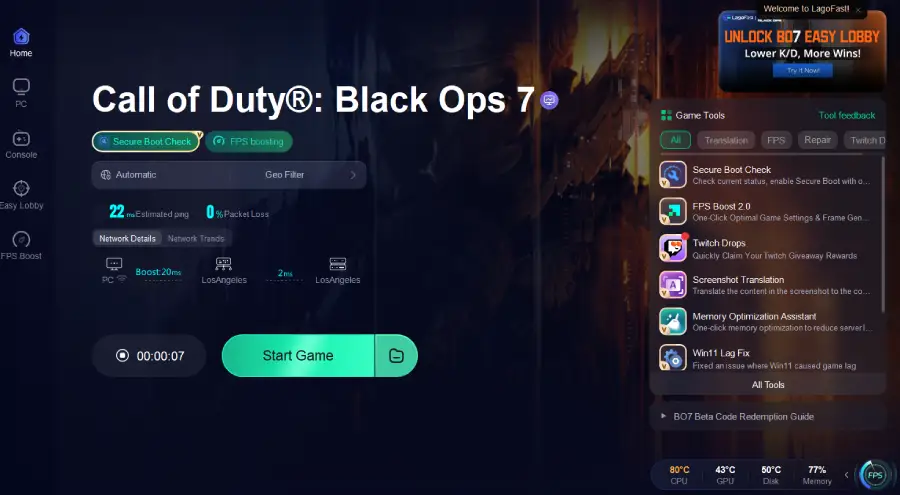
Step 4: Launch the game and enjoy an enhanced gaming experience with reduced lag and improved stability.
After setting it up on PC, console players can also enjoy optimized stability with LagoFast Box.
Tutorial on using LagoFast Box to fix BO7 freezing on consoles:
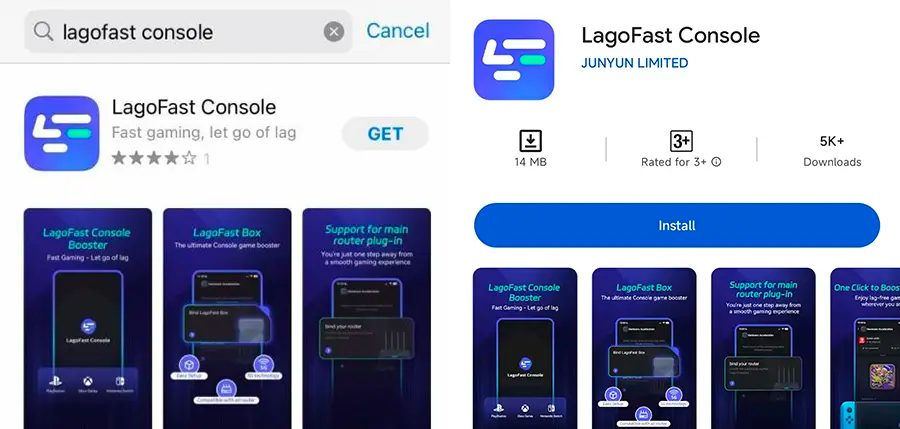
Step 1: Download the LagoFast Console App on your phone to control the LagoFast Box.
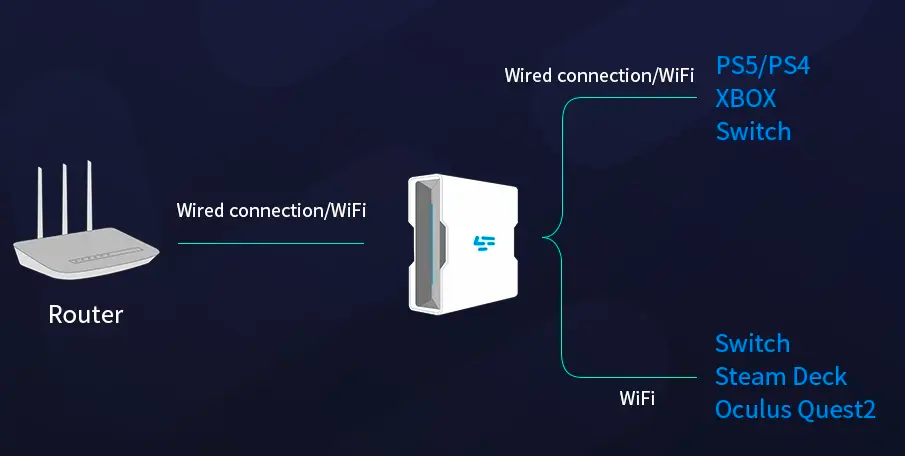
Step 2: Establish a connection between your LagoFast Box, router, and console, choosing between a wired or wireless connection.
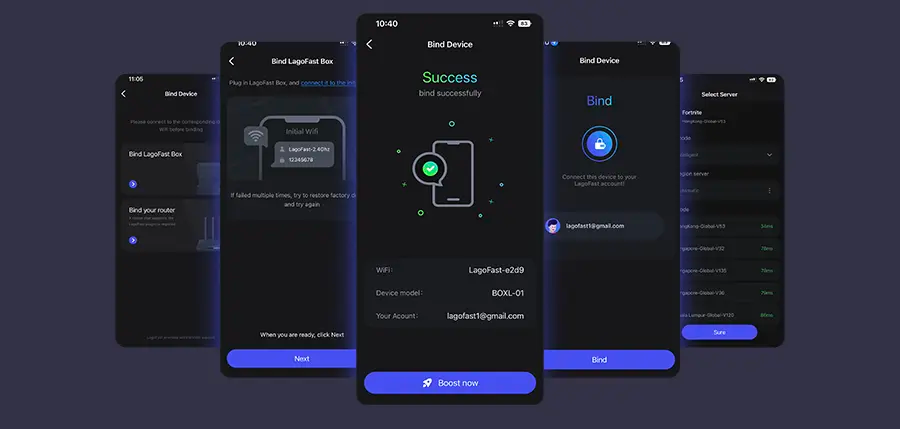
Step 3: Launch the LagoFast Console App and boost Black Ops 7. Once you have completed the binding process with the LagoFast Box, proceed to boost this game within the LagoFast Console App.
Conclusion
Black Ops 7 crashing or freezing can stem from hardware, software, or network problems. By keeping your system updated, adjusting settings, and optimizing your connection, you can drastically reduce interruptions. For online stability, tools like LagoFast are especially useful in ensuring your fight stays smooth and uninterrupted.
Boost Your Game with LagoFast for Epic Speed
Play harder, faster. LagoFast game booster eliminates stutter and lags on PC, mobile, or Mac—win every match!
Quickly Reduce Game Lag and Ping!
Boost FPS for Smoother Gameplay!