
Players of Assassin’s Creed Black Flag Resynced on PC have started encountering the following launch error:
“The code execution cannot proceed because upc_r2_loader64.dll was not found.”
This error started appearing during the game’s release week. Within a few days after the launch on July 9, more players began reporting the issue and sharing troubleshooting videos. In most cases, this is not related to graphics settings or game servers. Windows cannot locate a required game file because it was quarantined, deleted, corrupted, or failed to download properly in the first place.
Do not download upc_r2_loader64.dll from random DLL download websites. Instead, restore the official version included with your legitimate game installation.

- ✅ Reduce Lag and High Ping.
- ✅ Boost FPS at the Same Time.
- ✅ Support 8000+ Popular Online Games.
- ✅ Support Easy Lobby in all Cod Games without Lag
Which Fix Should You Try?
|
What Happens |
Most Likely Cause |
What to Use |
|
Error appears immediately after installation |
Incomplete or corrupted download |
Verify game files |
|
Verification restores the file, but the error comes back |
Antivirus quarantines the file again |
Check protection history |
|
File exists, but Windows still says it is missing |
Incorrect shortcut or corrupted launcher |
Repair Ubisoft Connect |
|
Error changes to 0xc000007b or Bad Image |
Visual C++ Runtime issue |
Repair Visual C++ |
|
Installed copy is modified or unofficial |
Unsafe or incompatible loader |
Reinstall the official version |
Fix 1: Repair the Game Through LagoFast and Your Launcher
LagoFast cannot create a missing DLL file by itself, but it can help stabilize the connection used by Steam, Epic Games, and Ubisoft Connect while the launcher verifies and downloads the correct game files.
Assassin’s Creed Black Flag Resynced requires a one-time internet connection during installation, so an interrupted launcher session may cause required files to be incomplete.
Step 1: Launch LagoFast
Close Black Flag Resynced and Ubisoft Connect.
Open LagoFast.
Search for Assassin’s Creed Black Flag Resynced
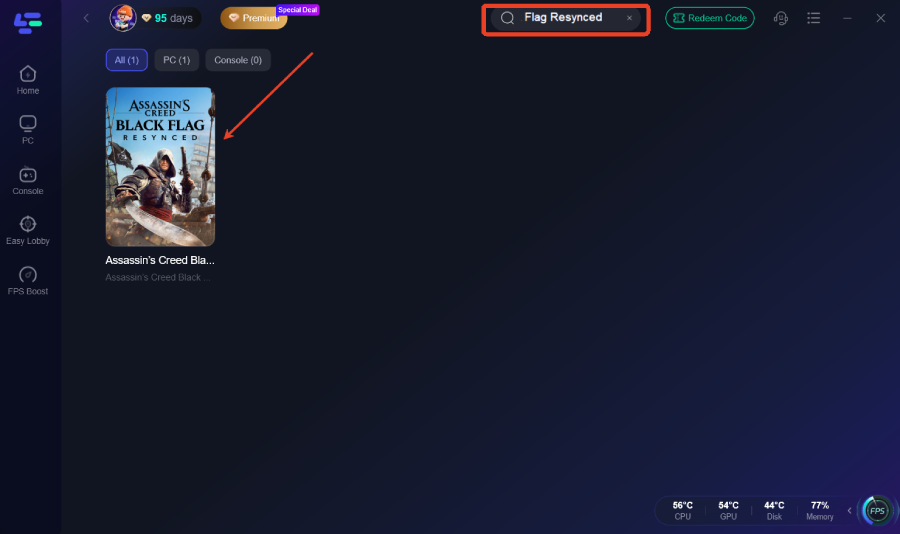
Select the recommended server node.
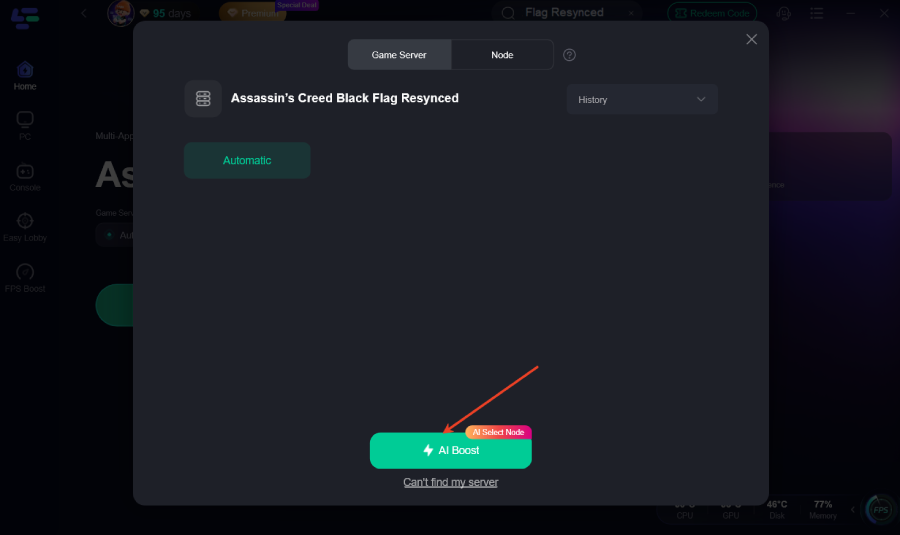
Click Boost.
Keep LagoFast running while the game installation is being repaired.
Step 2: Verify Game Files
Steam
- Open Steam.
- Go to Library.
- Right-click Assassin’s Creed Black Flag Resynced.
- Select Properties.
- Open Installed Files.
- Click Verify integrity of game files.
Ubisoft Connect
- Open Ubisoft Connect.
- Select the game from your library.
- Open Properties or Manage.
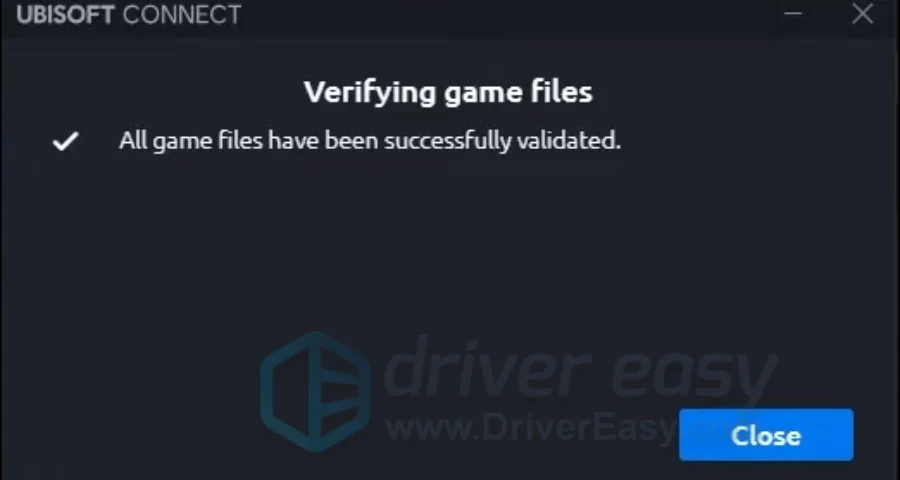
- Select Verify files.
- Wait for Ubisoft Connect to repair the installation.
Epic Games Launcher
- Open Epic Games Launcher.
- Go to Library.
- Click the three dots next to the game.
- Select Manage.
- Click Verify.
After verification is complete, restart the launcher and launch the game through the launcher instead of opening the executable file directly. Ubisoft recommends verifying game files as one of the first troubleshooting steps for corrupted or missing game files on PC.
Fix 2: Check Whether Windows Security Removed the DLL
This is the most likely solution if file verification downloads the missing file again, but the same error immediately returns.
Check Protection History
Open Windows Security.
Select Virus & threat protection.
Open Protection history.
Look for entries related to:
- upc_r2_loader64.dll
- The Black Flag Resynced installation folder
- The game executable file
- Expand the detection details and check the original file location.
Choose Restore or Allow on device only if all of the following conditions are met:
- The game was installed through Steam, Epic Games, or Ubisoft Connect.
- The detected file is located inside the official game installation folder.
- You did not replace the DLL with a downloaded or modified version.
- After restoring the file, verify the game files again and restart your PC.
Microsoft confirms that quarantined files can be reviewed and restored through Protection history, but you should only allow them when you are certain the file is legitimate.
If You Use Another Antivirus
Open its quarantine or detection history and search for the same file name. Do not permanently disable your antivirus or add your entire Downloads folder as an exception.
If the official game file keeps getting detected, update your antivirus definitions first, then verify the game installation again.
Fix 3: Remove Leftover Files After an Incomplete Installation
Standard file verification may fail if leftover files remain from a preload, interrupted update, or manually moved installation.
Uninstall Black Flag Resynced through the related launcher.
Open the previous installation folder.
Delete the remaining Black Flag Resynced folder.
Restart your PC.
Reinstall the game through Steam, Epic Games, or Ubisoft Connect.
Do not manually copy old executable files or DLL files into the new installation.
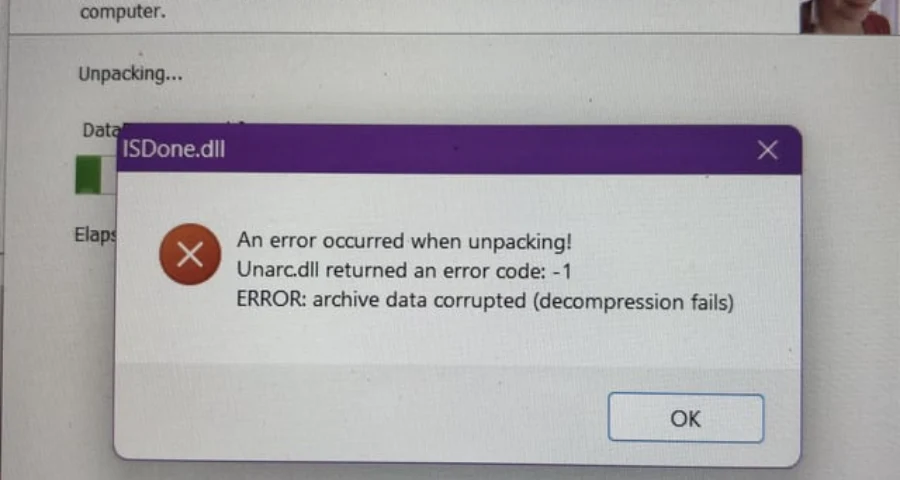
If you manually moved the game to another drive, reinstall it or use the launcher’s built-in transfer feature. An old executable file may still search for the DLL in the previous folder.
Fix 4: Repair Ubisoft Connect
Even versions purchased through Steam and Epic use Ubisoft services during installation and launch. If the game files verify successfully but the error continues, repair the Ubisoft Connect client.
- Close Steam, Epic Games Launcher, and Ubisoft Connect.
- Open Task Manager.
- End any remaining Ubisoft Connect processes.
- Uninstall Ubisoft Connect.
- Download and install the latest client from Ubisoft’s official website.
- Sign in again with the Ubisoft account linked to your game.
- Launch the game through the original store launcher.
- Verify the game files again.
Do not delete the installed game when uninstalling Ubisoft Connect unless the installer specifically requires it.
Fix 5: Launch the Correct Executable File
Use this fix if upc_r2_loader64.dll appears in the game installation folder, but the error still shows.
- Open Steam, Epic Games, or Ubisoft Connect.
- Use Browse local files or Open installation folder.
- Launch the game from that folder.
- Delete the old desktop shortcut.
- Create a new shortcut through the launcher.
This prevents Windows from launching an executable from an old preload folder, copied installation, or another drive.
You can also right-click the official game executable and select Run as administrator, but administrator mode will not restore the DLL if the file is actually missing.
Fix 6: Repair Microsoft Visual C++ Only If the Error Changes
Visual C++ usually does not fix upc_r2_loader64.dll errors. Use this step only if the original missing file message changes to one of the following errors:
0xc000007b
Bad Image
Entry Point Not Found
VCRUNTIME140.dll is missing
MSVCP140.dll is missing
Install or repair both versions of the latest Microsoft Visual C++ Redistributable package:
x64
x86
Restart Windows after installation. Microsoft recommends using only officially signed Visual C++ packages downloaded from Microsoft’s website.
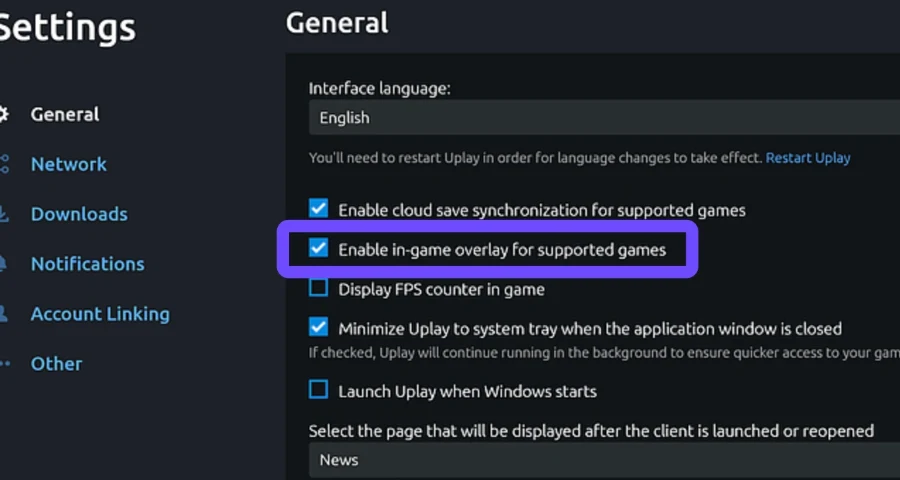
Do Not Download upc_r2_loader64.dll Separately
Avoid the following actions:
Downloading DLL files from file-sharing websites or DLL download sites
Copying the file from another Ubisoft game
Placing it in System32 or SysWOW64
Permanently disabling Windows Security
Replacing it with a modified loader
Copying files from repack versions or unofficial copies
upc_r2_loader64.dll belongs to the game installation, not the Windows system folder. A DLL from another version may cause crashes, save issues, launch loops, or additional entry point errors.
Boost Your Game with LagoFast for Epic Speed
Play harder, faster. LagoFast game booster eliminates stutter and lags on PC, mobile, or Mac—win every match!
Quickly Reduce Game Lag and Ping!
Boost FPS for Smoother Gameplay!