
If you are wondering how to change region in VALORANT without VPN, the process is actually controlled by Riot Games and cannot be manually changed inside the game. Instead, your region is automatically assigned based on your Region of Residence (RoR) linked to your Riot account.
However, if your region is incorrect or you have moved to another country, you can request a region change through Riot’s official support system. This guide explains exactly how the process works and what you need to do.

- ✅ Reduce Lag and High Ping.
✅ Boost FPS at the Same Time.
✅ Support 2000+ Online Games
✅ Change Server Without Latency.
✅ Multiplatform: PC, Console, Mobile.
✅ End Connection & Crashing Issues
Part 1: What Region Means in VALORANT
Part 2: Can You Change Region in VALORANT Without VPN?
Part 3: How to Check Your Current Riot Region
Part 4: Request a Region Change Through Riot Support
Part 5: How to Change Servers Without Changing Region
Part 6: What Happens After a Region Transfer
Part 7: Common Problems When Changing Regions
Part 8: Does Region Affect Ping in VALORANT?
Part 9: Why Players Want to Change Region in VALORANT
Part 10: Improve VALORANT Connection Stability with LagoFast
Part 1: What Region Means in VALORANT
In VALORANT, your region determines which server shard your account belongs to.
This affects:
- Who you can play with
- Server matchmaking pools
- Ping and latency
- Ranked matchmaking
Regions are assigned when your Riot account is created.
Part 2: Can You Change Region in VALORANT Without VPN?
Yes, you can change your region without using a VPN, but only through Riot’s official account system.
Riot Games allows players to request a Region of Residence update if the assigned region is incorrect.
This usually happens when:
- You created your account while traveling
- Riot detected the wrong location
- You permanently moved to another country
The region change must be approved by Riot support.
Part 3: How to Check Your Current Riot Region
Before requesting a region change, check which region your account currently belongs to.
Steps:
- Log into your Riot account on the official Riot website
- Open your Account Settings page
- Look for the Region of Residence section
If the region listed does not match your real location, you can request a correction.
Part 4: Request a Region Change Through Riot Support
To change your VALORANT region without a VPN, you must submit a support request.
Steps:
- Visit the Riot Support website
- Log into your Riot account
- Select Submit a Request
- Choose Account Management / Data Requests
- Request a Region of Residence change
You may be asked to confirm your location before Riot updates the region.
Part 5: How to Change Servers Without Changing Region
Some players simply want lower ping rather than a full region transfer.
VALORANT allows you to select different servers within your region.
To change servers:
- Launch VALORANT
- Enter the matchmaking screen
- Click the server selection icon near the ping indicator
- Choose a server with lower latency
This does not change your account region but can improve connection quality.
Part 6: What Happens After a Region Transfer
If Riot approves your request, the account will be moved to a new server shard.
Possible changes include:
- Ranked progress reset
- Match history cleared
- Store data refreshed
This is normal because the account is being transferred to a different server environment.
Part 7: Common Problems When Changing Regions
Some players encounter issues when requesting a region change.
Common reasons for rejection include:
- Location cannot be verified
- Attempting frequent region transfers
- Using incorrect account information
Riot generally only approves region changes if the player has genuinely relocated.
Part 8: Does Region Affect Ping in VALORANT?
Yes, the region assigned to your account directly affects your connection quality.
Your region determines:
- Which matchmaking shard you connect to
- The physical location of servers you access
- Your overall latency (ping)
Players assigned to a distant region often experience:
- High ping
- Input delay
- Unstable matches
This is why correcting your region through Riot’s official system can significantly improve the gaming experience.
Part 9: Why Players Want to Change Region in VALORANT
Many players search for how to change region in VALORANT without VPN because they experience high latency or want to play with friends located in other countries.
Common reasons include:
- Moving to another country
- Playing with friends in different regions
- Reducing ping and improving connection stability
- Accessing local matchmaking servers
Since VALORANT is a competitive online game, server proximity has a significant impact on gameplay performance.
Part 10: Improve VALORANT Connection Stability with LagoFast
When trying to play VALORANT in a different region or connect to distant servers, players often experience high ping, packet loss, or unstable matchmaking. These network issues can make the game feel delayed and unresponsive even if your internet speed is normally good. Using a network optimization tool like LagoFast can help improve routing between your device and Riot servers, creating a smoother gameplay experience.
Benefits of Using LagoFast
- Reduces ping spikes when connecting to distant servers
- Minimizes packet loss during matches
- Optimizes routing between your ISP and Riot servers
- Displays real-time network diagnostics
- Easy one-click optimization before launching the game
While LagoFast cannot change your official VALORANT region or bypass Riot’s account restrictions, it can significantly improve connection quality when playing on distant servers. By stabilizing your network path before launching the game, you can reduce lag and enjoy a more consistent competitive experience.
Quick Steps to Use LagoFast
1. Download and install LagoFast using the Free Trial option.
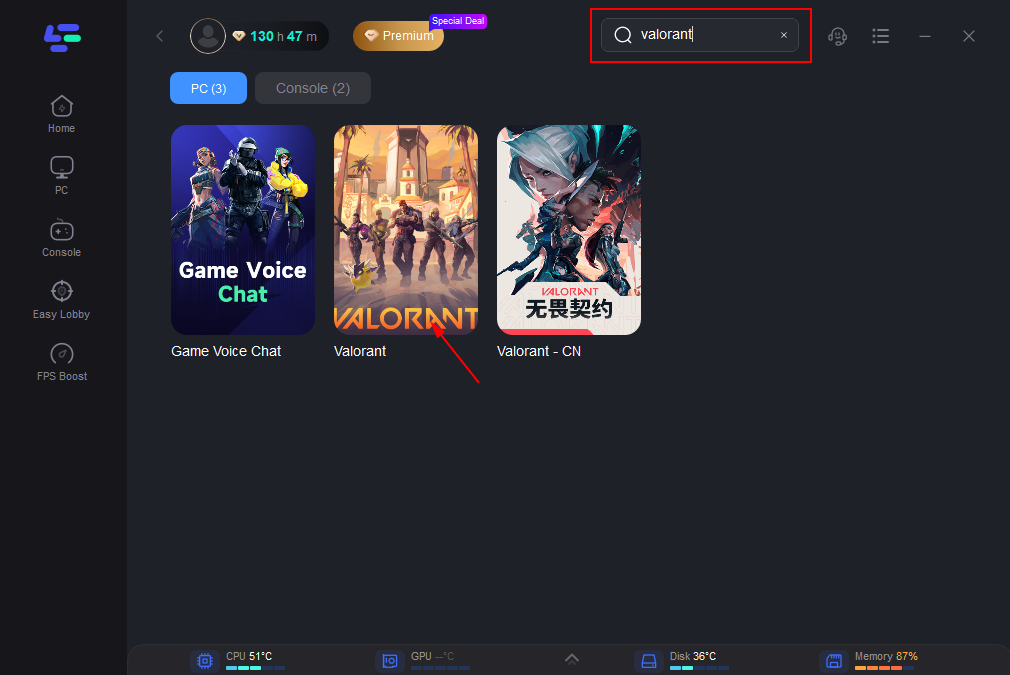
2. Open the application and search for VALORANT in the game list.
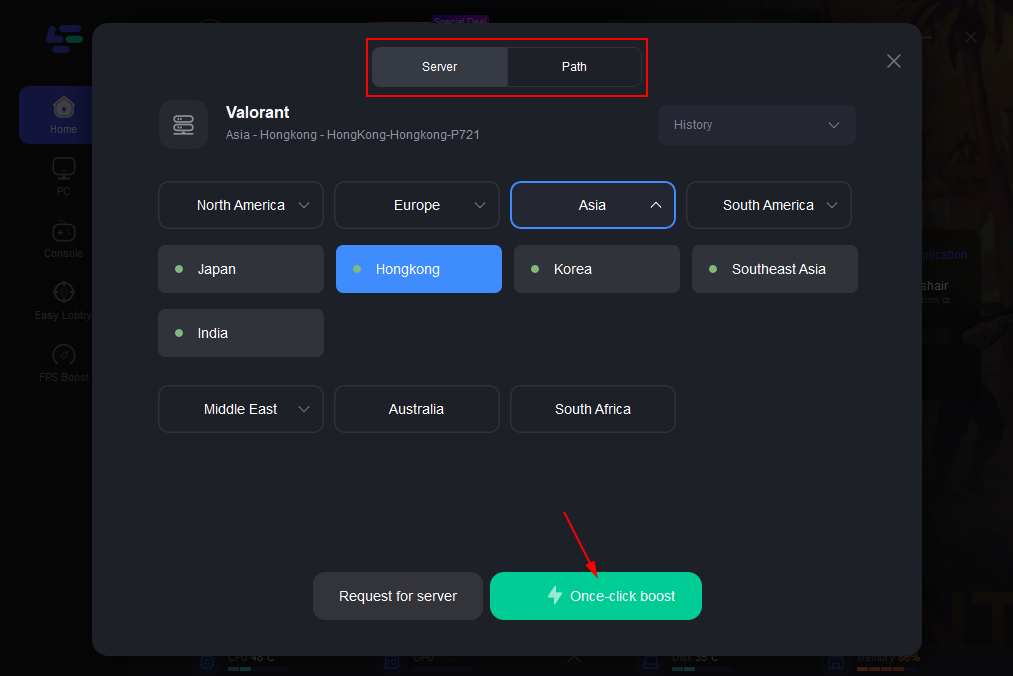
3. Click Select Server to view available server routes and choose the most stable node.
4. Press Smart Boost to activate optimization and monitor real-time ping, packet loss, and network status.
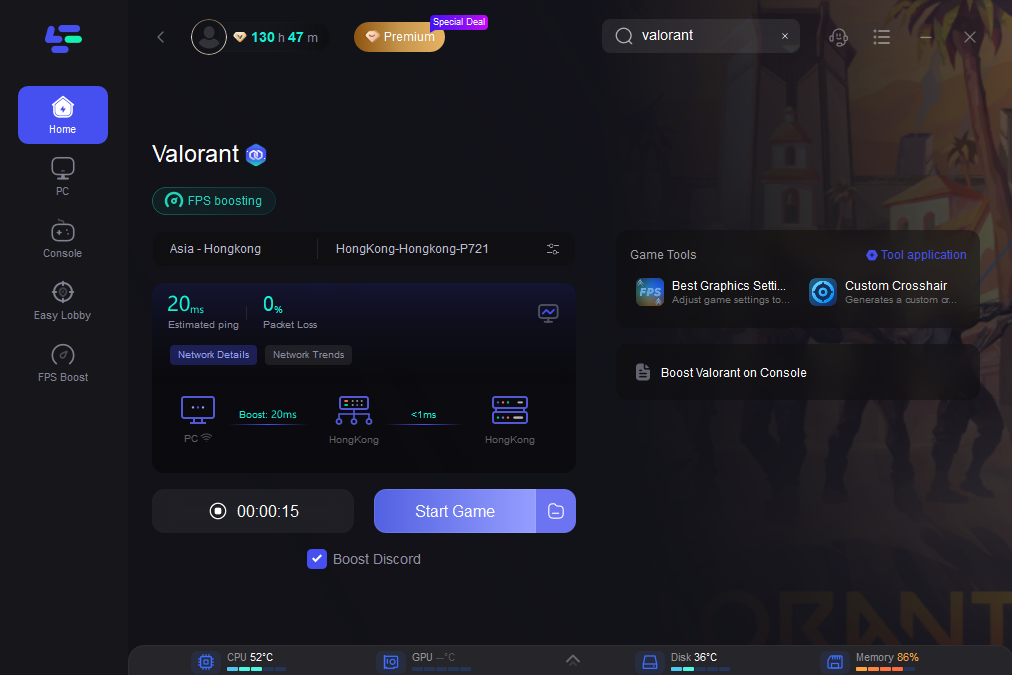
Once activated, LagoFast automatically routes your connection through optimized nodes designed to reduce latency and improve stability.
Conclusion
Changing region in VALORANT without VPN is possible through Riot’s official support system. Instead of relying on third-party tools, players should verify their Region of Residence and request a region update if it is incorrect. Once approved, the account will move to the appropriate server shard, allowing you to play with players in your new region and enjoy better connection stability.

Boost Your Game with LagoFast for Epic Speed
Play harder, faster. LagoFast game booster eliminates stutter and lags on PC, mobile, or Mac—win every match!
Quickly Reduce Game Lag and Ping!
Boost FPS for Smoother Gameplay!