
“After a recent update, I can’t launch Apex Legends. Easy Anti-Cheat (EAC) starts but closes automatically after a few seconds, and the game never opens.” This is a common issue many Steam players are facing.
If Apex Legends won’t launch on Steam in 2026, the most common causes are Easy Anti-Cheat startup failures, corrupted or outdated game files after updates, outdated or broken GPU drivers, or conflicts from overlays and background applications. The goal is to get you back into the lobby as quickly as possible, so start with safe basic fixes before moving to more advanced file changes or reinstallations.

- ✅ Lower ping and fewer disconnects.
- ✅ More FPS and better PC performance.
- ✅ Support for 8000+ games.
- ✅ Stable connections and region switching.
Part 1: Why Apex Legends Won't Launch on Steam
Part 2: Fastest fixes to try first for Apex Legends launch error
Part 3: Fix Easy Anti-Cheat issue
Part 4: Repairing Corrupted Files After Patches
Part 5: Fix software conflicts
Part 6: Driver, Windows, firewall, and dependency fixes
Part 7: If Apex Legends still won’t launch on Steam
Part 8: Improve your gaming experience with the LagoFast game booster
Part 1: Why Apex Legends Won't Launch on Steam
Players report several launch issues, including:
- Easy Anti-Cheat opens, then closes, and Apex never appears
- The initial loading screen appears, then nothing happens
- The game crashes immediately on launch
- Steam shows the game running for a few seconds, then stops
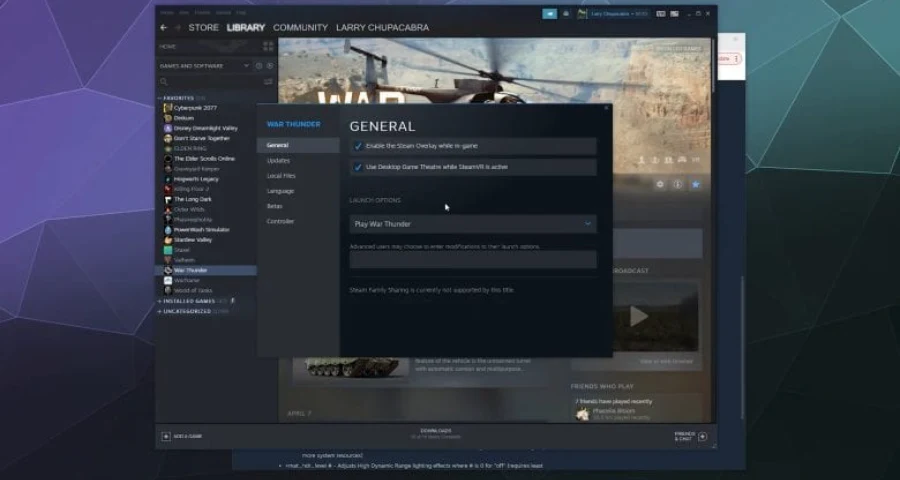
The two main problem areas are EAC startup failures and corrupted files after updates. In addition, outdated or corrupted graphics drivers can also prevent the game from launching.
If Apex shows the first loading screen and then crashes, a conflicting background program is often the cause.
This is critical because it completely blocks access to the game. The best approach is to move from the safest and fastest fixes to more advanced ones.
Part 2: Fastest fixes to try first for Apex Legends launch error
These safe steps should be done in order.
1) Restart your PC
A full restart can clear temporary glitches, stuck services, and background processes that failed to close properly.
2) Clear Steam download cache
Corrupted Steam cache data may interfere with updates or launching.
In Steam:
Steam > Settings > Downloads > Clear Download Cache
Confirm the action. Steam may log you out — this is normal. Log back in and try launching Apex again.
3) Verify Apex Legends game files
If files are missing or corrupted after an update, Steam can repair them.
In Steam:
Library > Right-click Apex Legends > Properties > Installed Files > Verify integrity of game files
Wait for the process to complete, then try launching again.
4) Make sure Steam is fully updated
An outdated Steam client can also cause launch issues. Install any pending updates, restart Steam, and try again.
5) Run Steam and Apex as administrator
Permission issues may block Easy Anti-Cheat or game services.
Fully close Steam, then relaunch it as Administrator. If needed, try launching Apex the same way.
Part 3: Fix Easy Anti-Cheat issue
If Apex closes immediately after the Easy Anti-Cheat screen, try the following method.
A common symptom is that EAC appears, loads for a few seconds, then closes, and the game never launches. This indicates that Easy Anti-Cheat is not starting correctly.
How to repair Easy Anti-Cheat for Apex Legends
- Open your Apex Legends installation folder on your PC.
- Go to the EasyAntiCheat folder.
- Run EasyAntiCheat_Setup.exe.
- Select Apex Legends.
- Click Repair.
- Restart your PC and launch the game again through Steam.
If the issue started right after a patch, try this method before attempting a full reinstall.
Part 4: Repairing Corrupted Files After Patches
If Apex stopped launching right after a new update, there is a community workaround that has helped some players.
This is an advanced solution, not a first step.
Advanced workaround: delete specific UI files, then verify
Some players have resolved launch issues after updates by deleting the following files from the Apex installation directory:
- ui(01).rpak
- ui(01).dll
These files are located in the paks/Win64 folder inside the Apex directory.
After deleting them, run a file integrity check in Steam to restore any missing or corrupted data.
Important note
This workaround is suggested by the community and is not an official fix. Use it only if:
- The issue started after an update
- Basic Steam file verification did not help
- You are comfortable manually modifying local game files
After deleting the files
- Open Steam.
- Right-click Apex Legends.
- Go to Properties.
- Open the Installed Files section.
- Click Verify integrity of game files.
If you are not comfortable manually removing files, skip this step and move on to checking conflicting software and drivers below.
Part 5: Fix software conflicts
If Apex shows the loading screen then stops, another program may be interfering.
Disable or close:
- Steam Overlay
- Discord Overlay
- NVIDIA In-Game Overlay
- RGB software, monitoring tools, and unnecessary background apps
- Any overlay or game-injecting software
Then try again.
Try Clean Boot
A clean boot helps identify if background services are blocking Apex. If the game works in clean boot mode, another startup application is the cause.
Part 6: Driver, Windows, firewall, and dependency fixes
If Apex still won’t launch:
Update GPU drivers
Outdated or corrupted drivers are a common cause.
- Install the latest stable GPU driver
- If issues started after an update, try a clean reinstall
- If crashes continue, perform deeper driver cleanup
Update Windows
Ensure Windows is fully updated before testing again.
Check Visual C++ dependencies
Missing or outdated Microsoft Visual C++ Redistributables can prevent launch. Reinstall and reboot your PC.
Allow Apex in Windows Firewall
Make sure Apex Legends and Steam are allowed through the firewall.
Hardware quick check
Hardware is rarely the cause after updates, but check basics:
Minimum requirements:
- 64-bit Windows 10
- Intel i3-6300 / AMD FX-4350
- 6 GB RAM
- ~75 GB storage
Part 7: If Apex Legends still won’t launch on Steam
At this stage, try more extreme fixes.
1) Reinstall Apex Legends
If nothing else works, reinstalling may fix persistent corruption.
2) Record the exact symptom
Before contacting support, note:
- Does EAC open then close?
- Does Steam show the game running briefly?
- Did it start after a specific update?
- Any error codes or crashes?
These details are extremely important for diagnosis.
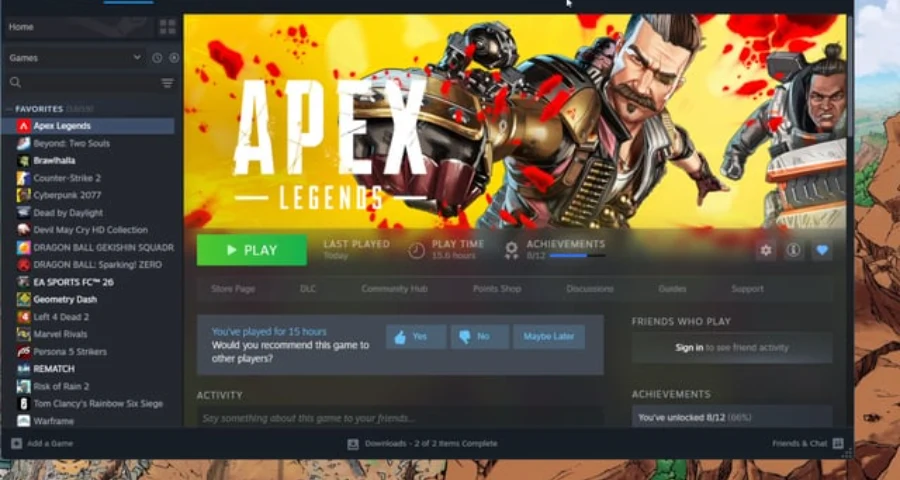
3) Contact EA Support
If the issue persists after reinstalling, contact EA Help with full details.
Part 8: Improve your gaming experience with the LagoFast game booster
LagoFast intelligently routes your traffic through optimized gaming servers, reducing ping and packet loss even under ISP restrictions. It works well with Apex Legends on PC and can also be configured on routers for console gaming.
Simple setup: Download LagoFast, select your game (Apex Legends), choose the optimal server node, and click “Smart Boost” to launch the game. The dashboard will display real-time ping and packet loss metrics.
Router-level setup: For console players, you can import OpenVPN/L2TP/WireGuard configurations from LagoFast into your router to route your entire home network through the booster — ideal for PS5/Xbox gaming.
Free trial available: Most users report restored connectivity in cases where DNS changes or standalone WARP tools did not help.
How to use LagoFast For Apex Legends
Step 1: Click the Free Trial button to download and install LagoFast.
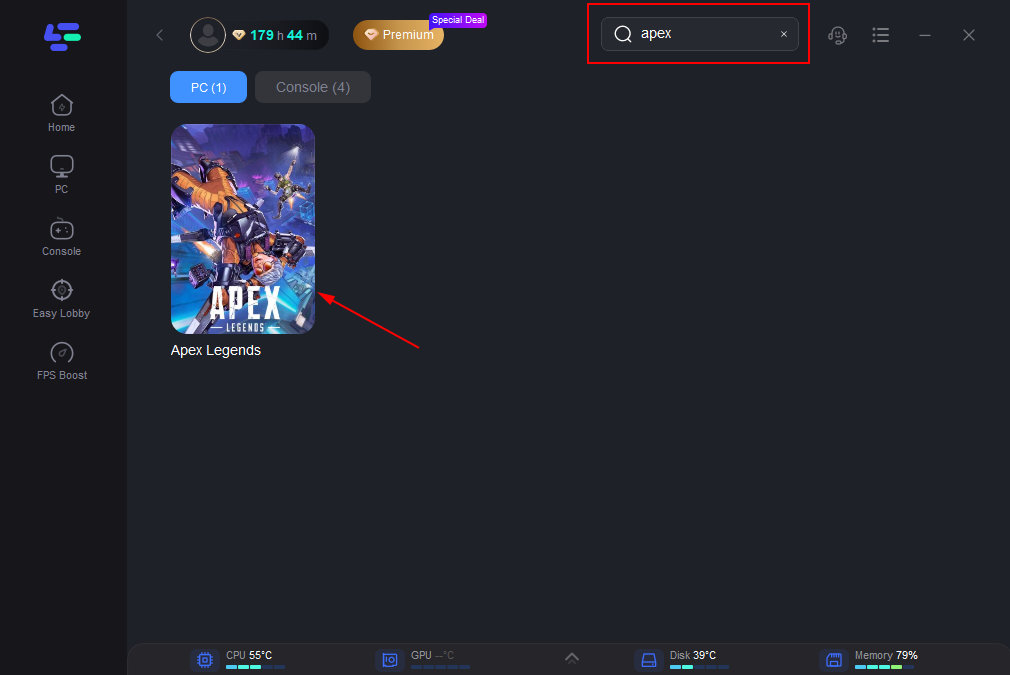
Step 2: Open LagoFast, click the PC icon on the left, and search for Apex Legends. Once it appears, select it.
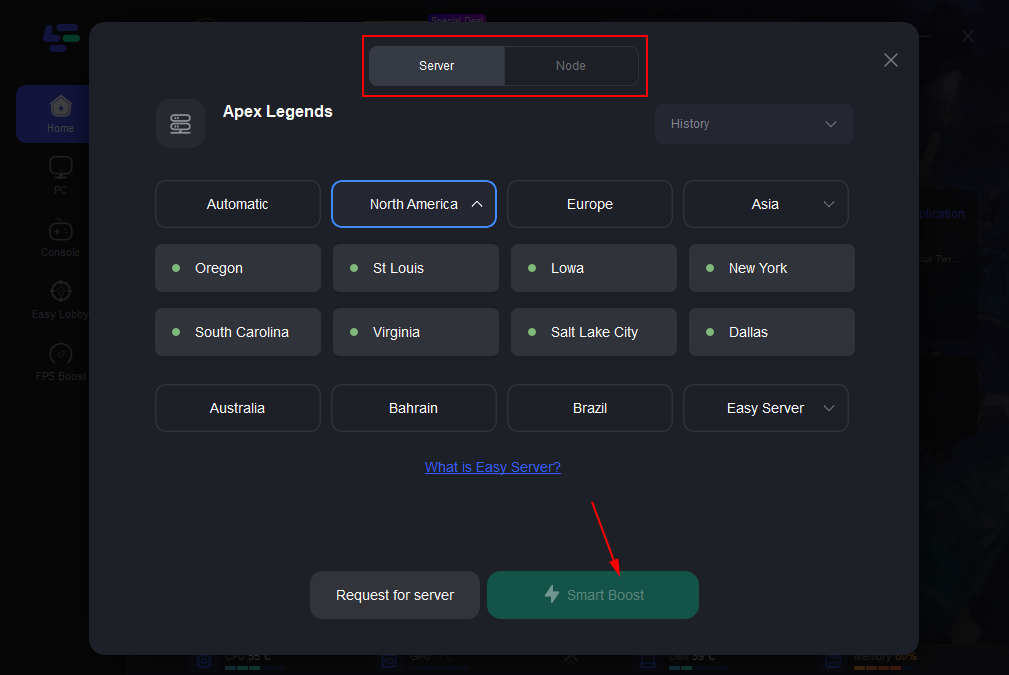
Step 3: Click “Server” to choose the best stable server, then click “Smart Boost."
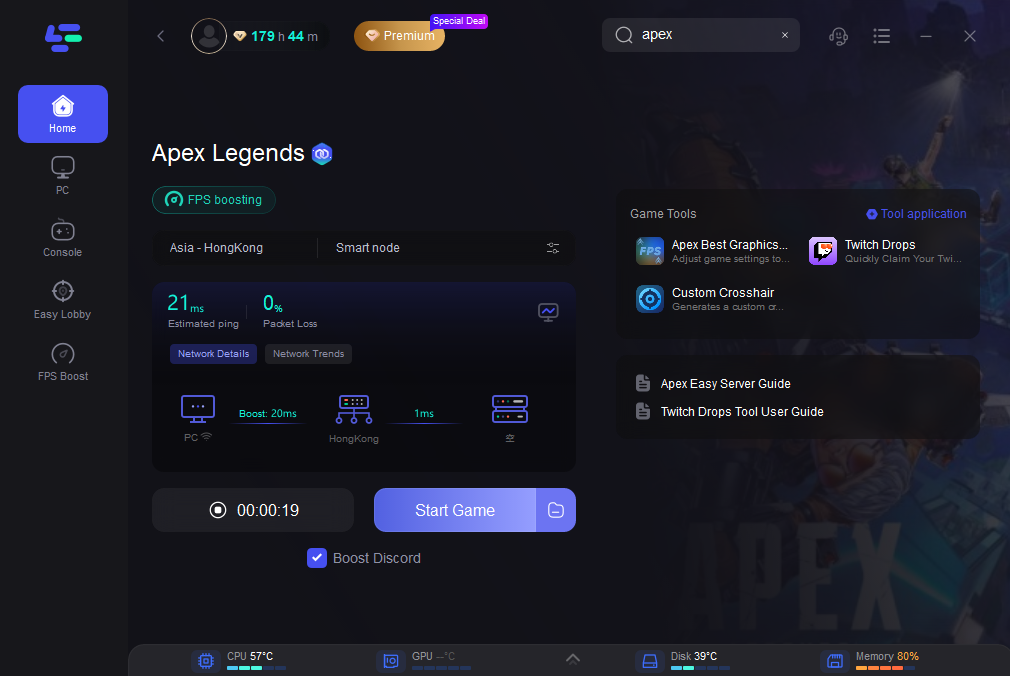
Step 4: On the right panel, check your ping, packet loss, and multi-path status. Then click “Start Game” to launch Apex Legends.
Part 9: FAQs
Why does Apex Legends close immediately after Easy Anti-Cheat?
This usually happens when Easy Anti-Cheat fails to initialize properly. Repair it using EasyAntiCheat_Setup.exe in the game folder.
Can corrupted Steam files stop Apex Legends from launching?
Yes. Missing or corrupted files can prevent launch, especially after updates. Use Steam’s “Verify integrity of game files” tool.
What if Apex Legends still won’t launch after verifying files?
Move on to other fixes: repair EAC, disable overlays, try clean boot, update or reinstall GPU drivers, update Windows, reinstall Visual C++ dependencies, and only then reinstall the game if nothing works.
Conclusion
Apex Legends not launching on Steam is typically caused by Easy Anti-Cheat errors, corrupted game files, outdated drivers, or software conflicts. By following the fixes in this guide—from basic troubleshooting to advanced solutions—you can quickly identify the cause and get the game running again.
Boost Your Game with LagoFast for Epic Speed
Play harder, faster. LagoFast game booster eliminates stutter and lags on PC, mobile, or Mac—win every match!
Quickly Reduce Game Lag and Ping!
Boost FPS for Smoother Gameplay!