
Quick Answer
To optimize your Wuthering Waves Global Filter Settings, navigate to Settings > Graphics > Image Display Mode. For a vibrant look, select the Vibrant filter with intensity at 40-60%, and increase Saturation and Contrast slightly. For a cinematic feel, use the Dystopian or Film filter with higher Sharpness. Since the game lacks a native way to save multiple custom presets, using the LagoFast Game Filter is the most efficient method to switch between different lighting environments and photography styles with a single click.

- ✅ Reduce Lag and High Ping.
- ✅ Boost FPS at the Same Time.
- ✅ Change Server Without Latency.
- ✅ One-Click Translation Tool.
- ✅ End All Connection Issues.
- ✅ Multiplatform: PC, Mobile, Console
Part 1: What Is Global Filter in Wuthering Waves?
Part 2: Best Global Filter Settings for a More Vibrant Look
Part 3: Best Global Filter Settings for Softer Anime Screenshots
Part 4: Best Global Filter Settings for Darker Cinematic Scenes
Part 5: How to Adjust Brightness, Saturation, Contrast, and Sharpness
Part 6: Can You Save Multiple Global Filter Presets?
Part 7: LagoFast Game Filter: One-Click Visual Presets for Wuthering Waves
Part 8: Frequently Asked Questions (FAQs)
Part 1: What Is Global Filter in Wuthering Waves?
Wuthering Waves features a distinct art style that blends post-apocalyptic themes with high-fidelity anime aesthetics. However, many players have noted that the default "out-of-the-box" look can sometimes appear slightly washed out or overly "white," especially in bright outdoor environments. To address this, Kuro Games introduced the Global Filter and Color Filtering options in updates like v2.4 and v2.7.
The Global Filter is a post-processing layer that applies a specific color grading to the entire screen. It isn't just a simple brightness slider; it changes how colors interact, how shadows are cast, and how the overall atmosphere of Solaris-3 feels. Whether you are exploring the neon-lit streets of Jinzhou or the desolate reaches of the Desorock Highland, the right filter setting can fundamentally transform your immersion.
Part 2: Best Global Filter Settings for a More Vibrant Look
For players who find the default color palette a bit too muted, a vibrant preset is the way to go. This setting is particularly effective for making the elemental effects of characters like Jinhsi or Changli pop during combat.
- Filter Type: Vibrant or Sunshine
- Intensity: 50%
- Brightness: 45 (Slightly lower to prevent washing out)
- Saturation: 65 (Brings out the richness in the environment)
- Contrast: 55 (Adds depth to the colors)
- Sharpness: 40 (Makes textures and character outlines crisper)
This combination removes the "hazy" effect often associated with the default settings. It makes the grass look greener, the sky bluer, and the overall world feel more alive. It is the perfect all-rounder for general exploration and high-intensity battles where you want the visual feedback to be as clear and striking as possible.
Part 3: Best Global Filter Settings for Softer Anime Screenshots
Wuthering Waves has a dedicated community of virtual photographers who love capturing the beauty of their Resonators. If you want that "soft anime" look that mimics high-end production stills from a movie, you need to dial back the harshness of the default lighting.
- Filter Type: Soft or Dreamy
- Intensity: 30-40%
- Brightness: 55 (Higher brightness creates a glowing effect)
- Saturation: 45 (Subtle colors look more natural and "painterly")
- Contrast: 40 (Softer transitions between light and shadow)
- Sharpness: 20 (Reduces digital noise and makes character skin look smoother)
This preset is ideal for taking screenshots in areas with soft natural light, such as the peach blossom forests or during the golden hour in-game. It creates a gentle, ethereal atmosphere that highlights the character designs without overwhelming the viewer with high-contrast edges.
Part 4: Best Global Filter Settings for Darker Cinematic Scenes
When exploring ruins or fighting bosses in the rain, a darker, more cinematic look can heighten the tension. The "Dystopian" filter is a favorite among the community for these scenarios, as it leans into the game's more serious narrative themes.
- Filter Type: Dystopian or Cold
- Intensity: 60%
- Brightness: 35 (Deepens the shadows)
- Saturation: 40 (Mutes unnecessary colors to focus on the mood)
- Contrast: 70 (Creates a strong "noir" feel with sharp light-to-dark transitions)
- Sharpness: 60 (Enhances the gritty details of the environment)
This setting is perfect for the "Black Shores" or when you are deep in the underground facilities. It makes the glowing elements of the Resonators' outfits stand out against the darkness, providing a high-fidelity cinematic experience that feels more like a AAA console title than a standard mobile-compatible RPG.
Part 5: How to Adjust Brightness, Saturation, Contrast, and Sharpness
Understanding how these individual sliders interact with the Global Filter is key to fine-tuning your visuals. Many players make the mistake of only changing the filter type, but the real magic happens in the sub-settings.
- Brightness: This should be your first adjustment. If the game feels too "foggy," try lowering brightness instead of increasing contrast.
- Saturation: This controls the intensity of colors. High saturation is great for vibrant looks, but too much can cause "color bleeding" where details are lost in a sea of red or blue.
- Contrast: This manages the difference between the darkest and brightest parts of the screen. High contrast makes the world look "harder" and more detailed, while low contrast makes it look "softer."
- Sharpness: This is a powerful tool for PC players. It adds definition to character hair, armor textures, and distant landscapes. However, setting it too high can create jagged edges (aliasing).
The most common issue players face is that a setting that looks great in the daytime might look terrible at night. This leads to the constant need for manual adjustments, which can be quite tedious during a long gaming session.
Part 6: Can You Save Multiple Global Filter Presets?
Currently, Wuthering Waves does not provide a native feature to save multiple custom filter presets. You are limited to one "active" configuration. If you spend time perfecting a "Cinematic" look for a specific boss fight, you will have to manually change all the sliders back if you want to go back to your "Vibrant" exploration look later.
This is a significant pain point for the community. In Reddit discussions and Discord channels, players frequently ask for a way to save and share their filter configurations. While you can manually record your numbers or take screenshots of your settings menu, it isn't a fluid experience. This is why many veteran PC players have turned to external tools that can handle these presets more efficiently.
Part 7: LagoFast Game Filter: One-Click Visual Presets for Wuthering Waves
LagoFast has introduced a specialized Game Filter feature that directly addresses the limitations of the in-game system. Instead of fighting with sliders every time the lighting changes, LagoFast allows you to create and save multiple visual profiles that you can switch between instantly.
The LagoFast Game Filter provides professional-grade presets designed by gaming enthusiasts. These aren't just random adjustments; they are carefully calibrated profiles that enhance the specific color space of Wuthering Waves. You can have a "Photography" preset for your screenshots, a "Combat" preset for maximum clarity, and a "Cinematic" preset for story missions—all accessible without ever opening the game's clunky settings menu.
Furthermore, these filters are optimized to run with minimal impact on your system resources. Unlike some heavy-duty reshade tools that can tank your FPS, the LagoFast Game Filter is designed to work seamlessly alongside your game, providing a visual upgrade that feels native to the experience.
To get the most out of your Wuthering Waves Global Filter Settings and ensure your gameplay is as smooth as your visuals are stunning, using the LagoFast Game Booster is a highly recommended step. Beyond its visual enhancement tools, it provides a comprehensive suite of optimization features.
Steps to Use LagoFast for Wuthering Waves:
Step 1: Click the Free Trial button to download and install LagoFast.
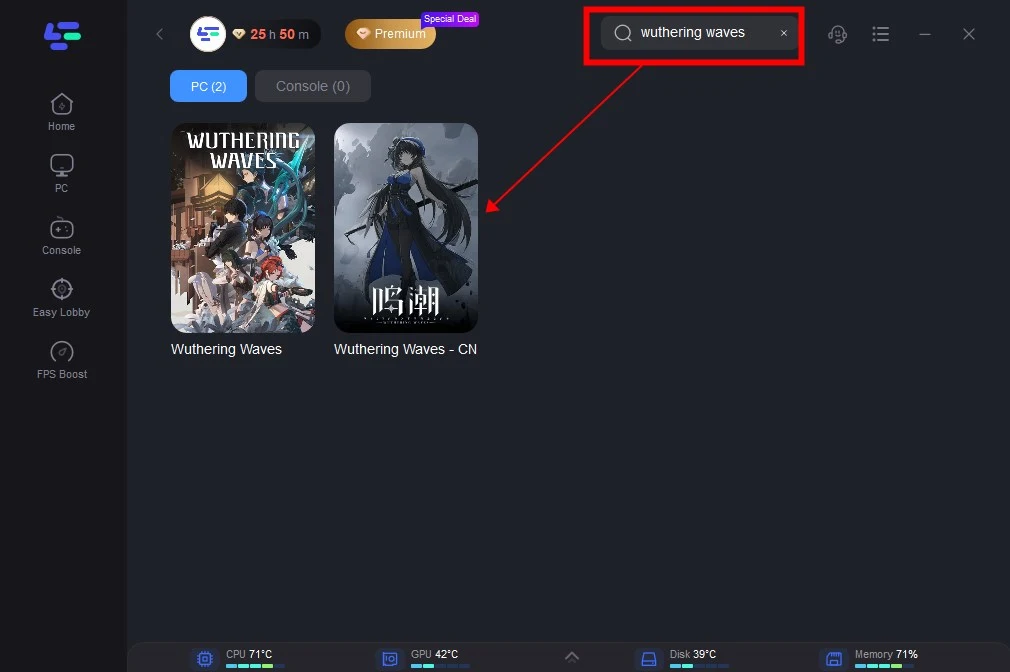
Step 2: Open LagoFast then click the PC button on the left and search Wuthering Waves in the search bar, click it after appearing.
Step 3: Click the Game Screen Filter Tool on the right.
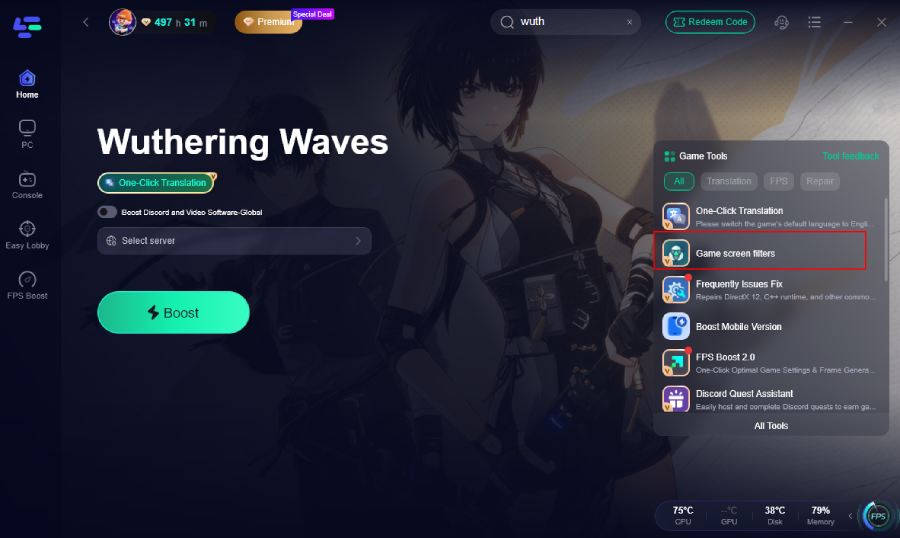
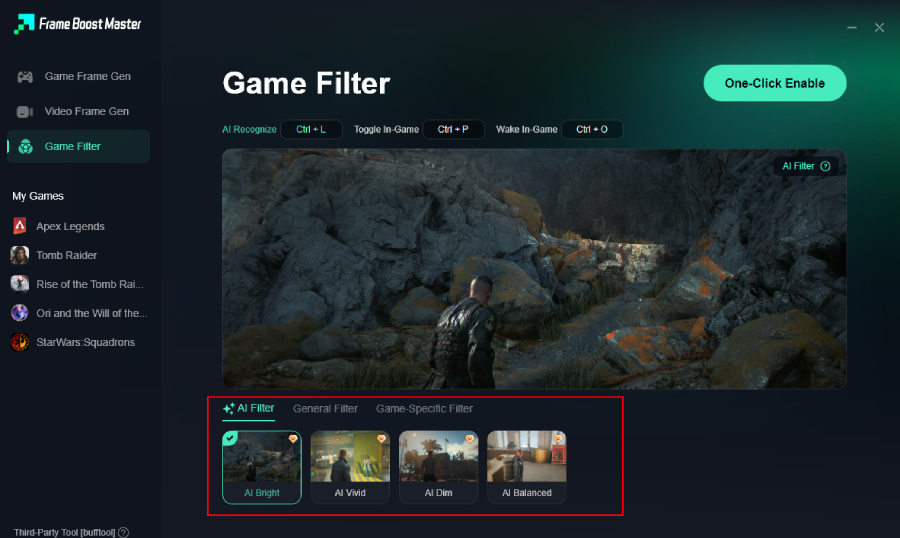
Step 4. Select your preferred filter like AI Bright and click One-Click Enable button to unlock the new experience.
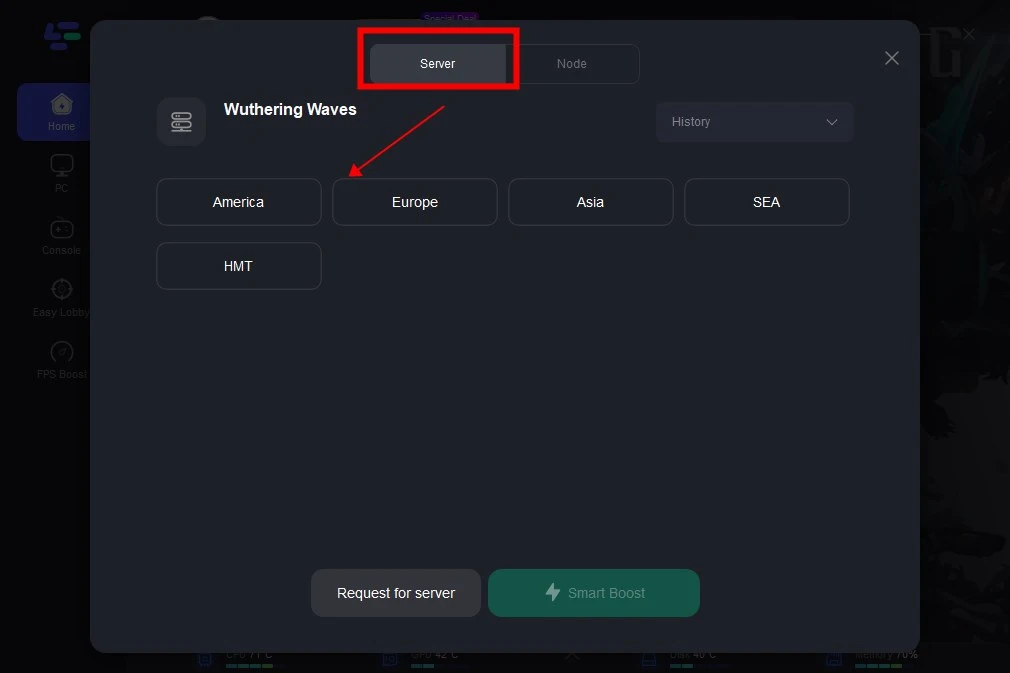
Step 5: Click on “Server” to change to a better server that ensures the gaming experience, then click on “Smart Boost”.
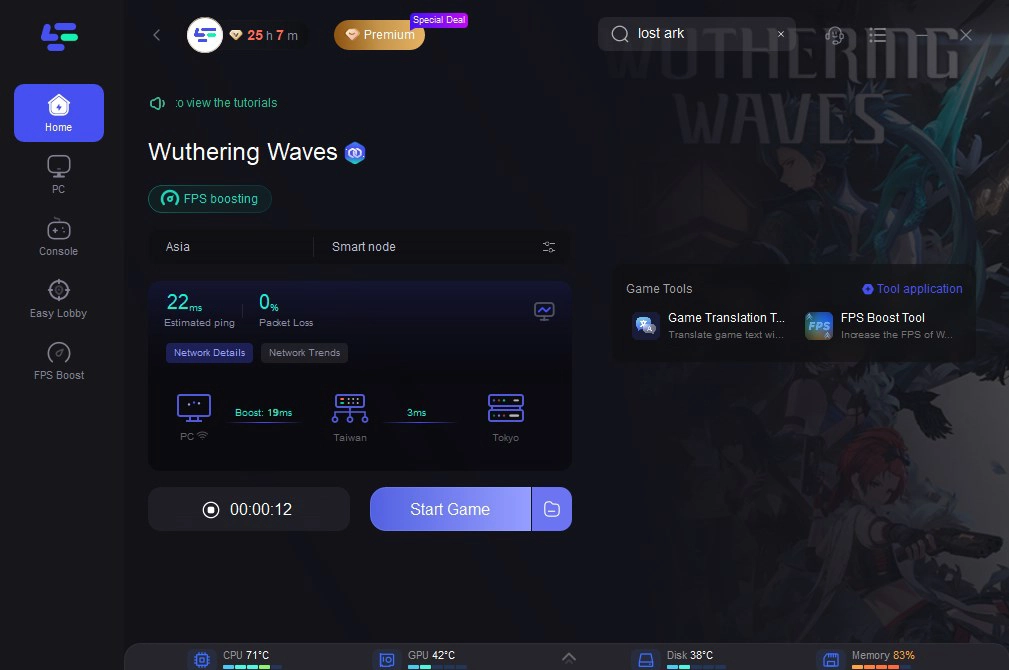
Step 6: Check the specific game ping, packet loss, and multiple path connection on the right side. Finally, click the “Start Game” to play the game.
By combining optimized network performance with professional-grade visual presets, you can enjoy Solaris-3 exactly the way you want it—vibrant, clear, and lag-free.
Part 8: Frequently Asked Questions (FAQs)
Q1: Does changing the Global Filter affect my FPS?
A1: Generally, the in-game Global Filter has a very minimal impact on performance as it is a post-processing effect. However, extreme settings for Sharpness or certain complex filters might cause a slight dip on lower-end systems.
Q2: Why does my game look blurry even with high Sharpness?
A2: Blurriness is often caused by the game's anti-aliasing (TAA) or low resolution scale. Ensure your resolution is set to 100% and consider using the "Vibrant" filter with moderate sharpness to counteract the TAA softness.
Q3: Can I use Nvidia Freestyle filters with Wuthering Waves?
A3: Yes, if you have an Nvidia GPU, you can use Alt+F3 to apply filters. However, these can be more resource-heavy than the native Global Filter or optimized tools like LagoFast.
Q4: What is the best filter for mobile players?
A4: For mobile, the "Sunshine" filter with low intensity is usually best. It adds a bit of color without making the screen too dark, which can be an issue when playing in bright environments or on screens with lower peak brightness.
Q5: Will using external filter tools get me banned?
A5: Tools that only affect the visual output (post-processing) and do not modify the game's internal files or provide a competitive advantage are typically safe. LagoFast is designed to be a safe, performance-oriented utility for gamers.
Key Takeaway
Mastering your Wuthering Waves Global Filter Settings is the fastest way to upgrade your gaming experience from "standard" to "stunning." While the in-game options provide a solid foundation for vibrant, cinematic, or soft visuals, the lack of a preset saving system can be a major hurdle. By utilizing the LagoFast Game Filter, you can overcome these limitations with one-click presets and multiple save slots, all while ensuring your connection remains stable and lag-free. Don't settle for a washed-out world—optimize your visuals today and see Solaris-3 in a whole new light.
Boost Your Game with LagoFast for Epic Speed
Play harder, faster. LagoFast game booster eliminates stutter and lags on PC, mobile, or Mac—win every match!
Quickly Reduce Game Lag and Ping!
Boost FPS for Smoother Gameplay!