
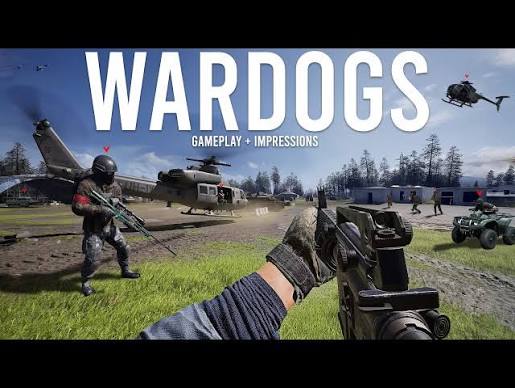
If WARDOGS is stuck on loading screen, first check exactly which loading screen it is stuck on.
The current Closed Beta #2 has several different issues that look almost identical: the Elytra anti-cheat bar may loop before the menu, shader compilation may appear stuck or cause a crash, logging in may spin indefinitely, connecting to a server may fail during loading, and for some players, one match works normally but an WARDOGS loading screen after match appears before the next map and never ends.
Use this table before changing anything:
|
Where WARDOGS gets stuck |
What to try first |
|---|---|
|
Elytra / anti-cheat loading bar |
Repair Elytra |
|
WARDOGS compiling shaders stuck |
Wait once, then check HAGS |
|
WARDOGS stuck on logging in / infinite “Logging In” |
LagoFast / server status |
|
Queue or login loading |
Do not restart the game while the queue is moving |
|
WARDOGS stuck joining server / loading after selecting a server |
LagoFast / another server |
|
Crash during server loading or faction screen |
Check AES-NI |
|
WARDOGS loading screen after match / infinite loading after a match |
Restart the game and join a new server |
|
Entire PC freezes/restarts during loading |
Stop and troubleshoot the local issue first |
Fix 1. WARDOGS stuck on logging in or loading the server — try LagoFast first
Use this solution if WARDOGS already launches normally but gets stuck during:
- Logging In;
- connecting to online services;
- logging into the server;
- loading the selected server;
- transitioning from the lobby into a match;
- repeated attempts to connect to the server.
This is different from shader or anti-cheat issues. The client is already running; the problem appears when WARDOGS tries to establish an online session.
This is especially relevant during the current large-scale test because WARDOGS is specifically testing server scaling, the server browser, login queues, and other systems that only break under a large player load.
How to use LagoFast when WARDOGS is stuck loading
1. Close the WARDOGS Playtest.
2. Completely exit Steam.
3. Open LagoFast.
4. Find WARDOGS.
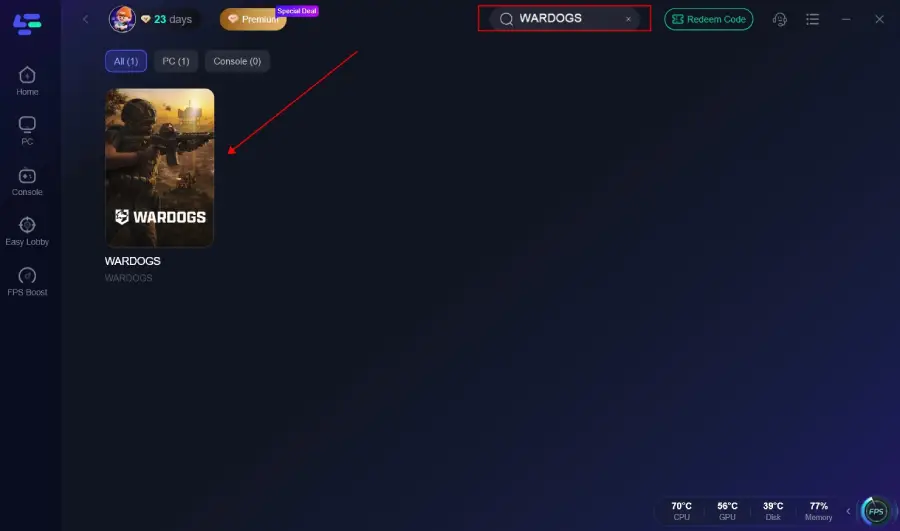
5. Select the region where you actually want to play.
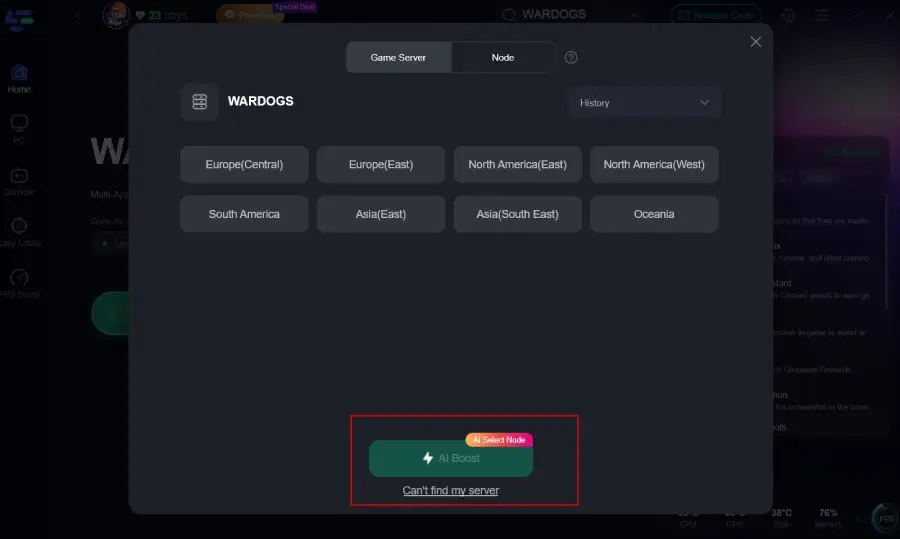
6. Select the recommended stable node.
7. Click Boost.
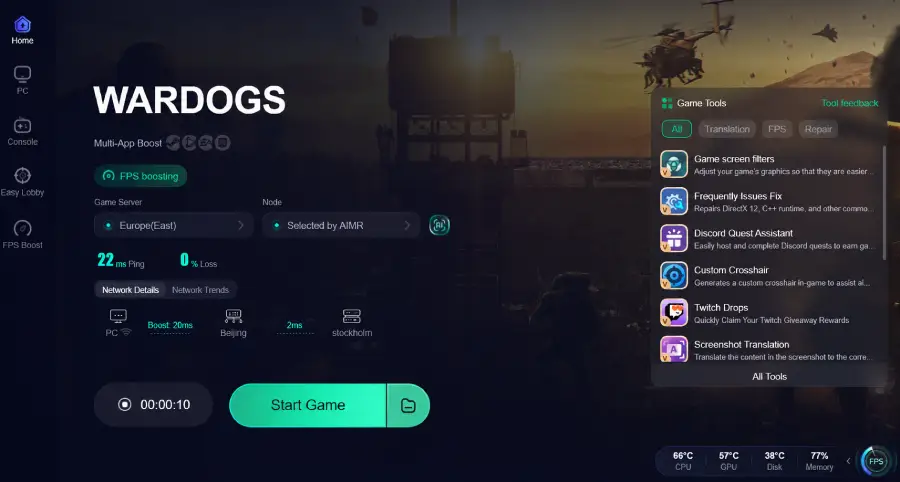
8. Open Steam again.
9. Launch WARDOGS.
10. Try joining the server again.
If WARDOGS can now pass through:
Logging In → Server Browser → Server Loading → Faction Selection
keep this route active for the entire gaming session.
LagoFast is useful when the loading screen is caused by a connection-routing problem to WARDOGS login servers or game servers. It will not fix a broken Elytra installation, a crash during shader compilation, or a server that is completely overloaded.
Fix 2. The Elytra loading bar loops before the main menu
Beta #2 introduced another anti-cheat startup path, and on some systems the game now stops while loading Elytra without ever reaching the WARDOGS menu.
The current symptom looks like this:
Steam → WARDOGS Playtest → Elytra loading bar → loading bar repeats indefinitely
Some systems that worked normally in the previous beta have also encountered this issue.
Repair Elytra
1. Close WARDOGS.
2. Exit Steam through the system tray.
3. Open:
C:\Program Files (x86)\Steam\steamapps\common\WARDOGS Playtest\Elytra
4. Run:
Elytra-Setup.exe
5. Select Repair.
6. Wait for the repair to finish.
7. Open Task Manager and make sure there are no old Steam or WARDOGS processes remaining.
8. Right-click Steam and select Run as administrator.
9. Launch WARDOGS Playtest again.
This combination — repairing Elytra, completely restarting Steam, and launching Steam with elevated privileges — has helped some affected Beta #2 installations get through the anti-cheat startup stage.
Also close other anti-cheat software
If Elytra still does not initialize, close other game security software before the next launch.
A recent example is Riot Vanguard running at the same time as Elytra. Disabling Vanguard and restarting resolved the startup problem on some systems, although it does not work for everyone. Malwarebytes has also been mentioned in connection with some Beta #2 startup failures.
Do not permanently disable all Windows security. Check the conflicting application, identify the cause of the problem, and then restore your normal protection.
Fix 3. WARDOGS looks stuck on “Compiling Shaders”
Do not immediately force-close WARDOGS if you see:
Compiling Shaders
During the first launch, shader compilation can take unexpectedly long. In previous tests, some systems appeared completely frozen for 10–20 minutes and then continued loading. After the shader cache was created, subsequent launches became much faster.
If the progress is still moving
Wait.
You do not need to:
- press Alt+F4;
- restart Steam;
- clear the shader cache;
- reinstall WARDOGS.
If you interrupt the process, there is a high chance that the shaders will have to be compiled again.
If WARDOGS crashes every time during shader compilation
Try disabling Hardware-Accelerated GPU Scheduling:
- Open Windows Settings.
- Go to System → Display → Graphics.
- Open Advanced graphics settings.
- Turn off Hardware-Accelerated GPU Scheduling.
- Restart Windows.
- Launch WARDOGS again.
On some systems, this allowed WARDOGS to successfully pass the shader compilation stage when the game had previously crashed consistently. This is not a universal solution, so if disabling HAGS makes the situation worse on your system, turn it back on.
Fix 4. WARDOGS loads the firing range but gets stuck joining a server
This is one of the most useful ways to diagnose the current Beta #2 problem.
If you can:
launch WARDOGS → enter the firing range → move around normally
but then:
select a server → loading screen → freeze/crash
then the shader cache and basic game startup are already working.
Do not continue reinstalling the entire game.
First try:
- Launch WARDOGS through LagoFast.
- Open Server Browser.
- Select only one region.
- Refresh the server list.
- Select another server.
- Try joining again.
WARDOGS has already had an issue with the Server Browser where selecting multiple regions could produce incorrect or empty results, so keep only one region selected while testing.
If every server in one region gets stuck during loading, check another region before changing Windows settings.
Fix 5. WARDOGS crashes on the faction selection screen
One of the current Beta #2 crashes looks like this:
Connecting to server → loading screen → faction/team selection appears → game closes
or:
Connecting to server → crash before faction selection
This has been reported even on systems that worked without problems in the previous beta. Many users have already tried:
- reinstalling WARDOGS;
- verifying files;
- disabling overlays;
- disabling HAGS;
- updating GPU drivers;
- repairing the anti-cheat;
but these steps did not fix this particular crash.
One workaround currently worth checking is AES-NI.
Check AES-NI in BIOS
Only do this if you are comfortable entering the BIOS.
- Restart your PC.
- Enter BIOS/UEFI using the key specified by your motherboard manufacturer.
- Find the Advanced, CPU, or Security section.
- Look for AES-NI, Intel AES-NI, or a similar AES option for the processor.
- Make sure it is set to Enabled.
- Save the changes and restart Windows.
- Launch WARDOGS and try joining a server again.
Do not change CPU voltages, memory timings, Secure Boot, overclocking settings, or other unrelated BIOS options.
If AES-NI is already enabled, do not change anything. This is a targeted workaround for the current server-loading/faction-selection crash, not a setting that every WARDOGS player needs to modify.
Fix 6. Infinite loading screen after the first match
There is another Beta #2 issue where the first match works perfectly.
Then:
match ends → next map begins loading → loading screen never finishes
In affected sessions, the game may remain stuck indefinitely, and the only way out may be Alt+F4. Some users report that the first server load from the lobby works reliably, while the automatic transition to the second map does not.
If this is your case:
- Wait a little to make sure the server is actually switching.
- If the game remains stuck indefinitely, close WARDOGS.
- Open the game again.
- Return to Server Browser.
- Manually join a new server.
- Keep LagoFast active if the previous online session was stable.
Do not reinstall the game after every match.
At the moment, this looks more like a match-transition/server-session bug than a corrupted installation.
Fix 7. WARDOGS stuck on “Logging In”
If your loading screen says:
Logging In
then the problem is not related to loading the map.
Russian users, in particular, have encountered an infinite login where the loading indicator does not move to either the queue or the main menu. In some cases, another connection route allowed the client to reach the login queue; in others, the problem was that the WARDOGS login service itself was overloaded.
Use the following rule:
The queue does not appear
Use LagoFast and check another WARDOGS connection route.
The queue appears and the number is moving
Stay in the queue.
The queue finishes and you are returned to Login
The authentication service is failing. Wait before joining another large queue.
Everyone is having the same problem
Do not reinstall anything. The login service needs to recover.
WARDOGS has previously confirmed that a high volume of logins exposed backend problems that were not visible during smaller tests.
Fix 8. The server loading screen freezes under high load
A server loading freeze may simply be related to a lack of available resources.
During the previous beta, users could successfully enter the game and select a server, then get stuck on the server loading screen while servers were heavily populated. Others could enter the firing range but freeze when trying to load a full multiplayer session.
Before changing anything in Windows:
- Return to Server Browser.
- Select another server.
- Prefer a server that is not completely full.
- Keep only one region selected.
- If necessary, check another region.
- If all available servers are failing at the same time, wait.
If the server itself cannot create a session for you, reinstalling the client will not create free server capacity.
Fix 9. WARDOGS gets stuck or reboots the entire PC during loading
This is no longer an infinite loading screen.
If:
- Windows freezes;
- the PC restarts;
- a BSOD appears;
- USB devices stop responding;
- the screen turns black;
stop repeatedly launching WARDOGS.
Previous WARDOGS builds revealed conflicts with the inpoutx64 driver, which is often associated with older RGB or hardware-control utilities. Disabling this driver allowed some affected systems to complete full matches.
However, Beta #2 also introduced new Elytra-related crashes that are not caused by inpoutx64, so do not blindly disable system drivers simply because an old solution once existed.
A safer order of operations is:
Restart PC → repair Elytra → close RGB/monitoring software → verify files → test again
If Windows itself continues to crash, stop there and wait for a fix from WARDOGS/Elytra rather than repeatedly triggering kernel-level crashes.
Fix 10. Only verify WARDOGS files when it actually makes sense
Verifying files is useful after:
- an interrupted Beta #2 update;
- repairing Elytra;
- a crash during patch installation;
- errors about a missing executable;
- repeated startup problems.
How to verify the files
- Open Steam.
- Right-click WARDOGS Playtest.
- Select Properties.
- Open Installed Files.
- Click Verify integrity of game files.
- Wait for the verification to finish in Steam.
- Restart Steam.
- Launch WARDOGS again.
However, verifying files will do little if:
- the login servers are overloaded;
- only one server is stuck;
- the transition to the next map is broken;
- all players are getting stuck at the same point.
Choose the solution based on the specific issue you are experiencing.
Boost Your Game with LagoFast for Epic Speed
Play harder, faster. LagoFast game booster eliminates stutter and lags on PC, mobile, or Mac—win every match!
Quickly Reduce Game Lag and Ping!
Boost FPS for Smoother Gameplay!