
League of Legends has recently integrated Riot Vanguard, its powerful anti-cheat system, to keep matches fair and secure. While Vanguard helps maintain competitive integrity, it has also introduced a wide range of error codes that can prevent players from launching the game or connecting to Riot’s servers. These errors, often beginning with “VAN,” can be intimidating at first glance, but most of them have straightforward solutions. In this guide, we’ll cover all the common Vanguard error codes in League of Legends, explain what they mean, and provide step-by-step solutions so you can get back to playing quickly.

- ✅ Reduce Lag and High Ping.
- ✅ Boost FPS at the Same Time.
- ✅ Support 2000+ Online Games
- ✅ Change Server Without Latency.
- ✅ Multiplatform: PC, Console, Mobile.
Part 1: Vanguard Error Codes and Solutions League of Legends
Part 2: How to Fix Vanguard Error Codes in A Quick Way
Part 1: Vanguard Error Codes and Solutions League of Legends
Below is a detailed list of League of Legends Vanguard errors and their fixes. Each section includes the error code, its meaning, and step-by-step instructions for resolving it.
VAN -1: Uninstall Failure
This occurs when Riot Vanguard fails to uninstall correctly.
Solution:
Step 1. Press Windows + R to open the Run dialog.
Step 2. Type appwiz.cpl and hit Enter.

Step 3. Locate Riot Vanguard in the list of installed programs.
Step 4. Select it, then click Uninstall.
Step 5. Reboot your PC and reinstall Riot Vanguard by launching League of Legends again.
Step 6. If the issue continues, visit Riot’s support page and submit a ticket.
VAN 0 / VAN 1 / VAN 6: Connection Error
These errors usually occur when the Riot Client or League of Legends has been running too long without restarting.
Solution:
Step 1. Close both League of Legends and the Riot Client completely.
Step 2. Open Task Manager (Ctrl + Shift + Esc) and end any Riot-related tasks.

Step 3. Restart your computer.
Step 4. Launch the Riot Client again and log in.
Step 5. Start League of Legends to verify the fix.
VAN 57: Vanguard Not Running
This error means Vanguard isn’t active when trying to launch the game.
Solution:
Step 1. Restart your PC to ensure Vanguard runs on boot.
Step 2. If the problem persists, open Task Manager and check if Vanguard (vgc.exe) is running.
Step 3. If not, press Windows + R, type services.msc, and hit Enter.

Step 4. Locate vgc service, right-click, and select Start.
Step 5. If the service won’t start, uninstall both Riot Vanguard and League of Legends, then reinstall them.
VAN 68 / VAN 84: Network Connection Errors
These indicate issues with your internet connection.
Solution:
Step 1. Ensure your internet is stable (try a wired connection if possible).
Step 2. Restart your router.
Step 3. Close League of Legends and Riot Client.
Step 4. Open Command Prompt (Run → type cmd).
Step 5. Type ipconfig /flushdns and press Enter.

Step 6. Then type netsh winsock reset and press Enter.
Step 7. Restart your PC and relaunch the game.
VAN -81: Connection Error
This is a recurring installation or service error.
Solution:
Step 1. Restart your PC and Riot Client.
Step 2. If the error persists, uninstall Riot Vanguard and League of Legends.
Step 3. Delete leftover files in:

- C:\Program Files\Riot Vanguard
- C:\Program Files\Riot Games
Step 4. Reinstall the Riot Client and League of Legends.
Step 5. Try launching the game again.
VAN -100 / VAN -101: Connection Errors
These codes usually signal Riot Client issues.
Solution:
Step 1. Restart your Riot Client.
Step 2. Reboot your PC.
Step 3. If the issue persists, temporarily disable your firewall or antivirus.
Step 4. Relaunch the game.
Step 5. If nothing works, submit a ticket to Riot Support.
VAN -102 / VAN -104: Connection Errors
These often stem from corrupted installation files.
Solution:
Step 1. Restart your PC and Riot Client.
Step 2. If the problem continues, uninstall Riot Vanguard and League of Legends.
Step 3. Reinstall both using the official Riot Client installer.
Step 4. If the issue persists, reach out to Riot Support.
VAN 128: Critical Vanguard Error
A notorious error, often linked to software conflicts.
Solution:
Step 1. Restart your PC and Riot Client.
Step 2. If the error continues, follow Riot’s official Troubleshooting VAN 128 guide.
Step 3. Uninstall suspicious third-party programs that may interfere.
Step 4. Reinstall Riot Vanguard and League of Legends.
Step 5. If unresolved, contact Riot Support.
VAN 138: Virtual Machine Error
Triggered if you’re running LoL on a VM.
Solution:
Step 1. Ensure you’re using a standard Windows installation.
Step 2. Avoid running League of Legends on a virtual machine.
Step 3. Install Riot Client and Vanguard directly on a physical Windows PC.
VAN 185: Client Running Too Long or Logged on Multiple Devices

Solution:
Step 1. Log out of all Riot Clients on other devices.
Step 2. Close Riot Client and League of Legends on your current PC.

Step 3. Restart your computer.
Step 4. Launch Riot Client and log in again.
VAN 1067: Unusual Software Detected
Solution:
Step 1. Restart your PC and Riot Client.
Step 2. Open Task Manager (Ctrl + Shift + Esc).
Step 3. Look for suspicious processes or third-party overlays.
Step 4. Run a full Windows Security Scan to check for malware.

Step 5. Remove unnecessary background apps before launching LoL.
VAN 9002: Exploit Protection Not Enabled
Solution:
Step 1. Open Windows Security and select App & browser control.
Step 2. Click Exploit protection settings.
Step 3. Ensure Exploit Protection is set to On by default.
Step 4. Restart your PC and relaunch the game.
Part 2: How to Fix Vanguard Error Codes in A Quick Way
If you’re tired of constant League of Legends Vanguard errors, a faster solution is to use LagoFast, a professional game accelerator. LagoFast helps optimize your connection, reduce lag spikes, and stabilize communication between Riot’s servers and your PC, thereby reducing the chances of VAN errors caused by unstable networks.
Key Features of LagoFast:
- One-click optimization for LoL and other online games.
- Intelligent routing system to lower latency and improve connection stability.
- Built-in FPS booster to smooth performance.
- Lightweight software that doesn’t interfere with Vanguard.
Many players find that after setting up LagoFast, both lag and Vanguard-related connection issues disappear.
Follow the tutorial to use LagoFast to elevate the League of Legends gaming experience:
Step 1: Click the Free Trial button to download and install LagoFast.
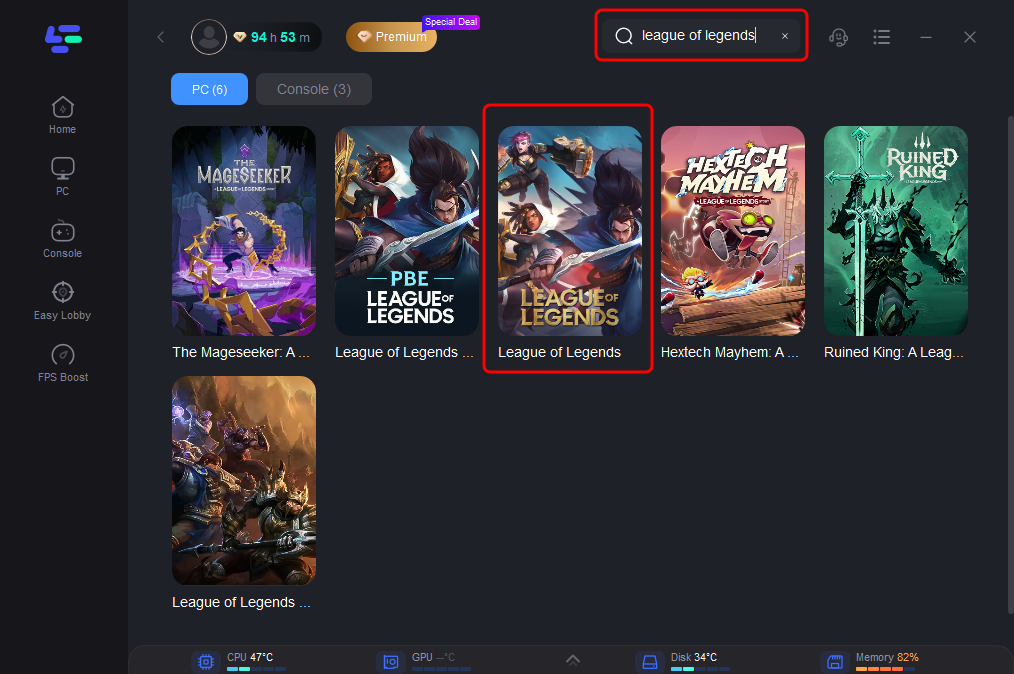
Step 2: Open LagoFast, then click the PC button on the left and search for League of Legends in the search bar, click it after it appears.
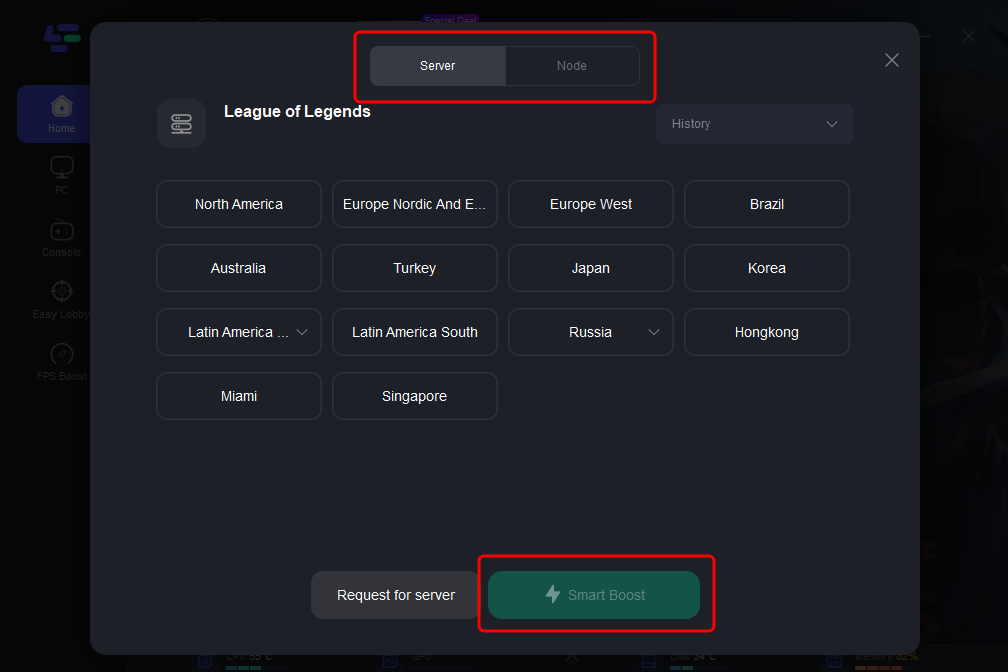
Step 3: Click on “Server” to change to a stable server that can ensure a smooth gaming experience, then click on “Smart Boost”.
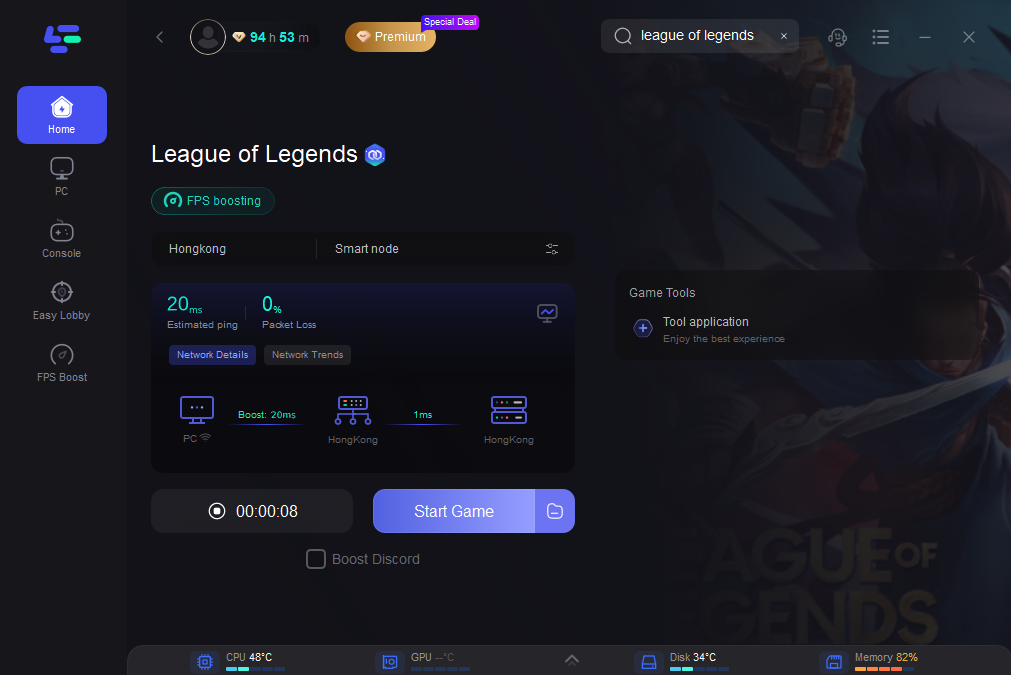
Step 4: Check the specific game ping, packet loss, and multiple path connection on the right side. Finally, click the “Start Game” to play the game.
Conclusion
While Vanguard ensures fair play in League of Legends, it can occasionally lock players out with cryptic error codes. Thankfully, most Vanguard errors, from VAN -1 uninstall failures to VAN 128 connection issues, have straightforward fixes, usually involving restarts, reinstalls, or enabling system settings like TPM and UEFI. If you’ve tried every fix and are still struggling, consider using LagoFast to stabilize your connection and eliminate Vanguard-related issues. With the right steps and tools, you can overcome these hurdles quickly and get back to what matters most: climbing the ranks in League of Legends.

Boost Your Game with LagoFast for Epic Speed
Play harder, faster. LagoFast game booster eliminates stutter and lags on PC, mobile, or Mac—win every match!
Quickly Reduce Game Lag and Ping!
Boost FPS for Smoother Gameplay!