
If you are experiencing random game crashes lately, you are definitely not alone. According to a massive Reddit thread tracking recent technical bugs, a deeply frustrating new issue has surfaced where the VGC service keeps stopping while playing VALORANT, causing VAL 5 / VAN 185 errors.
The frustrating part? Your system seems completely fine at first. You boot up your PC, launch the game without a hitch, and jump into a match. But just a few minutes in, the Riot Vanguard (VGC) service suddenly stops by itself. Instantly, you disconnect from the server and are slapped with an unforgiving error screen. Let's break down exactly why this is happening and how to fix it for good.

- ✅ Reduce Lag and High Ping.
✅ Boost FPS at the Same Time.
✅ Support 3000+ Popular Online Games.
✅ Change Server without Latency.
✅ Boost Game Loading Speed.
Part 1: Why Are VAL 5 and VAN 185 Appearing After Patch 13.01?
Part 2: Are Valorant VAL 5 and VAN 185 the Same Error?
Part 3: Check Whether the VGC Service Has Stopped
Part 4: Fix 1: Fully Exit and Restart Riot Client
Part 5: Fix 2: Log Out of Riot Client on Other Devices
Part 6: Fix 3: Restart and Reconfigure the VGC Service
Part 7: Fix 4: Reinstall Riot Vanguard
Part 8: Fix 5: Remove Conflicting Background Software
Part 9: Fix 6: Repair Riot Client Session and Network Connection
Part 10: What to Do If VAL 5 or VAN 185 Keeps Returning
Part 11: How to Submit Vanguard Logs to Riot Support
Part 12: Advanced Solution: Maximize Your Valorant Gaming Experience With LagoFast
Part 1: Why Are VAL 5 and VAN 185 Appearing After Patch 13.01?

Whenever Riot Games rolls out a new patch, they often make backend tweaks to Riot Vanguard's security protocols to stay ahead of cheating software. Unfortunately, the Valorant VAL 5 and VAL 185 After Patch 13.01 issues emerged because these heightened security checks are misfiring.
The update made Vanguard incredibly sensitive to background network fluctuations and specific driver interactions. If Vanguard detects a slight delay in a background process, or if it clashes with Windows IPv6 tunneling (like Teredo), the system forcefully stops the VGC service to protect the game environment. You aren't getting hacked, and your hardware isn't broken. It is essentially a false positive that breaks the communication handshake between your client and Riot's servers, ultimately forcing the game to terminate your session mid-match.
Part 2: Are Valorant VAL 5 and VAN 185 the Same Error?
You might notice that players in the community use these codes interchangeably, especially when discussing the dreaded Valorant VAN 5 after patch bugs. While they occur under the exact same conditions during this specific glitch, they technically mean different things on Riot's backend.
What VAL 5 Officially Means
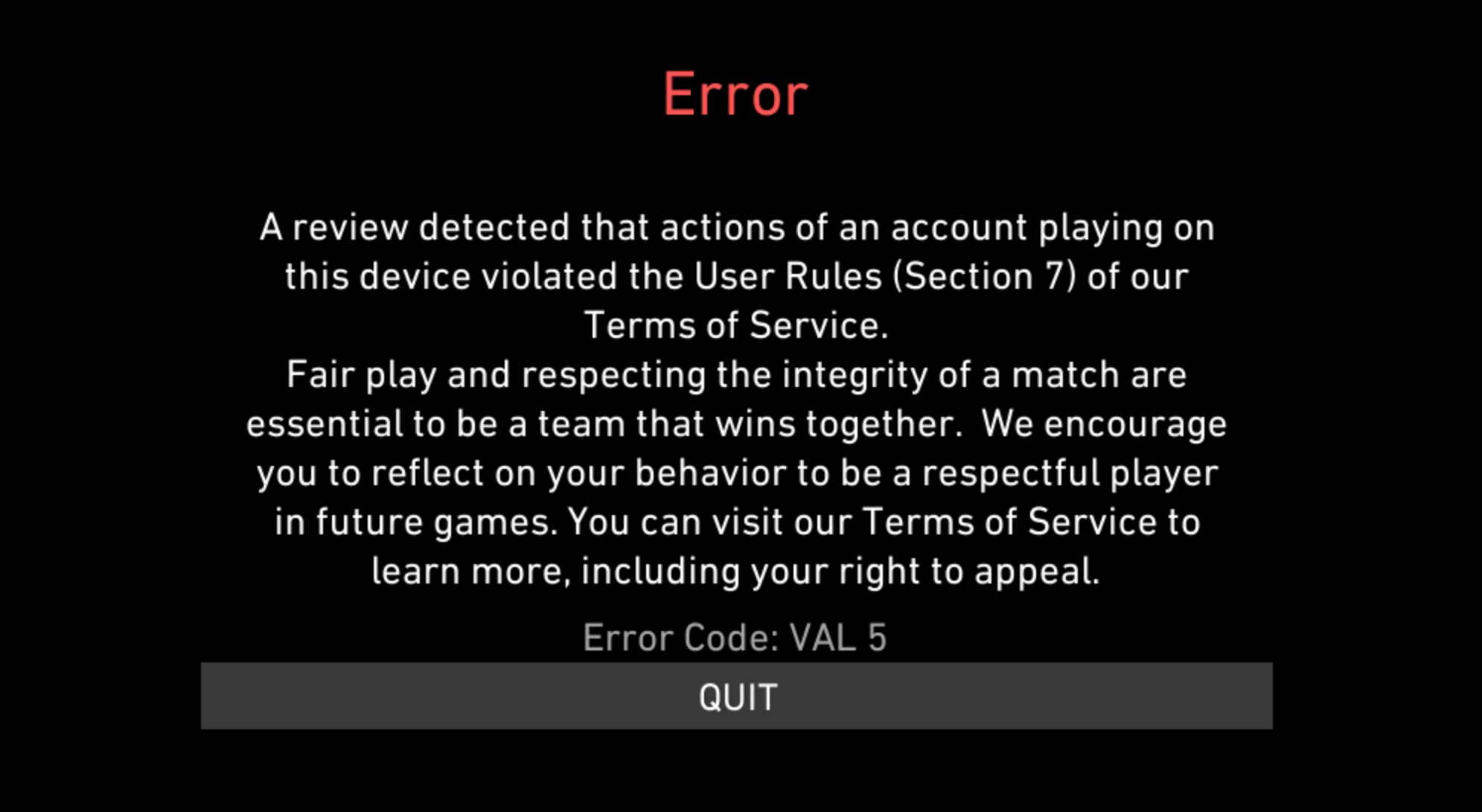
The Valorant error code VAL 5 officially indicates that your account session has been terminated. Under normal circumstances, this code pops up if you log into your Riot account on a different computer while the game is already running. However, in the context of the recent patch, the game server simply loses track of your active Vanguard session and forcefully kicks you out, thinking the connection is no longer secure.
What VAN 185 Officially Means
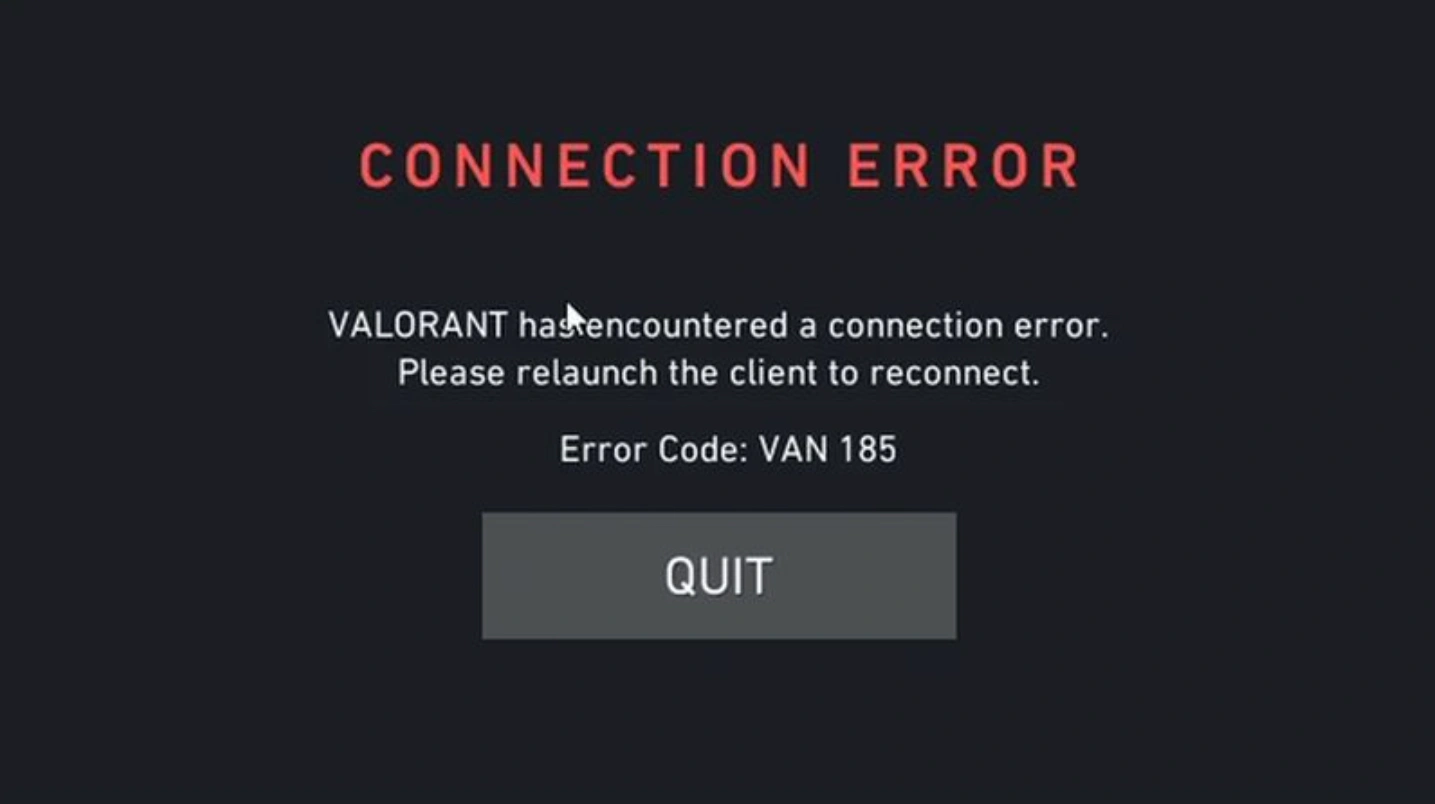
Unlike a session termination, VAN 185 is strictly an anti-cheat infrastructure error. Vanguard relies on a constant "heartbeat" sent from your PC to Riot's servers to prove the anti-cheat is actively running. When the system fails to send this heartbeat, the server assumes Vanguard has crashed (or was bypassed) and throws the VAN 185 error to disconnect you.
How VGC Stopping Can Trigger Both Errors
Despite the different definitions, the sequence of events causing both errors is identical right now. Here is the exact chain reaction:
- VGC starts normally when you boot your PC.
- You enter a match for a few minutes.
- A background conflict occurs, and the VGC service automatically stops.
- VALORANT loses the anti-cheat heartbeat, severing your connection.
- You get kicked to the lobby and see either VAL 5 or VAN 185.
Because the root cause is the same, the solutions below will cure both codes.
Part 3: Check Whether the VGC Service Has Stopped
Before diving into complex command lines, you need to verify if the VGC service is actually the culprit. To do this, play a standard match (or Deathmatch) until you experience the Valorant VAL 5 mid-game crash. Immediately after disconnecting, press the Windows Key + R to open the Run dialog box. Type services.msc and hit Enter.
Scroll all the way down the list until you find the service labeled "vgc". Check the "Status" column next to it. If it is entirely blank instead of saying "Running," you have confirmed that you are suffering from the Valorant VAL 5 VGC service stopped issue.
Part 4: Fix 1: Fully Exit and Restart Riot Client
A quick client restart is sometimes all it takes to resolve temporary session glitches. This isn't just about clicking the 'X' button; you need to completely kill all hidden background processes so Vanguard can establish a fresh, uninterrupted connection to the Riot servers before launching the game again.
Step 1. Locate the Riot Client icon in your Windows system tray, which is found in the bottom right corner of your taskbar.
Step 2. Right-click the icon and select "Exit" to shut down the client's background standby mode.
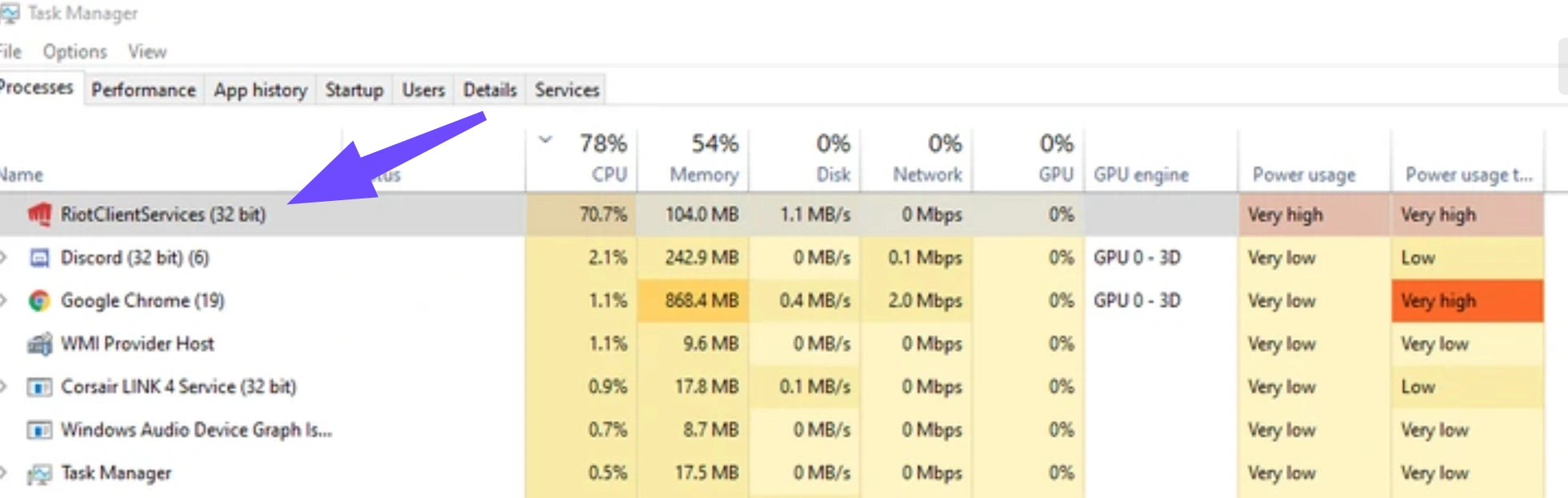
Step 3. Press Ctrl + Shift + Esc on your keyboard to pull up the Windows Task Manager.
Step 4. Scroll through the "Processes" tab, search for any remaining "Riot" or "Valorant" tasks, right-click them, and choose "End Task".
Step 5. Search for the Riot Client in your Windows Start menu, right-click it, and select "Run as Administrator" to relaunch it cleanly.
Part 5: Fix 2: Log Out of Riot Client on Other Devices
Because VAL 5 specifically targets overlapping account sessions, forcing a universal logout secures your connection status. If you accidentally left your account logged in on a secondary laptop, an older PC, or a friend's rig, it will continuously interrupt your current match and trigger the session-drop error code.
Step 1. Open your preferred web browser and navigate to the official Riot Games account management website.
Step 2. Log into the portal using your primary Valorant username and password.
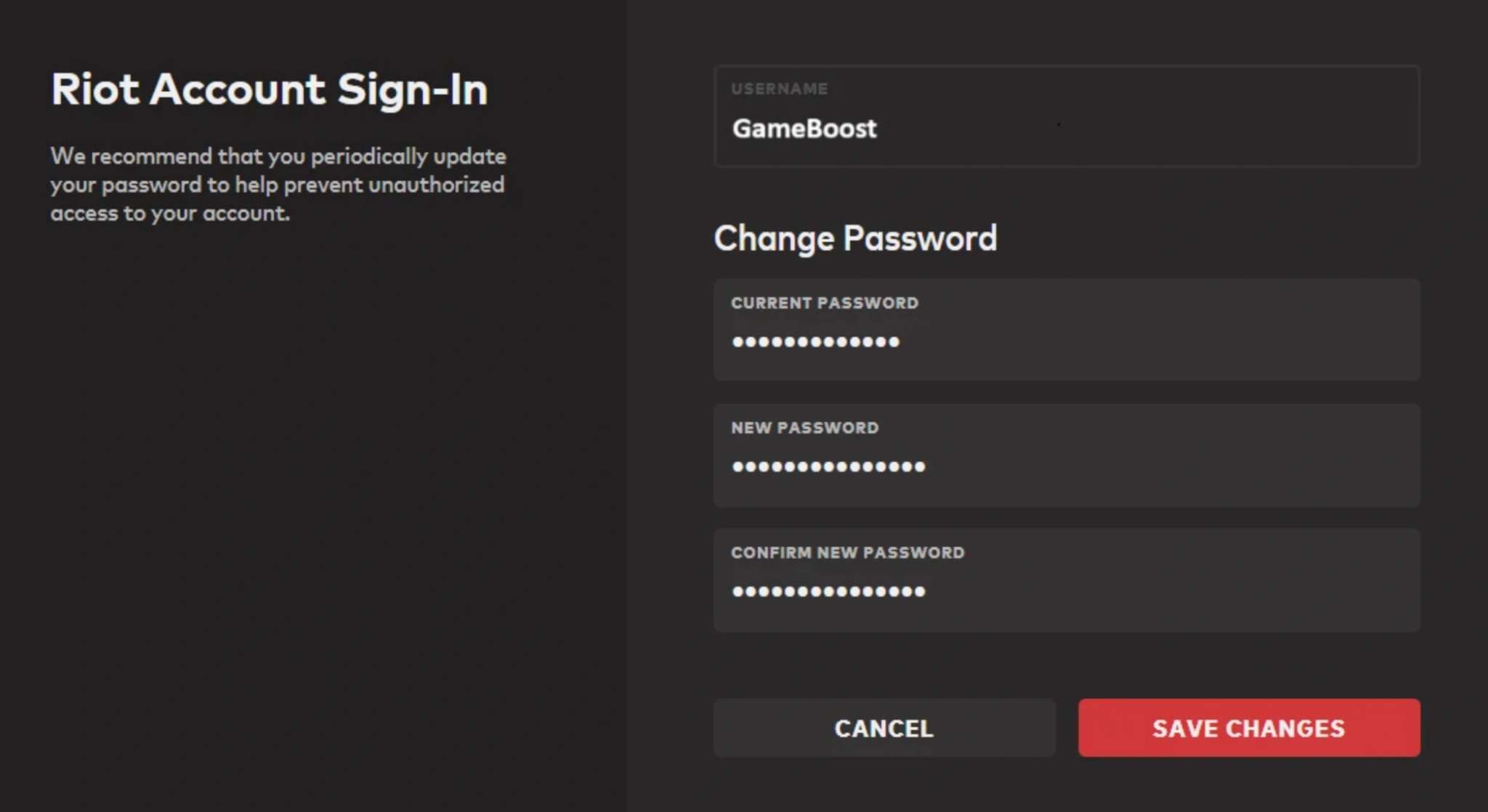
Step 3. Look at the left-side navigation menu and click on the "Sign-In Management" tab.
Step 4. Locate the large red button that says "Log Out Everywhere" and click it to terminate all active sessions.
Step 5. Boot up the Riot Client on your main gaming PC, type in your credentials to log back in, and test the game.
Part 6: Fix 3: Restart and Reconfigure the VGC Service
You must force Windows to aggressively recover Vanguard if it ever crashes while you are playing. Adjusting the system recovery properties within the Services menu ensures that if the service suddenly dies, Windows will immediately boot it back up before the Riot servers have a chance to kick you out.
Step 1. Press Windows Key + R to bring up the Run command window, type services.msc, and press Enter.
Step 2. Scroll down the alphabetical list of services until you locate the one named "vgc".
Step 3. Right-click on "vgc", select "Properties" from the context menu, and change the "Startup type" dropdown box to "Automatic".
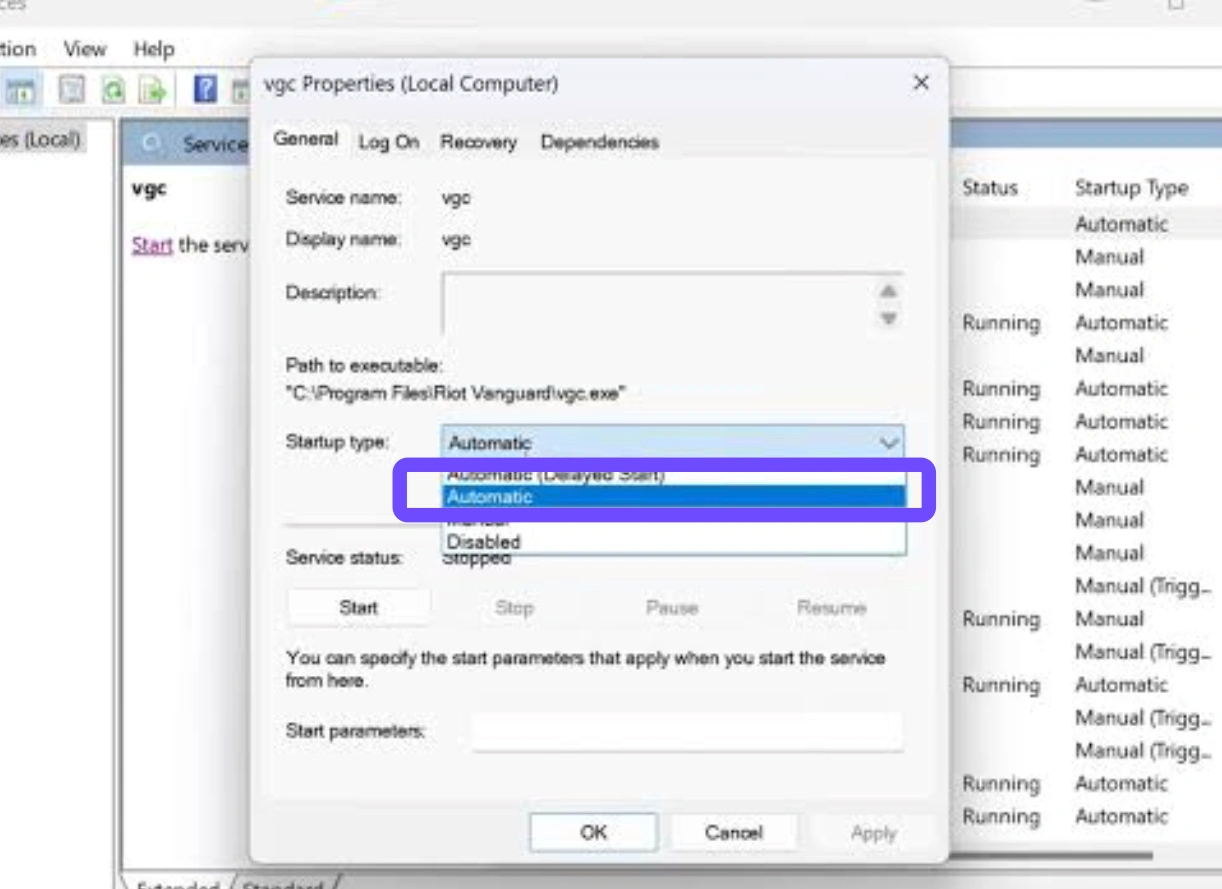
Step 4. Navigate to the "Recovery" tab located at the top of the properties window.
Step 5. Change both the "First failure" and "Second failure" drop-down menus to "Restart the Service", click Apply, and then click OK.
Part 7: Fix 4: Reinstall Riot Vanguard
Legacy configuration files often get corrupted after major patches. Executing a deep clean of Vanguard through the command line and deleting residual boot data is heavily recommended by technical support to permanently eliminate the Valorant VAN 5 After Patch 13.01 crashing loops.
Step 1. Click the Windows Start button, type "cmd", right-click the "Command Prompt" application, and choose "Run as administrator".
Step 2. Type sc delete vgc and hit Enter, then type sc delete vgk and hit Enter to wipe the system services.
Step 3. Open your File Explorer, navigate to C:\Windows, and manually delete the file named vgkbootstatus.dat.
Step 4. Open your Windows Settings, go to "Apps", find "Riot Vanguard" in the list, and completely uninstall it.
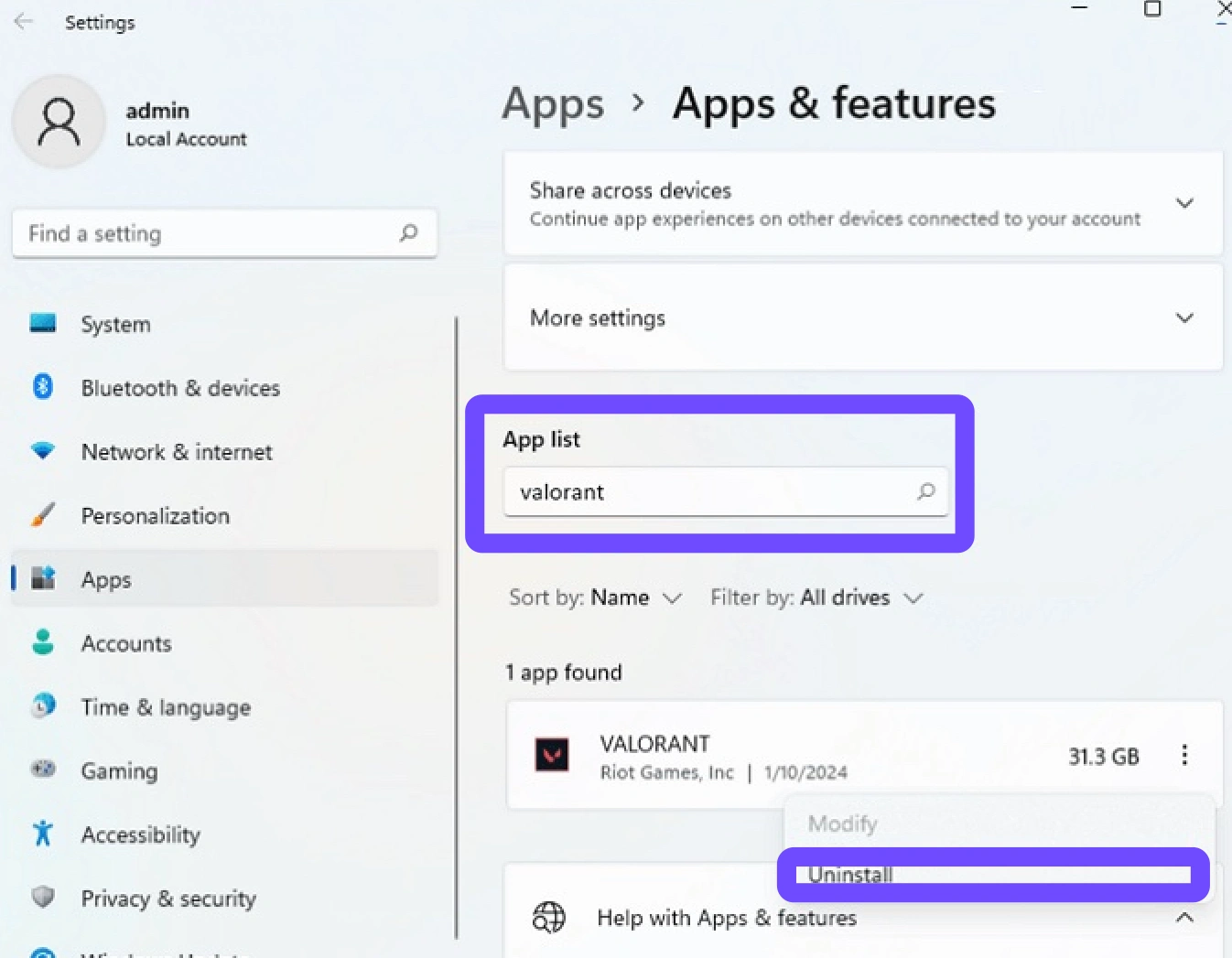
Step 5. Perform a full system reboot (do not just click shut down), open the Valorant desktop shortcut, and allow the client to redownload Vanguard fresh.
Part 8: Fix 5: Remove Conflicting Background Software
Aggressive third-party antiviruses, hardware RGB controllers, and virtual network adapters are notorious for unexpectedly blocking the VGC process. Disabling these non-essential background tasks frees up heavy system resources and stops the unauthorized interruptions that lead directly to the Valorant VAL 5 keeps disconnecting loop.
Step 1. Press Windows Key + R, type msconfig into the Run box, and hit Enter to launch the System Configuration tool.
Step 2. Navigate to the "Services" tab at the top and check the crucial box at the bottom left that says "Hide all Microsoft services".
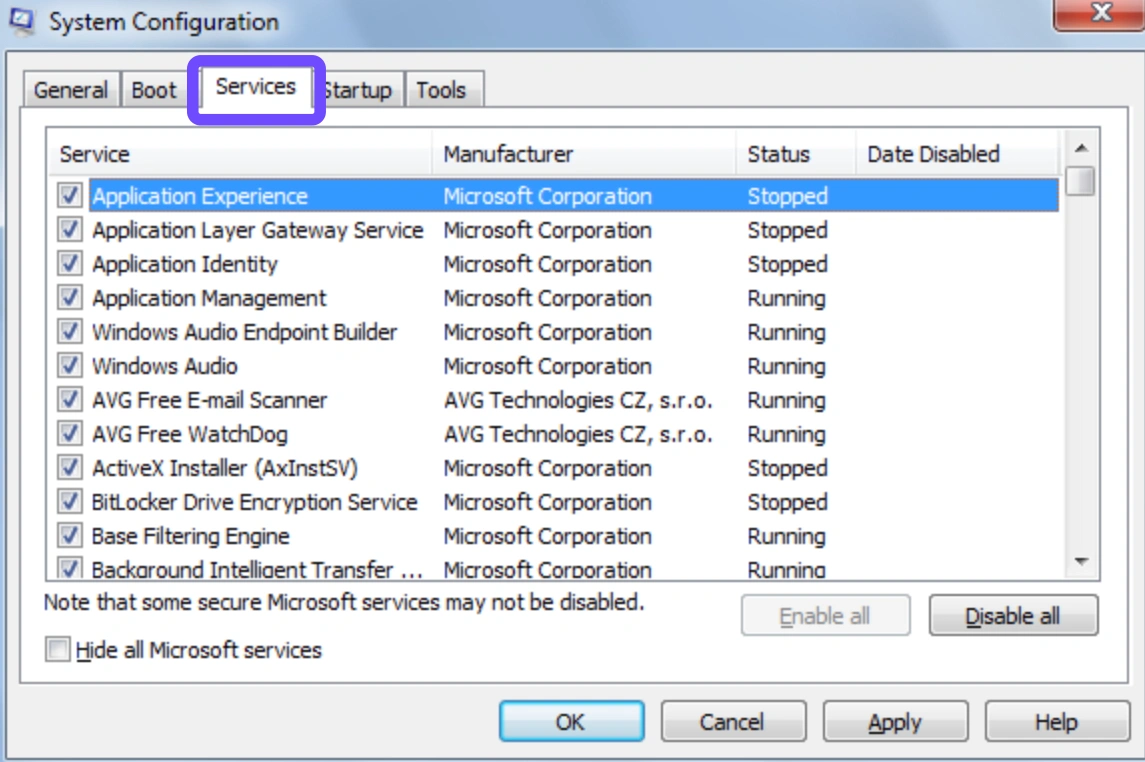
Step 3. Click the "Disable all" button to shut down unnecessary background applications from third-party developers.
Step 4. Manually scroll through the remaining disabled list, locate the "vgc" service, and check its box so Vanguard is allowed to run.
Step 5. Click Apply, click OK, restart your computer when prompted, and jump into a Deathmatch to verify stability.
Part 9: Fix 6: Repair Riot Client Session and Network Connection
A massive wave of Reddit users discovered that disabling the IPv6 Teredo tunneling interface instantly resolves these specific session drops. Running a quick network command forces your system to rely on standard IPv4 routing, fixing the Valorant Error Code -102 and 185 Fix network desyncs instantly.
Step 1. Open your Windows Start menu, type "cmd", right-click the Command Prompt icon, and select "Run as administrator".
Step 2. Carefully type or paste the following exact command into the terminal: netsh interface teredo set state disabled
Step 3. Press Enter, and wait for the console to display a simple "Ok." message, confirming the interface was successfully disabled.
Step 4. Next, type ipconfig /flushdns and hit Enter to clear out any corrupted DNS cache on your local network.
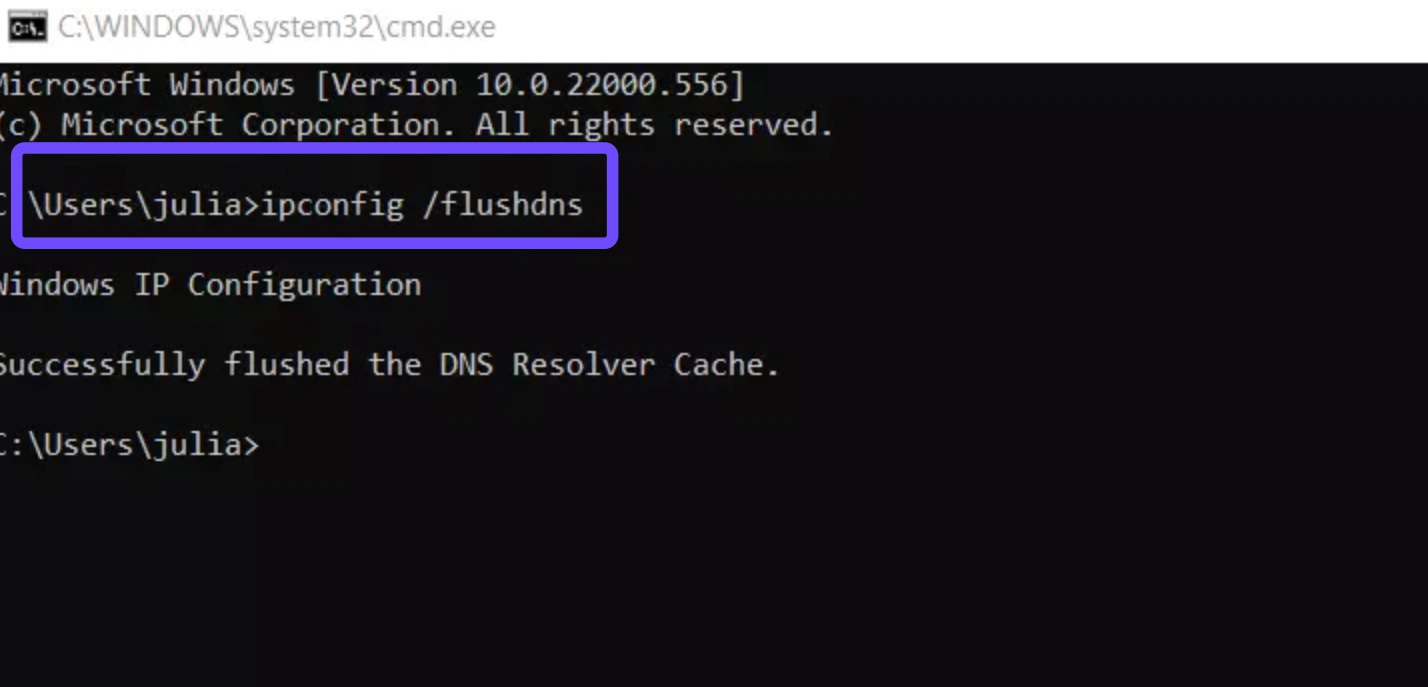
Step 5. Restart your PC completely, boot up the Riot Client, and play a match to confirm the VGC service holds steady.
Part 10: What to Do If VAL 5 or VAN 185 Keeps Returning
If errors persist after trying standard fixes, the root cause often lies within your motherboard's security settings. Vanguard relies heavily on Secure Boot and TPM 2.0, meaning hardware authentication failures can continuously break your connection and trigger errors.
Step 1. Press Win + X, select Event Viewer, navigate to Windows Logs, and select System.
Step 2. Look for TPM execution errors or MeasuredBoot failures (referencing EkCert or AikCert) matching your disconnect time.
Step 3. Restart your PC and press your dedicated key (such as Del or F2) to enter the BIOS interface.
Step 4. Verify that Secure Boot is fully enabled, then toggle TPM 2.0 (or fTPM/Intel PTT) off and back on.
Step 5. Save your BIOS settings, restart Windows, and update your BIOS firmware to the latest version if the issue recurs.
Part 11: How to Submit Vanguard Logs to Riot Support
When you hit a brick wall and community fixes aren't enough, gathering your backend data using the official Riot Repair Tool is the best next step. This program packs up your system logs, network routing paths, and crash dumps into a neat zip file for developers to analyze.
Step 1. Go to the official Riot Games Support website and download the Riot Repair Tool (RRT) for Windows.
Step 2. Locate the downloaded file in your folder, right-click the application, and select "Run as Administrator".
Step 3. When the tool opens, choose "Valorant" from the main menu of available Riot titles.
Step 4. Click the "Start" button and wait a few minutes while the tool collects your VGC crash data and network logs.
Step 5. Head back to the Riot Support page, open a new technical ticket, describe your issue, and attach the generated .zip file.
Part 12: Advanced Solution: Maximize Your Valorant Gaming Experience With LagoFast
When manual system tweaks and network resets aren't enough to solve persistent disconnects, the underlying issue is often unstable routing between your PC and Riot's servers. ISP network congestion, high packet loss, and jitter can prevent Vanguard from sending verification telemetry, leading directly to VGC shutdowns and error codes like VAL 5 and VAN 185.
LagoFast Game Booster is an all-in-one network optimization tool designed specifically to eliminate these connectivity bottlenecks without modifying core game files or triggering anti-cheat bans. Utilizing a proprietary real-time data transfer protocol and a global network of exclusive gaming nodes, LagoFast stabilizes your connection by automatically routing your traffic through the fastest, least congested pathways available.
Why LagoFast is the Best Fix for Valorant Connection Errors:
- Zero Packet Loss Routing: LagoFast locks onto dedicated gaming routes that prevent the packet drops responsible for interrupting Vanguard's security heartbeat.
- Real-Time Node Switching: If a server pathway experiences sudden latency spikes or DNS errors mid-match, LagoFast seamlessly transitions your connection to a stable backup node without dropping your game session.
- Built-in FPS Boost & System Optimization: Beyond network routing, LagoFast includes a dedicated FPS Boost panel that optimizes CPU thread allocation and disables unnecessary background Windows services that compete with VGC for system resources.
Tutorial: Use LagoFast to Fix Valorant Disconnects
Step 1. Download and Install LagoFast.
Step 2. Open LagoFast and type Valorant into the top search bar.
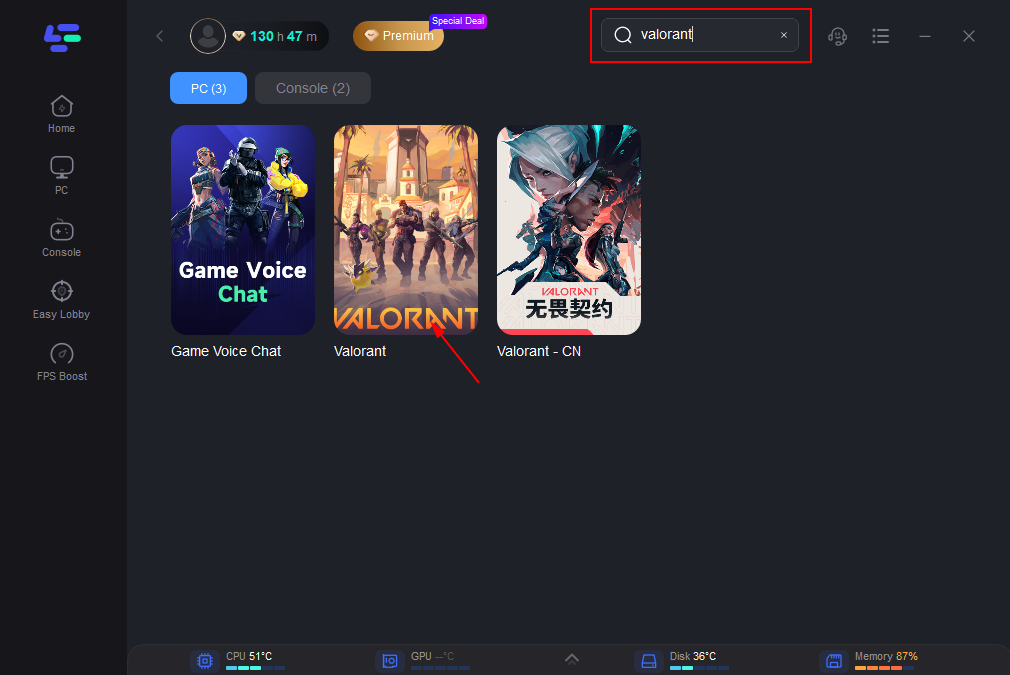
Step 3. Choose a server node that is geographically close to you to ensure a stable download speed.
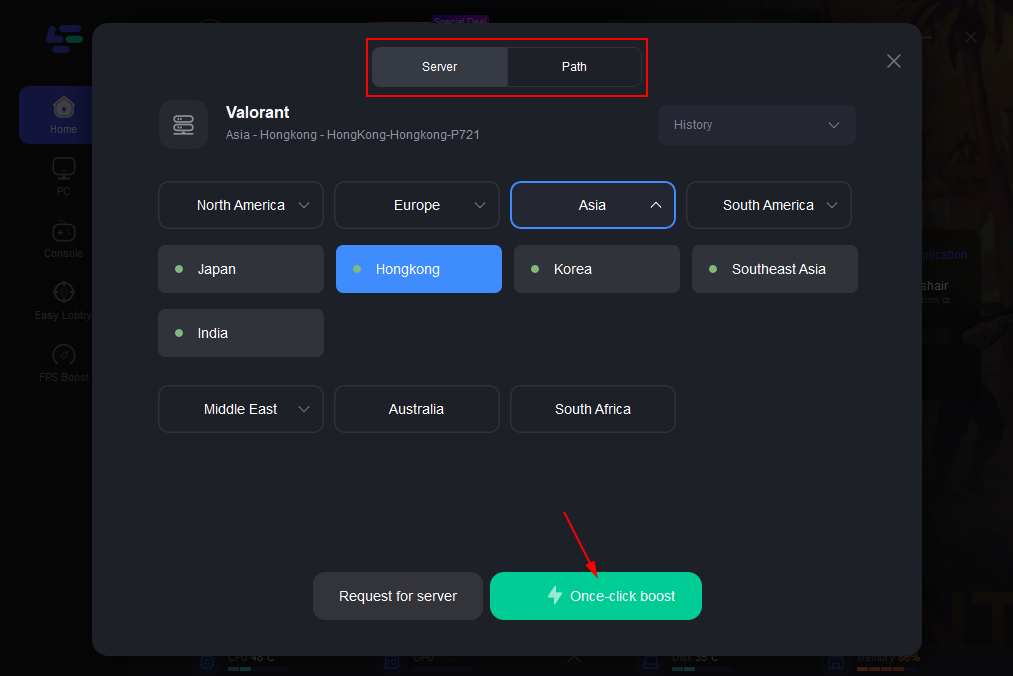
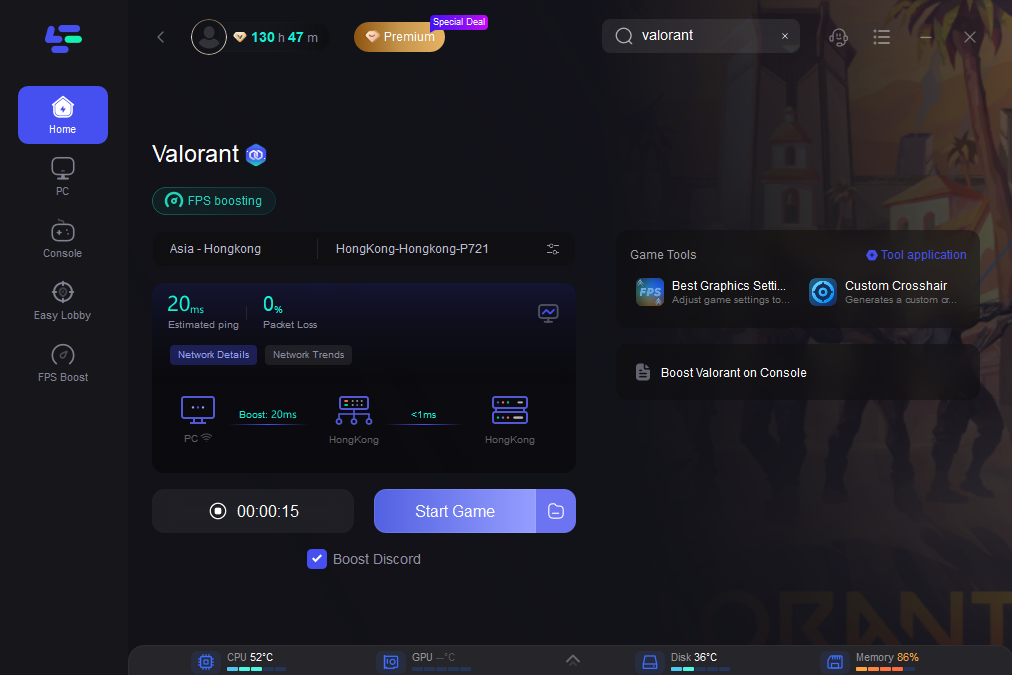
Step 4. Click the "Boost" button. LagoFast will instantly optimize your routing, stabilize your packet transfer rate, and lower your ping. Search for Valorant and launch the game directly from the boosted screen, and enjoy the smooth gaming experience.
Part 13: FAQs
Why does the Valorant VAL 5 mid game error happen instead of failing at startup?
Vanguard initializes fine when you first boot the PC. However, it requires a continuous background integrity check. If a background process, outdated driver, or network tunneling interface (like IPv6/Teredo) interrupts that heartbeat a few minutes into the match, the server terminates your session mid-game.
Is the Valorant error code VAL 5 a permanent account ban?
No, it is simply a session termination error indicating that the server lost connection to your client. However, if the disconnects happen repeatedly during competitive matches, you may receive temporary AFK queue restrictions.
What does the Valorant Error Code -102 and 185 Fix usually involve?
Both codes are tied to TPM hardware miscommunications and Vanguard drops. Fixing them generally requires disabling the Teredo network interface via the command prompt, clearing out corrupted TPM logs in your BIOS, or executing a completely clean installation of Riot Vanguard.
Why is the Valorant VAL 5 VGC service stopped randomly by Windows?
Windows OS prioritizes resource management and security. If it detects a conflicting system driver, or if the VGC service isn't manually set to "Automatic" restart in your Windows Services menu, the operating system might shut Vanguard down without warning.
Will reinstalling the base game stop the Valorant VAL 5 keeps disconnecting loop?
Sometimes, but usually, the base game files are perfectly fine. Fully deleting Vanguard through the command prompt (using the sc delete vgc command) and reinstalling only the anti-cheat is much faster and generally more effective than redownloading the entire massive game client.
Did the latest update cause the Valorant VAN 5 after patch errors?
Yes. Recent patches heavily updated Vanguard's strict background check requirements. This tightened security inadvertently started conflicting with normal network configurations, causing false positives that immediately drop players from active matches.
Conclusion
Dealing with the VGC service crashing randomly mid-match is undeniably frustrating, especially when it costs your team crucial competitive rounds. By addressing the root connection protocols, clearing out corrupted Vanguard configuration files, and disabling conflicting background network interfaces, you can permanently eradicate these errors. Stay patient, follow the steps closely, and utilize LagoFast for the ultimate long-term network stability!

Boost Your Game with LagoFast for Epic Speed
Play harder, faster. LagoFast game booster eliminates stutter and lags on PC, mobile, or Mac—win every match!
Quickly Reduce Game Lag and Ping!
Boost FPS for Smoother Gameplay!