
Are you hyped for the latest patch, only to watch the progress bar grind to an agonizing halt? Dealing with a Valorant Update Stuck or Slow issue is incredibly frustrating for any gamer eager to jump into a match. If you are staring at that dreaded 0.1 KB/s speed and nothing seems to work, don't worry. We've compiled the proven workarounds you need to force the client to cooperate.

- ✅ Reduce Lag and High Ping.
✅ Boost FPS at the Same Time.
✅ Support 8000+ Online Games
✅ Change Server Without Latency.
✅ Multiplatform: PC, Console, Mobile.
✅ End Connection & Crashing Issue
✅ Get Valorant Easier Server
Part 1: Why Is the Valorant Update Stuck at 0.1 KB/s & When Does It Happen?
Part 3: Top Solutions to Fix Valorant Update Stuck at 0.1 KB/s
Part 4: Why Can’t I Download a Valorant Update?
Part 5: Valorant Update Stuck at 0.1 KB/s FAQs
Part 1: Why Is the Valorant Update Stuck at 0.1 KB/s & When Does It Happen?
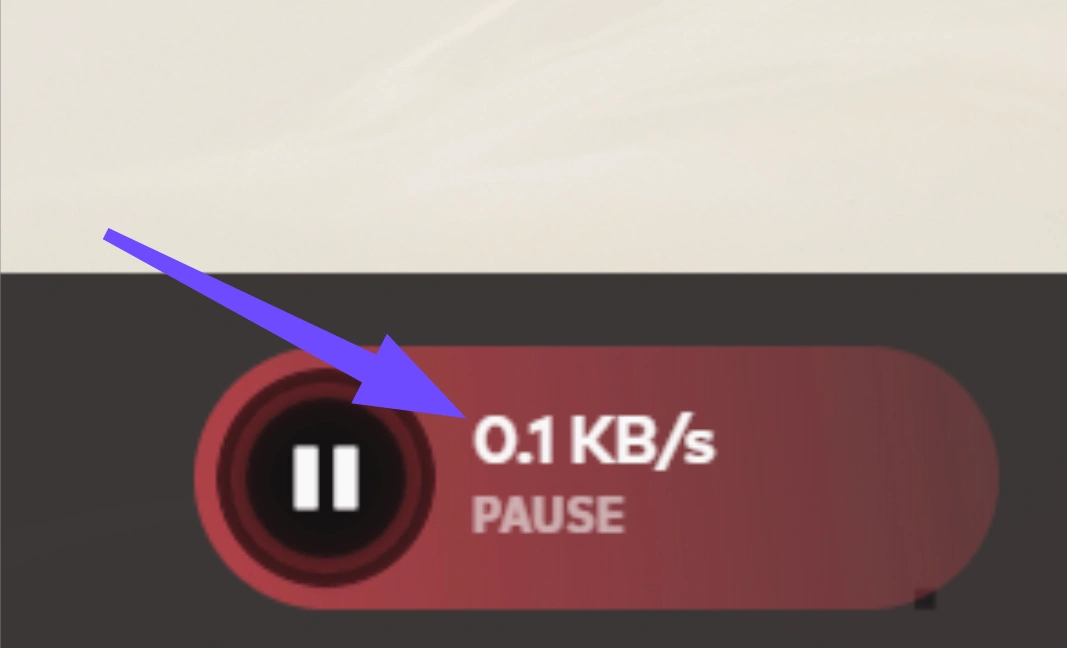
Seeing your valorant update stuck at 0.1 kb typically means the Riot Client has hit a wall while retrieving or applying patch files. This happens most frequently during major episode launches or massive seasonal updates when millions of players are trying to pull files simultaneously.
Unlike a simple weak Wi-Fi connection, this specific error usually points to an internal conflict. The client downloads a chunk of data, then temporarily pauses the network download to unpack and write those files to your hard drive. If your disk is busy, or if your local firewall blocks the extraction process, the client interface essentially flatlines. It sits there showing a 0.1 KB/s readout because the network has timed out waiting for your PC to catch up. Other times, background applications like Discord are quietly hoarding your bandwidth, or your Internet Service Provider is throttling your connection to Riot's servers.
Part 2: Valorant Update Stuck at 0.1 KB/s vs. Riot Client Slow Download vs. Valorant Slow Download Speed
A lot of players confuse a complete halt with just a general drop in speed. While they sound similar, diagnosing the exact behavior determines how you fix it. If the speed drops to practically zero, it's a specific anomaly. On the other hand, if things are just crawling but still progressing, it might be a general network bottleneck. Here is a breakdown of how to tell the difference.
|
Issue Type |
Symptoms |
Causes |
Quick Fixes |
|
Valorant update stuck at 0.1 kb |
Complete halt, stuck at 0 KB/s or 0.1 KB/s indefinitely, progress frozen. |
Disk write bottleneck, firewall block, or background app conflict. |
Restart client, close background apps, use a game booster like LagoFast. |
|
Riot Client Slow Download Speed |
Download proceeds, but speeds are sluggish across all Riot games (LOL, Valorant). |
Universal Riot Client issue, poor ISP routing, network congestion. |
Change DNS, flush DNS, or use a reliable game booster. |
|
VALORANT Slow Download Speed |
Speed and progress exist but are uncharacteristically low. |
High server traffic during season updates, Wi-Fi interference. |
Switch to wired Ethernet, pause and unpause the download. |
Part 3: Top Solutions to Fix Valorant Update Stuck at 0.1 KB/s
If your game client refuses to budge, here is exactly How to fix VALORANT update stuck at 0.1 kb/s using the most effective methods tested by the gaming community.
Use LagoFast Game Booster
LagoFast is a dedicated game booster built specifically to stabilize your connection and accelerate download speeds. If you constantly face server routing issues or hidden network throttling from your provider, LagoFast seamlessly bypasses these hurdles. By offering smart routing and optimized server nodes, it ensures your game patches update flawlessly without random drop-offs.
Key Features:
- Multi-path connection technology for stable game downloads.
- Built-in FPS boost capabilities to optimize PC performance.
- Reduces high ping and latency in competitive matches.
- Simple one-click boost interface designed for Valorant players.
How to use LagoFast to Fix Valorant Update Stuck at 0.1 KB/s:
Step 1. Download and Install: Click the Free Trial button to download and install LagoFast.
Step 2. Search for the Download Platform: Open the LagoFast app and type "Epic Games Store" into the search bar at the top.
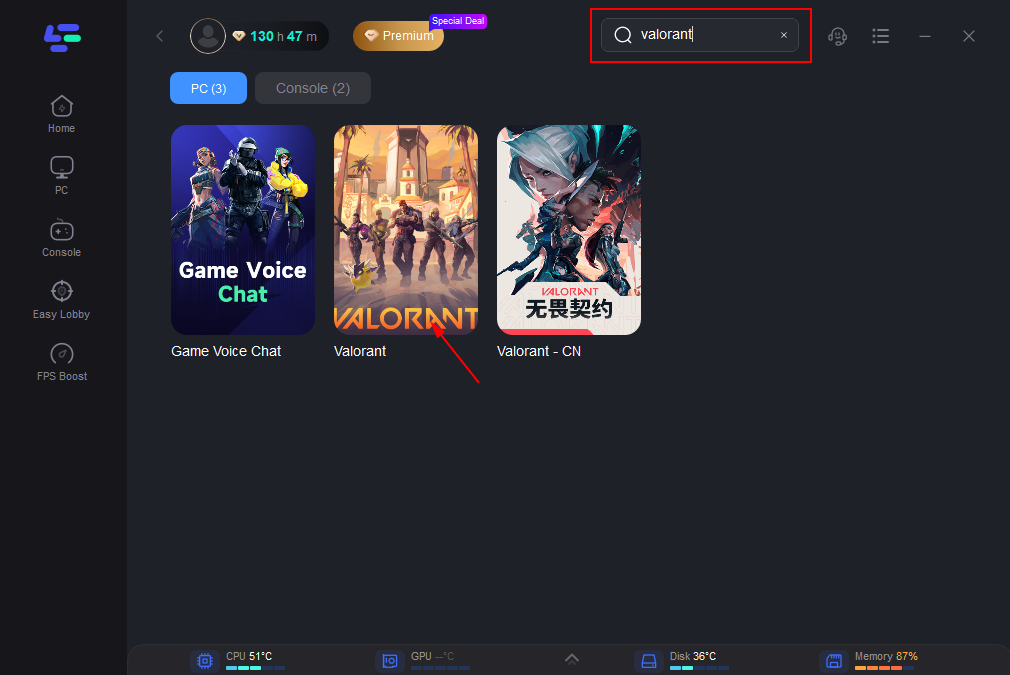
Step 3. Select Your Node: Choose a server node that is geographically close to you to ensure a stable download speed.
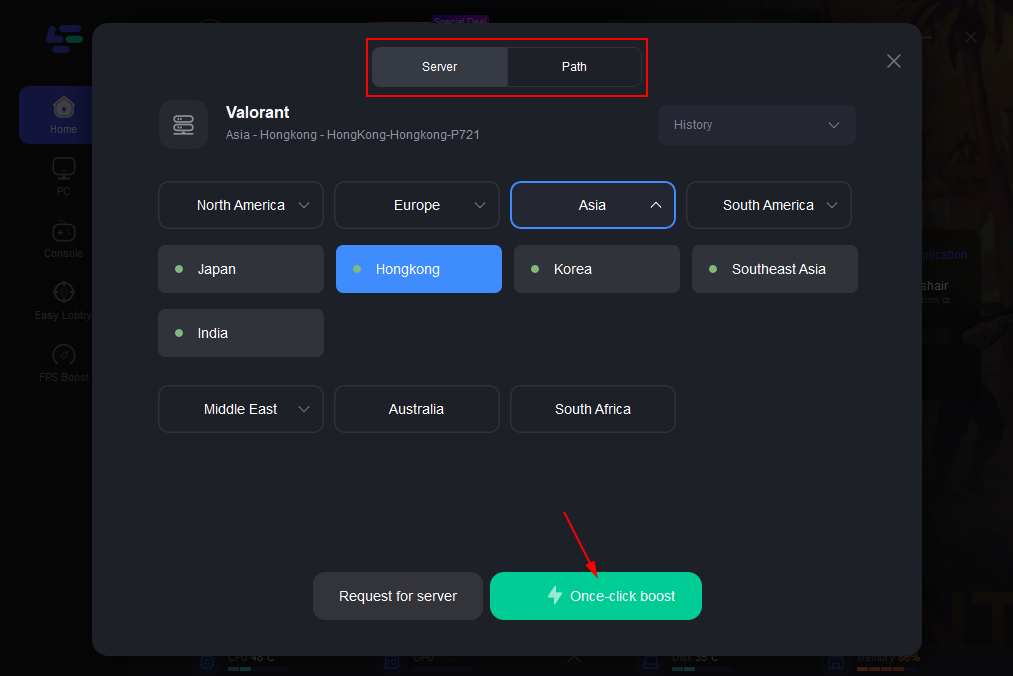
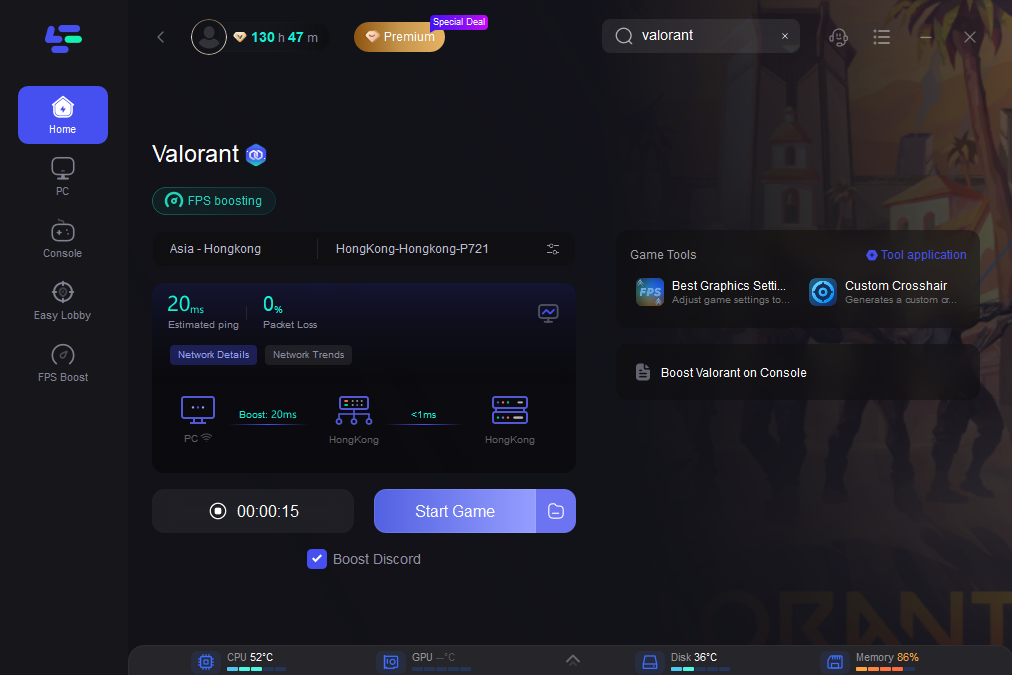
Step 4. Boost: Click the "Boost" button. LagoFast will instantly optimize your routing, stabilize your packet transfer rate, and lower your ping. Search for Valorant and launch the game directly from the boosted screen and enjoy the smooth gaming experience.
Close Resource-Hogging Background Apps
A bizarre but incredibly common culprit behind the valorant slow download stuck keeps getting stuck at 0.1 KB/s issue is other software interfering. Countless players have found that simply closing Discord instantly restored their download speeds.
Step 1. Press Ctrl + Shift + Esc on your keyboard to open the Task Manager.
Step 2. Navigate to the "Processes" tab at the top left.
Step 3. Locate active apps like Discord, Spotify, Steam, or background torrent software.
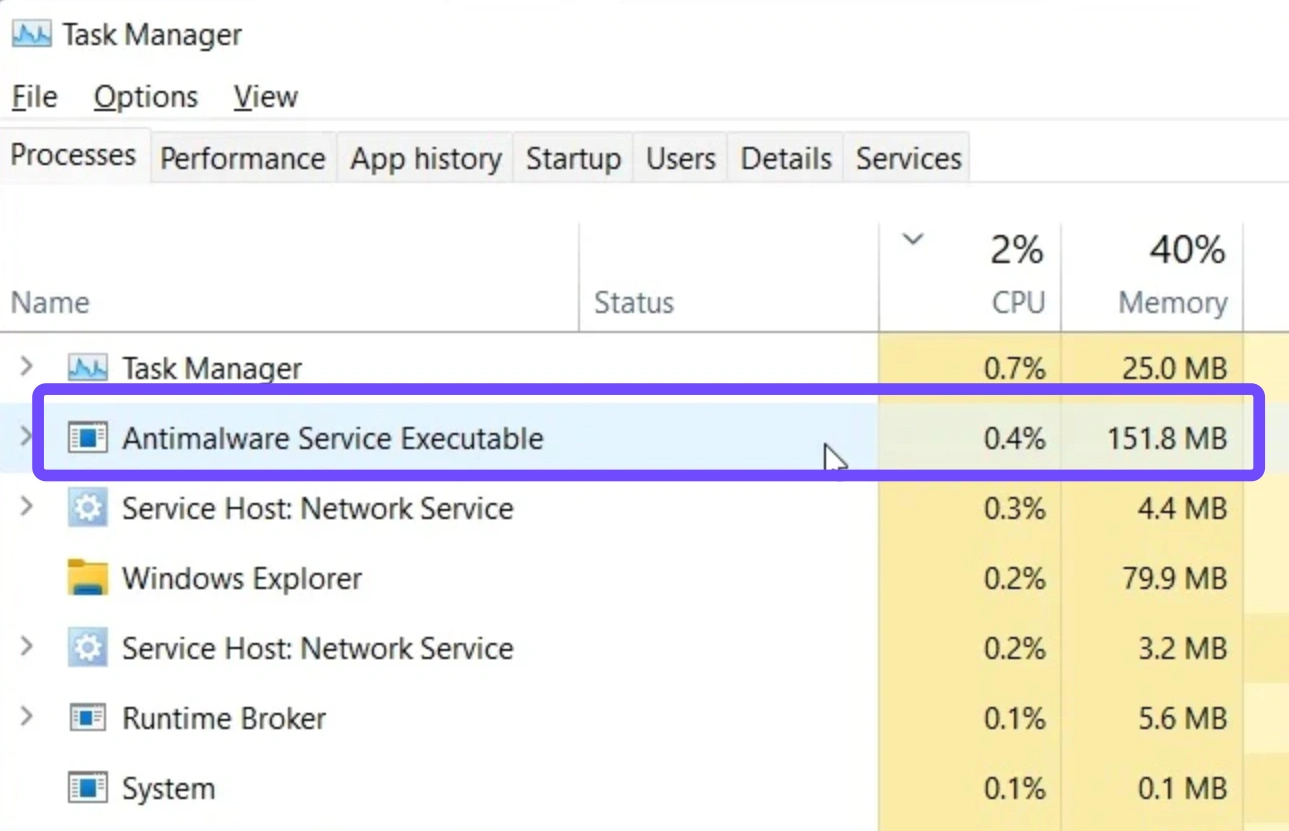
Step 4. Right-click on these specific applications one by one.
Step 5. Select "End Task" to immediately free up your bandwidth and disk usage.
Run Riot Client as Administrator and Set High Priority
Giving the Riot Client elevated permissions ensures Windows isn't restricting its disk write access. Additionally, prioritizing the application forces your system to focus its CPU and network resources on finishing the update.
Step 1. Close the Riot Client completely, making sure it isn't hiding in your system tray at the bottom right.
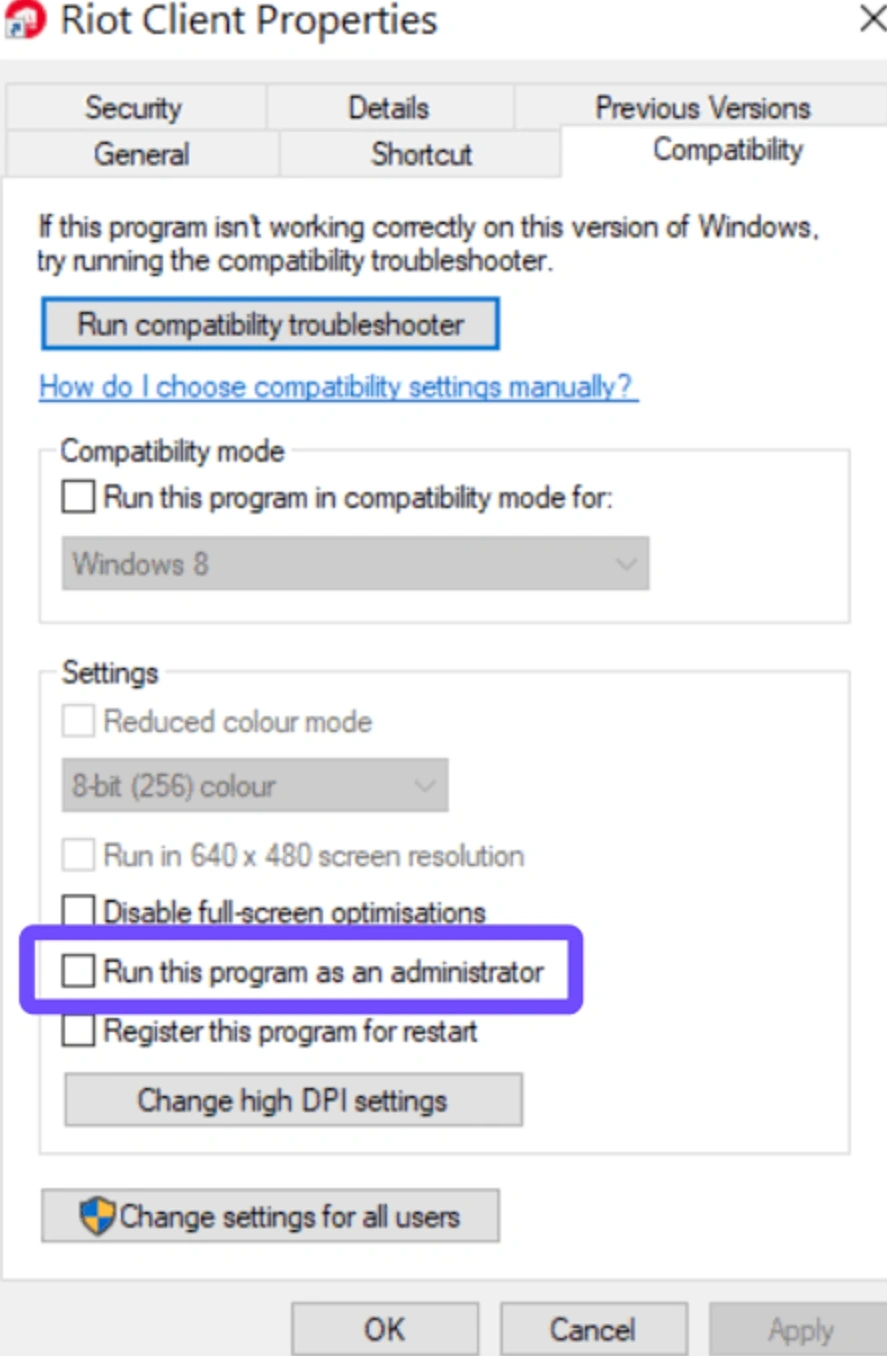
Step 2. Right-click the Riot Client shortcut on your desktop and choose "Properties."
Step 3. Under the Compatibility tab, check the box for "Run this program as an administrator" and click Apply.
Step 4. Launch the client, then open your Task Manager.
Step 5. Go to the Details tab, right-click RiotClientServices.exe, hover over "Set Priority," and select "High".
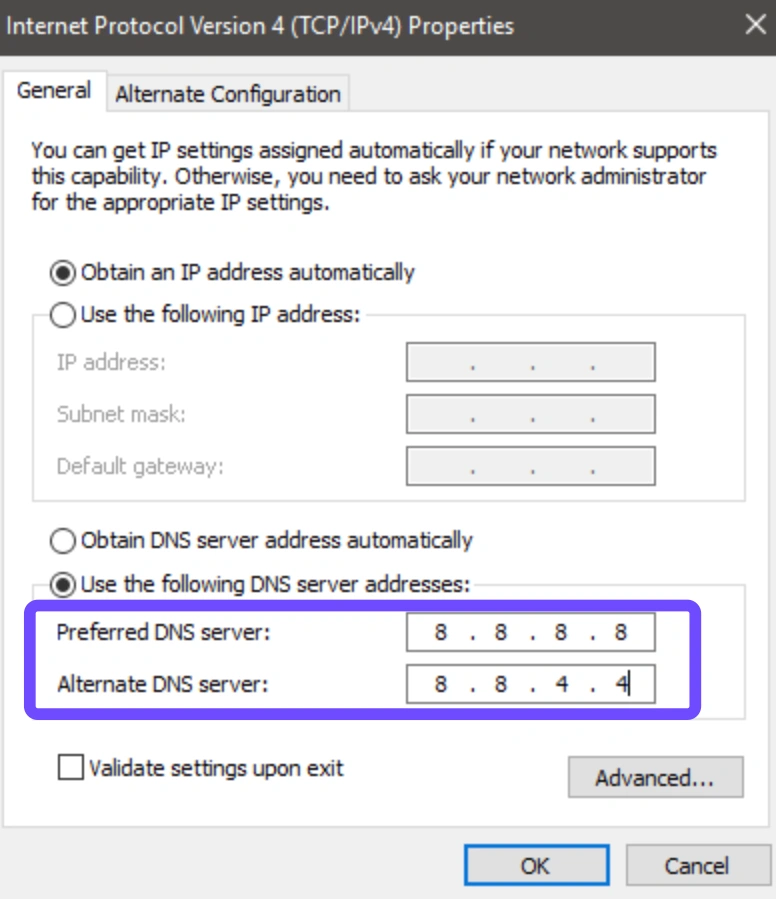
Change Your DNS Settings
Sometimes your default ISP routing is terrible at communicating with Riot's patch servers. Switching your network to use Google or Cloudflare DNS can quickly resolve these connection hangups.
Step 1. Press the Windows key, type "Network Connections," and hit Enter.
Step 2. Right-click your active internet connection (either Wi-Fi or Ethernet) and select "Properties."
Step 3. Scroll down and double-click on "Internet Protocol Version 4 (TCP/IPv4)".
Step 4. Click the bubble that says "Use the following DNS server addresses."
Step 5. Enter 8.8.8.8 for Preferred and 8.8.4.4 for Alternate, then click OK to save.
Allow Valorant Through Windows Defender Firewall
Security software can sometimes flag incoming patch data as suspicious, cutting off the connection halfway and leaving your download completely stranded.
Step 1. Type "Firewall" into the Windows search bar and open "Windows Defender Firewall".
Step 2. Click on the text reading "Allow an app or feature through Windows Defender Firewall" on the left panel.
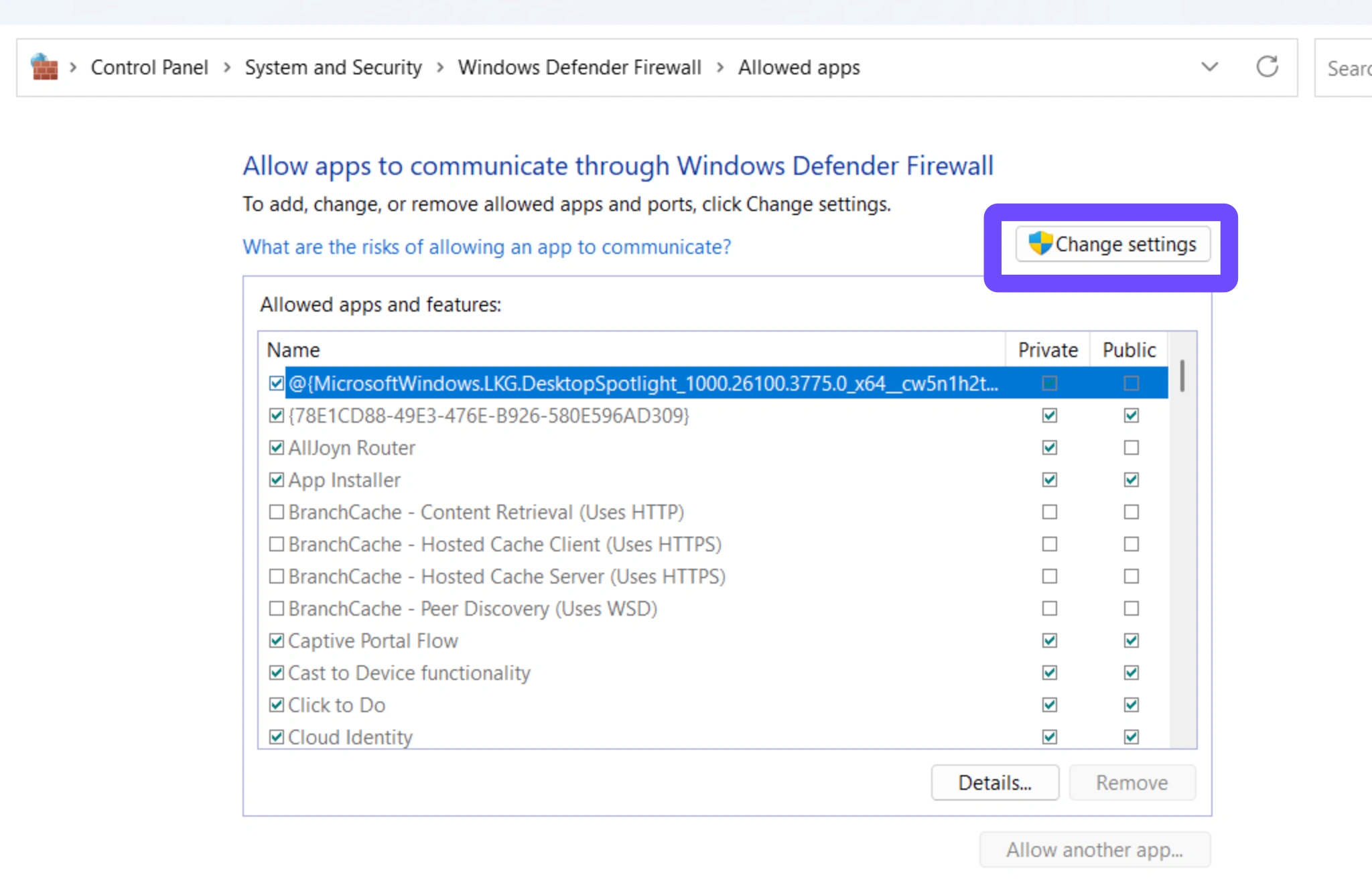
Step 3. Click the "Change settings" button at the top right to unlock the menu.
Step 4. Scroll down the list until you find both the Riot Client and Valorant.
Step 5. Check both the "Private" and "Public" boxes next to them, then click OK.
Reset Network Settings via Command Prompt
If you've tweaked settings in the past or have corrupted network adapters, completely resetting your network configuration provides the clean slate your PC needs.
Step 1. Click the Start menu, type cmd, right-click "Command Prompt", and choose "Run as administrator".
Step 2. Type ipconfig /flushdns and press Enter to clear your DNS cache.
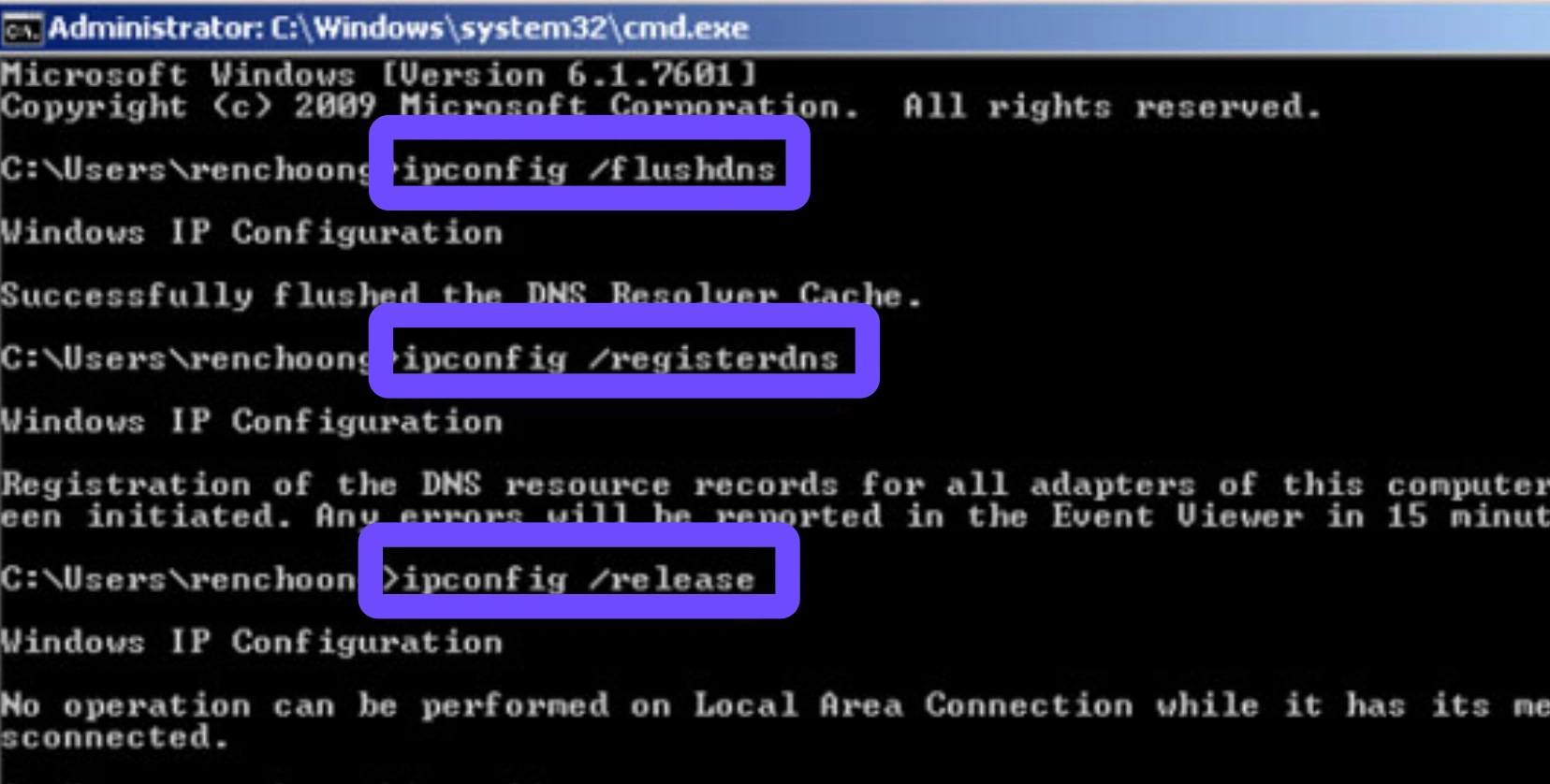
Step 3. Type netsh winsock reset and press Enter to reset the Windows socket API.
Step 4. Type netsh int ip reset and hit Enter to completely reset TCP/IP settings.
Step 5. Restart your computer immediately so Windows can apply these fresh network configurations.
Disable Third-Party Antivirus Temporarily
Overzealous antivirus programs often accidentally block parts of the Riot Vanguard anti-cheat or the game files themselves. This leads to the installer panicking and halting all progress.
Step 1. Locate your antivirus icon (like Avast, Norton, or McAfee) in the system tray at the bottom right.
Step 2. Right-click the icon to open the software's context menu.
Step 3. Look for an option that says "Shields control," "Pause protection," or "Disable."
Step 4. Choose to disable it temporarily (e.g., for 1 hour or until your next restart).
Step 5. Resume your Valorant update; once finished, make sure to re-enable your antivirus immediately.
Delete Riot Vanguard Files
Sometimes, corrupted anti-cheat files prevent the client from finalizing the download. Deleting these specific background services forces the client to pull fresh files.
Step 1. Open the Command Prompt as an administrator using the Windows search bar.
Step 2. Type sc delete vgc and press Enter to remove the first service.
Step 3. Type sc delete vgk and press Enter to remove the second service.
Step 4. Restart your PC to ensure the services are fully terminated by Windows.
Step 5. Open the Riot Client again; it will seamlessly prompt an update to reinstall these Vanguard files properly.
Part 4: Why Can’t I Download a Valorant Update?
If you are pulling your hair out wondering, "Why can't I download a Valorant update at all?" there are often broader issues at play beyond just the visual 0.1 kb/s bug.
- Out of Disk Space: If your SSD or HDD is full, the download will fail to initiate entirely.
Fix: Check your storage settings and delete old games or large video files to clear at least 30-40GB of free space.
- Riot Server Outages: Sometimes the problem genuinely isn't your PC.
Fix: Check the official Riot Games Server Status page or their Twitter account to see if there is ongoing maintenance in your region.
- Corrupted Base Installation: Your base game files might be damaged beyond what a simple patch can fix.
Fix: You may need to bite the bullet, uninstall the game completely through Windows settings, and download a fresh copy.
- Strict ISP Blocking: Certain local networks (like college dorms, office networks, or strict ISPs) block gaming traffic by default.
Fix: Use a gaming booster like LagoFast to mask your traffic and bypass network restrictions.
Part 5: Valorant Update Stuck at 0.1 KB/s FAQs
Is the 0.1 kb/s speed a visual bug?
Sometimes, yes. The client downloads a chunk of data, then the download speed drops to 0.1 kb/s while your computer unpacks and writes those files to your hard drive. You can check your Task Manager's disk activity to verify if your drive is currently working hard.
Why do Valorant updates go so slow even on good Wi-Fi?
Your raw internet speed is only half the battle. If your hard drive write speeds are slow, or if the Riot servers are overloaded during a new Act launch, the download will bottleneck regardless of how fast your Wi-Fi is.
Does pausing and unpausing the download actually work?
Yes, frequently. Pausing and restarting the download soft-resets the connection to the patch server. It forces the client to find a new, potentially less congested routing path to grab the remaining files.
How to Fix Valorant Downloading Stuck on 0.1KB/s permanently?
There is no single permanent fix because updates depend on many changing variables. However, keeping your network drivers updated, allowing the app through your firewall, and running a dedicated booster like LagoFast provides the most consistent long-term stability.
Why does my update jump from 80mb/s down to 0.1kb/s?
This frustrating fluctuation happens because the Riot Client handles updates in batches. It quickly downloads a batch at 80mb/s, then intentionally halts the network download (dropping to 0.1kb/s) to extract and install that batch on your drive before grabbing the next one.
Will buying a new SSD fix the stuck update issue?
If you are currently installing the game on an old, fragmented mechanical hard drive (HDD), upgrading to a fast NVMe SSD will drastically reduce the time the client spends stuck at 0.1kb/s while writing unpacked data.
Conclusion
Staring at a frozen progress bar is the last thing you want when you just want to queue up for a match with your friends. By adjusting your network settings, closing hidden background apps, or leveraging LagoFast to automatically optimize your connection, you can easily bypass the 0.1 KB/s error and get back into the game smoothly.
Boost Your Game with LagoFast for Epic Speed
Play harder, faster. LagoFast game booster eliminates stutter and lags on PC, mobile, or Mac—win every match!
Quickly Reduce Game Lag and Ping!
Boost FPS for Smoother Gameplay!