
Every new competitive update brings fresh meta shifts, map tweaks, and agent balance changes. However, major patches can also introduce unexpected performance bottlenecks, anti-cheat disconnects, and graphics bugs. If you are experiencing unexpected lag spikes, crash codes, or frame drops right after updating, you are not alone. This guide details all Valorant Patch 13.01 known issues, explains why they occur, and provides tested manual and automated fixes to restore smooth gameplay.

- ✅ Reduce Lag and High Ping.
✅ Boost FPS at the Same Time.
✅ Support 3000+ Popular Online Games.
✅ Change Server without Latency.
✅ Boost Game Loading Speed.
Part 1: Valorant Patch 13.01 Known Issues at a Glance
Part 2: Official Valorant Patch 13.01 Known Issues
Part 3: Valorant FPS Drops and Low Client FPS After Patch 13.01
Part 4: Valorant VAL 5 and VAN 185 After Patch 13.01
Part 5: Valorant Error Code -102 After the Update
Part 6: Valorant True Stretched Not Working After Patch 13.01
Part 7: Valorant Resolution and Display Settings Reset After the Update
Part 8: Valorant Stuttering, Desync, and Network Problems After 13.01
Part 9: Valorant Patch 13.01 Agent and Map Bugs
Part 10: General Fixes for Valorant Problems After Patch 13.01
Part 11: How to Check Whether Riot Has Fixed a Patch 13.01 Issue
Part 12: Valorant Patch 13.01 Known Issues FAQs
Part 1: Valorant Patch 13.01 Known Issues at a Glance
A fresh update frequently brings a mix of server-side glitches, client configuration resets, and Vanguard compatibility bugs. Players across various regions have reported performance drops alongside specific agent indicator failures shortly after patching. Understanding whether an issue stems from official server code or client-side settings helps determine the right fix.
Riot-Confirmed Issues
Riot Games has officially acknowledged visual indicator bugs tied to specific agent abilities in Patch 13.01, most notably missing target reticles during tactical placement. Additionally, minor UI overlap issues in the pre-game lobby and match-history display glitches have been logged on the official server status page.
Player-Reported Issues
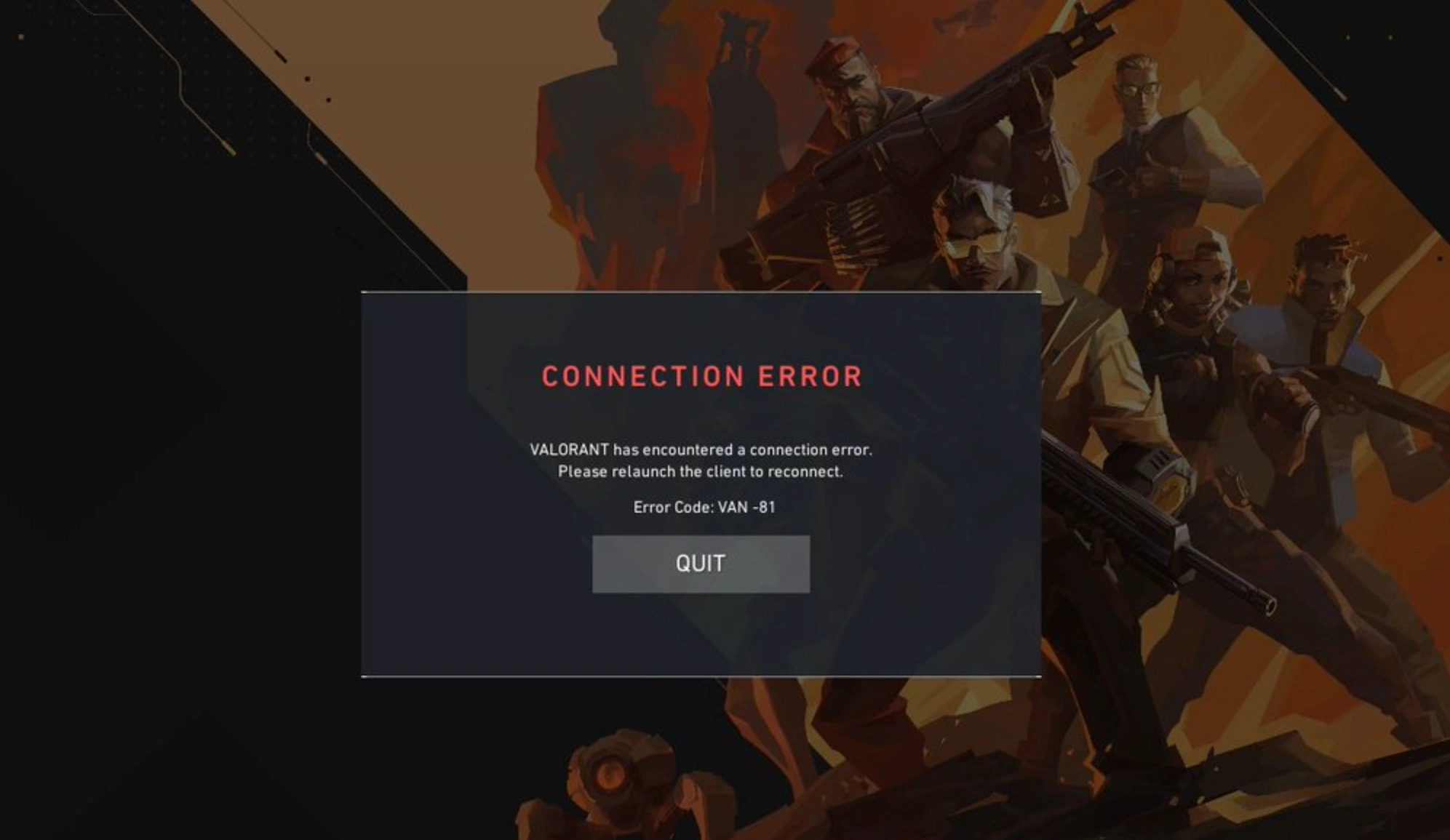
Beyond official acknowledgments, players have filled community forums reporting Valorant issues after Patch 13.01. The most common include sudden FPS drops, micro-stuttering during firefights, resolution lockups, and anti-cheat session disconnects such as VAL 5, VAN 185, and Error -102.
Issues That Have Already Been Fixed
Hotfixes released shortly after launch resolved minor shop purchase timeouts, lobby invite failures, and a bug where player rank badges occasionally displayed as blank in the post-match summary screen.
Issues Still Waiting for a Riot Fix
Riot is still actively investigating deeper issues, including client-side frame-time spikes when casting heavy particle abilities, true stretched resolution overrides, and intermittent Vanguard service interruptions.
Part 2: Official Valorant Patch 13.01 Known Issues
The primary acknowledged bug in this update directly impacts controller players who rely on precise ability placement during site executes and defensive holds.
Omen Shrouded Step Obstructed Placement Indicator Is Missing
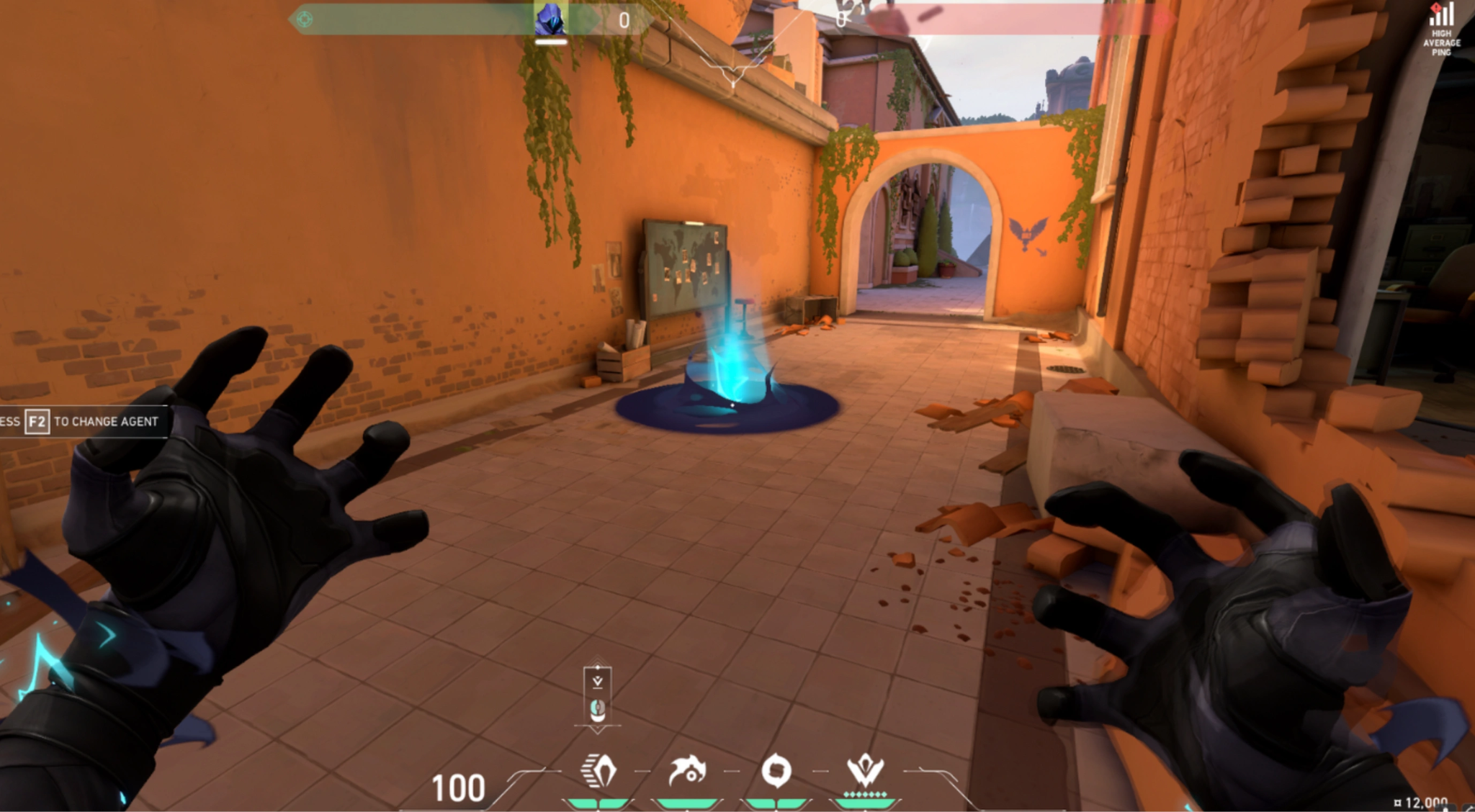
One major headache in this update is that the Valorant Omen Shrouded Step indicator missing bug prevents players from seeing where their teleport will land when aiming near elevated ledges or tight geometry. Instead of displaying a clear red or green target ring, the marker turns invisible or clips into walls, causing accidental misplacement during crucial rounds.
Is There a Temporary Workaround?
While waiting for a permanent hotfix, players can bypass the issue by switching to Omen's alternate target view in the settings or aiming slightly above intended ledges rather than directly at the surface edge. Resetting keybinds for tactical abilities can also help restore visual indicators in some matches.
When Could Riot Fix the Omen Issue?
Riot's developer team typically rolls out micro-patches or server-side hotfixes within three to five business days for high-impact agent bugs. You can monitor the official Riot Games Support Twitter/X account or in-game client alerts for confirmation.
Part 3: Valorant FPS Drops and Low Client FPS After Patch 13.01
Hardware optimization can shift after a patch, causing framerate fluctuations even on high-end gaming rigs. Valorant 13.01 bugs related to CPU thread distribution have left many players struggling with inconsistent performance.
Sudden FPS Drops During Matches
Many players report severe Valorant FPS drops after 13.01, where framerates suddenly plunge from 240+ FPS down to sub-60 levels during chaotic gunfights. These drops are frequently tied to asset loading glitches or background memory leaks introduced in the latest update.
Low Client FPS Warning After the Update
Receiving a Valorant low client FPS after update warning message usually signals that background processes, overlays, or corrupted shader caches are hogging system resources. This alert pops up when the game client detects a sudden disparity between your monitor's refresh rate and actual frame output.
Microstutters and Unstable Frame Times
Even if your average framerate appears high on paper, Valorant microstutters after update can cause severe screen tearing and hitching. Unstable frame times make enemy movement look choppy, severely ruining crosshair placement and reaction timing.
FPS Drops When Abilities Are Used
When multiple ultimate abilities or smoke screens trigger simultaneously (e.g., Viper pits, Brimstone orbital strikes, or Fade ultimates), frame rates can collapse. This occurs when local shader compilation struggles to process updated visual assets in real time.
How to Fix Valorant FPS Drops After Patch 13.01
LagoFast Game Booster
When manual tweaks fail to solve persistent framerate dips and network jitter, dedicated optimization tools offer an easy all-in-one fix. LagoFast is a specialized gaming VPN and system optimization tool designed to stabilize frame rates and lower ping in competitive titles like Valorant.
Key Features of LagoFast:
- Smart Routing Engine: Automatically routes your game traffic through ultra-fast dedicated paths to eliminate packet loss and jitter.
- FPS Boost Technology: Closes unnecessary background services, optimizes CPU core allocation, and clears RAM with a single click.
- Custom Multipath Connection: Prevents sudden mid-match disconnections by maintaining simultaneous backup connections to Riot servers.
- Easy-to-Use Interface: Quick one-click boost functionality without requiring complex manual network configurations.
Tutorial to Use LagoFast to Fix Valorant FPS Drops:
Step 1: Click the Free Trial button to download and install LagoFast.
Step 2: Open LagoFast, then click the PC button on the left, search for Valorant in the search bar, and click it after it appears.
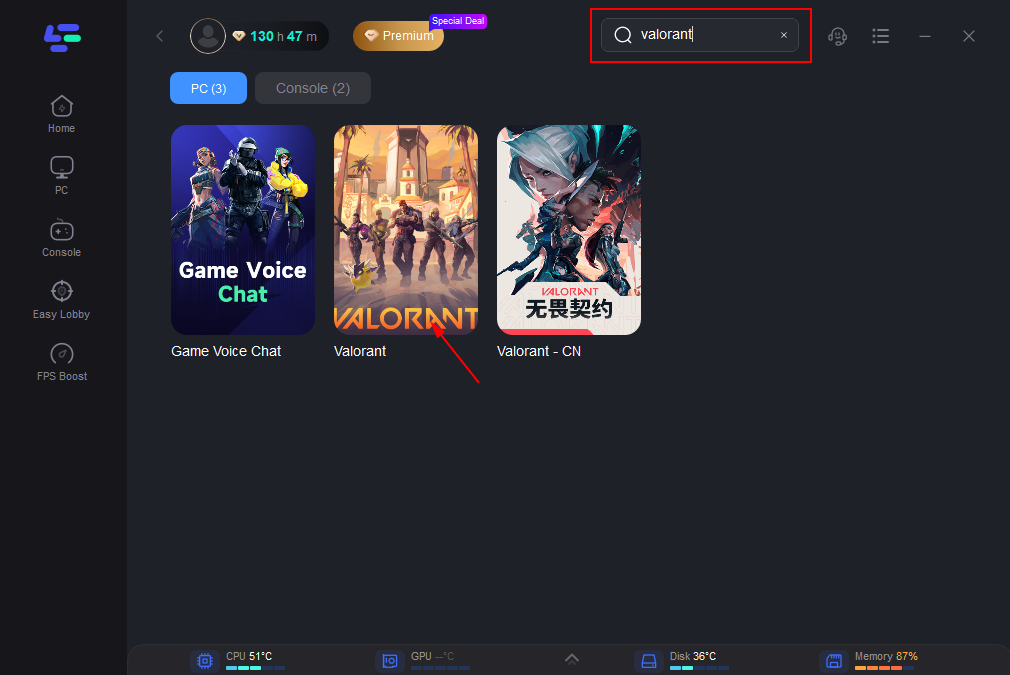
Step 3: Click the FPS Unlocker Tool on the right to boost FPS.
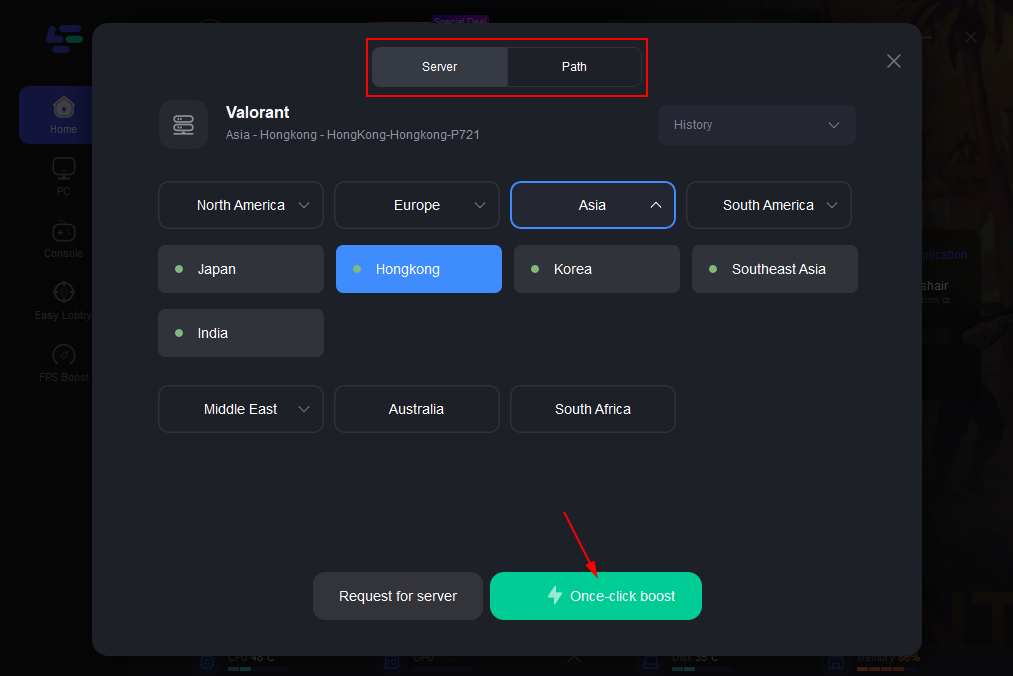
Step 4: Click on “Server” to change to a better server that ensures a better gaming experience, then click on “Smart Boost” to fix Valorant lag and stuttering.
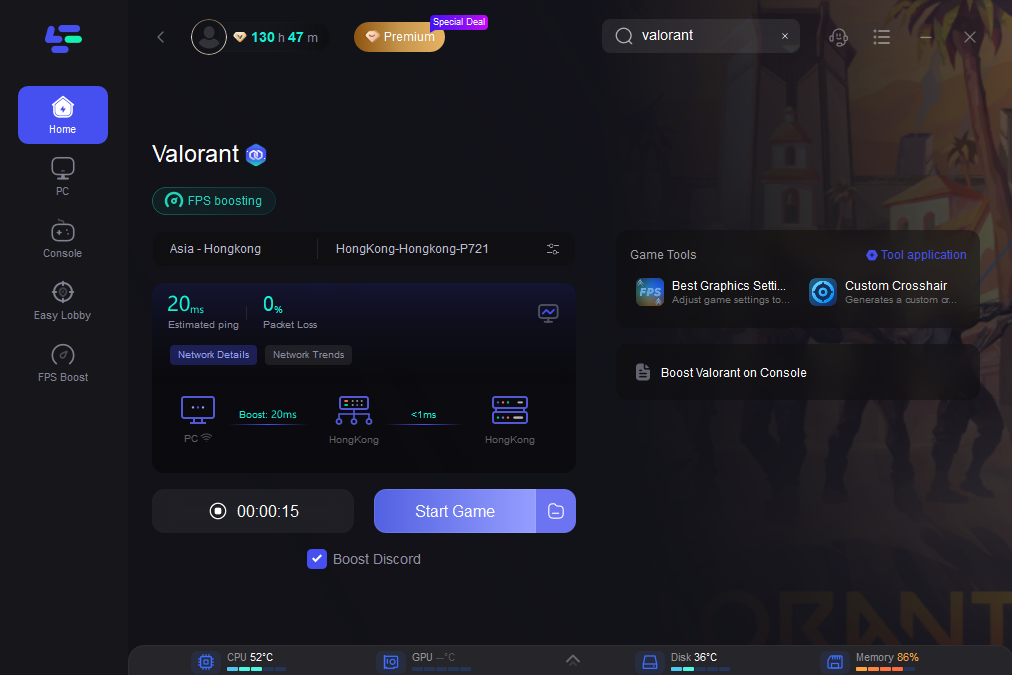
Step 5: Check the specific game ping, packet loss, and multiple path connections on the right side. Finally, click “Start Game” to play the game.
Manual Method A: Clear Shader Cache & Rebuild Configuration
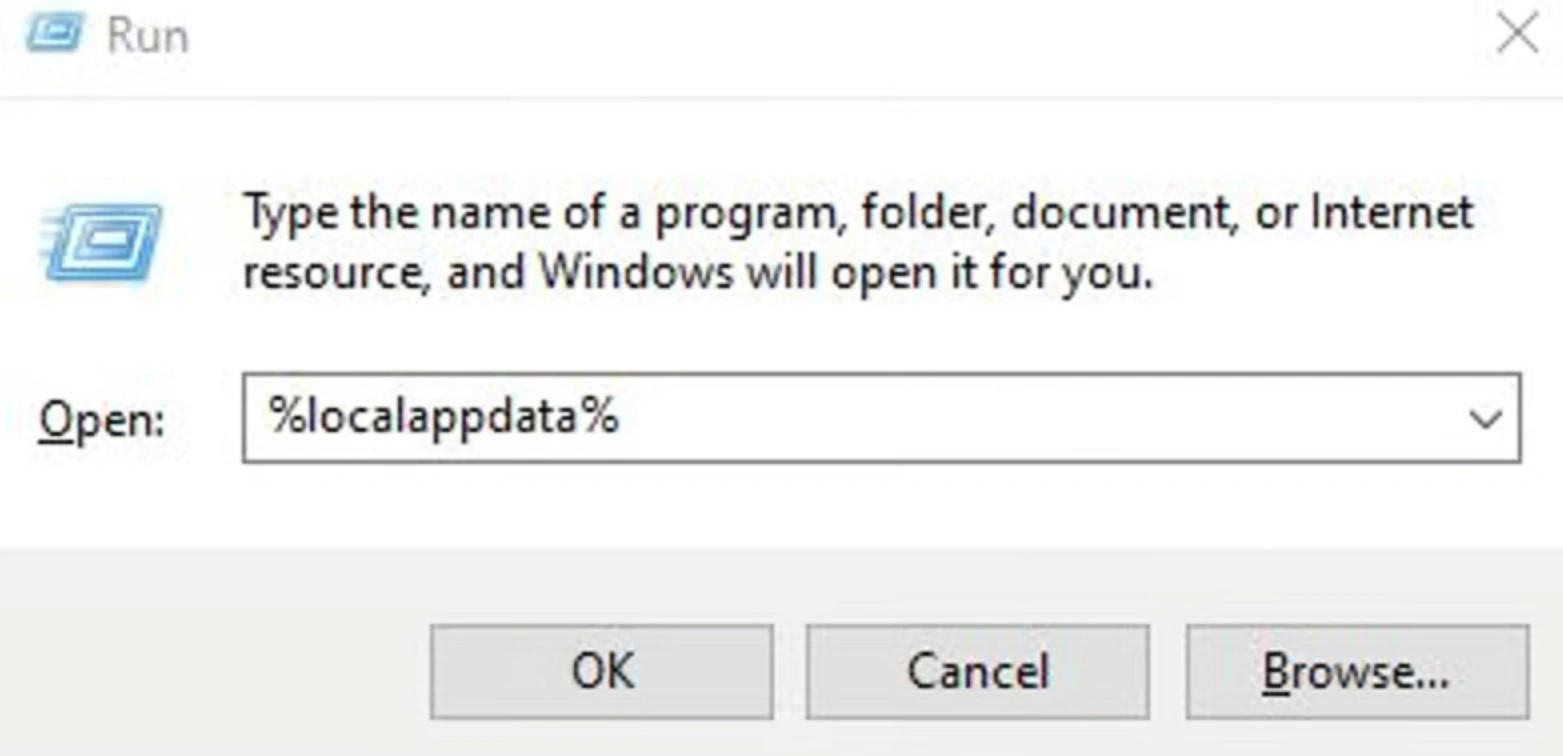
Step 1: Press Win + R to open the Run dialogue box.
Step 2: Type %localappdata% and hit Enter to open your local app folder.
Step 3: Navigate to VALORANT, select Saved, and locate the D3DDriverByteCode or Config folder.
Step 4: Delete the contents of these folders to clear old pre-compiled shaders.
Step 5: Relaunch Valorant to allow the game to rebuild fresh shader configurations.
Manual Method B: Configure High Performance GPU & Threaded Optimization
Step 1: Right-click your desktop and open NVIDIA Control Panel (or AMD Radeon Software).
Step 2: Go to Manage 3D Settings, select Program Settings, and select Valorant.
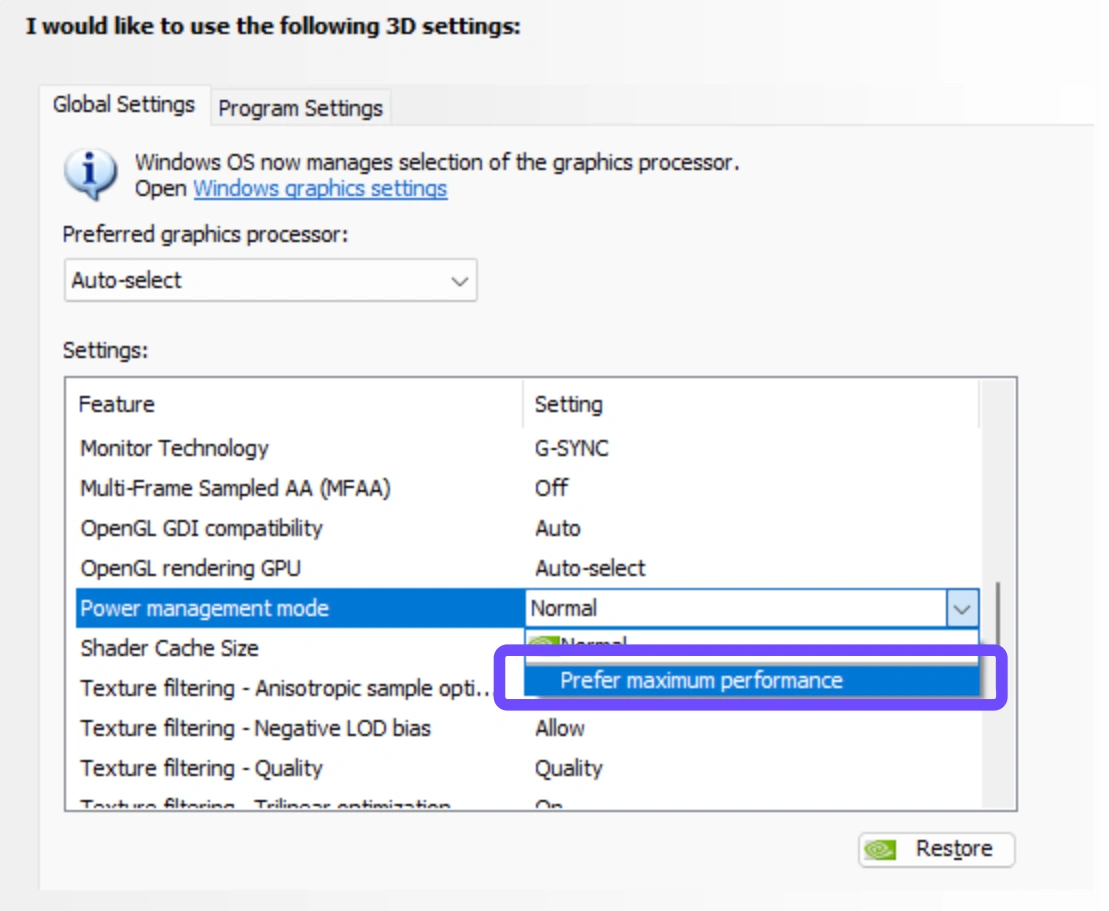
Step 3: Set Power Management Mode to Prefer Maximum Performance.
Step 4: Enable Threaded Optimization to ensure full CPU core utilization.
Step 5: Apply changes and restart your PC before launching the game.
Part 4: Valorant VAL 5 and VAN 185 After Patch 13.01
Session errors and anti-cheat mismatches often spike following a major client update. These codes indicate communication disruptions between Riot Vanguard and the authorization servers.
Mid-Game Disconnects and Match Kicks
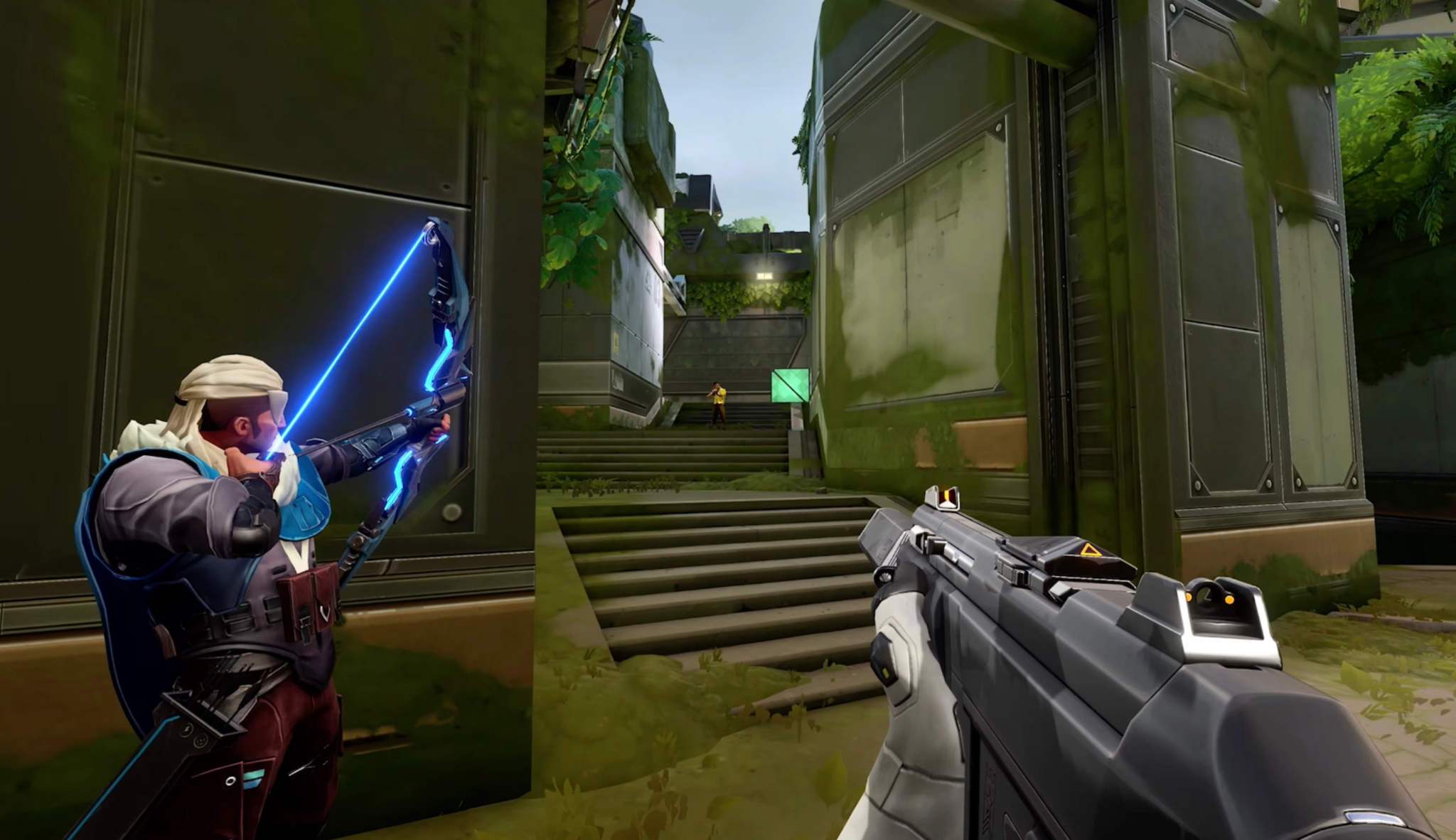
Experiencing Valorant VAL 5 after Patch 13.01 usually means your account was logged in elsewhere or your current connection session timed out. Getting booted mid-match not only costs rank points but can also result in temporary AFK penalties.
VGC Service Stopping During Matches
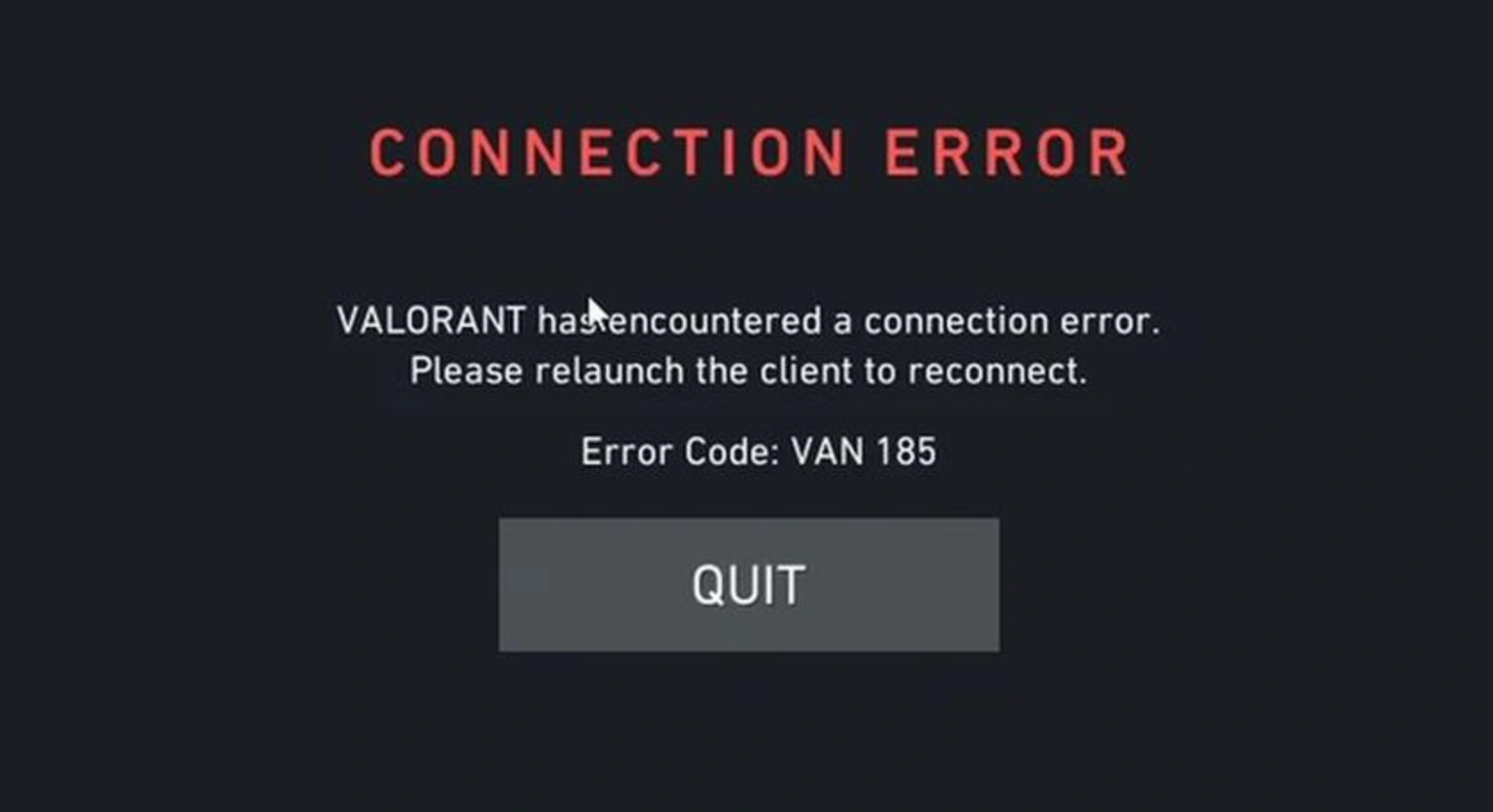
When the Valorant VGC service keeps stopping in the background, Vanguard instantly cuts your connection to prevent potential cheat exploits. If this service terminates unexpectedly, you will be booted back to desktop with a VAN 185 error code.
Riot Client and Vanguard Session Problems
A corrupted update installation can cause authentication loops where the Riot Client believes Vanguard is active, but the game server fails to verify the handshake.
How to Fix VAL 5 and VAN 185
To resolve Valorant VAN 185 after Patch 13.01 and VAL 5 errors:
Step 1. Open the Services application by pressing Win + R, typing services.msc, and pressing Enter.
Step 2. Locate vgc in the list, right-click it, and select Properties.
Step 3. Change the Startup type to Automatic.
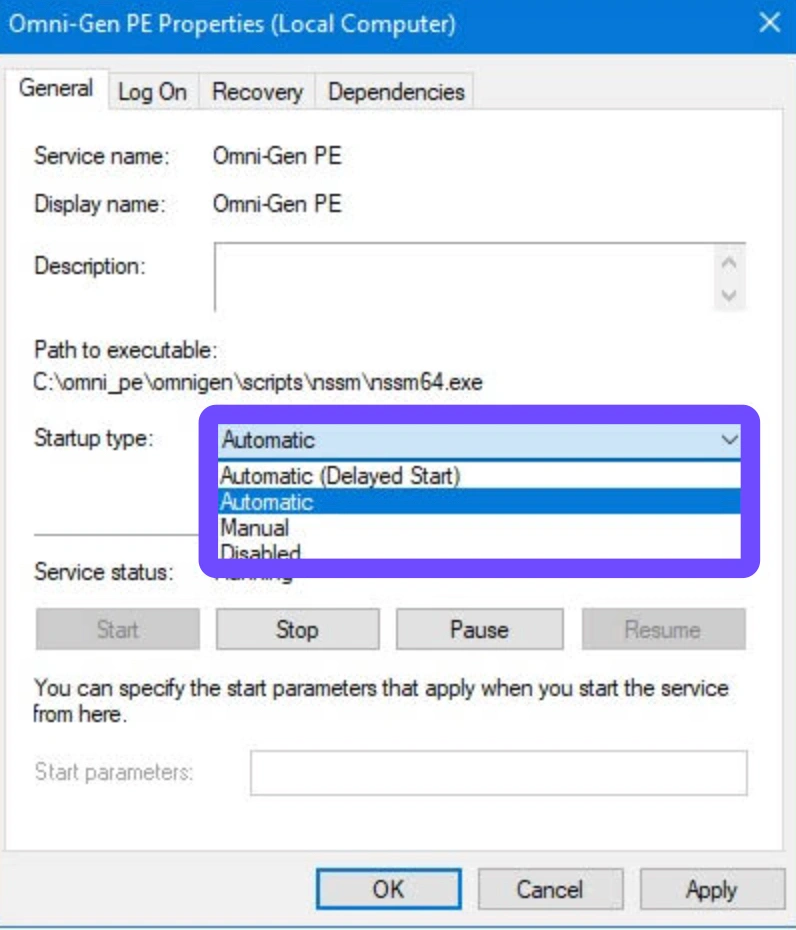
Step 4. Click Start if the service is stopped, then click Apply and OK.
Step 5. Restart your computer so Vanguard can initialize properly upon boot.
Part 5: Valorant Error Code -102 After the Update
Error -102 points toward launch or connectivity failures specifically tied to client background communication issues.
Crashing and Disconnecting with Error -102
Facing Valorant error -102 after update prevents players from reaching the main menu or drops them repeatedly during loading screens. It highlights a breakdown in communication between the local game client and Riot content delivery networks.
Third-Party Software and Vanguard Warnings
Antivirus suites, custom firewalls, or aggressive background monitoring tools can mistakenly block Valorant's network ports post-update, triggering this crash code.
How to Fix Valorant Error Code -102
Step 1: Close Valorant and terminate all Riot processes via Task Manager.
Step 2: Open Windows Security and select Firewall & Network Protection.
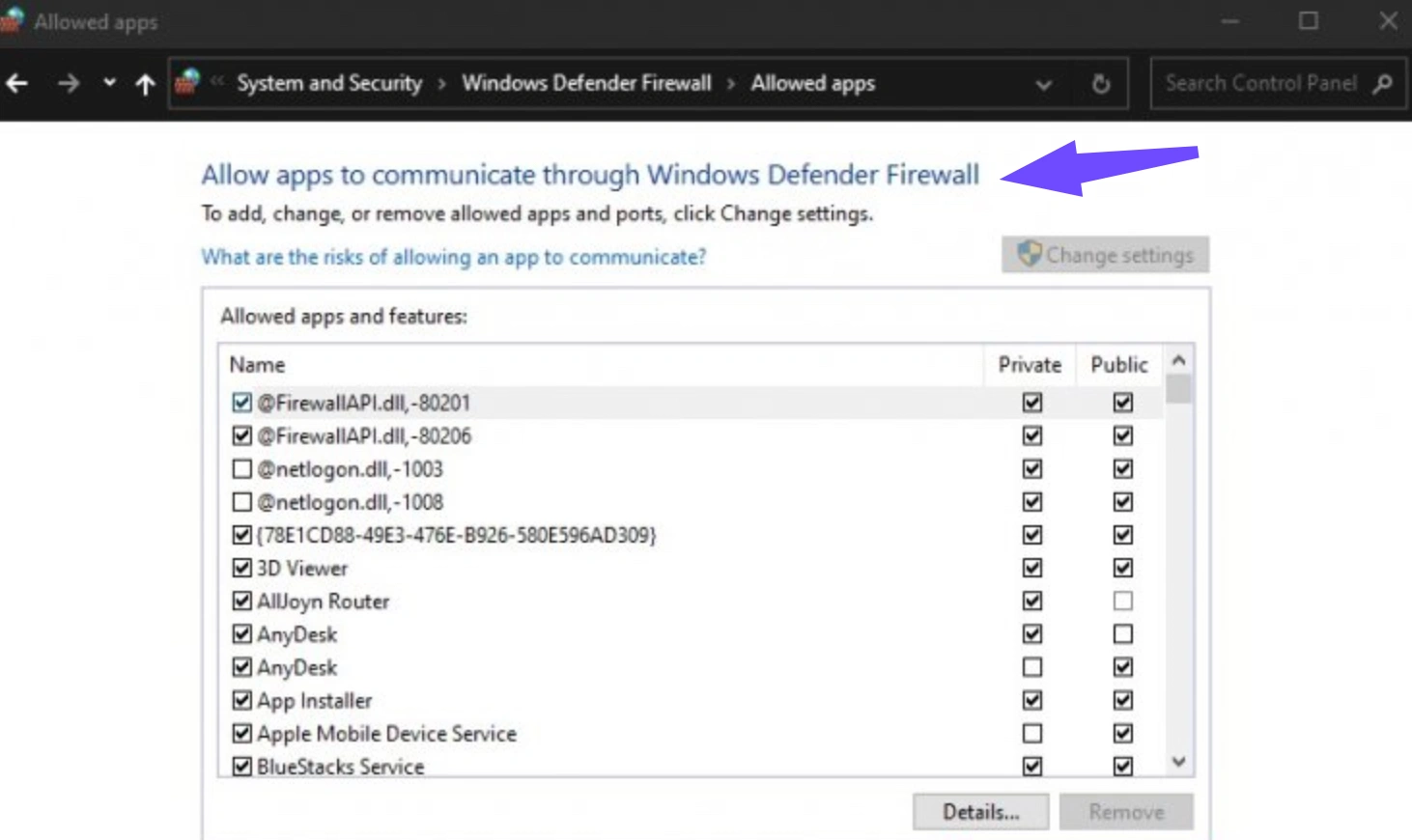
Step 3: Click Allow an app through firewall and locate VALORANT-Win64-Shipping.exe and RiotClientServices.exe.
Step 4: Ensure both Private and Public checkboxes are selected.
Step 5: Launch the Riot Client as Administrator and run the game.
Part 6: Valorant True Stretched Not Working After Patch 13.01
Custom display configurations are popular among competitive FPS players looking for larger target models, but patches frequently break these custom workarounds.
GameUserSettings.ini Changes No Longer Working
If Valorant true stretched is not working after 13.01, it is likely because Riot's updated client integrity check automatically overwrites modified configuration files back to default aspect ratios.
Valorant Launching in Windowed Mode
Attempting to force non-native resolutions often forces the client into windowed mode or causes ugly black sidebars, making competitive play frustrating.
Did Riot Patch True Stretched Resolution?
Riot continuously updates its display engine to maintain competitive integrity, meaning third-party stretch utilities often break whenever display parameters are updated.
Available True Stretched Workarounds
Players can still achieve custom aspect ratios by creating custom resolutions directly within the NVIDIA Control Panel or AMD Radeon Software, setting GPU Scaling to Full Screen, and ensuring scaling is performed on the Display rather than the GPU.
Part 7: Valorant Resolution and Display Settings Reset After the Update
Display driver handshakes can fail during patch installations, reverting user preferences back to baseline settings.
Fullscreen Changed to Windowed Mode
When Valorant resolution is not working after the update, the game frequently reverts to Windowed or Windowed Fullscreen, introducing input lag.
Step 1: Press Alt + Enter while in-game to force Fullscreen mode.
Step 2: Open Settings and select Video, then select General.
Step 3: Set Display Mode strictly to Fullscreen.
Step 4: Select your monitor's native resolution and click Apply.
Step 5: Restart the game to save display preferences.
Custom Resolution No Longer Appears
Step 1: Open NVIDIA Control Panel and select Change Resolution.
Step 2: Click Customize and enable custom resolutions.
Step 3: Create your desired resolution (e.g., 1440x1080).
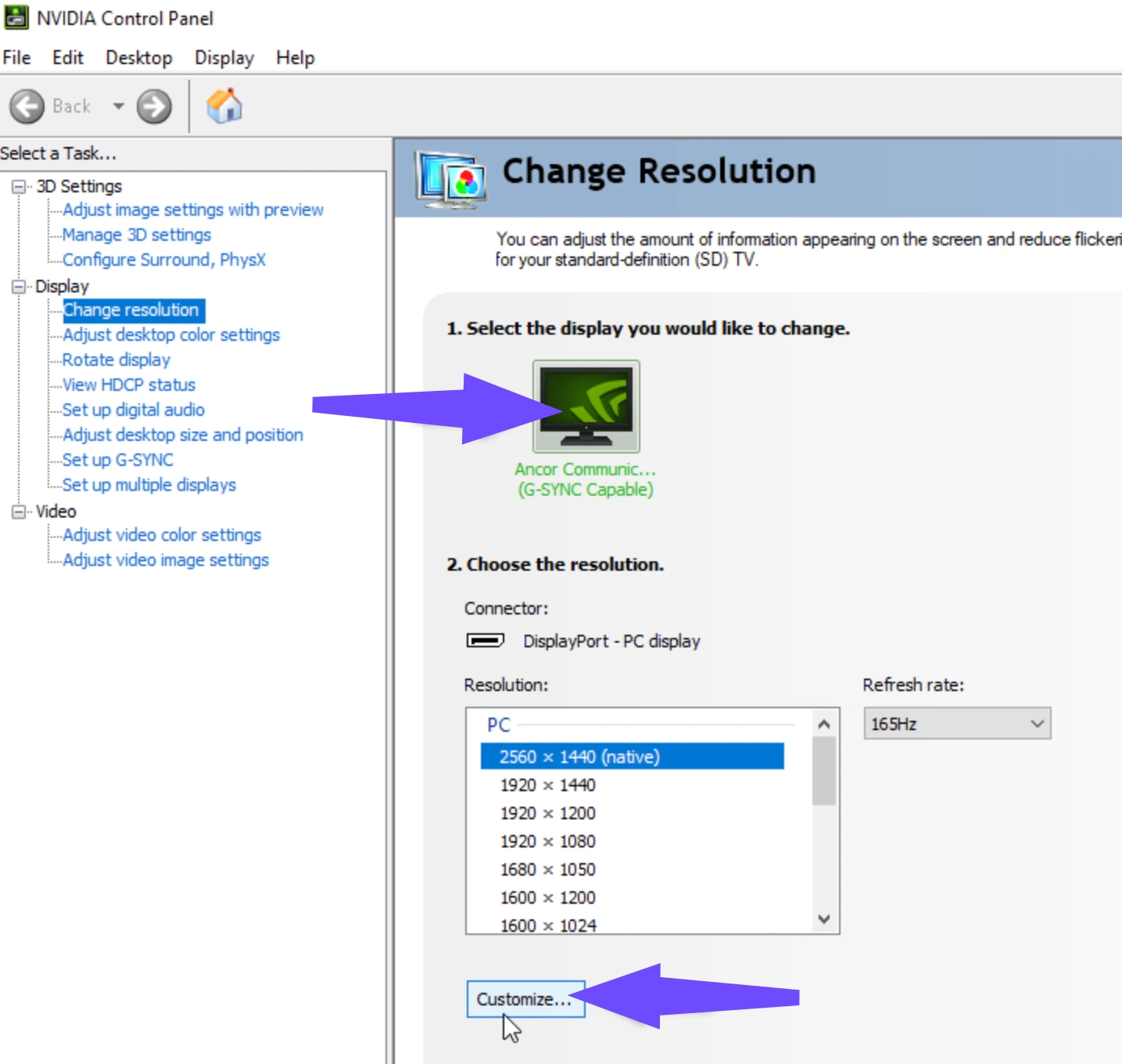
Step 4: Set Desktop Scaling to Full Screen.
Step 5: Relaunch Valorant and select the custom option under Video settings.
Graphics Settings Keep Resetting
Step 1: Navigate to %localappdata%\VALORANT\Saved\Config.
Step 2: Locate your user profile folder and open the Windows subfolder.
Step 3: Right-click GameUserSettings.ini and select Properties.
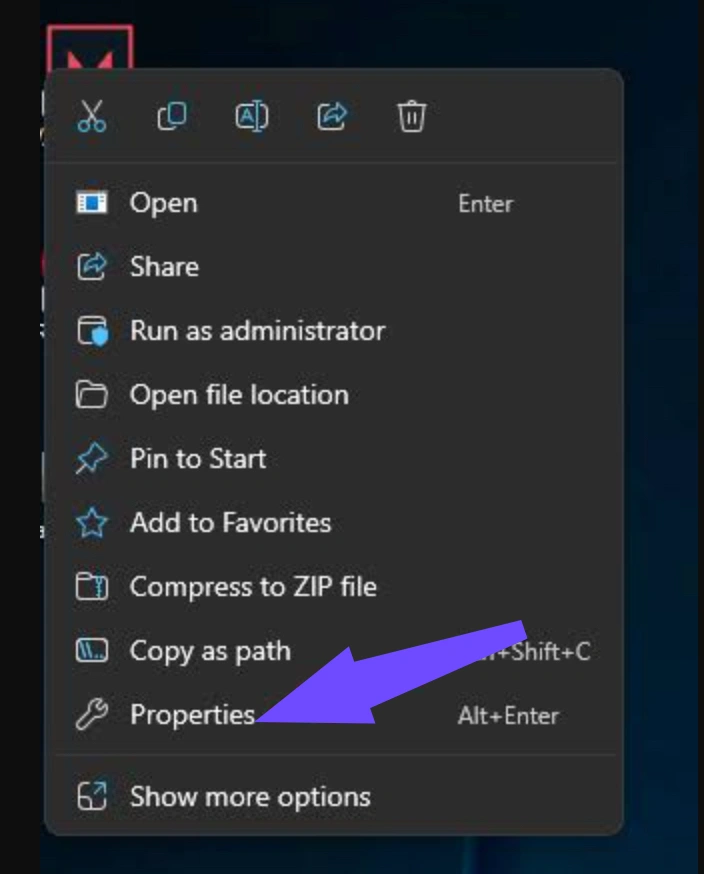
Step 4: Uncheck the Read-only box if it is selected, then click Apply.
Step 5: Save your in-game graphics settings again to overwrite the file properly.
Part 8: Valorant Stuttering, Desync, and Network Problems After 13.01
Network instability often accompanies client updates when regional routing paths become congested. Experiencing Valorant stuttering after Patch 13.01 or Valorant desync after Patch 13.01 means your inputs reach the server out of order, leading to hit registration delays and rubberbanding.
If you notice Valorant disconnecting after Patch 13.01, running a network optimization tool like LagoFast helps re-route your connection through stable, low-latency nodes, bypassing ISP throttling and unstable sub-tick packet paths.
Part 9: Valorant Patch 13.01 Agent and Map Bugs
Aside from Omen's placement glitch, other minor agent interactions have surfaced across various maps. Cypher tripwires occasionally fail to attach to specific textured walls on Lotus, while Killjoy's Nanoswarm audio cue sometimes plays at reduced volume on Sunset. Reporting these Valorant Patch 13.01 problems via official Riot tickets speeds up dedicated hotfixes.
Part 10: General Fixes for Valorant Problems After Patch 13.01
If you encounter general instability, running through these standard troubleshooting steps will solve most common software conflicts.
Restart Valorant and Riot Client
Step 1: Press Ctrl + Shift + Esc to open Task Manager.
Step 2: End all tasks related to Riot Client and VALORANT.
Step 3: Relaunch the Riot Client as Administrator.
Restart the VGC Service
Step 1: Open cmd as Administrator.
Step 2: Type net stop vgc and press Enter.
Step 3: Type net start vgc and press Enter to reset Vanguard manually.
Repair Valorant Game Files
Step 1: Open the Riot Client.
Step 2: Click your profile icon in the top right and select Settings.
Step 3: Select VALORANT and click the Repair button.
Reinstall Riot Vanguard
Step 1: Go to Windows Settings, select Apps, and select Installed Apps.
Step 2: Search for Riot Vanguard and click Uninstall.
Step 3: Launch Valorant to automatically trigger a fresh Vanguard reinstall.
Clear Riot Client Cache
Step 1: Open Run (Win + R) and enter %localappdata%.
Step 2: Delete the Riot Games folder.
Step 3: Restart the Riot Client.
Update or Roll Back the GPU Driver
Step 1: Check your GPU software (NVIDIA GeForce Experience or AMD Adrenalin).
Step 2: Update to the latest game-ready driver.
Step 3: If issues began immediately after driver updates, use Device Manager to roll back to the previous stable build.
Disable Conflicting Overlays and Background Applications
Step 1: Open settings in Discord, GeForce Experience, and Overwolf.
Step 2: Disable in-game overlay features.
Step 3: Close unnecessary background apps like MSI Afterburner or Rivatuner.
Reinstall Valorant as a Last Resort
Step 1: Uninstall Valorant through Windows App Settings.
Step 2: Delete remaining game folders in C:\Riot Games.
Step 3: Download a fresh installer from the official website and reinstall.
Part 11: How to Check Whether Riot Has Fixed a Patch 13.01 Issue
Before you spend hours tweaking PC settings and reinstalling drivers, it is smart to check if the problem you are experiencing is actually on Riot's end. Here is how you can track real-time developer updates and bug resolutions:
- Official Valorant Patch Notes Article: Always check the bottom of the official bi-weekly patch notes blog post on the game's website. Riot actively lists confirmed, high-priority bugs under the dedicated "Known Issues" header.
- The Official Riot Games Trello Board: The community dev team maintains a public "Valorant Community Bug Board" on Trello. Here, you can see live cards for bugs that are currently "Under Investigation," "Fix In Progress," or "Fixed in Next Patch."
- Valorant Status Twitter / X Account: Follow @VALORANTStatus on X (formerly Twitter). The support team broadcasts immediate alerts here whenever they deploy emergency hotfixes or disable agents/maps due to game-breaking exploits.
- Reddit Bug Megathreads: Visit the /r/VALORANT subreddit after any update drops and check the pinned "Bug Megathread". If hundreds of other players are upvoting the exact same error code or FPS stutter you are experiencing, you can rest easy knowing it is a client-side patch issue that Riot will have to fix on their servers.
Part 12: Valorant Patch 13.01 Known Issues FAQs
Why is my FPS so much lower after Patch 13.01?
Post-patch FPS drops are usually caused by unoptimized client updates, shader cache conflicts, or recent Windows 11 background updates (like KB5101650) clashing with Riot Vanguard. Clearing your DirectX shader cache, disabling fullscreen optimizations, and using LagoFast Game Booster to free up system resources can restore your missing frames.
How do I fix error code VAL 5 or VAN 185 instantly?
These error codes indicate that the Riot Vanguard anti-cheat service (vgc) has stopped communicating with the authentication servers. To fix it, open Windows Services (services.msc), locate vgc, set its startup type to Automatic, manually start the service, and restart your PC.
Is True Stretched resolution permanently banned in Valorant?
While Riot Games does not officially support 3D field-of-view stretching for competitive fairness reasons, custom resolutions modified via GameUserSettings.ini often break inadvertently after Unreal Engine client updates. You can usually restore custom aspect ratios by forcing full-screen GPU scaling in your Nvidia or AMD control panels and setting your config file to Read-Only.
What should I do if my game keeps crashing with Error -102?
Error code -102 is a network initialization failure. Make sure to close third-party hardware monitoring software (like MSI Afterburner or RTSS), allow Valorant and Vanguard through your Windows Defender Firewall, and switch your network DNS to Cloudflare (1.1.1.1) or Google (8.8.8.8) to establish a clean server connection.
Why is my Valorant Patch 13.01 update stuck on "Initializing" or failing to download?
Run the Riot Client as an administrator to fix Windows permission blocks that freeze downloads. If the progress bar remains stuck, enable LagoFast Game Booster before opening the client to bypass ISP routing congestion and stabilize your download from Riot's servers.
How do I fix "A Critical Error Has Occurred" or missing DLL files after updating?
Open the Riot Client settings, select VALORANT, and click Repair to automatically scan and replace corrupted patch archives. For instant system-level troubleshooting, use LagoFast’s integrated Game Crash Fix tool to resolve missing DLLs and startup conflicts with a single click.
Conclusion
While technical hiccups like FPS drops, visual ability bugs, and network disconnects can interrupt your competitive climb after Patch 13.01, most issues are easily fixable. By utilizing manual file cleanup or a game booster like LagoFast, you can eliminate stuttering and get right back to climbing the ranks smoothly.
Boost Your Game with LagoFast for Epic Speed
Play harder, faster. LagoFast game booster eliminates stutter and lags on PC, mobile, or Mac—win every match!
Quickly Reduce Game Lag and Ping!
Boost FPS for Smoother Gameplay!